Categories
Chipset Comparison Featured

Qualcomm Snapdragon 778G Vs MediaTek Dimensity 930 Chipset: Battle Of Premium Mid-Range Mobile Processors

Smartphones are all evolved today with brands implementing the best technologies in their new product lineups. Most smartphone OEMs are using a modern range of hardware for a boosted experience with photography, media playback, gaming, and web surfing. Users have a wide range of options to select if they step out to buy a new phone; specifically, Android.

And you’ll find most of these handsets being driven by a Qualcomm or MediaTek processor. Exynos and Unisec are also found on several Android phones, but the larger chunk uses the former. We have compared multiple Qualcomm and MediaTek chipsets in the past. This time we are comparing two of the most popular mobile processors from these two brands driving the premium mid-tier Android phones called the Snapdragon 778G and the Dimensity 930.

Qualcomm Snapdragon 778G Vs MediaTek Dimensity 930: CPU Comparison

Both Snapdragon 778G and the Dimensity 930 processors are based on a 7nm fabrication process and have octa-cores. The Qualcomm SD 778G has one Cortex-A78 core clocked at 2.4GHz frequency, three Cortex-A78 cores clocked at 2.2GHz, and four Cortex-A55 cores clocked at 1.9GHz. This chipset is based on the ARMv8.4-A Instruction set and has an overall frequency range of 2400MHz.

The MediaTek Dimensity 930 processor is built on ARMv8.2-A Instruction set which has a 2200MHz frequency. The chipset has two Cortex-A78 cores clocked at 2.2GHz and six Cortex-A55 cores clocking at 2 GHz.

Snapdragon 778G Vs Dimensity 930: GPU Compatibility

Qualcomm has used the Adreno 642L GPU support with 490MHz GPU frequency. This GPU is built on Adreno 600 architecture and has two execution and 384 shading units. The GPU used by this premium mid-range Snapdragon processor is capable enough to handle all kinds of extensive graphics with any lags or jitters.

On the other hand, MediaTek has added support for IMG BXM-8-256 GPU on the Dimensity 930 processor. The octa-core processor’s GPU is based on the PowerVR-B-series architecture and has 1.1 Vulkan version, 2.0 OpenCL version, and 12 DirectX version which is identical to the SD 778G chipset.

Snapdragon 778G Vs Dimensity 930: Memory, Memory ISP

The Qualcomm Snapdragon 778G processor has LPDDR5 RAM with a 3200MHz base frequency. The maximum RAM allocation size is 16GB on the Snapdragon 778G chipset. The same LPDDR5 RAM support is present on the Dimensity 930 chipset. The Qualcomm Snapdragon 778G processor has UFS 2.1, UFS 2.2, UFS 3.0, and UFS 3.1 storage compatibility, whereas, the Dimensity 930 processor has just the UFS 3.1 storage support.

In terms of multimedia, the Qualcomm Snapdragon 778G processor has 1080 x 2520 pixels max display resolution and 1x 192MP, 2x 36MP max camera resolution support. This processor is capable of recording and playback 4K@30fps videos. The video codecs compatibility on this chipset is H.264, H.265, VP8, and VP9, while the audio codec support is AAC, AIFF, CAF, MP3, MP4, and WAV.

The Dimensity 930 processor comes with 1080 x 2520 pixels max display resolution and 1x 10⁸MP max camera resolution. This chipset has slight lower camera capabilities and can record and play 2K@30fps videos. This processor has H.264, H.265, and VP9 video codes and AAC, AIFF, CAF, MP3, MP4, and WAV audio codecs. The Qualcomm Snapdragon 778G is a bit better with media playback and camera capabilities compared to the Dimensity 930 chipset.
Categories
Comparison Featured Laptop

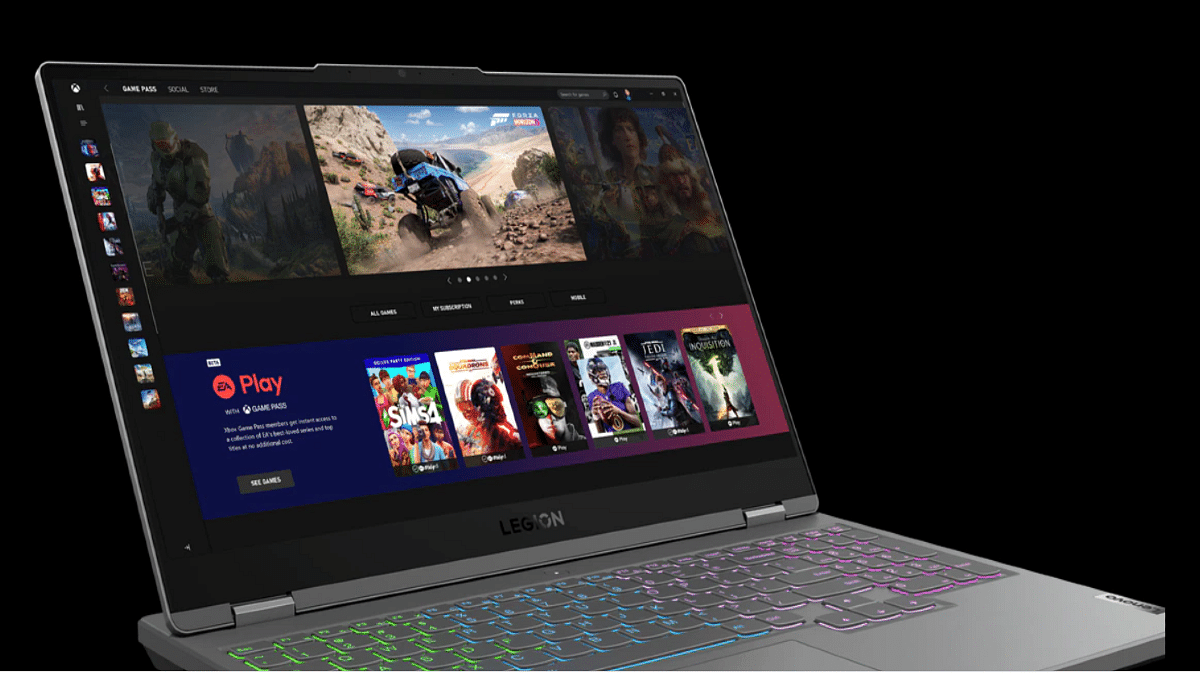
Asus TUF Gaming F15 Vs Lenovo Legion 5i 15-inch Gaming Laptops: Best Option For Gamers?

The laptop industry has grown exponentially in the last decade with the brands integrating the latest hardware and software technologies. Rampant growth has also been recorded with the consumer-oriented budget laptop models from some popular smartphone OEMs. But the major chunk is still dominated by the prime players such as Asus, Acer, Dell, Lenovo, HP, and others. We have just covered the hardware differences between two of the most popular laptops including the Asus Vivobook Pro 14 OLED and the Dell Inspiron 16. Here, we are comparing two of the best gaming laptops that you can buy for under Rs. 80,000 in India. The Asus TUF Gaming F15 and the Lenovo Legion 5i are the models whose spec-sheet comparison you can read below:

Asus TUF Gaming F15 Vs Lenovo Legion 5i 15-inch: Display Comparison

The Asus TUF Gaming F15 laptop is packed with an IPS LCD screen that is 15.6-inch in size. The display on the Asus gaming laptop comes with a 1080 x 1920 pixels screen resolution and has a pixel density of 141 PPI. The screen gets a standard 60Hz refresh rate and comes void of HDR 10 certification. This laptop also has variants with 1920 x 1200 pixels resolution and 144Hz refresh rate and 2560 x 1440 pixels resolution. The prices vary according to the models.

On the other hand, the Lenovo Legion 5i features the same 15.6-inch IPS LCD screen. However, the display specs are slightly better compared to the Asus gaming laptop. While the screen size and panel type remain the same as the Asus TUF Gaming F15 laptop, the refresh rate here is higher at 165Hz. This allows for smoother feedback with the frame transitions during gaming. The Lenovo Legion F15’s display is also HDR certified and has Dolby Vision support.

Asus TUF Gaming F15 Vs Lenovo Legion 5i 15-inch: Processor, Firmware

The Asus TUF Gaming F15 and the Lenovo Legion 5i can be purchased with different configurations and processors. The Asus TUF 15 comes with Intel Core i5 12450H, Core i5 12500H, and Core i7 12700H processor options. The octa-core processor on this laptop is integrated with the Intel Iris Xe graphics card. The RAM option for the Asus gaming laptop is 8GB, 16GB, and 32GB, whereas the storage options are 512GB and 1TB.

It also has support for NVIDIA GeForce RTX300 series GPUs.  The Lenovo Legion 5i also comes with an Intel Core i5 (11260H/11400H) chipset. It can also be purchased with Intel Core i7 (1180H) and Core i9 11900H chipset. This laptop has integrated Intel UHD Graphics along with NVIDIA GeForce RTX 3000 series GPUs.

The RAM capacity you can select on this Lenovo gaming laptop is 16GB, 32GB, and 64GB, whereas, the storage capacity is 512GB, 1TB, and 2TB. Both laptops are well equipped to handle high-end games and deliver a premium experience during general usage as well as gaming.

Asus TUF Gaming F15 Vs Lenovo Legion 5i: Connectivity, Battery

The Asus TUF Gaming F15 laptop is packed with three USB Type-A ports, one USB 4.0 Type-C port, one Thunderbolt 4 port, and one HDMI 2.0 port. The Lenovo Legion 5i features three USB 3.2 Type-A ports, three USB Type-C ports, one Thunderbolt 4 port, and one HDMI 2.0 port. The battery capacity of the Lenovo Legion 5i laptop is 80Wh. It is a Li-Po battery that is aided by fast charging technology. Asus, on the other hand, offers the TUF 15 Gaming laptop with 48Wh and 90Wh battery capacities along with fast charging support.  

Categories
Apps Featured Info

Ordering Groceries From WhatsApp Is Now Possible With JioMart Shopping Integration

WhatsApp is ramping up its app’s portfolio with numerous new features. Meta (Facebook) has released multiple new features and is consistently doing so in a bid to improve the user experience on a massive scale. The brand had recently released a feature allowing IRCTC users to order food while commuting via Indian railways. Now, the brand has integrated another popular shopping app into its messaging app with which users now can shop at their convenience without actually paying to the stores. Meta has now added the JioMarts shop to WhatsApp. Here are all the details:

JioMart Comes To WhatsApp

WhatsApp has integrated the JioMart grocery app into its messaging platform in what seems to be its first-of-a-kind move for any app giant. WhatsApp users will now get the option to access the JioMart grocery catalog right from the app itself.

Not just the option to go through the grocery store list, but WhatsApp will also allow users to make purchases from JioMart. All this including the payments can be done without actually leaving the app. This new development has been confirmed during the Reliance annual general meeting held a few days ago.

It seems WhatsApp is not restricting itself to just the end-to-end messaging ecosystem but is getting its forte stronger with end-to-end shopping. Facebook has also released a statement boasting its first of its kind of end-to-end shopping platform for the audience and how it believes business messaging will see major growth in the future.  

The brand quoted, “This is our first-ever end-to-end shopping experience on WhatsApp. People can now buy groceries from JioMart right in a chat. Business messaging is an area with real momentum and chat-based experiences like this will be the go-to way people and businesses communicate in the years to come”.

The in-app shopping experience is definitely going to boost with this new initiative from WhatsApp. Currently, the app has the provision where business organizations offer technical and sales support to customers. But buying a new product, that too grocery is the first of a kind move from WhatsApp. We can expect other messaging apps to follow this lead going forward. We are also assuming that WhatsApp will also integrate other major shopping apps boosting the end-to-end shopping format on its platform.

Categories
Comparison Featured Laptop

Asus Vivobook Pro 14 OLED Vs Dell Inspiron 16 Laptop: Which Laptop Is Best Under Rs. 70,000 In India?

The laptop industry is also advancing like the smartphone and other consumer IoT products with the latest technologies. From conventional bulky laptops, we now have options to select from ultrathin and 2-in-1 convertible designs. And that too without compromising on the hardware. Acer, Asus, Dell, Lenovo, and HP are amongst a few of the established players in the laptop market that are offering Windows-powered laptops with Intel and AMD series processors. However, there has been a recent trend with smartphone OEMs foraying into the laptop space and bringing in some pocket-friendly options for the audience.

We have done several gadget comparison articles including smartphones, smart TVs, tablets, and also chipsets. Now, we are starting with laptop comparisons as well. In this article, we are pitting down two of the most popular laptops in the Indian market. The spec sheet of the Asus Vivobook Pro 14 OLED and the new Dell Inspiron 16 models are compared in this article. If you are looking to buy a new machine for yourself and one of these models has been on your list then this comparison article is a must-read.

Asus Vivobook 14 Pro OLED Vs Dell Inspiron 16: Display Specification Comparison

Display game is getting stronger with laptops as it is being with smartphones. Laptop brands are making sure they are using a high-end panel for an immersive viewing experience with their products. The Asus Vivobook 14 Pro is one of the best examples of a mid-range laptop with a high-resolution panel. Asus has packed the Vivobook 14 Pro with a 14-inch compact display.

The panel type is OLED that offers a screen resolution of 1800 x 2880 pixels and has an aspect ratio of 16:10. The Asusu Vivobook 14 Pro OLED display also supports a 90Hz refresh rate and has a picel density of 243 ppi. It is HDR10 certified with which it can smoothly render FHD content via OTT platforms.

On the other hand, the Dell Inspiron 16 features an IPS LCD screen that is 16-inches in size. The screen resolution and the refresh rate is slightly lower here compared to the Asus Vivobook Pro 14 OLED variant. This laptop model supports 1920 x 1200 pixels resolution and has a standard 60Hz refresh rate.

The pixel density is also a bit lower compared to the Asus model at 142 PPI and also comes void of HDR10 support. The display size is bigger on the Dell laptop, but if you need better specs, opt for the Asus Vivobook Pro 14 OLED out of these two.

Asus Vivobook 14 Pro OLED Vs Dell Inspiron 16: Processor, Software Version

The Asus Vivobook 14 Pro OLED runs on the Intel Core i5-11300H quad-core processor with a 3.1GHz (up to 4.4Ghz) clock speed. The Asus Vivobook 14 Pro has integrated Intel Iris XE graphics, and NVIDIA GeForce GTX 1650 GPU support. This laptop comes with an onboard 16GB DDR4 RAM and has 512GB M.2 NVMe PCIe 3.0 SSD storage.

The Asus Vivobook 14 Pro OLED has the Windows 10 Home/ Pro edition pre-installed for home and professional users respectively. The software is upgradable to Windows 11 for free.

Moving to the Dell Inspiron 16, this laptop runs on the 12th Gen Intel Core processor. You can select from Core i3, Core i5, and Core i7 variants depending on the budget and user requirement. You can also select the integrated graphic card depending on the requirements including Intel UHD, Intel Iris Xe, and NVIDIA GeForce MX570, 2GB GDDR6 GPUs.

The memory version is also dual including 8GB DDR4 3200MHz and 16GB 3200MHz DDR4 RAM. The device has 512GB M.2 PCIe NVMe SSD storage.

Asus Vivobook 14 Pro OLED Vs Dell Inspiron 16: Connectivity Ports, Battery Capacity

Both Asus Vivobook 14 Pro and the Dell Inspiron 16 come with multiple connectivity ports.  The Asus Dell Inspiron 16 ships with two USB-A, one USB Type-C, one HDMI 1.4, and an SD card reader. On the other hand, the Asus Vivobook Pro 14 OLED ships with three USB-A, one USB Type-C, one HDMI 1.4, and one 3.5mm headphone jack.

As far as the battery capacity is concerned, the Asus Vivobook 14 Pro is packed with a 63wh battery whereas the Dell Inspiron 16 comes with 41whr and 54whr battery units. Both laptops comes with fast charging support.

Categories
Featured How To Mobile

Apple iPhone eSIM: How To Convert Physical SIM To eSIM, Transfer eSIM/Physical SIM During And After New iPhone Setup?

Smartphones nowadays are all advanced with the brands embedding their new products with myriads of features for a better user experience. You can do all possible things if you own a modern generation smartphone right from gaming to photography and more. Even communication with these handheld gadgets isn’t restricted to just voice calls or texting. You get the option to make or receive video calls and also use dedicated messaging apps for voice and video calls using the internet.

Smartphone OEMs are also gradually routing towards adding an eSIM support instead of a physical SIM. This is one of the major changes that we have seen with smartphones; specifically, the new-generation models. Apple has also been integrating eSIM support with iPhones. The iPhone XS, iPhone XS Max, and the iPhone XR and above models are equipped with the eSIM feature. Just yesterday, we covered the procedure to set up and manage eSIM on iPhones.

This article is centered around the ways with which you can transfer your eSIM or physical SIM during setup. We also have mentioned the method to convert your physical SIM to an eSIM on iPhone and the steps to transfer a physical SIM or eSIM to a current iPhone after setup.

Steps To Transfer eSIM or Physical SIM While Setting Up An iPhone

 While setting up an iPhone, you will be asked to Transfer your Cellular Plan. This will be done in the Quick Start setup.

Step 1: You need to select the mobile numbers that you wish to transfer to the new iPhone during the setup process. Click on Continue from the bottom of the page. You can also select the option to decide later.

Step 2: You will see a set of instructions on the screen with which you can finish the setup process.

Step 3: Make the first call using your new iPhone. This is to check if you have active cellular connectivity before removing the cellular plan from the previous iPhone.

As soon as the cellular services are activated on your new iPhone, they will be discontinued from the old iPhone. You can then discard the physical SIM from your previous phone.

Steps To Transfer Physical/ eSIM On Your Current iPhone To eSIM On New iPhone Post Setup

Step 1: Unlock your iPhone and scroll to the Settings menu.
Step 2: Move to the Cellular option.

Step 3: Tap on Add Cellular plan option.

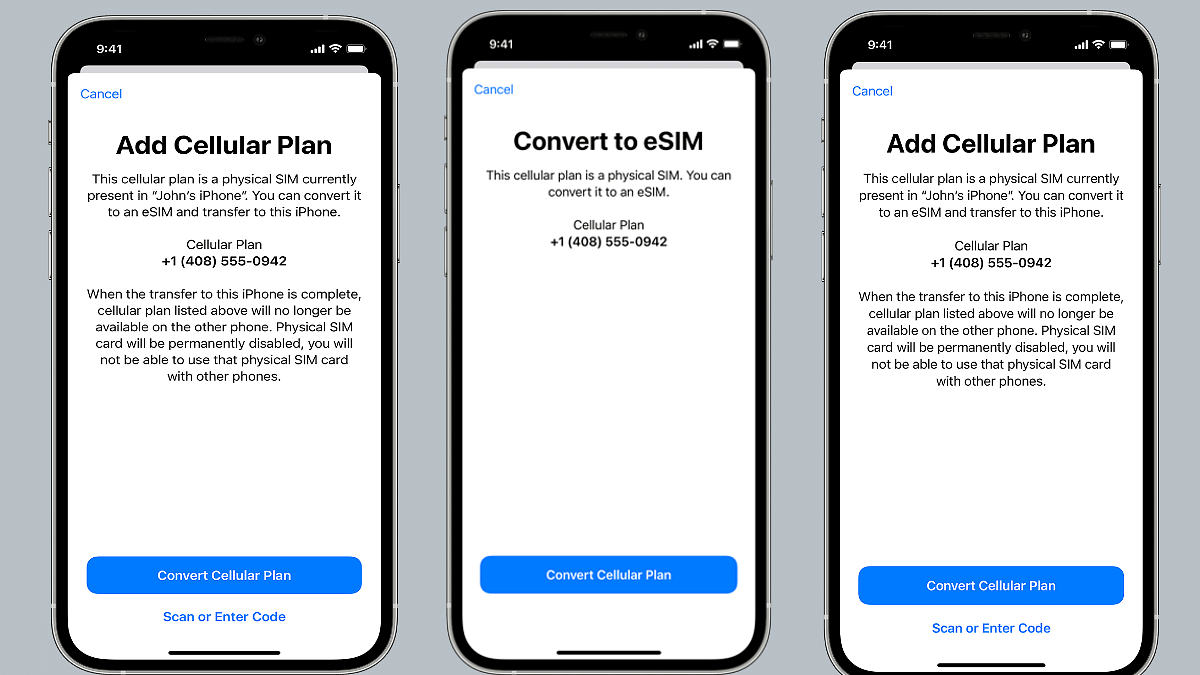
Step 4: Select the Convert Cellular Plan option.

Step 5: Click on the Convert eSIM tab.

Step 6: You will now need to hit the OK tab. A notification will pop up asking for transfer approval on the previous iPhone.

Step 7: Now, on your older iPhone, select the transfer option.

Step 8: You will have to wait for the eSIM to activate. Once it is done, you can remove the physical SIM from your iPhone.

Step 9: Now, wait until the cellular plan is activated on your new iPhone. The previous SIM card will be deactivated when the new cellular services are active.

Step 10: A new notification will show with Finish Setting Up Your Carrier’s Cellular Plan. Select this option.

Step 11: Click Continue and you will be redirected to the carrier webpage to transfer your eSIM.

How Can You Convert Physical SIM to eSIM On Same iPhone Model

Step 1: Open iPhone and scroll to the Settings menu.

Step 2: Click the Cellular option.

Step 3: Tap on Convert to eSIM.

Step 4: Tap Covert To eSIM in the next step.

Categories
Featured How To Mobile

eSIM iPhone: How To Setup And Manage eSIM On iPhones, Install Assigned Cellular Plans

Smartphones are constantly evolving; specifically with the advancements in the tech field. The OEMs are embedding their devices with the newest of technologies for improved user experience with photography, gaming, and more. But communication is one prime usage of smartphones right from the beginning. Brands have been focusing to bring the fastest internet and better connectivity with mobile communication. Most of you must be using a SIM card from one of the telecom operators for calling, texting, or mobile internet.

Smartphone OEMs have started integrating the eSIM feature so that one can start using cellular services instantly after purchasing a new device. This can be done without inserting any other physical SIM card. The use of eSIM (electronic SIM) is on the rise and brands are adopting this new technology gradually for their product lineups. Apple is one of those smartphone brands that is going full-fledged with eSIM for its iPhones.

The iPhone X series including the iPhone XR, iPhone XS Max, iPhone 11 series, iPhone 12 series, and the iPhone 13 series are all enabled with the Dual SIM feature with which you can use both a physical micro or nano SIM card along with the eSIM for communication.

But do you know the procedure to set up an eSIM if you own any of these aforementioned Apple iPhone models? If now, we are helping you with the process to set up an eSIM on iPhones and also install an assigned cellular network. We have also listed the steps with which you can transfer an eSIM from one of your previous iPhones to a new one.

Steps To Setup An eSIM On Supported iPhone Models

By Scanning A QR Code

You can easily set up an eSIM on your iPhone by using the camera scanner.

Step 1: On your iPhone, launch the camera app.

Step 2: Scan the QR code for the eSIM.

Step 3: Once the scanner detects the Cellular Plan, a notification will pop up. Select it.

Step 4: From the bottom of the screen, click continue.

Step 5: Tap on the Add Cellular Plan option.

You will then receive a confirmation code using which you will be able to activate the eSIM. Now, enter the mobile number that your mobile carrier has provided.

Steps To Install An Already Assigned Cellular Plan On iPhone eSIM

Step 1: You will get a notification on your respective iPhones stating Carrier Cellular Plan Ready to be installed. Once you see this message on your iPhone, click on it.

Step 2: You would need to click on the Carrier Cellular Plan Ready to Be Installed from the Settings app.

Step 3: Now, click on Continue.

Step 4: To check the status of the cellular connectivity on eSIM, you can make a call. If in case, the call is not being placed, you would need to contact the dedicated mobile carrier.

Step 5: You can also remove the physical SIM, if the activated mobile plan replaces the one on the physical SIM.  

Notably, you can also enter the plan details manually for your eSIM. Follow the steps below for the same:

Step 1: Unlock your iPhone and go to the Settings menu.

Step 2: Select either Mobile or Cellular data.

Step 3: Click on Add Cellular plan option.

Step 4: Now, enter the required details manually.

Categories
Featured How To Mobile Tablet

How To Use Live Text On iPad, iPhone To Copy Text, Make Calls, Send Emails From Any Photo Or Image?

Apple uses an in-house custom interface for its products including iPhones, iPads, and Mac laptops. For the iPads, it’s the iPadOS which is renewed each year with new features and tools along with the new generation models. This year, the Cupertino giant has released the iPadOS 16 with numerous new user-oriented features and some major enhancements over the previous-generation iPadOS 15 OS.

The Live Text is among the sleuth of useful features available on the iPadOS. It is similar to the one available for the iOS 15 and above versions. The Live Text is one of the handiest features available for both iPad and iPhone users allowing them to copy and translate texts from any photo. Users can also make calls and send emails using the Live Text feature on iPads and iOS. That’s not it, the Live Text feature also makes it possible to translate language on the go.

So, how can you use the Live Text feature on Apple iPads and iOS to get information from any image, make calls and emails, and also translate language? You can follow the step-by-step guide below for the same. It is worth adding that you would need to first enable the Live Text feature on your respective iPads or iPhones. We already have covered the steps to activate the Live Text feature, you can read our previous coverage here. Let’s carry on with the further steps:

Steps To Copy Text Using From A Photo On iPads, iPhones Using Live Text Feature

Step 1: On your iPads/ iPhones, launch the Photos app. You can also open any image online.

Step 2: On the image, press and hold on the word and move the cursor to adjust the selection area.

Step 3: Select Copy option. If you wish to select the entire text in the image, you can click on the Select All option.

Step 4: Once you have copied the required text, you can paste in into any other app or can also share it with other users.

Step 5: You can also highlight all text in any photo or image by selecting it and tapping on the Live Text option from the lower right corner.

How To Make Calls Or Send Emails Using Live Text On iPad And iPhone

Step 1: Launch the Photos app on your iPad or iPhone to select any photo or use an online image.

Step 2: Click on the phone number or email address.

Step 3: You will see the Call or Send Message option. Click on the required option. Depending on the website, you will see additional options including Make a FaceTime Call or Add to Contacts.  

Steps To Translate Any Text Within A Photo Or Image

Step 1: Select the photo or image from the Photos app on your iPad or iPhone.

Step 2: You would now need to make the adjustments using the grab points.

Step 3: Now, from the list of options select Translate.

Step 4: Click on Continue and then select the language to which you wish to translate.

Categories
Featured How To Laptop

Gmail Useful Tricks: How To Add, Customize Digital Signatures On Gmail

Among Google’s wide range of online services for the masses is Gmail. The email service from the search giant is being used by professional as well as general users across the globe for online communication. Google has improved Gmail’s services to make it a mainstream emailing giant and rival up against Outlook and other prominent email services.

One of the recent features introduced by Gmail is offline mailing support. We have covered how you can use Gmail’s email services offline services in one of our tips and tricks articles. This is another step-by-step guide article where we will explain the method with which you can add your digital signature to Gmail.

For the unaware, you can add an email signature in Gmail just like on Outlook and other major email services. Google lets you add a text comprising your contact information or even a favorite quote as your digital signature that will be added automatically as a footer after every email. If you wish to know the steps, take a look below:

Steps To Add A Digital Signature In Gmail

Step 1: Go to the Gmail website or open the Gmail app on your respective smartphones.

Step 2: Tap on the Settings menu placed on the top right of the Gmail home page.

Step 3: Scroll down to the “Signature” tab.

Step 4: A new box will open where you can add the text you wish to set as your digital signature. You can also add an image along with the text and also customize the font as per requirements. Just for reference, the word limit set for a digital signature on Gmail is 10,000 characters.

Step 5: Once you have added the desired signature, click on Save Changes from the bottom.

That’s the easiest way with which you can add your signature on Gmail. But Google doesn’t stop here and has made the signature feature more advanced with Gmail. You don’t have to set one single signature for all emails, but you also get the provision to add a customized signature for different email addresses on Gmail.

For this, you would need to use the Send Mail feature. If you are already using the “Send mail as” feature on Gmail, you get the option to add a different signature for each address.

Step 1: Open Gmail and go to the Settings menu.

Step 2: Right above the signature box, you’ll see a drop-down menu to select an address.

Step 3: You can also open the Accounts and Import settings page if you don’t see the drop-down menu for the address.

Step 4: Just select the address from the “Send Mail as” section and add the signature.

Categories
Chipset Comparison Featured

Qualcomm Snapdragon 8+ Gen 1 SoC Vs Samsung Exynos 2100: Which Is Better?

Qualcomm is one of the biggest names in the mobile chipset industry with MediaTek and Exynos as its prime rivals in the Android mobile race. Qualcomm has a wide range of mobile chipsets for all price ranges of smartphones. Samsung’s proprietary Exynos processor also powers different segments of the brand’s Android phones. The Exynos 2100 is Samsung’s bet in the premium mobile chipset segment, whereas Qualcomm has several of them in this league including the most recent Snapdragon 8+ Gen 1 SoC. We are comparing both Exynos 2100 with Qualcomm’s most premium Snapdragon chipset. Read on the differences below:

Qualcomm Snapdragon 8+ Gen 1 Vs Samsung Exynos 2100: CPU Comparison

Qualcomm has fabricated the Snapdragon 8+ Gen 1 processor on a 4nm process and has built it using the ARMv9-A Instruction set. The processor has a 3200MHz frequency range and octa-cores including one Cortex-X2 core clocked at 3.2GHz, three Cortex A710 cores clocked at 1.75GHz, and four Cortex-A510 cores clocked at 2GHz.

The Samsung Exynos 2100 processor also has octa-cores with one Cortex-X1 core clocked at 2.9GHz, three Cortex A78 cores clocked at 2.8GHz, and four Cortex-A55 cores clocked at 2.2 GHz. This chipset is built using ARMv8.4-A architecture and has a frequency range of 2900Mhz. The CPU performance is good with both these flagship chipsets, but the Snapdragon 8+ Gen 1 is slightly better compared to the Exynos 2100.

Snapdragon 8+ Gen 1 Vs Samsung Exynos 2100: GPU Differences

The Qualcomm Snapdragon 8+ Gen 1 chipset employs Adreno 730 GPU for graphics based on Adreno 700 architecture. The Samsung Exynos 2100 has the Mali-G78 MP14 GPU support which is based on Vallhall 2 architecture. The Qualcomm Snapdragon processor here has a GPU frequency of 900MHz, whereas, the Samsung Exynos chipset has 760MHz. The Vulkan version on both chipsets is 1.1, while the OpenCL and DirectX version is 2.0 and 12 respectively.

Snapdragon 8+ Gen 1 Vs Samsung Exynos 2100: Memory, Multimedia (ISP)

In terms of memory support, the Snapdragon 8+ Gen 1 and the Exynos 2100 chipset have the same LPDDR5 memory support, each offering a 3200MHz memory frequency. However, the max memory allocation size is 24GB with the Snapdragon 8+ Gen 1 and 16GB with the Exynos 2100. The storage type supported by both Snapdragon 8+ Gen 1 and the Exynos 2100 is UFS 3.1.

As for the multimedia aspects, the SD 8+ Gen 1 chipset offers a max display resolution of 2160 x 3840. The Samsung processor also has the same max display resolution. The maximum camera resolution compatibility with both these processors is 1X200MP

. The Exynos 2100 additionally supports 2X32MP max camera resolution. Similarly, the video recording capability of both these flagship mobile processors is 8K@30fps and 4K@120fps. The Samsung chipset only supports the former. Speaking of the audio and video codecs, the SD 8+ Gen 1 and the Exynos 2100 get H.264, H.265, VP8, and VP9 video codecs and AAC, AIFF, CAF, MP3, MP4, and WAV audio codecs.

Categories
Chipset Comparison Featured

Apple A15 Bionic Vs Qualcomm Snapdragon 888 Chipset Comparison: How Do These Flagship Mobile Processors Compare?

The smartphone industry is rapidly evolving with two major mobile ecosystems available for the audience including Android and Apple iOS. For the former, most of the OEMs rely on chipsets from Qualcomm and MediaTek, while the latter manufactures in-house Bionic chipsets for its iPhones. Apple has been using an A15 Bionic processor for the current generation of iPhones (iPhone 13 series).

This premium Apple processor competes head-on with Qualcomm’s top-tier Snapdragon 888 processor. We already have compared the A15 Bionic with Qualcomm’s most powerful Snapdragon 8+ Gen 1 processor. This article is a quick comparison between the Snapdragon 888 and the Apple A15 Bionic. Here’s how both these processors compare in terms of CPU, GPU, memory, and multimedia (ISP) services.

Apple A15 Bionic Vs Qualcomm Snapdragon 888: CPU Differences

Both Apple A15 Bionic and the Qualcomm Snapdragon 888 are fabricated using a 5nm process. The Apple A15 Bionic is a Hexa-core chipset contrary to the Snapdragon 888 SoC’s octa-cores. Apple has constructed the A15 Bionic on ARMv8.5-A Instruction set. The premium Apple chipset offers a frequency of 3240MHz. The hexa-cores comprise two Avalanche cores clocked at  3.24GHz and four Blizzard cores at 1.82GHz.

The Qualcomm Snapdragon 888 chipset’s octa-cores include one Kyro 680 Prime Cortex-X1 core with a 2.84GHz clock speed, three Kyro 680 Gold Cortex A-78 cores clocked at 2.42 GHz, and four Kyro 690 Silver Cortex-A55 cores clocked at 1.8GHz.

Apple A15 Bionic Vs Snapdragon 888: GPU Comparison

The GPU used by Apple A15 Bionic is an in-house Apple GPU that has a frequency range of 1200MHz. This flagship-grade Apple mobile chipset has a total of five execution units which is more than that of the Snapdragon 888 SoC. Speaking of which, the Qualcomm Snapdragon 888 has the Adreno 660 GPU support which has a frequency range of 840MHz and only two execution units. The GPU performance with both chipsets is good, with each of them capable of rendering rich graphics smoothly.

Apple A15 Bionic Vs Snapdragon 888: Memory, Multimedia (ISP) Comparison

The Apple A15 Bionic comes with LPDDR4X RAM compatibility with a memory frequency response range of 4266MHz. Its max memory allocation size is 8GB. The Qualcomm Snapdragon 888 ships with LPDDR5 RAM capacity and has a frequency response range of 3200MHz. However, the max memory allocation is higher with this chipset at 24GB.

The storage type supported by the Apple A15 Bionic is NVMe, whereas, the Snapdragon 888 ships with UFS 3.0 and UFS 3.1 storage type support. The A15 Bionic ships deliver a max display resolution of 2048 x 2732 which is slightly lower than the Qualcomm processor.

The Snapdragon 888 chipset offers a max display resolution of 2160 x 3840 pixels, max camera resolution of 1x 200MP, 2X25MP. While the A15 Bionic is capable of recording 4K@60fps videos, the Snapdragon 888 can capture 8K@30fps and 4K@120fps videos.

Moving on to the codecs, the Apple A15 Bionic has H.264, H.265, VP8, VP9, Motion JPEG video codecs, and AAC, AIFF, MP3, MP4, WAV, AC-3, E-AC-3, AAX, AAX+ audio codecs. On the other hand, the SD 888 offers H.264, H.265, VP8, and VP9 video codecs, and AAC, AIFF, CAF, MP3, MP4, and WAV audio codecs.