Categories
Apps Info

WhatsApp Ends Support For 35 Older Smartphones: Is Your Phone Affected?

Key Highlights

  • WhatsApp is stopping support for 35 older smartphones
  • Check if your phone is affected on WhatsApp’s support page
  • Upgrade to a newer phone to keep using WhatsApp safely

WhatsApp has announced that it will stop working on 35 older smartphones. This change is because WhatsApp has updated its minimum system requirements. As a result, users with older phones from brands like Samsung, Motorola, Huawei, Sony, LG, and Apple will need to upgrade their devices. This update aims to make the app faster and safer but means some users will need new phones to keep using WhatsApp.

Also Read | New WhatsApp Trick: Share Channel Posts As Status In Seconds (2024 Guide)

Which Phones Are Affected?

Here is a list of some of the key models that will no longer support WhatsApp:

Apple:

  • iPhone 5
  • iPhone 6
  • iPhone 6S
  • iPhone 6S Plus
  • iPhone SE

Samsung:

  • Galaxy Ace Plus
  • Galaxy Core
  • Galaxy Express 2
  • Galaxy Grand
  • Galaxy Note 3
  • Galaxy S3 Mini
  • Galaxy S4 Active
  • Galaxy S4 Mini
  • Galaxy S4 Zoom

LG:

  • Optimus 4X HD
  • Optimus G
  • Optimus G Pro
  • Optimus L7

Motorola:

  • Moto G
  • Moto X

Huawei:

  • Ascend P6 S
  • Ascend G525
  • Huawei C199
  • Huawei GX1s
  • Huawei Y625

Lenovo:

  • Lenovo 46600
  • Lenovo A858T
  • Lenovo P70
  • Lenovo S890

Sony:

  • Xperia Z1
  • Xperia E3

Why Is WhatsApp Doing This?

WhatsApp wants to ensure users get the best performance and security. To do this, the app will now only work on devices with Android 5.0 or later and iPhones with iOS 12 or later. Phones with older systems will not get important updates and security patches, which can make them risky to use.

What To Do If Your Phone Is Affected?

If your phone is on the list, you should consider upgrading to a newer model. Using WhatsApp on an unsupported device can be dangerous because it will not have the latest security features. By getting a new phone, you can make sure that your messages, calls, and data stay safe.

To find out if your phone is affected, you can check the official WhatsApp support page. If your model is listed, it is a good idea to start looking for a new phone.

Also Read | WhatsApp Fake Messages: Don’t Get Tricked! Here’s How To Identify And Avoid Them

Conclusion

This update from WhatsApp shows how important it is to keep up with technology to have the best user experience and security. While it might be inconvenient to upgrade your phone, doing so will help you stay connected with friends and family without risking your security. Make sure your device is ready for the latest updates so you can continue enjoying WhatsApp without any problems.


Categories
Apps Featured Info

Meta AI Debuts In India On WhatsApp, Facebook, And More: Key Features

Key Highlights

  • Meta AI is now available on WhatsApp, Facebook, Messenger, and Instagram in India
  • Get more details from Facebook posts using Meta AI directly
  • Use the “Imagine” feature to create and share images with text prompts

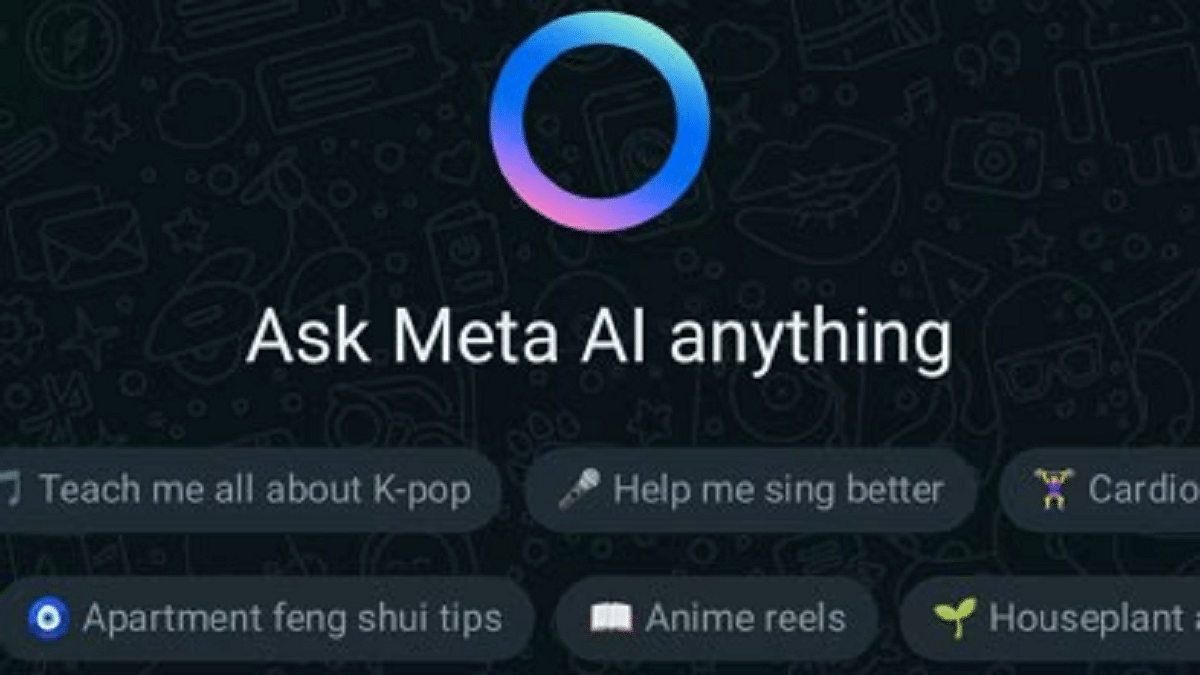
Meta AI, powered by Meta Llama 3, is now available in India. This advanced AI assistant, already popular in over a dozen countries, can be accessed on WhatsApp, Facebook, Messenger, and Instagram. With its English rollout in India, users can now leverage Meta AI to simplify tasks, enhance creativity, and stay connected with ease. Also Read | Meta AI vs ChatGPT: Which Chatbot Fits Your Needs?

Smarter And Faster Assistance

Meta AI, thanks to the capabilities of Meta Llama 3, is smarter, faster, and more engaging than ever. It can assist with a variety of tasks, making everyday activities more manageable and fun. Whether you’re planning a night out, organizing a weekend getaway, or cramming for a test, Meta AI is here to help. For instance, you can ask Meta AI in your WhatsApp group chat to recommend restaurants with vegan options and great views. If you’re planning a road trip, it can suggest interesting stops along the way. For students, Meta AI can create multiple choice tests to aid in studying.

Integrated In Your Social Feed

Meta AI is also integrated into your Facebook Feed. If you come across a post that piques your interest, you can ask Meta AI for more information directly from the post. For example, if you see a photo of the northern lights in Iceland, you can inquire about the best time of year to view the aurora borealis. This feature ensures that users can quickly and easily access relevant information without leaving their social media experience.

Unleash Your Creativity With Imagine

One of the standout features of Meta AI is its “Imagine” capability. This text-to-image generation feature allows users to create and share images simply by using the word “imagine” in their interactions with Meta AI. Whether you’re crafting a unique invite for your child’s birthday party or collaborating with friends to create fun images, Imagine sparks creativity. You can even ask Meta AI to animate an image or modify it based on new prompts. This feature opens up endless possibilities for creative expression and fun.

Also Read | Use Meta AI On WhatsApp And Instagram In Three Steps: Here’s How

Enhancing Everyday Life

With Meta Llama 3, Meta AI is more powerful and versatile, ready to enhance users’ lives in numerous ways. From providing personalized recommendations to generating creative content, Meta AI aims to make daily tasks easier and more enjoyable. As it rolls out in India, more people will have the opportunity to experience the benefits of this next-generation assistant.

Meta AI represents a significant step forward in AI technology, combining intelligence and creativity to assist users in meaningful ways. With its availability on popular platforms and its array of features, Meta AI is set to become an indispensable tool for millions of people.

Categories
Apps Featured How To

Plan Your Next Flight With IndiGo’s Chatbot 6Eskai: Here’s How

Key Highlights

  • Book IndiGo flights and manage travel details effortlessly via WhatsApp
  • Get 24/7 personalized assistance, reducing wait times
  • Enjoy a streamlined experience from booking to check-in

In today’s fast-paced world, convenience is key, and IndiGo Airlines is leading the way with their innovative AI booking assistant, 6Eskai. This virtual assistant revolutionizes the travel experience by allowing customers to manage their flights effortlessly from booking to check-in and more. Also Read | Last-Minute Travel Plans? Here’s How To Book Tatkal Train Tickets Online

What Can 6Eskai Do?

6Eskai is not just another chatbot—it’s a complete travel assistant capable of handling a wide range of tasks:

  • Booking Tickets: Easily book your flight tickets with a few simple steps.
  • Applying Promotional Discounts: Avail of special offers and discounts seamlessly.
  • Booking Addons: Customize your travel with additional services like extra baggage or meals.
  • Performing Web Check-Ins: Save time at the airport by checking in online.
  • Helping with Seat Selection: Choose your preferred seat before you fly.
  • Planning Trips: Get assistance in planning your entire travel itinerary.
  • Answering FAQs: Quickly find answers to common queries related to your flight.
  • Connecting Customers with an Agent: Seamlessly escalate to a human agent if needed.

How To Book A Ticket Using 6Eskai

IndiGo has streamlined the booking process with 6Eskai, making it user-friendly and efficient:

Step 1: Log in to www.goindigo.in.

Step 2: Click on the 6Eskai tab located on the homepage.

Step 3: Select “Book Flight Tickets” from the menu.

Step 4: Input your travel information—origin, destination, date, and type of trip.

Step 5: Specify the number and types of passengers.

Step 6: If applicable, enter a promo code for discounts.

Step 7: Double-check your details before proceeding.

Step 8: Choose your preferred flight timing and fare.

Step 9: Complete your payment securely online.

Benefits Of Using 6Eskai

The introduction of 6Eskai has brought numerous benefits to IndiGo customers:

  • 24/7 Customer Service: Access assistance anytime, anywhere, ensuring help is always available.
  • Personalized Assistance: Tailored responses cater to individual preferences and needs.
  • Quick and Easy: Booking flights, checking in, and resolving queries are simplified with intuitive chat interactions.
  • Time-Saving: Avoid long waits on the phone or at the airport by managing tasks swiftly online.
  • Stress Reduction: Minimize travel planning stress with a user-friendly interface and efficient service.

Also Read | From The Road To The Air: Uber Now Offers Flight Booking From Its App

Conclusion

IndiGo’s 6Eskai marks a significant leap forward in customer service and convenience within the airline industry. By integrating AI technology into everyday travel tasks, IndiGo not only enhances efficiency but also improves the overall customer experience. Whether you’re a frequent flyer or planning your next vacation, 6Eskai stands ready to make your journey smoother and more enjoyable.

Categories
Apps Featured How To

Instagram Rolls Out Close Friends Feature For Lives And Reels: How To Use

Key Highlights

  • Restrict live streams and reels to Close Friends
  • Invite up to five collaborators on reels
  • More privacy and selective sharing options

Instagram has rolled out new features that give users more control over who can view their live streams and reels. Previously, whenever users shared a reel or went live on Instagram, the content was visible to all their followers. Now, Instagram users can restrict these to their Close Friends list, creating a more intimate sharing experience. Also Read | Get Noticed: 100 Best Instagram Username Ideas For Product Reviews

How To Share Lives With Close Friends

The new feature allows users to share their live videos exclusively with Close Friends. This is a great way to keep your live streams personal and only share moments with those you trust the most. Here’s a simple guide on how to share a live with Close Friends:

Step 1: Open Instagram on your smartphone.

Step 2: Tap the plus button on the bottom menu.

Step 3: Select the Live option.

Step 4: Choose Close Friends from the top Share With menu or from the pop-up half-page.

Step 5: Add any other Live settings you prefer.

Step 6: Tap Done.

This update is an extension of the Close Friends feature that Instagram introduced in 2018, designed to let users connect more closely with their inner circle. By allowing lives to be restricted to Close Friends, Instagram enables users to create smaller, more private bubbles within the app.

How To Share Reels With Close Friends

Similarly, users can now share their reels with their Close Friends list. Here’s how to do it:

Step 1: Open Instagram on your smartphone.

Step 2: Create your reel.

Step 3: Before sharing the reel, tap Audience.

Step 4: Select Close Friends when prompted to choose who can see your reel.

Step 5: Tap Done.

This feature ensures that your creative videos are seen only by the people you choose, providing a more controlled sharing experience.

Multiple Collaborations

Instagram is also introducing a new option for collaborating with multiple creators on reels. This feature allows users to invite up to five collaborators to join their reel. If these friends accept the collaboration invite, the reach of the content will increase, potentially leading to a larger audience. Here’s how to add multiple collaborators to your reels.

Step 1: Open Instagram on your app.

Step 2: Create your reel.

Step 3: Before sharing, tap Tag people.

Step 4: Select the Invite Collaborators option.

Step 5: Add up to five collaborators.

Step 6: Tap Share.

Also Read | The Insta-Famous Five: Check Top Five Most-Followed Instagram Accounts

Conclusion

These new Instagram features are designed to enhance user experience by providing more privacy and collaboration options. Whether you want to share moments with a select group of friends or collaborate with multiple creators, Instagram’s latest updates make it easier and more enjoyable to connect and create within the app.

Categories
Apps Featured Info

Amazon India Delivers Xbox Controller With A Deadly Surprise: A Spectacled Cobra

Key Highlights

  • A Bengaluru couple found a live snake stuck to the packaging tape
  • They reportedly faced a two-hour wait on Amazon’s customer service line
  • Amazon has apologized for the incident and promised to investigate

In an unusual turn of events, a couple from Bengaluru, India, experienced a harrowing incident after ordering an Xbox controller from Amazon India. Along with their expected delivery, they received an unexpected and dangerous surprise — a live snake. Also Read | UK Man Takes Apple To Court After Wife Discovers Deleted Messages With Sex Worker

The Unexpected Delivery

Tanvi, the Reddit user who shared her alarming experience, detailed that they had placed an order for an Xbox controller on June 16. As promised, the delivery arrived promptly on June 18. However, what came along with the controller shocked the couple and posed a significant threat to their safety.

Encounter With A Spectacled Cobra

Upon opening the package, the couple discovered a snake stuck to the packaging tape. They identified it as a Spectacled Cobra, a venomous snake species native to the region. Fortunately, the snake was contained and did not harm anyone during this unsettling discovery.

Customer Service Ordeal

Tanvi further expressed distress over the handling of the situation by Amazon’s customer service. Despite the imminent danger posed by the venomous snake, she recounted being put on hold for approximately two hours before any assistance was provided. While they eventually received a full refund for their purchase, the psychological toll of the incident remained a concern.

Amazon’s Response

In response to the incident, Amazon India acknowledged the issue and expressed regret over the inconvenience caused to the customers. They assured that they would investigate the matter further to prevent such incidents from occurring in the future. This incident has raised questions about the safety protocols and quality control measures in Amazon’s delivery process.

Public Reaction And Safety Concerns

The incident has sparked widespread concern among customers regarding the safety and reliability of online shopping platforms. Many have voiced their apprehensions about potential risks involved in receiving packages, especially when dealing with live animals, let alone a venomous snake.

Also Read | Thieves Get Crafty, Tunnel Into Apple Store To Steal Over 400 iPhones Worth Millions

Conclusion

While Amazon India is known for its extensive range of products and efficient delivery services, this incident serves as a stark reminder of the unexpected challenges that can arise. Customers rely on such platforms not only for convenience but also for their safety and security. As investigations continue into how such a mistake occurred, it underscores the importance of stringent quality checks and thorough inspections in the logistics chain of e-commerce giants like Amazon.

While Tanvi and her partner were fortunate to escape unharmed from their encounter with a Spectacled Cobra, the incident highlights the need for enhanced diligence in ensuring that every aspect of the delivery process is meticulously managed to avoid such alarming mishaps in the future.

Categories
Apps Featured How To

Apple Maps Address Update: How To Setup, Modify Home Address On Apple Maps

Key Highlights

  • Apple Maps comes as the biggest Google Maps rival
  • Available exclusively for iOS devices
  • Easy setup for Home and work address

Navigational apps for smartphones have become a must for almost every single user out there. With just a smartphone that has an active internet connection and a navigation app installed, you can easily venture on to new destinations without the fear of getting lost. Google Maps is currently the most trending mobile navigation app be it for Android or iOS users. However, for the latter, Apple Maps serve as the default navigation application. Feature-wise too, Apple Maps is loaded with futuristic navigational tools and services and is as capable as Google Maps. You can setup addresses and access them later for easy direction guide when you are at a new place. In one of our previous articles, we guided you with the steps to add and modify home address on Google Maps. Now, we are providing the step-by-step guide to setup the same on Apple Maps. Read the steps below:

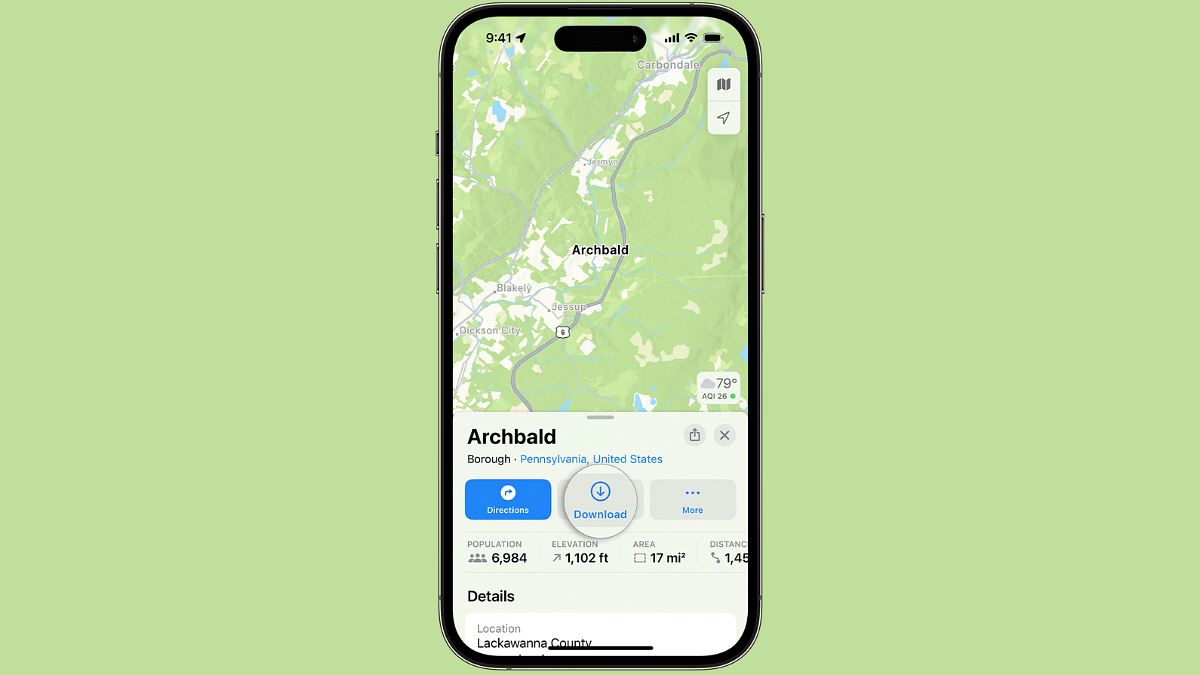
Also Read: Apple Maps Offline Download Guide: Steps You Use Apple Maps Without Internet

Steps To Add or Edit Home Address In iOS Devices

As is the case with Google Maps, you will need to use the Apple iPhone or iPad which is running on iOS 16 or above or iPad OS 16 or above respectively. The updated or the latest iOS version will ensure all the features function properly and users get access to all the navigational services available with the newer version. If your app isn’t updated, do check for a manual update. Rest of the steps to add and edit home address are as below:

Step 1: Open the Apple Maps mobile app on your iPhone or iPad runninng on iOS 16 or iPad OS 16 or above respectively.

Step 2: Move to thee Favorites option.

Step 3: Tap on Add option.

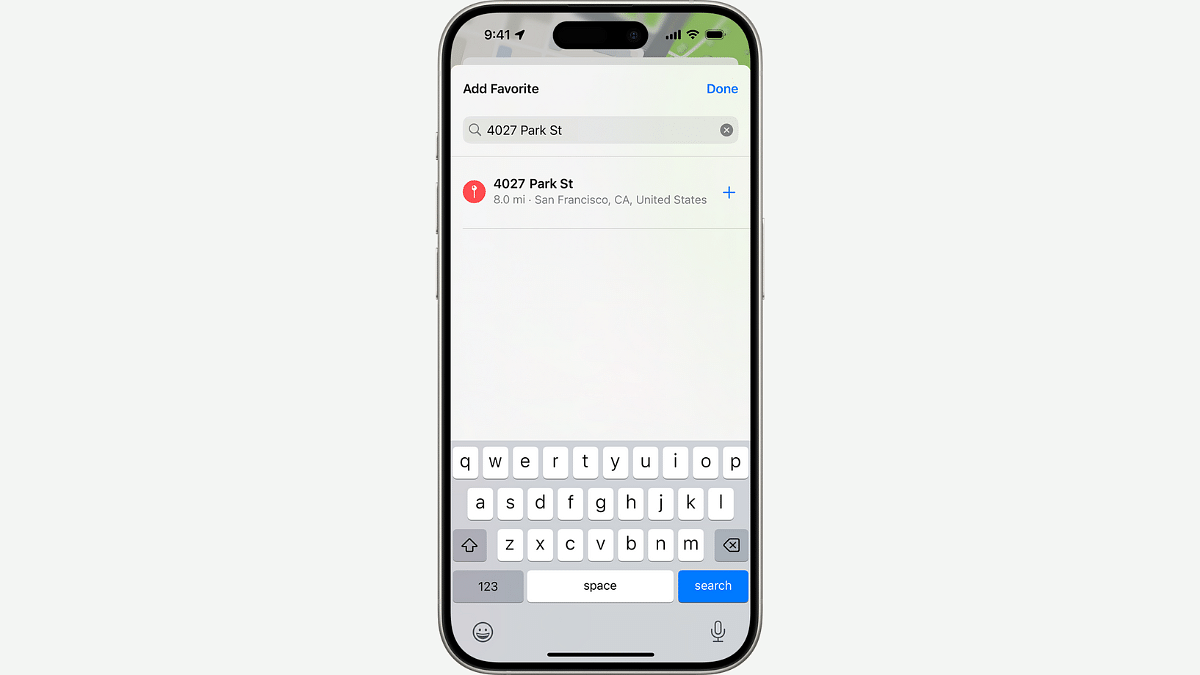
Step 4: Enter the address which you wish to add your home.

Step 5: Once the address location shows up on the app, tap on it to select it.

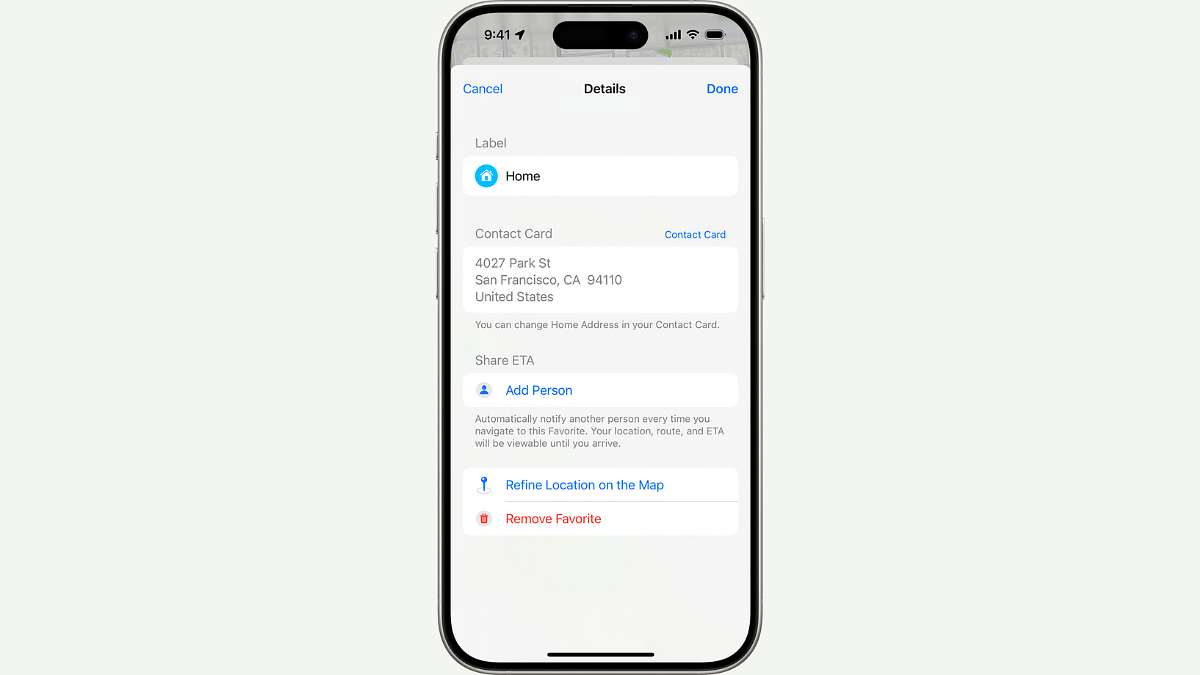
Step 6: Now, go to the “Type” option.

Step 7: Select “Home”.

Step 8: Now, click on the Update option if you wish to save it to the Contact card

Step 9: Now, hit Done.

Categories
Apps Featured Info

Google’s Gemini Chatbot App Debuts In India, Now Supports 10 Indian Languages

Key Highlights

  • Google launched the Gemini chatbot app in India, supporting 10 languages
  • The advanced version, Gemini 1.5 Pro, offers enhanced features
  • Google addressed issues with unreliable responses and stressed privacy

Google has officially launched its Gemini chatbot app in India, making it available for Android users through the Google Play Store and Google Assistant. The app supports English and nine Indian languages: Hindi, Bengali, Gujarati, Kannada, Malayalam, Marathi, Tamil, Telugu, and Urdu. This multilingual support is aimed at catering to a diverse user base across the country. Also Read | How to Use Gemini AI as Your New Assistant on Android (Step-by-Step Guide)

Gemini 1.5 Pro Advanced Features

The Gemini Advanced version is powered by Google’s latest AI model, Gemini 1.5 Pro. This model enhances the app’s capabilities, allowing users to upload multiple large documents and emails for quick summaries, feedback, and actionable insights. Amar Subramanya, Vice President of Engineering at Gemini Experiences, highlighted the app’s ability to enhance productivity, learning, and creativity for users in India.

Privacy And Accessibility

Google has emphasized the importance of privacy with the Gemini app, ensuring that users’ files remain private and are not used to train the AI models. Additionally, iPhone users can expect to access the Gemini app through the Google app in the coming weeks, expanding its availability beyond Android devices.

Integration With Google Messages

In a further enhancement of user experience, Google plans to integrate Gemini into Google Messages on select devices. This integration aims to provide seamless access to the chatbot’s features directly within the messaging app. This makes it easier for users to leverage AI capabilities in their everyday communication.

Controversies And Responses

Earlier this year, the Gemini platform faced criticism over controversial responses related to political figures. A journalist shared a screenshot where Gemini made uncharitable comments about Indian Prime Minister Narendra Modi but was more circumspect about similar queries regarding Donald Trump and Volodymyr Zelenskyy. Google responded quickly, admitting that the chatbot might not always give reliable answers about current events and political topics.

The former minister of state for IT, Rajeev Chandrasekhar, criticized the incident, emphasizing that India should not be experimented on with unreliable platforms. He stressed that ensuring safety and trust is a legal obligation for such platforms.

Quality Assurance And Training Data

The controversy highlighted the broader issue of quality assurance in training data for AI models. The former Union minister remarked on social media that many AI models, including Gemini, might produce unreliable content due to the use of non-quality-assured datasets. This underscores the old programming adage “Garbage in, garbage out,” reflecting the importance of high-quality data in developing reliable AI systems.

Also Read | Google’s AI: Bard or Gemini? What You Need To Know About The Rebranding

Conclusion

Despite the controversies, the launch of the Gemini chatbot app in India marks a significant step in Google’s efforts to enhance digital interaction through AI. With its multilingual support, advanced features, and commitment to privacy, Gemini aims to become a valuable tool for users across India. As Google continues to refine and improve the platform, addressing past criticisms will be crucial in building trust and ensuring reliable performance.

Categories
Apps Featured How To

Google Maps Tips And Tricks: How To Setup, Update, Or Change Home Address

Key Highlights

  • Google Maps navigation available on both Android and iOS
  • Saving locations is one of the feaatures
  • Methods to setup and modify home address mentioned below

Google Maps is a global mobile navigation app that is available for download on Android and iOS ecosystem. With Google Maps one can easily get directions for an unknown destination making navigation easier while on-the-go. Google Maps also offer the provision of saving home address so that users can reach their homes with just a few taps on the screen. In this article, we are helping you with the method with which you can setup as well as modify your home address. Take a look at the steps below:

Also Read: Google Maps’ New Privacy Feature: Location History Will Now Be Saved on Your Device

Steps To Add A New Home Address On Google Maps

In order to update your home address, you need to ensure the Google Maps application downloaded on your smartphone is updated to the latest version. The latest version is improved in several aspects and offers a neat and easy user experience while offering a whole set of new features for improved navigational experience. You can always check for the app update manually from Google Play Store.

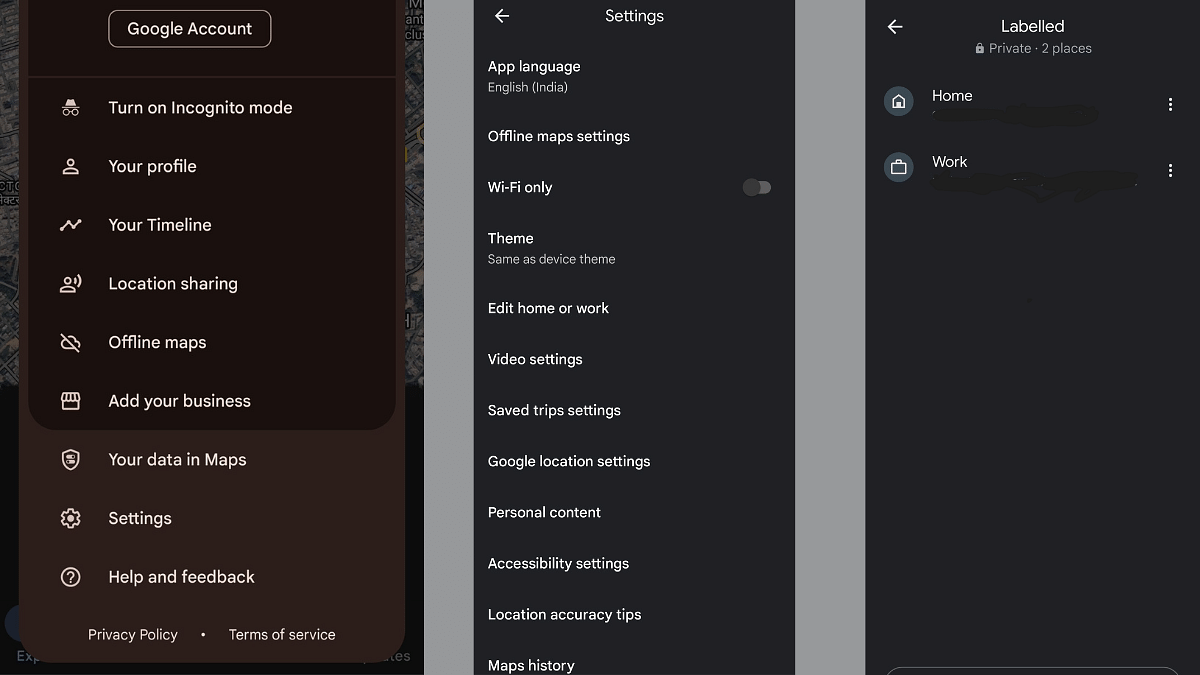
Step 1: Launch Google Maps application

Step 2: Click on the profile picture icon which you can locate on the top right corner

Step 3: Tap on the Settings menu

Step 4: Select the “Edit home or work” option

Step 3: Now, locate the three dots icon placed next to the Home address option

Step 4: You’ll see the Edit home option, click on it.

Step 5: Enter the new home address.

Step 6: If you wish to adjust the exact location, then tap on the map pointer and drag and adjust it as per your accurate location.

Step 7: Now, re-verify if the entered location is correct

Step 8: Tap on Done once all the above steps are complete. Your new home address will be saved on Maps.

It is worth adding that you can perform the same steps if you have moved to a new location and save the new address as your Home. Just edit the Home address as mentioned above and update it with the new one.

Categories
Apps Featured How To

Google Chrome ‘Listen to This Page’ Feature: Here’s How To Listen To Webpages In Hindi

Key Highlights

  • Choose from voices like Ruby (warm), River (clear), Field (bright), Moss (calm)
  • Supports English, Hindi, Bengali, Arabic, Chinese, French, German, and more
  • Includes play, pause, rewind, fast-forward, and skip 10 seconds for easy navigation

Google is rolling out an exciting new feature for Chrome users on Android devices called “Listen to this page.” This feature allows users to listen to the content of a webpage in their preferred language and voice, making it more accessible and convenient for those who prefer auditory learning or multitasking. Also Read | List Of Best ChatGPT Extensions You Can Use For Google Chrome

How To Access The Feature

To use the “Listen to this page” feature:

Step 1: Open the Chrome app on your Android device.

Step 2: Go to any webpage that you wish to listen to.

Step 3: Tap the three-dot menu located in the top right corner of the Chrome interface.

Step 4: Select “Listen to this page” under the “More” section of the menu.

Customization Options

Users can customize their listening experience:

  • Language Selection: Choose from a variety of languages including English, Hindi, Bengali, Arabic, Chinese, French, German, and more.
  • Voice Options: Choose from various voices, including Ruby (mid-pitch, warm), River (mid-pitch, clear), Field (low-pitch, bright), and Moss (low-pitch, calm).

Functionality And Controls

Once the feature is activated:

  • Playback Controls: Users can play, pause, rewind, fast-forward, and skip 10 seconds to navigate through the content as per their convenience.
  • Podcast-like Experience: The content is delivered in a podcast-like style, making it easier to consume.

Availability And Limitations

  • Website Support: Not all websites support this feature. If a webpage does not support it, the option will not appear in the three-dot menu.
  • Update Requirements: Ensure your Chrome app is updated to the latest version to access this feature.

Comparison With Existing Options

Previously, users could listen to webpages using voice commands through Google Assistant. However, the new Chrome feature enhances this functionality by offering more customization in terms of language preferences and voice options.

iOS Users

For iOS users, a similar “Listen to Page” feature is available in the Safari web browser, utilizing Siri’s voice for audio playback.

Also Read | Google Chrome Lets Android Users Lock Incognito Tabs With Fingerprint: Here’s How

Conclusion

Google’s introduction of the “Listen to this page” feature in Chrome for Android represents a significant enhancement in web accessibility. By providing users with the ability to listen to web content in multiple languages and different voices, Google aims to make browsing more inclusive and user-friendly. Whether for educational purposes, multitasking, or simply personal preference, this feature adds a valuable dimension to the browsing experience on mobile devices.

Categories
Apps Featured How To

Not Sure How To Start A Podcast On Spotify? Here’s Your Step-by-Step Guide

Key Highlights

  • Spotify has millions of users worldwide, giving your podcast broad exposure
  • Being on Spotify enhances your podcast’s legitimacy and visibility
  • Spotify provides insights that help you understand and grow your audience

If you’re considering starting a podcast, getting it on Spotify is crucial. Spotify, with over 500 million monthly users, offers immense potential to reach a global audience and grow your listener base. Here’s a step-by-step guide to adding your podcast to Spotify.

Also Read | Spotify Tips & Tricks: How To Tune Into Podcasts In Your Native Language

How To Add A Podcast On Spotify

Step 1: Prepare Your Podcast Requirements

Essential materials you need before submitting your podcast to Spotify:

  • Audio Format: Spotify accepts MP3 files with a bitrate of 128kbps or higher. Ensure your audio files meet this standard for optimal playback quality.
  • Accepted Image Formats: Ensure your podcast cover art is in JPEG, PNG, or TIFF format, maintaining a square aspect ratio (1:1). It’s essential to use high-resolution artwork to attract listeners effectively.
  • Video Format (optional): If you plan to upload video podcasts, they should be in MOV or MP4 format. Ensure the video follows specific guidelines like having one audio and one video track, and adheres to resolution and bitrate limits.
  • Metadata Preparation: Organize essential metadata including your podcast title, description, category, and language. These details help Spotify categorize and recommend your podcast to listeners.

Step 2: Create a Spotify Account

If you don’t already have one, sign up for a Spotify account specifically for podcasters at the Spotify for Podcasters website. Use the same email associated with your podcast host to simplify the setup process.

Step 3: Set Up Your Podcast on Spotify

  • If you’re starting from scratch, click on “Get Started” and select “I want to start a podcast.” Log into your account and agree to Spotify’s terms and conditions.
  • Fill in your podcast details including name, description, category, and language. Click “Continue” to proceed.

Step 4: Upload Your Podcast Episodes

  • For New Podcasts: If you’re creating a new podcast, go to “Make your first episode” and either upload an existing audio/video file or record directly using Spotify’s creation tools.
  • For Existing Podcasts: If your podcast is already hosted elsewhere, obtain your RSS feed URL from your hosting platform. Go to Spotify for Podcasters, click “Get Started,” select “I have a podcast,” and follow the prompts to enter your RSS feed URL.

Step 5: Verification and Submission

  • Follow the verification steps sent to your registered email address to authenticate ownership. This ensures that you have control over the podcast you’re submitting.
  • Add additional details like podcast category and country of origin. Double-check all information for accuracy before submission.

Step 6: Publish and Promote

  • Once submitted, Spotify will process your podcast. You won’t receive a notification when it goes live, so periodically check Spotify to see when your podcast appears.
  • Promote your podcast across social media platforms and to your existing audience to maximize visibility and attract new listeners.

Step 7: Monitor Performance

Use Spotify for Podcasters to track your podcast’s performance, including listener demographics, playback statistics, and engagement metrics. Use this data to refine your marketing strategy and maximize growth.

Also Read | Apple Podcast Transcripts: Game-Changing Feature for Audiences

Conclusion

By following these steps, you can successfully add your podcast to Spotify and leverage its vast user base to expand your podcast’s reach and impact. Remember to maintain consistent quality and engagement to retain and grow your audience over time.

For the tech geeks, stay updated with the latest cutting-edge gadgets in the market, exclusive tech updates, gadget reviews, and more right on your phone’s screen. Join Giznext’s WhatsApp channel and receive the industry-first tech updates.