Categories
Apps Featured

100+ Top Instagram Username Ideas For Stock Market Pros

Key Highlights

  • Your Instagram username is crucial for brand’s first impression
  • A catchy name can attract followers interested in trading tips
  • Explore creative usernames to stand out

Choosing the right Instagram username for your stock market business is crucial. It’s your first impression and sets the tone for your brand. Whether you’re sharing trading tips, market analysis, or financial news, a catchy and memorable username can attract followers and build your audience. In this guide, we’ll explore creative and professional Instagram username ideas that reflect the essence of your stock market business. Get ready to stand out in the crowded social media landscape with a name that resonates with traders and investors alike. Let’s check them out.

Also Read | Earth-Friendly Handles: 100+ Instagram Username Ideas For Environmental Sustainability

Creative Username Ideas For Stock Market

Trade Trend TriumphBearish Bulls EyeProfit Pursuit
Capital CommanderBull Bear BattlesTrade Trend Team
Portfolio Profit PilotChart Champion ClubCapital Creator
Equity ExcellenceInvest Insight HQPortfolio Perfection
Market Mentor MastersStock Star HQEquity Ensemble
Asset AdvisoryFinancial FluencyMarket Mover Mentor
Trend Tracker TribeMarket Mastery HQAsset Advisor
Stock Strategy SageWealth Wave WhispererTrend Trekker HQ

Trendy Username Ideas For Stock Market

Stock Strategy SpotWealth Wisdom WaveTrend Tracker Team
Bearish BullseyeProfit PrecisionStock Strategy Savvy
Bull Bear BrigadeTrade Trend TrailBearish Bounce Back
Chart Chaser HQCapital CrazeBull Bear Blitz
Invest IntuitionPortfolio PursuitChart Champion HQ
Stock SymphonyEquity ExpertiseInvest Innovator
Financial FortuneMarket Mentor HQStock Savant Society
Market Magic MastersAsset ArchitectMarket Matrix HQ

Also Read | Get Noticed: 100 Best Instagram Username Ideas For Product Reviews

Catchy Username Ideas For Stock Market

Wealth Wise WizardTrend Twister HQBull Bear Balance
Profit ProphetCapital CraftersChart Chase HQ
Trade Trend TrailblazerPortfolio PrecisionInvest IQ Insight
Capital CornerstoneTrade Trend TellerTrade Talk Tactics
Portfolio PilotFinancial FlareStock Sage Squad
Equity EliteMarket Momentum HQMarket Mover
Market MarvelWealth Wave WarriorWealth Wise Whisper
Asset AcesStock Street SmartProfit Perspective

Remember, some of these usernames might already be taken, so feel free to modify them to fit your unique brand. A great username can make a significant impact on your online presence. Choose wisely, and watch your stock market business grow on Instagram.
Categories
Apps Featured How To

Write Emails Like A Pro With Gemini In Gmail: Here’s How

Key Highlights

  • Google’s Gemini AI helps users draft emails easily
  • Available for Gemini Enterprise, Business, Google One AI Premium, Workspace Labs users
  • Enhances email writing efficiency and saves time

Google has introduced AI feature to help users draft emails with ease. This new functionality, known as Gemini, is available to users with Gemini Enterprise and Gemini Business add-ons, as well as to personal account holders through Google One AI Premium. Additionally, it’s accessible through Google Workspace Labs, an early access testing program.

Also Read | Google’s Gemini Chatbot App Debuts In India, Now Supports 10 Indian Languages

Why Use Gemini In Gmail?

Gemini in Gmail controls AI to draft messages based on user prompts. This feature is designed to streamline email writing, making it easier and faster to communicate effectively. Users who are eligible will notice a “Help me write” button in Gmail. This button can be used to craft a new draft using a freeform prompt and then refine the draft as needed.

How To Draft An Email Via Gemini In Gmail

Here are simple steps to help you use Gemini in order to draft your emails:

Step 1: Start by opening Gmail on your computer. You can either compose a new email or reply to an existing email thread.

Step 2: In the top left corner of Gmail, click on “Compose” to start a new email.

Step 3: In the bottom left corner of the new email window, you’ll see the “Help me write” button. Click on it to activate Gemini.

Step 4: Type a prompt into the provided space. This could be as simple as “Draft an email to invite my friend to dinner,” or any other directive.

Step 5: Click on the option “Create” to let Gemini generate a draft according to your prompt.

How To Recreate Your Response

If you’re not satisfied with the initial response, you can click “Recreate” to generate a new version. Gemini offers several refining options:

  • Shorten: You can reduce the length of the draft.
  • Formalize: This makes your draft more formal.
  • Elaborate: This will add more details to build upon the text.
  • I’m Feeling Lucky: This will add creative details to the draft.

Once you’re happy with the draft, click “Insert” to place it into your email.

Important Considerations

While Gemini is a powerful tool, it’s important to note that its suggestions don’t represent Google’s views and shouldn’t be attributed to the company. Users are advised not to rely on Gemini for medical, legal, financial, or other professional advice. The feature is designed to assist with drafting emails but should not be considered a substitute for professional counsel.

Also Read | Google’s Gemini Outperforms ChatGPT in Multi-Discipline Benchmarks, Report Claims

Conclusion

Gemini in Gmail is a great tool for anyone looking to simplify their email writing process. By providing prompts and refining drafts, it can help users create polished emails quickly and efficiently. Whether you’re composing a formal email or adding creative touches to your message, Gemini makes the process seamless and enjoyable.

Categories
Apps Featured

Looking To Boost Your YouTube Views? Try These Thumbnail Tips

Key Highlights

  • Use tools like Canva and Adobe Spark for professional thumbnails
  • Use bright colors, expressive faces, and minimal text for visual appeal
  • Include branding and test designs to see what attracts more viewers

Creating engaging YouTube thumbnails is essential for attracting viewers to your videos. Thumbnails are the first impression potential viewers get of your content, and a well-designed one can significantly increase your click-through rate. Here are some simple tools and tips to help you create eye-catching YouTube thumbnails.

Also Read | YouTube Tips And Tricks: How To Download YouTube Shorts Videos Offline

Tools For Creating Thumbnails

  • Canva: It is a user-friendly graphic design tool that offers a wide variety of templates specifically for YouTube thumbnails. It has drag-and-drop features, making it easy to add images, text, and other elements to your thumbnail.
  • Adobe Spark: This provides professional-grade design options while remaining accessible for beginners. It offers a variety of customization options to help you create unique thumbnails.
  • PicMonkey: This is another great tool for creating thumbnails. It provides photo editing tools and templates for designing engaging thumbnails.
  • Fotor: This is a photo editing and graphic design tool that is perfect for creating YouTube thumbnails. It offers numerous templates and easy-to-use editing features.
  • Snappa: It is a simple yet powerful design tool. It offers a wide range of templates, high-quality images, and graphics to make your thumbnails stand out.

Tips For Creating Eye-Catching Thumbnails

  • Use High-Quality Images: The quality of your thumbnail image is crucial. Always use high-resolution images to ensure your thumbnail looks professional and appealing.
  • Keep It Simple: One should avoid using too much text or images on their thumbnails. A simple, clean design with a clear focal point is more likely to attract viewers.
  • Use Bright Colors: Bright, contrasting colors can make your thumbnail stand out. Users can use different colors that complement each other as well as grab attention.
  • Include Faces: Thumbnails that have faces attract more audiences. If possible, include a close-up of a face with an expressive emotion. This helps create a connection with potential viewers.
  • Add Text Sparingly: If you include text, make sure it is easy to read and not overwhelming. Use large, bold fonts and keep the text to a minimum. A few words that highlight the main topic of the video are enough.
  • Use Branding: You can include your brand’s colors, logos, or other elements consistently in your thumbnails. This helps create a consistent look across your channel and makes your videos recognizable.
  • Test and Analyze: Try to use different designs to test which ones get the most clicks. If you want to track your thumbnail’s performance and adjust your strategy according to the results, you can use YouTube Analytics.

Also Read | YouTube Tips And Tricks: Best Features You Must Try On Your Phone

Conclusion

Creating engaging YouTube thumbnails doesn’t have to be complicated. By using the right tools and following these simple tips, you can design thumbnails that attract more viewers and increase your video’s click-through rate. Remember, a good thumbnail can make a significant difference in the success of your videos, so take the time to create something eye-catching and professional. Happy designing.

Categories
Apps Featured How To

Google Maps Quick Hacks: How To Enable Google Maps 3D View On Desktop

Key Highlights

  • Google Maps 3D view option available for desktop version
  • Gives a clear view of neighborhood and surroundings
  • Feature can be accessed using any web browser on laptops and PCs

Google Maps is currently the best navigational app which is accessible to smartphone as well as PC/ laptop users. Finding directions for a new destination is now easier than ever with Google Maps which is why it has become the go-to app for navigation across all the globe. With Google Maps, you can view the locality map in different layouts. Both 2D and 3D view is allowed with Google Maps.

The 3D Maps option gives an immersive and clear view of the streets and buildings for easy accessibility with directions. With just a few taps you can enable default 3D view on Maps. This can be done on both the mobile application as well as the desktop version. While the process is simple for the mobile app, it isn’t tricky for the desktop version too. Interested in knowing the steps to activate 3D Map view on your PC or laptop? Here’s the step by step guide for the same:

Also Read: Apple Maps Topographic Hiking Trail Feature: How To Use?

How To Enable Google Maps 3D View On PC Or Laptop

Step 1: Launch any web browser on your desktop. Just for reference, we have performed the steps on Google Chrome.

Step 2: Enter https://www.google.com/maps and hit enter

Step 3: Once the Google Maps homepage is open, locate the “layers” option at the bottom left of the apps homepage. Tap on it.

Step 4: You’ll see a bunch of options including “Terrain, Traffic, Transit, Biking, and More. Click on “More” option.

Step 5: Scroll to the Map Type and select the “Satellite” option.

Step 6: Do select the “Globe View” option to enable the 3D Maps view on your respective PC or laptop.

Categories
Apps Featured Info

Farewell, Koo: India’s Homegrown Social Media Platform Bids Adieu

Key Highlights

  • Koo is closing due to high technology costs and failed partnerships
  • Launched in 2020, Koo let users communicate in local Indian languages
  • Koo’s founders are open to future opportunities and promise a comeback

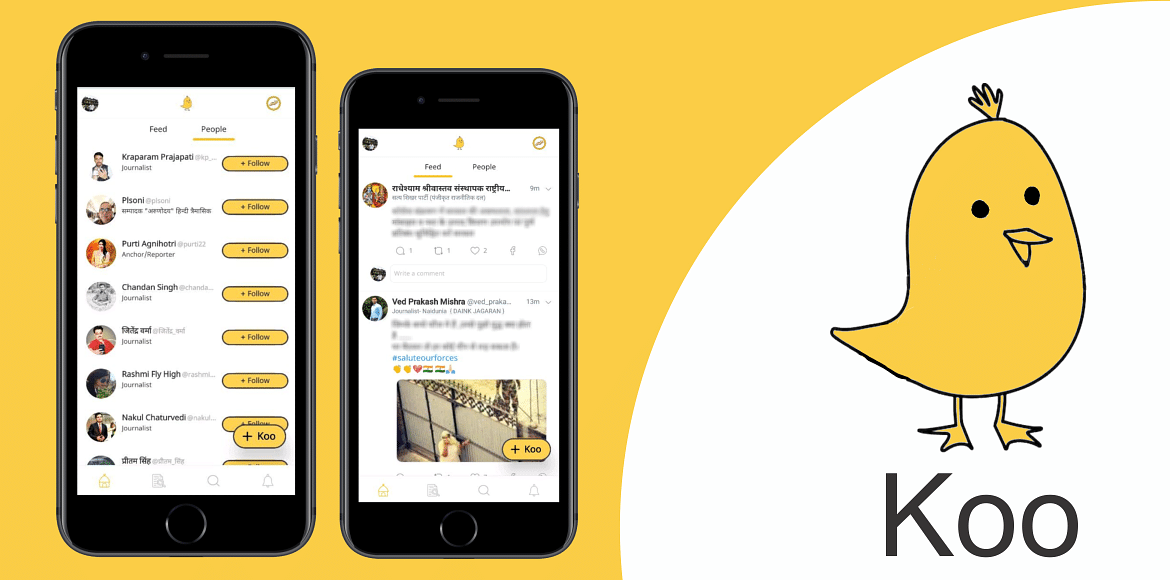
Koo, the Indian social media app, is shutting down. The company’s co-founder, Mayank Bidawatka, announced this on LinkedIn. He said, “we will be discontinuing our service to the public”. This news came just hours after a report by The Morning Context revealed that talks between Koo and DailyHunt about a possible acquisition had failed.

Also Read | Twitter Tips And Tricks: How To Download And Save Twitter Videos on Android, iOS Smartphones, Laptops/PCs

Why Is Koo Shutting Down?

Mayank Bidawatka explained that they tried to partner with many big companies, but these talks didn’t work out. “While we would’ve liked to keep the app running, the cost of technology services to keep a social media app running is high and we’ve had to take this tough decision,” he wrote.

A Brief History Of Koo

Koo was launched in March 2020 by Aprameya Radhakrishna and Mayank Bidawatka. The app quickly gained attention by winning the AatmaNirbhar App Innovation Challenge, organized by the Government of India, in August 2020. Koo was seen as India’s answer to Twitter, promoting the use of Indian-made products and services.

In April 2023, Koo began cutting down its workforce to manage expenses. Over the year, they reduced their 260-member team by 30 percent, laying off around 80 employees.

What Made Koo Unique?

Koo aimed to allow users to communicate in local Indian languages, filling a gap where most social media platforms, especially Twitter in India, were English-dominated. “We saw a big gap between the languages the world speaks and the fact that most social products, especially X/Twitter in India are English dominant. In a world where 80 percent of the population speaks a language other than English, this is a strong need. We wanted to democratize expression and enable a better way to connect people in their local languages,” said Bidawatka.

The Struggle For Funding

Despite its unique features and potential, Koo struggled with funding. “We built a globally scalable product in a fraction of the time that X/Twitter did, with superior systems, algorithms, and strong stakeholder-first philosophies. Koo used to have a 10 percent like ratio, almost 7-10x the ratio Twitter had – making Koo a more favorable platform for creators,” Bidawatka explained. At its peak, Koo had about 2.1 million daily active users and around 10 million monthly active users, including many VIPs.

Future Hopes

Even though Koo is shutting down, the company is still looking for a good deal. Bidawatka said they are open to sharing their technology with someone who has a great vision for India’s role in social media. He also mentioned the possibility of turning Koo into a digital public good to enable social conversations in native languages worldwide. Despite the shutdown, the founders promise a comeback. Bidawatka concluded by saying, “you will see us back in the arena one way or another”.

Also Read | YouTube Tips And Tricks: Best Features You Must Try On Your Phone

Conclusion

The shutdown of Koo marks the end of an ambitious project to create an Indian alternative to Twitter. While the app had many successes, the high cost of technology and lack of funding ultimately led to its closure. However, the founders remain hopeful for a future return.

Categories
Apps Featured Info

Amazon Prime Day 2024 Sale Is Coming: Discounts, Entertainment, Member Perks Await

Key Highlights

  • Amazon Prime Day 2024 offers exclusive discounts on global and Indian brands
  • Prime Video features 14 new shows and movies in multiple languages
  • Prime members enjoy perks like ad-free music, early access to podcasts, more

Amazon Prime Day is back in India on July 20 and 21, 2024. This two-day sale is exclusive to Prime members, offering great deals, big savings, and exciting new product launches. Here’s everything you need to know about this year’s Prime Day.

Also Read | Your Soundtrack, AI-Curated: Here’s How To Create Next-Gen Playlist On Amazon Music

Amazing Deals And Big Savings

During Prime Day, Prime members get exclusive discounts on products from top global brands, Indian brands, and small businesses. Expect thousands of products on sale, including new launches from over 450 brands like Samsung and OnePlus.

Special Offers On Bank Cards

Prime members can save more with special offers on ICICI Bank and SBI credit/debit cards. These offers include 10 percent savings and additional discounts on EMI transactions. The Amazon Pay ICICI Bank credit card, which is free for life, offers 5 percent cashback for Prime members and 3 percent for non-members.

On Prime Day, all customers get an extra 5 percent instant discount. New Prime members signing up for the Amazon Pay ICICI Bank credit card can receive up to Rs. 2,500 in welcome rewards, while non-Prime members can get up to Rs. 2,000 in rewards plus a free 3-month Prime membership.

Full Entertainment On Prime Video

Prime Video will entertain with 14 new shows and movies in multiple languages. Highlights include new seasons of popular series like “Mirzapur Season 3” and “The Boys Season 4.” For anime lovers, Prime Video has introduced Crunchyroll, available for an add-on subscription of Rs. 79 per month. Prime members can also enjoy up to 50 percent discounts on other popular video streaming services.

Music And Podcasts

Music enthusiasts can enjoy “Desi Vibes,” a playlist of trending Indian music. Prime members get early access to podcasts like “Be A Man Yaar Season 2” and “Cyrus Says,” available a week before other platforms. They also enjoy ad-free music, unlimited offline downloads, and access to over 100 million songs in 20 languages. New Prime members can also get Rs. 150 cashback this Prime Day.

Also Read | Amazon Alexa vs. Google Assistant vs. Apple Siri: Which One Wins?

Exclusive Prime Membership Perks

Only Prime members can access these deals, new launches, and entertainment offerings on Prime Day. Amazon Prime membership also provides benefits like same-day delivery on over one million products and one-day delivery on over four million products. Members get unlimited 5 percent cashback on purchases using the co-branded ICICI credit card and early access to deals and shopping events. Additionally, members can access a rotating selection of e-books, magazines, and comics with Prime Reading. They also enjoy monthly free in-game content and benefits with Prime Gaming.

This Prime Day promises a lot of excitement and savings. Don’t miss out on these exclusive deals and entertainment options. Mark your calendars for July 20 and 21, and make sure you’re a Prime member to take full advantage of all the offers.

Categories
Apps Featured Info

YouTube’s Latest Update: Remove AI-Generated Videos That Imitate You

Key Highlights

  • YouTube allows users to request the removal of AI-generated content that mimics them
  • YouTube reviews requests based on factors like public interest and AI labeling
  • Content creators have 48 hours to act on complaints before YouTube’s review process starts

In today’s world, AI is becoming a big part of our technology. However, with this growth, there are also growing concerns about privacy. For example, Meta has been criticized for tagging all images on Instagram as “AI image,” causing problems for artists. Similarly, YouTube has faced issues due to AI. To address these concerns, YouTube has introduced a new policy to protect its users’ privacy.

Also Read | YouTube Tips And Tricks: How To Download YouTube Shorts Videos Offline

New Policy For Removing AI-Generated Content

YouTube’s new policy allows users to ask for the removal of AI-generated or fake content that mimics their face or voice. This change is part of YouTube’s commitment to responsible AI, which they announced in November. Before this policy, users had to request the removal of such content by claiming it was misleading. Now, they can ask for removal directly as a privacy violation.

How To Request Removal

According to YouTube’s updated Help documentation, users need to make first-party claims to request removal, except in certain cases. These exceptions include situations where the person affected is a minor, doesn’t have access to a computer, or is deceased.

YouTube’s Review Process

It’s important to note that YouTube won’t remove the content immediately after a request. The platform will review the complaint and consider various factors before deciding. These factors include:

  • Whether the content is labeled as AI-generated
  • Whether it uniquely identifies a person
  • Whether the content could be seen as parody, satire, or something valuable to the public
  • Whether it involves a public figure in sensitive situations like illegal activities, violence, or endorsements

Time For Content Creators To Act

YouTube will give the user who uploaded the content 48 hours to address the complaint. If the content is removed within this time, the complaint will be closed. If not, YouTube will start a review process. YouTube has also warned that, if necessary, it will not only remove the video but might also delete the individual’s name and personal information from the title, description, and tags of the video.

Blurring Faces And Other Options

Users can blur faces in their videos, but simply making the video private is not enough. This is because the video could be made public again at any time. YouTube has also clarified that just labeling content as AI-generated does not protect it from removal. The content must still follow YouTube’s Community Guidelines.

Also Read | YouTube Tips And Tricks: How Can You Watch Age Restricted Videos On YouTube Mobile App, Desktop Version

Conclusion

YouTube’s new policy is a step towards ensuring user privacy in an age where AI is increasingly used in creating content. By allowing users to request the removal of AI-generated content that mimics them, YouTube aims to address privacy concerns while still considering the value and public interest of such content.

Categories
Apps Featured How To

Google Maps Hacks: How To Use Google Maps Simultaneously On Multiple Devices

Key Highlights

  • Google Maps can be accessed on multiple devices simultaneously
  • Same Google ID required to use Google Maps on multiple devices
  • Sync option to be activated using Google Settings

Google Maps has become a reliable navigation application for mobile users globally. Over the years, Google has exponentially improved the user experience with Maps and have also added a whole range of useful features for added convenience while getting directions for an unknown location. With Google Maps it has now become easier to get directions even in absence of an active internet connection. One can download and save locations for offline direction access. And do you know that Google allows using Maps on multiple devices simultaneously. Interested in knowing the steps? Find out how:

Also Read: Google Maps’ New Privacy Feature: Location History Will Now Be Saved on Your Device

Using Google Maps On Multiple Devices? Here’s The Trick

In order to use the Google Maps services on multiple devices simultaneously, you don’t need to follow any tricky steps. With a single email ID and enabling the sync option on your respective devices, you can easily use the Maps application on smartphones, tablets, or laptops simultaneously. Let’s take a look at the step by step guide below:

Steps To Use Google Maps On Multiple Devices Simultaneously

Step 1: Create a Google ID that you’ll be using for Maps and other application on your respective devices

Step 2: Launch the Google Maps application on your smartphone and use the ID that you’ll be using on your other devices as well

Step 3: You can also launch the web browser and sign in to the Maps app if you are planning to use a laptop or PC

Step 4: Now, enter the destination whose direction you wish to get

Step 5: Tap in the Save option which will allow using it later on other devices as well

Step 6: Once the destination is saved, you’ll be able to access it across your synced devices

Also Read: Apple Maps Address Update: How To Setup, Modify Home Address On Apple Maps

How To Enable Sync On Your Respective Google Account And Devices

Step 1: Open Settings on your respective Android or iOS smartphones

Step 2: Go to the Google Account Settings

Step 3: Locate the Sync option and enable it

How To Access Google Maps On Synced Devices

Step 1: Use the same email address which you have created for Maps

Step 2: Ensure that the Sync option is enabled on the secondary device as well.

Step 3: You’ll be able to see the saved locations after logging in with the same ID

Step 4: You can use the same email address on more than one device to access the saved locations and more.

Categories
Apps Featured How To

Apple Maps Topographic Hiking Trail Feature: How To Use?

Key Highlights

  • Apple iOS 18 brought along topographic feature for Maps
  • Available for all iOS devices including iPhone, and iPads
  • Can also be used on Apple Watch

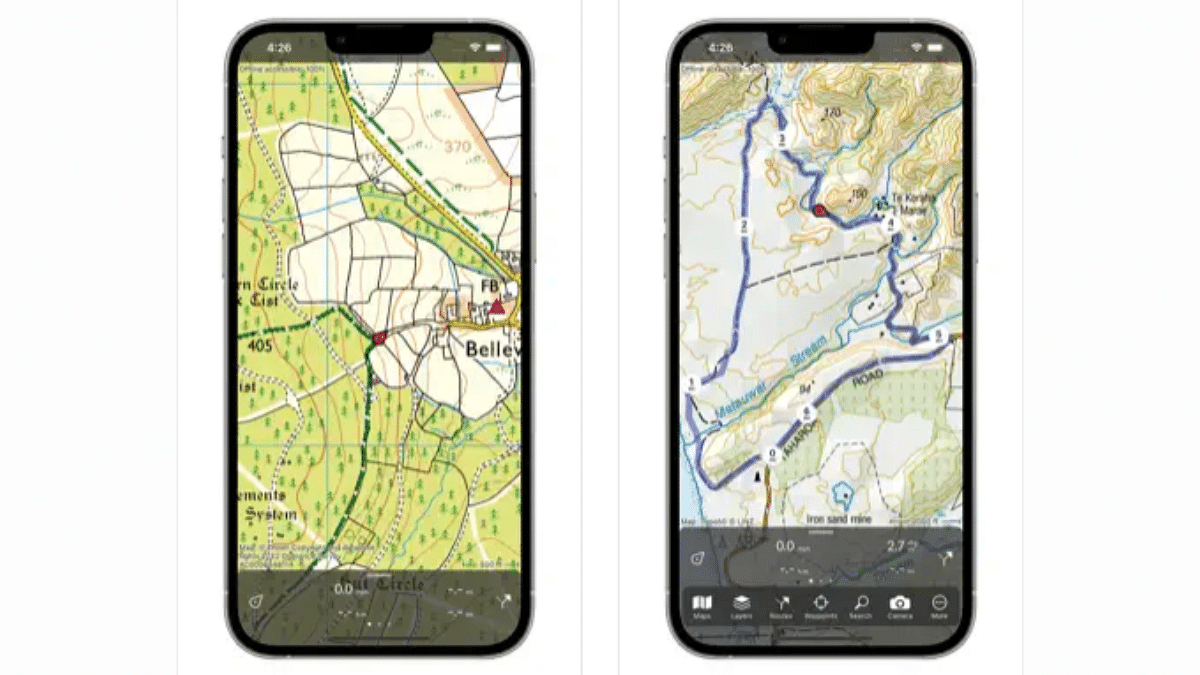
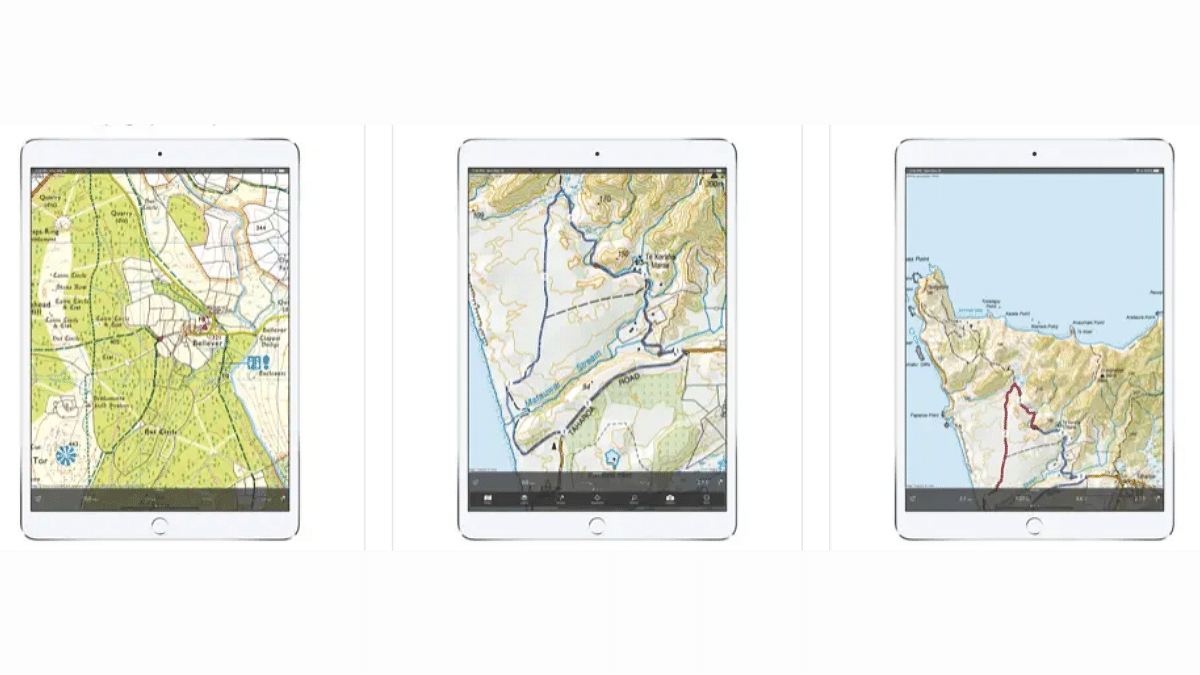
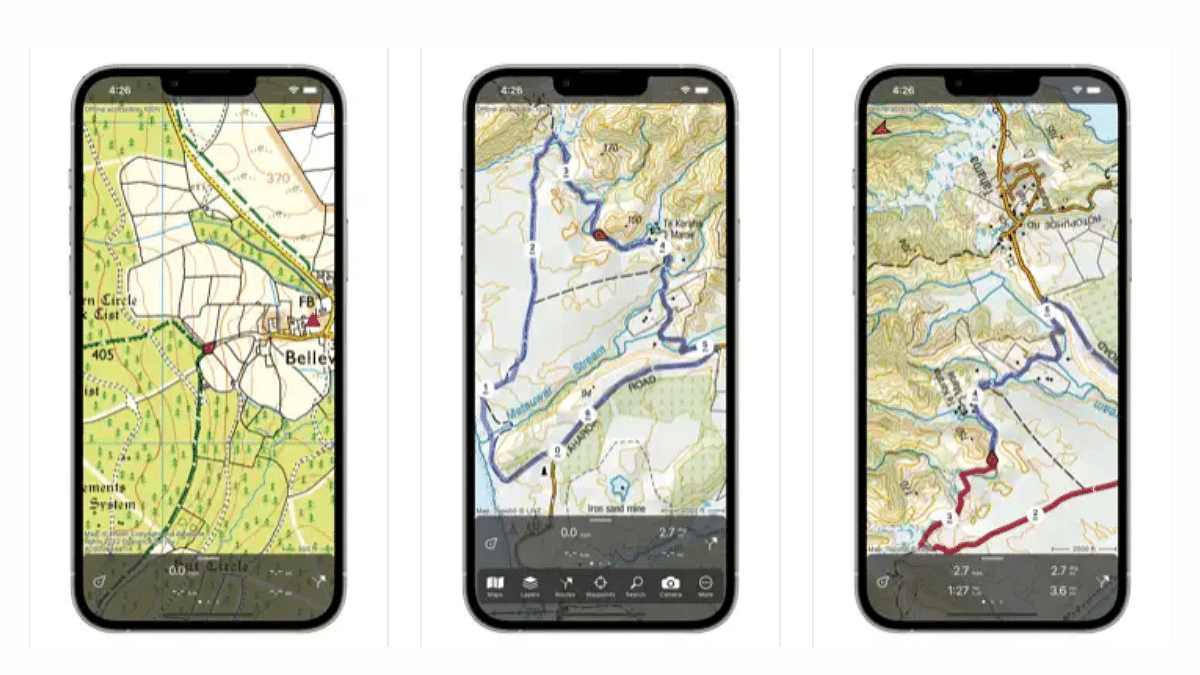
Apple WWDC concluded earlier this month with the Cupertino giant introducing a whole range of updates for iOS, iPadOS, and MacOS ecosystem. With the iOS 18, Apple introduced the topographic feature for Maps. This new feature specializing with hiking trails can be accessed on the Apple devices that run on the new versions. Which all versions support the topographic hiking trail feature and how can you set it up for easy use? Read on the step-by-step guide below:

Also Read: Apple Maps Address Update: How To Setup, Modify Home Address On Apple Maps

OS Versions Compatible With Apple Maps Topographic Hiking Trails Feature

Apple has released the topographic hiking trail feature for Apple Maps recently at the WWDC 2024 event. This special feature will be useful for the users who seek outdoor adventures and goes on hikes and treks. The beta version is being made available to the compatible devices with the stable version being released in the later stages. As for the compatible OS versions, the Apple Maps topographic version will be available for the devices running iOS 18, iPadOS 18, watchOS 11, and MacOS Sequoia.

Also Read: Google Maps’ New Privacy Feature: Location History Will Now Be Saved on Your Device

Steps To Use Apple Maps Topographic Hiking Feature

Step 1: After launching the Maps Maps application, type in the trail for which you wish to get the topographic details

Step 2: A Trailheads/ Trail option will pop up in the search

Step 3: Select the “Plan a hike” option

Step 4: Now, click on the option where you are planning the visit once it shows up on the screen

Step 5: Check for the alteration in the distance and elevation metrics

Step 6: You’ll see three different options including Reverse the hike, draw and Out & Back map location, and Close Loop. Select the preferred option.

Step 7: Once done tap on Save

Step 8: To save this trail with a specific name enter the name and tap on Done.

Step 9: Now, just tap on the profile icon and go to Offline Maps option to see the saved trail map

Categories
Apps Featured Info

Character.ai Introduces Voice Calls For AI Characters: Cool Or Creepy?

Key Highlights

  • Character.ai now offers voice calls with AI characters
  • Users can choose different voices and switch between talking and texting
  • This feature was announced shortly after OpenAI delayed its GPT-4 voice mode

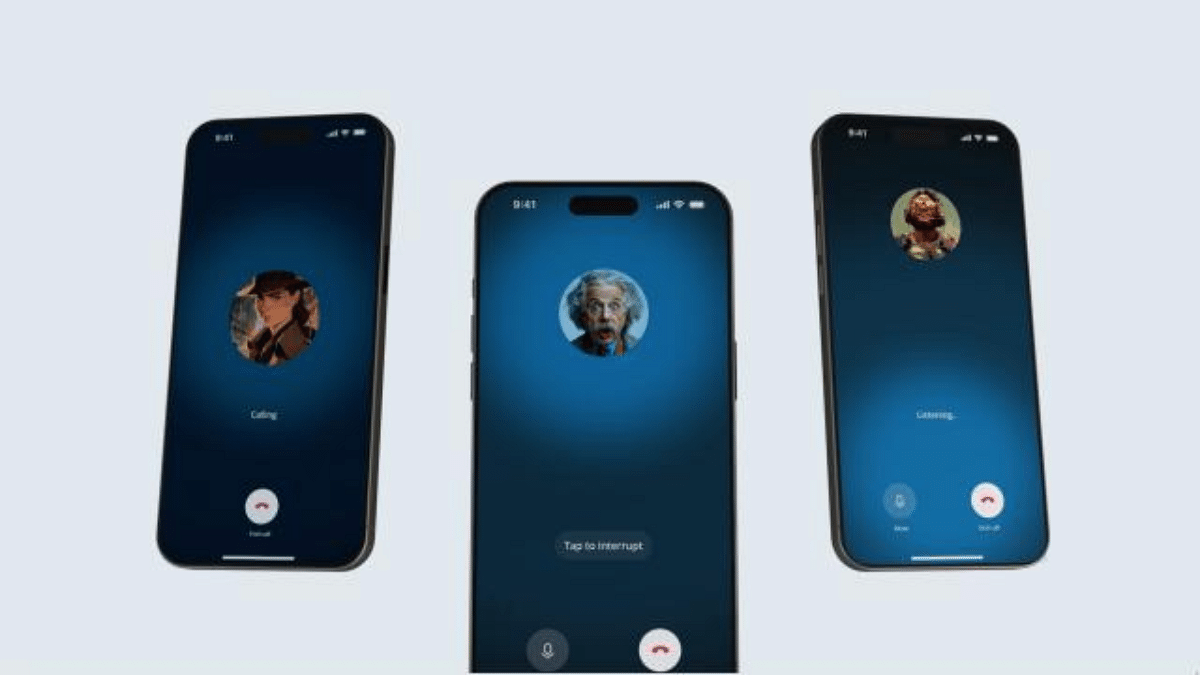
AI startup Character.ai has launched a new feature called Character Calls. This allows users to have voice conversations with their AI characters. Previously, users could only chat with these AI characters by typing messages. Now, they can actually talk to them over a call. The company announced on Thursday that this feature is free for all Character.ai app users.

Also Read | Google’s Gemini Chatbot App Debuts In India, Now Supports 10 Indian Languages

A New Way To Talk To AI

Character.ai lets users create personalized AI characters. These characters can be based on celebrities or influencers. With the new calling feature, users can call these AI characters anytime. “Character Calls represents a significant milestone in our journey towards enhancing where, when, and how you can interact with Characters,” the company stated in its blog post.

The AI startup believes this new feature will make the characters even more useful. They say that the AI characters can help with many tasks. For example, they can help you practice a new language, prepare for interviews, or even make role-playing games more fun.

How To Use Character Calls

Using Character Calls is simple. The company says that the calls have low latency. This means that conversations will flow smoothly without long waits. You can also interrupt the AI character anytime by tapping a button.

Users can choose from a variety of voices, accents, and personalities for their AI characters. The characters can speak in many languages, including English, Spanish, Portuguese, Russian, Korean, Japanese, and Chinese. If you prefer texting over talking, you can switch between the two modes anytime.

Comparing With Previous Features

In March, Character.ai launched a similar feature called Character Voice. This feature lets users hear the AI characters speak, but it does not allow for real-time conversations like Character Calls does.

Competition In The AI Space

The Character Calls announcement comes just one day after OpenAI delayed its advanced voice mode for GPT-4 by a month. Meanwhile, Google is working on a similar idea. Google’s new chatbots will be modeled after celebrities and YouTube influencers. These chatbots will offer an experience similar to talking with a celebrity and will use Gemini LLMs technology.

Also Read | Meta AI vs ChatGPT: Which Chatbot Fits Your Needs?

Final Thoughts

The new Character Calls feature from Character.ai is a big step forward. It offers users a new way to interact with AI characters. Whether you find it cool or creepy, this new feature is set to change how we use AI in our daily lives.