Categories
Apps Featured How To

iOS Tips And Tricks: How To Setup Medical ID And Make Emergency Calls From Lock Screen

Key Highlights

  • iOS offers health and emergency features like Medical ID for iPhone users
  • Medical ID shares critical info from the Lock screen without needing a password
  • Emergency contacts can view medical data like blood type and allergies easily

Apple iOS undeniably offers a premium user experience. Apple has been ensuring all iPhone and iPad buyers get the best-in-class user experience with the iOS firmware. The latest generation iOS versions specifically iOS 15 and 16 are packed with some of the best user-oriented features. Apple has also been adding health monitoring and wellness features so that iPhone and iPad users get emergency medical services without any delays.

Setting up a medical ID and making emergency calls even when iPhone is locked is one such crucial health feature offered by iOS. The Medical ID in iOS shares critical medical information with the saved emergency contacts directly from the Lock screen. It doesn’t require the users to enter the lock screen password in such scenarios.

Also Read | iOS Tips And Tricks: How To Manage Automatic ETA Sharing Using iPhone, iPads In Apple Maps

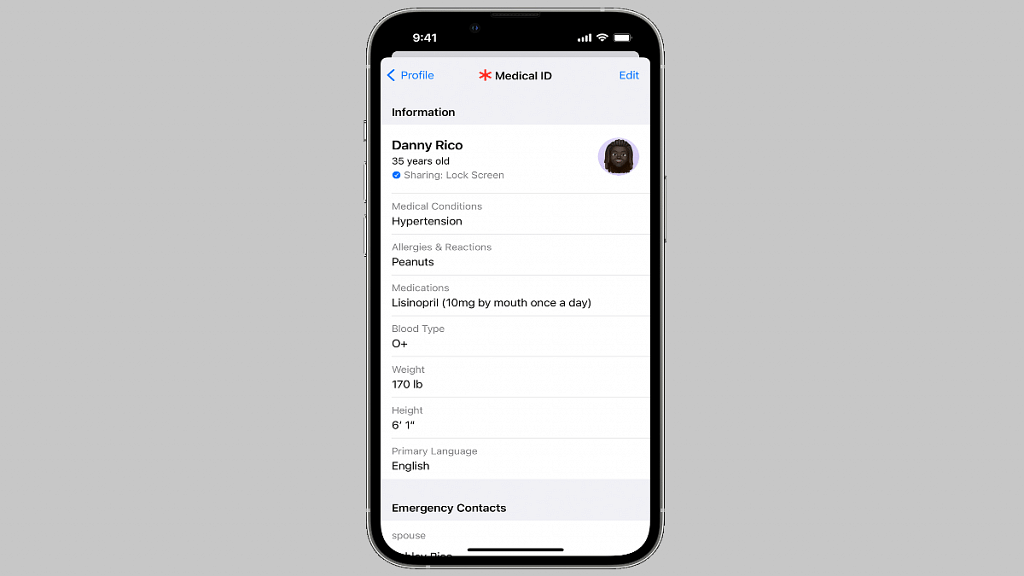
Also, if someone else is making emergency calls to your saved contacts, they can see your important medical data such as date of birth, blood group, and also if you have certain types of allergies that you might have mentioned while setting up the Medical ID. Setting it up is a fairly simple process, we have mentioned the method below.

How To Setup Medical ID In iOS On iPhones and iPads

Step 1: On your respective iPhones and iPads, launch the Health App.

Step 2: Click on the Summary tab.

Step 3: Tap on the profile picture option which you can locate in the upper-right corner.

Step 4: You will see the Medical ID option. Tap on it.

Step 5: Select the Edit option from the top right.

Step 6: Enable the “Show when locked” option to use the Medical ID feature from the Lock screen.

Step 7: Toggle on Share During Emergency Call to share the emergency updates with the saved contacts.

Step 8: Edit and enter your health information such as blood group, anu known allergies, and date of birth.

Step 9: Select Done.

Step 10: When the Medical ID setup is complete and you make a call or text during emergencies, the details will be shared with the emergency services and the saved contacts.

Also Read | iOS Tips And Tricks: How To Setup And Use AutoFill For Contact Cards And Credit Cards In Safari On iPhones And iPads

Medical ID helps first responders access your critical medical information from the Lock screen, without needing your passcode. They can see information like allergies and medical conditions as well as who to contact in case of an emergency. 

For the tech geeks, stay updated with the latest cutting-edge gadgets in the market, exclusive tech updates, gadget reviews, and more right on your phone’s screen. Join Giznext’s WhatsApp channel and receive the industry-first tech updates.
Categories
Accessories Featured How To

Lost Your AirPods’ Charging Case? Here’s How To Charge AirPods Without A Case

Key Highlights

  • Losing your AirPods charging case can be frustrating
  • It’s possible to take steps to find or replace it
  • Help is available to guide you through the process

Have you misplaced or lost the charging case of your Apple AirPods and are unsure what to do? We are aware of how painful it is to lose your AirPods charging case with or without the AirPods inside. Nevertheless, we are here to help you.

Also Read | Stay Safe While Using Earbuds: Five Essential Tips You Should Know

How To Charge AirPods Without A Case?

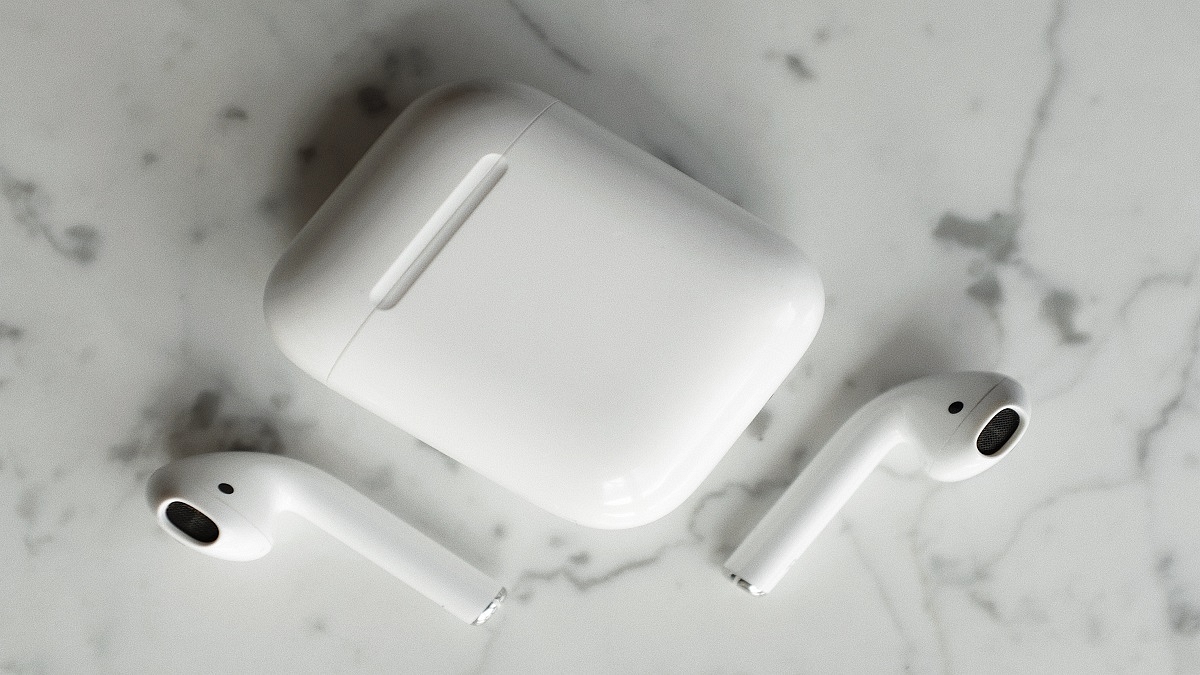
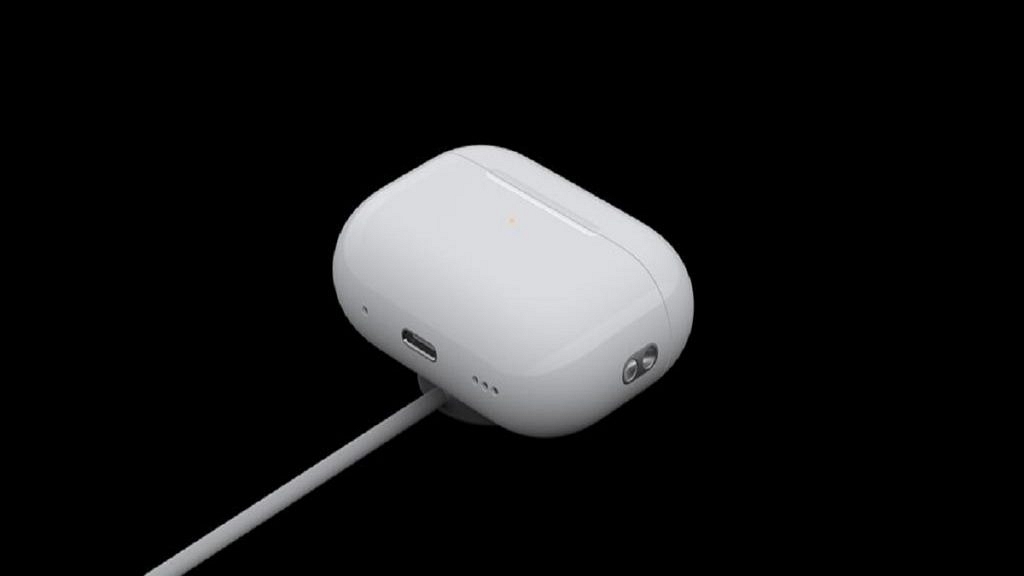
Unfortunately, charging AirPods without the case is not possible. The sole way to charge AirPods is to use an AirPods charging case, despite the claims of several online hacks that you can use certain chargers or apps to do so. So, here are some options you have if you’ve damaged or misplaced your charging case:

Get An Official Apple Replacement Case

Apple is the best source for replacement cases. The procedures and costs vary a little depending on whether the case is lost, damaged, or defective.

Get A Third-Party Replacement Case

You can get a more affordable case from an electronics retailer if you don’t want to fork over the entire price for a replacement case. It’s crucial that you choose a case that works with the precise kind of earphones you own; otherwise, the case won’t allow your device to charge.

Use A Friend’s Charging Case

You can use any charging case for the same model of your AirPods if your charging case is lost or destroyed. This will allow you to receive 4.5 to 6 hours of listening time (depending on your model) after a full charge.

How To Charge AirPods With A Different Case?

Step 1: You must pair your AirPods with the charging case before using them, regardless of whether you borrowed one or received a replacement. The first step is to “forget” your AirPods in Bluetooth settings:

  • Open the Settings of your iPhone or iPad
  • Click on Bluetooth and then the small “i” in a circle next to your AirPods
  • Click on ‘Forget This Device’ and then ‘Forget Device’ twice to confirm

Step 2: Insert the AirPods into the new case. Make sure you are using a charging case for the same model of AirPods.

Step 3: Open the charging case’s lid. The case’s status light flashes amber.

Step 4: Press and hold the Setup button on the case. You can lift your finger when the status light starts blinking white.

Also Read | Choosing The Right Earbuds For Workout? Five Key Features To Look For

Step 5: Go to the home screen of your iPhone or iPad. You’ll be prompted to connect your AirPods.

Step 6: Tap ‘Connect.’ Your iPhone or iPad is now paired with your new charging case.

Step 7: Tap ‘Done.’ You can now charge your AirPods with this case.

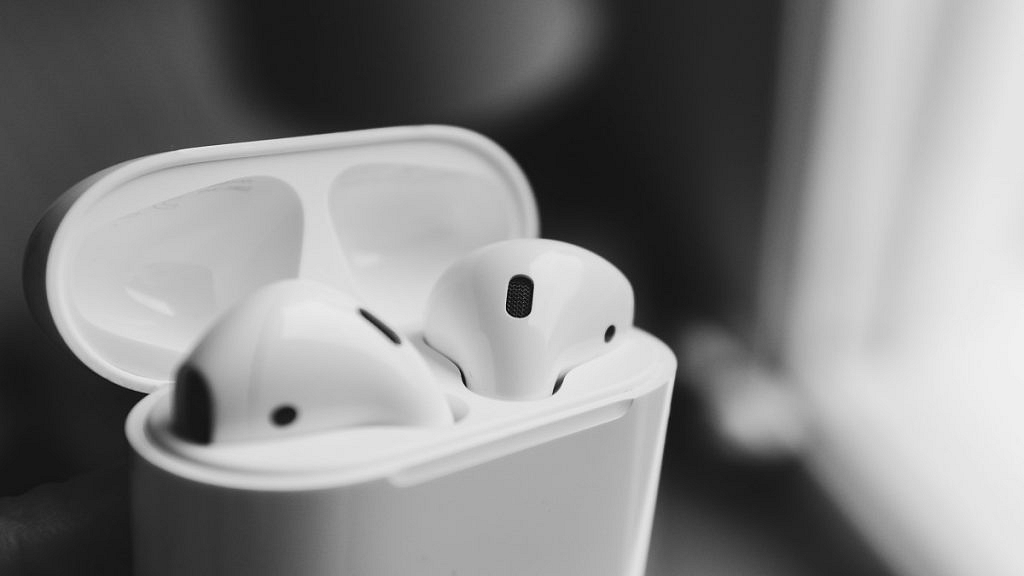
Image By SmartHouseColony

For the tech geeks, stay updated with the latest cutting-edge gadgets in the market, exclusive tech updates, gadget reviews, and more right on your phone’s screen. Join Giznext’s WhatsApp channel and receive the industry-first tech updates.
Categories
Featured How To Printers

How To Print Borderless Images Using Modern Printers: Steps Guide

Printers like other electronic gadgets have evolved with the latest technological innovations. India is also one of the largest markets for printers with brands introducing all ranges of products such as all-in-one printers, monochrome, laser/inkjets, etc. Tech advancements have not just made it possible to print multiple pages quickly but also use other services such as document scan and fax alongside.

Also, you aren’t now restricted to print your required documents on A4 sheets (for general prints). Modern printers can give prints on various paper formats and support printing beyond simple texts. Clicking borderless images is also a possibility with new-age printers. If you own one such printer that is capable of printing on various paper formats and different content types, you can also print images without any borders. What all steps are required to do so? Read on here:

How Can You Print Borderless Images

In order to give a command for borderless image print, you should ensure that your printer supports this feature. The default settings might not be toggled on and you would need to make the changes to the required settings manually. In general scenarios, most printers can easily print borderless images on A4 paper type.

However, some advanced printers are capable of printing borderless images on any type of paper. Also, if your laptop or PC with which you are giving this print command is running the latest version of Windows OS, you can make the required settings modification using the control panel itself. Otherwise, you would need to make the changes according with the printer settings. For HP printers, the steps are listed below:

Step 1: On your Windows laptop or PC, go to the Control Panel.

Step 2: Select the Printers and Fax option and select the printer model.

Step 3: Go to the General tab settings and select Printing Preferences.

Step 4: Now, click on the Photo printing-borderless option and select the apt paper size for borderless print, and set the print orientation. You can select either landscape or portrait paper type.

Step 5: Once the desired print settings are set, clock on OK to give the print command.

Categories
Accessories Featured Info

Amazon Happiness Upgrade Days Sale 2022: Get Up To 50% Off On Accessories

Key Highlights

  • Happiness Upgrade Days Sale is live on Amazon
  • It brings hundreds of exciting deals and offers
  • Check out the best deals on accessories

The Amazon Great Indian Festival 2022 sale continues in October in a brand-new guise called “Happiness Upgrade Days.” The festive season sale promises fantastic discounts on a wide range of accessories. The Amazon Great Indian Festival sale’s Happiness Upgrade Days phase offers an additional 10 percent discount (up to Rs. 6,000) on Citibank, One Card, RBL Bank, and RuPay cards. Users of Amazon Pay Later are also qualified for up to 12-month EMIs.

The top offers and deals from today’s Amazon Great Indian Festival “Happiness Upgrade Days” sale have been hand-selected and are included in this post. Let’s check them out:

Offers On Desktops

You should get a desktop with all essential accessories during this time if you wish to have a gaming setup or a business setup. The Amazon sale helps you save up to 50 percent on desktops. You can choose the right option for your needs and make the greatest buy at roughly half the price during the Amazon Happiness Upgrade Days sale thanks to discounts on both tower desktops and all-in-one desktop computers.

Offers On Smart Security Cameras

During the Amazon Happiness Upgrade Days sale, smart security cameras are up to 50 percent off. These savings are available on a variety of cameras, including wired, wireless, indoor, outdoor, bullet, dome, and others. This sale allows you to effortlessly shop for your needs without going overboard during the sale.

Offers On Routers & Hotspots

You can get huge discounts on all the networking necessities for your home and workplace during the Amazon Sale. During the Amazon Happiness Upgrade sale, WiFi routers and hotspots are discounted by up to 80 percent. In addition to this, there is an additional five percent off on up to Rs. 500 on WiFi Routers and Extenders.

Offers On Monitors

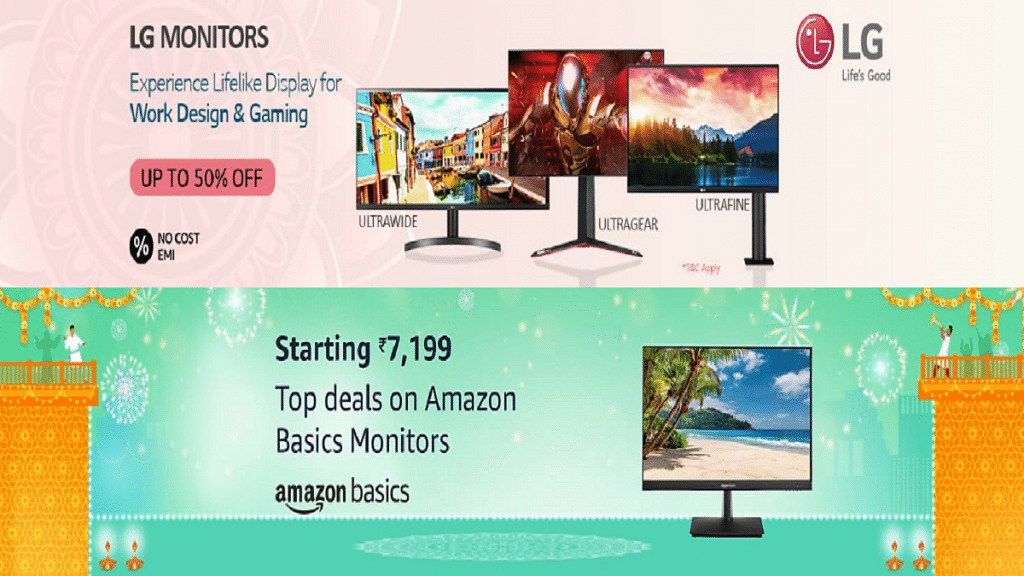
Take full advantage of this Amazon sale to buy the best-selling monitors at deep discounts. These discounts can also be found on ultrawide and curved monitors, making it easy to shop for all your needs. These discounts apply to monitors from Samsung, AmazonBasics, Lenovo, BenQ, Acer, and more.

Categories
Featured Home Appliances Info

Amazon Happiness Upgrade Days Sale: Best Offers On TVs, Washing Machines, And More

Key Highlights

  • Amazon Happiness Upgrade Days Sale is live
  • Grab the best deals on home appliances
  • You can get up to 60 percent off on Smart TVs, ACs, and more

We all look forward to buying new home appliances and electronics throughout the festive season. You can get the best prices on all your purchases during the Amazon Happiness Upgrade Days Sale. You can get up to 60 percent off on Smart TVs, ACs, washing machines, and other items.

You do not need to worry about the quality because this sale is available on all top brands. It includes a wide range of items with massive discounts. Here are some of the best offers you can find right now on high-quality home appliances. Check them out:

OnePlus 50-inches Y Series 4K Ultra HD Smart Android LED TV

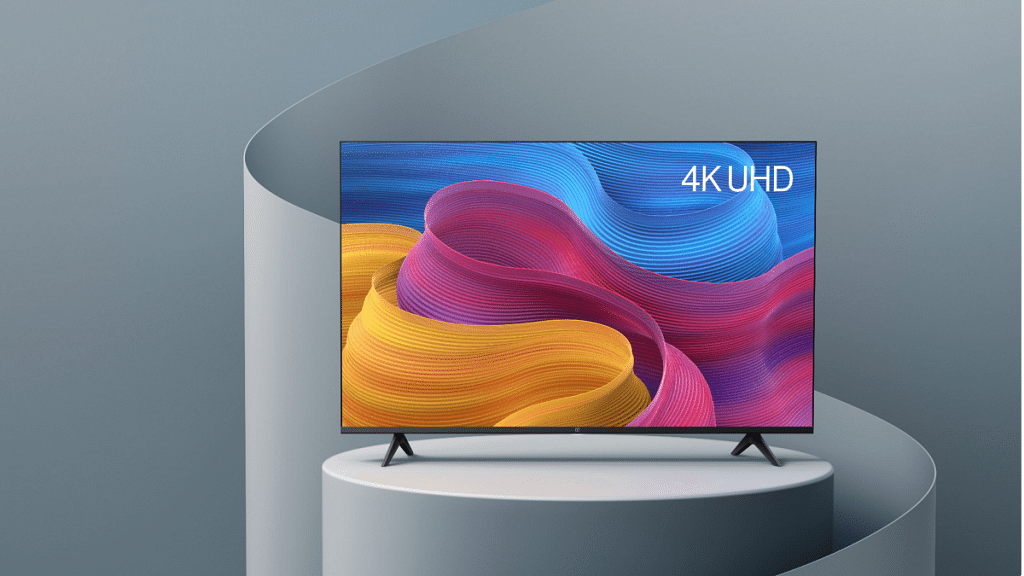
The OnePlus TV is known for its high-quality sound and picture. This supports all of the apps, including Prime Video, Netflix, Hotstar, and YouTube. It has three HDMI ports and two USB ports. The bezel-less design of this smart TV holds the screen in place and protects it from damage. It can be availed for Rs. 30,999.

LG 1.5 Ton 5 Star AI DUAL Inverter Split AC

This split air conditioner from LG provides decent cooling. The anti-virus protection features prevent it from any virus. An inverter compressor, convertible, high-density filter, remote control, adjustable, dust filter, and auto clean are a few other characteristics. It has a 1.5-tonne capacity, making it appropriate for medium-sized rooms. The LG AC is available for sale for Rs. 42,990.

Samsung 6.5 kg Fully-Automatic Top Loading Washing Machine

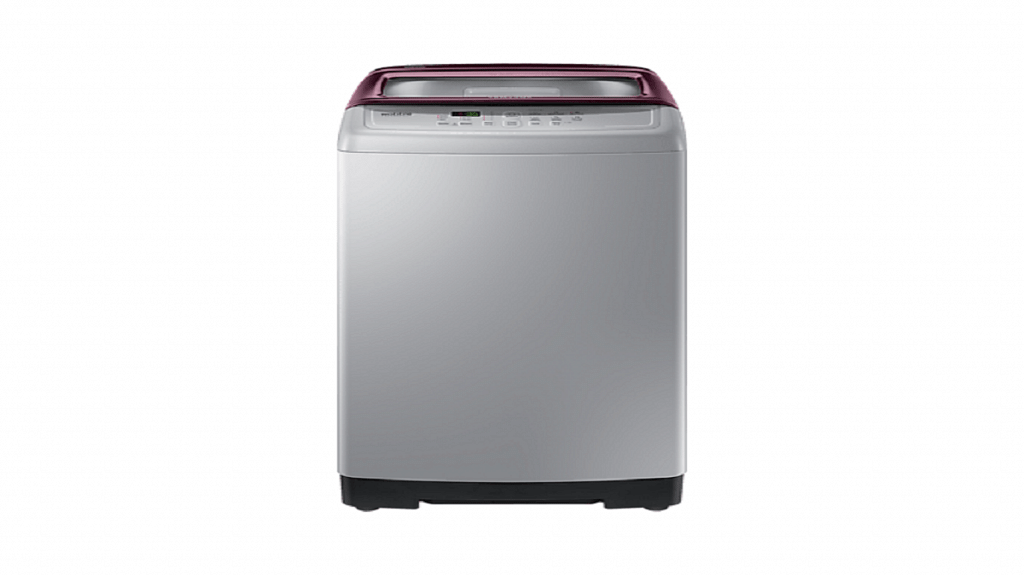
The fully automatic Samsung 6.5 kg Top Loading Washing Machine produces excellent results. It comes with a 6.5kg weight, which is the perfect size for 3-5 family members. This washing machine features Normal, Delicates, Quick wash, Soak + Normal, Echo Tub Clean, and Energy Saving modes in addition to its stylish design. This Samsung Washing Machine will cost you Rs. 13,990 during the sale.

Whirlpool 240 L Frost-Free Multi-Door Refrigerator

Food stays fresh in the Whirlpool Multi-Door Refrigerator. It has a 240-liter capacity. The food’s moisture is preserved by the circulation of cold air around the compartment. With the use of three doors, the food is mixed without any smell. During the Amazon Happiness Upgrade Days sale, the Whirlpool 240 L Frost Free Multi-Door Refrigerator is available for Rs. 26,249.

Categories
Chipset Comparison Featured

Qualcomm Snapdragon 778G Vs MediaTek Helio G88 Chipset: Which Mid-Range Mobile Processor Wins?

Smartphone OEMs are majorly targeting mid and premium mid-range smartphone buyers in India. We have multiple brands competing in this league with their value-for-money deals. All noted smartphone companies including Xiaomi, OPPO, Vivo, Realme, Poco, iQOO, and others have been quite proactive in the premium mid-range Android smartphone race with their 5G-ready handsets.

Qualcomm and MediaTek are the first preference for both smartphone companies and general audiences when we speak of mobile chipsets. Both these mobile chipset brands have launched numerous new options in the last few years in India. Both Qualcomm and MediaTek have created a dedicated mobile chipset lineup for gaming phones. And not just the flagship but the mid-range category also has some of the best options to consider.

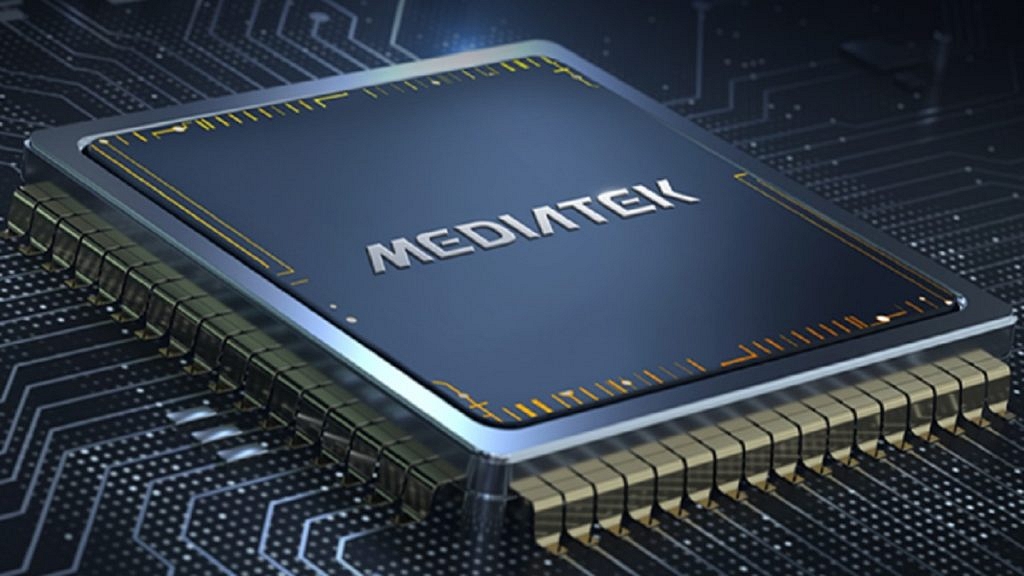
From Qualcomm, it’s the Snapdragon 778G game-centric processor unleashing prowess with premium mid-tier Android phones. Whereas, MediaTek competes in this race with multiple of its chipsets. However, the Helio G88 is one of the best gaming chipsets by the company for the affordable range of Android phones. Which of the two has the best processing speeds, CPU, and GPU performance? Read on here:

Qualcomm Snapdragon 778G Vs Helio G88 Processor: CPU Comparison

The Qualcomm Snapdragon 778G is more powerful compared to the Helio G88. While both these processors have an octa-core CPU cluster, the Qualcomm SD 778G has a thinner fabrication processor. It is designed using 6nm fabrication compared to the 12nm process used by the Helio G88 chipset.

Qualcomm has used a single 2.4GHz Cortex-A78 core, three Cortex-A78 cores with 2.2GHz clock speed, and four Cortex-A55 cores with 1.9GHz clock speed, while the Helio G88 has two Cortex-A75 cores with 2GHz clock speed and six Cortex-A55 cores with 1.8GHz. The frequency range is higher with the Snapdragon 778G processor, i.e., 2400MHz. The Helio G88 offers a lower frequency range of 2000MHz.

Snapdragon 778G Vs Helio G88: GPU Comparison

The GPU integrated with the Qualcomm Snapdragon 778G is the Adreno 642L which offers around 490MHz of GPU frequency. On the other hand, the Helio G88 features the Mali G52 MC2 GPU which offers a higher 1000MHz. The execution unit is 2 with both chipsets, Vulkan Version is 1.1, the OpenCL version is 2.0, and the DirectX version is 12.

Snapdragon 778G Vs Helio G88: Memory, Multimedia (ISP) Compatibility

The Qualcomm Snapdragon 778G chipset features LPDDR5 RAM compatibility, while the Helio G88 is integrated with LPDDR4X RAM support. The memory frequency is higher with the Snapdragon 778G at 3200MHz and 1800MHz with the Helio G88.

The Snapdragon 778G processor supports a maximum 16GB memory size, while the Helio G88 has 8GB RAM maximum memory compatibility. The storage compatibility is UFS 2.1, UFS 2.2, and UFS 3.3, and UFS 3.1 with the Snapdragon 778G processor. Whereas, the Helio G88 has only eMMC 5.1 storage support.

Speaking of the display and camera resolution, the Snapdragon 778G ships with 1080 x 2520 pixels resolution and 1x 192MP, 2X36MP respectively. The Helio G88 offers the same display resolution of 1080 x 2520 pixels but a different 1x64MP, 2x 16MP max camera resolution. The video recording and playback support is 4K@30fps with the SD 778G and 2k@30fps with the Helio G88.

Final Verdict: Which One Is Better

The Qualcomm Snapdragon 778G is a better performer in terms of CPU and GPU performance. Overall performance and speed reliability are also good with the Snapdragon 778G processor compared to the Helio G88. A thinner fabrication makes it more premium compared to the MediaTek processor.

Categories
Featured Home Appliances Info

Amazon Happiness Upgrade Days Sale: Best Deals On Air Purifiers

Key Highlights

  • Amazon Happiness Upgrade Days Sale is now live
  • Amazon offers a 10 percent instant discount on select debit and credit card
  • Best deals you can grab on Air Purifiers

The festive season has brought many alluring deals and offers across various brands and product categories. The e-retailer Amazon is extending the deals and discounts spree with the Amazon Happiness Upgrade Days Sale, a follow-up to the Great Indian Festival Sale, so it doesn’t seem to be slowing down any time soon.

Keeping up with the tradition, the Amazon Happiness Upgrade Days Sale is offering us fascinating deals and alluring savings on air purifiers. If air pollution is a concern for you, check out our list of the best air purifiers during the Amazon sale.

Philips AC1215/20 Air purifier

The Philips AC1215/20 has touch controls and a True HEPA filter rated H13. It claims to have a CADR of 270 m3/hour and can purify a typical room in just 12 minutes. It is available in White shade. During the current Amazon’s Happiness Upgrade Days Sale, it is now selling for Rs. 8,999. By paying through your Amazon Pay ICICI credit cards, you can avail of Rs. 300 cashback and welcome rewards.

Dyson Pure Cool Link Air Purifier

The Wi-Fi-enabled Dyson Pure Cool Link Air Purifier has a HEPA filter. It supports Alexa and Google Assistant, giving users access to hands-free assistance. This Dyson portable air purifier is now available on Amazon for the price of Rs. 27,900. Through Citi Credit cards and non-EMI transactions, there is also a 10 percent instant discount up to Rs. 1,750 for payments. No-cost EMI options start at Rs. 2,325.

Coway Professional Air Purifier

The Coway Professional Air Purifier features touch controls and it will automatically adjust the speed of the air based on the indoor air quality. It also includes a filter replacement indicator. During Amazon’s Happiness Upgrade Days Sale, the Coway Professional Air Purifier will be on sale for Rs. 11,990. Amazon is offering no-cost EMI options beginning at Rs. 1,998 per month.

Additionally, the e-commerce giant also offers Amazon Pay-based deals and coupon discounts. Exchange offers and EMI options are also available. This time, Amazon has partnered with Citibank, OneCard, RBL Bank, and RuPay to offer an instant 10 percent discount.

Categories
Accessories Featured How To

How To Find Or Track Lost Apple AirPods Easily: Step By Step Guide

Apple iPhones are amongst the most premium available smartphone range. However, the Cupertino tech giant is also known for its other product lineups including iPads (tablets), Macbooks (laptops), and more. Apple AirPods are a popular range of audio accessories for the modern masses demanding a premium user experience with wireless music listening.

Apple started the era of truly wireless earbuds with the launch of AirPods which later got adapted by most of the tech behemoths including smartphone OEMs that are active in the audio accessories industry. Apple AirPods like its other product range are tech advanced and utilize the latest hardware and software innovations to deliver the best-in-class experience with music listening.

Apple has refreshed the AirPods lineup with the launch of the new-gen model at the Far Out 2022 event alongside the Apple iPhone 14 series. One of the handiest features of all generations of AirPods is the “Find My” that helps users locate their lost or stolen AirPods. If you have accidentally misplaced your AirPods, the Find My option will come to your rescue. But how can you find your lost Apple AirPods using this Find My option? Well, the steps are listed below:

How To Find Lost Or Stolen AirPods

Step 1: You would first need to activate the Find My security feature using the iPhone or iPad you have handy. Once this feature is enabled, you’ll be able to find your AirPods on Maps.

Step 2: Launch the Find My app option.

Step 3: Tap on the Devices section and select your AirPods from the list.

Step 4: You will be able to see the location of the AirPods once you perform Step 4. If in case your AirPods are offline, you won’t be able to see the location on Maps. You would need to perform the steps below in that case.

How To Find AirPods If Offline Or Out Of Range

Suppose your AirPods are out of range, possibilities are they might have run out of batteries. In such scenarios, you might be able to see its last location or “No Location found”, or “Offline” message.

Try playing the audio using the Find My app. If no response, you might have a lower chance of tracking them if you somehow don’t recall where you kept them last. But, the location will be updated as soon as they come online. This is the case that comes in handy if the AirPods are stolen.

How To Track Lost Or Stolen AirPods Using Find My Network Feature

Another useful feature using which you can find or track your lost or stolen AirPods is the Find My Network. This feature will help you locate your lost AirPods Pro, AirPods Pro 2nd Gen, and AirPods Max despite your respective iPhones or iPads not being connected to Wi-Fi or any cellular network.

Step 1: Go to the Settings app on your respective iPhone or iPad.

Step 2: Tap on your name and then select the Find My option.

Step 3: Toggle on the Find My [device] option and then activate the “Find My Network” option.

Categories
Apps Featured How To

How Can You Make Or Join Video Calls Using Gmail On Laptop And PC

Amongst the multiple services provided by Google is Gmail. The email service by the search giant is one of the biggest and is commonly used by the audience in India and other global regions. Google has made several advancements to Gmail like its other user-oriented apps. Over the years, Google has expanded Gmail services to mobile users, making it easier for Android and iPhone users to send or access essential emails on the go.

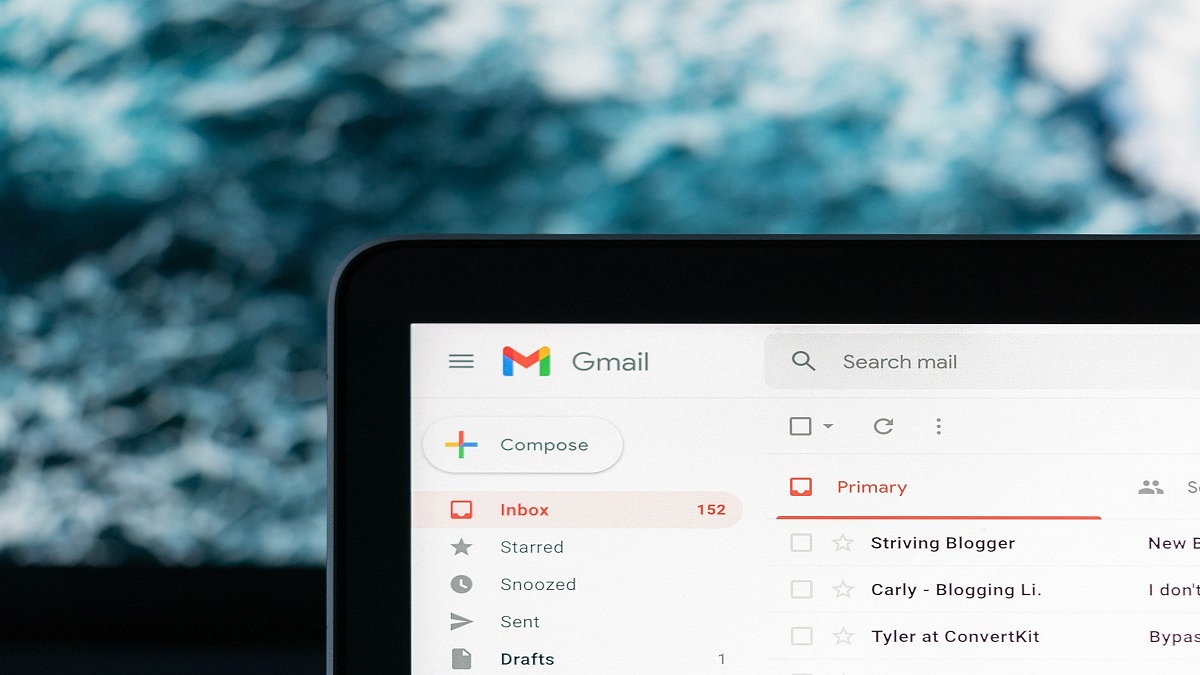
Gmail doesn’t restrict a user by offering only text email services. With the latest version of the Gmail application, users also get the provision to make video calls. Gmail users on laptops and PC can use this option for video calling using Gmail. It is one nifty feature that lets users go ahead with online conferencing without downloading or installing any third-party PC or mobile application.

You can integrate Google Meet services with Gmail to start with video calling. The Google Meet services need to be activated from the Admin console in order to make video calls using Gmail. So, how can you start or join a video call using Gmail on any laptop, PC, or mobile application? The steps are listed below:

How To Start Video Call In Gmail

Step 1: Launch any web browser such as Google Chrome or Firefox.

Step 2: Now, go to Gmail and log in using your registered email ID.

Step 3: Go to the Meet section.

Step 4: Tap on New Meeting.

Step 5: You can send the video call meeting link or email by tapping on the Send invite. Copy the meeting invite details and share the invite link or email.

Step 6: Tap on the Join now option to join the meeting. Make sure you have given access to both camera and microphone before you initiate the video call.  

Step 7: Tap on the Leave call option once done.

How To Directly Join A Video Call Using Gmail App

Step 1: Launch the Gmail application on your smartphones or laptops/ PCs.

Step 2: You can locate the My Meetings option placed at the bottom left of the app’s homepage. This would be for the upcoming video calls scheduled on the calendar.

Step 3: Tap on Join. Notably, you can directly join any video call if it’s added in your Google Calendar. Otherwise, you would need to enter the meeting code and the nickname.

Step 4: Once you have given permission access to the microphone and camera, tap on join to continue with the video call on Gmail.

Categories
Featured Tablet

Best Tablets To Buy For Seniors With Dementia: List Inside

Key Highlights

  • Tablets are multi-functional and useful devices.
  • The right tablet can be helpful for seniors.
  • We’ve got you covered with the top options for seniors.

Tablets are multifunctional tools that are portable and simple to use while being able to carry out a wide range of functions. For elderly individuals, this is quite useful. Talking to your family, taking and viewing pictures, writing emails, surfing the web, reading books, listening to music, and many other activities are all possible. What’s more? A lot of manufacturers offer accessibility options that let you customize the settings to best meet your requirements. Here’s a list of the best tablets that you can buy for seniors.

Tablets Price(in Rs)
Samsung Galaxy Tab S3 SM-T825 Tablet47,900
Lenovo Tab Yoga Smart Tablet 19,999
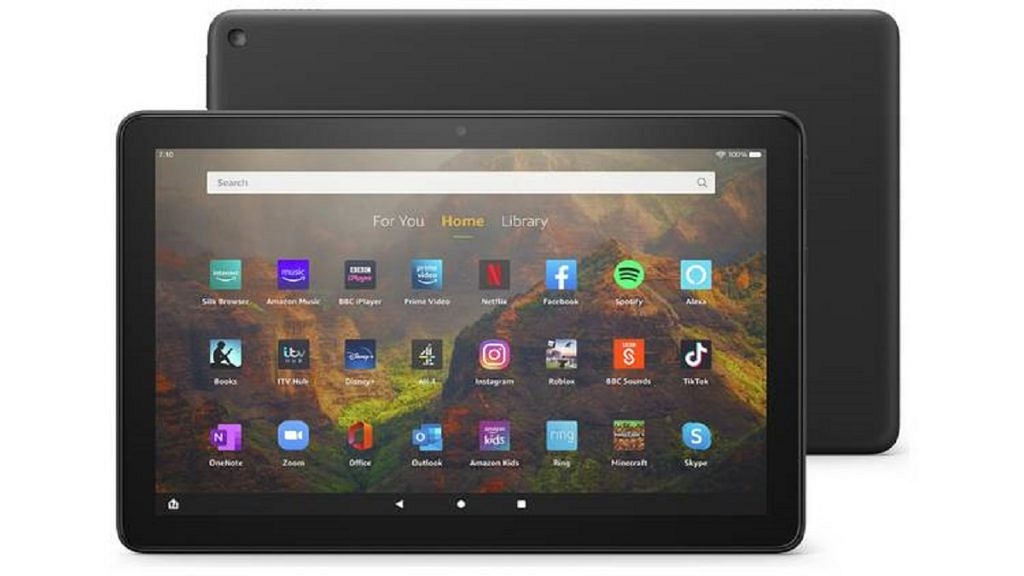
Amazon Fire HD 10 Tablet 10,999
Huawei MediPad M5 Tablet 51,500

Samsung Galaxy Tab S3 SM-T825 Tablet

Look no further than the Samsung Galaxy Tab S2 if Android is your jam. It’s a 9.7-inch tablet with an insane combination of feather-like weight, a razor-thin shape, and incredible screen quality. The operating system is Android v7 Nougat. The tablet comes with a 2.15GHz + 1.6GHz Snapdragon 820 quad-core processor. It also has 4GB RAM and 32GB internal memory expandable up to 256GB, and single nano SIM.

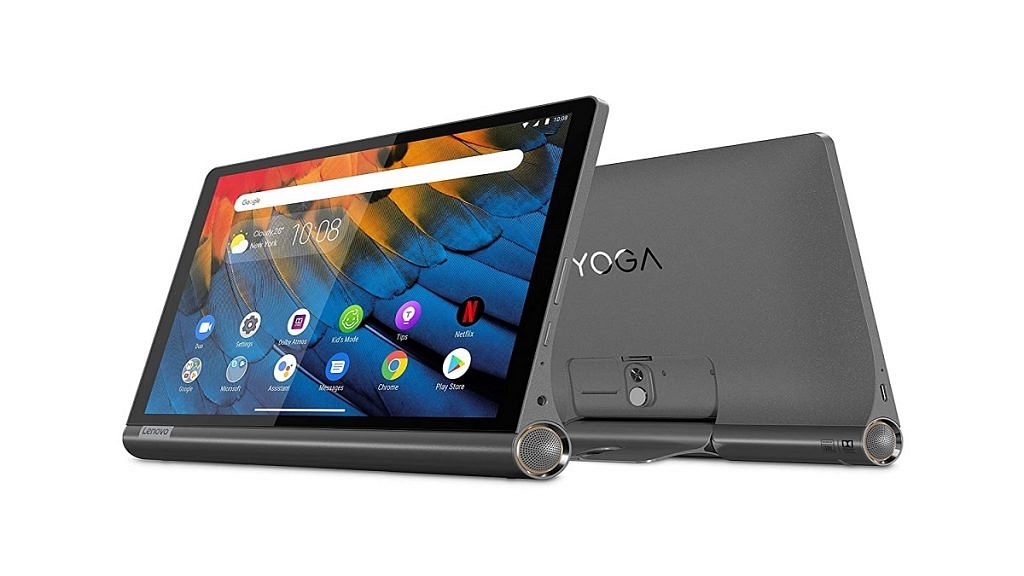
Lenovo Tab Yoga Smart Tablet

The Lenovo Tab Yoga Smart Tablet sports a 10.1-inch display and has a 1920 x 1200 pixels resolution. It is equipped with a Qualcomm Snapdragon 439 and runs the Android Pie v9.0 operating system. The tablet further has 4GB RAM and 64GB internal memory that is expandable up to 64GB. It boasts a 7,000mAH lithium-ion battery.

Amazon Fire HD 10 Tablet

The 10-inch Amazon Fire HD tablet is a great option for seniors with dementia because it’s easy and simple to use. The tablet also has a long-lasting battery, a sturdy design, and a seamless connection to other Amazon products like Prime Video and Alexa voice assistants.

Huawei MediaPad M5 Tablet

With a 10.8-inch screen, the Huawei MediaPad M5 Tablet for seniors has a great display. Its 2.5D display has curved glass edges and a stunning 2560 x 1600 resolution. The tablet offers luxury style with a sturdy metal unibody, as well as fluid, dependable performance. The potent Kirin 960 processor powers this. It’s a good tablet for seniors to use for gaming or video calling with loved ones.

If you’re looking for a tablet for a senior with dementia, then check out our list of the best tablets to buy. We’ve included a variety of different options to suit different needs and budgets.