Categories
Featured Laptop Leaks

Xiaomi Notebook Pro 120G Is Coming To India On August 30: Features, Price, And More

Key Highlights

  • Xiaomi is set to launch Notebook Pro 120G laptop in the Indian market
  • It will feature a 2.5K resolution display
  • Xiaomi hasn’t given up a lot of information yet

The Xiaomi NoteBook Pro 120G laptop is all set to launch in India on August 30. This new laptop is an upgrade to the existing Mi Notebook Pro launched in 2021.

The Xiaomi Notebook Pro 120G will come with a fast 120Hz display along with a 2.5K resolution and 12th Gen Intel Core i5 H-series processor. it will feature NVIDIA’s GeForce MX550 graphics. Besides, it seems that the design will remain largely the same as its predecessor. Here’s all you need to know:

Xiaomi Notebook Pro 120G Specifications (Expected)

The Xiaomi NoteBook Pro 120G will feature a 2.5K resolution and a quick 120Hz display. The laptop’s NVIDIA GeForce MX550 graphics and 12th generation Intel Core i5 H-series CPU have also been confirmed. The Xiaomi NoteBook Pro 120G will likely have the same design as its predecessor.

According to sources, the Xiaomi Notebook Pro 120G will have a faster display, CPU, and graphics. However, additional information from sources claims that the laptop is missing an extra USB Type-A connector. Apart from this, there isn’t a lot of information available about the NoteBook Pro 120G from Xiaomi.

Xiaomi Notebook Pro 120G Price (Expected)

Xiaomi NoteBook Pro 120G is expected to be priced similar to the Mi NoteBook Pro, which costs around Rs. 53,999 with an 8GB RAM and Intel Core i5-11300H CPU. However, the company has not yet provided any information on the laptop’s price.

Mi Notebook Pro (2021): Specifications

The Mi Notebook Pro sports a 14-inch, 2.5K display and has an all-metal unibody design. The screen has a 16:10 aspect ratio and a 60Hz refresh rate maximum. It further supports 100 percent of the sRGB color gamut.

Additionally, the laptop has an 11th Gen Intel Core i5-11370H CPU, which can be combined with up to 16GB of 3200MHz DDR4 RAM. It has 512GB of NVMe SSD storage in addition to Intel Iris Xe graphics. The Intel Core i5-11300H processor model is presently sold by Xiaomi in the Indian market.

The Mi laptop has a 70WHr battery and supports 65W USB Type-C charging. It also has USB Type-C, Thunderbolt 4, HDMI, and other connectivity options.

Categories
Featured Info Telecom

T-Mobile Gets Onboard With Elon Musk’s SpaceX To Provide Network Coverage Across Dead Zones On Earth

T-Mobile, one of the largest wireless mobile carriers in the US has just announced its plans to offer network coverage across the dead zones going forward. The company is making this a reality by joining hands with the Elon Musk-owned SpaceX brand. This new collaboration between two of the world’s largest tech giants will redefine mobile communication by allowing connectivity across the remotest of locations on earth. Read on the developments here:

No More Dead Zones For Mobile Networks?

The modern generation of mobile communication is majorly driven by cell tower connections. But Elon Musk at an event hosted at his South Texas-based rocket facility announced his plans in association with T-Mobile to cut the requirements for cell towers in the future for mobile communications. A new initiative is underway that will make it possible for mobile phones to connect directly with satellites so that coverage is possible with no network zones on earth.

T-Mobile will be using Musk’s Space X-owned Starlink satellites to offer mobile connectivity across regions where it currently is impossible. Users will be able to send text messages and also use different messaging applications in such locations. Musk further clarified how both these brands plan to achieve this target of providing cellular networks in the dead zones using Starlink satellites cutting down on the ground towers.

For this, Space X is said to integrate bigger and larger-sized antennas with the second-generation Starlink satellites which will allow for better network reception with the satellite cellular connections. Musk has emphasized how the larger-sized antennas on the Starlink satellites will help with improving the satellite cellular connectivity that will further make it possible to achieve mobile communication across the no-network zones.

The antennas are said to be around 5 to 6 meters in height which will help with enhanced network reception. Also, users will not only get the provision to send or receive simple text messages in the current no-network zones but also multimedia messages (MMS). The possibilities will also open up for some of the messaging applications.

T-Mobile’s mid-band spectrum will be used by the new-generation Starlink satellites to create a new network for the dead zones or the areas with zero network coverage. Users will get an approximate speed of 2 to 4 Mbps with a specific coverage range across the dead zones.

Categories
Featured Gaming

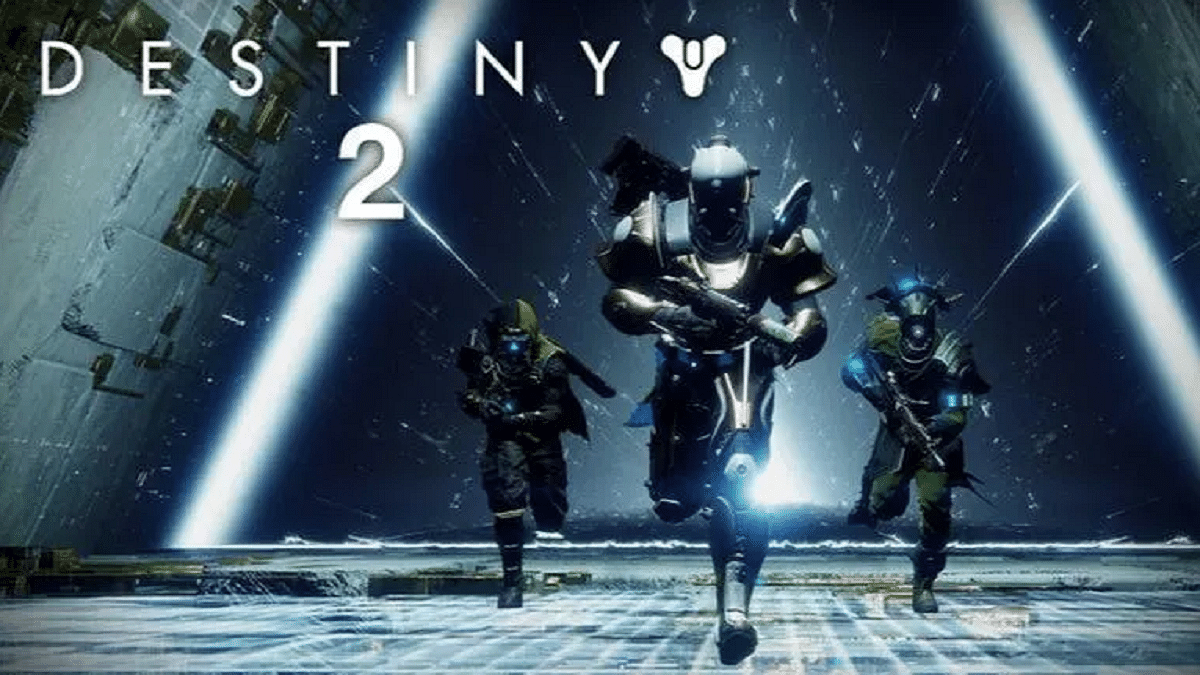
Destiny 2: Minimum System Requirements, How To Download And Play

Destiny 2 is a free-to-play online-only multiplayer first-person shooter video game created by Bungie. It was made available on the PlayStation 4, Xbox One, and Windows as a pay-to-play game. The game is a follow-up to Destiny from 2014 and its expansions, although Destiny 2 was commended for having a “more robust story” and a fully developed antagonist.

The storyline of the game is that the alien race Cabal attacks the last secure city on Earth under the direction of warlord Dominus Ghaul. As a result, humanity loses its last haven and the city’s Guardians’ authority is diminished.

In this scenario, the players take on the role of the Guardians and embark on a quest to replenish their strength and discover a method of defeating Ghaul as well as his Red Legion army and take back the Last City.

Destiny 2: System Requirements

Since Destiny 2 can be played on a computer, some users may wonder what the system requirements are and worry that their computers won’t be able to run the game. In this part, we have mentioned the minimum system requirements that are needed to play Destiny 2. Let’s check them out:

Destiny 2 Minimum System Requirements

RAM: 6GB RAM.

Storage Space: 105GB available space.

CPU: Intel Core i3-3250 3.5 GHz or Intel Pentium G4560 3.5 GHz / AMD FX-4350 4.2 GHz.

OS: Windows 7 / Windows 8.1 / Windows 10 64-bit (latest Service Pack).

GPU: Nvidia GeForce GTX 660 2GB or GTX 1050 2GB / AMD Radeon HD 7850 2GB.

These are only the bare minimum requirements for Destiny 2 that will let you run the game, but the screen settings (such as shadow, lighting, anti-aliasing, motion blur, vertical synchronization, etc.) should be the lowest and the frame rate will hardly exceed 30.

Of course, depending on the game, the specific gaming performance of PCs that have just met the minimal requirements may vary.

How To Download And Play?

As for the download, you can simply visit the official website of Bungie and download the game after carefully following all the instructions.

The fact that Destiny 2 supports up to four people is one of its strongest aspects. Before the combat starts, the other players are typically instructed to walk through an instructional section. The controls are easy and simple, which is good for those who do not want to get too attached to any weapon or fighting scheme.

Categories
Featured Info Telecom

RIL 45th AGM: Where To Watch Live; What To Expect

Update

Reliance Jio is all set to start its 45th Annual General Meeting (AGM) today ( August 29th, 2022) at 2 pm. The company is expected to make a huge announcement related to the 5G network and upcoming 5G services at the AGM. In case, you are also looking for ways to watch the live streaming of the AGM, then you should visit the company’s social media platforms, including Facebook, Twitter, Koo, YouTube, and JioMeet.

Reliance Jio Might Launch 5G Smartphone And 5G Services In India

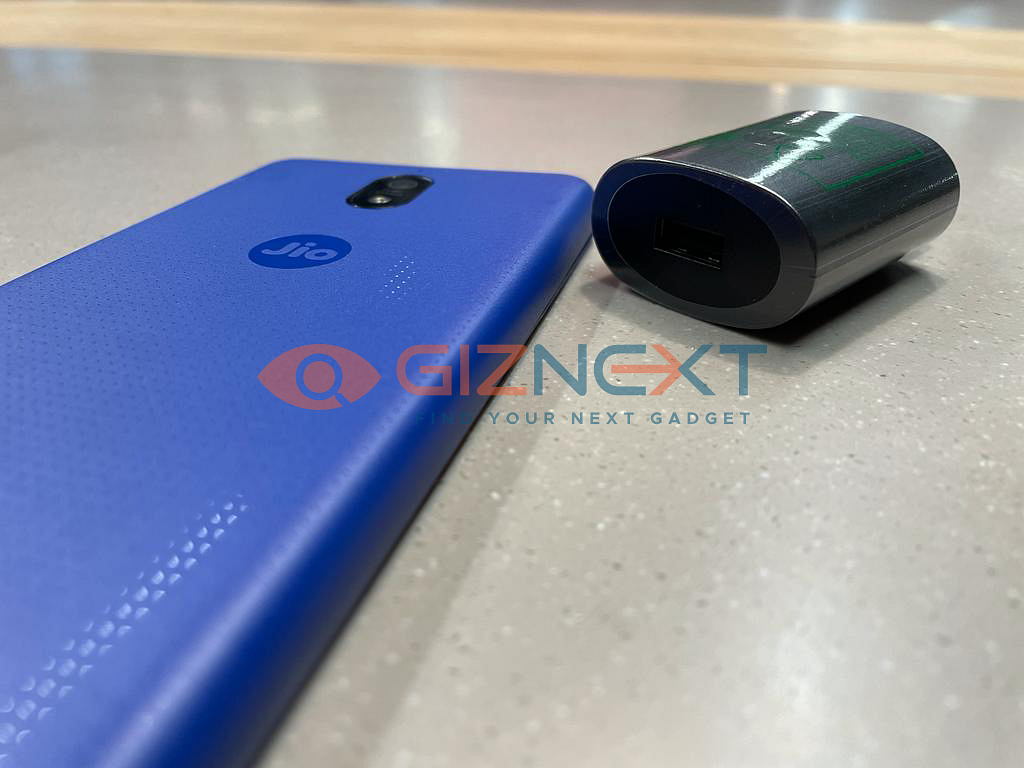
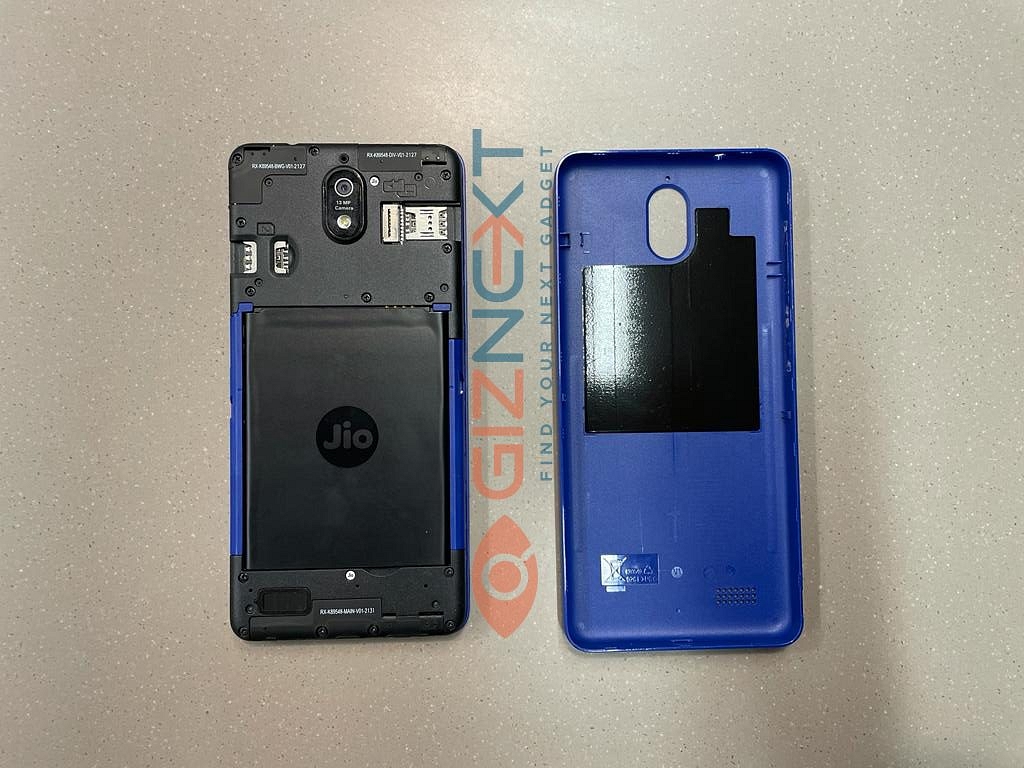
Reliance Industries is all set to host its 45th edition of the annual general meeting. Notably, the company is expected to make a huge announcement on the same day. For the unaware, the company launched JioPhone, which is the most affordable 4G smartphone in India.

Similarly, Reliance Industries is again going to make a new announcement on the upcoming products and services. The company is expected to launch JioPhone 5G and 5G services at the 45th of the AGM.

In addition, the company is likely to make announcements in all sectors. So, let’s find out the expected products or announcements at the 45th Annual General Meeting.

RIL 45th AGM On August 29: Reliance Jio 5G Services

After so many speculations, it is expected that RIL might make some announcements on its upcoming 5G services. It is worth noting that the company plans to launch 5G services in nine cities initially and then, it will take this number to 1000 cities.

For the unaware, the telecom operator purchased a spectrum worth Rs. 80,000 and bought a 700MHz band, which is known best for providing 5G services. Besides, the telecom operator purchased airwaves such as 800MHz, 1800MHz, 3300MHz, and 26GHz bands.

JioPhone Next 4G

On the other hand, India’s second-largest telecom operator Airtel also shared its 5G plans and is expected that it will also bring the services soon. This also means that India’s largest telecom operator Reliance Jio will also make some announcements on the 5G services.

Also, Reliance Jio is expected to conduct tests for 5G use cases, including AR/ VR, network slicing, multi-tenancy for TV streaming, industrial applications, video delivery, and connected hosptials.

Reliance Jio: 5G Smartphone

Apart from that, the company is likely to make some announcements on the upcoming Reliance Jio 5G smartphone.  The upcoming 5G Jio Phone might have a 6.5-inch display, HD+ resolution of 1600 x 720 pixels.

In addition, the smartphone will be equipped with Qualcomm Snapdragon 480 SoC and paired with 4GB of RAM. The device will also have 32GB of in-house storage and support a microSD card. Besides, the device runs Android 12 OS; however, the JioPhone 4G comes with a PragatiOS, which is a joint venture between Jio and Google.

Categories
Apps Featured Info

Don’t Remember Password For WhatsApp Encrypted Backup? Here’s What You Can Do

Key Highlights

  • WhatsApp is known for its end-to-end encryption chat module
  • It lets you access the encrypted chat or transfer it to a new device if the correct password is entered
  • You can turn off end-to-end encrypted backup on WhatsApp

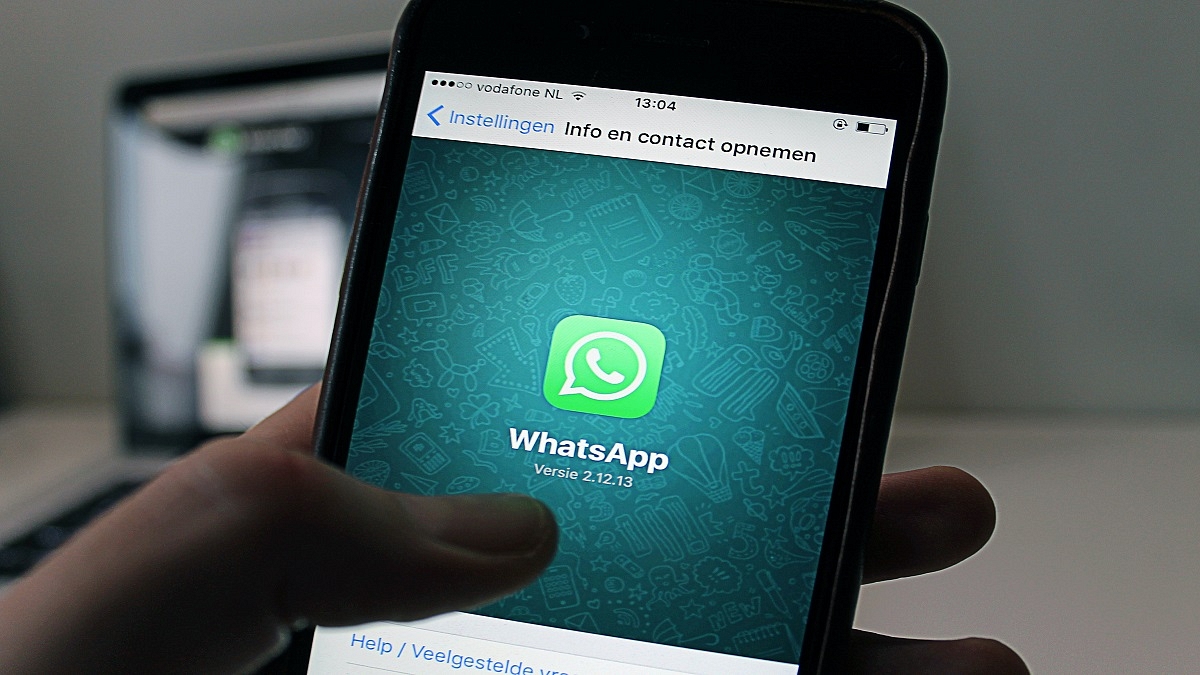
WhatsApp is providing one of the most secure platforms for personal and official conversation to smartphone and desktop users. The Meta-owned messaging platform is known for its end-to-end encryption chat module that safeguards all the user data including texts, photos, and videos. The brand has been adding additional security layers to fortify its platform against hacks data thefts and hacks. Users get the option to set up a security pin and or two-way authentication factor to keep their data protected.

WhatsApp has been securing chats and conversations on its platform by offering end-to-end encrypted backups with a password or 64-digit encryption key. WhatsApp only lets the user access the encrypted chat or transfer it to a new device if the correct password is entered.

Also Read: Here’s How to Set Long Videos as WhatsApp Status

But there are situations when you might have forgotten the password or need to modify it for security reasons. What can you do in such scenarios and how can you change the password to turn off the end-to-end encryption backup? Read on the quick ways to fix it:

Also Read: How Can You Upload Instagram Stories In High-Quality

How To Change WhatsApp Password For Encrypted Backup

Step 1: Launch the WhatsApp application on your Android smartphone or iPhone respectively.

Step 2: Go to the Settings menu.

Step 3: Click on Chats and then Chat Backup.

Step 4: Select the End-to-end encrypted backup option.

Also Read: OnePlus Call Being Recorded Notification: How To Stop ‘Call Is Now Recording’ Message On OnePlus 10T, 10 Pro, OnePlus 9, 8 Series

Step 5: You will now get the Change Password option, tap on it.

Step 6: Now, hit on the I forgot my password option and then complete your ID verification using biometrics or your device PIN.

Step 7: Set up the new password for your end-to-end encrypted backup.

Also Read: How To Access And Enable The SIM Toolkit On An Android Device?

How Can You Disable or Turn Off End-to-End Encrypted Backup On WhatsApp

You can also turn off end-to-end encrypted backup on WhatsApp if in case you don’t wish to use the additional security layer.

Step 1: Open the Settings menu on the WhatsApp application.

Step 2: Click on Chats and select the Chat Backup option.

Step 3: Now, tap on the End-to-end encrypted backup option.

Step 4: Select the Turn off option and then “I forgot my password”. You will need to verify using the biometrics option or device PIN.

Step 5: You will see the Turn Off option. Tap on it and then click Done.

Also Read: 100 Best Instagram Boys Name With Alphabets M To Z

Categories
Apps Featured How To

You Can Now Order Food In Train Through WhatsApp: Here’s How

Key Highlights

  • Order food on trains with seat delivery and tracking
  • Zoop and Jio Haptik simplify ordering via WhatsApp
  • Use your PNR to order at scheduled train stops

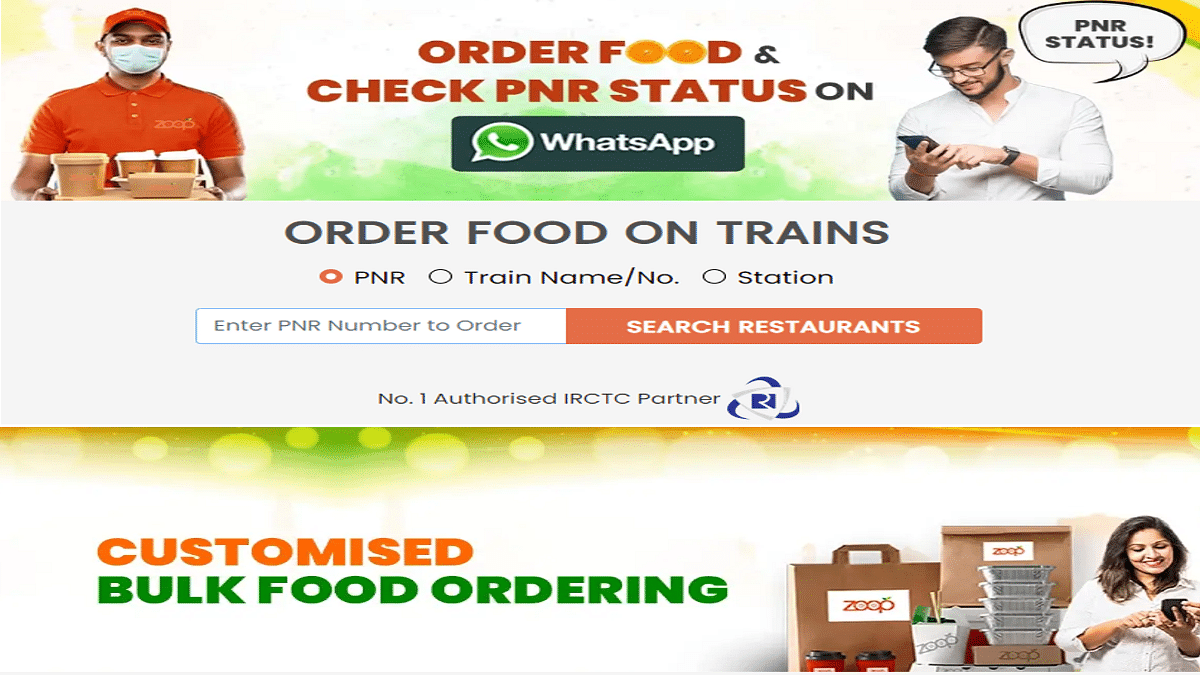
Railway passengers can now order food and have it delivered right to their seats with real-time order tracking, comments, and assistance. Wondering how? Zoop, a food delivery service run by the Indian Railway Catering and Tourism Corporation (IRCTC), has teamed up with Jio Haptik to make ordering meals on trains quicker and more convenient.

The self-service food delivery platform for WhatsApp is powered by Haptik’s advanced Conversational Commerce capabilities, allowing customers to purchase food and have it delivered right to their seats. With the new service, passengers can place food orders at specific eateries located at scheduled train stops by using their PNR numbers.

Also Read | WhatsApp AI Tips And Tricks: How Can You Create And Edit Animated AI Images In WhatsApp

How To Order Food On Zoop’s WhatsApp Chat Bot?

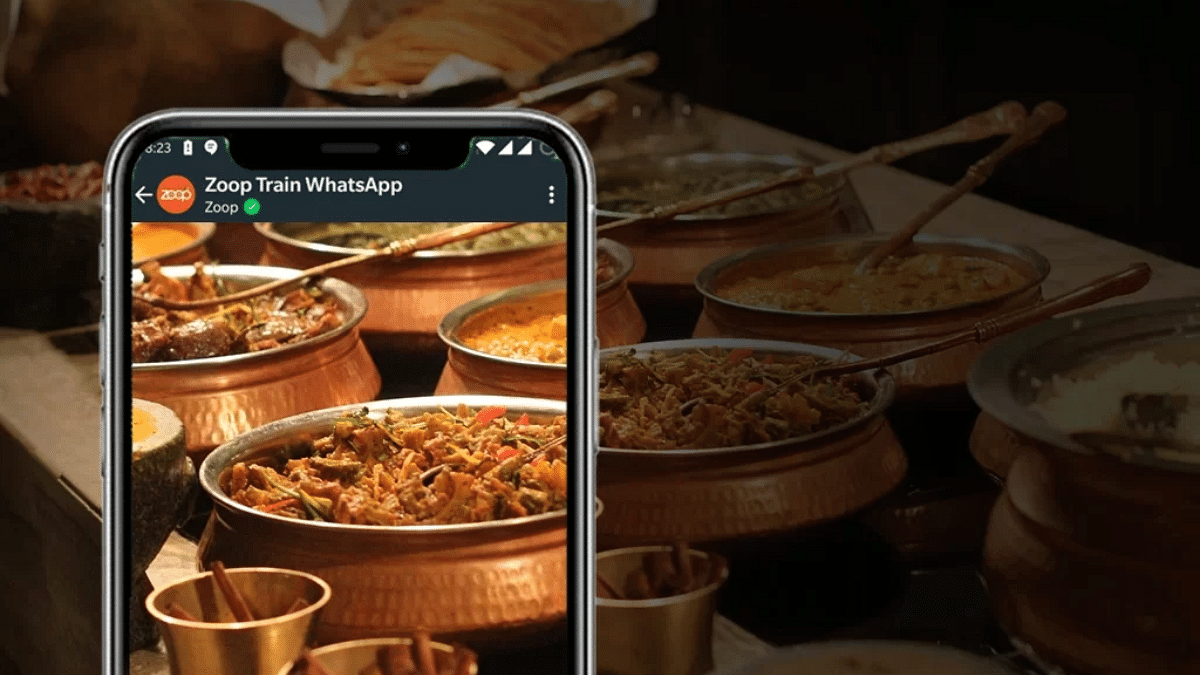
Without the inconvenience of downloading an additional app, the WhatsApp service enables you to use Zoop to smoothly order meals at any forthcoming station at your convenience. Users can monitor real-time meal tracking, provide feedback, and get assistance with their orders directly from the chat. Here are a few simple steps on how to use the Zoop WhatsApp service.

Step 1: Open WhatsApp on your mobile phone.

Step 2: Use your WhatsApp number to text “Hi” to the Zoop WhatsApp chatbot at +917042062070.

Step 3: In response to your query, Zoop will offer you a number of options, including Order Food, Check PNR Status, and Track Order, among others.

Step 4: You must select the option that says “order food” if you want to do so.

Step 5: You will then need to enter your 10-digit PNR number.

Step 6: You will now be required to confirm your PNR as well as other information.

Step 7: You will be prompted to select the station where you would like your food delivered after you have confirmed all the details.

Step 8: Then, select the dish you want to eat.

Also Read | Enhance WhatsApp Security: How To Protect IP Address On WhatsApp Calls And Silence Unknown Callers?

Step 9: After placing your order, you will receive an order summary, and you must then proceed to make the payment.

Step 10: As you indicate a payment method and affirm your number for further communication, your order will be placed.

For the tech geeks, stay updated with the latest cutting-edge gadgets in the market, exclusive tech updates, gadget reviews, and more right on your phone’s screen. Join Giznext’s WhatsApp channel and receive the industry-first tech updates.

Categories
Comparison Featured Mobile

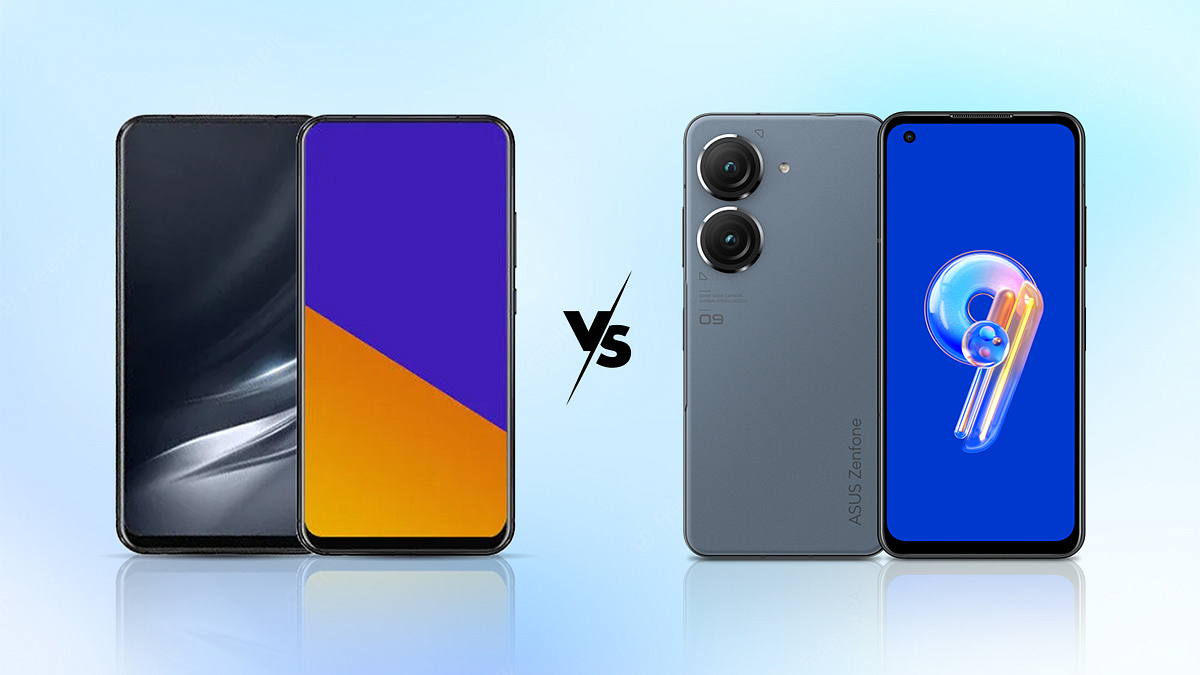
Asus Zenfone 9 Vs Asus 9Z 5G: Check The Difference Here

Asus has recently launched the successor of the Zenfone 8. The Asus Zenfone 9 has been launched in July, which comes in a compact size and provides top-of-the-line specifications. However, several reports claim that Asus Zenfone 9 might be launched as Asus 9z 5G in India. But, still, the company has not made any official announcement on the same, which is why we are listing all differences between both smartphones.

Asus Zenfone 9 Vs Asus 9Z 5G: Expected Price And Launch

It is worth noting that Asus Zenfone 9 and the Asus 9Z 5G are not available in India. But, Asus Zenfone 9 is expected to price at Rs. 64,490 and the Asus Zenfone 9Z 5G is likely to be priced at Rs. 44,990.

The launch date is not fined, but the Asus Zenfone 9 is expected to launch on September 24th, 2022, whereas the Asus 9Z might launch on September 2nd, 2022. Both devices will run Android v12 OS.

Asus Zenfone 9 Vs Asus 9Z 5G: Expected Specifications

Moving to the specifications of the devices, where Asus Zenfone 9 is likely to have a Snapdragon 8+ Gen 1 processor, while the Asus 9Z will have a Snapdragon 8 Gen 1 processor as per several reports. The report claims that the Asus Zenfone 9 will support a 5.9-inch AMOLED screen along with 1080×2400 pixels, and 446 PPI.

On the other hand, the Asus 9Z 5G will have a 6.21-inch Super AMOLED screen along with 1080×2408 pixels, and 425 PPI. On the optics front, the Asus Zenfone 9 will have a dual camera setup, including a 50MP+ 12MP camera, whereas Asus 9Z 5G will have a triple camera at the back, including 50 MP + 12 MP + 5 MP.

Both smartphones will have a 12MP camera for selfies and video chats on the front. The Asus Zenfone 9 will have a 4300mAh battery inside, whereas Asus 9Z might have a 4500mAh battery.

In addition, you will find 128GB storage in both smartphones without any expandable options. Similarly, both devices will have 8GB of RAM.

Asus Zenfone 9 Vs Asus 9Z 5G: Expected Connectivity Options

Moreover, both smartphones will provide 5G connectivity, dual SIM GSM+ GSM, Wi-Fi, Bluetooth v5.2, with A-GPS, Glonass, and USB charging options. 3.5mm audio jack, and fingerprint sensor.

However, Asus Zenfone 9 will have a fingerprint sensor on the side of the smartphone, whereas Asus 9Z 5G will support a screen fingerprint sensor option.

Categories
Apps Featured How To

Instagram Account Hacked; Here’s How You Can Get Your Account Access Back If Hacked

Instagram’s popularity is rising consistently each year. The photo-sharing app has evolved as one of the most used social media applications for content creation and sharing with a targeted set of users. Instagram has added thousands of new users to its platform in the last few years; specifically, the surge has been content creators ever since the brand introduced TikTok rival Reels. Instagram bets high on user privacy on its platform and has introduced several security features such as two-factor authentication and others to prevent unauthorized login and access.

But there are instances where a user account gets compromised with hack attempts. In such scenarios, attackers take control of an active account restricting the authorized user from accessing the app’s feature. If you find any suspicious activity from your Instagram account, chances are it has been hacked.

If you are experiencing such issues where you think some unauthorized person might have taken the control of your Instagram account, you should follow some security protocols as advised by the brand. You can also recover your account in time if it has been hacked.  We have the methods using which you can easily recover or get control of your hacked Instagram account.

What To Do If Your Instagram Account Is Hacked?

  • Check your registered email account if there is any security-related message sent via Instagram.

If you see any email from Instagram’s security department (security@mail.instagram.com) stating your email address is changed it is a clear indication that your account is compromised. If you haven’t made this change, it is advised to undo this action. You can easily do this by selecting the revert this change option in the same mail. If the additional information has also been changed such as the password, and you aren’t able to undo the changes, you can request a new security code or login link. Below are the steps to request both the login link as well as the security code:

How To Request A New Login Link From Instagram If Account Is Hacked?

Step 1: Open the Instagram login page on your respective devices and click on Get help to log in or Forgot password (Android and iOS respectively).

Step 2: Enter the original username along with the email address and the phone number that is associated with your account. Notably, if you don’t have an access to all these details, you can continue by tapping on the ‘Can’t reset your password option.

Step 3: Tap on Next.

Step 4: Now, you have to select the email address or the phone number option and then hit on the ‘Next’ tab.

Step 5: Tap on the login link sent to your email address or the text message (SMS) option and follow the on-screen steps.

How To Request A New Security Code Reset Support From Instagram On Android and iOS?

Step 1: On Android devices, go to the Instagram login screen and tap on Get help logging in placed below the Log in option.

Step 2: You will now need to enter the email address, username, or registered phone number.

Step 3: Now, click on Need more help. If you have more than one Instagram account, select the one with which you need help.

Step 4: Follow the on-screen steps and select the email address or the phone number on which you wish to receive the security code.

Step 5: Tap on Send security code option.

Step 6: Click on the I can’t access this email address or phone number option if you don’t get the new security code.

Step 7: Follow the steps mentioned on the screen to get the fresh security code.

For iPhone users, the steps are slightly different.

Step 1: Open the Instagram app and then go to the login link screen.

Step 2: Click on the Need more help option which is located right below the Send log in link option.

Step 3: Now, choose the email address or the phone number where you want to receive the security code.

Step 4: Tap on the Send security code option. You can now take back control of your hacked Instagram account.

Categories
Apps Featured How To

WhatsApp Two-Step Verification Pin Reset: How To Reset Two Factor Authentication Pin With or Without Email

Key Highlights

  • WhatsApp offers strong privacy with end-to-end encryption and two-factor authentication
  • Setting up two-factor authentication on WhatsApp is easy, with instructions in prior articles
  • This article explains how to change the security PIN for two-factor authentication

WhatsApp is one of the most private messaging applications that are available for smartphone (Android, iOS), and desktop (Windows/ Mac) users. Despite being based on an end-to-end encryption module, Meta has been consistently ramping up its privacy policies so that the platform remains secure from any security breaches. Besides the end-to-end encryption for chats, the company has also added two-factor authentication on its platform. Also Read | WhatsApp Fake Messages: Don’t Get Tricked! Here’s How To Identify And Avoid Them

Setting up two-factor authentication on WhatsApp is a simple process. We have shared the steps for the same in one of our previous articles. But what if the security key that you have set for two-factor authentication is compromised or you simply wish to update to stay protected from the hacks?

In this article, we have listed the steps with which you can change the security PIN for two-factor authentication on WhatsApp. Do note that you can reset the two-step verification PIN on WhatsApp using multiple methods. Take a look below:

How To Reset WhatsApp Two-Step Verification PIN Using Email Address?

By using this method, you can get a PIN reset link for two-factor authentication immediately. The steps for the same are listed below:

Step 1: Launch the WhatsApp application and select Forgot Pin option.

Step 2: Click on the Send Email option. As soon as you do this, a reset link will be sent to the registered email address.

Step 3: Now, open your email and follow the reset link and then click on Confirm.

Step 4: Re-launch the WhatsApp application and tap on the Forgot Pin option again.

Step 5: Click on Reset.

Also Read | Use Meta AI On WhatsApp And Instagram In Three Steps: Here’s How

How To Reset WhatsApp Two Factor Authentication PIN Without Using Email?

If in case you don’t have the access to the email address, you can reset the two-factor authentication PIN only after seven days. This method will also be useful if somebody else have setup the two-step verification PIN on your WhatsApp account.

Step 1: Open the WhatsApp application. Make sure you do this after seven days.

Step 2: Click on Forgot PIN option.

Step 3: Tap on Reset.

Just for reference, deleting or reinstalling the application wouldn’t resolve this issue. You’ll have to perform the aforementioned steps to reset the two-factor authentication PIN on your WhatsApp account.  

Categories
Apps Featured How To

Instagram Allows Cross-Posting Reels Videos On Facebook: Here’s How To Do It

Instagram is undeniably the top-rated social media platform available across Android and iOS ecosystems. Meta is consistently working on upgrading its platform by adding new features and options. While several new features have already been released, Meta is also testing multiple other new features for the application. One of the recently introduced features by Instagram for its users is the ability to cross-post reels on Facebook.

With this new feature, you will get the option to share your Instagram Reels on Facebook to get a wider audience reach for your reels video.This option is being made available for both general users as well as professional creators. Instagram at its support page mentions this feature isn’t available for all users.

The users need to have linked Facebook and Instagram accounts to be able to cross post the Reels videos. If you wish to know the steps to cross-post your Instagram Reels videos on Facebook, we are making it easy for you by sharing the step-by-step guide. Take a look below:

How To Cross Post Instagram Reels Videos With Your Linked Facebook Account

Step 1: Go to the Instagram application on your devices.

Step 2: You will need to initiate the Reels making process. Once you have recorded the Reels video move to step 3 below.

Step 3: Right before sharing the Reel video, you need to select the Share to Facebook option.

Step 4: Select the toggle option placed next to the Facebook account on which you want to share the reel video.

Step 5: Now, set the default option if you want to share all your future Instagram reels videos to Facebook. You can also do this just for the current Reel video.

Step 6: Click on the Share option placed on the top right.

If you wish to share all your future Instagram Reels videos to Facebook, you need to perform some manual steps in the app itself. The steps for the same are listed below:

Step 1: On the Instagram app, click on your profile.

Step 2: Tap on the menu option (three lines).

Step 3: Select the Settings menu.

Step 4: Now, go to the Accounts Centre Option.

Step 5: You will now need to select the account from where the Reels will be shared. You will also need to add the account to which the Reels video will be shared.

Step 6: Click on the Automatically share option.

Step 7: Tap on the Setup or toggle option placed next to the Reels. All your future reels videos will now be shared to the Facebook profile.