Categories
Accessories Featured How To

Google Pixel Buds Hacks: How To Pair Pixel Buds With Windows Laptops And PCs

Key Highlights

  • Google Pixel Buds are tagged as premium TWS earbuds
  • Features Multipoint connect to pair with multiple devices simultaneously
  • Can also be paired with compatible Windows laptops and PCs
  • Require manual steps for pairing

Google has marked its strong presence in the consumer tech segment with its range of Pixel devices. While Pixel smartphones are all popular in the premium Android smartphone league, the Pixel Buds and Pixel Watch series comes as Google’s bet in the accessories segment. Google Pixels Buds is one of the popular TWS earbuds that is being sold as a rival to some of the top-notch true wireless earbuds in the market.

Besides the premium audio, Google Pixel Buds and the Pixel Buds A series offer a superior wearing comfort and are loaded with advanced sensors and technologies. These tiny earbuds offer compatibility with several modern devices including smartphones and tablets. Google has also allowed pairing Pixel Buds TWS earbuds with laptops and PCs.

If you own a Google Pixel Bud TWS earbud, you might majorly use it with your smartphones. But the experience of using Pixel Buds with laptops and PCs is also great and you should give it a go if you haven’t already. You would need to perform a few manual steps with which you can easily connect or pair your Pixel Buds with any Windows laptop or PC.

Also Read: OnePlus Buds Pro 2 Review: Hitting The Right Notes?

How To Pair Google Pixel Buds With Any Windows Laptop Or PC?

Before you proceed with the pairing process, you need to ensure the laptop or the PC with which the Pixel Buds is being paired runs on Windows 10 or new version. This is for a smooth pairing process and clean audio delivery.

Step 1: Get your Google Pixel Buds pair and make sure its charged before use

Step 2: Now, on your Windows laptop or PC launch the control panel or Settings menu. You can do so by clicking on the Windows icon and then navigate to the Settings/ control panel option.

Step 3: Scroll to the Bluetooth settings

Step 4: Toggle on the Bluetooth option

Step 5: Now, open the lid of the Pixel Buds TWS’ charging case

Step 6: Locate the pairing key on the Pixel Buds charging case

Step 7: Press and hold the pairing button until the white light flickers. This is an indication for the active Bluetooth pairing mode.

Step 8: Click on “Add Device” option in the Bluetooth settings of your Windows laptops and PCs

Step 9: You will see the Google Pixel Buds in the list of available devices

Step 10: Tap on it to establish the connection

Also Read: How Can You Pair OnePlus Buds, Nord Buds TWS With Apple Macbook Laptops (All Models)
Categories
Apps Featured How To

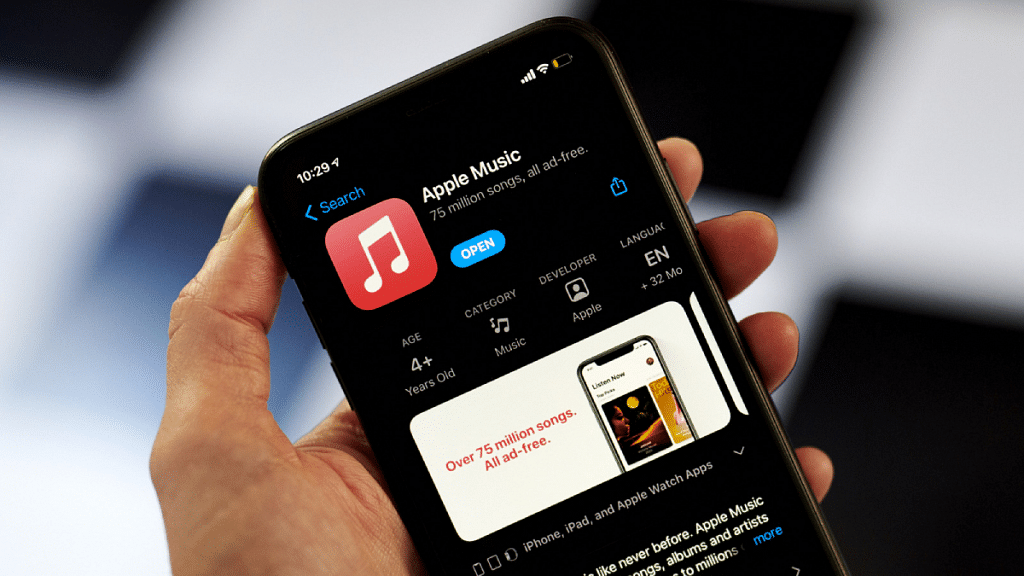
Apple Music Tips And Tricks: Here’s How To Create Collaborative Playlists

Key Highlights

  • Apple Music lets you create and share playlists
  • For this, users must have iOS 17.2 or later installed
  • This feature allows you to co-create, modify, and enjoy playlists with friends and family

Discover a new dimension of music-sharing with Apple Music’s latest feature—Collaborative Playlists. This innovative addition allows users to co-create, modify, and enjoy playlists with friends and family, opening up exciting possibilities for musical exploration and shared experiences.

Also Read | Spotify Tips & Tricks: How To Tune Into Podcasts In Your Native Language

Getting Started

To embark on this musical journey, ensure your device is updated to iOS 17.2 or later, and you have an active subscription to Apple Music. Once prerequisites are met, invite fellow Apple Music enthusiasts to join in the playlist creation and customization.

Step-by-Step Guide: How To Create Apple Music’s Collaborative Playlist

Step 1: Open the Music app on your iPhone and navigate to the Library section at the bottom of the screen.

Step 2: Within the Library, tap on Playlists. Here, you can either create a new playlist or select an existing one to transform it into a collaborative masterpiece.

Step 3: Tap on the Collaborate button or the three dots icon in the top-right corner. Choose the Collaborate option to initiate the shared playlist experience.

Step 4: Toggle on “Approve Collaborators” if you wish to control who can join the playlist. If disabled, anyone with the link gains immediate access.

Step 5: Tap on “Start Collaboration” and share the generated link or QR code through Messages, Mail, AirPlay, or other preferred methods.

Also Read | How To Maximize iPhone Battery Health: Tips & Tricks

Step 6: To add or remove collaborators, tap on the Collaborate button or three dots icon. Select “Manage Collaboration” for comprehensive control.

Step 7: Monitor playlist access, approve or reject joining requests, and remove collaborators by swiping left on their name and selecting “Remove.”

Step 8: When you’re ready to conclude the playlist sharing experience, tap on “Stop” to halt collaboration.

Also Read | iOS Tips And Tricks: How To Download Offline Maps On Apple iPhones, iPads?

Benefits Of Collaborative Playlists

  • Enhance your music enjoyment by embracing collaborative playlists
  • Create multiple playlists, inviting anyone with Apple Music to join
  • Personalize each playlist by editing your name and photo through the “Edit” option next to your name.

In summary, Apple Music’s Collaborative Playlists offer an engaging and interactive way to share the joy of music with others, fostering a sense of community and exploration.

For the tech geeks, stay updated with the latest cutting-edge gadgets in the market, exclusive tech updates, gadget reviews, and more right on your phone’s screen. Join Giznext’s WhatsApp channel and receive the industry-first tech updates.

Categories
Featured How To Mobile

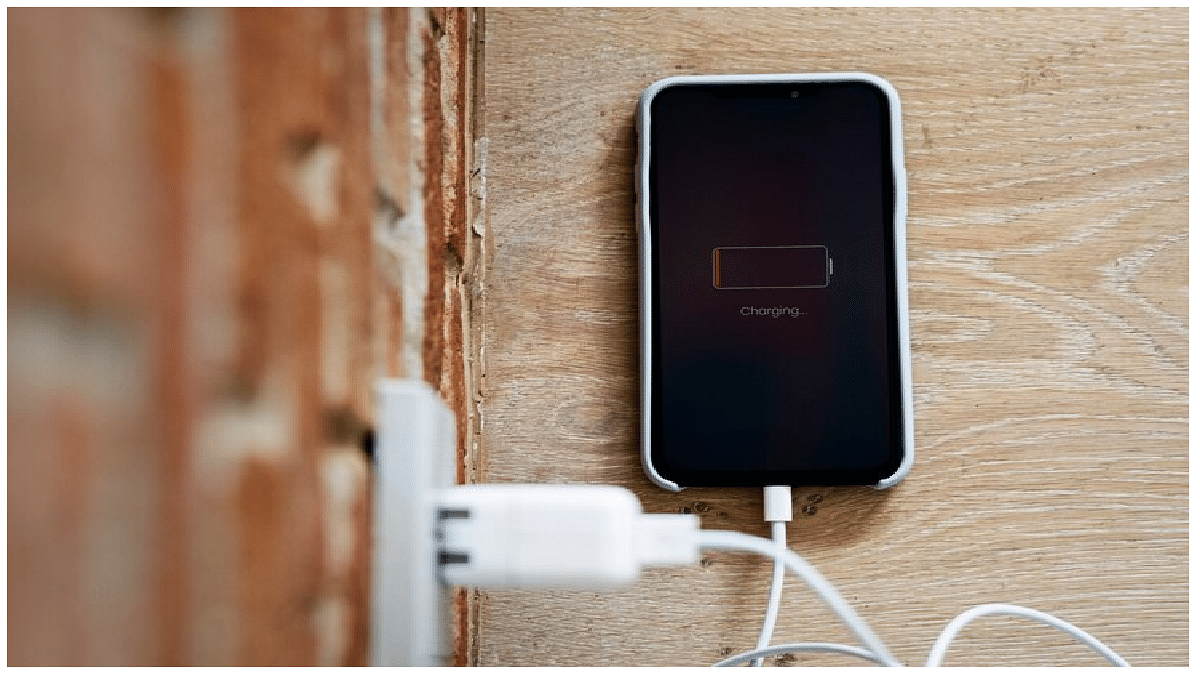
How To Check And Enhance iPhone Battery Health: A Step-by-Step Guide

Key Highlights

  • iPhone battery health is essential for longevity
  • Users overlook the health of the device’s battery

In the fast-paced world of technology, our smartphones have become crucial tools, and the iPhone is no exception. One critical aspect that often gets overlooked is the health of the device’s battery. Checking and optimizing iPhone battery health is essential for ensuring longevity and peak performance. In this article, we’ll explore the steps to check your iPhone battery’s health and provide tips on optimizing its usage.

Also Read | iPhone Tips And Tricks: How To Answer Call Without Touching Your Phone

How To Check Battery Health Of Your iPhone

To check your iPhone’s battery health, follow these steps:

Step 1: Go to “Settings”.

Step 2: Navigate to “Battery” and select “Battery Health.”

Step 3: Here, you’ll find the Maximum Capacity percentage, indicating the current capacity of your battery compared to when it was new. A higher percentage suggests a healthier battery.

Additionally, you’ll see the “Peak Performance Capability” section. This feature informs you if your iPhone is operating at peak performance and if it has experienced unexpected shutdowns due to a degraded battery. If your battery is significantly worn out, it may recommend a replacement.

Understand Maximum Capacity

Maximum Capacity is a vital metric as it reveals how much charge your battery can hold compared to its original capacity. Over time, batteries naturally degrade, and a lower maximum capacity is indicative of wear and tear. If your iPhone’s battery health is below 80%, it might be time to consider a battery replacement to maintain optimal performance.

Also Read | iOS Tips & Tricks: Learn How To Set Up Your Contact Poster On iPhone

Tips To Optimize iPhone Battery Usage

Beyond monitoring battery health, taking proactive steps to optimize battery usage can extend the lifespan of your iPhone’s battery.

Manage Background App Refresh

Disable unnecessary background app refresh to prevent apps from updating content in the background, conserving battery power.

Adjust Screen Brightness

Lowering screen brightness or enabling auto-brightness helps reduce power consumption. Additionally, consider reducing the screen timeout duration.

Update iOS

Regularly updating your iPhone’s operating system ensures that it receives the latest performance improvements and battery optimizations.

Enable Low Power Mode

Activating Low Power Mode temporarily reduces power consumption by disabling certain features, providing extended battery life during critical moments.

Manage Push Notifications

Limiting push notifications or adjusting their frequency can contribute to power savings. Review and disable unnecessary notifications in the settings.

Also Read | iPhone Tips & Tricks: Here’s How You Can Measure Height Using An iPhone Camera

Avoid Extreme Temperatures

Exposure to extreme temperatures, both hot and cold, can negatively impact battery health. Avoid leaving your iPhone in direct sunlight or extremely cold environments.

Monitoring your iPhone’s battery health is a proactive approach to ensuring its longevity and optimal performance. By understanding key metrics like Maximum Capacity and taking steps to optimize battery usage, you can make the most of your iPhone’s capabilities while minimizing the need for frequent battery replacements. Regular maintenance and thoughtful usage habits contribute to a seamless and efficient smartphone experience.

For the tech geeks, stay updated with the latest cutting-edge gadgets in the market, exclusive tech updates, gadget reviews, and more right on your phone’s screen. Join Giznext’s WhatsApp channel and receive the industry-first tech updates.

Categories
Apps How To

How To Add Catchy Music And Text To Your Moj Videos: A Step-by-Step Guide

Key Highlights

  • Music is a powerful tool for shaping the mood of your Moj videos
  • Users can add texts that align with their aesthetic
  • Can also customize the font, color, and position

In the dynamic realm of short-form video content, Moj has captivated millions, offering a platform to unleash creativity and engage audiences authentically. Enhancing your Moj videos with catchy music and text can significantly amplify their allure, allowing you to express yourself, share relatable stories, and showcase unique talents in an entertaining and new way. This guide takes you through the process step by step on how to add music and texts to your Moj videos.

Also Read | Moj Filters Unleashed: Here’s How To Transform Ordinary Videos In Five Simple Steps

Moj Videos: How To Add Music And Text

Step 1: Clarify the type of video content you want to create. Whether it’s a dance performance, lip-sync, cooking demonstration, or a unique concept, having a clear theme is crucial.

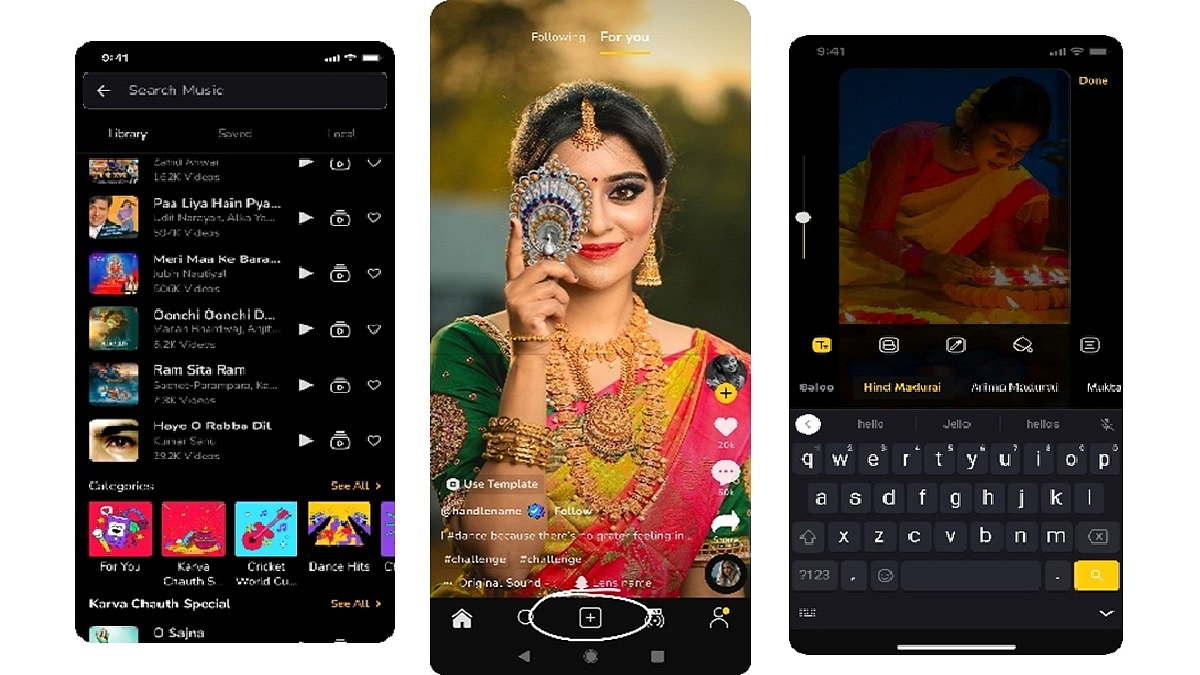
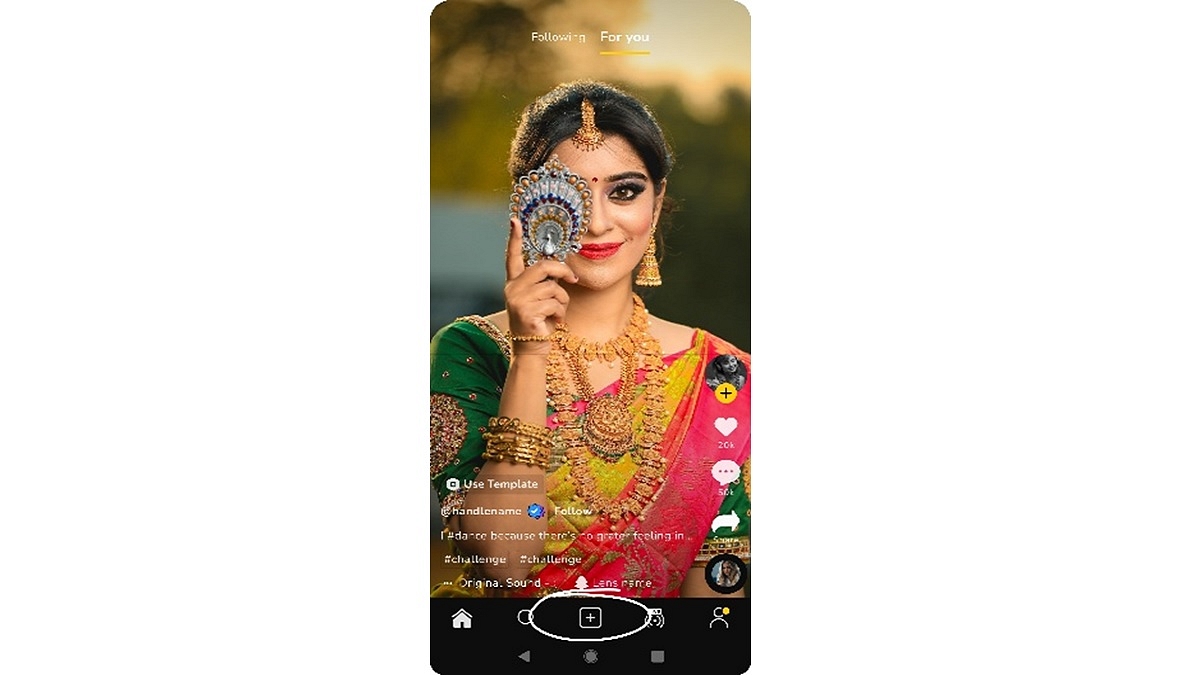
Step 2: Open the Moj app on your device and locate the “+” sign at the bottom of the screen. If you’re recording a new video, ensure optimal lighting and clear audio. Frame your shot, hit the record button, and let your creativity shine, as Moj encourages free self-expression.

Step 3: Music plays a pivotal role in shaping the mood of your video. Select the video you wish to upload, tap the “Music” icon on the bottom menu, and explore the extensive song library. Choose a song that complements your video’s theme, adjusting the starting point and duration as needed. Click ‘Done’ to proceed.

Also Read | Master Moj’s 90-Second Guide: How To Edit Captivating Videos In No Time

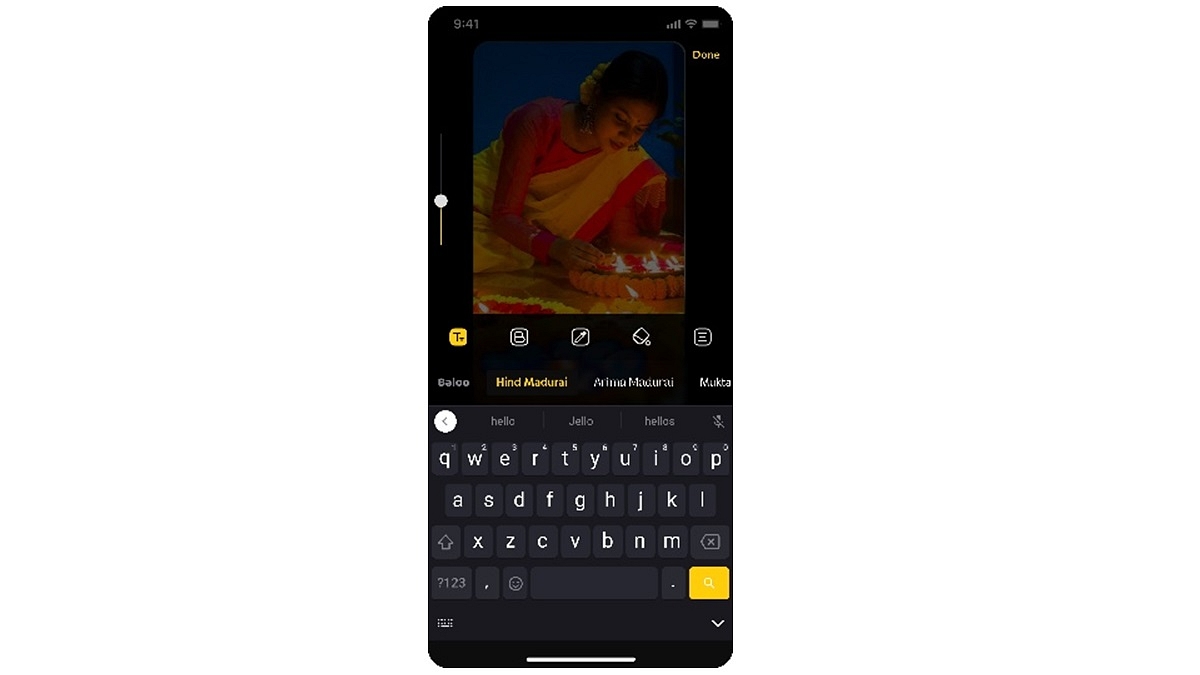
Step 4: Tap on the “Text” icon at the bottom after selecting your music. Choose a text style that aligns with your video’s aesthetic. Enter your desired text and customize the font, color, and position. Adjust the text overlay duration using the timeline feature.

Step 5: Moj provides various editing tools to enhance your video further. Trim your footage, adjust the speed, and apply filters for a unique visual touch. Experiment with these tools until you achieve a result that satisfies your creative vision.

Also Read | Need To Save Moj Videos For Later? Learn How To Download For Free

Step 6: Before sharing your masterpiece on Moj, preview it for perfection. Tap ‘Next’ to seamlessly share your enhanced video with friends and family, contributing to the vibrant community’s joy and creativity.

Incorporating catchy music and expressive text into your Moj videos elevates their appeal, allowing you to share your creativity and unique talents with the Moj community. Follow this step-by-step guide, and you’ll be well on your way to standing out as a Moj video superstar.

For the tech geeks, stay updated with the latest cutting-edge gadgets in the market, exclusive tech updates, gadget reviews, and more right on your phone’s screen. Join Giznext’s WhatsApp channel and receive the industry-first tech updates.

Categories
Featured Gaming How To

Level Up Your Minecraft Skills: Step-by-Step Guide On How To Rename Items

Key Highlights

  • You can personalize your Minecraft items
  • This will make your items stand out in the blocky world
  • Renaming your items will show your creativity in Minecraft gameplay

Renaming items in Minecraft is a simple yet powerful feature that allows players to personalize their gameplay experience. Whether you want to give your enchanted sword a unique name or organize your inventory with custom labels, renaming items adds a personal touch to the game. Here’s a step-by-step guide on how to rename items in Minecraft. Also Read | Minecraft Alternative Games: Best Sandbox Games You Should Check Out

How To Rename Items In Minecraft

To begin, you’ll need an anvil—an essential tool for item renaming. Anvils can be crafted using three iron blocks and four iron ingots. Once you have your anvil, place it in a convenient location within your world.

Step 1: Gather the items you want to rename. This could include weapons, tools, armor, or any other item with a nameable tag.

Step 2: Renaming items in Minecraft requires experience points (XP). The cost varies depending on the number of characters in the new name. Ensure you have enough XP to cover the renaming cost.

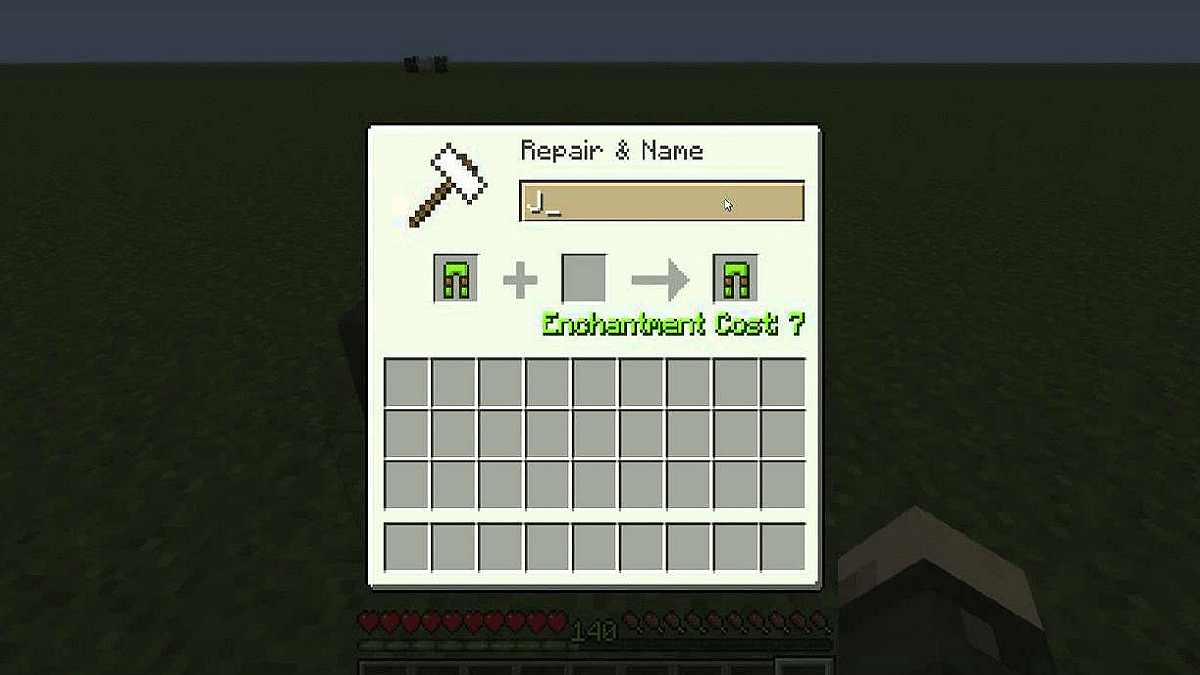
Step 3: Right-click or tap on the anvil to open the renaming interface. You’ll see two input slots: one for the item you want to rename and the other for the item’s name.

Also Read | How To Download Minecraft On PC And Mobile Phone: Steps Inside

Step 4: Drag the item you wish to rename into the left slot of the anvil. This action will display the item’s current name (if any) and its enchantments.

Step 5: In the right slot, delete the existing name (if any) and type the desired new name for your item. Keep in mind that the character limit varies, and longer names will cost more XP.

Step 6: Once you’ve entered the new name, take a moment to ensure it’s correct. Renaming is irreversible, so accuracy is crucial. If everything looks good, drag the renamed item from the anvil to your inventory.

Step 7: As you finalize the renaming process, a specific amount of XP will be deducted from your experience bar. Make sure you have enough XP to cover the cost, or the renaming won’t be successful.

Step 8: Congratulations! You’ve successfully renamed your item. Now, whenever you use or view the item in your inventory, it will display the custom name you’ve chosen.

Renaming items in Minecraft is a creative way to make your gear stand out, add a touch of humor, or simply stay organized. Whether you’re a seasoned player or just starting your Minecraft journey, mastering the art of renaming items can enhance your overall gaming experience. So, go ahead, unleash your creativity, and give your favorite items names that reflect your unique style in the blocky world of Minecraft.

Also Read | Want To Make A Book In Minecraft? Here’s How

Categories
Apps Featured How To

Google Translate Tricks: How To Translate Text From Any Image On Smartphones, Laptops/ PCs

Key Highlights

  • Google Translate tool allows language translation online
  • Feature available for all smartphone, tablet, laptop/PC users
  • Options to translate language from text using image available

Google has multiple tools and services that one can access on smartphones, laptops/PCs. Most of the Google services require an active internet connection to function properly. However, some can even work offline. One of such useful Google tool is the Translate which is designed to help consumers to translate foreign languages from text and documents using neural machine tool. Most of you will be aware of the steps to translate any foreign language on websites using Google Translate. But are you aware of the steps with which you can extract any text from an image and translate it to your known language. If not, we have mentioned the steps with which you can do so.

Also Read: How To Use Nothing Chats For “iMessage” From Android

How To Extract And Translate Text From Any Image Using Google Translate?

Step 1: If you are using a smartphone, you can download and install the Google Translate app. But if the tool is being used on laptops/PCs, then you can directly launch the website.

Step 2: You will now need to select the language to which you need the translation

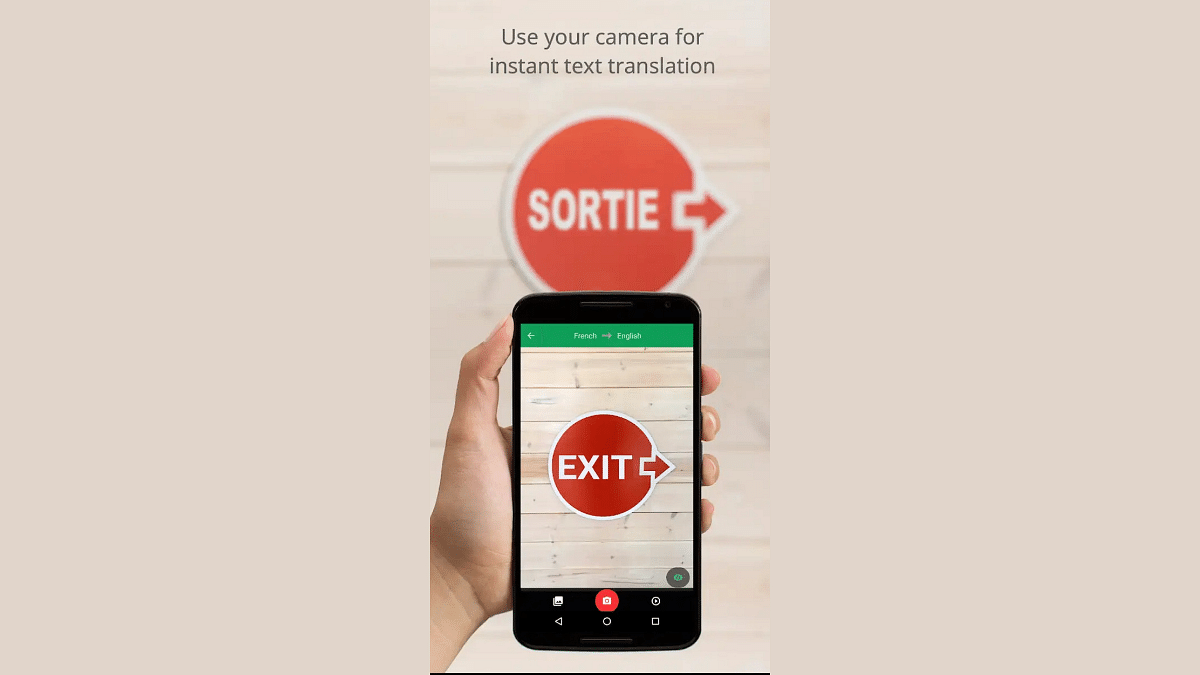
Step 3: Now, launch the camera by tapping on the camera icon

Step 4: Click the image or upload from the gallery whose text needs translation

Step 5: Once Google Translate is done analyzing the language, it will be translated to the one you selected

Step 6: For manual selection of the text, you simply need to tap and drag on the text

Step 7: The translated text will now be displayed over the image

Also Read: From Hindi To Korean: Learn How To Change Languages In Netflix

Categories
Apps Featured How To

From Hindi To Korean: Learn How To Change Languages In Netflix

Key Highlights

  • Netflix offers content in multiple languages
  • Netflix allows you to watch content in your native tongue
  • The language of Netflix can be changed with a few easy steps

Netflix provides a variety of movies and TV shows in numerous languages, encompassing both international and regional Indian languages such as Hindi. Switching between these languages allows you to customize the app for your convenience or that of your peers. When you change the language, it adjusts all aspects of the streaming service, including search, rows, collections, and payment, to the language of your preference. Here are simple steps to guide you through changing the language on Netflix. Also Read | How To Create And Manage Multiple Netflix Profiles: Step-By-Step Guide

Step-by-Step Guide: How To Change Language On Netflix

Follow these simple steps to customize your language settings on Netflix, whether you’re using a smartphone or laptop.

Step 1: Login and Profile Selection

Access your Netflix account and choose the profile for which you wish to adjust the language.

Step 2: Navigate to Account Settings

Click on the menu icon in the upper right corner and select “Account” to reach your account settings page.

Also Read | Netflix For Fitness Enthusiast: Collaborates With Nike To Stream Workout Videos On Its OTT App

Step 3: Language Preferences

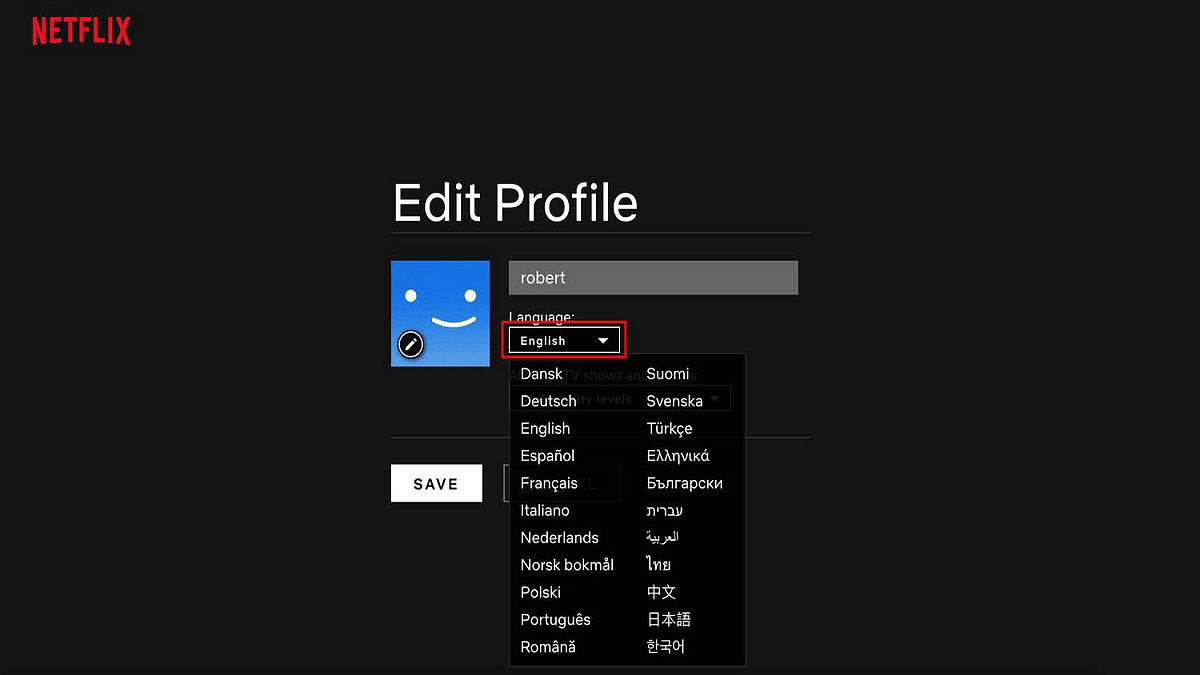
Locate the “My Profile” section and click on “Language.” A list of available languages will appear, and you can use the search box to find a specific language.

Step 4: Select Your Preferred Language

Choose the language for your Netflix interface and content. A confirmation message will verify the successful update of your language preference.

Step 5: Apply Changes and Explore

Return to the home screen and search for your desired content. Note the updated audio and subtitle language options. Additionally, individual titles can have customized language settings by clicking the speech bubble icon in the playback bar.

Netflix simplifies language customization, allowing users to enjoy content in their preferred language or delve into new languages and cultures. Maximize your streaming experience with these user-friendly language adjustment features.

Also Read | Netflix Begins Password Sharing Crackdown In India: Should You Be Worried?

Categories
Featured How To Info Mobile

How To Use Nothing Chats For “iMessage” From Android

Key Highlights

  • Exclusive iMessage-like Experience on Nothing Phone 2.
  • Can Secure Setup with End-to-End Encryption on Nothing Chats.
  • Beta Features: Individual and Group Messaging, Voice Notes.

Nothing is bringing iMessage-like features, typically exclusive to iPhones, to Android users. With the introduction of Nothing Chats, a dedicated messaging platform for Nothing Phone 2 users, Android users can now experience the convenience of iMessage on their devices.

Also Read: Nothing Phone 2 Sales Begin on Flipkart from July 21: Full Features, Offers, Price & More

Nothing Chats On Nothing Phone 2

Nothing Phone 2 users will gain exclusive access to Nothing Chats, a messaging platform designed to mimic the coveted iMessage experience on iPhones. This move sets Nothing apart as the first Android brand to offer this feature, diverging from the typical third-party iMessage clients seen on Android.

Sunbird’s Architecture

Sunbird’s architecture facilitates direct message delivery between users without intermediary server storage. However, for iMessage integration, Sunbird temporarily stores encrypted iCloud credentials in a secure database on a Mac Mini in the US or Europe, depending on the user’s region.

How Nothing Chats Work

  • App Features: The “Nothing Chats” app, currently in Beta, enables users to exchange messages through the coveted blue bubbles. Future plans include additional features and improvements.
  • User Setup: To use Nothing Chats, users need to log in with their Apple IDs, ensuring end-to-end encryption in line with Sunbird’s privacy policy.

Also Read: Invisible Messages On iPhone: How To Send Invisible Messages Using iMessage On iPhones?

Availability And Launch Details

Nothing Chats is set to launch on November 17th, initially available to users in North America, the EU, and other European countries. The rollout is limited to these regions initially, with plans for expansion not yet announced.

Importantly, the app will not be available on the Google Play Store; it is an exclusive offering from Nothing, marking a unique approach to Android messaging.

What To Expect: Features And Future Updates

In a video, Nothing CEO Carl Pei sheds light on the app’s features. Nothing Chats supports individual and group messaging, with typing indicators, full-size media sharing, and voice notes. While read receipts, message reactions, and message replies will initially be unavailable, the company assures users that these features are on the horizon in future updates.

Stay tuned for upcoming developments as the app undergoes continuous refinement during its Beta phase.

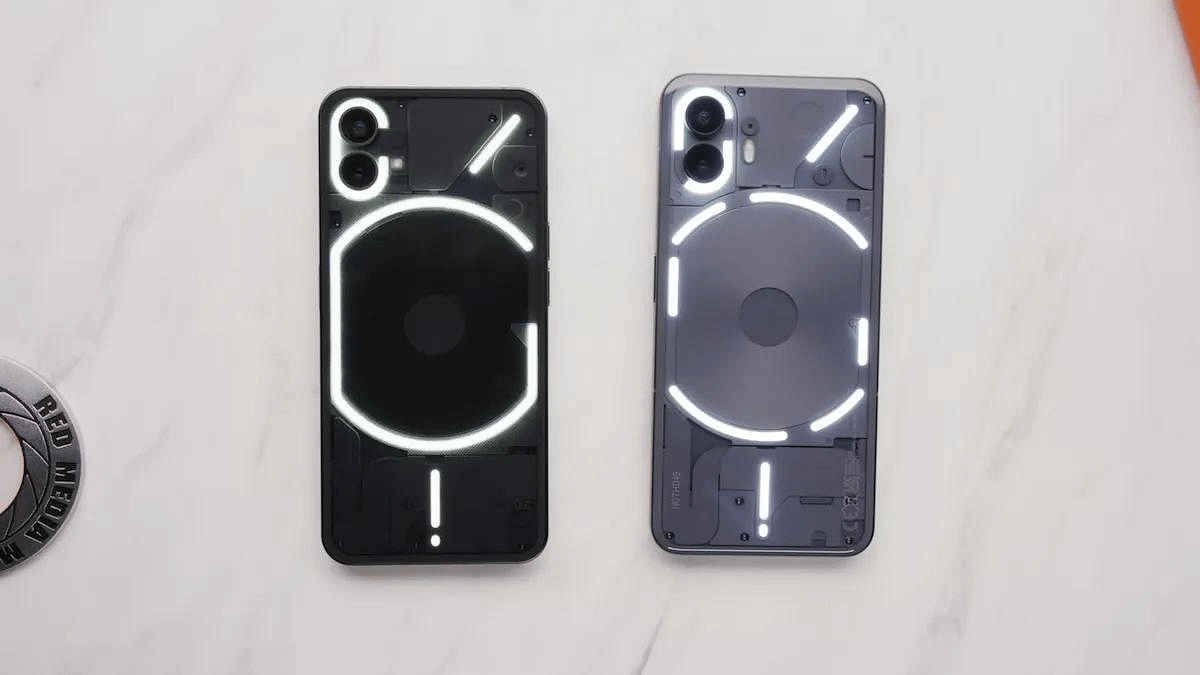
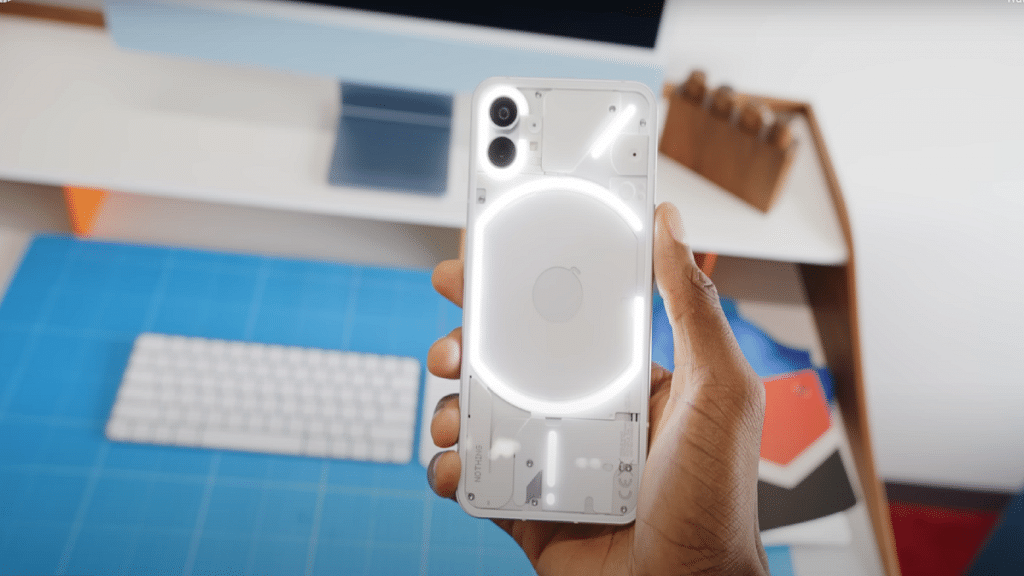
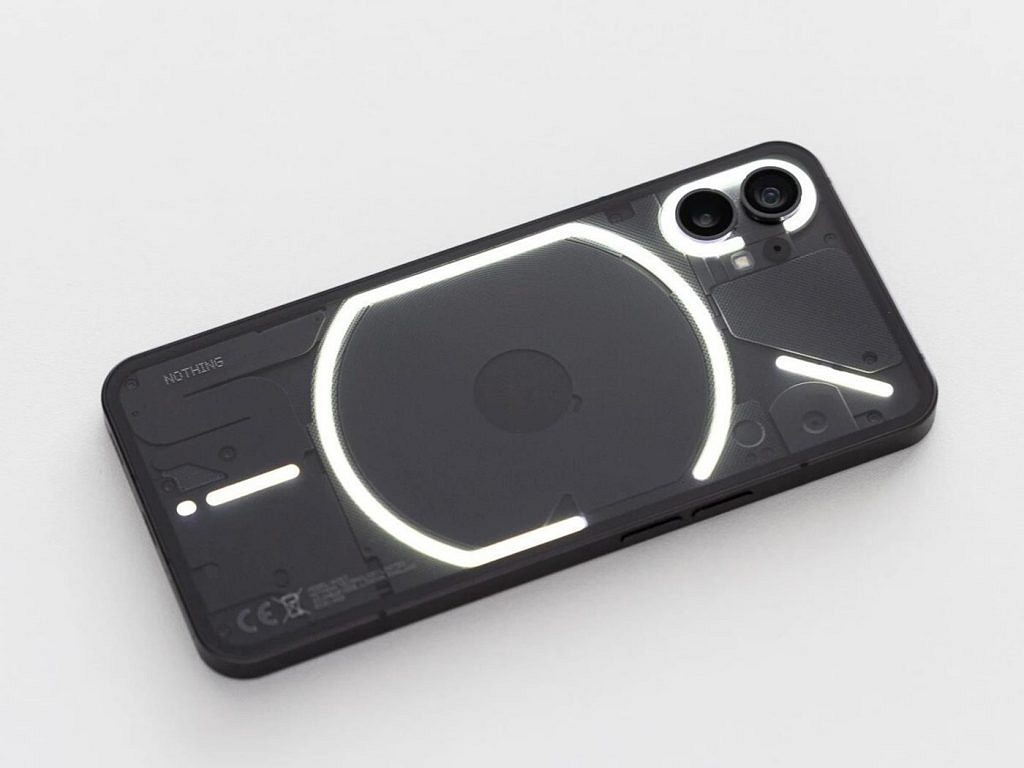
Also Read: Tecno Pova 5 Series Takes On Nothing Phone- Like Transparent Back Design With A Twist: To Feature RGB LED Light, Arc Interface

Categories
Apps Featured How To

Instagram Close Friends Feature Takes Center Stage In Main Feed: How To Use

Key Highlights

  • Close Friends feature expands on Instagram’s main feed
  • Posts and reels can now be shared with Close Friends by users
  • Users now have the option of selecting ‘Everyone’ or ‘Close Friends’

Instagram is expanding its Close Friends feature, bringing it to the main feed to facilitate the exclusive sharing of reels and photos among small groups. Meta-CEO Mark Zuckerberg himself announced this update, emphasizing the platform’s commitment to authentic social interactions. Also Read | 100+ Catchy Instagram Username Ideas For Poetry Enthusiasts

Close Friends: A Brief History

Introduced several years ago, the Close Friends feature initially received little attention. Users shared their daily activities with close contacts, but Instagram recognized the importance of extending this feature to include videos and photos for a more meaningful social experience.

A Step Towards Authentic Social Connections

The latest update aims to make social interactions more genuine, positioning Instagram in competition with apps like BeReal. While other platforms like X (formerly Twitter) once had a similar feature called Circles, Instagram’s commitment to enhancing user connections sets it apart.

Android And iOS Compatibility

The Close Friends feature is now available on the stable versions of the Instagram app, accessible on both Android and iOS devices. Users who don’t see the feature immediately are encouraged to check for updates as it may be rolling out gradually.

Also Read | Meta Finally Allows Deleting Threads Account Without Instagram: Here’s How To

How To Use Close Friends Feature: Step-By-Step Guide

For those eager to employ the Close Friends feature on the main feed, follow these simple steps:

Step 1: Update the App: Ensure your Instagram app is on the latest version.

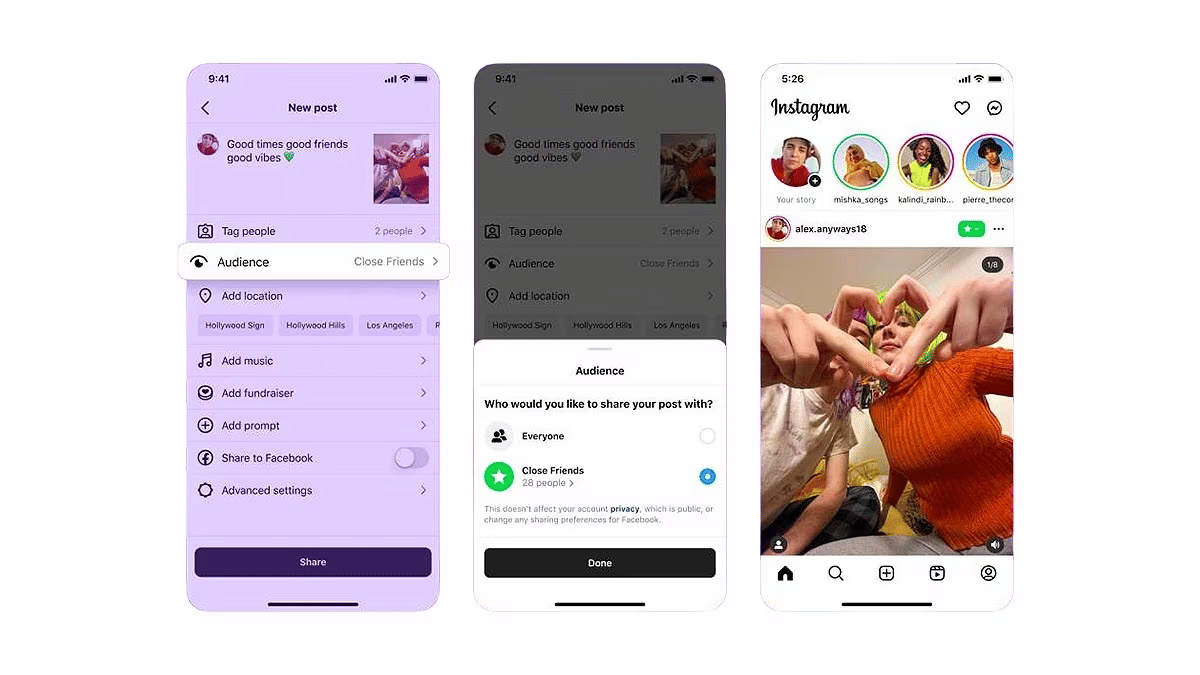
Step 2: Create Your Post: Tap the Plus (+) button at the bottom center, create your post (photo or reel), and tap Next.

Step 3: Adjust Audience Settings: On the final Share page, navigate to the ‘Audience’ tab. Choose between ‘Everyone’ and ‘Close Friends.’ Select ‘Close Friends’ to limit visibility.

Step 4: Finalize and Share: Tap Done, then select Share in the top right corner. Your post or reel will now be exclusively visible to close friends, marked by a distinctive green Close Friends icon at the top right.

By following these steps, users can enhance their Instagram experience by sharing moments more intimately with their Close Friends.

Also Read | How To Use Instagram’s New Song Lyrics Feature In Reels: A Step-By-Step Guide

Categories
Apps Featured How To Info

How To Use WhatsApp’s New Voice Chat Feature For Group Calls: Step-By-Step Guide

Key Highlights

  • Tap the Waveform Icon to Initiate Voice Chats.
  • Multitask Seamlessly While Engaging in Group Conversations.
  • Flexible Joining and Leaving

WhatsApp has recently introduced a new feature – voice chats for group calls. This update aims to make group conversations more seamless and less disruptive. If you’re eager to try it out, here’s a step-by-step guide to get you started.

Also Read: WhatsApp Enhances Group Calls For iOS Users: Up To 31 Participants Now Supported With Latest Update

1. Update Your WhatsApp

Make sure you have the latest version of WhatsApp installed on your Android or iOS device. You can find the update on the Google Play Store for Android users and the App Store for iOS users.

2. Access the Group Chat

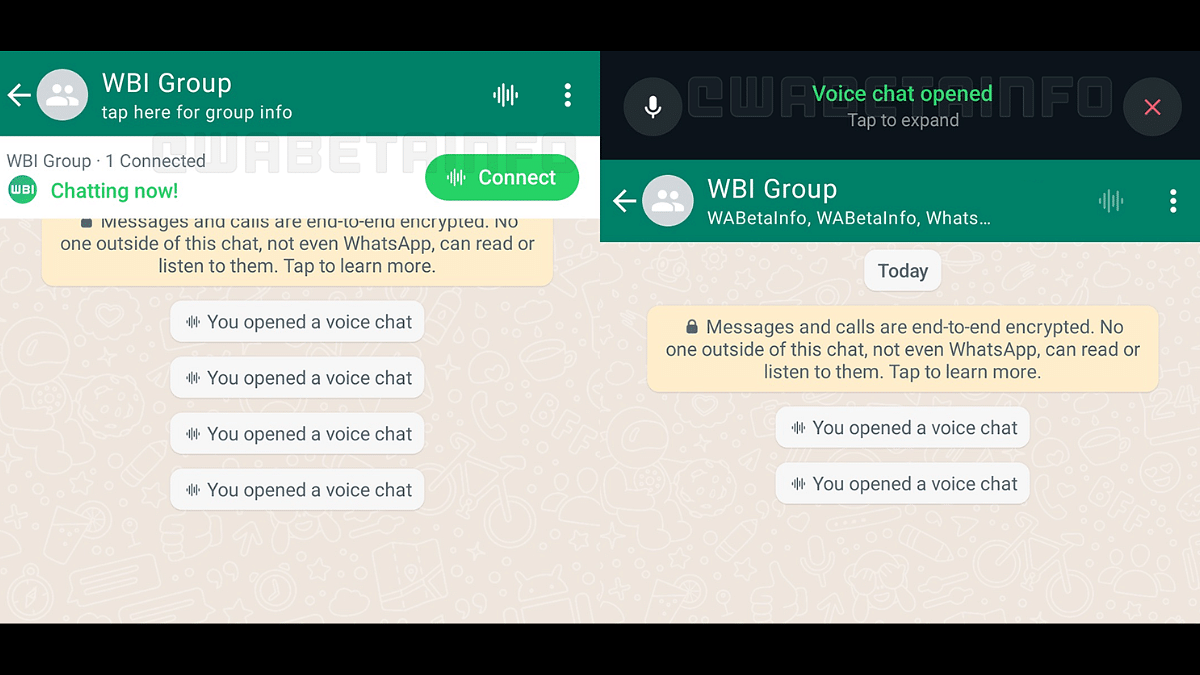
Navigate to the group chat where you want to initiate a voice chat. Look for the group call button, which has now been replaced by a new waveform icon at the top right corner of the screen.

3. Start A Voice Chat

Tap on the waveform icon to initiate a voice chat. Group members will receive push notifications, inviting them to join the conversation. Unlike traditional group calls, the new feature allows users to engage in other tasks on WhatsApp simultaneously.

4. Profiles And Notifications

All group members, whether participating in the voice chat or not, can see the profiles of those involved. This ensures transparency within the group. Notifications will be sent to all members, making it easy to join the conversation.

5. Leave And Rejoin

Participants have the flexibility to leave and rejoin the voice chat at their convenience. The voice chat will automatically end when all participants have left. If no one joins within an hour or if there’s only one person in the chat, it will also conclude.

6. Group Size Limitations

WhatsApp is initially rolling out this feature for larger groups with more than 32 members. Users in groups with 33 to 128 participants can take advantage of voice chats. Keep in mind that this feature is only accessible via a user’s primary device, and linked devices are not supported.

With these simple steps, you can now make your group calls on WhatsApp more seamless and less intrusive, enhancing your overall messaging experience.

Also Read: How To Hide Your IP Address On WhatsApp Calls