Categories
Apps Featured How To

WhatsApp Finally Allows Users Delete Sent Messages After Two Days: Here’s How To Do It

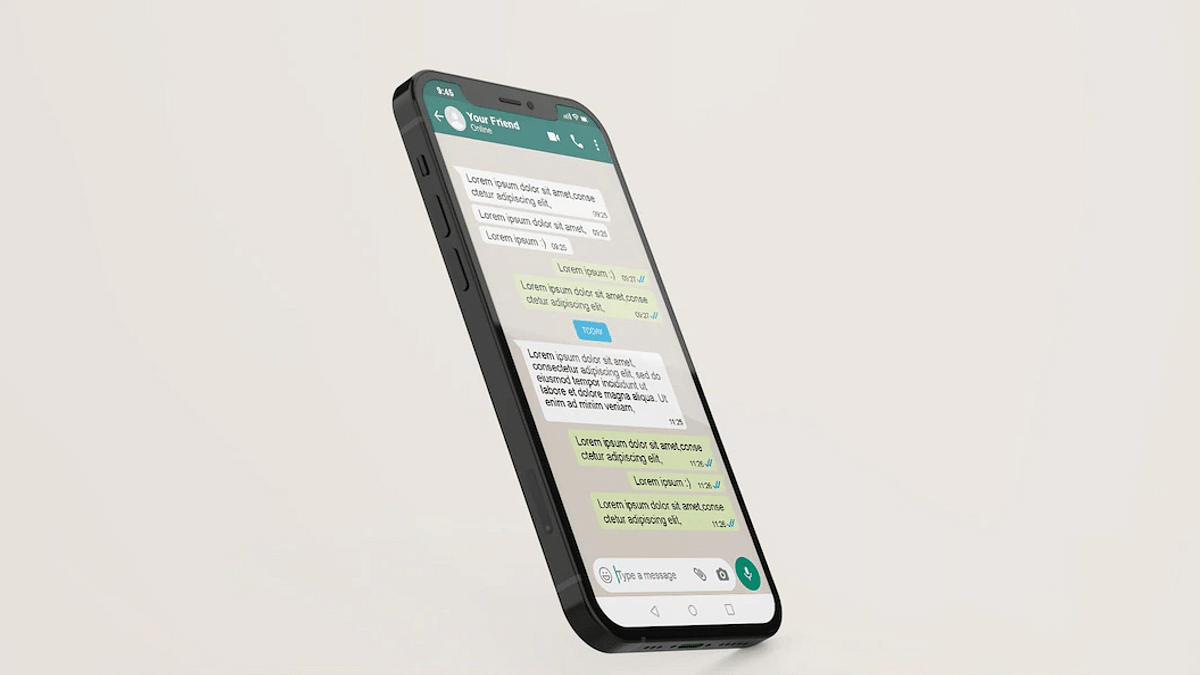
WhatsApp has released several privacy-oriented features for Android and iOS users in the last few years. The Meta-owned messaging platform earlier allowed its users to delete any sent message on the mobile app. However, the default time limit to delete any message until now has been up to 60 minutes. For a while, WhatsApp has been testing an extended time limit to delete any message. After all the anticipations the brand has now dished out the stable update post which you’ll be able to delete messages after two days.

WhatsApp Delete Message Gets Extended Two Days Limit

WhatsApp has shared a tweet confirming that users will now be able to delete any message that is two days old. The Meta-owned instant messaging application will now let both Android and iOS users delete sent messages which is 2 days old. If we speak of the specifics, users will be able to delete the messages even after 2 days and additional 12 hours.

Users will get the option to delete the messages within the aforementioned timeline from both a single or group chat window. Users have been requesting WhatsApp to increase the time limit to delete any message sent using the app.

Finally, this security feature is being made available for the masses. You’ll get an update notification on your respective Android and iPhones. But if you don’t receive any notification, you can also go ahead and check it manually.

How Can You Delete WhatsApp Individual And Group Chat Messages After 2 Days?

Step 1: Launch the WhatsApp application on your Android or iPhone respectively.

Step 2: Open the individual or the group chat window from where you wish to delete the message.

Step 3: Scroll to the text and then press and hold the message.

Step 4: You’ll see a set of options on the top of the app’s window. Select the delete option (bin icon).

Step 5: You’ll get three options Delete For Me, Cancel, Delete For Everyone. You have to select the Delete For Everyone option.

The steps are identical as you would have performed before the time limit to delete any text was extended.
Categories
Featured How To Printers

Printer Showing Offline: How To Fix Printer Offline Issue With HP Printers?

HP is one of the biggest names in the printer market. The company has created several printer lineups to meet the requirements of modern-day users. The company has quite a wide range of monochrome, all-in-one, and laser printers that you can buy from official HP stores as well as dedicated retail partner chains. HP printers are known for their high-end features and effective printing cost. While HP printers are reliable with printing, they often might show some errors with different features.

Thanks to HP’s wide service network, getting printers fixed isn’t much of an issue. Besides, HP has also started offering customers remote technical support so that they can get their printers fixed without actually paying a visit to the service centres. The company also has created a dedicated support forum wherein you can get your printer issues fixed by following troubleshooting steps on your own.

In one of our recent articles, we shared the procedure with which you can resolve issues with printers not working after Windows 11 update. In this article, we will be listing the steps with which you can resolve the printer offline issue with your HP laptop.

How To Resolve Printer Offline Or Printer Not Found Issues With HP Printers

You can easily resolve the printer offline issue with your HP printer using a Windows laptop or PC. You would need to install the HP Print and Scan Doctor app to fix this issue. Not just a Windows laptop or PC, you can also get this fixed using a Mac notebook or PC. However, for Mac systems, you would need the HP Smart app.

Step 1: On your Windows or Mac laptop/ PC, download the HP Print And Scan Doctor or HP Smart app respectively.

Step 2: Launch the downloaded application.

Step 3: Select your printer name from the list.

Step 4: If in case your printer is not mentioned in the list, tap on retry.

Step 5: If the error message reads connection problem, follow on-screen instructions.

Step 6: Once you get a message prompt that you need to turn on printer updates, click on Yes and then Continue.

Step 7: You will get another message prompt asking you to make your printer default. You need to select Yes.

Step 8: Your printer will now show online and you can start giving prints.

If for some reason, your printer is still showing offline, we have covered some additional troubleshooting steps that you can easily perform on Windows and Mac devices for a fix. You can read them here.

Categories
Apps Featured How To

Book An Uber Ride Using WhatsApp: Follow These Steps

Key Highlights

  • You can book Uber ride through WhatsApp
  • Available to commuters in the Delhi-NCR region
  • Uber ride on WhatsApp is quite simple

Now, you can order an Uber ride through WhatsApp. Yes, you heard it right. The new feature, which is now available to commuters in the Delhi-NCR region, was announced by the messaging platform and the provider of cab services in Hindi and English.

With the new feature, you can easily order an Uber ride without having to download the app. It will spare you the hassle of switching between applications. Also, it will save you from the trouble of downloading the Uber app and going through all the additional time-consuming requirements like registering and scheduling a cab, car, bike, etc. Even while it seems simple, some people who try to book a cab via WhatsApp seem to find it complicated.

Also Read | Uber EV Auto Rickshaw Services Begins In Ayodhya: Full Details

In this post, we will show you how you can easily book an Uber ride on WhatsApp in a few seconds. Unlike the Uber app, where you have to open and sign in to book a ride, you can simply send pick-up and drop-off instructions using WhatsApp. Here’s how:

How To Book An Uber Ride Through WhatsApp?

Step 1: To access the Uber chatbot on WhatsApp, open the app on your mobile phone and message ‘Hi’ or ‘Hi Uber’ to the number +91 7292000002.

Step 2: Next, you will need to provide your pick-up location and drop-off location. You can also scan a QR code that appears in the chat window.

Step 3: After that, you will get the expected fare, showing you how much you need to pay for your ride.

Step 4: At last, you need to confirm the ride.

You will receive a notification on WhatsApp itself as soon as a nearby driver accepts your request. After that, you can monitor every aspect of your ride in the chat.

Also Read | Stay Safe With Uber: Here’s How To Activate Audio Recording For Your Rides

Uber assured that riders will have the same access to safety features and insurance protections as those who book rides using the Uber app. At the time of booking, they will also be informed of the driver’s information and license plate. They will be able to contact their driver via a masked number and track his/her whereabouts while driving to your pickup location.

For the tech geeks, stay updated with the latest cutting-edge gadgets in the market, exclusive tech updates, gadget reviews, and more right on your phone’s screen. Join Giznext’s WhatsApp channel and receive the industry-first tech updates.

Categories
Apps Featured How To

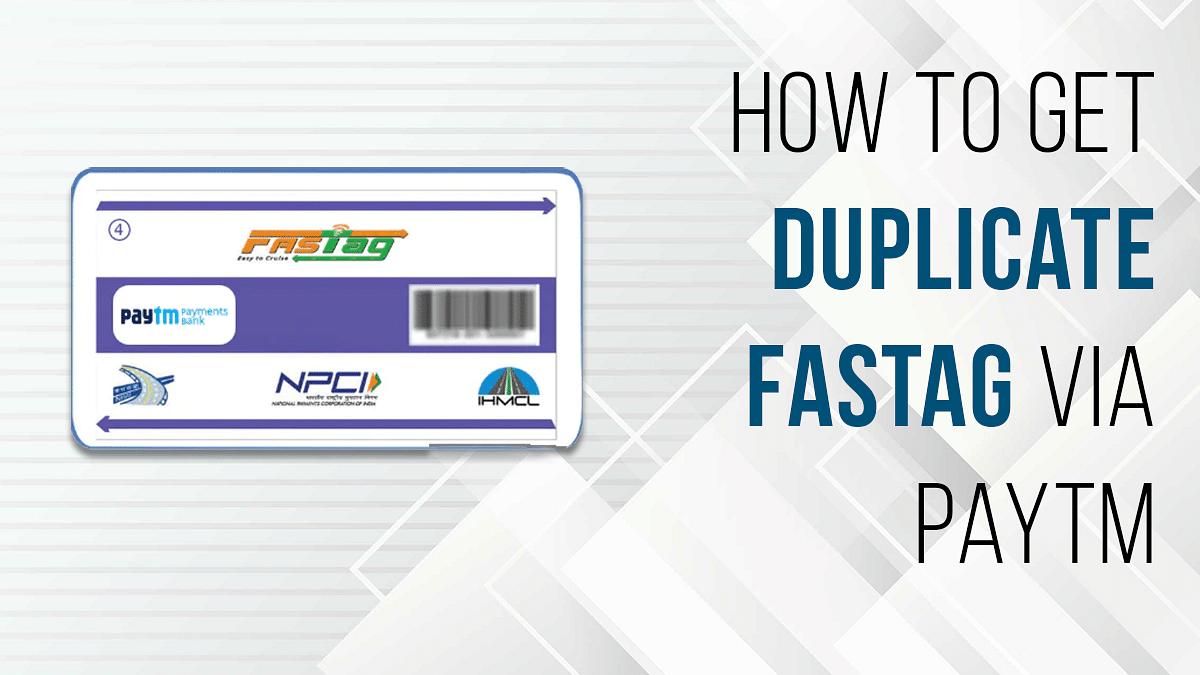
Damaged FASTag? Here’s How To Get Duplicate FASTag Via Paytm

Key Highlights

  • NHAI had issued guidelines for the commuters to ensure their car has a FASTag sticker
  • You can link your FASTag with Paytm and other wallets and bank accounts
  • You wouldn’t need to replace the FASTag sticker unless it’s damaged

If you own a car or any commercial vehicle in India. You must be aware of the FATag. The RFID sticker tag for toll collection for a hassle-free commute through the state and national highways in India is what we are speaking about. Introduced first in 2014, FASTags became a mandate for vehicles back in 2021 only. NHAI had issued guidelines for the commuters to ensure their car has a FASTag sticker mounted inside the windshield so that the tolls can be collected automatically via the linked UPI and bank accounts.

It’s basically a prepaid recharge system wherein you need to make sure there is sufficient balance so that the tolls can be collected on highways via integrated RFID readers at the booth. The primary goal has been to reduce the wait time and long queues at the toll booths across different state highways. You can link your FASTag with Paytm and other wallets and bank accounts and maintain a keep sufficient balance to pass through tolls swiftly.

Also Read: How To Check Metro Card Balance Offline And Online? Learn Here

In general scenarios, you wouldn’t need to replace the FASTag sticker unless it’s damaged. That can happen if unfortunately your car’s windshield breaks or the sticker peels off and can’t be used again. The only option you are left with is to place an order for a duplicate FASTag sticker. How can you do that? Read the steps here:

Also Read: Damaged HSRP Color Stickers? Here’s How To Apply For A Duplicate HSRP Sticker For Your Car

How To Get Duplicate FASTag Sticker Using Paytm?

Step 1: Open the Paytm app on your Android or Apple iPhone.

Step 2: In the search bar, type FASTag.

Step 3: You will see the list of services offered by Paytm. Scroll to the Replacement tag option.

Step 4: A new page will open where you’ll be able to see the Vehicle Registration number. Check if it’s correct.

Step 5: Click and upload the image of your RC’s front and back.

Step 6: You’ll see the amount breakup including the Tax Insurance Fee, GST on Tag Insurance Fee, and the FASTag balance. The amount is around Rs. 100 to place an order for the duplicate FASTag sticker.

Step 7: Check if the delivery address is correct. If now, make the required changes.

Step 8: Complete the payment and your order will be placed for the duplicate FASTag on Paytm. The general time period for the duplicate FASTag card delivery is around three to four days.

Also Read | Recharge Your FASTag On WhatsApp: Here’s How To Do It

Categories
Featured How To Info

Buy Indian Flag Through ePostoffice At Just Rs. 25: Here’s How

The Indian flag is currently available for purchase from an authentic government marketplace for just Rs. 25. As part of the Har Ghar Tiranga campaign, the Department of Post has announced an online sale of national flags through the ePostoffice portal at www.indiapost.gov.in. The sale of national flags began on August 1.

The government of India has now amended the Flag Code of India to allow citizens to hoist the Tricolor at their homes at any time of day or night. The Indian Flag previously could only be hoisted from sunrise to sunset. Here’s how you can purchase the Tricolor via the post office:

How To Buy Indian Flag From Post Office?

Recently, the Department of Post announced that National Flags would be sold online via the ePostOffice website, www.epostoffice.gov.in. The Indian flag measures 20 inches x 30 inches (without a flagpole). The price of the Tricolor is Rs. 25 per piece. There is no GST on the Indian Flag.

Step 1: Go to www.epostoffice.gov.in.

Step 2: On the ePostoffice Portal home page, click the image of the Indian flag.

Step 3: ‘Click the image to purchase Flag’ is written beneath the image.

Step 4: Include the delivery address, the quantity of Flags (up to five Flags per customer at first), and your mobile number.

Step 5: You will be prompted to adhere to the latest Flag code during the purchase process.

Step 6: Make the payment to finish the order after the procedure is complete.

The Department of Post has also ordered the post offices to deliver the flags in the minimum possible time as the sale window is very narrow just before Independence Day.

Since the sale window is quite narrow right before Independence Day, the Department of Post has also instructed the post offices to send the flags as soon as possible.

Categories
Featured How To Printers

How To Print From Wirelessly-Connected Printer? Here Are The Steps

Key Highlights

  • Untethered connectivity on a printer is currently a requirement
  • The absence of a physical connection to a computer or phone might make setting Printer difficult
  • Users need to connect a wirelessly connected printer to a network

Due to the fact that many of us still choose hybrid working, untethered connectivity on a printer is currently a requirement. This enables the connection and printing from a device from more than one computer.

Whether Wi-Fi or Bluetooth, wireless printers can be placed almost anywhere without having to worry about cable clutter. Although they simplify life once they are operating, the absence of a physical connection to your computer or phone might make setting them up and using them more difficult.

So, if you need to print from a wireless printer, we are here to help. This post will walk you through adding your printer to your wireless network so you can print documents and images without annoying cords. Also Read | How To Add A Default Wireless Printer In Mac Devices

Step 1: Connect Your Printer To A Wireless Network

You must first connect a wirelessly connected printer to a network in order to print from it. Any PC or Mac can easily set up a wireless printer, and depending on the model, you can also print wirelessly from an Android, iPhone, or iPad. However, we will outline the procedures for connecting it to Windows and Mac in this article.

  • Put the printer in your wireless router’s coverage area.
  • Turn the printer on. There is no need to first connect the printer to a computer because you will be connecting to the wireless network directly from the printer.
  • Join your wireless network to the printer. Depending on the printer, the method will change. Your Wi-Fi network name (SSID) and password are requirements.

Step 2: Add A Printer To A Windows Computer

Connect your printer to the wireless network. The wireless network where your computer and printer are connected must be the same.

  • In the lower-right corner of your computer’s screen, click the Windows Start menu.
  • Click the Settings icon and then go to Devices.
  • Click Printers & Scanners.
  • When your PC discovers the printer, click ‘Add printers and scanners’.
  • Click your printer’s name and then click Add Device. This will your printer to your PC.
  • Depending on the app you are using, you can find the ‘Print’ option under the ‘File’ menu, or by clicking the icon with three dots in the upper-left corner.

How To Connect A Printer To A Mac?

Step 1: Connect your printer to the Wi-Fi network.

Step 2: Update your Mac. This will ensure that your computer has the most recent printer data. This step is not required if your printer supports AirPrint.

Step 3: Click the Apple Menu and then System Preferences.

Step 4: Click Printers & Scanners.

Step 5: Click ‘+’ at the bottom of the box with all the connected printers on the left. Your Mac will search for wireless network-connected printers.

Step 6: Click Add after selecting your printer. Your printer is connected through this.

How To Print Through A Wirelessly-Connected Printer?

Step 1: Choose the file you wish to print, then open it on your computer screen.

Step 2: Simultaneously press the Ctrl and P keys on your keyboard.

Step 3: Choose the printer you want to send the task to when the printing pop-up option displays on your computer’s screen.

Step 4: Modify your print settings if necessary. This step is optional.

Step 5: To add the job to the printer’s print queue and wait for it to finish, click the Print button on the screen. That’s all.

Also Read | How To Print Borderless Images Using Modern Printers: Steps Guide

Categories
Apps Featured How To

WhatsApp Hacks: How To Send WhatsApp Images In High Resolution As Document On iPhones?

WhatsApp is one of the most powerful instant messaging applications which is available for both Android and iOS smartphone users. WhatsApp started its journey as a separate entity but later got acquired by Meta (Facebook). Since then WhatsApp is getting more potent each year and is rapidly getting new features and services for an improved messaging experience be it on Android smartphones or iPhones.

WhatsApp is among those apps that have amplified the messaging experience by allowing the provision of video and audio calls. The app also lets you send images, videos, and locations with your contacts. You can send images in both normal and high-resolution using WhatsApp on Android and Apple iPhones devices. The quality isn’t compromised if you send images as documents on WhatsApp on both these mobile OS.

While sending an image as a document on WhatsApp isn’t tricky with Android, iOS users have to follow some extra steps. Specifically, if you are a new iPhone user who has been using an Android phone all this while, this could be one task for you. So, how can you send WhatsApp images in high resolution as a document on iOS devices? Here’s the trick:

Steps To Send WhatsApp Images As Documents On iPhone

You can’t directly send any WhatsApp image as a document on iPhones. You would require some additional steps primarily saving the image to the device or the iCloud.

Step 1: Open the image that you want to send as a document on WhatsApp on your respective iPhones.

Step 2: Select the Upload tab placed at the bottom left.

Step 3: Scroll down to the “Save to Files” option.

Step 4: Now, select the destination where you want to store and save the image. You can select from iCloud Drive or On My phone options.

Step 5: Click on save.

Step 6: Now, launch the WhatsApp application on your iPhones and go to the specific chat or contact to whom you wish to send images as documents.

Step 7: Tap on the “Plus” icon placed at the bottom left and select the Document option.

Step 8: Now, select the folder where you have saved the image.

Step 9: Once the image opens up click on Send. The image will be sent as a document to the selected contact.

Categories
Featured How To Mobile

How Can You Unlock iPhones Using Face ID While Wearing Face Mask Or Glasses?

Apple has one of the strongest ecosystems for all of its gadgets including iPhones, iPads, and Mac notebooks and computers. The Cupertino giant has also been enhancing the privacy aspects with its dedicated firmware for laptops and smartphones. All the Apple iPhones boots on in-house iOS which Apple is upgrading each year. This year at its WWDC 2022 keynote, the Cupertino giant showcased the iOS 16 which will be replacing the iOS 15 in the coming months. Apple has released multiple new features with iOS 16 and is carrying forward a few from the previous version.

One of such features is the Face ID which has been present with older iOS versions as well. Last year, after the pandemic situation due to the COVID 19, Apple users were reporting issues with their Face ID if they have a mask on. Apple bright a solution for this with the iOS 15.4 and later version. You can easily unlock our respective iPhones if you have a face mask or any other extra layer on your face. The Face ID with mask feature will unlock your iPhone and let you use all the apps including Apple Pay.

Steps To Use Face ID On iPhones With A Mask

Step 1: You can only setup up the Face ID to work with a mask if your iPhone is currently running on iOS 15.4 or later.

Step 2: Go to the settings menu.

Step 3: Select Face ID & Passcode.

Step 4: Scroll down to the Face ID with a Mask option. Tap on it.

Step 5: You will get a prompt to use Face ID with a mask. Complete the on-screen steps to start using Face ID with a mask feature.

Step 6: Once all the above steps are completed, you will be able to unlock your iPhone even with a mask.

How Can You Improve Face ID Accuracy With Glasses And A Face Mask

Step 1: Unlock your respective iPhones and click on the settings app.

Step 2: Tap on the Face ID & Passcode option.

Step 3: Scroll down the menu and clock on Add Glasses.

Step 4: You will get a bunch of steps on your screen, follow them to complete this setup.

Step 5: You can now unlock your iPhones with the Face ID if you are wearing both glasses as well as a Face Mask.

Categories
Featured How To Printers

HP Printers Not Working After Windows 11 Update? Here Are Some Quick Fixes

Windows 11 is the latest firmware announced by Microsoft for new-generation laptops and PCs in the global market. The latest firmware brings improved features and support with multiple devices. Printer compatibility and functionality have also been improved with Windows 11. However, in some cases, users have been reporting issues with printers not working properly post a Windows 11 upgrade.

Similar issues have been reported on numerous occasions by HP printer users as well. Users are unable to give print commands or scan any document using their HP printers and scanners after the Windows 11 update. Since this is a firmware issue, you can fix it on your own and avoid your visit to the service centers. But what can you do if your HP printer stops working after the Windows 11 update? We have mentioned some of the ways with which you can quickly resolve printer issues with the Windows 11 update:

Quick Fixes To Resolve Printer Not Working Issue After Windows 11 Update

Step 1: Uninstall and re-install printer software. To do so, open the Windows search bar on your laptop/PC and go to the Check for updates option. Once you do this, Windows will automatically search for any new updates and show you the details. If there is any missing or new update that is available, go ahead and download it. Follow the remaining steps if there is no new update available.

Step 2: You now need to power off the Printer and then complete the remaining steps using the HP Smart app.

Step 3: Launch the HP Smart app and then remove the connected printer from the lost. You can right-click on the printer icon and select the Hide Printer option.

Step 4: Now go to the Control panel on your laptop or PC and open the Add or remove programs option.

Step 5: Once you see the name of the printer in the list, tap on it and select Uninstall.

Step 6: Reboot your laptop/ PC and also the printer.

Step 7: Re-launch the control panel on your laptop or PC and go to the Printers and scanners option.

Step 8: Find the name of your printer and click on Remove Device if it’s in the list.

Step 9: Now, check if the Wireless LED is glowing on the printer’s control panel. If the LED’s aren’t blinking, continue downloading the latest printer software and drivers from the dedicated website, i.e., 123.hp.com.

Step 10: If in case the Wireless LED is blinking then you would need to restore the Wi-Fi setup mode.

Step 11: If your printer has a touch control panel, then tap on the Setup menu or Wireless option.

Step 12: Select the Network Settings and then tap on the Restore Network Settings.

Step 13: For the printers without a touchscreen display or menu, you would need to open the Restore Wi-Fi setup mode on your HP printer and then continue with restoring the default settings. Finish this process by downloading the compatible printer and software drivers. Visit 123.hp.com. Once you have completed all these steps with, your printer will start functioning properly with Windows 11.

Categories
Apps Featured How To

Instagram Tips And Tricks: How To Remix Instagram Reels With Videos And Photos

Instagram Reels is one of the most popular features that you get on the photo-sharing app. Meta, widely popular as Facebook, released this short video feature for Instagram back in 2020 as a rival to TikTok and other such apps. Instagram has made several improvements to the Reels since its launch and also added the Remix Reels option last year. This feature allows users to record their own videos and then club them with other popular reels on the platform from other content creators and users.

Not just videos, you can also Remix reels and photos with your Instagram Reel. This is one of the most interesting features that you get to use while creating any Reel video on Instagram. Instagram Remix Reels feature has been out for a long and still if you are new to creating Reels, you might not be aware of the ways to use it. If that’s the case, we will help you with the steps to create and remix any Reel video.

How To Remix Instagram Reel

You can remix any Instagram Reel video using Android and iOS smartphones.

Step 1: Open the Instagram application on your respective Android and iPhones.

Step 2: Click on the three dots option. It will be three horizontal dots for iPhones and three vertical dots for iOS.

Step 3: Click on Remix this reel option. You can set the preference if you want to place the remixed video next to the original video at the same time or later.

Step 4: Click on the Layout option. You’ll see this icon. This option will let you place the layout for the remixed video that you can place either below or next to the original video.

Step 5: Now, all you need to do is record your Reel video.

What Are The Steps To Remix A Feed Video On Instagram

You can easily remix any feed video on the Instagram app. The steps are almost identical to how you would remix any Instagram Reel on the app. Take a look:

Step 1: Once you have launched the Instagram app on your iPhone or Android phone, click on the menu (three dots) option.

Step 2: This time, select the Remix this video option instead.

Step 3: Now, choose the layout as you did above and place the below the original video or next to it. That’s it. Record your Reel and you are all set.

How Can You Remix Any Photo With Instagram Reels

Just like videos and other reels, you can also remix a reel with photos. The steps would be the same as with the remaining two. But the remix photos option isn’t available for all users at the moment, so, if in case you don’t find this option on your Instagram app chances are it’s unavailable in your region. Otherwise, update your app and then check if this feature adds up.

Step 1: Click on the menu option on the Instagram mobile app on your smartphone.

Step 2: Instead of reels and video, you would need to select the Remix this photo option.

Step 3: The photo will be set to default as the background of the reel video.

Step 4: Select the Layout option from the right-hand side if you wish to make any changes. Record your reel remixed with the photo.