Categories
Apps Featured How To

Want To Change Your Phone Number On Amazon Account? Here’s How To Do It

Amazon has become the go-to online store for billions for just about anything they need to buy online. It has maintained control over the world’s most powerful economic and cultural forces. The company has made its app and web user interfaces user-friendly. One significant aspect of e-commerce is how customers enter/change their contact details and addresses so that their packages can be delivered to them.

How To Change Your Amazon Phone Number

Whether you’ve changed your phone number or simply want to use a different number, changing mobile numbers in your account is a simple process. We’ll help you learn how to do it on both your mobile phone and desktop.

Steps To Change Mobile Number From Your Mobile Phone

Step 1: Open the Amazon app on your mobile phone and log in to your account.

Step 2: In the bottom right corner, click on the three horizontal lines.

Step 3: Go to ‘Your Account’ and open ‘Login & Security.’

Step 4: Sign in again when prompted.

Step 5: Then, you will get an SMS notification that will be sent to your registered mobile number.

Step 6: Click on the link to ‘approve’ or ‘deny’

Step 7: Go back to your Amazon page. Next to the account information, you will see the option to ‘Edit’.

Step 8: Follow the instructions on the screen and ‘Save Changes’.

Step 9: Once it is over, tap on ‘Done’.

Steps To Change Mobile Number From Your Desktop

On your desktop computer, like Windows, Linux, Mac, or Chromebook, use the official Amazon website to change to your phone number.

Step 1: Visit the Amazon website and log in to your account.

Step 2: Click the ‘Accounts and Lists’ section in the top right corner.

Step 3: Go to the ‘Your Account’ page, and choose ‘Login & Security.’

Step 4: Then, tap on the ‘Edit’ option next to ‘Mobile Phone Number’.

Step 5: Enter the new phone number.

Step 6: Hit ‘Save changes’ once done.

From the same ‘Login & Security’ option, you can change your email address, residential address, name, and more. Notably, there is no limit on how many times this information can be updated. You can make changes to personal information as many times as you want. However, the e-commerce platform Amazon only allows one mobile number and email address.
Categories
Apps Featured How To Tech Gadgets

Social Media App Hacks: How To Mute Annoying/Unwanted Messages On Instagram, WhatsApp, Facebook Messenger

Key Highlights

  • Facebook has its in-house messaging application called Facebook Messenger
  • Users can now stop unwanted messages without blocking or notifying the end-user
  • The app offers a provision to mute messages from unwanted or annoying contacts

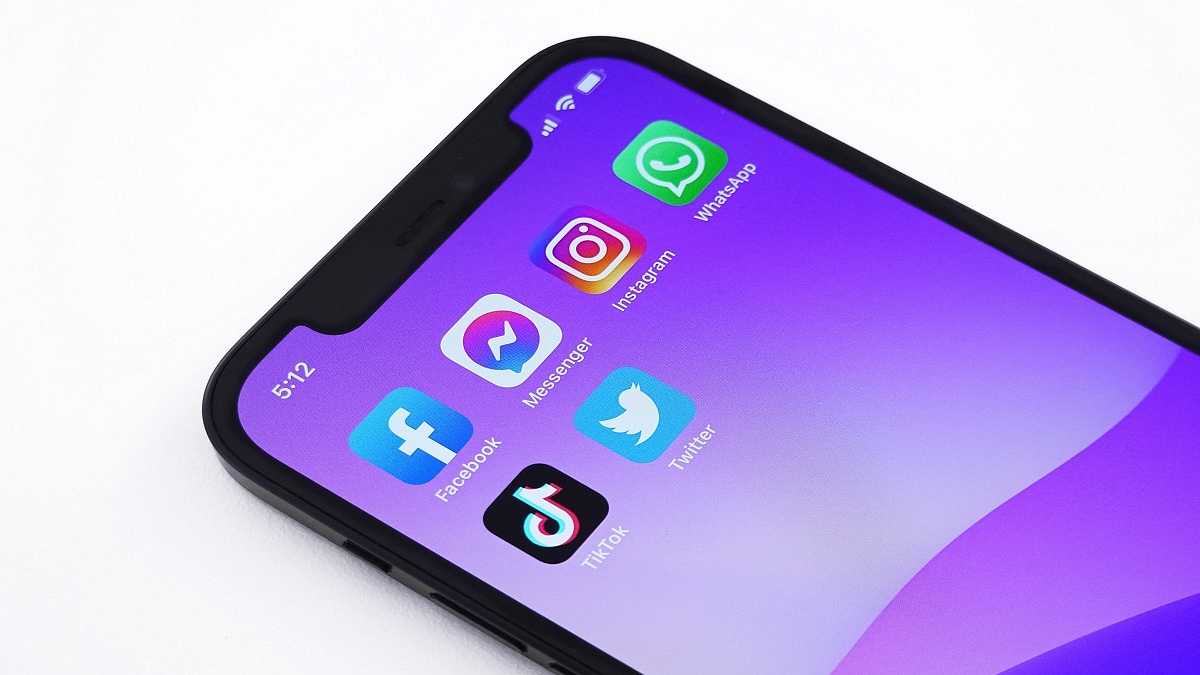
Social media apps are seeing an all-time high in terms of the consumer base. Countless users join social media platforms such as Instagram and Facebook on a daily basis. The modern masses rely on these apps and websites not just for entertainment but also for communication. That’s despite the availability of dedicated instant messaging applications such as WhatsApp on both Android and iOS mobile ecosystems.

Facebook, now called Meta also has its in-house messaging application called Facebook Messenger, while Instagram has a DM section on the app itself that helps the audience with conversations with their contacts and other users. However, there are situations when flooded with texts and messages from a specific contact that you might have avoided in general case scenarios.

These unwanted messages frequently popping up on your respective messaging app could be a hassle that you would wish to stop without blocking or notifying the end-user. Thankfully, most of the new-age social media apps or instant messaging applications provide a provision to mute messages from unwanted or annoying contacts. Also Read | How To Upload WhatsApp Status In High Quality (Images, Videos) On Android, iOS?

You can also mute messages and notifications from groups on WhatsApp and other social media apps. If you are unaware of the procedure to mute contacts on Facebook Messenger, Instagram, and WhatsApp then you can follow the steps mentioned below:

Steps To Mute Annoying Unwanted Messages On Instagram

Step 1: Open the Instagram app on your respective Android or iOS smartphones.

Step 2: From the homepage go to the DM (direct message) section.

Step 3: Now, go to the contact that you want to mute. Press and hold the contact until you get a certain set of options.

Step 4: You will see “Delete”, “Mute messages”, and “Mute call notifications”. You can select the last two options to mute messages and calls (voice/video) notifications from the selected contact on Instagram.

Do note that there is no time limit that you can set for the message notifications to unmute automatically on Instagram. You will have to perform the manual steps for the same.

How Can You Mute/ Stop Message, Call Notification On Facebook Messenger?

Step 1: Open the Facebook Messenger app and log in to your profile in case you haven’t done so.

Step 2: Similar to Instagram, press and hold any conversation thread that you wish to mute.

Step 3: Select “Mute” and set the time until when you don’t wish to receive notifications from the selected contact.

Step 4: You can also use the “Ignore” option for the same.

Steps To Mute Messages On WhatsApp

Step 1: Open WhatsApp on your respective phones.

Step 2: From the chat window or the contacts section, select the profile whose notifications (messages and calls) you want to mute.

Step 3: You will see a bunch of options on the top of the screen from where you need to click on the mute option.

Step 4: You will get the option to mute the selected contact for 8 hours, a week, and always. Click on the appropriate option. That’s it. You have successfully muted annoying and unwanted messages on WhatsApp.

Also Read | Best WhatsApp Status Apps To Download And Use On Android, iOS

Categories
Apps Featured How To

WhatsApp Hacks: How To Forward Images With Caption To Contacts On Android, iOS

Highlights

  • WhatsApp now allows users to forward messages with caption
  • Feature available for both Android and iOS devices

WhatsApp is being one of the most downloaded instant messaging applications that you can find on almost every other available Android or Apple iPhone available in the market. The Meta-owned instant messaging application is known for getting frequent updates for a redefined messaging experience. Sending images and videos is one of the important features that is offered by WhatsApp. Users also have the provision to edit images and add highlights or texts while sending any image to their contacts.

WhatsApp also lets users add captions to any media being sent to their contacts. If you are a frequent WhatsApp user, you must have shared photos with your friends and other contacts and also forwarded the received media. But WhatsApp only allowed forwarding images and not the caption.

That’s not the case anymore. WhatsApp has already released an update that will let users forward images without losing the caption. Both Android and iOS smartphone users can use the latest feature that lets users forward photos along with captions. Are there any specific steps that you need to perform to share WhatsApp images with captions? Or the method is the same as the general media forwarding? Read on to know:

How Can We Forward WhatsApp Images To Other Contacts With Captions Intact?

Step 1: Open WhatsApp on your respective Android or iOS smartphones.

Step 2: Go to the chat window from where you wish to forward the image to another contact.

Step 3: Tap and hold the image to select it. As soon as you do it, you will see the option to react to the message. However, if you wish to forward the selected image along with the caption, follow the next few steps.

Step 4: After the image is selected, you need to locate the share option which will show up on the top alongside the forward option on top. It is worth adding that you would need to select the “Share” and not the “Forward option” if you want to keep the caption intact before forwarding it to any other contact.

Step 5: Once you perform the aforementioned steps, the image will be forwarded to the desired contacts with the caption. Do not that the “forward” message tag would still be present even if you use the share message feature.

Categories
Apps Featured How To

WhatsApp Payments: How To Add A Bank Account Via Settings And Chats

WhatsApp is a highly popular and widely used social media messaging platform. The Meta-owned app is used by billions of people all around the world. You can exchange messages with an active internet connection after installing WhatsApp on your Android phone. Not only this but linking your bank account to WhatsApp Messenger allows you to send and receive payments.

A user has to first initiate a payment to a contact before using WhatsApp Pay. They can set up their UPI account on WhatsApp once the request has been received from the other hand. If you’re new to WhatsApp Pay, here’s a step-by-step guide on how to add a bank account through settings and chats.

Steps To Add A Bank Account In WhatsApp Pay From Settings

Step 1: Open WhatsApp Messenger on your mobile phone.

Step 2: Go to the ‘Settings’ section.

Step 3: Select ‘Payments’ and tap on ‘Add New Account’.

Step 4: Press ‘Accept’ and then tap ‘Continue’ to accept WhatsApp Pay’s terms and privacy policy.

Step 5: Now you will see a list of banks that you can link with WhatsApp Pay. Tap ‘Verify via SMS’ after selecting the bank name you prefer.

Step 6: Your phone will display a pre-filled SMS with a verification code. To send this message and authenticate your account, tap ‘Send’.

Step 7: Next, tap the bank account you wish to add to send and receive payments with WhatsApp. Tap ‘Done’.

Steps To Add A Bank Account In WhatsApp Pay From Chats

Step 1: Open WhatsApp and go to the chat of the person you’d like to send money to.

Step 2: Click the ‘Payments’ icon.

Step 3: Type in the amount you’d want to send. Now, tap ‘Next’ and then ‘Get Started’.

Step 4: Click the ‘Accept’ button. Tap ‘Continue’ to accept the company’s terms of service.

Step 5: Select the name of the bank you would like to connect with WhatsApp Pay. Now, tap ‘Verify via SMS’.

Step 6: Tap the bank account you want to add to send and receive payments with WhatsApp. Tap ‘Continue’.

Step 7: Click ‘Next’ after verifying your debit card details to return to your payment message.

WhatsApp payments use UPI (Unified Payments Interface) which is supported by the majority of major banks. In order to make payments, the phone number associated with your WhatsApp account is used to identify your bank account details.

Categories
Apps How To

How To Get Sony LIV Subscription Free: Here Are All Steps

The demand for OTT apps has increased after COVID 19 and several players have come up with new plans to attract users to their platforms. In fact, several telecom players have launched plans that are providing access to these apps.

It is worth noting that the telecom operator has recently announced packs for prepaid and postpaid users. The premium access of the Sony LIV app can be availed by anyone who is using prepaid and postpaid numbers. This development comes a few months after the price was hiked and which is why subscribers are looking for ways to get benefit from the plans.

Similarly, India’s third-largest telecom operator Vodafone-Idea has recently announced packs with Sony LIV access. So, in that way we are listing all those prepaid and postpaid packs of the Vodafone- Idea that will help you to access the Sony LIV app for free.

Vodafone-Idea Sony LIV Plans

Sony LIV With Vi

The telecom operator has launched the SonyLIV add-on pack for its customers at Rs. 100 for 30 days. This 30 days Sony LIV plan also offers 10GB of free data; however, the amount will be added to your bill. This means you have to pay extra Rs. 100 for the services.

This pack allows you to binge all shows, movies, live sports, exclusive content, and all devices, including mobile and television. On the other hand, the prepaid users have to recharge for Rs. 499 and pay extra Rs. 100 to get access to the app for 100 days.

In addition, the app will get SonyLIV premium access by paying Rs. 82 for 30 days. This plan can also be added to the ongoing pack, but you need to pay the extra amount.

“From sports properties like UEFA Champions League, WWE, Bundesliga, UFC to originals like Scam 1992 The Harshad Mehta Story, Maharani, Tabbar, Rocket Boys, Gullak Season 3; regional content like Salute, Kaanekkaane, Shantit Kranti and James and international shows The Good Doctor, Fantasy Island and Magpie Murders, SonyLIV has a bouquet of attractive content offerings appealing to audiences across age groups and interests. In addition to this, Vi offers a rich content library for its customers under Vi Movies & TV (Vi MTV) on the Vi app. ViMTV app has 450+ live TV channels, live news channels, and premium content from other OTT apps,” the company said.

Categories
Apps Featured How To

Want To Schedule An Email In Gmail? Here’s How To Do It

Gmail is currently one of the most widely used email services worldwide. The tech giant keeps on introducing new features to make the app more enticing and user-friendly. One such important feature is email scheduling which enables users to schedule and send both personal and professional emails. This circumstance can occur if you need to contact someone who is in a different time zone than you or remind people about an event that will take place at a certain time.

Google allows you to schedule an email by choosing the date and time you want it to be sent. The scheduling of an email can helps manage the workflow of both you and your colleagues. Besides, the process only takes a few clicks. Let’s check out how to schedule an email in Gmail. The process works roughly the same on the desktop and in the Android and iOS mobile apps.

Steps To Schedule An Email In Gmail On Desktop

The procedure to schedule emails on Gmail using a desktop web browser is as follows:

Step 1: Go to Gmail and log in to your account.

Step 2: On the top left of the screen, tap on the ‘Compose’ button.

Step 3: Draft your email. When you are finished writing a mail, click the down arrow next to send. Click ‘Schedule Send’.

Step 4: Now set a custom send date and time by clicking ‘Pick date & time’.

Steps To Schedule An Email In Gmail On Mobile

As for Gmail mobile app, instead of using the drop-down menu as we did in the desktop online version, you need to press on the three dots icon in the top right corner. The process is the same everywhere else. By following the mentioned below steps, you can easily schedule an email on mobile:

Step 1: Open Gmail on your mobile phone.

Step 2: Click the ‘Compose’ button on the bottom-right of the screen.

Step 3: Draft your email. When you’re finished with writing the mail, tap the ‘More’ icon at the top-right of the screen.

Step 4: Tap Schedule send and choose the preferred time with the help of ‘Pick date & time’ and that’s it.

Categories
Apps Featured How To

‘Spider-Man: No Way Home’ OTT Release: How To Watch Tom Holland-Starrer On Netflix

The highly acclaimed movie ‘Spider-Man: No Way Home’ from Marvel Entertainment is now officially available online. Starring Tom Holland, Benedict Cumberbatch, and Zendaya, the marvel movie has been released on Netflix in both English and Hindi language. The superhero movie was released in theatres in December 2021. The movie also bought back iconic villains like Alfred Molina’s Doc Ock, Willem Dafoe’s Green Goblin, and Jamie Foxx’s Electro.

‘Spider-Man: No Way Home’ Now Streaming On Netflix

The OTT giant Netflix is now streaming the Tom Holland-starring movie ‘Spider-Man: No Way Home’. Almost after five months, the movie was released on an OTT platform. Netflix has finally set Jon Watts’s directorial to stream on its platform from June 13, 2022.

The Netflix’s official Twitter handle shared the news and captioned it “Tweeting now in case someone casts a spell and we forget, SPIDER-MAN: NO WAY HOME IS NOW STREAMING”

Before Netflix, ‘Spider-Man: No Way Home’ was available on Google Play Movies, Amazon Prime Video, Apple TV, and Zee5 but only for paid watching.

How To Watch ‘Spider-Man: No Way Home’ On Netflix?

In this latest Spider-Man fiction, Peter Parker seeks the help of Doctor Strange to make people forget about his Spider-Man’s identity which was revealed by the previous film’s villain Mysterio. But by allowing several uninvited visitors to join their reality, Doctor Strange’s spell sets off a disaster of epic proportions. Here’s how to watch the same on Netflix:

Step 1: Sign up for a Netflix account.

Step 2: Log in with your account.

Step 3: Search for ‘Spider-Man: No Way Home’ using the bar at the top of the screen.

Step 4: Click a title view details.

Step 5: Click the Play button and enjoy.

The blockbuster ‘Spider-Man: No Way Home’ from Marvel Studios was the second-largest opening weekend for a Hollywood production in India. Internationally, the movie ranked at 5th position. ‘No Way Home’ also became the first movie in the pandemic era to exceed the $1 billion mark at the global box office.

‘Spider-Man: No Way Home’ was scripted by Chris McKenna and Erik Sommers. This movie also stars Jacob Batalon, Jon Favreau, Benedict Wong, Tony Revolori, and Marisa Tomei.

Categories
Apps Featured How To

Instagram Hacks: How To Increase Post Reach By Using Trending Hashtags? How To Pin/ Unpin Posts?

Instagram is a go-to platform nowadays for not just the general public but also social media influencers. The photo-sharing app has evolved gradually in the last few years; specifically, post its acquisition by Meta. Instagram has been improving its interface and is making it easier for users to share content. Be it photos or videos, Instagram Android and the iOS app let you edit and even add text/media before uploading. Instagram has been following the hashtag trend for a post’s reach. Users can add a relevant hashtag to increase the reach of their posts.

There are several other ways with which you can highlight a specific post on your Instagram profile. In the latest update, the company announced a new Pin post feature that highlights your favorite posts. All the pinned posts will be shown first when you use this feature.

If you are one of the influencers, this feature will be handy when you wish to highlight any post. Combined with the right hashtags the pinned posts might get a wider audience reach. So, how do you Pin or unpin posts on Instagram? And is there a way to check the trending hashtags? In this article, we are helping you with the steps:

Steps To Pin Instagram Posts Using Android/ iOS App:

Step 1: Open the Instagram app on your respective smartphones and log into your profile.

Step 2: Go to your profile and select the post that you wish to pin first on your account. It is worth adding that currently, Instagram allows up to three Pinned posts on any profile.

Step 3: Click on the menu (three vertical dots) from the top right. Select the “Pin to your profile” option from here.

Step 4: Go back to your profile’s homepage and you’ll see the pinned post first on your profile.

How Can You Unpin Any Instagram Post From Your Account?

Step 1: Open your Instagram profile and go to the pinned post that you now wish to unpin.

Step 2: From the menu option (three dots), select the “Unpin from your profile” option.

The aforementioned method will allow you to pin or unpin any post from your profile on Instagram. This is totally different from checking and adding the trending hashtag to further increase the reach of your posts. You can add the hashtags before uploading the posts (images of reels) on your profile.

If in case you have missed out on adding the hashtags during upload, you have the provision to edit it later. The option to check the trending hashtag can be used in the later stages as well. Take a look at the steps:

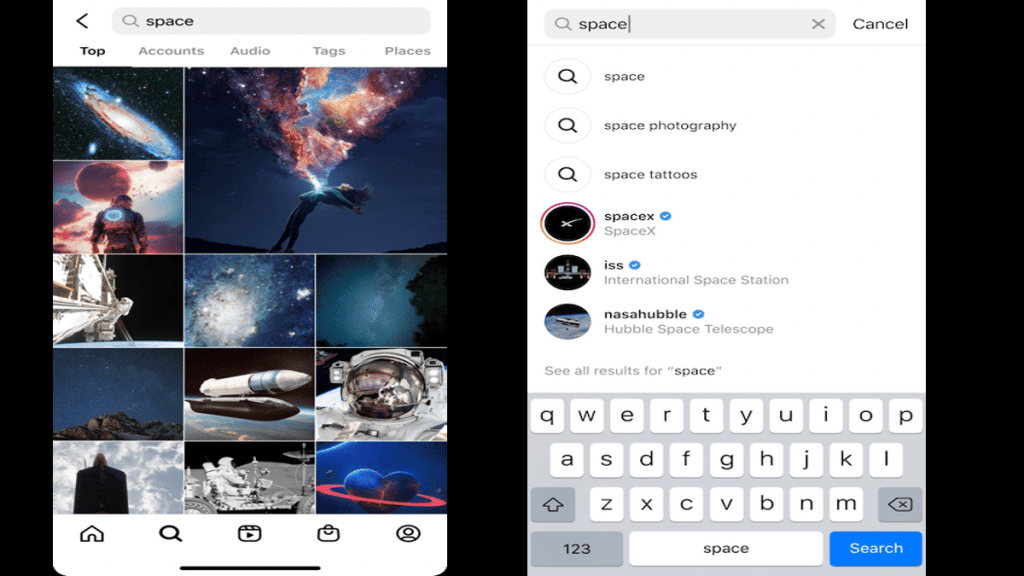
Step 1: Open the Instagram app and go to the search option.

Step 2: In the search section, type in the keyword for your hashtag. It should be relevant to the post being uploaded or edited.

Step 3: You will see a bunch of trending hashtags on the top. Click on the “See more results” option.

Step 4: The next home page will show all the information related to the keyword you searched including the top, Accounts, Audio, Tags, and Places. Select “Tags”.
Step 5: You will get a list of all the trending hashtags related to your search or post. Use the required ones.

Categories
Featured How To Tablet

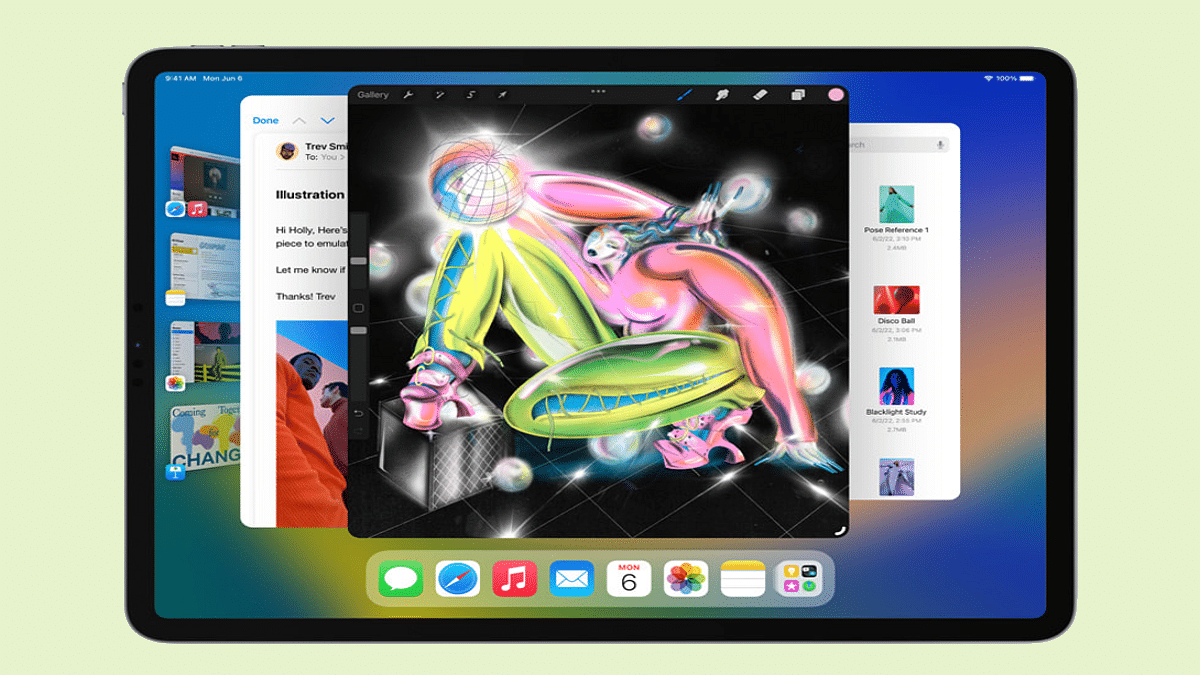
iPadOS 16 Update: How To Download And Install iOS16 Beta Update On Eleigible iPads

Apple at its annual developer conference WWDC announced the new-generation iOS 16 and iPadOS 16 for iPhones and iPads respectively. The Cupertino giant also unveiled the new watchOS 9 and macOS 13 along with the latest MacBook laptops with the M2 chipset. While Apple is yet to release the stable iOS 16 and iPadOS 16 firmware to the supported iPhones and iPads, the beta version has already been rolled out.

Apple has also revealed the list of iPhones and iPads that will be compatible with the latest iOS 16 and iPadOS 16 firmware. We already have covered the highlight features offered by the iOS 16. But in this article, we will be talking about the iPadOS 16. Specifically, the steps to download and use the iPadOS 16 beta version.

Just for reference, Apple has announced the list of compatible iPads with iPad16 OS. If you are using the iPad (fifth-gen and above), iPad mini 5, iPad mini 6, iPad Air (third generation and above), and iPad Pro (all variants).

Since we are speaking of the procedure to download the iPadOS 16, we would like to reiterate the steps mentioned for the beta version and you would need a compatible iPad model for the same. And also the beta update can be downloaded by both general users as well as developers. Apple is still making improvements to the iPadOS 16 beta build.

It is also worth highlighting that the iPadOS beta build might not function as swiftly as the stable version. But it will give you the taste of what the latest firmware brings. So, it will be better if you test the new OS on a spare device. But how do we download and use the iPadOS 16 on your old and recently bought iPads. Here are the steps:

Steps To Download Apple iPadOS 16 Beta Build On iPads

Step 1: Unlock your iPad and go to the Safari browser.

Step 2: Go to developer.apple.com.

Step 3: Join the developer program on the official website if you aren’t a member.

Step 4: Now, locate the download option (two horizontal lines) on the top left of the webpage.

Step 5: Select the “Install Profile” segment placed right next to the iPadOS 16 tab.

Step 6: Click on allow and you will be shown the terms and conditions. Once you have read through all, you would need to hit “Install” twice.

Step 7: You will now need to restart your iPad and then when it’s up and running head to the General tab and click on “Settings”.

Step 8: Now, you would need to select the “Software Update” section and select “Download & Install” to finish the setup process.

Categories
Featured How To Mobile

iOS 16 Beta Update: List Of Eligible Devices, How To Download And Use

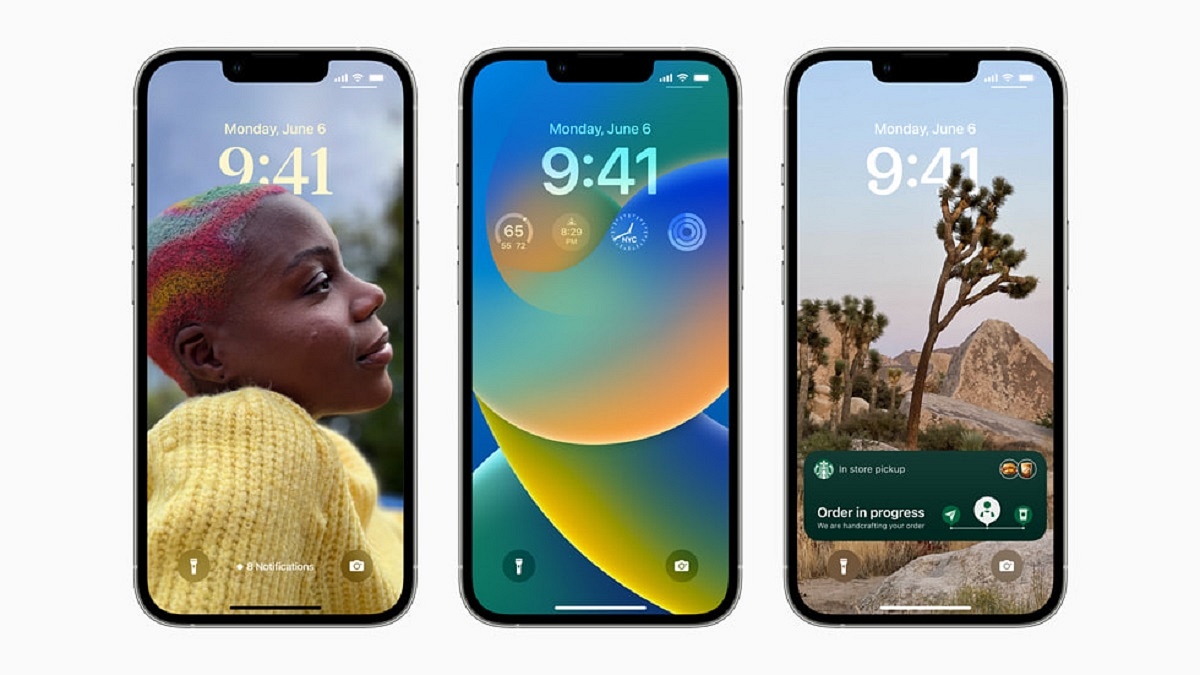
At Apple‘s Worldwide Developers Conference, the iOS 16 upgrade was introduced. The tech giant has teased great things to come in iOS 16 including new lock screen customization, new lock screen notifications, live activities, a focus filter, improved parental controls, and more. It’s now available in beta form with the final release expected later this year. Here’s all you need to know about the iOS 16 beta including a list of eligible devices and instructions on how to install it.

List Of iOS 16 Compatible Devices

Apple has released a list of devices that are eligible to get the new update. The following devices will receive the iOS 16 software update:

  • iPhone 13 Pro Max
  • iPhone 13 Pro
  • iPhone 13
  • iPhone 13 Mini
  • iPhone 12 Pro Max
  • iPhone 12 Pro
  • iPhone 12
  • iPhone 12 Mini
  • iPhone SE (third-generation)
  • iPhone SE (second-gen)
  • iPhone 11
  • iPhone 11 Pro
  • iPhone 11 Pro Max
  • iPhone XS
  • iPhone XS Max
  • iPhone XR
  • iPhone X
  • iPhone 8
  • iPhone 8 Plus

Steps To Download iOS 16 Developer Beta

If you can’t wait for the public beta to experience iOS 16, here’s what you need to do:

Step 1: Visit the Apple Developer Program download page and log in with your Apple ID details.

Step 2: Find the iOS 16 section and click on it. Now, tap ‘Download’ in the top-right corner of the screen.

Step 3: A pop-up will show up on your screen saying ‘The website is trying to open Settings to show a configuration profile.’ Click Allow.

Step 4: Open the Settings app and go to the ‘Profile Downloaded’ option at the top of the list. If this doesn’t appear, go to General, then Profile and tap on the iOS 16 beta profile.

Step 5: Click on the ‘Install’ option in the top right corner. Agree to the developer consent form.

Step 6: Restart your iPhone to finish installing the beta profile.

Step 7: Once you restart the device, plug in the charger and make sure that you are on Wi-Fi, and go to Settings > General > Software Update.

Step 8: Tap on Download and Install. Wait to download the update.

Step 9: Once downloaded, you’ll see a pop-up appear asking to install the update. Click ‘Install’ to get the iOS 16 beta update.