Categories
Apps Featured How To

WhatsApp Chat History Can Now Move From Android To iPhone: Learn How

Key Highlights

  • WhatsApp allows users to transfer chats from Android to iOS
  • The iPhone needs to be reset or factory new to use the feature
  • Users need Android 5.0 and above and iOS 15.5 and above

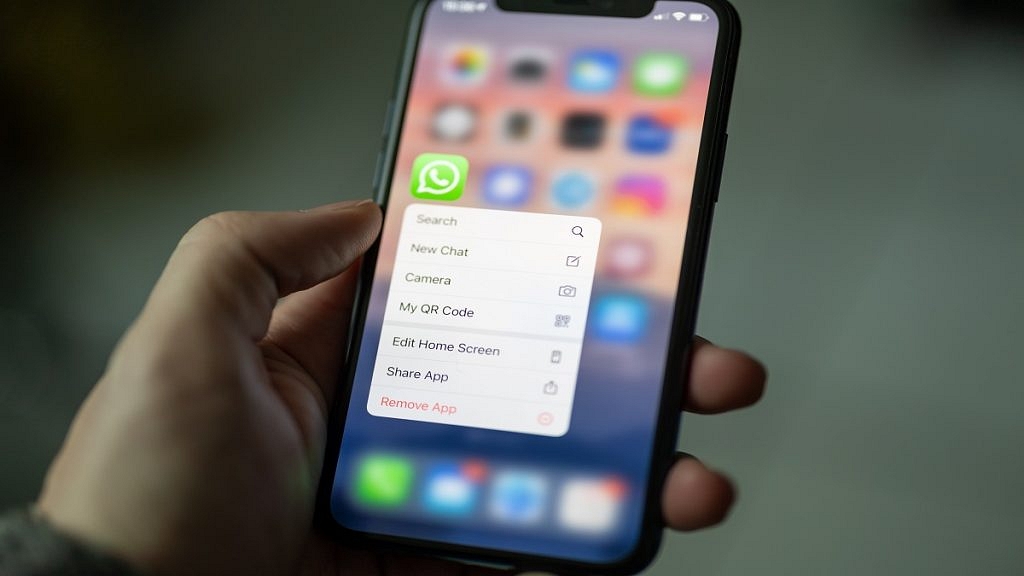
WhatsApp has released a new update that allows users to transfer their chat history from Android phones to iPhones. Meta CEO and Founder Mark Zuckerberg shared the update via a Facebook post on Tuesday evening.

The new feature will be included as part of Apple’s ‘move to iOS’ app. This means that when new iPhone users set up their phones, they will be given this option. To use this new version, existing Apple iPhone users will need to take a backup and factory reset their phones. Let’s look at how you can move your chats from Android to iPhone while keeping all of your WhatsApp data.

How To Move Chats From Android To iOS?

Step 1: Open the ‘Move to iOS’ app on your Android phone and follow the given instructions.

Step 2: On your iPhone, a code will appear. Enter the code on your Android phone as well when prompted. In the Transfer Data screen, choose WhatsApp.

Step 3: Tap ‘Start’ on your Android phone and wait for all of your data to be transferred to your iPhone.

Step 4: Once the data is prepared, you’ll be signed out from your Android phone.

Step 5: Click on ‘Next’ to return to the Move to iOS app.

Step 6: Tap ‘Continue’ to transfer the data from your Android phone to your iPhone. Wait until the entire process is completed.

Step 7: Start your iPhone and install the latest version of Whatsapp Messenger from the App Store.

Step 8: Open WhatsApp and log in using the same phone number used on your old device.

Step 9: Tap on ‘Start’ when prompted and allow the process to be completed.

Step 10: Finish activating your new device and you’ll see your chats waiting for you.

The new transfer method requires the Android phone running version 5 or later as well as the iPhone running iOS 15.5 or later. Apart from this, users only need to follow some basic guidelines such as making sure their phones are connected to a power source and linked to the same Wi-Fi network. Users will have to connect their Android handset to the iPhone’s hotspot if both phones are not on the same Wi-Fi network.

Categories
Apps How To

How To Use Missed Call Alert Feature: Check All Steps Here

Key Highlights

  • Airtel launches Missed call alerts feature.
  • Airtel Missed call alerts feature is embedded in the Thanks Application.
  • Airtel prepaid and postpaid users are allowed to use the Missed call alerts feature.

Airtel has come up with a new feature to help its users in India. The Missed call alerts feature will allow users to know about the missed call, while they are not in the coverage areas. Notably, the feature is no new as Reliance Jio is already providing the same services to its customers. However, Airtel allows you to see missed calls via call logs.

How To See Missed Call Alerts

Step 1: First, you need to log in to the Airtel Thanks application.
Step 2: Now, log in to the Airtel Thanks application from your Airtel mobile number.
Step 3: Then, you will find curated by you tab on the application and then you will see the “smart missed call alerts”.

Why This Feature Is Important?

Airtel Missed Call Feature

It is important to note that the Missed call alert feature has been launched for the -network area zone. In case you are traveling or your phone is turned off, then this feature is useful for you. However, you have to check the Airtel Thanks application for missed calls. Notably, the call log feature will not allow you to feature all calls as it will show the missed calls when the phone is not used or not in-network.

Airtel Missed Call Feature: Availability

It is worth noting that this feature is designed for prepaid and postpaid users. All you need to have Airtel mobile number and download the company’s Thanks application. Then, you need to access the missed call alerts tab and if you are unable to see the same, then you have to update the app to the latest version.

Categories
Apps Featured How To

Google Maps Now Shows Toll Fares On National Highways: How To Check Toll Charges Using Maps

Google is offering a plethora of services to Android mobile users globally. The search giant has developed dedicated apps and tools for media/ video playback, digital wallet, and for navigation as well. In fact, the modern-day masses rely on Google Maps for directions to reach any unknown destination. Google has integrated tonnes of features into the Maps and besides a design overhaul, the functionality has also improved in the last few years. Google is now making it possible for users to be aware of the toll fare being collected on the national highways in the country. Here’s how Google Map’s new feature will work:

Google Maps Toll Features Now Shows Total Fare

Google Maps is one of the most commonly used services on both Android and iOS smartphones nowadays. The company has been improving the toll data system on the Maps to help the users plan their trip’s costs well in advance. If you are one of the active Google Maps users, you must have seen the “Tolls ahead” option if you are traveling through national highways. Users can check for the tolls while searching the destination.

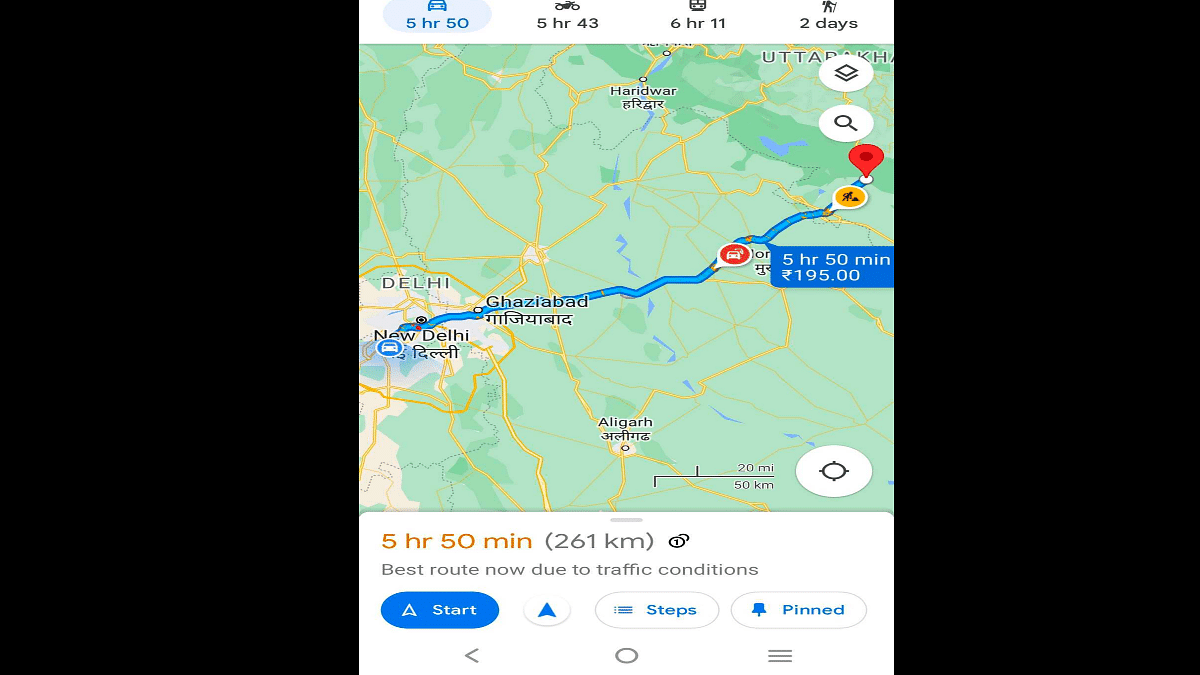
With the new update, Google Maps will now show the estimated toll fare that you will have to pay while traveling to your destination. Google via its community support forums has now confirmed the availability of this new toll feature with price calculation. It is worth mentioning that this new feature will only show the estimated toll fare of all booths collectively. It will not show which toll will charge or how much amount during the journey.

To get the correct fare details, Google has collaborated with trustful sources from local tolling authorities. The brand has also taken several factors such as toll pass, day of the week, etc., to show the estimated toll charges while crossing any booth at a specific period of time.

Google has also clarified that users will still have the option to “Avoid Tolls” and select routes accordingly. The procedure remains the same if you wish to use this feature. But how do you check the toll fare on Google Maps before starting any journey? The steps are mentioned below:

How To Check Toll Amount In Google Maps?

As mentioned above, the estimated toll fare for the entire journey is calculated and shown on Google Maps and not just for the individual toll booths.

Step 1: Open Google Maps on your respective Android and iOS smartphones.

Step 2: Enter your destination.

Step 3: Click on “Directions”.

Step 4: At the bottom of the homepage, you’ll see the ETA for the destination along with the distance and number of tolls on the entire stretch of the road. Pull up the tab and you’ll be able to see the toll fare (total amount). That’s all you need to do to check the toll fare on Google Maps.

Categories
Apps How To

YouTube Free Services: Here’s How To Get It

Key Highlights

  • YouTube Premium subscription brings several benefits over a free account
  • It is available in two prepaid options
  • YouTube is providing a plan for students of Rs. 79 per month

YouTube has come up with a new offer to retain its loyal customers. The video streaming platform is providing free services to users who have subscribed to its services for more than six years. According to the 9to5Google report, those users will get 12 months of free services.

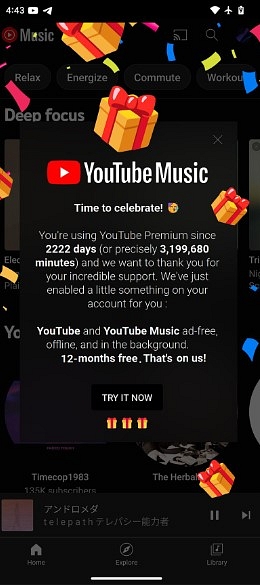
This development comes after a user reported that he received the Time to celebrate prompt in YouTube Music. He states that he has received this offer after using services for 2222 days, which means long-term users are getting the same offer.

“…we want to thank you for your incredible support. We’ve just enabled a little something on your account for you. YouTube and YouTube Music ad-free, offline, and in the background. 12-months free. That’s on us.”

However, to check the YouTube Premium start date, you have to follow these steps.

Step 1: You need to open YouTube on Android and iOS devices.
Step 2: Click on the profile picture, which is in the top-right corner.
Step 3: Tap on the Premium benefits category now to see the member since the date.

Image: Reddit

YouTube Premium Subscription Plans In India: Check All Detail

Let’s start with an Rs. 139 per month plan without an auto-renewal option and if you choose the same plan, you have to pay Rs. 129 per month. Apart from this plan, the company offers three months plans, which are priced at Rs. 399; however, for a year subscription, you have to shell out Rs. 1,290.

For the unaware, YouTube is providing a plan for students of Rs. 79 per month. However, to avail of the same pack, students have to submit their ID as proof. YouTube Premium offers an ad-free viewing option and download video options so that you can watch them offline mode. Also, you will get the picture -in picture playback and background.

Also Read: YouTube Tips And Tricks: How Can You Watch Age Restricted Videos On YouTube Mobile App, Desktop Version

Categories
Apps Featured How To

iOS 16 Tips And Tricks: How To Customize iPhone Lock Screen With iOS 16

Apple is done with its annual developer conference WWDC 2022 where it unveiled the new-generation iOS 16, MacBooks, and WatchOS. The Cupertino giant has made major improvements to the iOS 16 and other products introduced during this year’s WWDC event. The iOS 16 which is the driving force for all Apple iPhones brings a whole lot of new features and tools for better performance.

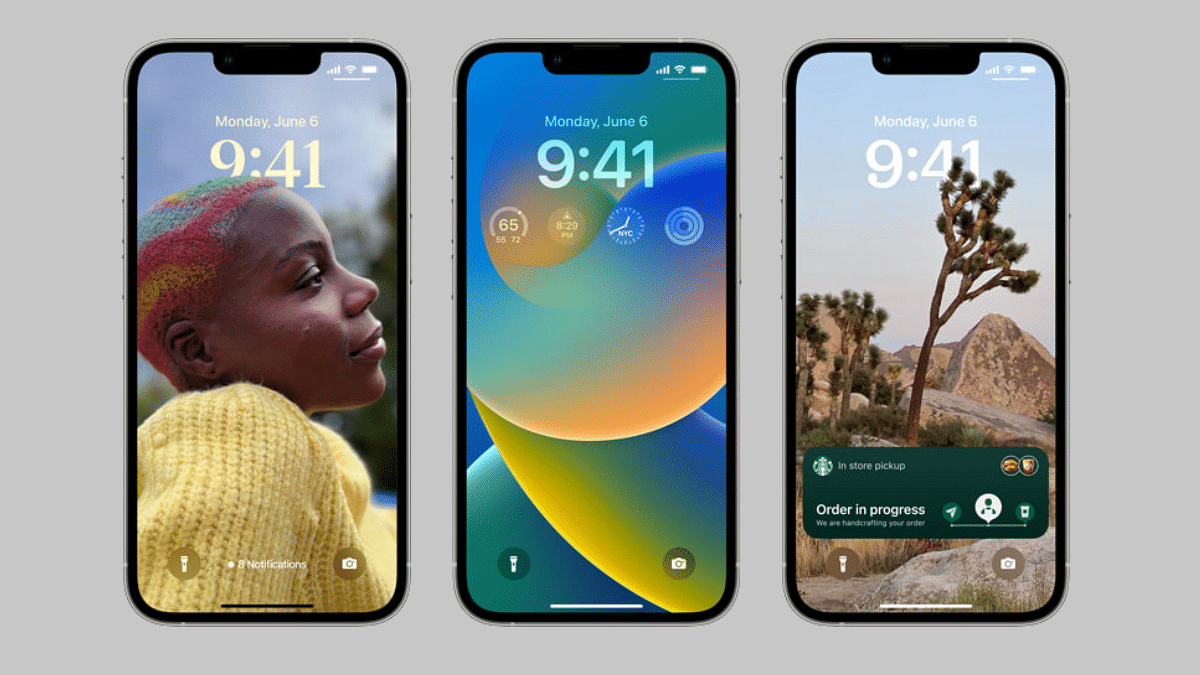
The iOS 16 brings a major overhaul to the lock screen. With the new iOS 16, Apple aims to deliver a personalized user experience to its audience. With the iOS 16 update, users will be able to add multilayer effects for photos that they can later use as wallpapers for lock screens. Also, the provision to add third-party widgets, full-screen album art, activity tracker, and more will now be shown on the lock screen as selected.

To further help with the Lock Screen customizations, the iOS 16 lets users modify the font as well as colors. Apple has also released a wide range of wallpapers, emoji backgrounds, and more with the iOS 16. But how can you create or customize the Lock Screen on iOS 16 devices? The steps for the same are mentioned below:

Steps To Customize Or Change iOS 16 Lock Screen On Apple iPhones

Before we proceed, it is worth adding that the new iOS 16 is currently available in the beta version for the eligible Apple iPhones. The stable version will be rolled out in the coming weeks. But the procedure for the Lock screen customization will be the same with the stable iOS 16 version as well. The steps are mentioned below:

Step 1: Open your respective Apple iPhones and install the iOS 16 if the update is available. You can skip this step and directly unlock the device if the iOS 16 update is already downloaded on your iPhone.

Step 2: Now, tap and hold the lock screen on your respective iPhones. You will get a new “+” option.

Step 3: Once you have completed step two, swipe left from the screen. You will now see another option “Add new”. Click on it.

Step 4: You will get multiple wallpapers from which you can select the desired image and make adjustments to the widgets. You will also get the option to add an extra set of widgets (third-party as well).

Step 5: Once you have aligned everything on the home screen, click done to complete the customizations with the Lock Screen on your iOS 16 iPhones.

Categories
Apps Featured How To

How To Track Unknown Mobile Numbers Using Truecaller

Truecaller is a popular app that lets you identify unknown numbers, block calls, and avoid scammers. The app is used by millions of people as it allows you to view the Caller ID of whoever is contacting you, even if the number isn’t saved in your phone book. It further provides information on the caller before the user answers an unfamiliar call.

Now, everyone knows how to use Truecaller to look for phone numbers. Many people, however, do not. The app keeps launching new updates to protect its users against fake and spam calls. It also simplifies simple activities such as reading long messages for crucial information. So, don’t stress over that unknown number as here you can learn how to search about them on Truecaller.

How To Search Phone Number On Truecaller?

You may often want to learn more about someone whose phone number is not saved in your phone. Truecaller allows you to look for a phone number in a few simple steps. It is your go-to app if you have a phone number and want to confirm who it belongs to before messaging it. You can simply enter the phone number into the app to locate the person. Then, you can find their names then their addresses if they have been updated. We have listed down two methods to find mobile numbers on Truecaller:

First Method:

Step 1: Open the Truecaller app and go to the Search Bar.

Step 2: Type in the number you want to search.

Step 3: Now, the details will be presented below.

Second Method:

Step 1: Open the search bar in the Truecaller app.

Step 2: In the upper right-hand corner, an icon (a camera with a magnifying glass) will appear.

Step 3: When you click the icon, Truecaller will present a prompt that says ‘Point your camera at any phone number to search in Truecaller.’

Step 4: Now, follow the prompt and wait for a few seconds. The app will run the number through its database as soon as it identifies and scans it.

Step 5: You will have the results ready in a minute or two with the details of the person to whom the number belongs.

Categories
Featured Gaming How To

100+ Stylish BGMI Names For Boys And Girls: Here’s How To Change Clan Name

BGMI is an online multiplayer game where players land on a desolate island via parachutes, hunt for weapons and supplies, and eliminate other players. They can choose to play as part of a team or on their own. The aim of the game is to be the last team or person standing at the end. BGMI names are essentially an ID name that will serve as your gaming identity. This means that people will refer to you in the game by your ID name. Therefore, it is critical to choose the best stylish and unique BGMI names for your gaming accounts.

Stylish BGMI Names For Players

Here is a list of the best names you can choose as your ID name in the Battlegrounds Mobile India. We’ve included BGMI names for both boys and girls. Check out the full list here:

BGMI Names For Boys

  1. D̴A̴R̴K̴ ᭄₭₦ł₲Ⱨ₮
  2. BadBoy
  3. $ёгfї$нⓂⒶⓃ
  4. ᴳᴼᴰGₐMₑᵣ
  5. ᴅᴏɴ’ᴛ ʟɪᴋᴇ ᴍᴇ
  6. HITMAN
  7. sᴀᴅ ᭄฿ØɎ࿐
  8. B̷G̷M̷I̷ ?̷?̷?̷?̷
  9. ɪᴍ ᴜʀ DADDY
  10. ₥Ø₦₴₮ɆⱤ
  11. ★VꕯP༄ⒷⓄⓎ
  12. MƲƝƊƛ
  13. Botӄɨʟʟɛʀ
  14. ╾━╤デ╦【 ₳₭-❹❼ god
  15. King Slayer
  16. N͢i͢c͢e͢
  17. ★彡[ʙɪɢ ᴅᴏɢ]彡★
  18. ꧁J̾OͦK̾EͤRͬ꧂
  19. ᴺᴱᵂPUBG
  20. ⒽⒺⒶⒹⓈⒽⓄⓉ
  21. ꧁BOSS®꧂
  22. The M͓̽A͓̽N͓̽
  23. No.1
  24. Gang_007
  25. ꧁༺ʟʊƈӄʏ༻꧂
  26. ĎĔŚŤŔŐŶĔŔŚ
  27. Proӄɨʟʟɛʀ
  28. ᴅʀᴀɢᴏɴ
  29. T̷H̷E̷⦑BIG⦒D̷O̷G̷
  30. MR. Beast
  31. ᴅᴏɴᴛ…C̷R̷Y̷
  32. TURN ON WIFI
  33. Mr. Rude
  34. ᴛᴇᴀᴍ ꜱᴏᴜʟ
  35. Pro Team
  36. ᴋɴᴏᴄᴋ ᴏᴜᴛ
  37. ᴅᴇꜱɪ KILLER
  38. ꜱQᴜᴀᴅ Hunter
  39. ĦØŴŞ ŦĦΔŦ
  40. ₦ł₦J₳
  41. ʜᴀᴘᴘʏ★??????
  42. C̳a̳t̳c̳h̳ ̳U̳r̳ ̳B̳r̳e̳a̳t̳h̳
  43. ᴜʟᴛʀᴀᴸᵉᵍᵉⁿᵈ
  44. ❖ᴬᴷ°᭄✿K͢I͢N͢G͢࿐
  45. ༄ᶦᶰᵈ᭄ᴘʀᴏ࿐
  46. ₲₳₦₴₮ɆⱤ
  47. ʜᴇᴀᴅꜱʜᴏᴛ
  48. Đ€ΔĐᴘᴏᴏʟ
  49. ØƤŇƗŇĴΔ
  50. ꧁༺աǟʀʀɨօʀ༻꧂

BGMI Names For Girls

  1. Magic Peach
  2. ㄗ丂丫亡卄〇
  3. Spicy Senorita
  4. 彡EAGLE彡RON
  5. CORONA᭄√ɨʀմ₷
  6. Down to Earth
  7. B!t¢h k!||€r
  8. Papa Ki Pari
  9. иαиι ραяι
  10. Girl Royale
  11. ßəʌʋtɣ Qʋɘɘŋ
  12. Blade Woman
  13. Sʌŋsĸʌʀɩ ßâçhî
  14. Giggle Fluff
  15. ♡ G彡A彡M彡O彡R彡A ♡
  16. CʜocʞʟʌTy Gııʀʟ
  17. Candy Cough
  18. Chułbułıı Chørıı
  19. Dexterous Queen
  20. 々Angel々
  21. Panda Heart
  22. Míss Mâfiyä
  23. Dangerous Damsel
  24. PSYCHO』BABY
  25. Sizuka
  26. Princess Pickney
  27. Feᴍⱥle♦️
  28. ༆?????✿?????࿐
  29. Tiger Kitty
  30. ༺༒QueeN༒༻
  31. Swɘɘt Poɩsoŋ
  32. ⦃Pบ多gGirℓ⦄
  33. TheFireGirl
  34. TʜUɴDEʀʙEAST
  35. ๛SOUL父๛GIRL
  36. Scarlet toxica
  37. ◤CaptionMarvel୧
  38. YบЯhighŇess
  39. ◤Sc͢͢͢คrℓeτ◢
  40. ???? 」????︎ ッ
  41. Lady Killer
  42. ༺Ꮮ₳ᎠᎽ❥♥ᏰᎧ$$༻
  43. shehu?k⇝
  44. Black widow
  45. Devil £ Queen
  46. Pubgpie
  47. ᵘʳ?????♕︎????
  48. SpyㇱGIRL
  49. ༺Scสrletwitcђ༻
  50. Sunshine

Steps To Change Clan Name In BGMI

Step 1: First, you have to buy ‘Clan Rename’ card.

Step 2: Then, head towards ‘Inventory’.

Step 3: Find your clan name and below it tap on ‘Change’ button.

Step 4: Copy and paste a clan name that you have chosen for BGMI.

Step 5: Hit ‘Ok’ button. And you are all set to go.

Categories
Featured How To Mobile

How To Get Free YouTube Premium Access From Xiaomi: Check Steps Here

Key Highlights

  • Xiaomi provides free YouTube Premium Access
  • The offer is for those who have purchased devices on and after February 1, 2022
  • The company is offering YouTube Premium access for Rs. 129 per month

Xiaomi has come up with a new offer, where potential buyers will get free access to YouTube Premium. Notably, Xiaomi has announced that it has joined hands with YouTube Premium so that owners of Xiaomi smartphones will get access to the same application for three months for free.

It is important to note that the users of the Xiaomi 11T Pro 5G, Xiaomi 12 Pro 5G, Xiaomi 11i series, Xiaomi 11i Hypercharge, and the Xiaomi 11i will get three months of access to YouTube Premium.

Besides, the company is providing two months’ access to YouTube Premium for two months to the Redmi Note 11s, Redmi Note 11T 5G, Redmi Note 11 Pro, Redmi Note 11, Xiaomi Pad 5, Redmi Note 11 Pro, and Redmi Note 11 Pro 5G.

Also Read | 100 Best YouTube Channel Names For Travel Vloggers

Xiaomi And YouTube Premium Offer Details

The newly launched offer sounds good, but, there is a catch. The company said that this offer is available only for users who have purchased devices on and after February 1st, 2022.

In addition, the company said that customers will get this offer between June 6th to February 23rd, 2023. However, once the period is over users have to Rs. 129 per month for the same services and they are allowed to discontinue the services.

Apart from that, the company said first-time Google Play Music, YouTube Red, Music Premium, and YouTube Premium users are eligible for free trials. It also includes a free tier of YouTube Premium.

How To Redeem Xiaomi And YouTube Premium Offer

Step 1: First, users have to buy the device and open the app on their phones.
Step 2: Now, tap on the YouTube Premium offer and click on the restrictions to redeem the offer.

YouTube Plans In India

It is important to note that the company is providing YouTube Premium access for Rs. 129 per month. In case you are looking for standard yearly access, then you have to shell out Rs. 1,290 annually. Another pack is priced at Rs. 189 per month, where the company allows you to add five family members. Lastly, there is a pack of Rs. 79 per month.

Also Read | How To Migrate YouTube Channel And Videos To A Different Account

Categories
Apps Featured How To

How To Lock Play Store On Your Android Phones? Ways To Enhance Privacy With Google Play Store

Key Highlights

  • Passwords on Google Play prevent accidental purchases and unauthorized access
  • Securing your account is crucial for lost or stolen devices
  • Parental controls restrict access to inappropriate apps for a safer smartphone experience

There are a lot of reasons you will want a password on the Google Play Store. For one, you don’t want your children or a family member to waste money on an app or game that you’ll never use or play. Second, you don’t want someone using your Google account to buy music, applications, or movies if your device is lost or stolen.

There are also certain 18+ apps that aren’t appropriate for kids. Despite the warning, anyone can download any app by default. If you are concerned about your child having access to a smartphone, you can create a lock to prevent these apps from being accessed or installed. All you have to do is set up parental control. How can you do that? Let’s have a look:

Also Read | How To Check Number Of Sim Cards Registered On Your Name And ID: How To Block Unauthorized SIM Cards Issued On Your Name?

Steps To Set Parental Lock On Google Play Store

Setting up Parental Controls on your device prevents users from downloading or purchasing anything from the Google Play Store. It’s secured with a password that you’ll have to create throughout the setup process. Once the password has been entered, the user will be able to install or purchase an app. To find out how to enable Parental controls, follow the steps below:

Step 1: Go to the Google Play Store application on your Android smartphone.

Step 2: Tap on the Menu option located at the top left of your screen.

Step 3: Click on the Settings option.

Step 4: In the Google Play Store Setting window, tap on the Parental Control option and turn it on.

Step 5: Once you turn it on, you will be asked to set a security pin. Enter the pin number to change the settings and then press Ok.

Step 6: Now, you have to set the restrictions for the device.

You never know when your device will get in the wrong hands and an unwanted purchase is made. Make sure you are safe and protected from unwanted purchases. By following the above-mentioned steps, you can easily set the parental lock on the Play Store to keep your important data safe.

Also Read | Google’s Latest Math Solver App ‘Photomath’ Hits Play Store: Key Features

Categories
Apps Featured How To

WhatsApp “Undo” Deleted Message Option In Works; How To Undo And Retrieve Deleted WhatsApp Messages?

WhatsApp is currently amongst the top instant messaging applications available for Android and iOS mobile users. This app is also being preferred by laptop and PC users nowadays. The Meta-owned messaging platform has introduced a plethora of features and tools for both mobile and desktop versions. Several of the features have been borrowed from Instagram and Facebook itself. One of such options has been the option to delete any sent message. The brand did bring this feature, but users have been accidentally selecting the wrong option that is now being taken care of by WhatsApp with the upcoming update.  The “undo” option for deleted messages is the feature we are speaking of. Here’s how you can undo the deleted messages on WhatsApp:

How To Undo Deleted Messages On WhatsApp?

WhatsApp currently gives three options to the users to delete any message including “Delete For Me”, “Cancel”, and “Delete for everyone”. However, there is a tendency where users tap on the “Delete for me” option instead of “Delete for everyone”. This doesn’t remove the message from the chat screen of other users. WhatsApp has acknowledged users’ complaints on the same.

The upcoming feature on which WhatsApp is now working will now enable the option to undo any deleted messages. The development has been tipped by Wabetainfo which is known for tracking all WhatsApp latest updates. The report suggests this “undo” deleted messages option is currently under testing. It is already made available for Android beta build v 2.22.13.5.

Currently, WhatsApp has not confirmed if it has any plans to release a stable update for this feature. But we would likely come across some more developments on the same in the coming weeks. This option to delete and undo the deleted texts will be available for both Android and iOS devices. We might see this feature on the desktop version going further. But the exact timeline is difficult to guess just yet.

As for the procedure, the exact steps will only be confirmed when this feature is released. But going by the reports, we can expect the “undo” tab to pop up as soon as any of the messages is being deleted.

Step 1: Open any chat window on WhatsApp.

Step 2: Select the message that you want to delete.

Step 3: Once you click on the “delete for me” or delete for “everyone” option, you will can another option, i.e, “Undo”. Select it to retrieve the deleted message and then perform the right action.