Categories
Info Tech News

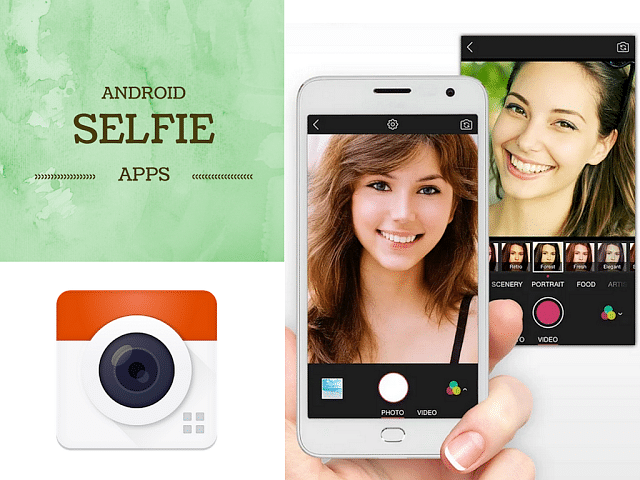
Best Selfie Camera Apps For Android

Selfies are a terrific way to demonstrate self-love, as well as a convenient way to take a picture with someone else if you wish to be in it. The greatest Android smartphones now include capabilities that enable you to capture high-quality selfies even in low-light situations, check Best Selfie Camera Apps For Android.

If you don’t have a phone with a great selfie camera, you can utilize one of these applications that specialize in increasing your selfie picture quality. Here are some of the top Android selfie apps we have discovered.

Snapchat

Price: Free

Pros: Best for Adding masks and filters

People often consider Snapchat to be nothing more than an Instagram-like software for sharing photos and videos with their peers. But, Snapchat can be much more than that. It is a fantastic tool for snapping selfies and customizing them with various lenses, emoticons, filters, masks, and fonts. If you can’t find what you’re looking for on Snapchat, you can even make your own.

If you don’t already have it, you can get Snapchat for free from the Google Play Store.

Taking selfies using Snapchat is simple: Open the app and take a photo as usual, and add a mask or filter if desired. Moreover, you can also add texts or effects according to your requirements. You will have the option to save your Snapchat selfies to Memories or Camera Roll, after which you can access them from the gallery on your phone.

Best Selfie Camera Apps For Android

Front Flash

Price: Free

Pros: Taking Selfies in Dark

Taking good selfies necessitates proper lighting. Front Flash is a must-have if your phone lacks the necessary hardware for snapping selfies in low light.

Front Flash is an app that enhances the lighting in your images by using a front-facing flash. This is useful if you need to shoot a selfie in the dark or simply want to capture your skin’s natural hue and require a little extra light. The software is completely free to use, with non-intrusive advertisements on the main screen.

Afterlight

Price: Free

Pros: Best for taking Selfies for Instagram

Every Instagram user will love the Afterlight photo-editing tool. The app’s editing tools and overall design are comparable to that of Instagram’s, but Afterlight has a lot more editing choices.

There are thousands of distinct filters accessible on the app, in case you want to improve your selfies by adding a filter or texture. You won’t have to trim your selfie to suit the Instagram square because Afterlight features frames of the same format as the ones on Instagram.

Also read: [GizNext Exclusive] Realme GT Neo 2 5G Revealed Via Official Render Images – Check Out All Details

YouCam Perfect

Price: Free

Pros: Best for capturing group selfies

YouCam Perfect is undoubtedly one of the most popular selfie applications available. When it comes to capturing great selfies, there’s not much this software can’t do. YouCam Perfect is a real-time beauty camera that adds amazing effects to your selfies. This program allows you to capture both a photo and a video selfie.

The option to use the beauty camera to shoot group selfies is one of the nicest features this software has to offer. It recognizes all of the faces on the screen and applies enhanced filters to all of them at the same time. If you want to edit someone out of a photo, you can utilize the app to do so.

Candy Camera

Price: Free

Pros: Best for taking aesthetic selfies

Candy Camera is an excellent selfie app for when you need to capture a selfie without drawing attention to yourself. Even if your phone isn’t in silent mode, the app offers a quiet camera option that allows you to capture images without making any noise.

Candy Camera also contains a lot of beauty functions, such as face slim, whitening, smoothing, cosmetics, and much more. You may even use this software to enhance your photos by adding tan or abs.

Conclusion

Who didn’t want to post an aesthetic-looking selfie on their social media and gain likes. Try using these selfie applications in order to capture the best version of yourself.


Categories
Info Tech News

How to Remove Phone Number from Instagram

Making an Instagram profile requires you to either put your phone number or your email ID to be verified. Email ID is a better way to monitor the activity of your account rather than your phone number. While many people are comfortable with syncing their contacts with their Instagram account, some might want to switch to an alternate method. 

Typically, you do not want people to find your account if they decide to sync their contacts with the app. In case that is the issue, you will have to have an alternate phone number or an email ID which is not affiliated with any other Instagram account. This will allow you to transition from a phone number to an email address. 

The phone number you used while making your account can be unlinked in a few easy steps.

How to remove your phone number from Instagram?

If you have only one Instagram account, then you can link your email address to the account instead of the phone number. Having one medium of contact is essential in case there is a hacking attempt, and you need to change the password remotely. If your email address is linked to another Instagram account, then removing your phone number would not be possible. 

Adding an email account will require you to first verify it before you go ahead with the removal of the phone number linked with your account. Once that is done, you can go ahead and follow these steps to unlink your phone number from Instagram:

Also read: OPPO Reno7 Pro 5G Long Term Review: A Good Investment?

On the Instagram App
  1. Open the Instagram app.
  2. Login if you are not logged in already.
  3. Go to your profile. Tap your profile picture icon at the bottom right.
  4. Tap on the three-line icon at the top right corner of your profile. 
  5. Go to settings.
  6. Tap on the personal information section.
  7. Add your email address to your profile.
  8. Verify your email address by clicking on the link which arrived in the mail. 
  9. Tap on your number and then click the X icon to remove it from your account.
  10.  Enjoy!
On the Web

On a desktop or laptop computer, you can follow the following steps to unlink your phone number from Instagram:

  1. Go to your browser and go to URL www.instagram.com
  2. Log into your account if you are not logged in before.
  3. Go to your profile by clicking on the top right corner where the profile picture appears.
  4. Click on the Edit Profile option on your profile.
  5. Find the phone number box and remove it when it appears in the text box. 
  6. After the number is removed, click on Submit.
Disconnecting Contacts from Instagram

Disconnecting the synced contacts on Instagram by following these simple steps:

  1. Open the app.
  2. Login to your account.
  3. Go to your profile.
  4. Tap the three-line icon at the top right corner.
  5. Go to Discover People.
  6. When the pop-up appears, tap Not Now.
  7. Go to Connect Contacts
  8. Turn the toggle from on to off.

Once you are done with the disconnection, the contacts that were previously synced to your account will be automatically deleted from your account.

Conclusion

Instagram makes connecting with people around the world easier for all of its users. If you want to stay connected to your contacts, then it will be best if your phone number remains connected to your account. Otherwise, if you are looking for some privacy in this app, then you can always switch to your email address and enjoy the experience in private. Disconnecting the contact details and desyncing your contacts is easy if you know the proper steps to follow.

Do let us know your thoughts in the comments below. You can follow the GizNext Tech Enthusiast Telegram group and GizNext Tech Enthusiast WhatsApp group for fresh technology updates.

Categories
Info Tech News

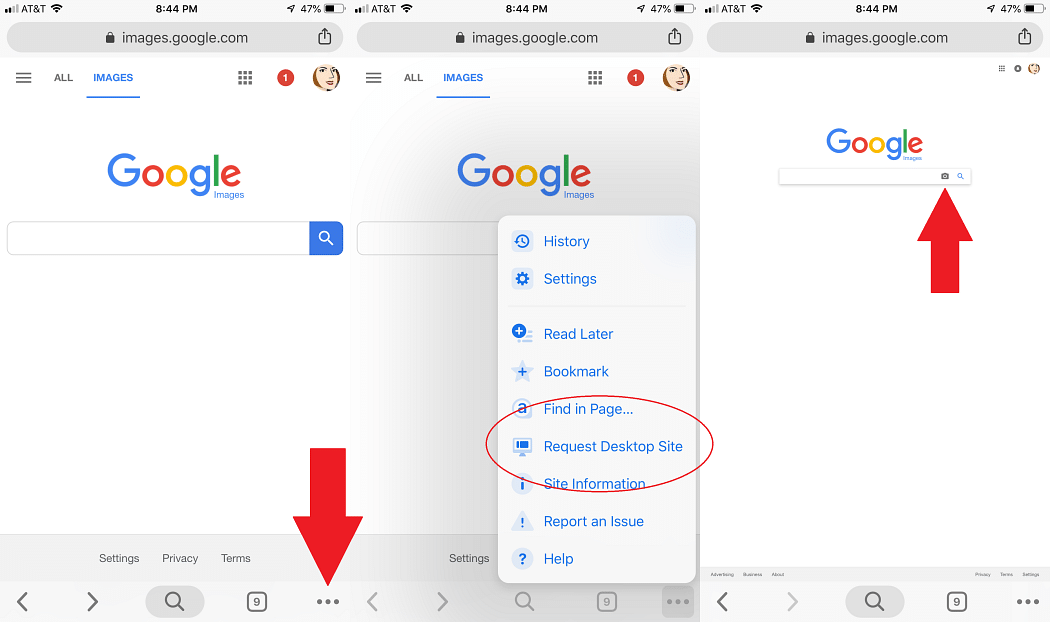
Best Ways to Search By Image Online and Best Reverse Image Search Tools in 2021

Whether you’re a blogger, a product researcher, or simply someone who wants to search for specific photographs using reverse search (which is very handy for checking the backgrounds of people you meet online), we’ve got you covered with Best Ways to Search By Image Online.

We have gathered some of the best image search engine tools of 2021, which you can use to search any image you want.

Google Search Engine

Google is not only the best search engine for finding information, but it is also the most popular and largest picture search engine on the internet.

Given Google’s market share, it has a massive image database. Whether you’re looking for a picture of your favorite actor or a picture of a place you want to visit, Google has you covered. For faster access, Google’s image search engine offers larger image thumbnails and unlimited scroll, which displays up to 1000 image search results.

Also read: How to Fix Disconnecting Wifi Networks for Android?

Pinterest

Pinterest is frequently misunderstood as a social network, while in fact, it is one of the largest visual search engines, with thousands of photos covering every niche and demand.

Pinterest’s picture search engine can perfectly detect the users’ intent and display exactly what they want to see. You can use a Pinterest lens to take a picture of anything, such as groceries, a garment, shoes, or even nails, and then search for related information on those photos online.

Pinterest recently disclosed its top categories for lens searches, claiming that users mostly use it to see images related to fashion, home decor, art, and product categories.

Bing Image Search Engine

After Google, Bing’s image search engine is the second most popular picture search engine, and it can provide you with a wide range of image results for your desired queries.

Bing makes it simple to browse and download a wide range of photos, including all-time trending photographs.

Another element of Bing’s photo search is that it learns from your interactions with images on the platform and develops an AI-powered photo feed (named Bing’s image feed) for you.

Best Ways to Search By Image Online

Yahoo Image Search Engine

Yahoo’s image search engine offers an immaculate layout, with all of the advanced picture search options available right on the image search result page.

When you use Yahoo Photos’ advanced features, you may further narrow down your picture search results by filtering and finding images based on their usage rights by using the safe search option.

CamFind

CamFind is a mobile search engine that lets you use your smartphone to look for any image or other object by simply clicking its picture.  It provides the most relevant search results, photos, and videos that are related or comparable to the picture. It also provides shopping links and pricing comparisons, which you can directly share on various social media platforms like Facebook and Twitter.

Yandex

Yandex is a search engine founded in Russia that also allows you to search by image. Yandex is quite similar to Google Lens, which has a large picture library. As a result, it provides the best possible results for your image searches.

 You can upload an image or paste a link to an image in the search field, and its UI is pretty clean and basic. Yandex does not require you to register in order to use it, and it is also a completely free online tool.

Conclusion

Sometimes we find an image online but have no idea about its source, or we want to utilize it in a project but aren’t sure where it came from; in these cases, the search by image tools can become very helpful. You can use one of the image search engine tools mentioned in this article, giving you the required information about any image you are searching for.

Categories
Info Tech News

How to See Internet Speed On Status Bar on Android

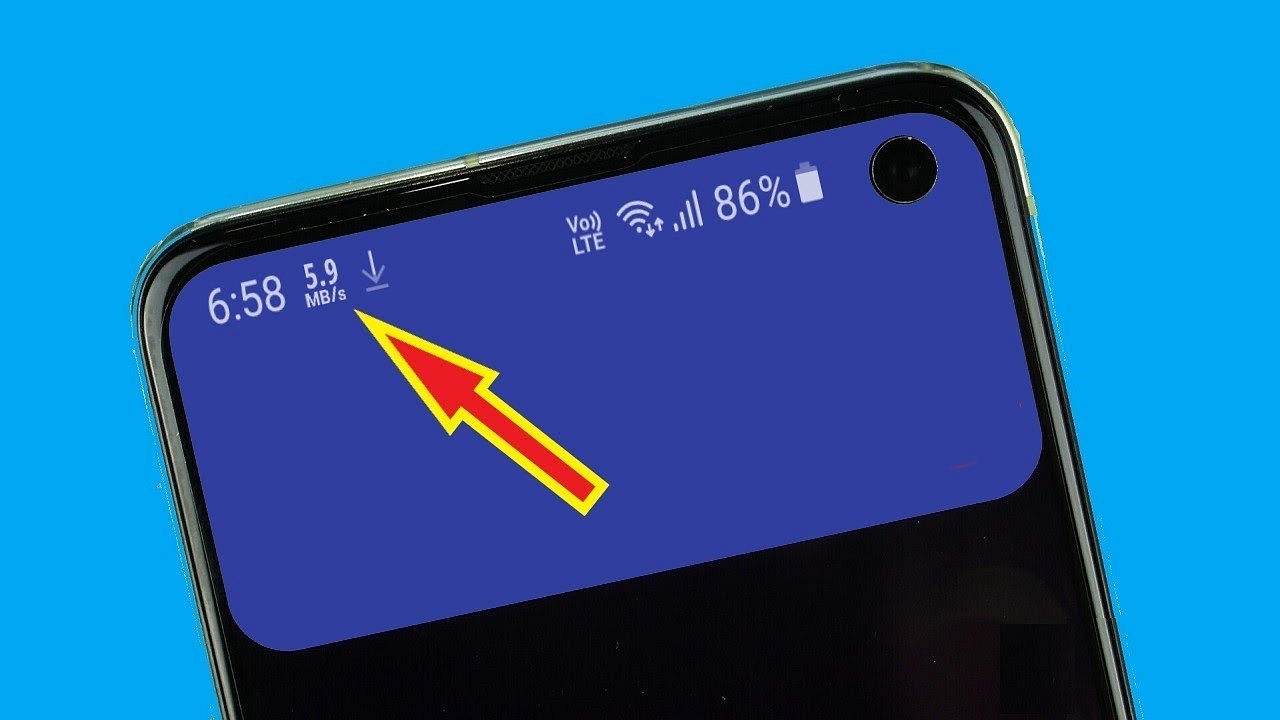
Improved Internet speeds are now a reality all around the world. Connectivity has vastly improved because of the advancement of fiber optics and the deployment of next-generation communication networks during the previous decade, so most users want to know How to See Internet Speed On Status Bar on Android

 Simultaneously, smartphones have evolved in recent years, with more powerful hardware and better software. Overall, the Internet has become such an essential part of our lives that we can no longer envision our existence without it. Android as a platform has greatly aided the advancement of smart telephony. It has become the world’s most popular smartphone platform.

 The Play Store has a plethora of apps to help us get through our daily routines. In today’s highly connected world, users may need to see real-time internet speeds in the status bar. So, we have gathered some applications that you can use to view your internet usage on your status bar.

Also read: How to Fix Disconnecting Wifi Networks for Android?

Internet Speed Meter Lite

Internet Speed Metre app is an excellent speed and internet consumption tracking application. Internet Speed Meter Lite shows extra metrics in the notification panel and the internet speed in the status bar. 

Real-time speed updates in the status bar, daily data usage, and distinct status for mobile and WiFi networks are among the app’s main features. It tracks the internet traffic for the previous 30 days and has a very little influence on battery life. From the settings menu, the user can change the UI color and status bar icon. The internet speed tracker is also displayed on the device’s lock screen.

There’s also a version of Internet Speed Meter Pro with more extensive functions. The user will be able to see a graph about the current internet session time and internet consumption of various apps from the mobile network or Wifi.

Net Speed Indicator

Net Speed Indicator is the perfect choice if you want a more intuitive User Interface and compatibility with today’s notch screens. It’s a very useful monitoring application that lets you check your internet speed in real-time from the status bar. The network speed can also be checked in the notification or in the app itself.
It keeps track of every single byte sent and received from the smartphone and organizes it by week and month. WiFi and carrier data, on the other hand, are monitored in distinct ways.

How to See Internet Speed On Status Bar on Android

Internet Speed Monitor

Internet Speed Monitor is another small app that “smartly, safely, and correctly” monitors your internet Speed. On a daily and monthly basis, it keeps track of your data transit. The app’s user interface is quite elegant and intuitive, making it simple to use. It also displays information such as WiFi frequency, IP address, Link Speed, and SSID, among other things.

The settings window has a plethora of customizing choices. The application, notification, and floating widget settings can all be easily customized by the user. The floating widget on the status bar can have its position, color, and size customized.

Net Speed Indicator

The NetSpeed Indicator is another network speed meter tool that you can use. The app can be used in the status bar as well as on the notification panel. It displays the overall download speed. It also provides you with various options, where you can choose whether to show only download or upload speed.

This software, which is under 700Kb in size, has a lot of other features as well. If you don’t want to track your speed, you can turn off the app. You can also modify the speed units in the app, but it does not keep track of your data usage. It simply displays data use on a daily basis.

Conclusion

Third-party apps always come to the rescue, no matter what the circumstance is. While they function very well, having a built-in feature rather than downloading apps is still more preferable. Until then, you can use these applications to display the current network speed on your smartphone’s status bar.

Categories
Info Tech News

Want To Enhance Your Phone’s Appeal? Here Are The Best 3D Wallpaper Apps For Android Phones

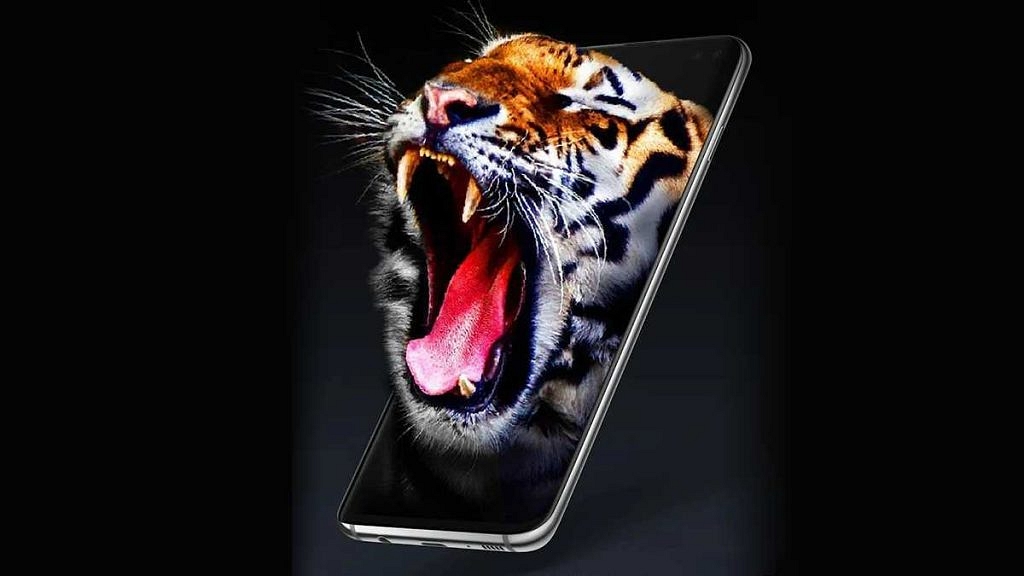
Having a smartphone in your hands makes you think everything is possible. While that might not be entirely true, putting 3D wallpaper as your home screen or lock screen is definitely possible. Some smartphones support 3D wallpapers and include them in the theme store. However, more often than not, you have to look for apps to get a 3D wallpaper on your home screen. Here is a list of the Best 3D Wallpaper Apps for Your Phone that will help you get a wallpaper of your choice on your Android smartphone:

Water Garden/Koi Pond Live Wallpaper 

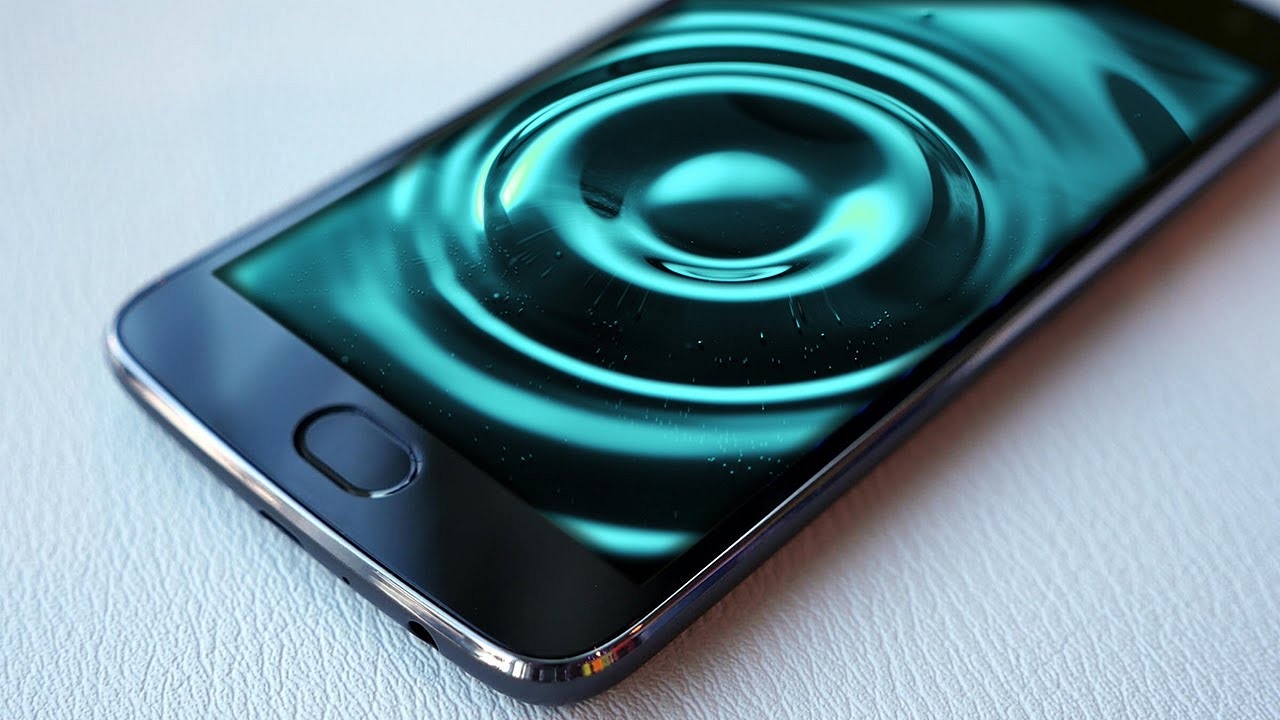
This is perhaps the most well-known live wallpaper app there is on the Android and iOS platforms. The wallpaper has a simple concept: a koi pond with koi fish floating around. But this wallpaper is interactive. So, if you touch the water with your finger, it ripples and the fish floating beneath swim away. 

This app gives you varieties to choose from. The power consumption is negligible so if it concerns you, rest assured it is a non-issue. You can also personalize the water garden, and the high-definition resolution is excellent no matter your screen size. 

Also read: Best Green Screen Apps For Android and IOS

Pixel 4D

This app offers each user more than 250 live wallpapers. This app goes a step further than 3D and offers 4D effects as well. The resolution of each wallpaper is excellent, and since there are numerous varieties to choose from, you can keep changing wallpapers as much as you like. 

This app allows you to set the display screen of any phone with a 3D or 4D wallpaper. The experience is also customizable, and the wallpapers are AMOLED live displays. It conserves battery, and new updates and options make this app a must-have if you want a 3D display on your phone screen.

Also Read: Best Apps to Watch Live TV on Android

Parallax Background HD

Having a 3D wallpaper of your favorite fictional character, cartoon, or superhero has such a nice sound to it. You can choose from the many options available, and the wallpapers give an outstanding parallax effect to the display. These wallpapers can also be used as the lock screen, and you can also go for layered parallax, which gives a motion effect. 

The options available through this app include 3D wallpapers, parallax images, and 4K wallpapers for your display screen. This app takes care that the battery consumption is not too much as it is working. There is the option of customization, and this app does not show advertisements.

Also Read: Editing Videos On iPhone: Here Are The Best Free Third-Party Video Editor Apps For iPhone And iPad

Best 3D Wallpaper Apps for Your Phone

Walloop

Wallpapers in Walloop are available in 4K, which everyone knows means supreme resolution quality. The varieties available in this app include animals, anime, quotes, space, universe, minimal, mountains, legends, and artworks, among others. This app also allows you to put a live lock screen, and the battery consumption is minimal during the use of this app. 

There is also an auto wallpaper changer if you like to see variety on your home screen. 8K resolution wallpapers are also available on the app. There are also ringtones and notification sounds that you can add.

Also Read: Google Removes Over 50 Apps From Play Store: Delete Them From Your Phone Now

Parallax Live Wallpapers

Parallax Live Wallpapers is an amazing app as it offers 3D parallax wallpapers and offers you choices from different categories. The quality is optimum as the wallpapers are available in 2K and 4K. You can also browse through static and parallax wallpapers. The auto wallpaper changer is also a feature for users who like variety. 

The images provide a hologram effect, and the categories on this app have more than 15 categories to choose from. You can select a 3D wallpaper for both your home screen and lock screen.

Also read: Best Fitness Apps To Download For Your Smartwatch To Stay Fit

3D Parallax Live Wallpaper 4 HD

Another good 3D wallpaper app that you can download from Google Play Store is the 3D Parallax Live Wallpaper 4 HD app. You can change both home and lock screen backgrounds and use a 3D wallpaper using this application. The 3D Parallax Live Wallpaper app has around 4.5-star ratings at Google Play Store and is lightweight. It weighs just 7.5MB in size.

The Takeaway

You can either begin with one of these apps or try them all to see which works the best for you. Depending on your interest, you are sure to find a wallpaper that suits you from one of these five apps.

Also Read: Best Apps To Download Instagram Reels, Stories, And Photos In 2022
Categories
Info Tech News

Snapdragon vs Kirin: Which one is better? Pros, Cons, and More.

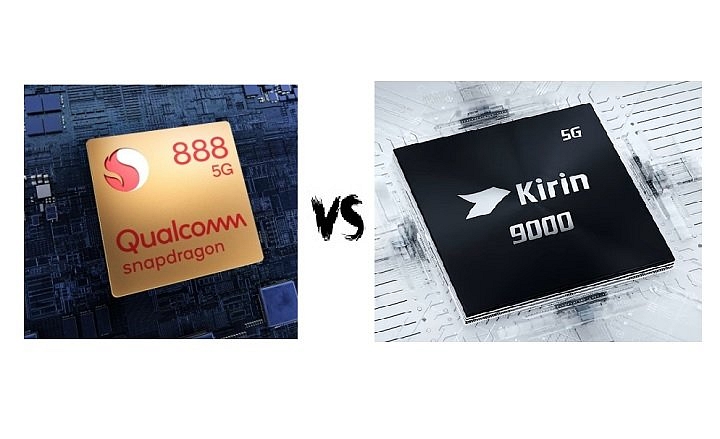
The CPU acts as a heart in every device that provides the processing power to run its software and applications. Devices need good processors to process this power. Snapdragon and Kirin are some of the best processors available in the current market. The Snapdragon processor chips had entered the market in 2007. Check the detailed comparison of Snapdragon vs Kirin.

Snapdragon vs Kirin

Snapdragon Overview

We know that the Snapdragon chip had its ups and do

wns in the past. The Snapdragon was not used as a processing chip when Galaxy S5 and Note 5 of Samsung were released.  Earlier, many customers have registered complaints regarding the overheating of their devices due to the Snapdragon chip. 

There are even complaints of CPU throttling. Qualcomm has genuinely tried to fix these problems. However, the viral videos against its processor have tarnished its reputation over the years. 

Also read: Wrong Name Appears On Caller ID, How To Change Your Name In Truecaller?

Kirin Overview

To put things in perspective, Kirin has had more luck. Companies like Samsung and Huawei have used them in their devices, which made it easier for them to develop a good reputation in the market. Highly advanced SoC (system on chip) architecture, integrated application of single-chip processor (AP), and communication processor (Modem) were used to develop this chip.

Kirin chips can be frequently seen in many devices, from various smartphones to tablets. It has shown better results in both speed and performance.

Performance Comparison

Both Kirin and Snapdragon are octa-core processors and come along with ARM Cortex-A53 cores. Kirin is equipped with four efficient performance cores at 2.0 GHz and four power-saving cores at 1.7 GHz.

On the other hand, Snapdragon has all eight cores running at 2.0 GHz. 

In other words, as the Kirin chips have a higher frequency, they have to draw more energy to increase their performance. While in the case of Snapdragon, its performance is more at a unified field.

However, according to the benchmark scores, both the processors can give the same amount of power.

In comparison with Kirin, the single-core values of the Snapdragon have shown 8-10% lesser performance. However, the multi-core tests have revealed a more significant performance gap between the devices.

Snapdragon vs. Kirin

 Gaming Performances

Snapdragon has comfortably surpassed Kirin in terms of gaming performance. One major reason behind this is because the snapdragon has the SD 625 with Adreno 506, while the Kirin has Mali – t830 mp2.

If you mainly prioritize gaming performance for your smartphone, then you should go for Snapdragon, as Kirin has shown, huge frame drops while processing high-quality gaming in its smartphones.

Conclusion

The fabrication technique of an SoC is a vital factor in determining its efficiency. We can say that the Snapdragon is a tad bit better than the Kirin because of its 14mn technique. 

Both the processors have shown great downloading and uploading speeds. But because of Snapdragon’s Kernel sources, it is more developed.

However, due to Kirin’s High Clock frequency, it has shown better performance in terms of basic applications. 

A customer should remember that the quality of a smartphone is not fully dependent on the chip quality. Every clip has its set of merits and demerits, but it does not define the features and credibility of the device itself.

Categories
Info Tech News

How to Fix Disconnecting Wifi Networks for Android?

If your Android keeps disconnecting your WiFi connection, in most cases, you can fix it with just a few clicks, so it shouldn’t be a big problem. How to Fix Disconnecting Wifi Networks for Android?

 However, frequent disconnections from Android can be annoying when watching significant live streams or downloading time-limited files. If your Wi-Fi connection is unstable and you’re having a bad day, you can get back on track with these comprehensive solutions in this article. Let’s start!

Restart Your Phone

As with troubleshooting any problems with your smartphone, it is a good idea to restart your phone before trying any other solutions to fix WiFi connection issues. Of course, if WiFi keeps disconnecting on Android, it’s likely a temporary software or hardware issue. But the good news is, in most cases, restarting your device will take care of the problem.

Also read: How to Disable This Call is Now Being Recorded Warning Oneplus

Forget and Reconnect your WiFi

The Android device saves network details the first time you connect to a WiFi network. This allows you to seamlessly connect to your network without having to re-enter your password each time. However, things can change suddenly, and the process can go wrong on mobile phones.

Here’s how to forget and Reconnect your WiFi

  • Swipe down twice from the top of the Android screen to open the quick settings
  • Press and hold the WiFi icon to open the WiFi network settings.
  •  From there, tap the network you want to connect to. It will be displayed under “Saved networks”
  • Select a WiFi name and tap Erase. This will remove the network from your device.
  •  Now click on the network in “Available Networks” and reconnect using your password. 

Forget Or Erase Previous WiFi Networks

As expected, your device will try to connect to the best WiFi network if it has connected before. This means that if you have multiple WiFi networks available inside, you can try jumping between devices near them if you’ve been connected at least once.

Follow these steps:-

  •  Go to Settings 
  • Then, tap on the System → Reset options 

The Reset WiFi, Mobile & Bluetooth to erase the networks at once.

Try Increasing Your Router’s Network Range

Although the network speed is faster in the 5 GHz band, the range is lower than the existing 2.4 GHz band. So if your WiFi keeps dropping on Android, you can switch the router to a lower AP band.

 To do that, you may need to examine your router’s settings in detail. In case your Android device is already connected by the mobile hotspot, follow these steps to change the AP band.

  • Access your quick settings from your home screen.
  • Now press and hold the hotspot icon. 
  • Press Hotspot Settings. 
  • Tap the AP band to change it to 4GHz.
  •  Save your hotspot settings and reconnect your Android phone to see your changes.

How to Fix Disconnecting Wifi Networks for Android?

Force Stopping The Apps That are Interfering with Your WiFi Network

On the other hand, depending on the application you use, your smartphone can sometimes disconnect from the WiFi network. This application can include most VPNs, antivirus applications, WiFi native apps. If you have any of these applications on your device, you can try disabling them for a while to see if that solves the problem or not.

Resetting the WiFi and Mobile Settings

You can reset your network settings if your Android continues to lose Wi-Fi connection. Don’t worry, no data will be lost during this process. Resetting network settings from your Android phone will only remove WiFi settings and preserved networks, paired Bluetooth devices, mobile network settings, etc.

Simply follow these steps:-

  • Access your Settings
  • Scroll down, click on Reset options.
  • Carefully select Reset Wi-Fi, Mobile & Bluetooth
  • Then, click on RESET SETTINGS below the screen to confirm the changes.

And Finally, reconnect to your WiFi.

Conclusion

Various issues can cause problems with your device. Some of the most common issues include technical failure of your WiFi router, temporary network failure, a device used for mobile hotspots or whatever. Whatever may be the cause of the problem, you can reconnect to the WiFi network through the changes described in this article and perform the required actions.

Categories
Info Tech News

Best Green Screen Apps For Android and IOS

The influence of the background you use can largely determine the quality of your video or photo. Various professional video developers use green screen applications to edit still images and short video clips. Check Best Green Screen Apps For Android and IOS

You might have wondered whether the movies and photos with the Golden Gate and White House in the background were filmed right there? Despite the abundance of free green screen apps, it’s surprising that the internet is flooded with poorly edited videos, movies, and photos.

So, we have gathered some of the best Green Screen Applications for you so that you can make high-quality videos by using them:-

Chromavoid

Compatibility: Androids 5.0+, iPhone, iPod touch, iPad

Price: $ 2.99

If you are looking for the best green screen app for your iPad, this is the app for you. The Chromavid app is equipped with some significant ChromaKey effects, such as numerous Chroma colours, limitless recording time, and image merging features. This app is equipped with a social sharing button and has the option to shoot videos on a chroma key.

Pros:
  • The Chromavid app has a snappy and easy-to-use interface.
  •  The Chromavid plus plan allows you to create unwatermarked videos and photos. 
  • The edited videos can be saved directly on your smartphone.

Also read: How to Disable This Call is Now Being Recorded Warning Oneplus

Kinemaster

Compatibility: Androids 5.0+, Chrome OS, iPhone, iPod , iPad

The Kinemaster app has been a popular choice for those looking for a high-quality green screen app. This app supports Multi-layered effects, which allows the users to place video clips, images, text, and more at once. The alpha mask function of this application is pretty unique. To remove watermarks and export unlimited backgrounds in 4K resolution, you must subscribe to the Kinemaster premium plan.

Pros
  • Recommended for sharing on social media platforms such as Instagram, Youtube, TikTok and Facebook.
  •  Loads of attractive stickers, video backgrounds, video clips, transitions and music clips are updated weekly.
  •  Supports multiple video layering
Stop Motion Studio

Compatibility. Mac, iOS, Android and Windows

Price: 

  • iOS-$4.99,
  • Windows- $1.99
  • Mac- $9.99  
  • Android – $4.99

Stop Motion Studio allows you to create 4K UltraHD videos by exporting your edited video directly to YouTube. You can export your work to your computer. The background can be easily changed by importing from any source, using the chroma key /green screen feature.

Pros
  • You can improve the quality of your video by switching between different backgrounds and foregrounds.
  •  Built-in music helps improve the sound quality of the generated videos. It can be easily used by beginners. 
  • The rotoscoping feature allows you to create more original videos.

Best Green Screen Apps For Android and IOS

Pocket Video

Compatibility: iOS 12.0+, Android 4.4 or later, PC and Mac

Price: Free

After several years, video bloggers can look forward to an app for creating YouTube video blogs, but using the Pocketvideo app. This green screen is easy-to-use and is very suitable for video production professionals and also for beginners. 

Pros:
  • Record and edit up to 10 minutes of UltraHD video. 
  • Self-explanatory user interface.
  •  Huge collection of free stickers, PNGs, GIFs.

Conclusion

Many green screen apps claim to create award-winning Hollywood-like footage and alluring photos. Note: If you haven’t used all of the above green screen apps, read user reviews and do your research widely. Proven applications on PCS, Mac and Smartphones are the only sure way to secure your device.

Categories
Info Tech News

MediaTek vs Exynos Chipset Comparison: Which One Is Better? Pros, Cons, And More

Key Highlights

  • MediaTek: Cost-effective, diverse offerings.
  • Exynos: Samsung integration, powerful performance.
  • Both have unique advantages and trade-offs.

This era is witnessing a massive competition between various smartphone processors. Samsung and MediaTek are the two tech giants that are dominating the market right now. However, some new processors have also been launched by a few other companies.

 Some of them include the Exynos processor launched by Samsung or the Atom processor released by Intel. Surprisingly, apart from Exynos and MediaTek, the others haven’t achieved much success in terms of the smartphone processor market.  Even being a well-known manufacturer of desktop processors, Intel has failed to build the same quality of processors for smartphones.

Also Read: MediaTek Dimensity 9200 Processor Vs Qualcomm Snapdragon 8 Gen 1 Chipset: High-End Mobile Chipset Comparison

Mediatek Overview

It’s a fact that for budget-oriented smartphone brands, MediaTek has always been the first choice because of its low cost of production. Using Mediatek, the updated features can be provided at a lower cost compared to the other manufacturers resulting in MediaTek being the unofficial processor king for budget smartphones.

Moreover, with the release of its Helio series MediaTek has been able to completely change its presentation and the upcoming Dimensity series processors. In 2019, the Helio series is segregated in created in four categories – Helio G, Helio X, Helio P, and Helio A.

The brand’s flagship mobile-game-oriented processor is the Helio G series which has been integrated with HyperEngine Game Technology to provide its users a smooth and prolonged gaming session. 

Also Read: How to get Paid Apps For free In Android

Exynos Overview

Exynos processors are manufactured in-house by Samsung for use in their Samsung smartphones, with a few exceptions. Snapdragon SoCs are being manufactured by Qualcomm for use in third-party mobile devices.  Samsung is using the Exynos processor in the Asian market, but the SnapdragonSoC is used in Europe and North America.

MediaTek vs Exynos: Processor Comparison

Let’s start with the process technology that determines the power and performance of the SoC. Note that smaller numbers imply more efficiency in performance and battery life.

The Helio Series features the same process as TSMC’s two-year-old Helio P90, a 12nm FinFET process. To be honest, I’m disappointed with the market having 7nm and 8nm processes aimed at the medium- and low-priced performance SoC market in 2020. The Exynos 9611 boasts a 10nm process compared to its MediaTek competitors, so you can be confident that you’ll see the promising benefits of this SoC in terms of performance and battery life.

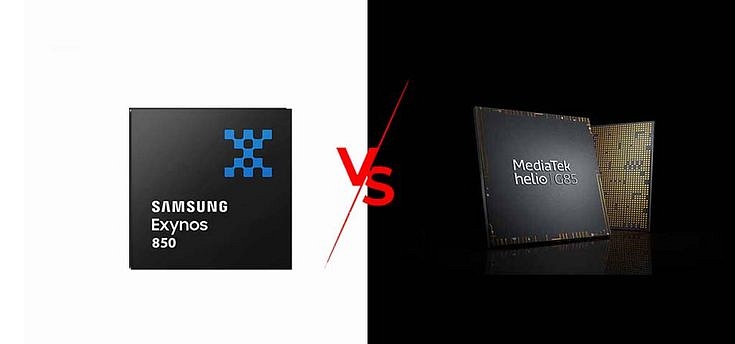
Also Read: Samsung Exynos 850 Vs MediaTek Helio G80 SoC: Budget Mobile Chipset Comparison

MediaTek Vs Exynos: CPU Comparison

Now it’s time to talk to the CPUs inside each of these two processors. The Helio P95 CPU consists of an octa-core cluster, two of which are the ARM Cortex A75 at 2.2GHz speed for the noisiest and most complex operations, and six Cortex A55 cores at 2.0GHz with more energy input.

The new Exynos 9611, on the other hand, uses the same 10nm manufacturing process as its predecessor. It is offered in a 64-bit octa-core array with four Cortex A73 cores with a maximum clock speed of 2.3 GHz and four Cortex A53 cores with a maximum clock speed of 1.7 GHz. Comparing these two SoCs, we can say that Meditek has an edge over Exynos in terms of CPU.

MediaTek Vs Exynos: GPU Comparison

When talking about the GPUs inside these two powerful processors, the Helio P95’s GPU is the same as the Helio P90, IMG PowerVR GM 9446, but with a 10% improvement in performance, according to MediaTek. It supports up to 8GB of LPDDR4x RAM and a maximum screen resolution of 2520 x 1080 pixels.

With that said, the Exynos 9611 includes a MaliG72 MP3GPU that is responsible for enhancing the graphics. This is also the same GPU present in the Exynos9610, but with higher clock speeds than the previous version. Based on this hardware configuration, the processor allows users to do more of their favorite activities, such as gaming, thanks to its powerful performance that adapts to the current mobile devices within its range.

Also Read: Best Smartphones With The MediaTek Dimensity 700 Processor To Buy In India

Conclusion

We have tried to put together some of the pros and cons of both chipsets. In a nutshell, if you are looking to get a mid-range smartphone, MediaTek chipsets should be your priority. And in case you are looking forward to buying a high-end flagship category device, Exynos still seems unbeatable.

Categories
Info Tech News

How To Disable Get Apps on Xiaomi, Redmi, and Poco Phones Effectively: Three Ways To Disable Get Apps

Key Highlights

  • GetApps notifications on Xiaomi, Redmi, and Poco phones are annoying
  • Prompts to install third party apps or features promoted
  • GetApps can be disabled on phones with MIUI interface

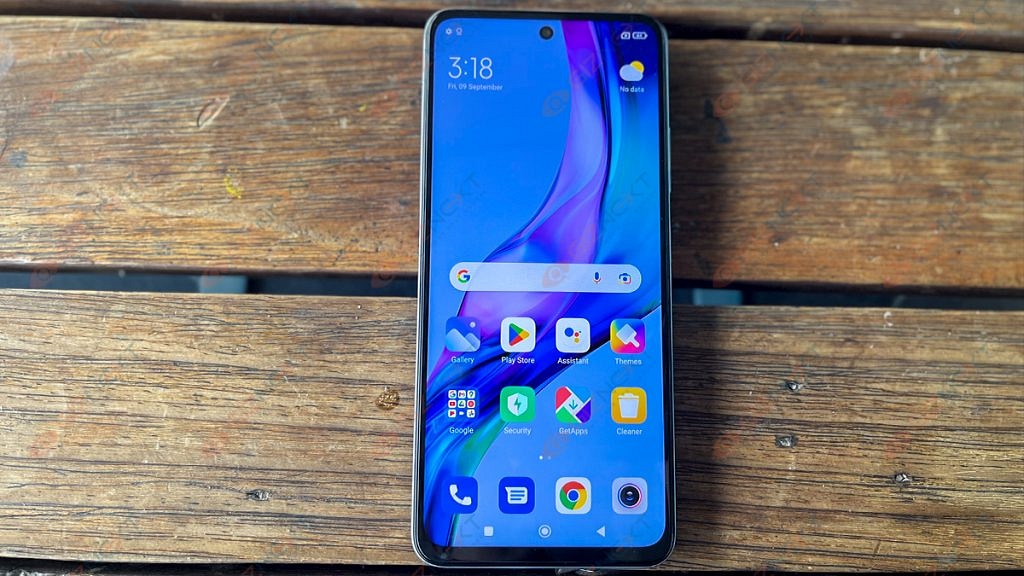
Many times you might have received unnecessary notifications from GetApps on your Xiaomi or Poco phones. Various spam notifications like “Get new features,” “install this and that, or “update now,” frequently pops up, if your device is running MIUI. Learn Effective Ways to Disable Get Apps

 Most people aren’t interested in these apps and have to deal with this nuisance. Don’t worry; we got your back. We have gathered some of the most effective ways to disable GetApps on your Xiaomi, Redmi, and Poco smartphones which are running on MIUI.

Also read: OnePlus Pad 5G Vs Xiaomi Pad 5 Premium Android Tablet Battle

Turn Off Notifications

The option to disable GetApps is not available on devices that are running on MIUI. However, you still will be able to turn off notifications for the GetApps, by following these steps:-

  • First, Open your Settings on your Xiaomi, Redmi, or Poco phone.
  • Go to Apps > Manage Apps.
  • Here, look for GetApps. Click on it.
  • On the following screen, click on Notifications
  • Then, turn off the toggle, which will disable the notifications from GetApps.
  • To take extra measures, you can force stop the app or clear its data.
Also Read: Xiaomi Redmi Note 11 Pro Long-Term Review: Justifies The Price Tag?

Disable Get Apps Through Your PC

 You can use ADB commands if you want to remove GetApps from your Xiaomi device totally. We usually use ADB commands to remove bloatware from Android devices. You can follow the three-step process given below to remove GetApps using ADB through your PC.

Step 1: Developers Options

  • First, you have to download the ADB software for your PC or laptop (Windows, Mac, Linux). Then you have to extract the zip file on your drive.
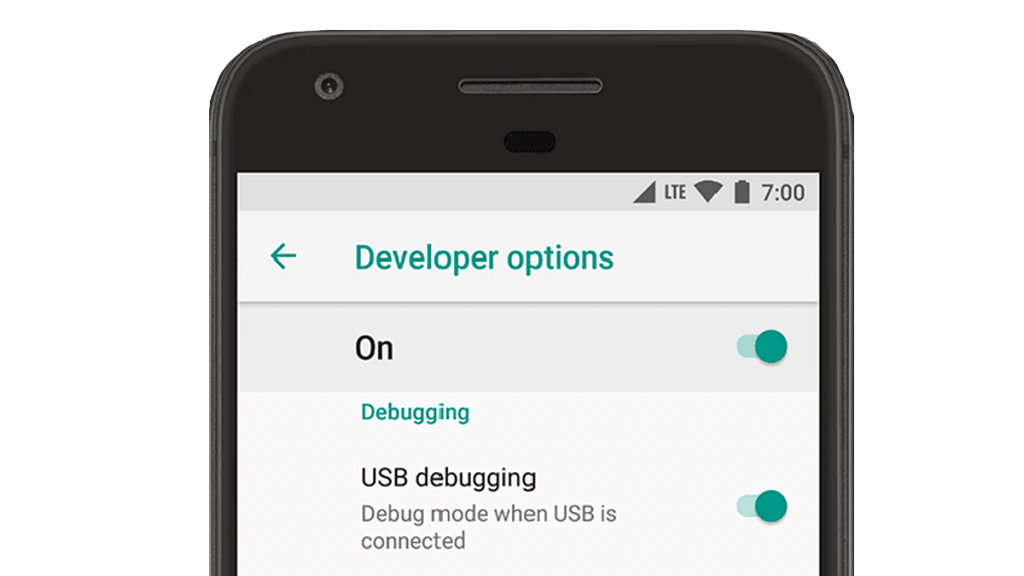
  • Now, go to your phone, and enable the Developer Options. 
  • To do that, go to your phone Settings > About device. After tapping MIUI Version 6-7 times, you will see that the “Developer options have been enabled.
  • After enabling the developer’s option, go to Additional Settings > Developer Options.
  • Then turn on USB Debugging.

Step 2: Connecting Your Device via ADB

  • Connect your PC to your PC through a USB cable.
  • And change the access to File Transfer from the option in the notification pane.
  • Now, tap on confirm when it asks you whether to allow USB debugging access on your device.

Step 3: Uninstalling Using ADB Commands

  • First, open Command Prompt on your PC or laptop. You can also go to the ADB folder by pressing Shift + Right-Click > Open PowerShell Window or Open Command Prompt Here.
  • Type and enter “adb devices” and check whether your device is connected or not.
  • Then, enter “adb shell.”
  • And, finally enter the following command: “pm uninstall –k ––user 0 com.xiaomi.mipicks

If you follow these steps carefully, then GetApps will permanently get removed from your device, and you do not need to worry about those annoying notifications.

Using The Debloater Tool

Debloater tool is quite similar to ADB, as it is also used to remove bloatware apps from Android smartphones. If that method seems too complicated to you, the debloater tool can act as an easier alternative to the ADB method discussed above.

Just Follow The Steps Given Below:-

  • First, you have to Enable USB debugging on your device.
  • Now, you will have to download and then install the Debloater tool on your PC.
  • Open the tool and connect your device to your computer through a USB cable.
  • Once your device gets detected, click on “Read Phone Packages,” which will allow you to see the list of all installed apps on your device.
  • Now, Double click on the GetApps (com.Xiaomi.mipicks) and click the Apply button.

If you follow these steps carefully, GetApps will successfully get uninstalled from your Xiaomi, Redmi, or Poco device. 

Also Read: POCO X4 Pro 5G Long Term User Review: Makes The Cut?

Conclusion

 GetApps can be really annoying, as it keeps bugging you with unnecessary and annoying notifications. Use these methods, and get rid of the GetApps notifications that keep bugging you on your Xiaomi, Redmi, or Poco devices. Moreover, other bloatware apps from your device can also be removed by using the above-discussed methods.

Also Read: Honor Pad 8 Vs Realme Pad Vs Redmi Pad: Mid-Range Android Tablet Comparison