Categories
Info Tech News

Best real-life bus Simulator Games For PC

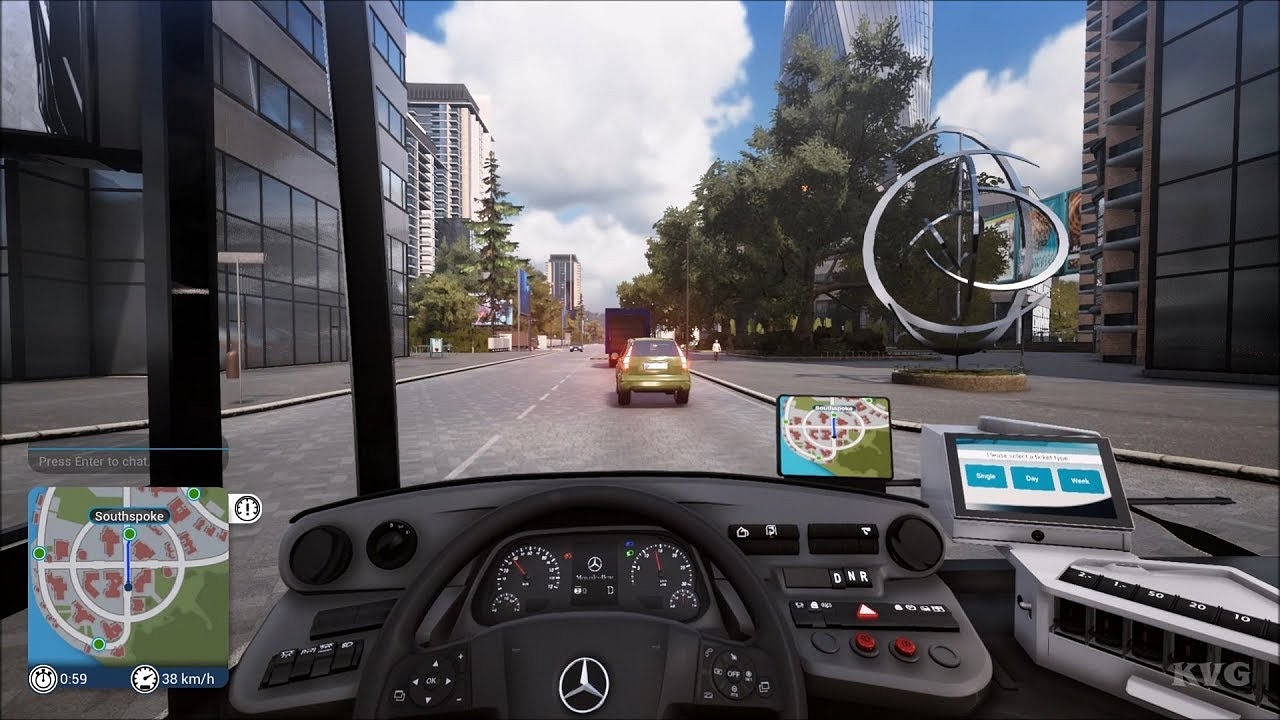
Bus simulator games for PC is a real-life simulation game where you can experience bus driving from a game. These games are ideal for kids and children that portray saving passengers inside the bus and help them reach their destination safely within the specified time limit. Here are the Best real-life bus Simulator Games For PC and some of these games are also available for smartphones as well.

Also Read: YouTube Channel Name Ideas: 100+ Cool And Attractive Usernames For Boys

Top 5 Bus Simulator Games

  1. Bus Driver

Bus Driver is the best-rated bus simulator game for pc. It was developed by Microsoft. The game has a large variety of buses that are based on real life. It begins with 5 tiers and six different routes.

To progress to the next tier, you need to complete four routes following the traffic rules, clearing the obstacles, and reaching the destination on time. Get a score of more than zero to successfully complete the mission.

  1. Desert Bus

Desert Bus is a continuous bus simulator game for PC. You have to make trips non-stop to get a high score. This simulator game doesn’t have a pause button, and to get a high score, you must keep playing with proper concentration.

As the timer goes up, the level gets difficult and a slight tilt can end your game. This game features the ride between Arizona to Nevada with a realistic visual without worrying about any traffic or signs.

Also Read: Best Websites For Perfect WhatsApp DP For Girls

  1. City bus Simulator 2010

The City bus simulator 2010 was designed by TML studio in 2009 and has realistic bus designs. The game has several missions to keep you addicted to the game and features New York City from Times Square to Grand Central terminal.

You can enjoy views from different angles in and out of the bus. You can play a demo version of this game to experience a realistic bus simulator game on PC.

Also Read: Poki Games: Here Are The Best Five Online Games To Play For Free

  1. Fernbus Simulator

Fernbus Simulator is also designed by TML studio in 2016 after the progress of the city bus simulator 2010. It is a very famous intercity bus simulator game for PC in cooperation with FlixBus. Another realistic game with great graphics that allows you to travel across over 40 German cities.

The game represents the daily life of a bus coach driver that became worldwide famous across different platforms. Few bugs in the game lead to few criticisms by some players.

5.     Bus Simulator 2019

Bus Simulator 2019, developed by KishMish Game, was initially released in 2018. The game offers realistic visual graphics and gives you a modern experience of a bus simulator game. The game has a real city environment and gives you the feature to upgrade your vehicle as the game’s progress.

You have to complete missions by dropping passengers at their destination and get a variety of outfits that you can buy from the in-game store. The game is truly based on physics and gives you a real-life bus driving experience.

Also Read: How To Hard Reset Android Tablet Without Using Volume Button?

Wrapping up

These were the best bus simulator game for PC. Get a real-life bus driving experience in a realistic environment by playing these games. The game is perfectly suitable for kids without any non-violence activity.

Also Read: 100 Best Instagram Name Ideas For Graphic Designers

Categories
Info Tech News

5 best manga reader apps for android

Manga is one of the favorite comic series among comic lovers. Although it originated in Japan, it has been spreading across the world for a while now. And, it has grown into the most adored comic series ever. If you are into manga too, you will know the craze. But, they aren’t easy to find and that makes it difficult to enjoy manga. Don’t get disheartened because if you own a smartphone, you are all set to enjoy your manga. However, if you are confused about how to access it, let me mention a few best manga readers for your android phone: List of the 5 best manga reader apps for android phones

  1. Amazon Kindle

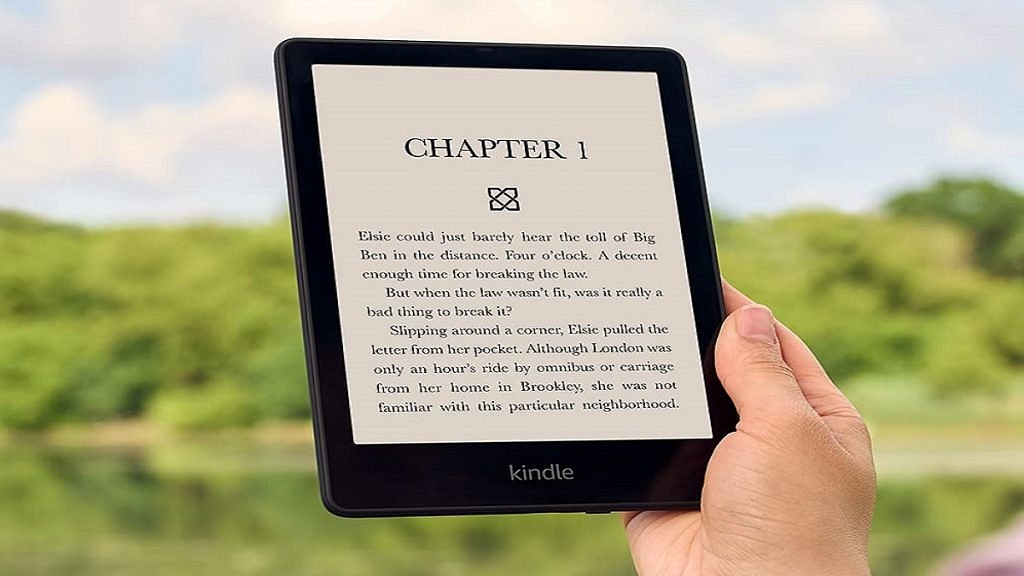
Amazon Kindle is one of the prominent ebook readers. It is most dominantly used by book readers. There is no way you haven’t heard about it before. Manga collection is available on Amazon Kindle. If you are into manga and not sure which platform to choose, Kindle is your quick go-to. Nook and Google Play Books are other alternate choices to indulge in some manga. All these are free, and it is easy to access manga on these apps. However, you can purchase and support manga writers.

Also Read: Lost Reliance Jio SIM Card? Here’s How To Block And Resume Your Jio Number

  1. Animo

Besides reading manga, if you would like to socialize with other manga fans, Animo is a good choice to find some of your peers. You can find lots of anime and manga fans here. Although you may not have full access to all manga reads, you will get some decent manga recommendations. The best part is that the app is all free to use, and there are no ads. Since there are no manga or anime apps, Animo can be a good replacement.

  1. VIZ Manga:

VIZ Manga is the best option to get started. There is literally nothing in manga comics that you can’t find here. From least popular manga to most hit series, VIZ Manga is a hub of manga comics for all manga lovers. You don’t even have to miss the new series because VIZ Manga keeps on adding the latest hits as soon as possible.

Also Read: Samsung Phone Sensors Secret Codes: What Is It And How To Check?

5 Best Manga Reader Apps For Android

  1. Crunchyroll Manga:

Although the number of manga lovers is increasing day by day, there are only limited official manga sources and platforms. Crunchyroll manga is one of those few sources. If you want to keep yourself updated with all the manga happenings, Crunchyroll manga is the one-stop destination. From accessing the hottest launches to the oldest delights, Crunchyroll Manga is a temple for manga lovers.

  1. ComicRack: 

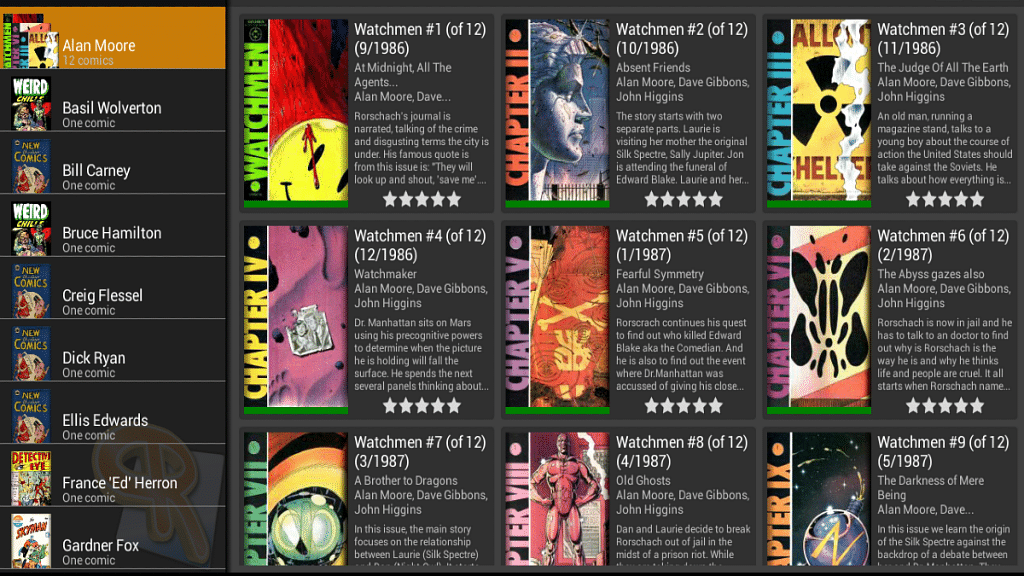
ComicRack is a fully-featured reader for manga lovers. The tools and wide range of features enhance your manga reading experience. You can optimize the colors, highlight, and save bookmarks too. It also allows you to divide unread, completed, and bookmarked comics. With ComicRack, hours of watching the screen are no more scary or harmful to your eyes.

Also Read: How To Download Or Transfer All Facebook Videos And Images Directly To Google Photos

Conclusion

It is difficult for manga readers to access the latest manga releases on the phone. But with these apps in your android, it is easier than before and doubles the fun. What else do you wish for other than indulging in some manga every day as a manga lover?

Also Read: Best Government Apps Offering AI Chatbot Support

Categories
Info Tech News

Detailed comparison of Realme buds Vs. Realme buds 2

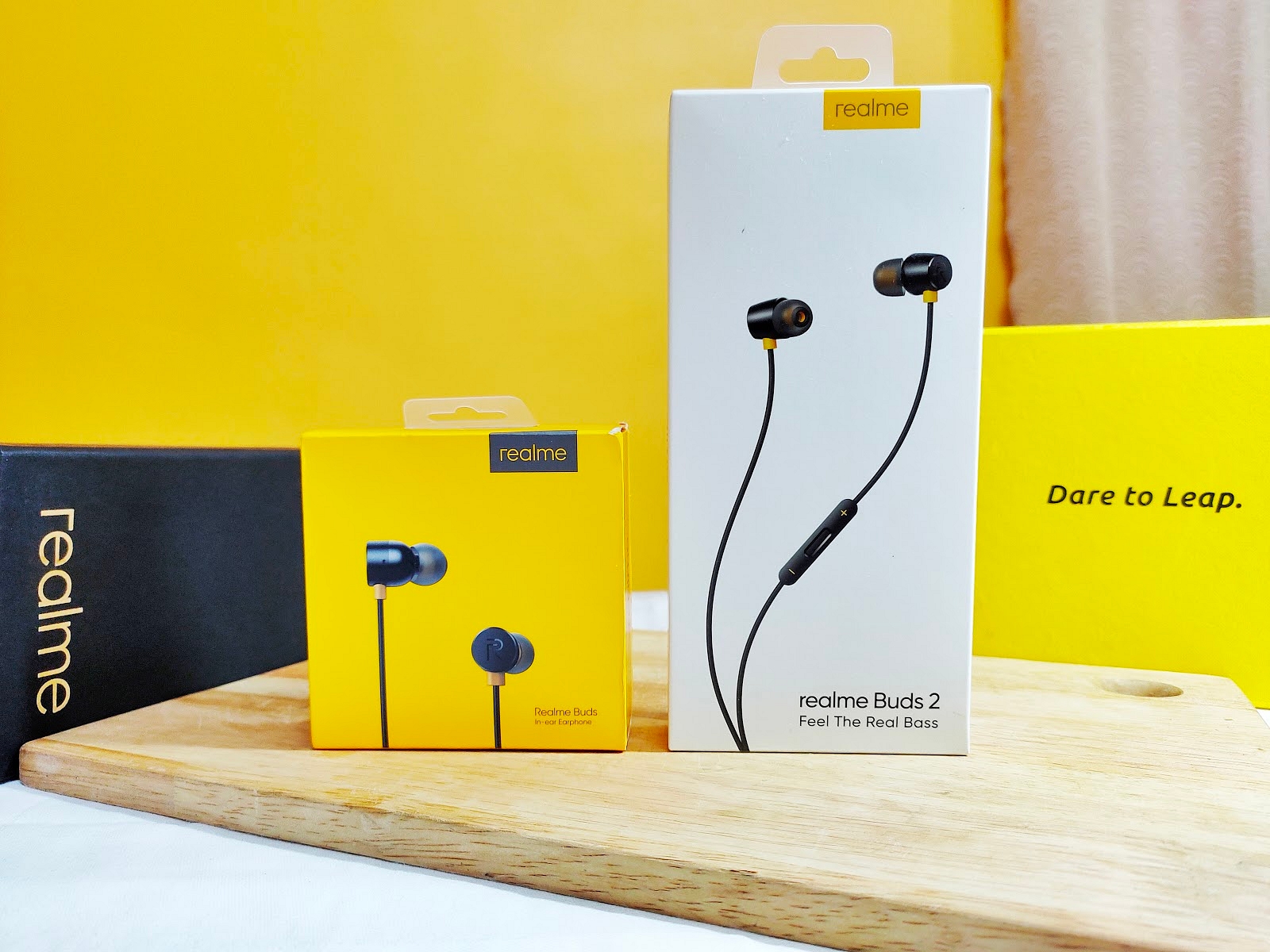
People are very choosy about their smartphone accessories, especially when it comes to earbuds. Real me has started as a budget-friendly smartphone and is currently the talk of the town with the launch of its new earbuds. Real me buds and Real me buds 2 are hot selling cakes in the market. Although both the new models are receiving the same love and affection, there is confusion among the buyers as to which one is better. This article clears all your apprehensions. Read on to choose one: Realme buds Vs. Realme buds 2

Design 

The design of Realme buds 2 is sleek and sturdy. The earbuds are straight and fit well in your ears. The wire comes in both plain and braided fashion to avoid cutting off the wire. While Realme buds are of the same quality, their size is not optimized and may not fit all ears. Real me buds 2 have inbuilt magnets on the opposite side that help you attach the two buds.

Also read: Wrong Name Appears On Caller ID, How To Change Your Name In Truecaller?

Quality 

Sound quality is something people are very mindful of before purchasing new earphones. The sound quality alone justifies the cost of the earbuds. And, there is no compromise made in providing the listeners with the best bass audio.

The 11mm audio driver lets you listen to your music in peace while eliminating the disturbances and background noise for you. Coming to the bass quality, Realme buds 2 is superior to Realme buds. If you are a music lover, then Realme buds 2 will be your best choice.

Looks 

Both the Real me earbuds look classy and luxurious for their cost. The surface looks shiny and glassy, while the colors used are stronger and don’t go away easily even after a year of continuous usage. Realme buds 2 are straight and fit right in all sizes of ears. But, Realme buds classic is a bit oval-shaped.

Weight

Coming to the weight, Real me buds 2 is a bit on the heavier side. However, Realme buds are lightweight, and you can enjoy the music without feeling the heaviness in your ears. But, this is not the case with Realme buds 2. You can only enjoy the bass for some time because the earphones begin to hurt your ears after just an hour.

Realme buds Vs. Realme buds 2

Price 

The price of both Realme buds and Realme buds 2 is affordable and totally worth it for the quality of output it provides. While the Realme buds are currently costing at 399, Realme buds 2 is ranging around 599, which is totally economical and worth the buy.

Conclusion

As the music quality doesn’t vary much across these two models, the only major difference happens to be in the design and wiring. The cost difference is not much either. Despite the music quality being superior in Realme buds 2, Realme buds is a clever option for music lovers as it has a 14mm long driver, and the design is comfortable to use and carry with.

Categories
Info Tech News

Zili app belongs to which country, who is the developer, is it banned in India?

Zilli app is a platform for short videos of different content types. It provides its users the opportunity to use various features present in the app such as super zoom, boomerang, and puzzle videos for creating the content to upload. This app is a user-friendly application developed just for the users to easily develop video content. The user can also go through the content shared online by the other users. This app also lets the user share the videos present on the app as Whatsapp status. people have few questions  Zili app belongs to which country, who is the developer, is it banned in India?

What is the original country and company of Zili?

Zilli app was developed in 2019 by Xiaomi, which is a China-based company. The origin of this app was developed by China. This app gained a lot of attention in the entertainment business. This app was developed for entertainment purposes only as it provides features to form creative videos and also watch funny videos developed by others and shared online. According to the C.E.O. of Xiaomi, Lei Jun, they launched this app to “make life colorful”. This app can be found on the Play Store. 

Also read: How to Add Background Music to WhatsApp Status

Is the Zili App banned in India?

Many Chinese apps were banned in India in the year 2020 by the order of the Ministry of Home Affairs. India has banned some of the Chinese apps which were not safe for the private information of the user. But the Zili app is not banned in India. A list was released consisting of 59 apps in 2020. These apps were taken forward for choosing the apps to ban from India. 

This app is not banned from India but banning TikTok gave this Zili app a hand full of candy. This app became famous after the ban. As there were many apps that were listed in the banned app list people were searching for an app that is similar to TikTok. As we know, TikTok is very famous among every age group. There was a long list of the apps banned by India in 2020:

  1. Tiktok
  2. Shareit
  3. Kawai
  4. UC Browser
  5. Baidu Map
  6. Virus cleaner
  7. News dog
  8. UC News
  9. QQ mail
  10. QQ Music
  11. QQ News Feed
  12. Bigo live
  13. Mail Master
  14. QQ Player
  15. Photo wonder
  16. QQ Launcher
  17. QQ international
  18. QQ Security center
  19. DU Privacy
  20. U video

Zili app belongs to which country, who is the developer, is it banned in India?

And many more apps. Total 59 apps were banned in 2020 by India for their misuse of personal information.

Now, as TikTok was banned, people were searching for a new app. Zili worked fine for them. 

They were able to download the app easily through the Play store present on all the smartphones:

  1. You can just open the Play Store on your smartphones. 
  2. Then, search for “Zili”. You will find the search results.
  3. Now download the application. Then install the application on your smartphone.
  4. Then sign up in the app and proceed further with creating new and creative content. 
  5. You can choose to share the content you developed online. 

It is an app for some funny videos to watch and create.

Categories
Info Tech News

Fix Google Pay Error ‘Please Exit Any Apps That Might Be Drawing Over The Screen And Try Again’

The most famous digital wallet, Google pay provides you with the safest online transaction by adopting all means of security measures. You must have seen the message pop-ups on the screen ‘Please exit any apps that might be drawing over the screen and try again’ while setting a UPI ID, while making a transaction, and sometimes when you are scanning a QR code to make a payment.

This message might appear due to various reasons. To fix this issue, try closing the application, removing it from the background, and restarting your smartphone. If the message still appears, then here is how to fix the Google pay error.

  1. Disable drawing over the screen permission

There are several applications, like screen recorders that ask for permission to draw over the screen, and if Google pay is showing this error, then it may be because one of these apps is drawing over the screen while you are using Google pay. The advanced security measures of Google pay will not allow you to register or make payments if you don’t disable these applications.

  • Go to settings and open apps and notifications.
  • Now select special app access and search for display over the apps option.
  • Click on the option and disable the applications that have permission to draw over the screen.

Also read: How to Add Background Music to WhatsApp Status

  1. Disable floating windows feature

Some apps have floating windows like a Facebook messenger that might be the reason for showing this error. The security measures of Google pay also restrict registration and payment if applications are running with floating windows. Here’s how to disable the floating windows feature.

  • Go to settings and open app management.
  • Now select the Floating windows option and disable the floating windows feature.
  • Once done, now restart your phone, and the error must be resolved.
  1. Disable Virtual navigation keys

Sometimes using virtual navigation keys might be the reason why Google pay error is showing on the screen. The virtual navigation keys usually disappear while making payment but, if it doesn’t go then, you must disable it if you want to make transactions from Google pay.

You can use gestures to navigate your phone. Here’s how to disable Virtual navigation keys.

  • · Go to settings and search for navigation keys from the search bar.
  • · Now open the navigation keys option and disable virtual keys can be a hidden option. In many devices based on brands, you can hide navigation keys by enabling full-screen mode.
  1. Disable features like Quick ball, Reading mode, etc.

There are some features in your smartphone that can cause this Google pay error, like Quick ball, reading mode, etc. These features need to be displayed over the screen to work. You can try disabling these features to fix the Google pay error. You can easily turn off these features from your notification bar.

Wrapping up

These are the major reasons why Google pay error ‘Please exit any apps that might be drawing over the screen and try again’ showing on the screen. Follow the methods mentioned above to fix the Google pay error.

Categories
Info Tech News

How to mirror your Android or iPhone screen to Firestick

Since ten years ago, the way most people watch their favorite entertainment has changed from a nerdy, niche way to enjoy movies and shows online to a mainstream way to watch them. In recent years, Netflix, Hulu, Amazon Prime, and others have become major streaming services, with their original programming winning major awards, including Emmys and Oscars. to watch these on phone to tv we need to know How to mirror your Android or iPhone screen to Firestick it is one of the most efficient way.

Considering how ott wars are ramping up, no better time has ever existed to jump into Amazon Fire TV, and more specifically, the $40 Amazon Fire TV Stick.

Mirroring a smartphone or tablet screen to your TV screen is an underrated but one of the powerful features of the Amazon Fire TV Stick.

 The phone allows you to watch movies and TV shows, or play games with the large display, or have a video chat on a big screen. 

In this article, you will learn the process of How to mirror your Android or IOS to a Fire Tv stick. 

Also read: How to search on google using images or video?

Setting up Fire Tv stick for mirroring

  1. Mirroring on a Fire TV Stick begins with this step.

•By pressing the Home button, you can go to the settings of your Fire TV 

•When you’ve reached Settings, click on it.

•Click on Display & Sounds.

•Choosing this option will enable display mirroring.

2. On your Android, enable Screen Mirroring: Go to Settings > Connections, then enable “Screen Mirroring.” This option may also be available in the quick settings tile under the names Wireless Display, Screencast, Smart View, or Miracast (depending on the model of your phone).

3.Plug in the Firestick to a TV: If your Firestick has been enabled, its name will appear in the list of available devices. Select your specific device and wait for the mirror-ing process to start. 

On Apple iPhone (iOS)

The following method requires you to connect both devices to the same network to use AirScreen, an iPhone app that allows you to mirror your iOS screen to a Firestick device through the iOS AirPlay feature.

  1. Type “Airscreen” into the search box of your Firestick device
  2. Download Airscreen from the app store
  3. Click on Start Now once you’ve installed the app.
  4. You can mirror your iPhone screen by opening Control Center and clicking Screen Mirroring
  5. By tapping your Firestick’s name, you can begin screen mirroring.

That’s it. Along with the app’s settings, you can change the name, and now your iPhone’s screen is successfully mirrored to the Fire TV device.

How to mirror your Android or iPhone screen to Firestick

Having trouble mirroring your screen? Use a third-party app

Except for Chromecast, most stock Android devices don’t allow you to mirror your phone’s display to TV. If it is not available, you can use any third-party apps to mirror your phone to Fire tv. However, the mirroring process may not be as smooth as it could be.

  1. Cast to TV can be downloaded and installed on your mobile device.
  2. Use the same WiFi network to connect the phone and Fire TV.
  3. Tap on your device name to start the screen mirroring process once it detects your Fire TV device. Open the app and wait for it to detect your Fire TV device automatically.

Now you can mirror the screen of your Android and iPhone to the Firestick without any problem. You may have hit some snags with the methods above.

Categories
Info Tech News

Best Wireless Headphones Under Rs 3000 In India

Nowadays, Headphones are really necessary, especially after everything is shifting digitally. The use of headphones is no longer limited to just listening to songs or watching movies. Whether it’s for action-packed gaming or attending online classes or business meetings, good-quality headphones are of utmost importance. Best Wireless Headphones Under Rs 3000 In India

Good quality headphones will give you better and clear sound quality, your voice will be audible clearly to everyone and moreover, good quality headphones last longer. If you are looking forward to buying the best wireless headphones under 3000 in India then here are some recommendations listed below:

List of best wireless headphones in India under 3000

  1. Sony WH-CH510

Sony is amongst the best headphones manufacturers. You can completely rely on the quality, as well as the other features that make it the best wireless headphones under 3000. This wireless headphone from Sony is totally lightweight and doesn’t feel heavy on your head.

The wireless headphone also gives you a noise-canceling feature with 35 hours of battery life for non-stop music and has a 3.5 mm headphone jack. You get top-notch sound quality and come with an adjustable headband to perfectly fit in your head and swivel ear cups.

Also read: Secret Codes To Check Samsung Phones Sensors

  1. JBL T460BT

The JLB T460BT is a rugged-build wireless headphone under 3000. You can easily fold these headphones and comfortably carry them anywhere. The other features of this exquisite headphone include active noise cancellation, lightweight, 11 hours of battery life, and punching out the pure bass sound.

The headphone comes with on-ear cups to control calls and music. These headphones are compatible with all devices including laptops, smartphones, and tablets. Have a superior listing experience with these headphones.

  1. Skullcandy Uproar

Experience the comfort, freedom, and convenience with Skullcandy Uproar’s synthetic leather cushion ear cups on your ears. This headphone features wireless connectivity up to 33 feet distance, 10 hours of long-lasting battery life.

The headphone truly gives supreme sound quality with high bass, natural vocals, and precision highs for every genre. Also, the lightweight feature makes it comfortable on your head. Manage calls and manage your playlist on every Bluetooth-compatible device.

  1. Fastrack Reflex Tunes

Unfold brilliant soundscape with this amazing headphone by Fastrack. The headphone features Bluetooth 5.0, hands-free calling mode, water-resistant, and much more. It has a battery life of up to 14 hours for non-stop music and is compatible with voice assistants like Google Assistant and Siri.

The headphones have durable buttons, and the foldable foam factor gives you the comfort to carry around easily. Wrap your music listening experience with passive noise cancellation and comfortable ear cups.

  1. boAt Rockerz 510

Get ready to enhance your music listening experience with boAt Rockerz 510. Get high-definition trumping bass and balanced treble performance. This headphone features compatibility with voice assistants, customized 50mm drivers, battery life of up to 20 hours for continuous music.

The faux leather on-ear cups make them pleasurable and comfortable on your ears. Get easily integrated control of your music with dual wired and wireless modes.

Wrapping up

These were the top 5 best wireless headphones under 3000 in India 2021. Unleash optimal music quality with top-notch features at the best prices ever. If you are willing to buy these headphones, you can easily get them from Amazon.

Categories
Info Tech News

How to search on google using images or video?

Google has always been up to the mark. It is the most used browser for web searches around the world. It is well known for bringing new features to the world. This time they have bought a new way to search. This way is not like the classic “writing the doubt and getting answers” type, but it is unique and easy to use. Now, you can search for the information by using a picture. You can easily click the picture of the item you wish to get knowledge about. Google will scan the picture and will match with all the possible answers to it. It will present all the websites or web pages that contain the picture you have provided. How to search on google using images or video?

This type of searching method is called Reverse image search. When we type a term and google, or any other browser provides us the information about it, then it is the classic way, but when its reverse happens, i.e., you give the picture and google search for similar pictures, then it is reverse image search. Google has used this for their new feature to make the search easier for everyone. 

Also read: How to Add Background Music to WhatsApp Status

Generally, in smartphones, an option has started to come. This option is present in the browser and looks like a mini camera. It is kept with the voice search option present in the google browser. If you want to get information about something in front of you, then you just have to click a picture, and thanks to this new feature of Google, you will get results similar to the image you searched for. You do not really need to click the picture first from the camera application, then upload it and then again delete it from the gallery. Google saved you from this hassle. You just need the updated version of the Google app.

You can search the image which you found from the search result:

  1. Search an image by writing a word or sentence 
  2. Then click on the picture
  3. Tap the visual search option on the top right corner. It looks like a camera shutter.

You can also search for an image present on a website:

  1. In your android smartphone or your tablet, go to the website and hold the image.
  2. Then click on “search with google lens”.
  3. Then select the way you wish to use the picture for search- You can use the object in the picture or use any part of the picture.
  4. Then just scroll down and look for the results.

How to search on google using images or video?

If you have already taken a picture and you wish to search it later, then follow these steps- google image search by picture:

  1. In your android smartphone or any tablet you are using, open the updated google app.
  2. At the end of the screen, click on the “discover” option.
  3. You will find a search bar, and there click on the google lens.
  4. Now you can take a new picture and also can upload an already taken one.
  5. You can also select an area in the picture you wish to do a search for. Sometimes an option is available to select a particular object in the picture. 
  6. Then just scroll down for the results for your search.

Point to consider- 

  • It is best to take a smaller portion of the image for the best results, as if you search the bigger portion, then the search will be related to all the things present in the picture. 
  • Also, you must have an updated version of the Google app or the chrome app on your smartphone.
Categories
Info Tech News

How to export WhatsApp chat as pdf

Many times we wish to store our WhatsApp chats in our smartphones safely or wish to send the whole chat to a person as a pdf. But we wonder about the way to do it. We cannot just copy every text present there and forward it to the other person. It is technically very difficult for anyone to do so. Not only will it be difficult for you but for the other person. It will also get difficult to understand the conversation as the messages may be delivered randomly to them due to network issues, and all the things will become a mess. So, you need to export every text together as a pdf and then send it further. Learn How to export WhatsApp chat as pdf

There are various reasons why a person may need to export the WhatsApp chats as a pdf:

  1. For Research: If you are working on something and you are interviewing many people on WhatsApp, basically you are conducting a survey, then you need to keep the answers sent by the person you are interviewing safe. You cannot take a risk to let them just be there on WhatsApp. You need to save them as pdf.
  1. For legal reasons: You want to present your WhatsApp chat with a person as proof in the court, then you cannot just bring up your phone in the court and show the chats to the judge, nor you can use screenshots as it will be hectic and confusing with so many pictures to scroll. You first need to convert that into pdf form, copy it in a pen drive, and then present it in front of the court. The timestamps are also included in the pdf when you export them as pdf form.
  1. For the purpose of Business: You can also save the WhatsApp chats of a customer, retailer, supplier, wholesaler, or any other person as proof about the selling goods or the bought goods for a better business in the future. As we often cannot write everything down somewhere else, and we trust WhatsApp to keep it safe forever, but sometimes it does not.
  1. For backing up your data: Many people like to save the chats with their loved ones. Whatapp may suddenly stop working, or your phone might get issues, then all your data will be gone. In that case, you can save the WhatsApp chats as pdf for a lifetime. 

Also read: How to Add Background Music to WhatsApp Status

It is easy to export the chat from WhatsApp. You just need to follow the steps below:

  1. Open the Whatsapp application
  2. Then open the chat you wish to save for future usage.
  3. Click on the three vertical dot menu present on the top right corner of your screen.

  1. Some options will open up. 
  2. Tap on the “more” option.

In the further menu, you will find “Export Chat”. Click on it.

Then a pop-up menu will be seen on the bottom of the screen on the smartphone.

How to export WhatsApp chat as pdf

Send the exported file through Gmail to yourself.

Then when the email enters your inbox, open it and download the “.txt” file.

Then open this file using the WPS office.

And after it opens, click on the “tools” option on the bottom left of the screen.

  1. Then, a menu will open up.
  2. Click on “export to pdf”.

You will see a preview of the document. If you like the document, then click on the “export to pdf” option at the bottom of the screen.

Choose the location of the file and click on “export to pdf” again. You now have your WhatsApp chat as a pdf stored in your smartphone.

It is an easy process, so do not worry and follow the steps mentioned above, and you will have your chats in pdf form.

Categories
Info Tech News

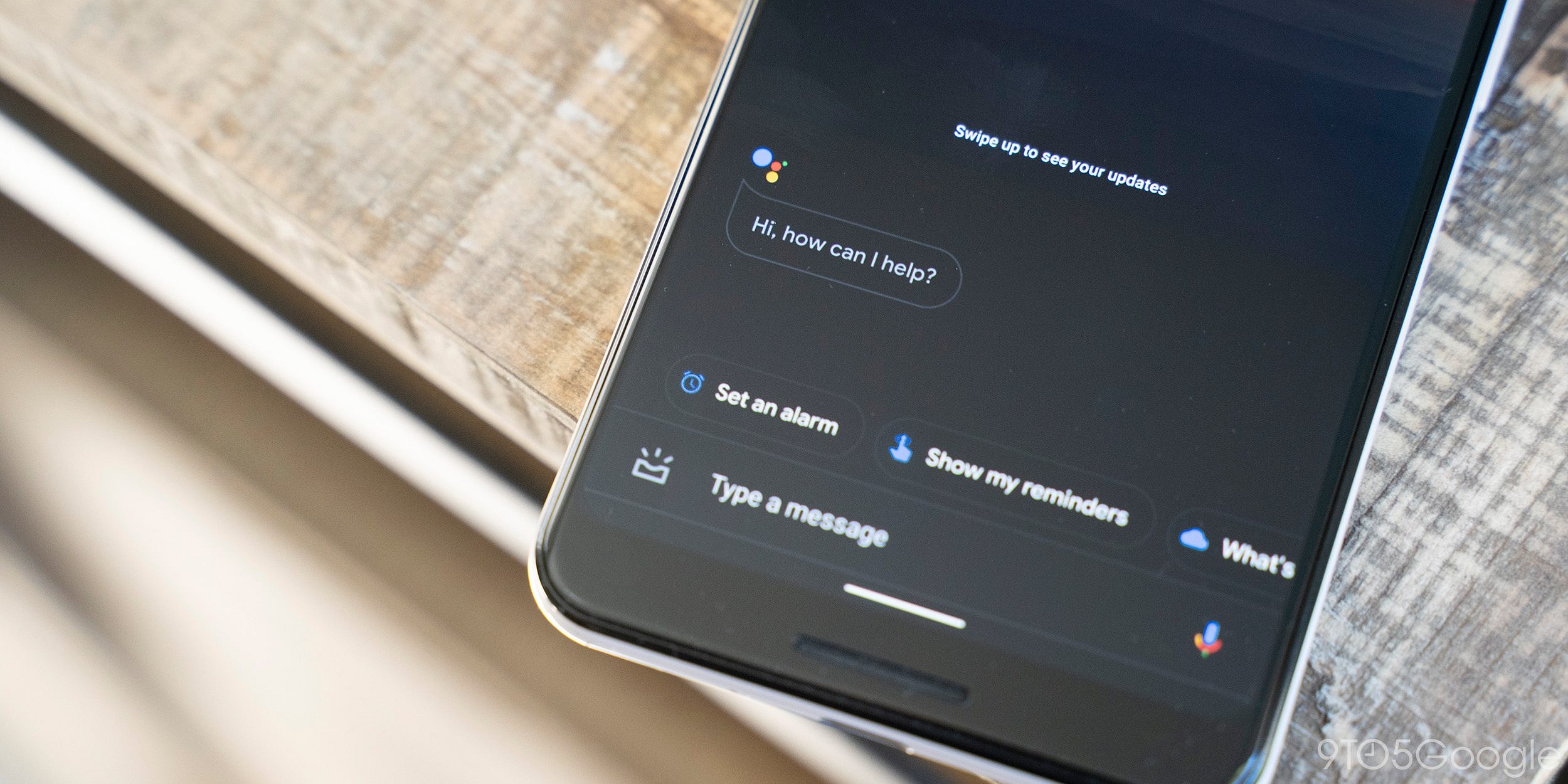
How to enable dark mode in Google Assistant?

Every person has their own working space. Some like to work in bright mode, some in the dark. We all have our own way of working. The bright mode is the default mode in everything, and hence no issues are faced, but whenever we wish to change the display into the dark theme, we face issues on How to enable dark mode in Google Assistant?

Google provides us the choice to work in the dark mode or any other mode. Our smartphones also have options to change the background whenever we wish for a change. We can first try to change the theme from the smartphone settings. For that, you need to first go to Settings on your smartphone. Then search for “display” and then change the display into the dark theme, and your screen will change the way it looks.

You can change the mode in your google assistant by just following some simple steps:

  1. Get the updated google App from the play store.
  2. Launch it in your phone

Also read: Top Chrome Flags to Improve Browsing Experience

  1. Then scroll down to the end of the page and find “themes”.
  2. Select the dark theme from the options, and you will find that it will activate immediately.

How to enable dark mode in Google Assistant?

And you have your own working space.

Not just the google assistant, but you can change the theme of other Google apps too. 

If you wish to change the theme of other google applications, then you need to look for themes in their respective settings. If you are not able to find the “themes” option in their settings, then it might be possible that the application does not favor any other theme. 

If the theme is not changing even if you got the correct setting, then you need to check your phone settings and should check the “display settings”. Some apps like calendar and calculator work with respect to the theme of your phone and battery saver mode.

To change the theme into the dark theme in the google calculator, you need to follow the steps:

  1. Open the calculator application on your smartphone
  2. Then click on the three dots present on the top right corner of the screen
  3. Tap on the option “themes”.
  4. Select your desired dark theme
  5. You’re done.

To change the theme into the dark theme in the google calendar, you need to follow the steps:

  1. Open the calendar application on your smartphone
  2. Click on the “hamburger icon” on the application present on the top left corner of the screen.
  3. Scroll down the options
  4. Select “settings” option

Then tap the general option.

Click on themes and select the desired theme from the option.

To change the theme into the dark theme in google chrome, you need to follow the steps:

  1. Open the application on your smartphone
  2. Click on the three dots present on the top right section of the screen.
  3. Click on settings
  4. Under the basic section, click on themes
  5. Select a dark theme for your working space.