Categories
Featured How To Laptop

Backup Your Mac Using Time Machine Or iCloud: Check Out The Steps

Key Highlights

  • Mac comes with a built-in backup feature called Time Machine
  • You’ll need an external storage device to use Time Machine
  • You can also use iCloud to store your data and documents

You probably don’t think about backing up your PC on a regular basis. Even if it hasn’t been in your thoughts recently, it will inevitably start to matter. If you’re like the majority of Mac users, your machine’s storage devices house a lot of highly critical documents and files. The consequences of a catastrophic data loss could be severe and have an influence on you in a number of different ways. It’s one of the risks we must acknowledge if we wish to benefit from the digital world.

In this post, let’s learn how to back up your Mac so that your important data is secure in the case of an unexpected circumstance that results in data loss.

How To Backup Your Mac Using Time Machine

Your Mac comes with a built-in backup feature called Time Machine. It automatically makes hourly backup versions of your computer that cover the preceding 24 hours, daily, and weekly for the previous month and all previous months, respectively.

Additionally, everything keeps the style you gave it, allowing you to look back on your setup rather than having to recreate it exactly as you remember it.

However, in order to use Time Machine to actually create backups, you’ll need an external storage device and, of course, a method of connecting it to your computer, whether that be by using an AirPort Time Capsule or a physical wire to an external hard drive. To begin, follow the listed steps:

Step 1: Plug the drive into your Mac and wait for the prompt to use it with Time Machine.

Step 2: By checking or unchecking the box (it is recommended to encrypt), you can decide whether to encrypt your backup disc. Then, click ‘Use as a backup’ to proceed.

How To Backup Your Mac Using iCloud

Using iCloud to store your data and documents is another option for backing up your Mac. You must set it up first before you can begin:

Step 1: Make sure your Mac is fully updated by choosing ‘Updates’ in the left sidebar after selecting ‘App Store’ from the Apple menu in the top-left corner of your screen. You first need to log in using your Apple ID.

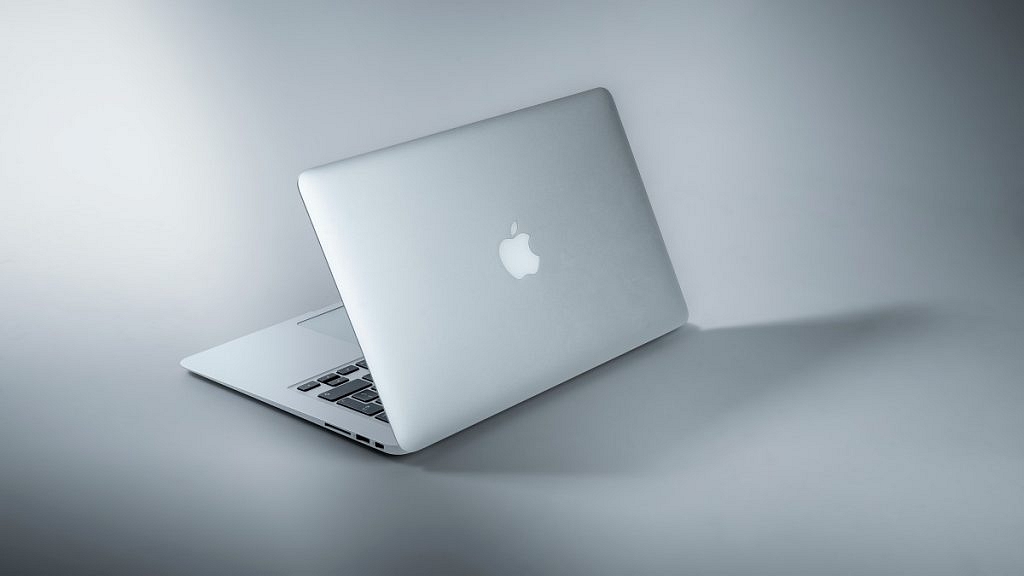
Step 2: Select ‘System Preferences’ and then ‘iCloud’ from the Apple menu in the upper left corner of the screen.

Step 3: Sign in with your Apple ID and accept the terms of service.

Step 4: You can decide whether or not to use iCloud for your data and documents and the use of Find My Mac.

Following the steps explained above, you’ll be able to see which apps you can add to or remove from your iCloud account as well as how much of your 5GB of free storage space is presently being used by your data. If necessary, you can subscribe to a more expansive iCloud account for a variety of monthly costs.

Categories
Info Laptop

Second-Hand Laptop: Things You Should Check Before Buying It

The demand for laptops has decreased in the first quarter, as per Gartner and IDC. The IDC report pointed out that 80.5 million laptop shipments were in the same quarter, whereas Gartner shared only 77.5 million shipments during the same period; however, these numbers show a decline of 7.7 percent over the Q4 of the last quarter.

In addition, the prices of laptops have increased due to shortages of components, this has also affected the sales. But, still, if you are looking for ways to buy laptops at pocket-friendly prices or affordable, then you go for second-hand laptops, yes you read it right.

In fact, you’ll be surprised to know that there is a huge market for second-hand laptops in India and in case you are looking for ways to purchase it, then you should know or consider before buying the second-hand laptop.

Things You Should Know Before Buying Second Hand Laptop

It is important to note that before buying any second-hand laptop you need to check the battery health as replacement is expensive. In addition, check that it charges the laptop properly and don’t forget to take the charger from the seller. Also, check the power management settings of the laptop.

Plus, you have to do a proper examination of the body. You need to check the damages on the body as there are chances that they might decrease the life of the laptop. Plus, you also need to see that there is no crack on the screen or the laptop.

Second Hand Laptop In India

Additionally, you need to see or check that screen is in good condition. All angles should visible enough. Moreover, you need to check that the Keyboard and trackpad are in better condition before buying a second-hand laptop. Try to type on the keypad and your comfort level on the same.

Where To Buy Second Hand Laptop

If you want to purchase a second-hand laptop, then you check online websites Quikr, OLX, Amazon, Indiamart, and more. In case, you want to buy a second-hand laptop via offline stores, then you can visit Nehru Place market in Delhi.

Categories
How To Laptop

How To Add Handwritten Signature On Google Docs Using Laptops/ PCs?

Laptop and PCs are serving as the primary gadgets to complete all kinds of professional and personal work. While our dependency is gradually shifting towards mobile devices specifically smartphones, the need for computational gadgets isn’t fading anytime soon. In fact, more than PCs laptops are being sold as hot cakes in the modern market. And post the COVID-19 pandemic, a surge has been evident with the laptop usage across the globe. Specifically, the majority of the organizations routing toward the hybrid working module.

You now get dedicated online tools and services to help with any professional tasks. In fact, online meetings have become a new norm across all organizations. There are multiple online tools for meetings and supported services. Google Docs is one of such application that is helping users with easy document management. You now don’t have to deal with carrying around hard copies of any document.

Google Docs is definitely making our lives paper free and it’s now easier for us to get documents printed or shared with different contacts with just a few taps. Google Docs helps with document sharing on a mass level and you also get to make modifications as per requirements.

One of the unique features offered by Google Docs is the option to add handwritten signatures. This is essential to verify the authenticity of any document created or shared by you. But there is no direct way as of now with which you can add your handwritten signature on Google Docs using your laptop or PC. But that doesn’t stop you anyhow from adding your own handwritten signature into a Google Doc file or document.

If you own a Microsoft Windows laptop or PC, you can easily edit any PDF file and add your own signature with the help of built-in tools. You can also add your personal signature to all the documents including the ones on the Google Doc with the help of Google Suites’ Scribble feature. Here’s how you can use the Scribble option to add your handwritten signatures on a Google Doc file on any laptop or PC:

Step 1: Open the Google Docs file on which you need to add your handwritten signature.

Step 2: Now, move your cursor to the line or paragraph where the signature is to be placed.

Step 3: From the toolbar, click on insert.

Step 4: Select Drawing.

Step 5: Tap on “+ New” option next and then select the “Line” dropdown.

Step 6: You will now see the “Scribble” option. Click on it.

Step 7: Create your signature using the drawing option.

Step 8: Click Save when you have accurately drawn your signature.

Categories
How To Laptop

Set Up Your Brand-New Laptop Like A Pro: Here’s The Step-By-Step Guide

Key Highlights

  • Most laptops come with Windows 10 and follow a similar setup process
  • Doing the setup right helps avoid future security and performance issues
  • Just follow the steps in order, and it’s simpler than you might think

It may be both thrilling and terrifying to set up a brand-new laptop. However, it’s pretty simple. Most laptops now on the market have Windows 10 installed. Although it can vary depending on the brand, the setup process is generally the same. You’ll avoid security issues and other troubles in the future by doing everything correctly and in the appropriate order the first time. Here is everything you require to set up your new laptop or PC.

Also Read | Top 5 Effective Ways To Protect Laptop From Overheating

Unbox Your Laptop And Plug It In

To get started, open the box and plug in the original power adapter and cables. It could take some time to set up the laptop, so make sure you have enough power to keep it running. On the majority of the most recent laptops, rectangular Type-A connectors have been replaced by USB-C connections. In this situation, just plug the charger into your device’s Type-C connector.

Turn On Your Laptop

Press the power button. On some models, it could be on the right side of the computer or at the upper right corner. Nevertheless, it might be located somewhere else.

The Welcome screen will appear when you first boot up, and Cortana, Microsoft’s virtual assistant, will offer you a voice walkthrough. On some laptop models, she’ll ask you questions, and you can reply with your voice (but keep in mind that this will not work on many laptops). You can adjust the level by clicking the speaker icon at the bottom of the screen if you want to mute her voice.

How To Set Up Your Windows Laptop

Step 1: Select your country or region and then click Yes.

Step 2: Select your keyboard layout. On the ‘Want to add a second keyboard layout screen’, click ‘Skip’.

Step 3: Connect to a Wi-Fi network. Enter your password and click Next. Choose ‘I don’t have internet’ if you don’t currently have a connection to the internet.

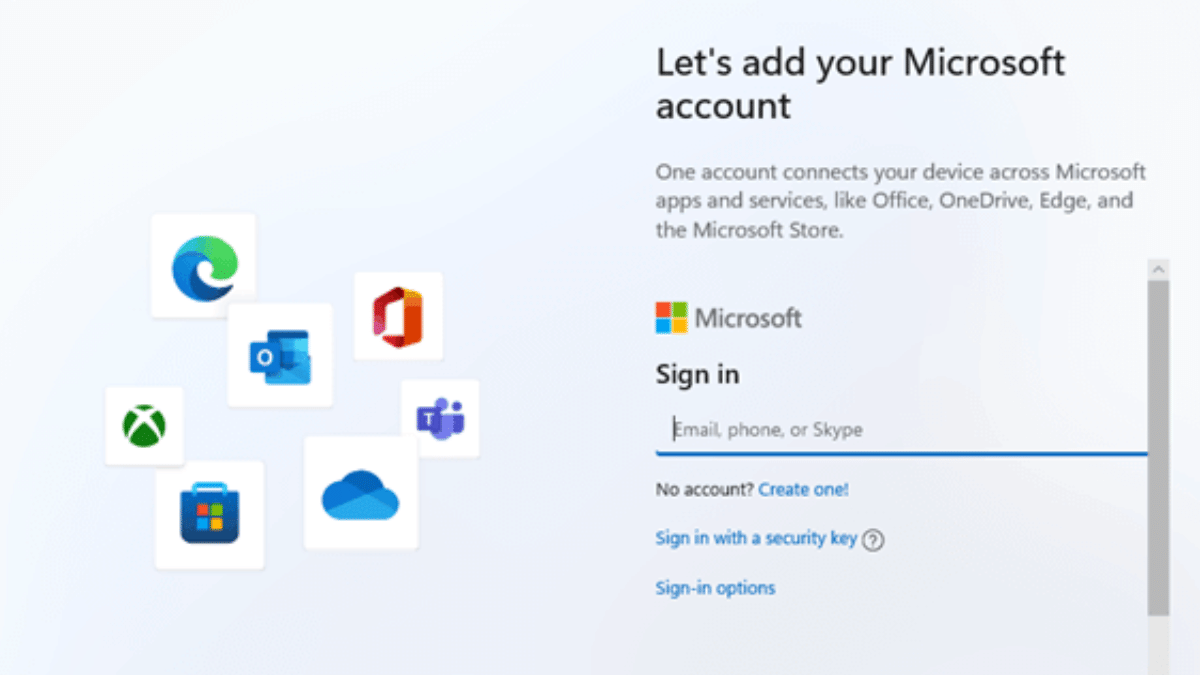
Step 4: Sign in to your Microsoft account. In the ‘Email, phone, or Skype’ box, enter your email address, phone number, or Skype username. Then press Next. Choose ‘Create account’ if you do not already have a Microsoft account.

Step 5: Create a PIN. It is not advised to use your Microsoft account password to login in if you don’t create a PIN. Select Create PIN to create a PIN.

Step 6: Select your privacy settings. Microsoft has every setting enabled by default, but you might want to have a look at them to see if there’s anything you want to turn off. Click the blue slider switch next to a setting to make it inactive. When finished, press the Accept button or tap to proceed.

Step 7: Customize your device. Click ‘Skip’ if you do not wish to customize your device.

Step 8: You might see some steps after this one that doesn’t apply to you. Only if you chose a certain customization option may some of the options shown in this article apply to you. You should skip any steps that you see that don’t match what you are viewing.

Step 9: Connect your phone to your laptop. To access it from your PC, you simply link your iPhone or Android device to your computer. Choose ‘Skip for now’ if you don’t want to connect your phone to your laptop.

Step 10: Whether or not to back up your files to OneDrive is up to you. The option ‘Only save files to this PC’ should be chosen if you don’t wish to backup your files. However, bear in mind that if you select this option, your files can be lost forever.

Step 11: Await the setup’s completion. Just be careful not to unintentionally shut off your PC. You will need to reinstall Windows otherwise.

Also Read | Windows 11 Laptop, PC Reset Guide: How To Perform System Reset Without Loosing Data

Run All Windows Updates

It’s likely that your laptop will automatically download a number of Windows 10 updates, so why not get it over with by forcing them to install manually?

Step 1: In the search box, type ‘updates’.

Step 2: Tap on ‘Check for updates’.

Step 3: If Windows doesn’t automatically search for updates, select the ‘Check for updates’ box. That’s all!

For the tech geeks, stay updated with the latest cutting-edge gadgets in the market, exclusive tech updates, gadget reviews, and more right on your phone’s screen. Join Giznext’s WhatsApp channel and receive the industry-first tech updates.

Categories
Laptop

Infinix Launched INBook X1 Neo Laptop With 14-Inch Display, 45W Type-C Fast Charging: See Price And Specifications

After launching two laptops in India, Infinix has announced the launch of a new laptop in India. The Infinix INBook X1 Neo will cost you Rs. 25,000 and designed for students. The laptop comes with an Intel processor and runs on Windows 11 operating system. The laptop supports 45W fast charging capabilities. So let’s find out the details of the newly launched laptop.

Infinix INBook X1 Neo Laptop: Specifications And Features

Infinix InBook X1 Neo Laptop

The Infinix InBook X1 Neo comes with a 14-inch Full HD screen, 300 nits of peak brightness, and 100% sRGB. Besides, the laptop is powered by Intel Celeron N5100 quad-core processor and paired with 8GB of RAM. There is also a 256GB NVMe PCle 3.0 SSD storage option.

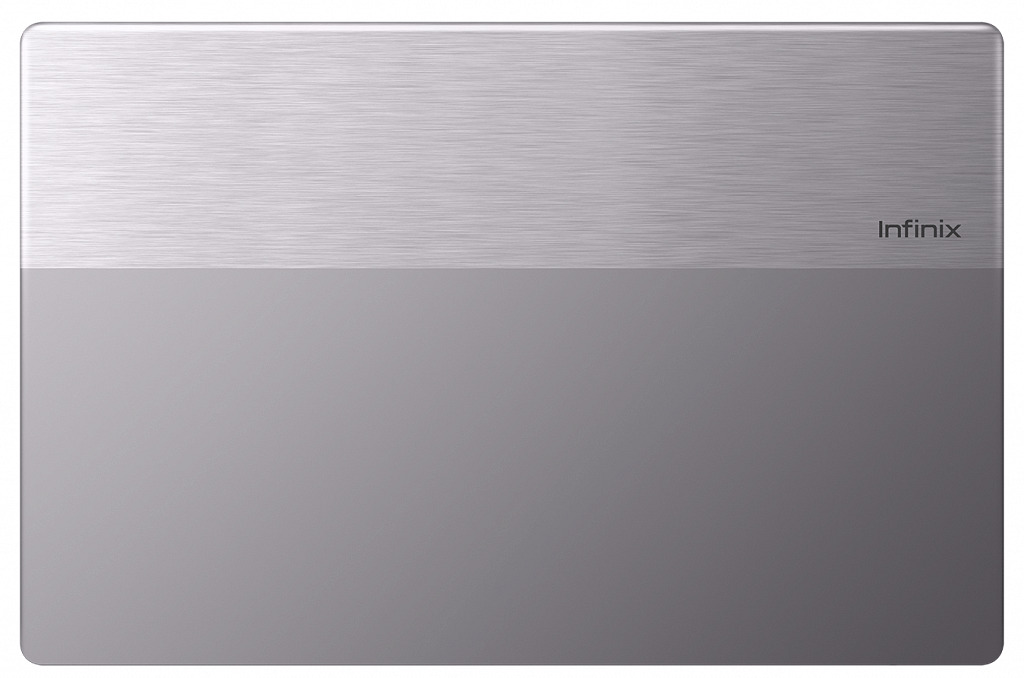
On the design front, the laptop features an ultra-durable aluminum alloy-based metal body. Also, the laptop is 14.8mm thick and weighs 1.24 Kg. Moreover, the laptop comes with a 50Whr battery that is expected to last for one day.

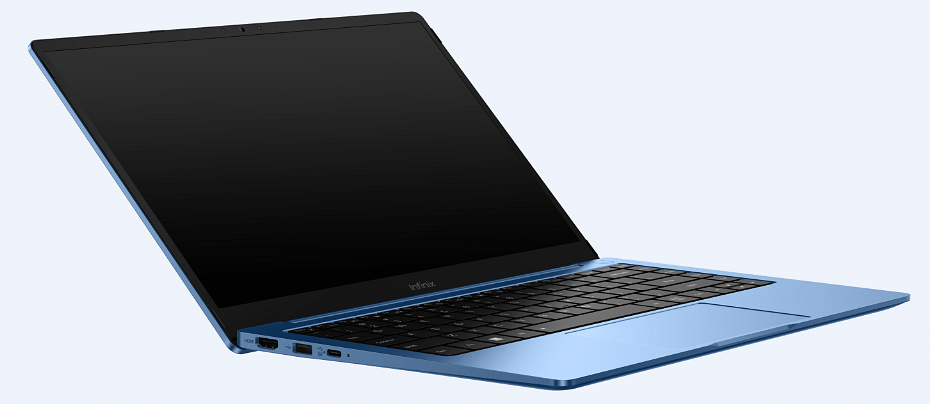
You will also find 45W Type-C fast charging, an SD card slot, HDMI port, two USB Type-A, two USB Type-C, and a headphone jack. In addition, the laptop features dual starlight flash on the front camera, a DTS sound system, a backlight keyboard, and Windows 11 OS.

Infinix INBook X1 Neo Laptop: Price And Availability In India

Infinix InBook X1 Neo Laptop

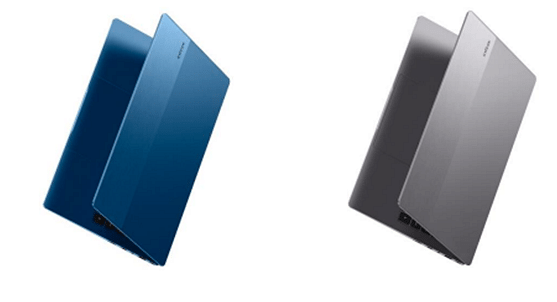
The 8GB RAM and 256GB SSD storage variant of the INBook X1 Neo will cost you Rs. 24,999 and will be on Flipkart from July 21st. The newly launched laptop comes in two color options such as Blue and Silver.

Categories
Featured How To Info Laptop

Google Meet Hacks: How To Change/ Update Google Meet Name Using A Laptop Or PC?

The need for online video conferencing tools and applications skyrocketed in the last few years. Specifically with the pandemic situation due to the COVID-19 outbreak which restricted outdoor meetings and gatherings. Most industries and organizations routed to the remote working module. Tools and applications such as Google Meet, Microsoft Teams, and Zoom are some of those applications that have been helping the team members globally with online video conferencing.

Google Meet is currently amongst the most commonly used applications for video conferencing. It is loaded with user-friendly features that improve the user experience with group video calls. This application has wide compatibility with mobile devices as well as laptops/ PCs. A dedicated app has been made available by Google for Android and iOS users.

Desktop users also need to manually download Google Meet on their respective devices for online conferences. And to use its services, you would initially need to create a profile. The display name is one important factor that helps members in a meeting to know who all are attending the online conference.

We earlier helped you with the steps to download and use the Google Meet application on your laptops and PCs. In this article, we will be guiding you with the procedure to change the name on Google Meet using the desktop version on any laptop or PC. Read on the steps below:

What Is The Procedure To Change Google Meet Name On Laptop/ PC?

It might be a bit tricky procedure to update or change your name on the Google Meet application using a Laptop or PC. This is due to the fact this application comes void of any dedicated tab or settings that let you change the display name on the Google Meet application. You can perform the following workaround to get it done.

Step 1: Open any web browser on your respective laptop or PC.

Step 2: In the address bar, type www.myaccount.google.com. You can also directly open the Google Account settings from the browser.

Step 3: Locate the Personal Info tab placed on the upper left corner of the account settings page.

Step 4: Go to the Basic Info section.

Step 5: Tap on the “Name” option.

Step 6: Enter your first and last name.

Step 7: Click on Save to confirm the changes.

Once the changes are saved the updated name will be displayed across all your Google services including Google Meet.  

Categories
Featured Info Laptop Smart Watch Tablet

Amazon Prime Day Sale 2022: Best Offers On Smartwatches, Laptops, Tablets, And More

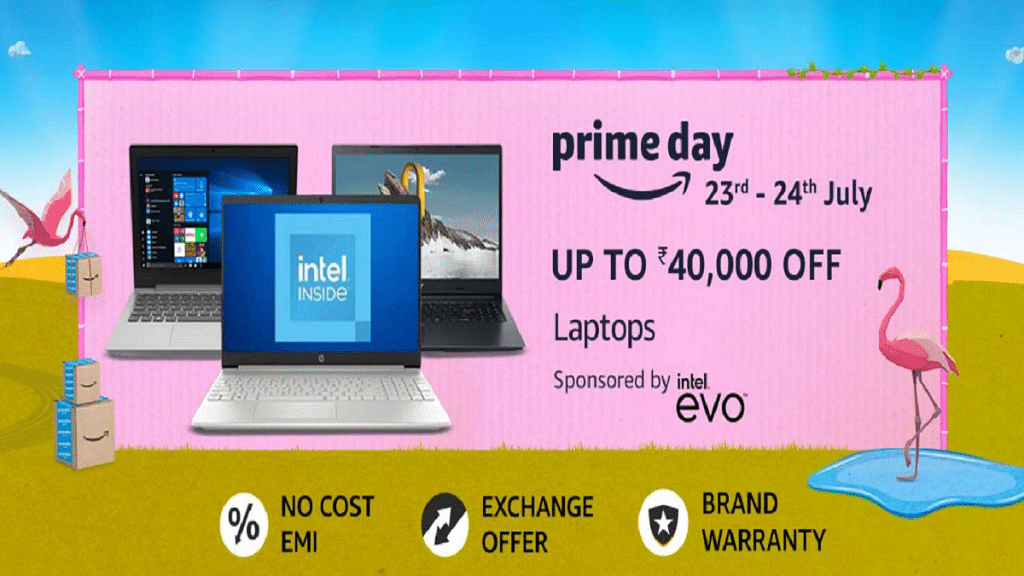
Amazon Prime Day sale begins in India on July 23, 2022. The two-day sale event promises to offer hundreds of great discounts on a variety of products. Amazon Prime Day is the company’s annual discount event for Prime members. During the Prime Day 2022 sale in the country, you can anticipate discounts and package deals on laptops, tablets, printers, and other electronics products.

During the sale period, ICICI bank cards and SBI bank credit cards will be discounted by 10%. Up to Rs. 20,000 in product savings and six months of free screen replacement are also available to Prime members. These electronic products, including smartwatches, laptops, tablets, and more, will be offered at huge discounts throughout the sale.

Top Deals On Smartwatches

The Amazon Prime Day sale will feature some amazing discounts on smartwatches from top brands like Apple, Samsung, Garmin, and others. During the Prime Day Sale 2022, they will be offered at a massive discount of up to 75%. You can purchase your preferred wearable and monitor your health.

Huge Discounts On Laptops

You will be spoiled for choice as there are so many options for laptops from different brands. If you’re interested in purchasing a new laptop, Amazon is currently offering a discount of up to Rs. 40,000 on laptops from well-known brands like Acer, Asus, Lenovo, and others. They are available at incredibly low prices.

Best Offers On Tablets

You can get tablets for less if you need one for studies or business purposes. There are many tablet options from popular brands that will be available at heavy discounts during the upcoming Amazon Prime Day Sale 2022. You can get amazing discounts on several tablets made by brands like HP, Lenovo, Samsung, Apple, and others.

Great Deals On Printers

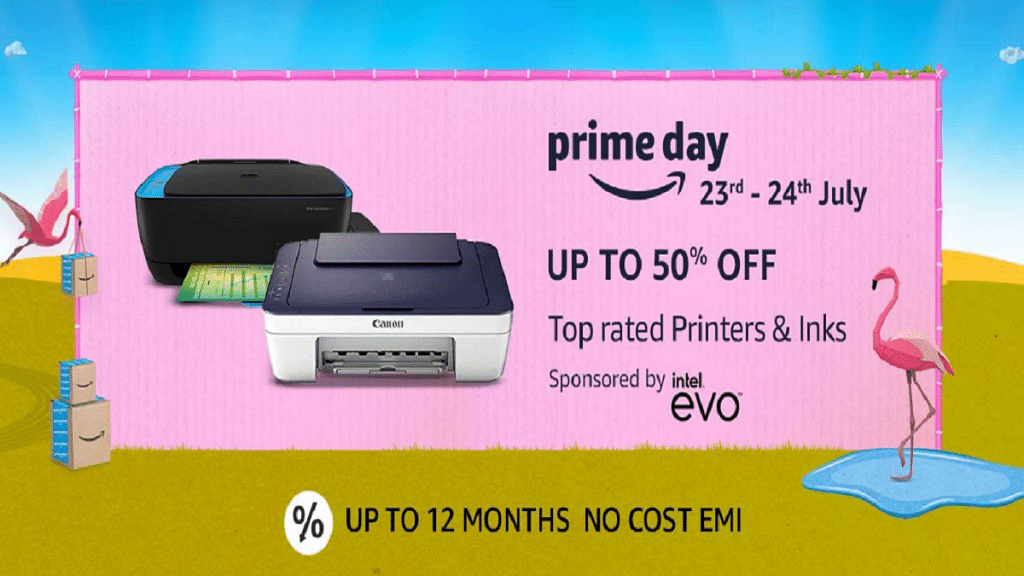
These days, printers are used commonly in offices, schools, shops, and homes apart from other places. If you are in plans to buy printers, then you can get up to a 50% discount on the category. There are deals on color printers, black & white printers, scanners, copiers, and three-in-one devices.

Notably, to shop and purchase discounts on Amazon Prime day sale 2022, you need to be a Prime member. If you are not a Prime member, you can get prime membership for Rs. 1,499 per year or Rs. 179 per month at amazon.in/Prime and enjoy benefits like free and fast delivery, ad-free music, unlimited video, exclusive deals, and more.

Categories
Info Laptop

HP Laptop New Buyers: How To Get 100GB Of Data Free With Reliance Jio SIM

Reliance Jio is known for providing new offers and benefits to its customers. In fact, the telecom operator has again brought an offer, where users will get 100GB of free data to a few customers. Notably, the company has announced the ‘HP Smart SIM Laptop’ offer.

Under this offer, the telecom operator is providing 100Gb of data that is close to Rs. 1,500 for 365 days without any extra cost to customers who are using Jio SIM while buying HP laptops along with LTE connectivity.

The company said that customers who are purchasing HP laptops along with LTE connectivity. The Jio SIM users will get 100GB of data for a year and once you exhausted your given data the speed will be decreased to 64kbps until the entire validity remains.

However, users are allowed to recharge their numbers with other data and prepaid packs via the My Jio application or Jio.com so that they can use their 4G speeds.

Reliance Jio And HP Smart SIM Laptop Offer

As far as eligibility is concerned, this offer is not available for all HP laptop users as this offer is available with model numbers HP 14ef1003tu and HP 14ef1002tu. In addition, the telecom operator said that buyers have to purchase laptops through Reliance Digital Store, which reliance digital. in or JioMart.com to be eligible for this offer.

Categories
Featured How To Laptop

Find The Serial Number Of Your Windows Laptop And Mac: Here’s How

Whether you use a Mac or a Windows computer or laptop, every device in your home has a model and serial number. It shows information such as purchases, manufacturing, or configuration details. If you wish to sell, trade-in, or give away your device, you’ll need these numbers. Additionally, you will require that serial number if you ever need to use your warranty to have the manufacturer repair your device. But where exactly are they located?

Your laptop has been given a special string of numbers and letters called a serial number. Every laptop has a unique serial number. So, while you might never need to know it, it’s still a good idea to know how to find the serial number of your Windows laptop or Mac. Here’s how.

How To Find Your Window Laptop’s Serial Number Via Settings

Checking the Settings page is the best approach to finding the serial number of your Windows computer or laptop. All you have to do is:

Step 1: Open Settings. (You can use Start to search or launch the app.)

Step 2: Tap ‘System’.

Step 3: Now select ‘Above’.

Step 4: You can see the serial number under Windows specifications.

How To Find Your Window Laptop’s Serial Number via Command Prompt

With this technique, we’ll use cmd to run a command that will reveal your Windows PC’s serial number.

Step 1: Open cmd prompt. (To open it, either search for it or use the Windows key + R)

Step 2: Enter the command “wmic bios get serialnumber” at the command prompt.

Step 3: The serial number is now shown underneath the command.

This is to be noted that you will be required to have a working Windows PC with you in order to run the commands.

How To Find Your Mac’s Serial Number

Serial numbers are printed or engraved on your iMac, MacBook, or Mac Mini’s underside. Without having to open or log into your device, this method is the quickest way to check your serial number. The FCC numbers and assembly information are located close to the regulatory markings which also include your Mac’s serial number. Other than this, you can follow the listed steps to check the serial number:

Step 1: Click the Apple logo at the top left corner of the screen.

Step 2: Then click ‘About This Mac’ to quickly open your Mac overview.

Step 3: Your Mac serial number will appear on the last line below Graphics. That’s all.

Categories
Featured Info Laptop

Love Playing Games? Check Out The Best Gaming Laptops Under Rs. 50,000

High-speed gaming on a tight budget? Seems impossible, doesn’t it? A few years ago, it was challenging to find the best gaming laptops within your price range. But today, one can get high-quality gaming laptops for optimal usage without burning a hole in your pocket.

There are several considerations to weigh when selecting a new gaming laptop. Which is the superior choice? What brand to go for? What should be the maximal configuration? Which one has the best laptop graphics card? Well, worry not, we are here to help you find the best gaming laptops available in India for Rs. 50,000.

Lenovo V15 AMD R5 15.6-Inch FHD Laptop

The Lenovo V15 comes with a 15.6-inch FHD display screen. It is equipped with the AMD Ryzen 5. With a clock speed of 2.1GHz, the laptop has 8GB of RAM and 1TB of hard disk storage. This gaming laptop is equipped with AMD Radeon RX Vega 8 graphics coprocessor. It further has Dolby Audio stereo speakers. Windows 10 OS is already pre-installed on the laptop. You can get the Lenovo V15 gaming laptop at Rs. 43,800.

Dell Inspiron 3505 15.6-Inch FHD Display Laptop

The Dell Inspiron 3505 features a 15.6-inch-high screen resolution and LED display. The laptop comes with 1 TB high HDD storage, 8 GB RAM, and AMD Radeon Vega 8 graphics for entry-level gaming. Along with HDD storage, it also features a 256GB SSD. The gaming laptop further runs on Windows 10. It is backed by three connectivity ports. The Dell Inspiron 3505 gaming laptop is available for purchase at Rs. 50,180 on Amazon India.

ASUS VivoBook Flip 14 TP412FA-EC372TS Intel 10th Gen Core i3-10110U 14-Inch Gaming Laptop

The Asus VivoBook Flip comes with a 14-inch screen with an 82 percent screen-to-body ratio and a stepless 360-degree metal hinge. It is powered by a 10th Generation intel core i3 dual-core processor with a 2.1GHz base speed expandable up to 4.1GHz. This gaming laptop has 4GB RAM expandable up to 12GB and 512GB storage expandable up to 1TB. As for security and easy login, it features a fingerprint sensor. The Asus VivoBook Flip 14 can be purchased for Rs. 48,990 in India.

HP 15 10th Gen Intel Core i3 Processor Gaming Laptop

The HP 15 features a 15.6-inch FHD screen. It runs on the powerful Intel Core i3-10110U processor with a high clock speed. This gaming laptop has a large 1TB HDD storage, blazing fast 256 GB SSD, and 8 GB RAM. It can be expandable up to 16GB. Intel UHD Graphics power the laptop. Further, it has a decent battery life of eight hours. The HP 15 gaming laptop will cost you Rs. 43,799.

Acer Aspire 3 Core i5 11th Generation Processor 15.6-Inch Full HD Ultra Slim Thin And Light Laptop

The Acer Aspire 3 features a 15.6-inch screen. It has a high 8GB RAM perfect and 1TB HDD storage. This laptop runs on Windows 10 Home. It is backed by Intel core i5-1135G7 processor 11th generation. Additionally, the high resolution, vibrant graphics, anti-glare display, and ergonomic keys further guarantee lag-free gaming and daily computing. You can buy this gaming laptop on Amazon for Rs. 49,999.