Categories
Featured How To Laptop

Gmail Useful Tricks: How To Add, Customize Digital Signatures On Gmail

Among Google’s wide range of online services for the masses is Gmail. The email service from the search giant is being used by professional as well as general users across the globe for online communication. Google has improved Gmail’s services to make it a mainstream emailing giant and rival up against Outlook and other prominent email services.

One of the recent features introduced by Gmail is offline mailing support. We have covered how you can use Gmail’s email services offline services in one of our tips and tricks articles. This is another step-by-step guide article where we will explain the method with which you can add your digital signature to Gmail.

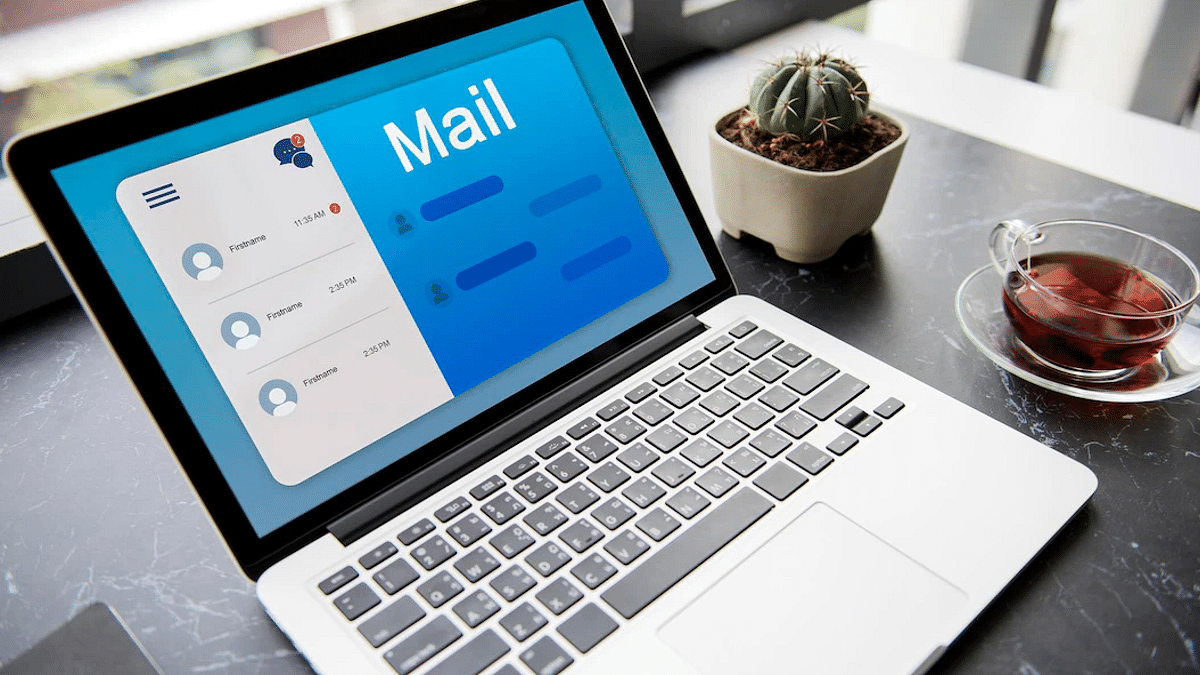
For the unaware, you can add an email signature in Gmail just like on Outlook and other major email services. Google lets you add a text comprising your contact information or even a favorite quote as your digital signature that will be added automatically as a footer after every email. If you wish to know the steps, take a look below:

Steps To Add A Digital Signature In Gmail

Step 1: Go to the Gmail website or open the Gmail app on your respective smartphones.

Step 2: Tap on the Settings menu placed on the top right of the Gmail home page.

Step 3: Scroll down to the “Signature” tab.

Step 4: A new box will open where you can add the text you wish to set as your digital signature. You can also add an image along with the text and also customize the font as per requirements. Just for reference, the word limit set for a digital signature on Gmail is 10,000 characters.

Step 5: Once you have added the desired signature, click on Save Changes from the bottom.

That’s the easiest way with which you can add your signature on Gmail. But Google doesn’t stop here and has made the signature feature more advanced with Gmail. You don’t have to set one single signature for all emails, but you also get the provision to add a customized signature for different email addresses on Gmail.

For this, you would need to use the Send Mail feature. If you are already using the “Send mail as” feature on Gmail, you get the option to add a different signature for each address.

Step 1: Open Gmail and go to the Settings menu.

Step 2: Right above the signature box, you’ll see a drop-down menu to select an address.

Step 3: You can also open the Accounts and Import settings page if you don’t see the drop-down menu for the address.

Step 4: Just select the address from the “Send Mail as” section and add the signature.
Categories
Featured Laptop Leaks

Xiaomi Notebook Pro 120G Is Coming To India On August 30: Features, Price, And More

Key Highlights

  • Xiaomi is set to launch Notebook Pro 120G laptop in the Indian market
  • It will feature a 2.5K resolution display
  • Xiaomi hasn’t given up a lot of information yet

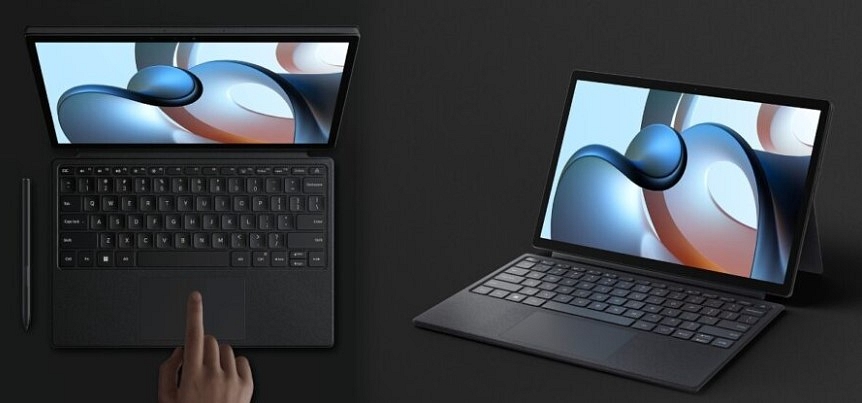
The Xiaomi NoteBook Pro 120G laptop is all set to launch in India on August 30. This new laptop is an upgrade to the existing Mi Notebook Pro launched in 2021.

The Xiaomi Notebook Pro 120G will come with a fast 120Hz display along with a 2.5K resolution and 12th Gen Intel Core i5 H-series processor. it will feature NVIDIA’s GeForce MX550 graphics. Besides, it seems that the design will remain largely the same as its predecessor. Here’s all you need to know:

Xiaomi Notebook Pro 120G Specifications (Expected)

The Xiaomi NoteBook Pro 120G will feature a 2.5K resolution and a quick 120Hz display. The laptop’s NVIDIA GeForce MX550 graphics and 12th generation Intel Core i5 H-series CPU have also been confirmed. The Xiaomi NoteBook Pro 120G will likely have the same design as its predecessor.

According to sources, the Xiaomi Notebook Pro 120G will have a faster display, CPU, and graphics. However, additional information from sources claims that the laptop is missing an extra USB Type-A connector. Apart from this, there isn’t a lot of information available about the NoteBook Pro 120G from Xiaomi.

Xiaomi Notebook Pro 120G Price (Expected)

Xiaomi NoteBook Pro 120G is expected to be priced similar to the Mi NoteBook Pro, which costs around Rs. 53,999 with an 8GB RAM and Intel Core i5-11300H CPU. However, the company has not yet provided any information on the laptop’s price.

Mi Notebook Pro (2021): Specifications

The Mi Notebook Pro sports a 14-inch, 2.5K display and has an all-metal unibody design. The screen has a 16:10 aspect ratio and a 60Hz refresh rate maximum. It further supports 100 percent of the sRGB color gamut.

Additionally, the laptop has an 11th Gen Intel Core i5-11370H CPU, which can be combined with up to 16GB of 3200MHz DDR4 RAM. It has 512GB of NVMe SSD storage in addition to Intel Iris Xe graphics. The Intel Core i5-11300H processor model is presently sold by Xiaomi in the Indian market.

The Mi laptop has a 70WHr battery and supports 65W USB Type-C charging. It also has USB Type-C, Thunderbolt 4, HDMI, and other connectivity options.

Categories
Featured Info Laptop

Asus In For A Treat For Creative Laptop Users: Brings Premium Range Of Zenbook, Studiobook, And Vivobook In India

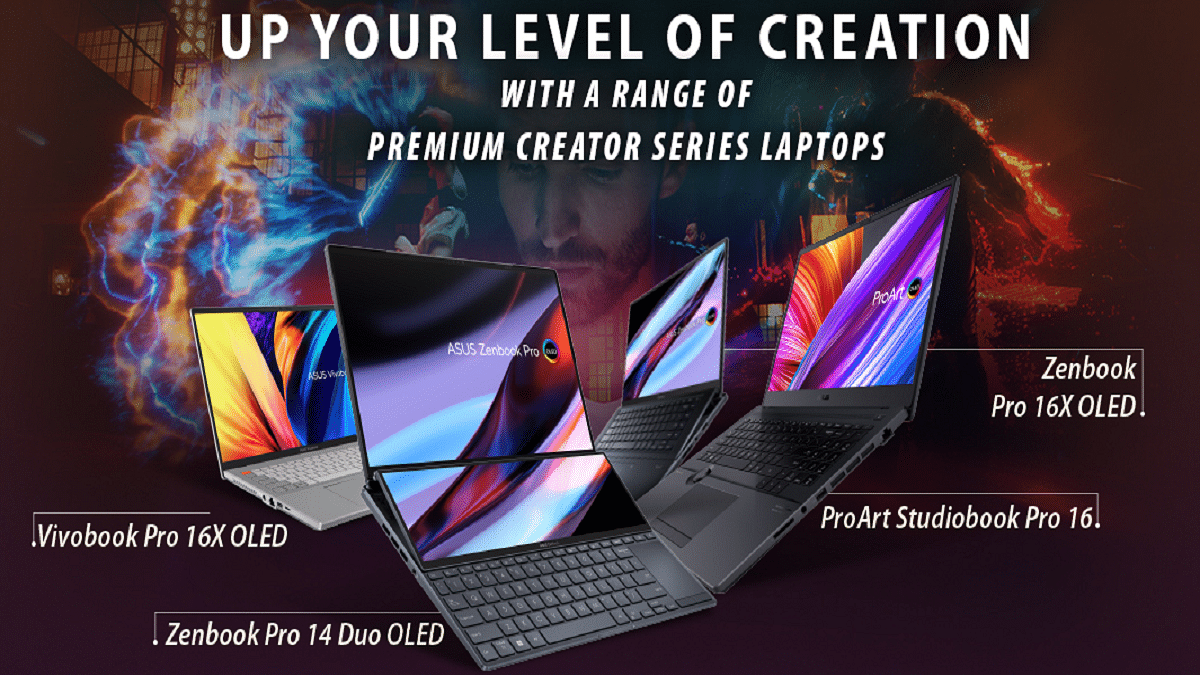
Asus released six new Creator Series laptops for the Indian market. Creator Series devices are equipped with novel designs and cutting-edge technology that give unmatched aesthetics, powerful performance, and a seamless user experience. They were created to meet the growing need for creative professionals, designers, vloggers, and artists.

Zenbook Pro 14 Duo OLED

The new Asus Zenbook Pro 14 Duo OLED has a 14-inch 2.8K OLED touchscreen display with a refresh rate of 120Hz. Additionally, the device makes use of a 4GB NVIDIA GeForce RTX 3050 Ti GPU (4GB). It supports 12th Gen Intel Core i9, i7, and i5 processor capacity and comes with up to 32GB RAM and 512 GB/1TB storage. The Asus Zenbook Pro 14 Duo OLED’s price starts from Rs. 1,44,990 in India.

Zenbook Pro 16X OLED

The Zenbook Pro 16X OLED carries a 16-inch 4K OLED touchscreen panel that offers a refresh rate of 60Hz as well as stylus support. Available in two processor variants, the device will have a 12th Gen Intel Core i9 with 32GB RAM and i7 with 16GB RAM. For graphics, it packs a 6GB NVIDIA GeForce RTX 3060 GPU. In addition to this, the device will come with 1TB of storage. The starting price of the Zenbook Pro 16X OLED is Rs. 2,49,990.

ProArt Studiobook Pro 16 OLED

Asus ProArt StudioBook Pro 16 OLED comes with a 16-inch OELD display with 4K resolution, 16:10 aspect ratio, HDR support, and 100 percent DCI-P3 color gamut. This laptop runs on the 12th generation Intel i9 processor. The device further has an NVIDIA RTX A3000 GPU with 12GB GDDR6 VRAM for graphics support. The price of the Asus ProArt StudioBook Pro 16 OLED in India starts at Rs. 329,990.

ProArt Studiobook 16 OLED

The ProArt Studiobook 16 OLED sports a 16-inch 4K OLED display. The laptop is available in two variants, i.e., 12th Gen Intel Core i9 and i7 processors, and two graphic processors, i.e., NVIDIA GeForce RTX 3070Ti with 8GB memory and 3060 with 6GB memory. The device further supports up to 2+2TB storage with support for up to 64GB RAM. The price of the ProArt Studiobook 16 OLED starts at Rs. 199,990.

Vivobook Pro 16X OLED

A 16-inch 4K OLED display, a 12-generation Intel Core i9 processor, up to 32GB of RAM, and NVIDIA’s GeForce RTX 3060 GPU are all included in the Vivobook Pro 16X OLED. It has an M.2 SSD expansion slot that can hold an additional 1TB SSD if needed. The price of the Asus Vivobook Pro 16X OLED starts at Rs. 159,990.

Vivobook Pro 15 OLED

The 12th generation Intel Core i7 processor, up to 16GB of RAM, and the NVIDIA GeForce RTX 3050Ti GPU power the Vivobook Pro 15 OLED. It comes with a 15.6-inch FHD OLED display and comes with fast 1TB SSD storage. The pricing of the Vivobook Pro 15 OLED starts at Rs. 89,990.

Categories
Featured How To Laptop

How To Check Available RAM Slots On Windows: A Step-By-Step Guide

How much RAM does your computer have? How about upgrading slots that are available? Well, having the option to add extra memory down the road will help you futureproof the device and improve its performance depending on your workload.

While Windows does give you all the information you require about your computer, finding what you need can be a difficult task for many. In this post, we have detailed a few ways to check available RAM slots in Windows laptops/PC. Let’s check them out:

How To Check RAM Slots Via Task Manager

Step 1: On your computer, launch task manager. Tap on ‘Task Manager’ by performing a right-click on the Windows icon in Windows 11. Simply right-click the taskbar in Windows 10 and tap on Task Manager from the menu.

Step 2: Click on ‘Performance’ once you open the ‘Task Manager’.

Step 3: Click ‘Memory’. On the bottom right, in front of the ‘Slots used’, you ought to see the available RAM slots.

How To Check RAM Slots Using System Information

System Information is another simple way to view the RAM specifications. All you have to do is:

Step 1: Click on the Start menu.

Step 2: Now, search for ‘System Information’.

Step 3: Click on the ‘Best match’.

Step 4: Scroll to find Installed Physical Memory (RAM) and Total Physical Memory.

This will provide you with all the essential details you require regarding your installed RAM. Using the System Information tool, you can also discover other PC system specifications.

How To Check RAM Slots Through Third-Party App

To view the available RAM slots, we’ll use the CPU-Z app. Using a third-party app like CPU-Z allows you to see a lot more information than just the RAM slots.

Step 1: Download and Install CPU-Z on your PC.

Step 2: Launch the CPU-Z app and click on SPD.

Step 3: Then, click on the drop-down menu under Memory Slot Selection.

This will show you the available RAM slots on your computer/PC. If you have four RAM slots, you will see four Slot#s, if you have two, you will only see two Slot#s. Using this app, you can also check the RAM type, frequency, etc.

Categories
Featured How To Laptop

Disable App Notifications In Windows 11: Here’s How To Do It

Notifications help people stay updated with everything that’s happening in the collection of installed apps and services on a Windows PC. But receiving what seems like a continuous stream of notifications can be daunting and exhausting. You have therefore come to the right place if you’re seeking for a technique to turn off notifications in Windows 11, say for a particular app or the OS as a whole.

Windows notifications are enabled by default on most Windows 11 PCs. However, some apps and websites may ask you to turn it on manually. This allows notifications to be sent even if the app is not actively open. These notifications can pile up and eventually become useless. In this article, we will help you learn how to turn off notifications in Windows 11 and reduce distractions like a pro.

Steps To Turn Off App Notifications In Windows 11

Nothing annoys anyone more than a machine telling its users what to do. Microsoft’s suggested notifications for Windows 11 feature promotion are sent out. Although this might be helpful for beginners, power users frequently find it unnecessary and forced. Here’s how to turn them off for good in Windows 11 if you don’t want to get distracted with suggested notifications:

Step 1: Tap the Windows start menu icon at the bottom to get started.

Step 2: Now, click on ‘Settings’.

Step 3: Then, click on ‘Notifications’.

Step 4: Locate the app you want to stop receiving notifications for by scrolling down and looking for it.

Step 5: Now, on the right side, tap where it reads ‘On’ to turn off your notifications.

Step 6: Simply scroll up and click the button next to the word ‘Notifications’ to disable notifications for all apps.

In Windows 11, you can swiftly turn off app alerts for specific apps or for all apps. You can stay focused on the task that you are doing on screen by turning off notifications. We advise you to disable notifications only for certain irksome apps. For example, WhatsApp or Telegram apps like these may delay your work by continuously pushing notifications from channels and groups.

Categories
Featured Laptop Leaks

Xiaomi Book 14 Pro AMD Ryzen Edition Official Launch On August 8; Here Are The Expected Specifications

Xiaomi is among those few smartphone OEMs with quite a wide product catalog for consumer gadgets. The company started its venture in the laptop market with the Notebook Horizon series and since then has launched a bunch of other laptop models including the Xiaomi Book Pro 2022. The latest laptop model with Intel chipsets debuted alongside the Xiaomi 12s series last month itself. Seems like Xiaomi is now gearing up to introduce the AMD version of this laptop which would be called as the Xiaomi Book Pro 14 AMD Ryzen Edition. The upcoming Xiaomi tablet’s arrival detail has been confirmed along with some of the key features.

Xiaomi Book 14 Pro AMD Ryzen Edition Official Launch Details

Xiaomi will be expanding its laptop portfolio with the launch of the Xiaomi Book 14 AMD Ryzen edition. Xiaomi has announced the official launch of its next laptop will be hosted on August 8, i.e., tomorrow. Initially, the laptop would be introduced in China.

As of now, Xiaomi has not shared any information on the Xiaomi Book 14 Pro AMD Ryzen Edition’s arrival details for India and other global regions. The developments related to the same could possibly be confirmed post its China launch.

Xiaomi Book 14 Pro AMD Ryzen Edition Expected Spec-Sheet

Xiaomi has already confirmed a few crucial details related to the Xiaomi Book 14 Pro’s hardware details. This laptop variant will be arriving with AMD Ryzen 6000H processor instead of the Intel Core chipsets that are driving the Xiaomi Book Pro 2022 variant. Xiaomi is expected to launch the 14 Book Pro with 16GB LPPDDR5 RAM. The storage configuration would be 512GB PCIe 4.0 SSD.

 The brand has also shared the image of the upcoming laptop in the teaser poster that reveals an identical design to the Intel core variant.

The Xiaomi Book 14 Pro AMD Ryzen Edition is said to weigh around 1.5kg which is also the same as the Xiaomi Book Pro 2022 model. Furthermore, the AMD variant will also be designed using aviation-grade aluminum alloy. Xiaomi will be using a high-end CNC integrated craving process to design this laptop.

The Xiaomi Book 14 Pro will have a 14-inch display which will be an OLED panel with a 2.8K screen resolution and 90Hz refresh rate. The display on the upcoming laptop will feature 100 percent DCI-P3 color gamut and 600 nits peak brightness.

Categories
Info Laptop

Dell Laptop Battery Issue: Here Are Some Quick Ways To Diagnose Issues And Fix With Dell Laptops

Be it a portable smartphone or laptop, all such high-end consumer electronics gadgets are incomplete without powerful battery hardware. Dell which is the largest player in the laptop and computer markets is also well known for the powerful battery system it packs inside all of its product lineups; specifically, laptops. Dell laptops have one of the largest user bases and thanks to the brand’s wide service network getting them fixed in case of any issues is fast and reliable.

Dell generally uses Li-ion batteries to drive all its laptop lineups. Dell specifically designs battery for each of its laptop series and hence recommends replacing them with original units instead of generic and cheap counterparts. But if you are experiencing issues with your Dell laptop’s battery be its slow charging, fast discharging, or no charging at all, you can try using some basic fixes to avoid paying visits to service centers frequently.

Diagnose Common Issues With Dell Laptop Batteries

  1.  If suddenly your laptop stops recognizing to read the battery.
  2. You get a message stating the AC adapter is plugged in but not charging the battery.
  3. The battery percentage unit is not changing despite the laptop being plugged in for hours.
  4. The battery LED indicators blink in a different pattern than usual.
  5. If you notice rapid battery discharge.

What Can You Do To Fix The Battery Issues With Dell Laptop At Home?

Step 1: Check if the battery is damaged. If you don’t see any swollen battery then only proceed with the remaining steps. If somehow the battery is damaged, get it replaced from authorized Dell service centers.

Step 2: Check the AC adapter cable as well. Make sure there are no cracks or damaged wires and ports. Also, the LED should be glowing on the power adapter. Get a new power adapter from Dell if it’s not working properly. Also, always use compatible chargers and power adapters with your Dell laptop. Third-party chargers could do more damage to the battery or the laptop.

Step 3: Use a different power socket to see if the adapter is working.

Step 4: You can also check by charging the battery when the laptop is switched off. This might work in some cases.

Step 5: Run the battery health status and also install the latest BIOS for your Dell laptop if rquired.

Step 6: Test the battery performance by running the SupportAssist diagnostics. You might need to contact Dell support if the laptop fails with this test.

Categories
Featured Info Laptop

Asus Vivobook S 14 Flip, Zenbook 14 Flip OLED, And Vivobook 15 (Touch) Launched In India

Key Highlights

  • Asus unveils new laptops in India
  • The new lineup includes Asus Vivobook S 14 Flip, Zenbook 14 Flip OLED, And Vivobook 15 (Touch)
  • The starting price is Rs. 49,990

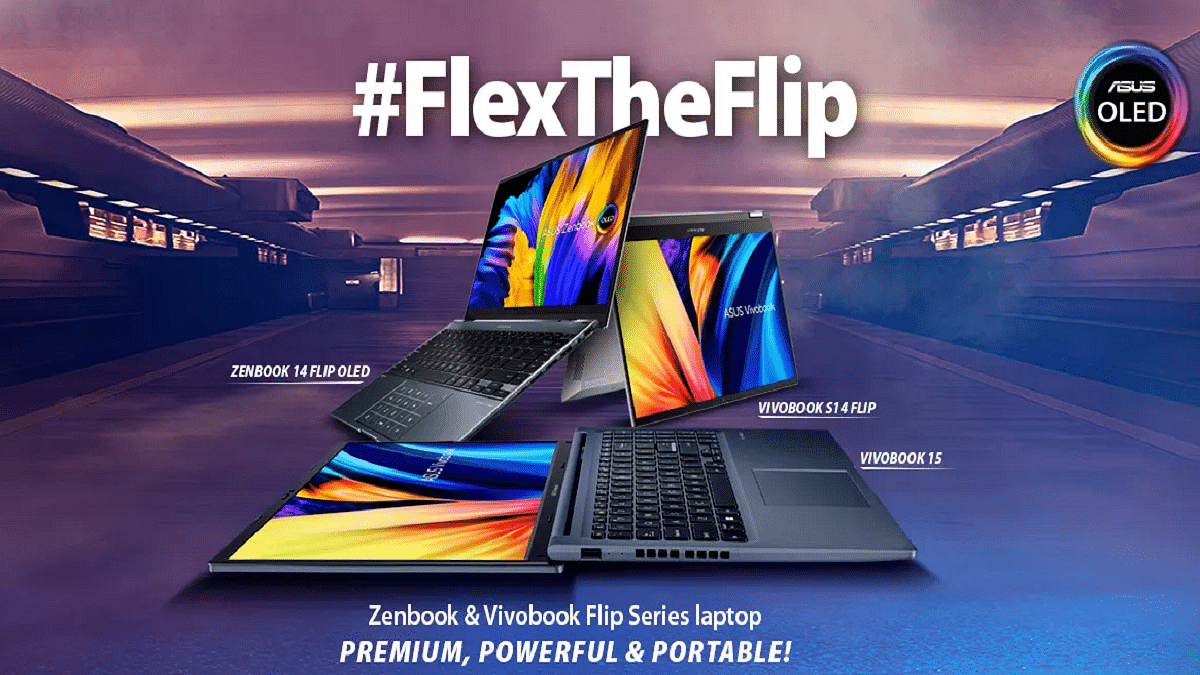
Asus introduced a compelling lineup of laptops today for the Indian market. Zenbook 14 Flip OLED, Vivobook S 14 Flip, and Vivobook 15 (touch) are among the new lineup of laptops. The new laptops, which have a starting price of Rs. 49,990, are stated to have compact and sleek designs, offer great performance, and enable users to multitask.

Asus Vivobook S 14 Flip

The 14-inch IPS panel on the Asus Vivobook S 14 Flip has a Full HD+ resolution of 1920 x 1200 pixels and a 16:10 aspect ratio. The touchscreen panel is 300 nits bright. Additionally, the laptop has been certified with TUF Rheinland for low blue light emissions.

The AMD Ryzen 5 5600H with AMD Radeon Graphics and the Intel Core i512500H with Intel Iris Xe graphics versions of the Asus Vivobook will both be available in India.

Asus Zenbook 14 Flip OLED

The Zenbook 14 Flip OLED is features 14-inch, 2.8K, 90Hz OLED touchscreen. It offers a screen-to-body ratio of 88 percent, a 16:10 aspect ratio, 550 nits of brightness, and a 4-sided NanoEdge design. The laptop can differentiate between 4,096 levels of pressure sensitivity and also enables stylus input.

The display of the Asus Zenbook 14 Flip OLED can be flipped to any position thanks to its 360-degree ErgoLift hinge. It has 16GB of LPDDR5 RAM on all variants and the most recent gaming-grade Intel 12th Gen H-series processors.

Asus Vivobook 15 (Touch)

Vivobook 15 is a sleek and lightweight device providing the experience of a 15.6-inches full HD screen with slim bezels with an immersive 82 percent screen-to-body ratio. The company claims that the Vivobook 15 is sleeker and lighter than its predecessors with an improved screen, a larger battery, and improved computing capabilities. The device’s overall weight has decreased from 1.9kg to 1.7kg.

Asus Vivobook S 14 Flip, Zenbook 14 Flip OLED, And Vivobook 15 Touch Price

The price of Vivobook S 14 Flip in India starts from Rs. 66,990. While the pricing for Zenbook 14 Flip starts from Rs. 99,990 and Vivobook 15 at Rs. 49,990 onwards. These newly launched Asus laptops will be available online and offline retail outlets such as Asus e-store, and Amazon.in, Flipkart, and Multi-Brand retailers.

Categories
Featured Info Laptop

Dell Wi-Fi Not Working? Here Are Some Quick Fixes For Dell Laptop/ PC Wireless Network Issues

Despite smartphones and tablets consuming the larger share of the consumer gadgets segment, Laptops and PCs still remain irreplaceable in most cases. That’s specifically with the complex tasks that can only be completed using a high-end computational machine. Dell is one of the largest players in the laptop market that has a wide catalog of laptop and PC lineups dedicated to gaming, general, and creative use.

Dell has a wide service network across India and is well known for its fast repair services. Dell laptops and PCs are equipped with the latest hardware technologies so that buyers get the best user experience throughout. Dell not just provides offline service repair but is also helping its customers through remote technical support. The latest laptop lineups from Dell are packed with the latest network technologies so that you get the fastest wireless and wired internet connection.

But while using your Dell laptop or PC, you would have come across certain scenarios where the internet speeds might slow down more than general. Also, in some cases, the Wi-Fi not connected error is frequent with Dell devices. What can be done when wireless internet connectivity is an issue with your personal or professional Dell laptop or PC? Here in this article, we will help you resolve the Wi-Fi network issues with Dell laptops and PCs.

Symptoms That You Need To Check With Your Dell Laptop/PC If Wi-Fi Is Not Working Properly

  1. If suddenly you are experiencing slow internet speeds and video buffer on OTT websites and YouTube is higher than usual, your internet isn’t working fine.
  2. If you are experiencing frequent disconnections or call drops with online conferencing apps, there might be some issues with the internet connection on your laptop or PC.

Quick Ways To Fix Wireless Networking Issues With Dell Laptops/ PCs

Step 1: Check your Wi-Fi connection with your respected laptops and PCs. Toggle on and off Airplane mode to restart the Wi-Fi connection. Keep the Airplane mode off to start the Wi-Fi network properly.

Step 2: Try placing your laptop or computer near the WiFi router. This will fix any wireless network range issues.

Step 3: Power off your Dell laptop and PCs and also the Wi-Fi router. You should wait for at least two to three minutes before switching the laptop/PC and the router. The internet connection should resume with good speeds.

Step 4: Try running the Windows Network Troubleshooter if the issue persists. The troubleshooter should resolve the Wi-Fi network issues.

Step 5: You can also try to fix the issue with Optimize Network option. You’ll be able to locate this option in SupportAssist.

Step 6: If in case the SupportAssist option is missing on your laptop or PC, download the wireless network drivers from www.dell.com/support/drivers.

Step 7: Now, you would need to run the SupportAssist diagnostics on your network adapter.

Step 8: You need to update the firmware of your router to fix any issues with the network.

Categories
Featured How To Laptop

Need Apple Customer Support For Your Mac Desktop Or Mac Notebook? Here’s How

Key Highlights

  • Mac Notebook users can troubleshoot their problems in a number of ways
  • Users can get in touch with Apple for extra assistance
  • Apple community is one of the most helpful technology communities

It doesn’t matter if you are new to Apple or an experienced Mac and iOS user—problems do happen. However, keep calm. You can easily troubleshoot your problems in a number of ways. On your Mac Desktop Or Mac Notebook, you can look up information right; get in touch with Apple for extra assistance. Additionally, the Apple community is one of the most helpful technology communities; all you have to do is ask. Also Read | Here’s How You Can Recover Lost Or Deleted Data In Windows 11 Laptops, PCs

How To Call Apple Customer Support By Phone

You can reach Apple customer service in India by calling 000800 040 1966. Be prepared to provide the serial number of your gadget when you call this number. When the customer support representative requests it, this will help you save time. To find your serial on a Mac computer, follow these simple steps:

Step 1: At the top-left corner of your screen, click the Apple icon.

Step 2: Tap on ‘About This Mac’.

Step 3: Now, you will see your serial number at the bottom of the pop-up window.

The customer service representative can help you if you need it, but there are alternative ways to locate the serial number of your Apple product.

How To Chat With Apple’s Customer Support

To chat with the Apple customer support team, all you have to do is:

Step 1: Go to getsupport.apple.com.

Step 2: Select the Apple service or product you need assistance with, followed by the problem you’re having.

Step 3: Finally, choose Chat and log in using your Apple ID or the serial number of your product.

Step 4: After you select Chat, a pop-up window will appear.

Step 5: You can start a chat with an Apple customer service representative by typing your issue in the text box at the bottom of the window.

If you forgot or don’t know your Apple ID, check out our step-by-step guide on how to reset your Apple ID on an iPhone.

How To Contact Apple Customer Support On Twitter

You can also contact Apple Support through the @AppleSupport Twitter account. You can then select the envelope icon to send a private message. Apple’s Twitter customer service hours are 5 am to 8 pm daily.

Also Read | Effective Ways To Keep Dirt And Dust From Your MacBook Laptop At Bay