Categories
Featured How To Mobile

Apple iPhone eSIM: How To Convert Physical SIM To eSIM, Transfer eSIM/Physical SIM During And After New iPhone Setup?

Smartphones nowadays are all advanced with the brands embedding their new products with myriads of features for a better user experience. You can do all possible things if you own a modern generation smartphone right from gaming to photography and more. Even communication with these handheld gadgets isn’t restricted to just voice calls or texting. You get the option to make or receive video calls and also use dedicated messaging apps for voice and video calls using the internet.

Smartphone OEMs are also gradually routing towards adding an eSIM support instead of a physical SIM. This is one of the major changes that we have seen with smartphones; specifically, the new-generation models. Apple has also been integrating eSIM support with iPhones. The iPhone XS, iPhone XS Max, and the iPhone XR and above models are equipped with the eSIM feature. Just yesterday, we covered the procedure to set up and manage eSIM on iPhones.

This article is centered around the ways with which you can transfer your eSIM or physical SIM during setup. We also have mentioned the method to convert your physical SIM to an eSIM on iPhone and the steps to transfer a physical SIM or eSIM to a current iPhone after setup.

Steps To Transfer eSIM or Physical SIM While Setting Up An iPhone

 While setting up an iPhone, you will be asked to Transfer your Cellular Plan. This will be done in the Quick Start setup.

Step 1: You need to select the mobile numbers that you wish to transfer to the new iPhone during the setup process. Click on Continue from the bottom of the page. You can also select the option to decide later.

Step 2: You will see a set of instructions on the screen with which you can finish the setup process.

Step 3: Make the first call using your new iPhone. This is to check if you have active cellular connectivity before removing the cellular plan from the previous iPhone.

As soon as the cellular services are activated on your new iPhone, they will be discontinued from the old iPhone. You can then discard the physical SIM from your previous phone.

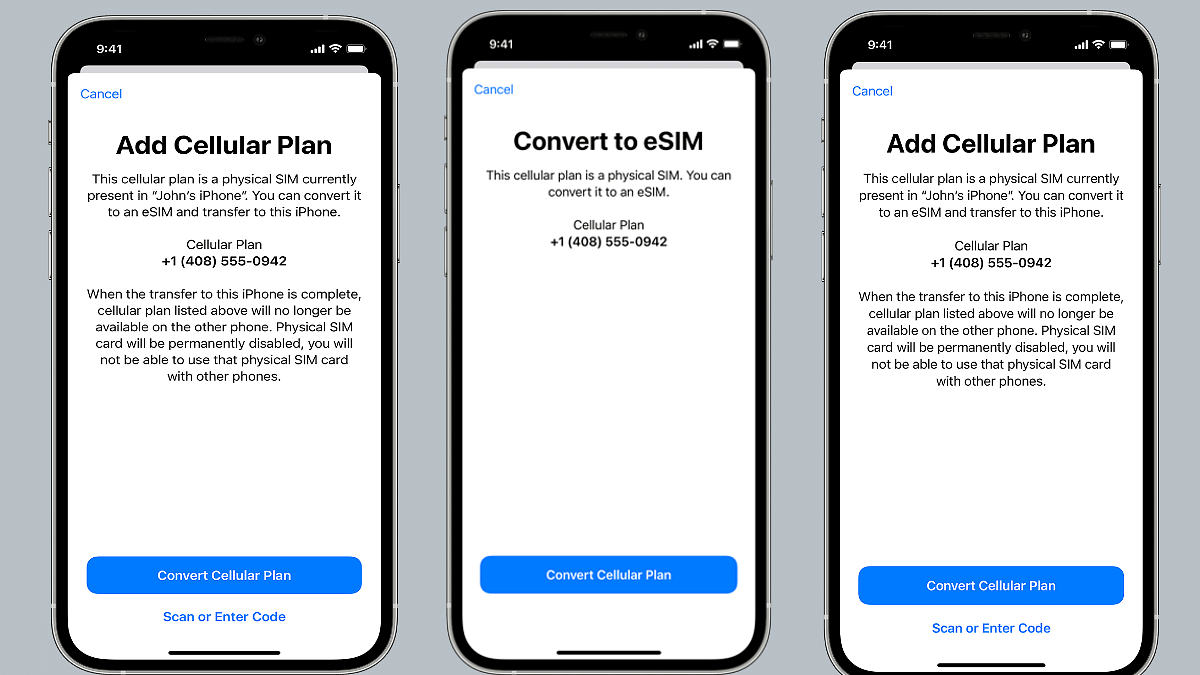
Steps To Transfer Physical/ eSIM On Your Current iPhone To eSIM On New iPhone Post Setup

Step 1: Unlock your iPhone and scroll to the Settings menu.
Step 2: Move to the Cellular option.

Step 3: Tap on Add Cellular plan option.

Step 4: Select the Convert Cellular Plan option.

Step 5: Click on the Convert eSIM tab.

Step 6: You will now need to hit the OK tab. A notification will pop up asking for transfer approval on the previous iPhone.

Step 7: Now, on your older iPhone, select the transfer option.

Step 8: You will have to wait for the eSIM to activate. Once it is done, you can remove the physical SIM from your iPhone.

Step 9: Now, wait until the cellular plan is activated on your new iPhone. The previous SIM card will be deactivated when the new cellular services are active.

Step 10: A new notification will show with Finish Setting Up Your Carrier’s Cellular Plan. Select this option.

Step 11: Click Continue and you will be redirected to the carrier webpage to transfer your eSIM.

How Can You Convert Physical SIM to eSIM On Same iPhone Model

Step 1: Open iPhone and scroll to the Settings menu.

Step 2: Click the Cellular option.

Step 3: Tap on Convert to eSIM.

Step 4: Tap Covert To eSIM in the next step.

Categories
Featured How To Laptop

How To Fix Wi-Fi Connection Issues In Windows 11: Check Steps Here

Key Highlights

  • Wi-Fi connectivity issues in Windows 11 are among the most frequent problems
  • It could be caused by a missing, out-of-date wireless network driver
  • Removing and reinstalling your Wi-Fi driver could be helpful

One of the most annoying problems you can experience is when your Wi-Fi stops working. And on Windows 11, Wi-Fi connectivity issues are among the most frequent problems. User complaints regarding slow Wi-Fi and error messages like “Limited Access” or “No Internet Access” are common.

Most likely, you are not connected to your network and are unable to access the internet if you are unable to access your email, browse the web, or stream music. Here are some things you can do to solve the issue.

Also Read | Here’s How You Can Recover Lost Or Deleted Data In Windows 11 Laptops, PCs

Method 1: Remove And Reinstall Wi-Fi Driver

Windows 11 Wi-Fi issues could be caused by missing, out-of-date, or damaged wireless network drivers since they frequently conflict with systems or devices. Therefore, removing and reinstalling your Wi-Fi driver could be a recipe for dealing with Windows 11’s Wi-Fi issue.

We advise you to make a restore point before moving further with the steps in case something goes wrong. With the help of a backup of crucial Windows operating system files and configuration settings, a restore point enables you to return the system to a previous time.

Step 1: Open the program by searching “device manager” in the Windows search box.

Step 2: Double-click Network Adapters. Select Uninstall device from the context menu when you right-click the WiFi driver.

Step 3: Click Uninstall in the pop-up Windows.

Step 4: Restart your computer. After that, it will automatically search your system for stored drivers (which might not be the most recent version) and install them.

Step 5: Reconnect the Wi-Fi and check for any improvement.

Also Read | Effortless Typing In Laptop/PC: Here’s How To Use Voice Typing Feature On Windows 11 To Type Without Keyboard

Method 2: Run The Network Troubleshooter

Windows comes with powerful troubleshooters by default. It can locate and resolve issues with the Internet, audio, printer, update, and many other things.

Step 1: Press the Windows key and ‘I’ to open the settings on your keyboard.

Step 2: In the System tab, search ‘Troubleshoot’ and select it.

Step 3: Tap on ‘Other troubleshooters’.

Step 4: Next to Internet connections, click “Run.”

Step 5: In the pop-up Windows, select ‘Troubleshoot my connection to the Internet’.

Your internet connection should be detected by the troubleshooter as it runs. Watch to see if it uncovers anything while you wait.

For the tech geeks, stay updated with the latest cutting-edge gadgets in the market, exclusive tech updates, gadget reviews, and more right on your phone’s screen. Join Giznext’s WhatsApp channel and receive the industry-first tech updates.

Categories
Featured How To Mobile

eSIM iPhone: How To Setup And Manage eSIM On iPhones, Install Assigned Cellular Plans

Smartphones are constantly evolving; specifically with the advancements in the tech field. The OEMs are embedding their devices with the newest of technologies for improved user experience with photography, gaming, and more. But communication is one prime usage of smartphones right from the beginning. Brands have been focusing to bring the fastest internet and better connectivity with mobile communication. Most of you must be using a SIM card from one of the telecom operators for calling, texting, or mobile internet.

Smartphone OEMs have started integrating the eSIM feature so that one can start using cellular services instantly after purchasing a new device. This can be done without inserting any other physical SIM card. The use of eSIM (electronic SIM) is on the rise and brands are adopting this new technology gradually for their product lineups. Apple is one of those smartphone brands that is going full-fledged with eSIM for its iPhones.

The iPhone X series including the iPhone XR, iPhone XS Max, iPhone 11 series, iPhone 12 series, and the iPhone 13 series are all enabled with the Dual SIM feature with which you can use both a physical micro or nano SIM card along with the eSIM for communication.

But do you know the procedure to set up an eSIM if you own any of these aforementioned Apple iPhone models? If now, we are helping you with the process to set up an eSIM on iPhones and also install an assigned cellular network. We have also listed the steps with which you can transfer an eSIM from one of your previous iPhones to a new one.

Steps To Setup An eSIM On Supported iPhone Models

By Scanning A QR Code

You can easily set up an eSIM on your iPhone by using the camera scanner.

Step 1: On your iPhone, launch the camera app.

Step 2: Scan the QR code for the eSIM.

Step 3: Once the scanner detects the Cellular Plan, a notification will pop up. Select it.

Step 4: From the bottom of the screen, click continue.

Step 5: Tap on the Add Cellular Plan option.

You will then receive a confirmation code using which you will be able to activate the eSIM. Now, enter the mobile number that your mobile carrier has provided.

Steps To Install An Already Assigned Cellular Plan On iPhone eSIM

Step 1: You will get a notification on your respective iPhones stating Carrier Cellular Plan Ready to be installed. Once you see this message on your iPhone, click on it.

Step 2: You would need to click on the Carrier Cellular Plan Ready to Be Installed from the Settings app.

Step 3: Now, click on Continue.

Step 4: To check the status of the cellular connectivity on eSIM, you can make a call. If in case, the call is not being placed, you would need to contact the dedicated mobile carrier.

Step 5: You can also remove the physical SIM, if the activated mobile plan replaces the one on the physical SIM.  

Notably, you can also enter the plan details manually for your eSIM. Follow the steps below for the same:

Step 1: Unlock your iPhone and go to the Settings menu.

Step 2: Select either Mobile or Cellular data.

Step 3: Click on Add Cellular plan option.

Step 4: Now, enter the required details manually.

Categories
Featured How To Mobile Tablet

How To Use Live Text On iPad, iPhone To Copy Text, Make Calls, Send Emails From Any Photo Or Image?

Apple uses an in-house custom interface for its products including iPhones, iPads, and Mac laptops. For the iPads, it’s the iPadOS which is renewed each year with new features and tools along with the new generation models. This year, the Cupertino giant has released the iPadOS 16 with numerous new user-oriented features and some major enhancements over the previous-generation iPadOS 15 OS.

The Live Text is among the sleuth of useful features available on the iPadOS. It is similar to the one available for the iOS 15 and above versions. The Live Text is one of the handiest features available for both iPad and iPhone users allowing them to copy and translate texts from any photo. Users can also make calls and send emails using the Live Text feature on iPads and iOS. That’s not it, the Live Text feature also makes it possible to translate language on the go.

So, how can you use the Live Text feature on Apple iPads and iOS to get information from any image, make calls and emails, and also translate language? You can follow the step-by-step guide below for the same. It is worth adding that you would need to first enable the Live Text feature on your respective iPads or iPhones. We already have covered the steps to activate the Live Text feature, you can read our previous coverage here. Let’s carry on with the further steps:

Steps To Copy Text Using From A Photo On iPads, iPhones Using Live Text Feature

Step 1: On your iPads/ iPhones, launch the Photos app. You can also open any image online.

Step 2: On the image, press and hold on the word and move the cursor to adjust the selection area.

Step 3: Select Copy option. If you wish to select the entire text in the image, you can click on the Select All option.

Step 4: Once you have copied the required text, you can paste in into any other app or can also share it with other users.

Step 5: You can also highlight all text in any photo or image by selecting it and tapping on the Live Text option from the lower right corner.

How To Make Calls Or Send Emails Using Live Text On iPad And iPhone

Step 1: Launch the Photos app on your iPad or iPhone to select any photo or use an online image.

Step 2: Click on the phone number or email address.

Step 3: You will see the Call or Send Message option. Click on the required option. Depending on the website, you will see additional options including Make a FaceTime Call or Add to Contacts.  

Steps To Translate Any Text Within A Photo Or Image

Step 1: Select the photo or image from the Photos app on your iPad or iPhone.

Step 2: You would now need to make the adjustments using the grab points.

Step 3: Now, from the list of options select Translate.

Step 4: Click on Continue and then select the language to which you wish to translate.

Categories
Featured How To Mobile

Apple iPhone 14 Series: Here’s How To Make Calls And Send Messages Without Cellular Network

Apple is all set to introduce new smartphone series on September 7th, 2022. The iPhone 14 smartphone series is expected to have low earth orbit (LEO) satellite communication connectivity, which might allow users to make calls and send messages in all areas, including those not come without cellular coverage, as per a new report. 

The report claims that the Cupertino- based tech giant is likely to launch its satellite connectivity feature to provide satellite connectivity to the iPhone. Besides, the company might join hands with Globalstar, according to Tim Farrar, a satellite communications consultant. 

For the unaware, Globalstar has a constellation of LEO satellites and Apple is likely to launch a smartphone with the same feature.

Apple iPhone 14 Smartphone Lineup: Details

The smartphone lineup will have Leo satellites, which will allow users to make calls and send the message without 4G and 5G connectivity. For the unaware, the upcoming launch comes with a title called far out.

The company is expected to launch iPhone 14 series, including iPhone 14, iPhone 14 Max, iPhone 14 Pro, and the iPhone 14 Pro. Plus, Apple is likely to bring new Watch series. 

Apple iPhone 14 Smartphone: Expected Specifications

The iPhone 14 series is likely to come with some improvements. The smartphone is expected to have a new design, a better camera, and many more. Plus, the iPhone 14 Pro and the iPhone 14 Pro Max will have better camera modules along with new internals.

In addition, it is expected that both Pro models will have a triple camera at the back, including a 48MP wide, 12MP ultra-wide, and telephoto lens. Besides, the upcoming iPhone 14 smartphone will have 8K videos. 

Plus, the smartphone might support 8GB of RAM and a 120Hz refresh rate display. It is important to note that the iPhone 13 model comes with a storage option of 128GB; however, the iPhone 14 model has only a 64GB storage variant. 

Apple iPhone 14 Smartphone: Expected Key Specifications

Apple iPhone 14 Pro
13 MP + 13 MP + 13 MP Rear camera
13 MP Selfie camera
3945 mAh Battery
Apple A14 Bionic 
 6 GB Processor
6.1 inches Display
Categories
Featured How To Laptop

Gmail Useful Tricks: How To Add, Customize Digital Signatures On Gmail

Among Google’s wide range of online services for the masses is Gmail. The email service from the search giant is being used by professional as well as general users across the globe for online communication. Google has improved Gmail’s services to make it a mainstream emailing giant and rival up against Outlook and other prominent email services.

One of the recent features introduced by Gmail is offline mailing support. We have covered how you can use Gmail’s email services offline services in one of our tips and tricks articles. This is another step-by-step guide article where we will explain the method with which you can add your digital signature to Gmail.

For the unaware, you can add an email signature in Gmail just like on Outlook and other major email services. Google lets you add a text comprising your contact information or even a favorite quote as your digital signature that will be added automatically as a footer after every email. If you wish to know the steps, take a look below:

Steps To Add A Digital Signature In Gmail

Step 1: Go to the Gmail website or open the Gmail app on your respective smartphones.

Step 2: Tap on the Settings menu placed on the top right of the Gmail home page.

Step 3: Scroll down to the “Signature” tab.

Step 4: A new box will open where you can add the text you wish to set as your digital signature. You can also add an image along with the text and also customize the font as per requirements. Just for reference, the word limit set for a digital signature on Gmail is 10,000 characters.

Step 5: Once you have added the desired signature, click on Save Changes from the bottom.

That’s the easiest way with which you can add your signature on Gmail. But Google doesn’t stop here and has made the signature feature more advanced with Gmail. You don’t have to set one single signature for all emails, but you also get the provision to add a customized signature for different email addresses on Gmail.

For this, you would need to use the Send Mail feature. If you are already using the “Send mail as” feature on Gmail, you get the option to add a different signature for each address.

Step 1: Open Gmail and go to the Settings menu.

Step 2: Right above the signature box, you’ll see a drop-down menu to select an address.

Step 3: You can also open the Accounts and Import settings page if you don’t see the drop-down menu for the address.

Step 4: Just select the address from the “Send Mail as” section and add the signature.

Categories
Featured Gaming Mobile

Best Gaming Phones To Buy In India Under Rs. 20,000

Typically, playing games on your smartphone is fun and interesting. Among the most played games by players are mobile games like Fortnite, FreeFire, and PUBG Mobile. These days, it’s all the rage for most people, and the main factor in that popularity is the fact that you no longer need the most expensive smartphones to enjoy gaming. The best gaming mobile phones under Rs. 20,000 are more than capable of providing a great gaming experience. Here is the list of best gaming phones you can opt for under Rs. 20,000.

Poco X3 Pro

The Poco X3 Pro is one of the top gaming smartphones under Rs. 20,000 thanks to its Qualcomm Snapdragon 860 processor. The chipset gives players a decent gaming experience. The smartphone has up to 256GB of internal storage and up to 8GB of RAM. Powered by a 5,020mAh battery, the handset runs Android 11 OS. The Poco X3 Pro can be purchased online for Rs. 16,999 in India.

Realme Narzo 30 Pro

The Realme Narzo 30 Pro sports a 6.5-inch Full HD+ resolution display. It supports a refresh rate of 120Hz and has a 20:9 aspect ratio. The device is powered by the MediaTek Dimensity 800U processor under the hood with 5G network support. It further has up to 8GB RAM and up to 128GB storage options to choose from. Besides, microSD cards of up to 256GB can also be used to increase the storage capacity. The Realme Narzo 30 Pro is available for sale for Rs. 16,990 in India.

iQOO Z3 5G

The iQOO Z3 5G features the Qualcomm Snapdragon 768G processor. This is coupled with up to 256GB of storage and 8GB of RAM. The handset is also rated IP52 dust and water-resistant. As for the display, the iQOO Z3 5G has a 6.58-inch IPS LCD screen with Full HD+ quality. It supports a refresh rate of 120Hz and a touch sampling rate of 180Hz. Funtouch OS 11.1 based on Android 1 powers the iQOO Z3 5G. The device will cost you Rs. 19,990 in India.

Categories
Featured How To Smart Watch

Apple Watch: Here’s How You Can Create And Share Watch Faces

Key Highlights

  • Apple Watch faces show time and info
  • You can share faces with others on watchOS 7 or later
  • Series 1 and 2 can’t receive shared faces

The Apple Watch’s backbone is its watch faces. Not only does it help you tell time, but you can also get all the important information you need at a glance by personalizing the faces and adding complications.

Additionally, you can share your Apple Watch face with anyone, including your loved ones and friends. The only prerequisite for sharing your preferred Apple Watch face is that the recipient must also have an Apple Watch running watchOS 7 or later. This implies that you are unable to exchange faces with someone still sporting an Apple Watch Series 1 or 2. In this article, we explain to you how to create and share your Apple Watch face with a friend or family. Let’s check it out.

Also Read | Want To Use Your Photos As Smartwatch Face? Here’s How To

How To Create A Custom Apple Watch Face?

Step 1: Touch and hold the screen, select the watch face you want to use, scroll through the options, or hit the ‘+’ icon to start again with a new watch face, then tap Edit.

Step 2: Swipe left to reach the finish if a watch face offers complications, which are displayed on the final screen. Some watch faces don’t have complications. And while some just provide one or two, others provide six or more.

Step 3: Toggle the Digital Crown to select a different complication if needed after tapping a particular complication to select it.

Step 4: Press the Digital Crown to save your selections once you’ve finished choosing any custom complications.

How To Share A Watch Face From Apple Watch?

Step 1: Ensure the watch face you wish to share is active.

Step 2: On your Apple Watch screen, long press the watch face.

Step 3: Click on the ‘Share’ button.

Step 4: Then, tap ‘Add Contact’.

Step 5: Now, click on the contact you want to send the watch face to.

Step 6: Tap the number you want for that contact.

Step 7: If you wish to add a message, click ‘Create Message’. Then, tap ‘Send’.

Also Read | OnePlus Watch 2R Alternatives: Top Three Picks For Your Next Smartwatch

How To Share A Watch Face From iPhone?

If you don’t want to share from your Apple Watch, you can always share your favorite watch faces from the Watch app on your iPhone. Here’s how to do it:

Step 1: From your Home screen, open the Watch app.

Step 2: Tap the watch face you wish to share.

Step 3: Click the ‘Share’ button.

Step 4: Tap the sharing method you wish to use. AirDrop, email, message, or other.

Step 5: Find the contact you want to send the watch face to and tap ‘Send’. That’s it.

Many watch faces require specific watch models. Specifically, some don’t work with Apple Watch Series 3 and require Apple Watch SE and Apple Watch Series 4 or later.

For the tech geeks, stay updated with the latest cutting-edge gadgets in the market, exclusive tech updates, gadget reviews, and more right on your phone’s screen. Join Giznext’s WhatsApp channel and receive the industry-first tech updates.

Categories
Info Mobile

Planning To Sell Old Or Used Smartphone: Here’s A List Of Top Websites

Smartphone companies are really active and keep launching devices daily. These devices are available in affordable, mid-range, and high-end segments. However, if you are looking for ways to buy new and sell a new old device, then you should look for these websites. Notably, these e-commerce websites provide decent prices.

Cashify

Let’s start, will a Cashify website that allows you to sell old phones and other gadgets. And, to sell old phones, you should know that the product should be in good working condition along with all accessories. Plus, you should have a valid bill.

Moswap

Moving to the Moswap application which also allows you to sell second-hand goods. In addition, the application enables you to get an extra discount than any other application. Also, the Moswap application allows you to sell iPad, Android, iOS, and computers. In fact, the app allows you to sell products in both working and non-working conditions.

Flipkart

It is important to note that India’s leading e-commerce website Flipkart also provides its users to sell old phones. The company has launched a program called the ‘Sell Back Program’. This program is for all products, which means the platform allows you to sell all products, including those not purchased from the same platform.

This program is currently available in only 1,700 PIN codes across India like Patna, Delhi, Kolkata, and many more. However, you need to know how to use this program.

Steps To Use Flipkart Sell Back Program

Step 1: You need to visit the Flipkart application and tap on the Sell back option. Then, you need to access the exact value of the old phones and answer three questions.

Step 2: After that, an executive from Flipkart will pick up the device from your place. Now, after the verification, the company will issue the voucher that has to sell back value.

Categories
Featured Info Mobile

Apple iPhone 14 Smartphone Series: Here’s How To Get It Cheaper

Apple is all set to iPhone 14 smartphone series and new products on September 7th, 2022. The Cupertino tech giant is planning to manufacture iPhone 14 in India after two months as the initial rollout will take place from China. However, this does not mean that Indian buyers will be benefitted.

It’s good to see Apple bringing its latest model to India for manufacturing that not only reinforces Apple’s India commitment but also adds a star to Make in India. This will also argue well with the exports story, especially after the implementation of PLIs. For consumers, however, it may not mean getting cheaper iPhone than those imported,” Faisal Kawoosa, TechArc founder was quoted by BGR.

However, if you still looking for ways to buy iPhone 14 at a lesser price, then you should explore countries like Canada, China, the UK, Dubai, the US, and Hong Kong. The prices of the iPhone 14 series are unknown, but still, iPhone 14 Pro might cost you $1,099, which is close to Rs. 87,838.12 and the iPhone 14 Pro Max is likely to be priced at $1,199, which is close to Rs. 95,830.67).

The iPhone 14 smartphone series will be available for pre-booking from September 9th, 2022; however, the sale will start on September 16th, 2022.

Apple iPhone 13 And 12 Prices Ae Expected Decrease: Details

It is important to note that the 128GB of the iPhone 13 that was launched last year was priced at Rs. 79,900. The same storage of the iPhone 13 mini started from Rs. 69,900. Notably, the iPhone 12 was launched at the same price in 2020.

How To Get iPhone 13 At Best Discount Offer

The iPhone 13 is expected to get at a huge discounted price as the company will launch iPhone 14 on September 7. The iPhone 13 smartphone series is available on Flipkart, Amazon, and the Apple India store. So, let’s take a look at the price of the smartphone series on all platforms.

iPhone 13 On Apple India e-Store: Details

The base model of the iPhone 13 is available at Rs. 79,900, while the 512GB variant will cost you Rs. 89,900 and the 512GB variant will cost you Rs. Rs 1,09,900. In addition, you will get EMI options on the devices.

iPhone 13 On Amazon India: Details

The Apple iPhone 13 will cost you Rs. 70,900, which is less than Rs. 9,000 from the MRP. In addition, you will get an exchange offer which is close to Rs. 12,750.

iPhone 13 On Flipkart: Details

The base model of the Apple iPhone 13 is priced at Rs. 65,999 on Flipkart.