Categories
Apps Info Mobile

WhatsApp To Stop Working On These iPhones: Here’s Why And List Of Models

Key Highlights

  • WhatsApp to drop support for iPhone 5, iPhone 5C
  • iPhones running iOS 10, iOS 11 will not be able to use WhatsApp
  • To continue using WhatsApp, users need to upgrade their devices

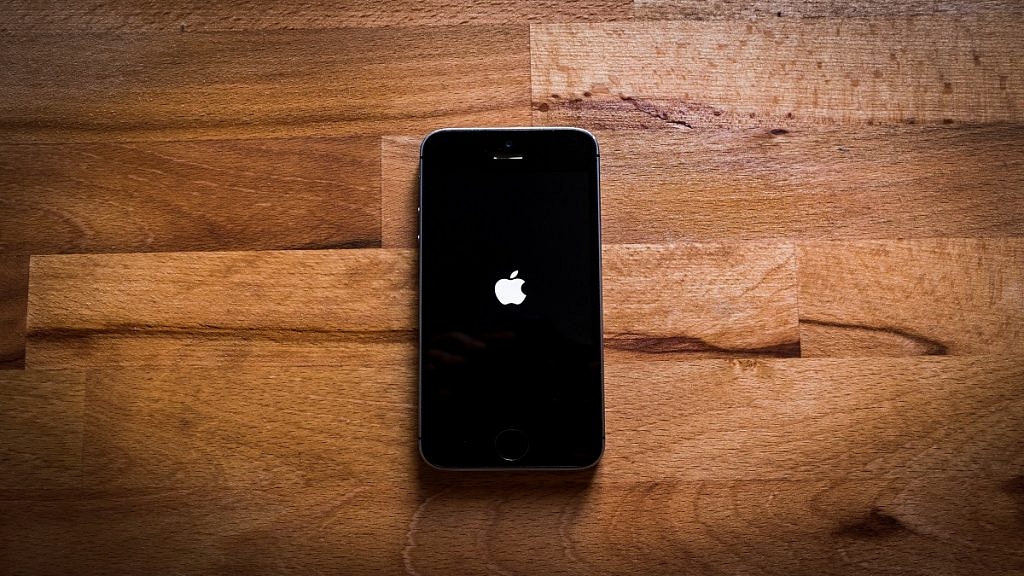
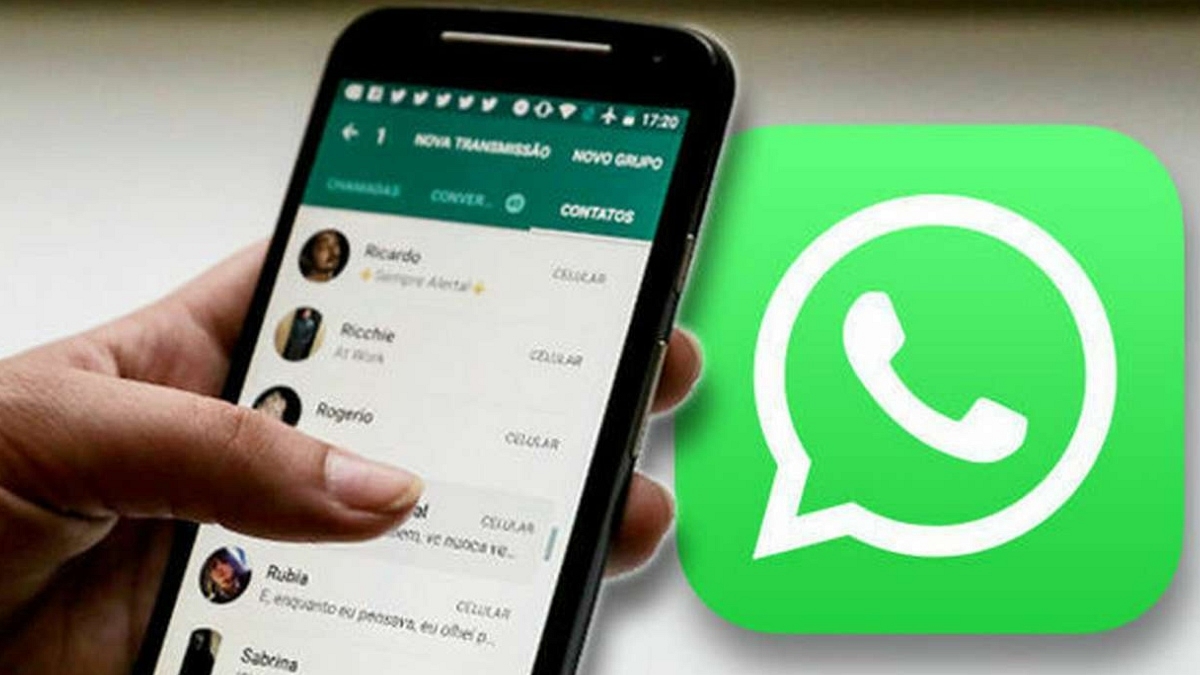
Do you use an iPhone? If so, you could end up in trouble. Here is a word of caution for many iPhone users. On select outdated devices, WhatsApp will stop functioning by October. It would prevent many users from using the Meta-owned messaging platform to send and receive media, messages, and other types of communication. Therefore, if you like using WhatsApp but have an older iPhone model, you need to update it.

Apple is reportedly alerting some iPhone owners that WhatsApp support for their handsets is ending, according to WABetaInfo. The messaging feature will no longer work on iPhones running iOS 10 and iOS 11. After that, WhatsApp won’t work on any of these older devices that don’t support iOS 12 or higher. This means anyone using an iPhone 5 or iPhone 5C will be blocked from accessing the messaging app after that.

In addition to this, there are numerous additional iPhone models that are not running iOS 12 or newer versions. These models are also in danger, but they can survive by updating their devices. The next software update, iOS 12 and higher is not compatible with the iPhone 5 and iPhone 5C.

As per the reports, the messaging app has started to inform iPhone users who are running iOS 10 or iOS 11 versions of the app. Users of the messaging service have already been informed via a message that they can no longer access the app on their smartphones.

The report has been shared by WABetaInfo, a WhatsApp development tracker. They have also shared a screengrab of a pop-up reading, “WhatsApp will stop supporting this version of iOS after 24 Oct 2022. Please go to Settings > General, then tap Software Update to get the latest iOS version.”

This isn’t a new thing for the Meta-owned app. This has happened in the past as well where WhatsApp also ended support for a list of Android phones running Android 4.0.4 or older versions. The platform says that such devices are not capable to work with the latest app versions and pose a threat to the user’s security.
Categories
Comparison Featured TV

Samsung HD Ready LED Smart TV Wondertainment Series Vs LG HD Ready Smart LED TV Vs Sony Bravia HD Ready Smart LED TV: Best 32-Inch Smart TV?

Key Highlights

  • The Samsung HD Ready LED Smart TV Wondertainment Series is perfect for families with children.
  • Comes with mega contrast, PurColor, and HD picture quality.

Unlike smartphones, TVs have significantly decreased in price, making the great new TV technology affordable to everyone. Additionally, three stand out among the various TV manufacturers on the market, i.e., Samsung, LG, and Sony. They set the bar for the best TVs out there with smart TV technology, high picture quality, a sleek and elegant design, and some pretty remarkable screen sizes.

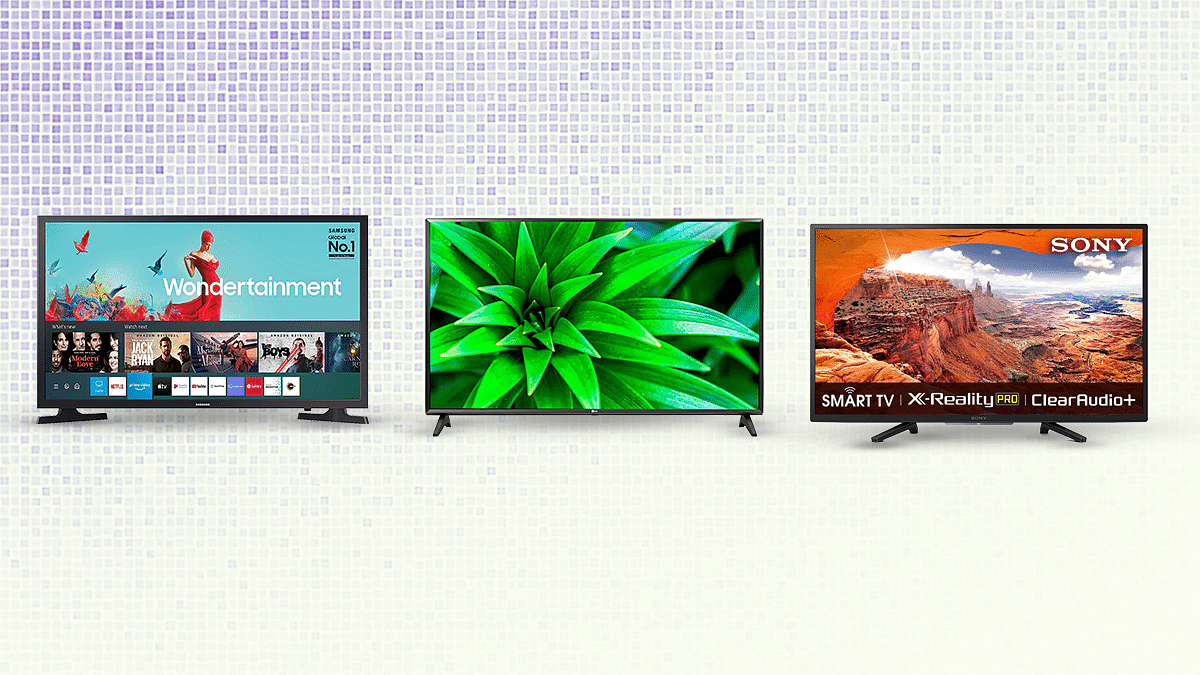
In this article, we are comparing three smart TVs, i.e., Samsung 32 Inches HD Ready LED Smart TV Wondertainment Series, LG 32 Inches HD Ready Smart LED TV and Sony Bravia 32 inches HD Ready Smart LED TV. Every brand has models that stand out in particular categories. But the bottom line? We’ll tell you here.

Design And Display

The Samsung HD Ready LED Smart TV Wondertainment Series sports a slim and stylish design. It has a 32-inch HD Ready (1366 × 768) LED panel with a 60Hz of refresh rate. The display further has mega contrast, PurColor, and HD picture quality.

On the other hand, the LG HD Ready Smart LED TV has a standard plastic frame style. If hung on a wall or even just placed on a flat surface, its wider and blockier shape takes up room. It is a 32-inch Smart TV with an HD resolution that is natively supported. This TV’s feature set is better than most entry-level 32-inch TVs.

Moving to the Sony Bravia HD Ready Smart LED TV, its design is more classical with narrow bezels on all four sides and an elongated chin underneath the company logo on the bottom bezel. It has a 32-inch panel with a resolution of 1366 x 768 pixels and a 50Hz refresh rate.

Also Read: LG India Launches OLED 2022 Smart TV Series: See Here For Price And Other Details

OS And Features

The Samsung HD Ready LED Smart TV Wondertainment Series comes equipped with features like voice assistants, SmartThings app, personal computer, home cloud, live cast, screen share, and music system. As for connectivity, it has two HDMI ports to connect the set-top box, Blu-Ray players, and gaming console. Also, it comes with one USB port to connect hard drives and other USB devices.

The Samsung TV has 20W sound output with Dolby Digital Plus. It further has Alexa built-in. Simply ask Alexa to play music, control smart home devices, find movies, get sports updates, and more.

On the other hand, the LG TV’s latest version of the operating system has received a webOS Notify feature that works like the notification feature on our phones. From texts, incoming calls, and emails, to software updates, you can check notifications right away. The LG TV’s AI ThinQ function is its most intriguing feature. The built-in AI features in this TV, according to LG, will handle more than 800 voice search requests. It includes three HDMI ports in total, including one HDMI ARC port, and one USB port.

The quad-core processor within the Sony Bravia HD Ready Smart LED TV has four ARM Cortex A55 cores and a Mali-G31 GPU. You get 1.5GB RAM and 16GB of internal storage, of which the OS and preinstalled apps use around half and the remaining third is left over for your use. Moving on to connectivity, this Sony TV has the majority of common input/output ports. A 3.5mm headphone jack, an optical audio out, coaxial A/V inputs, a LAN connector, and three HDMI ports, one of which supports ARC, two USB 2.0 ports, and other ports are included.

Also Read: Samsung HD Ready LED Smart TV Wondertainment Series Vs LG HD Ready Smart LED TV Vs Sony Bravia HD Ready Smart LED TV: Best 32-Inch Smart TV?

Verdict

All three models, i.e., Samsung HD Ready LED Smart TV Wondertainment Series, LG HD Ready Smart LED TV, and Sony Bravia HD Ready Smart LED TV, are priced under Rs. 30,000. However, the LG Smart TV is filled to the brim with premium features. A motion remote, HDR and other technologies like AI ThinQ are uncommon on low-cost TVs or any other models with a comparable price. The LG HD Ready Smart LED TV is a serious contender if you were looking to upgrade to a smart TV because it offers great value for the money along with a good picture and audio quality.

Categories
Featured How To Mobile

How To Check Number Of Sim Cards Registered On Your Name And ID: How To Block Unauthorized SIM Cards Issued On Your Name?

Key Highlights

  • Check and block linked SIM cards.
  • 18 SIM cards per ID/Aadhar.
  • TRAI’s portal for SIM verification.

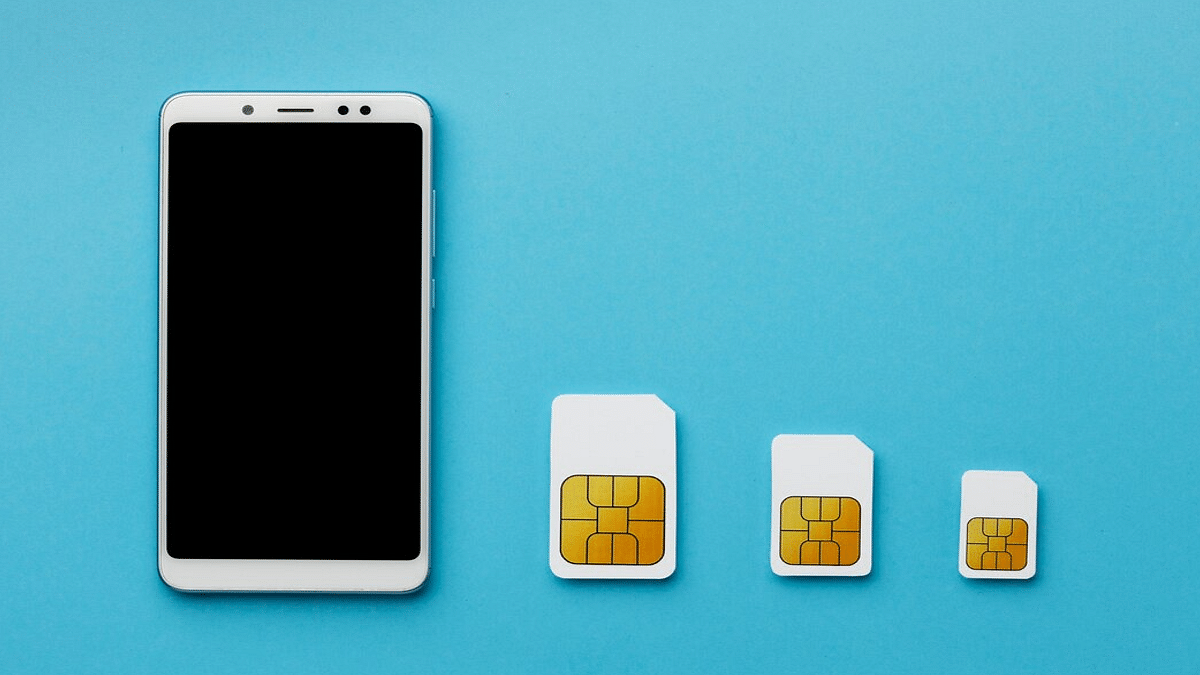
If you are a smartphone user, chances are you must be using one primary SIM card for your smartphone. If it’s a dual SIM phone, you might have two SIM cards from a single or different operator. But have you ever wondered if unauthorized SIM cards are issued in your name or ID cards? If yes, how many of them are there is one big query that every single user has.  

Safeguarding Against SIM Card Fraud With TRAI’s Dedicated Portal

This is one concern that is constantly rising amongst smartphone users with the increasing digital and cyber attacks. You might land in trouble if any fraudulent activity is being carried out using the SIM card issued under your ID and name that you are unaware of. And to check if any SIM card is issued on your ID or is linked to your Adhar Card, you don’t have to visit any operator store physically.

Also Read | Lost Reliance Jio SIM Card? Here’s How To Block And Resume Your Jio Number

You can easily check how many SIM cards are linked to your ID and block them using your smartphone or laptop/PC. This will not only save you time but also extra hassles and physical effort. Just for reference, the Telecom Regulatory Authority Of India (TRAI) has also certain guidelines set for SIM card registry in India. A user can have 18 SIM cards issued on the same ID or Adhar Card.

To minimize such fraudulent activities, TRAI has created a dedicated portal where you can not only check the exact number of SIM Cards registered with your ID and also block the ones you aren’t aware of.

Also Read | No SIM Card Error: How To Fix No SIM Card Detected/ SIM Toolkit Issue With Smartphones

How To Check The Number Of SIM Cards Issued On Your Name Or ID

Step 1: On your laptops/ PCs or smartphones, launch any web browser such as Google Chrome, Firefox, or Opera.

Step 2: Type www.tafcop.dgtelecom.gov.in and hit enter.

Step 3: Now, enter your primary mobile number on the home screen.

Also Read | Annoyed With Unwanted Calls On Your IPhone? Here’s How To Block Any Phone Number On iPhone

Step 4: Tap on the Request OTP option.

Also Read |Want To View Instagram Story Secretly Without Notifying Contacts Or Followers: Here’s How

Step 5: Now, enter the OTP that you have received on your primary mobile number.

Step 6: As soon as you complete step 5, you will see the list of the mobile numbers that have been issued on your Aadhar card or are linked to your name and ID.

Step 7: If you see any unknown mobile number, you can proceed to raise a complaint request to block it.

Also Read | How To Disable the ‘This Call Is Now Being Recorded’ Warning On OnePlus

How Can You Block Or Deactivate Extra/ Unauthorised SIM Cards Registered With Your Name Or Aadhar Card

Step 1: Identify the number that you haven’t purchased or got issued under your Aadhar Card or name.

Step 2: Select the number on the TRAI portal.

Step 3: Raise a complaint that it doesn’t belong to you or is fraudulent.

Step 4: TRAI will process the request to block or deactivate the SIM and will also provide a specific ticket ID for this request. You can easily keep a track of the request and see how long the deactivation process will take.

Also Read | Stop Call Recording Announcement On Realme Smartphones: Here’s How

Categories
Featured How To TV

Apple TV Features: How To Setup Apple TV Remote In Control Centre And Use iPhone, iPad As Remote

Apple is not just popular for iPhones or iPads. The Cupertino Giant is well-known for its Mac notebooks, laptops, and Apple TV lineup (smart TVs). Like iPhones and its other popular products, Apple makes sure it uses top-tier hardware for its smart TV lineup. Siri  Remote is one of the prime accessories that ships with Apple TVs. As the name suggests, the Siri Remote is a wireless remote accessory enabled with the digital voice assistant Siri.

But Apple has also made it possible for users to control Apple TVs using Apple iPhones and iPads, or even iPod touch. This option is also available for compatible AirPlay 2 devices. This is a useful feature that becomes a savior at times you aren’t able to find the TV remote.

In such scenarios, you don’t have to wait to buy a new Apple TV remote and rather can use the range of available Apple devices at your place to control the audio and video playback on your Apple TVs. You would first need to add the Apple TV remote to Control Centre only then you will be able to complete the setup. Below are all the steps to add and setup Apple TV Remote to the control center so that you can use your iPhone or iPad as a remote:

Steps To Add Apple TV Remote To Control Center

Step 1: Make sure the device to be connected (iPhone or iPad) is running on the latest firmware version (iOS and iPadOS). If the devices are already using the latest firmware build, they will be automatically added to the Control Center. Just for reference, the Apple TV Remote feature in the Control Center is compatible with Apple TV 4K, Apple TV HD, Apple TV (3rd Gen), and compatible AirPlay 2 models.

Step 2: If in case your device is running on the older iOS or iPadOS version, you will need to complete the procedure manually. In such scenarios, go to the device settings first.

Step 3: Click on the Control Center option.

Step 4: Select the Add “+” icon placed right next to the Apple TV Remote tab.

How To Complete Apple TV Remote Setup In Apple TV Control Center

Step 1: Launch the Control Center app on your respective Apple devices.

Step 2: Scroll to the Apple TV Remote option.

Step 3: Click on the Apple TV or smart TV from the list on the screen.

Step 4: You will see a bunch of on-screen instructions. Follow the steps and enter the four-digit passcode that you will receive on the connected iPhone or iPad. You will need to use the Siri Remote to enter the four-digit passcode into the Apple TV. This is for 3rd Gen Apple TVs. Once you complete these steps, you’ll be able to use your iPhones, iPads, and iPod Touch as your Apple TV Remote.

Categories
Featured How To TV

Samsung TV Tips And Tricks: How To Use Tap View And Multi View Screen Sharing Feature On Samsung TVs

Samsung is one of the largest players in the big screen markets. The South Korean tech giant has shown its expertise with smart TVs and monitors and is meeting the user requirements with feature-rich products in this segment. Samsung smart TVs v tech advanced features that you would expect on any premium range smart TV.

You can use the internet, connect wireless accessories, and much more with modern Samsung smart TVs. Screen sharing is another useful option that most of the new-generation Samsung smart TVs allow. Samsung is also known for adding customized features to its smart TV range. And since we are speaking of screen sharing, the Tap View and Multi-View features are two of these features that help with easy screen sharing.

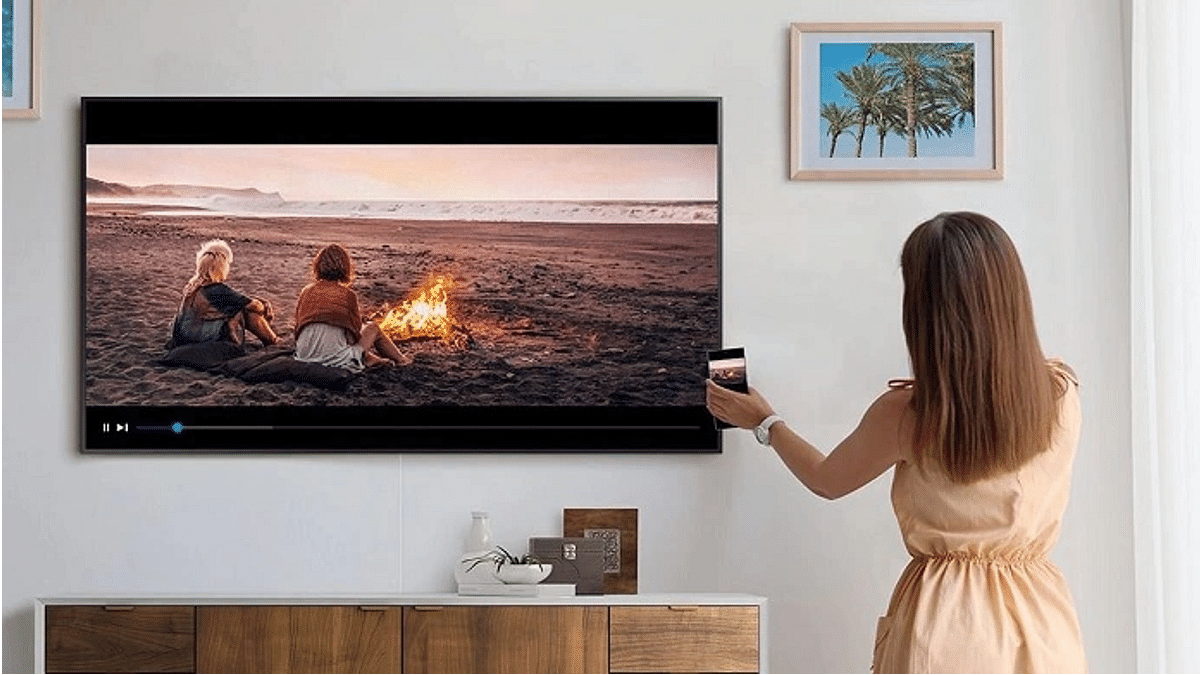
The Tap View feature lets you transfer content including photos and videos from your smartphones and other mobile devices including tablets to your smart TV. On the other hand, the Multi View feature allows users to view a split screen for different content types simultaneously on the TV. The Multi View option on Samsung smart TVs also lets users sort content and allot screen size (small or large) respectively.

How To Use Tap View On Samsung Smart TV For Screen Sharing

In order to use the Tap View and Multi View feature on your Samsung smart TV, you would need to have the Samsung SmartThings app installed on your respective phones. If you don’t have this app, make sure you do that from Google Play Store or Apple App Store on your respective Android phones or iPhones.

Step 1: Launch the SmartThings mobile application on your respective smartphones.

Step 2: Click on the Settings menu from the app’s home screen.

Step 3: Scroll to the Tap View option and toggle it on.

Step 4: Now, move your smartphone closer to the TV and wait for the Allow phone presence option on the app. That’s all you need to activate the Tap View screen sharing feature on Samsung smart TVs.

Precautions You Need To Take While Using Tap View Feature

You must take certain precautions while using the Tap View feature on Samsung smart TVs. One is primarily to avoid damage on the screen or corner of the TV.  You can avoid accidental cracks by avoiding tapping on the screen or the corners. You can tap on the top or the side of the TV frame to avoid damage while using the Tap View feature.

How To Use Multi View Screen Option For Split Screen View On Samsung TVs?

The method varies for using the Multi View feature on Samsung smart TVs. It depends on the type of device that is connected to the smart TV. You will simply need to toggle on the screen mirroring option if it’s a smartphone or mobile device.

On the other hand, if it’s an external device such as a gaming console, you will need to select open the Content Menu and then select the required device from the list. You can drag and adjust the screen sizes and placement of the content with the Multi View option.

Categories
Featured How To TV

How To Send Files From Smartphone To Your Smart TV: Check Steps Here

Key Highlights

  • Sending files from a phone to a smart TV is easy
  • There are several ways to do it including using a USB cable
  • Ensure both devices are on the same network

Smart TVs, mainly Android TVs, have become popular, with their sales skyrocketing due to the smart features with integration across multiple platforms. You may wish to stream music, watch videos, or even view documents on your Android television straight from your phone if you have one. But how?

Once you know how to get around it, transferring files from your Android phone to a smart TV is simple. Two methods for transferring files from your Android phone to your Android smart TV will be covered in this article. Let’s quickly dive in.

Also Read | Buying New Smart TV? List Of Best 32-inch Smart TVs Under Rs. 10,000 In India

How To Send Files To TV From Your Phone?

First things first, you need to download and install the necessary app on your Android TV and Android smartphone. To do this, all you have to do is follow the listed steps:

Step 1: Open the Play Store on both your TV and your Android phone.

Step 2: Search for the ‘Send Files to TV’ app.

Step 3: Open the app on your TV and select ‘Receive’.

Step 4: On your phone, go select the files you’d like to send to your TV and hit Share.

Step 5: Choose ‘Send Files to TV’ from the resulting window.

Step 6: Now, select your Android TV from the list. The files will be sent over.

Note: The ‘Send Files to TV’ app is not yet available for iOS devices.

Also Read | Best Smart TVs In India With 120hz Refresh Rate: Popular Options From LG, Samsung, And More

Mirror Your Phone’s Screen To Chromecast Or Firestick

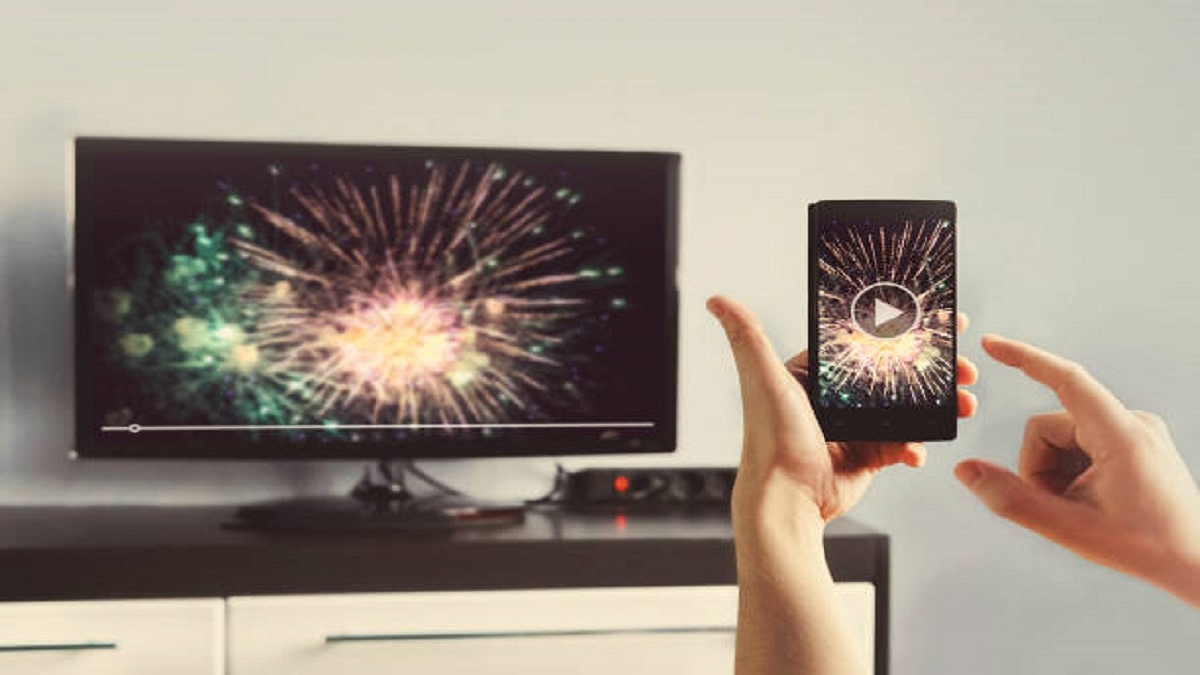
Mirroring is another method for watching content from your phone or computer on your TV. If you only want to play videos or view images on the big screen, you can mirror your mobile device to your TV. Also, note that the file will not be transferred to the TV.

For mirroring, you must connect your TV and mobile phone to the same Wi-Fi network, locate the casting option on your smartphone, press on it, and choose your smart TV from the list of connected devices. You can play the movie on your smartphone, which will then be played on the TV, and it will mirror your device to the screen.

For the tech geeks, stay updated with the latest cutting-edge gadgets in the market, exclusive tech updates, gadget reviews, and more right on your phone’s screen. Join Giznext’s WhatsApp channel and receive the industry-first tech updates.

Categories
Featured Laptop Leaks

Reliance Jio Might Launch JioBook Laptop With Plastic Body: See All Details Here

After announcing Jio AirFiber and Jio Cloud PC at its 45th AGM, Reliance Jio is likely to bring the JioBook laptop to India. Notably, the company has not announced the launch of the laptop but teased the product silently at the same event.

The teaser shows that the JioBook laptop will have a plastic body, which is important as it is expected to be priced at affordable prices. Besides, JioBook will have the Jio logo on the back panel in the circular module. 

JioBook Laptop: Expected Specifications

It is worth noting that this is not the first time that several reports claim that Reliance Jio is planning to bring the affordable laptop to the country. 

The report also shared that the JioBook will have a resolution of 1366×768 pixels. Under the hood, the JioBook is powered by a Qualcomm processor, which is coupled with 2GB of LPDDR4X RAM and 32GB of eMMC in-house storage.

On the other hand, the second model will have 4GB of LPDDR4X RAM and 64GB of eMMC 5.1 storage. Besides, the report said that the laptop will have Android OS or might have Windows 10 operating system. 

On the connectivity front, the laptop will have dual-band Wi-Fi along with support for 2.4GHz and 5GHz frequencies, a DMI connector, and Bluetooth. It is important to note that the company has not made any announcement yet and no report shared the timeline of the launch. 

Reliance Jio 5G Services

Furthermore, the company said that it will launch 5G services near Diwali this year in Delhi, Chennai, Mumbai, and Kolkata. Reliance Jio also said that it invests Rs. 2 lakh crore in the 5G services. 

“Within the next two months, by Diwali, we will launch Jio 5G across multiple key cities, including the metropolises of Delhi, Mumbai, Kolkata, and Chennai. Subsequently, we plan to increase the Jio 5G footprint month after month. By December 2023, which is less than 18 months from today, we will deliver Jio 5G to every town, every taluka, and every tehsil of our country,” Chairman and Managing Director Mukesh Ambani said. 

For the unaware, Reliance Jio has joined hands with Qualcomm for the 5G solutions in the country. The company has recently introduced Jio Air Fibre to provide an end-to-end wireless 5G experience.

Categories
Comparison Featured Laptop

Asus TUF Gaming F15 Vs Lenovo Legion 5i 15-inch Gaming Laptops: Best Option For Gamers?

The laptop industry has grown exponentially in the last decade with the brands integrating the latest hardware and software technologies. Rampant growth has also been recorded with the consumer-oriented budget laptop models from some popular smartphone OEMs. But the major chunk is still dominated by the prime players such as Asus, Acer, Dell, Lenovo, HP, and others. We have just covered the hardware differences between two of the most popular laptops including the Asus Vivobook Pro 14 OLED and the Dell Inspiron 16. Here, we are comparing two of the best gaming laptops that you can buy for under Rs. 80,000 in India. The Asus TUF Gaming F15 and the Lenovo Legion 5i are the models whose spec-sheet comparison you can read below:

Asus TUF Gaming F15 Vs Lenovo Legion 5i 15-inch: Display Comparison

The Asus TUF Gaming F15 laptop is packed with an IPS LCD screen that is 15.6-inch in size. The display on the Asus gaming laptop comes with a 1080 x 1920 pixels screen resolution and has a pixel density of 141 PPI. The screen gets a standard 60Hz refresh rate and comes void of HDR 10 certification. This laptop also has variants with 1920 x 1200 pixels resolution and 144Hz refresh rate and 2560 x 1440 pixels resolution. The prices vary according to the models.

On the other hand, the Lenovo Legion 5i features the same 15.6-inch IPS LCD screen. However, the display specs are slightly better compared to the Asus gaming laptop. While the screen size and panel type remain the same as the Asus TUF Gaming F15 laptop, the refresh rate here is higher at 165Hz. This allows for smoother feedback with the frame transitions during gaming. The Lenovo Legion F15’s display is also HDR certified and has Dolby Vision support.

Asus TUF Gaming F15 Vs Lenovo Legion 5i 15-inch: Processor, Firmware

The Asus TUF Gaming F15 and the Lenovo Legion 5i can be purchased with different configurations and processors. The Asus TUF 15 comes with Intel Core i5 12450H, Core i5 12500H, and Core i7 12700H processor options. The octa-core processor on this laptop is integrated with the Intel Iris Xe graphics card. The RAM option for the Asus gaming laptop is 8GB, 16GB, and 32GB, whereas the storage options are 512GB and 1TB.

It also has support for NVIDIA GeForce RTX300 series GPUs.  The Lenovo Legion 5i also comes with an Intel Core i5 (11260H/11400H) chipset. It can also be purchased with Intel Core i7 (1180H) and Core i9 11900H chipset. This laptop has integrated Intel UHD Graphics along with NVIDIA GeForce RTX 3000 series GPUs.

The RAM capacity you can select on this Lenovo gaming laptop is 16GB, 32GB, and 64GB, whereas, the storage capacity is 512GB, 1TB, and 2TB. Both laptops are well equipped to handle high-end games and deliver a premium experience during general usage as well as gaming.

Asus TUF Gaming F15 Vs Lenovo Legion 5i: Connectivity, Battery

The Asus TUF Gaming F15 laptop is packed with three USB Type-A ports, one USB 4.0 Type-C port, one Thunderbolt 4 port, and one HDMI 2.0 port. The Lenovo Legion 5i features three USB 3.2 Type-A ports, three USB Type-C ports, one Thunderbolt 4 port, and one HDMI 2.0 port. The battery capacity of the Lenovo Legion 5i laptop is 80Wh. It is a Li-Po battery that is aided by fast charging technology. Asus, on the other hand, offers the TUF 15 Gaming laptop with 48Wh and 90Wh battery capacities along with fast charging support.  

Categories
Featured How To TV

Use Your Smartphone As A Smart TV Remote: Here’s How

Key Highlights

  • Juggling multiple remotes is frustrating
  • Use your phone to control your smart TV
  • Phones with IR blasters control various devices

Are you ready to binge-watch your favorite TV shows? Now imagine all the remotes that currently reside on the coffee table. One for the cable, DVD player, video game console, or television. Additionally, there must have been times when you couldn’t find the remote or its battery died. It’s annoying, isn’t it?

Gratefully, smart as they are, Android smart TVs can also be controlled by Android phones and even iPhones. Users of smartphones with IR blasters can download TV remote apps to operate not just their smart TVs but also set-top boxes, cable TV boxes, DVD players, Blu-ray players, stereo equipment, projectors, air conditioning systems, cameras, and other devices that receive IR signals or light beams.

According to the Google blog page, here’s how you can use your smartphone as a remote for your smart TV.

How To Control Smart TV With Your Android Smartphone?

Step 1: On your mobile phone, download the Android TV Remote Control app from the Google Play Store.

Step 2: Connect your Android phone and smart TV to the same Wi-Fi network.

Step 3: Open the smart TV Remote Control app on your phone and tap the name of your smart TV.

Step 4: A PIN will appear on your smart TV screen.

Step 5: Enter the PIN on your phone. Click on pair to connect both devices.

How To Control Smart TV With Your iPhone?

Step 1: Download the ‘Smart TV Remote’ app from the App Store to your iPhone.

Step 2: Your phone and smart TV should be connected to the same Wi-Fi network.

Step 3: On your phone, open the Smart TV Remote Control app.

Step 4: To access your smart TV, tap its name.

Step 5: Your smart TV’s screen will display a PIN.

Step 6: On your phone, enter the PIN that is displayed on your TV.

Step 7: To link the two devices, tap pair.

Once paired, users can turn their TV on or off with the remote. They can easily use their mobile phone to view the same menu that is available on the remote control.

For the tech geeks, stay updated with the latest cutting-edge gadgets in the market, exclusive tech updates, gadget reviews, and more right on your phone’s screen. Join Giznext’s WhatsApp channel and receive the industry-first tech updates.

Categories
Comparison Featured Laptop

Asus Vivobook Pro 14 OLED Vs Dell Inspiron 16 Laptop: Which Laptop Is Best Under Rs. 70,000 In India?

The laptop industry is also advancing like the smartphone and other consumer IoT products with the latest technologies. From conventional bulky laptops, we now have options to select from ultrathin and 2-in-1 convertible designs. And that too without compromising on the hardware. Acer, Asus, Dell, Lenovo, and HP are amongst a few of the established players in the laptop market that are offering Windows-powered laptops with Intel and AMD series processors. However, there has been a recent trend with smartphone OEMs foraying into the laptop space and bringing in some pocket-friendly options for the audience.

We have done several gadget comparison articles including smartphones, smart TVs, tablets, and also chipsets. Now, we are starting with laptop comparisons as well. In this article, we are pitting down two of the most popular laptops in the Indian market. The spec sheet of the Asus Vivobook Pro 14 OLED and the new Dell Inspiron 16 models are compared in this article. If you are looking to buy a new machine for yourself and one of these models has been on your list then this comparison article is a must-read.

Asus Vivobook 14 Pro OLED Vs Dell Inspiron 16: Display Specification Comparison

Display game is getting stronger with laptops as it is being with smartphones. Laptop brands are making sure they are using a high-end panel for an immersive viewing experience with their products. The Asus Vivobook 14 Pro is one of the best examples of a mid-range laptop with a high-resolution panel. Asus has packed the Vivobook 14 Pro with a 14-inch compact display.

The panel type is OLED that offers a screen resolution of 1800 x 2880 pixels and has an aspect ratio of 16:10. The Asusu Vivobook 14 Pro OLED display also supports a 90Hz refresh rate and has a picel density of 243 ppi. It is HDR10 certified with which it can smoothly render FHD content via OTT platforms.

On the other hand, the Dell Inspiron 16 features an IPS LCD screen that is 16-inches in size. The screen resolution and the refresh rate is slightly lower here compared to the Asus Vivobook Pro 14 OLED variant. This laptop model supports 1920 x 1200 pixels resolution and has a standard 60Hz refresh rate.

The pixel density is also a bit lower compared to the Asus model at 142 PPI and also comes void of HDR10 support. The display size is bigger on the Dell laptop, but if you need better specs, opt for the Asus Vivobook Pro 14 OLED out of these two.

Asus Vivobook 14 Pro OLED Vs Dell Inspiron 16: Processor, Software Version

The Asus Vivobook 14 Pro OLED runs on the Intel Core i5-11300H quad-core processor with a 3.1GHz (up to 4.4Ghz) clock speed. The Asus Vivobook 14 Pro has integrated Intel Iris XE graphics, and NVIDIA GeForce GTX 1650 GPU support. This laptop comes with an onboard 16GB DDR4 RAM and has 512GB M.2 NVMe PCIe 3.0 SSD storage.

The Asus Vivobook 14 Pro OLED has the Windows 10 Home/ Pro edition pre-installed for home and professional users respectively. The software is upgradable to Windows 11 for free.

Moving to the Dell Inspiron 16, this laptop runs on the 12th Gen Intel Core processor. You can select from Core i3, Core i5, and Core i7 variants depending on the budget and user requirement. You can also select the integrated graphic card depending on the requirements including Intel UHD, Intel Iris Xe, and NVIDIA GeForce MX570, 2GB GDDR6 GPUs.

The memory version is also dual including 8GB DDR4 3200MHz and 16GB 3200MHz DDR4 RAM. The device has 512GB M.2 PCIe NVMe SSD storage.

Asus Vivobook 14 Pro OLED Vs Dell Inspiron 16: Connectivity Ports, Battery Capacity

Both Asus Vivobook 14 Pro and the Dell Inspiron 16 come with multiple connectivity ports.  The Asus Dell Inspiron 16 ships with two USB-A, one USB Type-C, one HDMI 1.4, and an SD card reader. On the other hand, the Asus Vivobook Pro 14 OLED ships with three USB-A, one USB Type-C, one HDMI 1.4, and one 3.5mm headphone jack.

As far as the battery capacity is concerned, the Asus Vivobook 14 Pro is packed with a 63wh battery whereas the Dell Inspiron 16 comes with 41whr and 54whr battery units. Both laptops comes with fast charging support.