Categories
Featured How To Printers

HP Printers Not Working After Windows 11 Update? Here Are Some Quick Fixes

Windows 11 is the latest firmware announced by Microsoft for new-generation laptops and PCs in the global market. The latest firmware brings improved features and support with multiple devices. Printer compatibility and functionality have also been improved with Windows 11. However, in some cases, users have been reporting issues with printers not working properly post a Windows 11 upgrade.

Similar issues have been reported on numerous occasions by HP printer users as well. Users are unable to give print commands or scan any document using their HP printers and scanners after the Windows 11 update. Since this is a firmware issue, you can fix it on your own and avoid your visit to the service centers. But what can you do if your HP printer stops working after the Windows 11 update? We have mentioned some of the ways with which you can quickly resolve printer issues with the Windows 11 update:

Quick Fixes To Resolve Printer Not Working Issue After Windows 11 Update

Step 1: Uninstall and re-install printer software. To do so, open the Windows search bar on your laptop/PC and go to the Check for updates option. Once you do this, Windows will automatically search for any new updates and show you the details. If there is any missing or new update that is available, go ahead and download it. Follow the remaining steps if there is no new update available.

Step 2: You now need to power off the Printer and then complete the remaining steps using the HP Smart app.

Step 3: Launch the HP Smart app and then remove the connected printer from the lost. You can right-click on the printer icon and select the Hide Printer option.

Step 4: Now go to the Control panel on your laptop or PC and open the Add or remove programs option.

Step 5: Once you see the name of the printer in the list, tap on it and select Uninstall.

Step 6: Reboot your laptop/ PC and also the printer.

Step 7: Re-launch the control panel on your laptop or PC and go to the Printers and scanners option.

Step 8: Find the name of your printer and click on Remove Device if it’s in the list.

Step 9: Now, check if the Wireless LED is glowing on the printer’s control panel. If the LED’s aren’t blinking, continue downloading the latest printer software and drivers from the dedicated website, i.e., 123.hp.com.

Step 10: If in case the Wireless LED is blinking then you would need to restore the Wi-Fi setup mode.

Step 11: If your printer has a touch control panel, then tap on the Setup menu or Wireless option.

Step 12: Select the Network Settings and then tap on the Restore Network Settings.

Step 13: For the printers without a touchscreen display or menu, you would need to open the Restore Wi-Fi setup mode on your HP printer and then continue with restoring the default settings. Finish this process by downloading the compatible printer and software drivers. Visit 123.hp.com. Once you have completed all these steps with, your printer will start functioning properly with Windows 11.

Categories
Apps Featured How To

Instagram Tips And Tricks: How To Remix Instagram Reels With Videos And Photos

Instagram Reels is one of the most popular features that you get on the photo-sharing app. Meta, widely popular as Facebook, released this short video feature for Instagram back in 2020 as a rival to TikTok and other such apps. Instagram has made several improvements to the Reels since its launch and also added the Remix Reels option last year. This feature allows users to record their own videos and then club them with other popular reels on the platform from other content creators and users.

Not just videos, you can also Remix reels and photos with your Instagram Reel. This is one of the most interesting features that you get to use while creating any Reel video on Instagram. Instagram Remix Reels feature has been out for a long and still if you are new to creating Reels, you might not be aware of the ways to use it. If that’s the case, we will help you with the steps to create and remix any Reel video.

How To Remix Instagram Reel

You can remix any Instagram Reel video using Android and iOS smartphones.

Step 1: Open the Instagram application on your respective Android and iPhones.

Step 2: Click on the three dots option. It will be three horizontal dots for iPhones and three vertical dots for iOS.

Step 3: Click on Remix this reel option. You can set the preference if you want to place the remixed video next to the original video at the same time or later.

Step 4: Click on the Layout option. You’ll see this icon. This option will let you place the layout for the remixed video that you can place either below or next to the original video.

Step 5: Now, all you need to do is record your Reel video.

What Are The Steps To Remix A Feed Video On Instagram

You can easily remix any feed video on the Instagram app. The steps are almost identical to how you would remix any Instagram Reel on the app. Take a look:

Step 1: Once you have launched the Instagram app on your iPhone or Android phone, click on the menu (three dots) option.

Step 2: This time, select the Remix this video option instead.

Step 3: Now, choose the layout as you did above and place the below the original video or next to it. That’s it. Record your Reel and you are all set.

How Can You Remix Any Photo With Instagram Reels

Just like videos and other reels, you can also remix a reel with photos. The steps would be the same as with the remaining two. But the remix photos option isn’t available for all users at the moment, so, if in case you don’t find this option on your Instagram app chances are it’s unavailable in your region. Otherwise, update your app and then check if this feature adds up.

Step 1: Click on the menu option on the Instagram mobile app on your smartphone.

Step 2: Instead of reels and video, you would need to select the Remix this photo option.

Step 3: The photo will be set to default as the background of the reel video.

Step 4: Select the Layout option from the right-hand side if you wish to make any changes. Record your reel remixed with the photo.

Categories
Apps Featured How To

How To Use Gmail Confidential Mode? How To Unsend/ Retrieve Emails On Gmail?

Email services have become one primary mode for written communication across the globe. Different organizations and professional industries rely on emailing services to stay connected with employees and customers. Even the general public uses email services to connect with brands and users whose primary contact details they don’t have. Gmail and Microsoft Outlook are amongst the few big names in email services. The former is managed by Google and you can use its services on smartphones, tablets, laptops, and PCs. Google has been updating Gmail and its services frequently and has added tonnes of features in the last few years.

Google has also enhanced the privacy aspects of Gmail and recently made it easy to use the email services without an active internet connection. With Gmail, you can also use the confidential mode to keep privacy intact. But one of the major hurdles to date has been the missing undo feature. Once you have sent an email from your account, it is hard to retrieve or delete it from the receiver’s device. But if you are using Gmail, you shouldn’t be worried. You can easily unsend or retrieve any recently sent mail if you are using Gmail services. The steps to send confidential mail and to retrieve or unsend any email on Gmail are listed below:

How To Send Confidential Mail On Gmail

Step 1: Open the Gmail app on your respective devices and tap on the compose button.

Step 2: Now, select the confidential mode(timer icon). It is located at the bottom of the compose box.

Step 3: You can select from the two available options including “SMS passcode” and “No SMS passcode”. If you use the former, the recipient would be able to open the email only after entering the passcode. The latter doesn’t require any passcode to open.

Step 4: Compose the email and send it.

How To Unsend Any Email On Gmail App

Step 1: Launch the Gmail app on your smartphones or laptops/ PCs.

Step 2: Write an email using the compose option and add the recipient’s address.

Step 3: As soon as you have sent the email, you will see the Undo option pop up on the screen. Tap on it and the message will be retrieved/ unsent.

Do note that there is a certain time limit to unsend or retrieve messages using Gmail. The minimum timeframe is 5 seconds, while the maximum is 30 seconds. You can set the time limit to retrieve Gmail messages using the following step.

Step 1: Login into your Gmail account in any laptop/ PC.

Step 2: Click on the Settings menu placed on the top right of the app’s homepage.

Step 3: Scroll down to the “Undo Send” option.

Step 4: Set the desired cancelation period. You can select from 5, 10, 20, and 30 seconds.

Categories
Apps Featured How To

iOS 16 Tips And Tricks: How To Add Up To 15 Stops In Maps With iOS 16 Beta

The iOS 16 took the centerstage at the WWDC 2022 even hosted a while ago. Apple released the iOS 16 with some major improvements over the previous-gen versions including the iOS 15 which is currently the backbone of the iPhone 13 series. Apple not just introduced a facelift with the iOS 16 but has also added multiple new features to the new-generation firmware for the upcoming iPhone 14 series and the supported older models. If you have one of the latest iPhones, you can also download and install the iOS 16 beta version and test all the latest features being added to the OS.

We have previously covered the steps to download and use the iOS 16 beta version on eligible phones. Now, we are back with another tips and tricks article where we will be discussing one of the latest features that have been released for the iOS 16 beta version. You will now be able to add up to 15 different stops with the iOS 16. What factors do you need to keep in mind and how can you add multiple stops on a route using the default Maps app on eligible iPhones? Read on to know:

iOS 16 Lets You Add Multiple Stops In Default Maps App

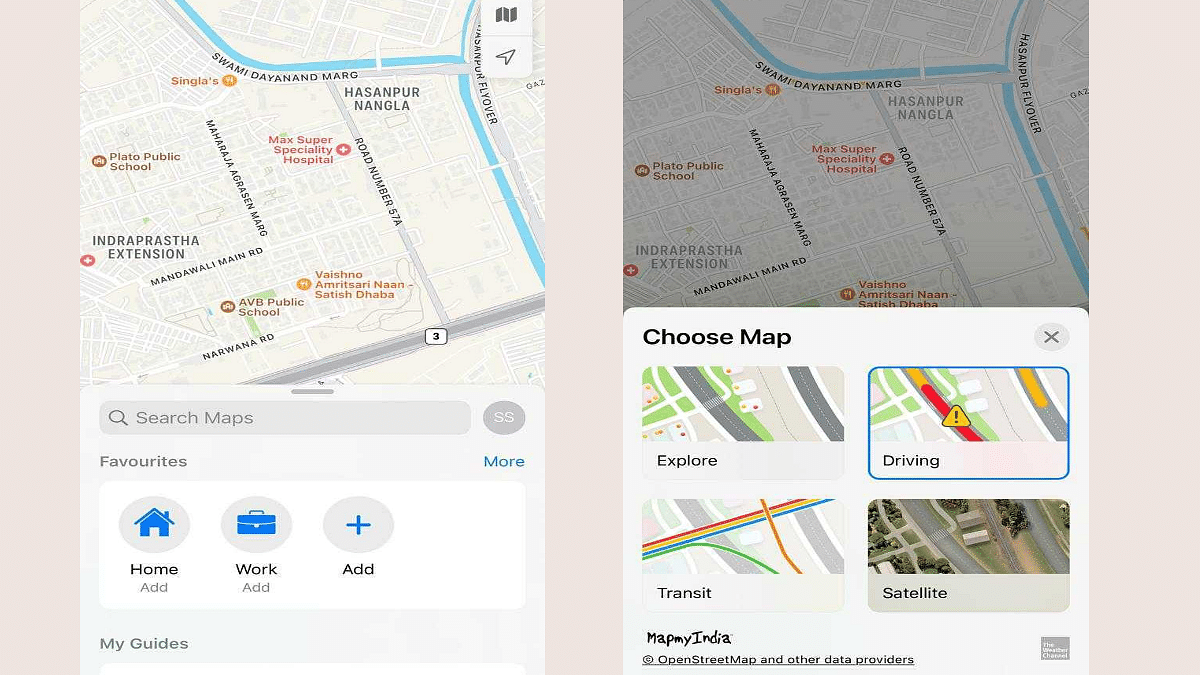
Apple had introduced multiple new features with iOS 16 and Maps isn’t left behind. The option to add up to 15 different stops has now been made possible with the latest iOS beta version. You can make the changes to the stops before starting with your trips on Apple Maps. You just need to enter the destination to where you are traveling and then add the required stops in between the transit route. The steps for the same aren’t tricky and can easily be applied while using iOS 16-powered iPhones. Take a look below:

Step 1: Launch the default Maps app on your respective iPhones. Make sure the device is running on the iOS 16 beta build. Update your phone to the latest build version so that you can use this feature.

Step 2: In the search bar, enter the destination where you wish to travel.

Step 3: Select the driving option. This is the only transit mode where you will be able to add multiple stops to the destination. This feature is currently not supported with public, and bike transit modes. We are not sure if Apple will add this support with the stable iOS 16 version.

Step 4: Add the first stop. To do so, locate the first stop on the map. You can also use the search bar for the same and then select the location.

Step 5: Select the blue direction arrow under the location option.

Step 6: You will see the Add option right above the Routes tab. Tap on it and your first stop is added.

Step 7: Do the same to add the next stops. Only 15 stops can be added to the transit route as of now.

Step 8: If you wish to edit or re-arrange the route then drag the stop by clicking on the menu (three lines option). That’s it. You are all set.

Just to recap, Apple had also added the estimated transit fares on Maps with iOS 16. Another key feature released includes the option to share locations from Mac laptops or PCs to iPhones.

Categories
Info Laptop

Dell Laptop Battery Issue: Here Are Some Quick Ways To Diagnose Issues And Fix With Dell Laptops

Be it a portable smartphone or laptop, all such high-end consumer electronics gadgets are incomplete without powerful battery hardware. Dell which is the largest player in the laptop and computer markets is also well known for the powerful battery system it packs inside all of its product lineups; specifically, laptops. Dell laptops have one of the largest user bases and thanks to the brand’s wide service network getting them fixed in case of any issues is fast and reliable.

Dell generally uses Li-ion batteries to drive all its laptop lineups. Dell specifically designs battery for each of its laptop series and hence recommends replacing them with original units instead of generic and cheap counterparts. But if you are experiencing issues with your Dell laptop’s battery be its slow charging, fast discharging, or no charging at all, you can try using some basic fixes to avoid paying visits to service centers frequently.

Diagnose Common Issues With Dell Laptop Batteries

  1.  If suddenly your laptop stops recognizing to read the battery.
  2. You get a message stating the AC adapter is plugged in but not charging the battery.
  3. The battery percentage unit is not changing despite the laptop being plugged in for hours.
  4. The battery LED indicators blink in a different pattern than usual.
  5. If you notice rapid battery discharge.

What Can You Do To Fix The Battery Issues With Dell Laptop At Home?

Step 1: Check if the battery is damaged. If you don’t see any swollen battery then only proceed with the remaining steps. If somehow the battery is damaged, get it replaced from authorized Dell service centers.

Step 2: Check the AC adapter cable as well. Make sure there are no cracks or damaged wires and ports. Also, the LED should be glowing on the power adapter. Get a new power adapter from Dell if it’s not working properly. Also, always use compatible chargers and power adapters with your Dell laptop. Third-party chargers could do more damage to the battery or the laptop.

Step 3: Use a different power socket to see if the adapter is working.

Step 4: You can also check by charging the battery when the laptop is switched off. This might work in some cases.

Step 5: Run the battery health status and also install the latest BIOS for your Dell laptop if rquired.

Step 6: Test the battery performance by running the SupportAssist diagnostics. You might need to contact Dell support if the laptop fails with this test.

Categories
Featured Leaks Mobile

OnePlus 10T With Snapdragon 8+ Gen 1 Chip Launched In India: Details Inside

Key Highlights

  • OnePlus 10T launched in India
  • It is powered by the new Qualcomm Snapdragon 8+ Gen 1 chip
  • The phone is priced starting at Rs. 49,999

Update:

OnePlus has launched OnePlus 10T 5G in India and around the world. The new OnePlus flagship smartphone is the latest model in the 10 series. It is powered by the new Qualcomm Snapdragon 8+ Gen 1 chip, making it the most powerful device in the brand’s portfolio to date. The phone also packs other flagship features such as a 50MP triple camera setup, up to 16GB of RAM, and a 4,800mAh battery with 150W fast charging support.

The OnePlus 10T 5G is priced starting at Rs. 49,999 in India and is up for pre-order until August 4. The smartphone’s open sales will begin on August 6, 2022, in the country.

OnePlus is all set to add a new member to the flagship OnePlus 10 series in India and global markets. The company now expanding this lineup with the launch of the OnePlus 10T in the country. The latest OnePlus 10 handset is breaking covers via an online launch event which will be streamed live via the brand’s social media handles. OnePlus has teased its upcoming flagship Android phone on several occasions and has revealed some of the key hardware details. What all improvements do the latest OnePlus 10 series phone brings to the table and how can you watch the launch event today? Read the details here:

OnePlus 10T Launch Live Stream Details, Expected Price

The OnePlus 10T official India launch has been confirmed for August 3, 2022In India. This arrival confirmation of the next OnePlus 10 flagship in India comes from the brand itself. The latest flagship Android phone will be launched via an online event. You can either head directly to the OnePlus official YouTube channel or click on this link to watch the OnePlus 10T live launch stream event. Just for reference, the launch event is being hosted at Gotham Hall, New York, and will begin at 7.30 PM IST.

While OnePlus has shared multiple details related to the hardware, it didn’t spill any beans related to the pricing. However, if we go by the leaks, the OnePlus 10T is expected to launch under Rs. 50,000 in India. We will update this section once the device goes official and the pricing and sale details have been announced.

OnePlus 10T Expected Specifications In India

The OnePlus 10T is arriving as yet another premium range Android phone by the Chinese tech giant. The handset will be driven by the Snapdragon 8+ Gen 1 processor. With this the OnePlus 10T will be amongst the first few smartphones powered by Qualcomm’s newest octa-core flagship chipset. OnePlus 10T is expected to ship with up to 16GB RAM and 256GB storage configuration. It will come void of expandable storage support as other high-end OnePlus phones.

The OnePlus 10T will boot on Android 12 OS and will feature a custom OxygenOS UI. The device will flaunt an FHD+ AMOLED screen that will have measure 6.7-inches. The panel will support 120Hz refresh rate that will ensure smooth feedback while scrolling and gaming. The OnePlus 10T’s imaging setup will comprise a 50MP triple rear camera module and a 32MP selfie snapper. A 4,800 mAh battery will keep the processor ticking on the OnePlus 10T. The device will feature 150W SuperVOOC flash charging technology as well.

Categories
Featured Info Mobile

Google Pixel 6a Android 13 Beta Build Released In India: How To Download And Install

Google Pixel 6a is the latest affordable Pixel handset by the Mountain View tech giant. The device has finally set its foot in the Indian market with the custom Tensor processor and dual rear cameras. The Pixel 6a has arrived with an asking price of Rs. 43,999 in the country and ships with Android 12 OS. However, soon after its debut in India, the Pixel 6a is also getting the latest Android 13 beta update. How can you download and use the Android 13 beta version on your Pixel 6a devices? Read on the details below:

Google Pixel 6a Eligible For Android 13 Beta Update: How To Download And Install

Google has started dishing out the latest Android 13 beta update for the Pixel 6a in India. This development comes just a few weeks after the launch of the latest affordable Pixel 6 series phone in the country. Notably, Google has already started the Android 13 beta program for supported Pixel series phones. The top-end models including the standard Pixel 6 and the Pixel 6a have already started receiving this update in the international markets.

Google has released the Android 12 Beta 4.1 build to the Pixel 6a in India. As of now, the company has not announced when the stable Android 13 version will be available for all supported Pixel and other Android devices. However, the possibility of it arriving in August itself is highly likely. Also, this is the first and last Android 13 beta build that the Google Pixel 6a is said to receive. Google is expected to directly update the Pixel 6a to the stable Android 13 OS after this.

How To Download And Install Android 13 Beta 4.1 Update On Pixel 6A

Since the latest firmware comes under the Beta program, you’ll need to enroll first to start using the Android 13 Beta update on your respective Pixel 6a devices. You won’t get a notification for the Android update similar to the stable version update.

If you wish to use the Android 13 Beta build on your Pixel 6a phone, then you can directly visit the Android Beta webpage and enroll in the program. The secondary method that you can opt to download and use the Android 13 beta build on your phone is by downloading the latest system image from Google and flashing it on your Pixel 6a handset. But since you are downloading a new firmware version, it is advised to take a backup so that you don’t loose any data during the installation process.

Categories
Apps Featured How To

YouTube Account Hacked: What Should You Do? How You Can Protect Your YouTube Account If Hacked?

YouTube is one of our prime sources of entertainment nowadays. It started as a free platform where users could watch different videos on the go without paying any extra charges for the services. However, Google has gradually released subscription plans with which you can get an ad-free experience on YouTube.

Over the years, YouTube has also improved its policies specifically for content uploading, channel monetization, and more. And ever since YouTube announced monetization policies, content creators have been flooding this platform to make the most of it. You can easily create a channel on YouTube and start uploading videos and earn money out of it. Google has also improved the privacy features on YouTube and has released strict guidelines for users related to the same.

But despite all the security and privacy measures, we come across reports of a YouTube channel hack. This can be a tricky situation if someone gets hold of your account on YouTube and takes entire control making unnecessary changes or even upload videos that aren’t created by you. If you think your YouTube account has been compromised and is hacked, you don’t have to panic at all. We are mentioning some of the best ways with which you can fix your hacked YouTube account.

How To Fix A Hacked YouTube Account Easily?

The first step that you need to check is whether you are able to log into your Google account. If you are able to log in successfully to your Google account, the first thing you would need to do is secure your account. You can also add two-factor authentication to make sure there is no security breach on your YouTube account in the future. If for some reason you are unable to log in to your Google account, follow the steps listed below to recover your account. Then continue with securing your profile.

Step 1: Initiate the Google Account recovery process using this link.

Step 2: Follow the on-screen process to reset your password. You will need to answer the security questions and then complete the account recovery steps.

Step 3: Once the account recovery is complete you can set up the new password. Make sure this time you select a strong password.

How To Protect Your Google And YouTube Account From Hacks

Step 1: Open your Google Account.

Step 2: From the navigation panel, tap on Security.

Step 3: Now head to the “Signing in to Google” option.

Step 4: Select Add recovery option.

Step 5: Toggle on the two-step verification option.

Step 6: Once you setup two-step verification process, you will get two options Your Password and Your Phone.

Step 7: Allow 2-step verification.

Step 8: You can also setup Gmail filters to safeguard your YouTube account from hacks.

Categories
Featured Info Laptop

Dell Wi-Fi Not Working? Here Are Some Quick Fixes For Dell Laptop/ PC Wireless Network Issues

Despite smartphones and tablets consuming the larger share of the consumer gadgets segment, Laptops and PCs still remain irreplaceable in most cases. That’s specifically with the complex tasks that can only be completed using a high-end computational machine. Dell is one of the largest players in the laptop market that has a wide catalog of laptop and PC lineups dedicated to gaming, general, and creative use.

Dell has a wide service network across India and is well known for its fast repair services. Dell laptops and PCs are equipped with the latest hardware technologies so that buyers get the best user experience throughout. Dell not just provides offline service repair but is also helping its customers through remote technical support. The latest laptop lineups from Dell are packed with the latest network technologies so that you get the fastest wireless and wired internet connection.

But while using your Dell laptop or PC, you would have come across certain scenarios where the internet speeds might slow down more than general. Also, in some cases, the Wi-Fi not connected error is frequent with Dell devices. What can be done when wireless internet connectivity is an issue with your personal or professional Dell laptop or PC? Here in this article, we will help you resolve the Wi-Fi network issues with Dell laptops and PCs.

Symptoms That You Need To Check With Your Dell Laptop/PC If Wi-Fi Is Not Working Properly

  1. If suddenly you are experiencing slow internet speeds and video buffer on OTT websites and YouTube is higher than usual, your internet isn’t working fine.
  2. If you are experiencing frequent disconnections or call drops with online conferencing apps, there might be some issues with the internet connection on your laptop or PC.

Quick Ways To Fix Wireless Networking Issues With Dell Laptops/ PCs

Step 1: Check your Wi-Fi connection with your respected laptops and PCs. Toggle on and off Airplane mode to restart the Wi-Fi connection. Keep the Airplane mode off to start the Wi-Fi network properly.

Step 2: Try placing your laptop or computer near the WiFi router. This will fix any wireless network range issues.

Step 3: Power off your Dell laptop and PCs and also the Wi-Fi router. You should wait for at least two to three minutes before switching the laptop/PC and the router. The internet connection should resume with good speeds.

Step 4: Try running the Windows Network Troubleshooter if the issue persists. The troubleshooter should resolve the Wi-Fi network issues.

Step 5: You can also try to fix the issue with Optimize Network option. You’ll be able to locate this option in SupportAssist.

Step 6: If in case the SupportAssist option is missing on your laptop or PC, download the wireless network drivers from www.dell.com/support/drivers.

Step 7: Now, you would need to run the SupportAssist diagnostics on your network adapter.

Step 8: You need to update the firmware of your router to fix any issues with the network.

Categories
Apps Featured How To

Instagram Live Broadcast: How To Start, Manage Live Broadcast Sessions On Instagram Android, iOS App

Instagram is one of the biggest names in the social media space. This is a Meta-owned instant photo-sharing app that has gradually become a hot destination for content creators from across the globe. Instagram Reels video is what driving the major audience to this platform. But other features offered by Instagram are also beneficial for influencers that help them interact with the general audience. The Live broadcast feature offered by Instagram is one of them. If you are a social media influencer and wish to host a live Q&A session or wish to live stream any of your events, the live broadcast option will be your go-to option on Instagram or any other social media application such as Facebook and YoutTube.

The Live broadcast option isn’t available just for the social media influencers but also for the general user base. And going live on Instagram isn’t a difficult task. You just need a few taps on the app to get started with your live session. If you are new to the platform or with going live on the application, you need to be aware of the right steps.

Also, you would need an active internet connection with good speeds so that the live session isn’t jittery or pixelated. Here in this article, we have made it easy for you to start your live broadcast session on your Instagram profile and also how you can manage it. Take a look at the steps below:

What Are The Steps To Start A Live Broadcast On Instagram

Step 1: On you Android or iOS smartphone, open the Instagram app.

Step 2: When on the home feed, scroll right to open up the upload page.

Step 3: Scroll down to the Live tab placed at the bottom of the page.

Step 4: Add the title first by tapping the ‘Title’ tab on the left followed by the ‘Add Title’ option.

Step 5: Click on the Live icon. The session will initiate.

Step 6: Once the live broadcast has started, you’ll be able to see the total number of viewers and comments floating at the bottom of the screen.

Step 7: You can end the live session by clicking End on the top right. Select confirm to end the live broadcast session.

How To Manage A Live Broadcast Session During Instagram Live Broadcast Session

With Instagram Live broadcast, you can manage to turn off the comments and requests for collaboration from other users. Follow the steps below to do so:

Step 1: On your Android or iOS devices click on the turn comments off option which you’ll be able to locate at the bottom.

Step 2:  You can turn off the collaboration requests by clicking of Turn off requests to go live option.