Categories
Apps Featured How To

Want To Transfer Ola Money Cash To Bank Account? Here’s How To Do It

Key Highlights

  • Transferring Ola Money cash to a bank account is now a possibility
  • Funds can be transferred using OLA Android and iOS app
  • Process can’t be completed without the authenticated OTP

Ola is the largest cab aggregator in India and one of the top ride-hailing companies in the world. For billions of users, the company has redefined mobility and serves over 250 cities in India, Australia, New Zealand, and the United Kingdom. Since Uber entered the Indian market, the popular ride-hailing service has been in a continual war with it. Ola has now expanded its user base by offering a variety of services and low-cost trips among other things.

Also Read | Damaged HSRP Color Stickers? Here’s How To Apply For A Duplicate HSRP Sticker For Your Car

Apart from the low prices, the ride-hailing company has made the payment procedure much simpler by providing a variety of payment options such as Ola Money. It gives its users the best deals such as cashless rides in Ola cabs, recharges, and bill payments. You can also shop on various merchants’ sites like Oyo, Healthkart, Askmebazaar, Cleartrip, Shopclues, and more.

Ola Money allows users to send money to a bank account. The app now offers a feature called “Ola Money to Bank Account”. It allows you to transfer all of your money to your bank account. They are employing a common method known as IMPS which allows money to be sent instantly into a bank account. So, if you have funds in your Ola Money app, transfer them right now. But how do you do it? In this article, we’ll show you how to transfer Ola Money to your bank account.

Also Read | How Can You Delete Paytm Transaction History From Your Android And iOS Device

Step-By-Step Guide To Transfer Ola Money To Bank Account

Step 1: First, download Ola Money App on your mobile phone.

Step 2: Install and launch the Ola Money App.

Step 3: Sign up or log in using your username and password.

Step 4: On the home page, scroll down and select the “Transfer to Bank” option.

Step 5: Click on it and Enter the bank account number, IFSC code, name, and amount. Then, submit it.

Step 6: On your screen, a pop-up will appear to confirm the details. Click on Submit.

Step 7: Now, you get a confirmation OTP to your mobile number.

Step 8: Enter OTP and you are done.

By following the above-mentioned process, Ola Money cash will get transferred to your bank account instantly using IMPS Method.

For the tech geeks, stay updated with the latest cutting-edge gadgets in the market, exclusive tech updates, gadget reviews, and more right on your phone’s screen. Join Giznext’s WhatsApp channel and receive the industry-first tech updates.
Categories
Apps Featured How To

Make WhatsApp Video Calls More Fun: How To Add Filters, Change Backgrounds

Key Highlights

  • WhatsApp now supports filters in video calls
  • Background can also be changed
  • Feature available for both Android and iOS users

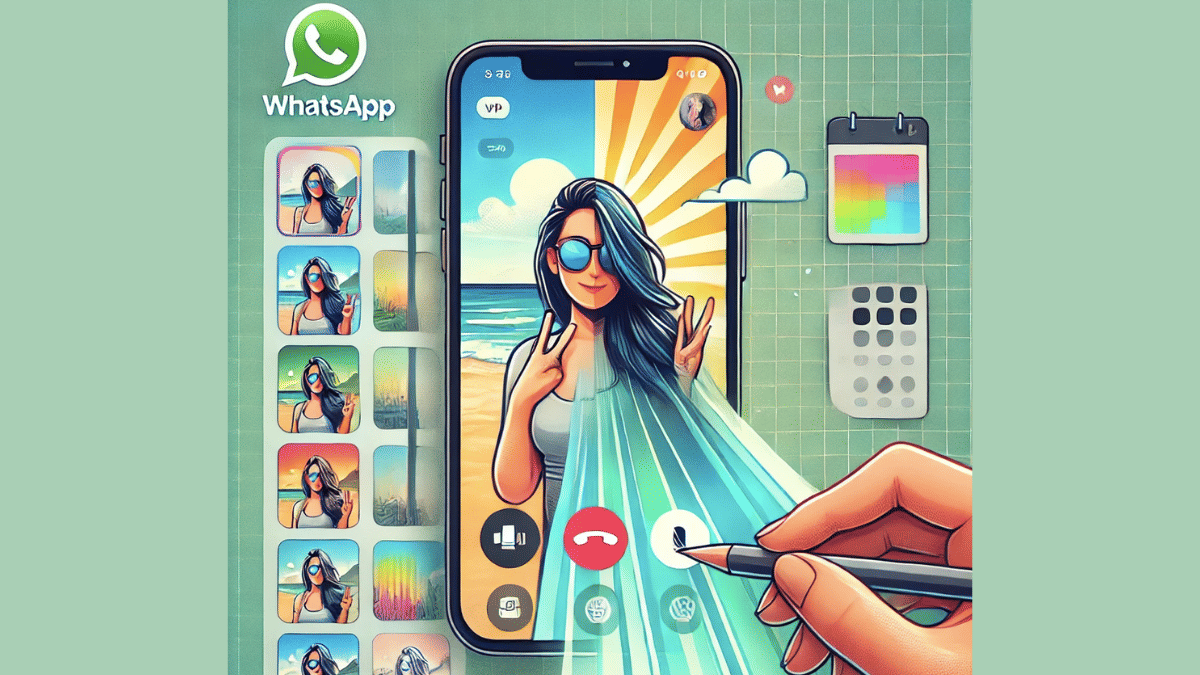
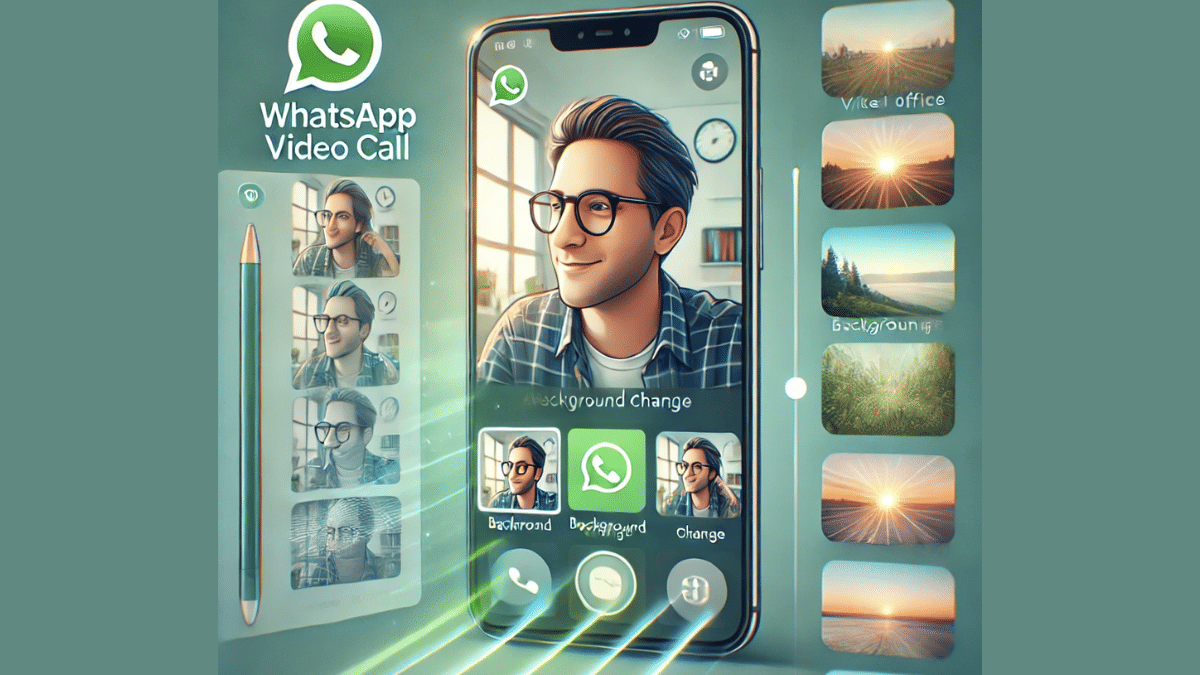
WhatsApp is definitely the go-to mobile app for messaging. And with the introduction of audio and video calls, it has become more popular amongst the masses globally. Being the most secure platform for personal and professional conversations, WhatsApp is undoubtedly offering a premium experience to the Android and iOS users. WhatsApp has introudced several features that enhance the messaging and calling experience on its platform. One of such options which makes video calling more intuitive is the background change and filters. This feature is also beneficial for the working professionals who wish to hide untidy background during an emergency meeting, while for others it adds a touch of fun. So, how can you add filters or change background in WhatsApp video calls? Read on the step-guide here:

For the tech geeks, stay updated with the latest cutting-edge gadgets in the market, exclusive tech updates, gadget reviews, and more right on your phone’s screen. Join Giznext’s WhatsApp channel and receive the industry-first tech update.

Also Read: Aadhaar Card Lost Or Misplaced? Here’s How to Apply for a Duplicate Aadhaar Card Online

Why Should You Use Filters & Backgrounds In WhatsApp Video Calls?

  1. For Enhanced Privacy – Allows you to hide surroundings during calls making your video chats more private.
  2. For Better Presentation – Helps you to get that professional vibe for the next official meeting or conference.
  3. For More Fun & Creativity – Adding filters is also an option to make conversations more fun

Also Read: Summer 2025 Buying Guide: How To Choose The Perfect Air Conditioner And Pay Less Electricity Bills

How to Add Filters in WhatsApp Video Calls

This is the option which will help you make video calling more fun. The experience is further refined by the option with which you can refine your skin tones for a cleaner look.

Steps For Android, iOS Users:

  • Start a Video Call: Open WhatsApp and initiate a video call with any contact.
  • Access Effects Menu: Tap anywhere on the screen during the ongoing call and select “Effects” or “Filters” icon (appears on the call screen).
  • Choose a Filter: Now, scroll and find the suitable filter and simply tap on it to apply. Changes will be made real time.
  • Adjust as Needed: Brightness or contrast levels adjustments can be done to some of the filters. Do so if required.

How to Change Background in WhatsApp Video Calls

For Android & iOS Users:

  • Start Video Call: Open WhatsApp mobile app and start a video call as you generally do.
  • Tap on the Background Option: This option appears when you tap anywhere on the screen during the video call.
  • Select Background Type For The Video Call :
  1. Blur – This option will keep the user in focus while blurring the background and surroundings.
  2. Custom Image – This will allow adding a custom photo as the background during WhatsApp video call. You can select any image from the phone’s gallery.
  3. Preset Backgrounds – There are a bunch of preset images which you can select from the WhatsApp’s default images option.
  • Apply the Background: After selecting the desired background, it will start reflecting in the video call immediately in real time.
  • Remove or Change Background: If you wish to go back to the default settings or use a different background just go back to the previous settings.
Categories
Apps Featured How To

Major WhatsApp Update: Now Add Music To Your WhatsApp Status On Android, iOS

Key Highlights

  • WhatsApp allowing option to add music to status update
  • Option to add music allowed only with photo and videos uploaded as status
  • Some regions yet to recieve this update
  • Both Android and iOS users can access this feature

WhatsApp has been testing multiple features that are designed for improving the personalised chat experience on its platform while keeping privacy as the priority. The instant messaging app has also received numerous features that offer an intuitive experience to the users. One of the such features that WhatsApp was testing at the beginning of this year was the option to add songs and music to status updates. Earlier available as a beta version, this update’s stable version is now rolling out to the masses in a phased manner. Both Android and iOS smartphone users will soon be able to upload their favourite music track with their next status update. We have brought you the step-guide for the same.

For the tech geeks, stay updated with the latest cutting-edge gadgets in the market, exclusive tech updates, gadget reviews, and more right on your phone’s screen. Join Giznext’s WhatsApp channel and receive the industry-first tech update.

Also Read: Apple’s WWDC 2025 Dates Announced: What To Expect, How To Watch, More

Before You Proceed

It is worth adding that the option to add music to status update is currently accessible in limited markets. Since the stable rollout is underway in a phased manner, users in some regions won’t be able to use this feature. That said, there is another catch to adding music as a status upload. WhatsApp is currently only allowing users to add music in Status uploads for images and videos. There is still no option to add music to the statuses containing texts, GIFs or stickers. Also, your WhatsApp application has to be updated to the latest version. Try checking for any pending updates manually.

Also Read: Incognito Browsing Not So Private! Steps To Check Incognito Mode Browsing History And How To Delete

Steps To Add Music To WhatsApp Status Uploads On Both Android, iOS Devices

Step 1: Open the WhatsApp mobile application

Step 2: At the bottom of the app’s home page, click on the ‘Updates’ section

Step 3: Now, tap on the ‘Add media’ option (camera icon with a + symbol). This will open up your phone’s gallery.

Step 4: Select the image or video that you wish to upload as your WhatsApp status

Step 5: After selecting the media file, you will see a add music tab on the top. Click on it.

Step 6: You will be redirected to the music browser where you can search for any soundtrack

Step 7: Now, using the progress bar trim down and select the specific part of the soundtrack that you want to add to the Status upload.

Step 8: Click on Done to set the selected music part to the Status upload

Categories
Apps Featured How To

Gemini Gems Are Now Free: Here’s What It Is And How To Use

Key Highlights

  • Gems are custom AI assistants in Gemini, now free
  • Users can personalize Gems for various tasks
  • Available on web and Android, customization on web

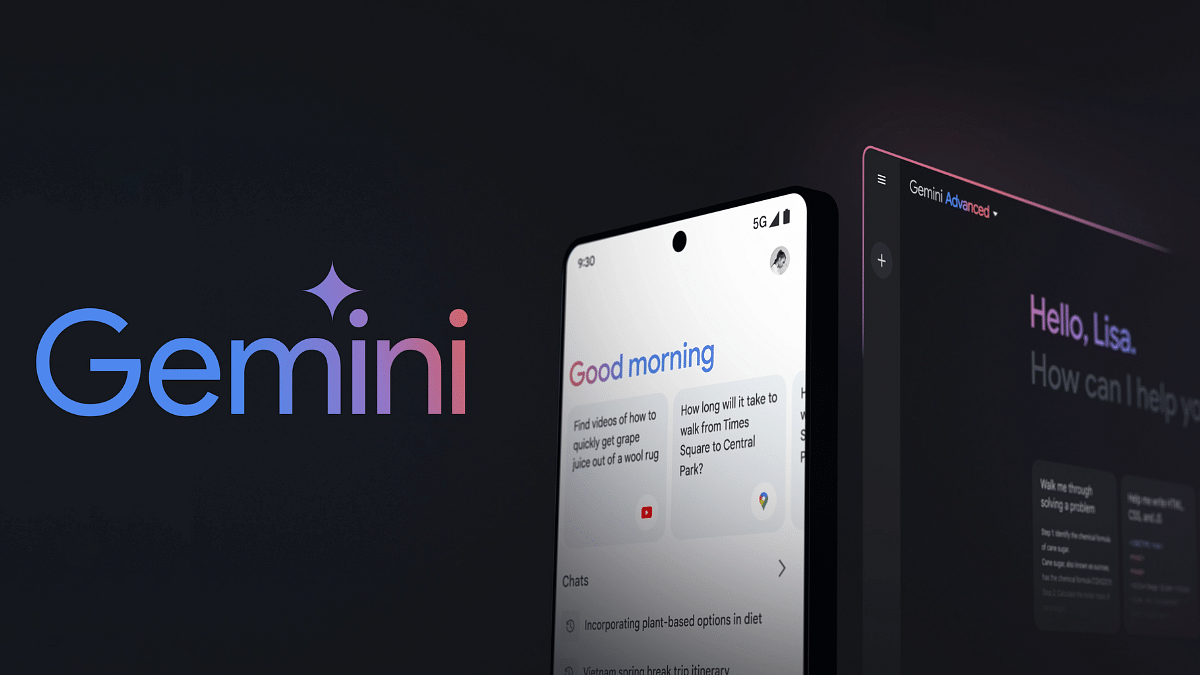
Google has started rolling out its customizable AI assistants Gems to free users on the web and Android. Previously available only to paid users, these AI-powered tools let you personalize Gemini to match your specific needs. Whether you need help brainstorming, coding, learning, or writing, Gems can be fine-tuned to work exactly the way you want. So, what makes Gems special, and how can you start using them? Here’s everything you need to know.

Also Read | How to Use Gemini AI as Your New Assistant on Android (Step-by-Step Guide)

What Is Gemini Gems?

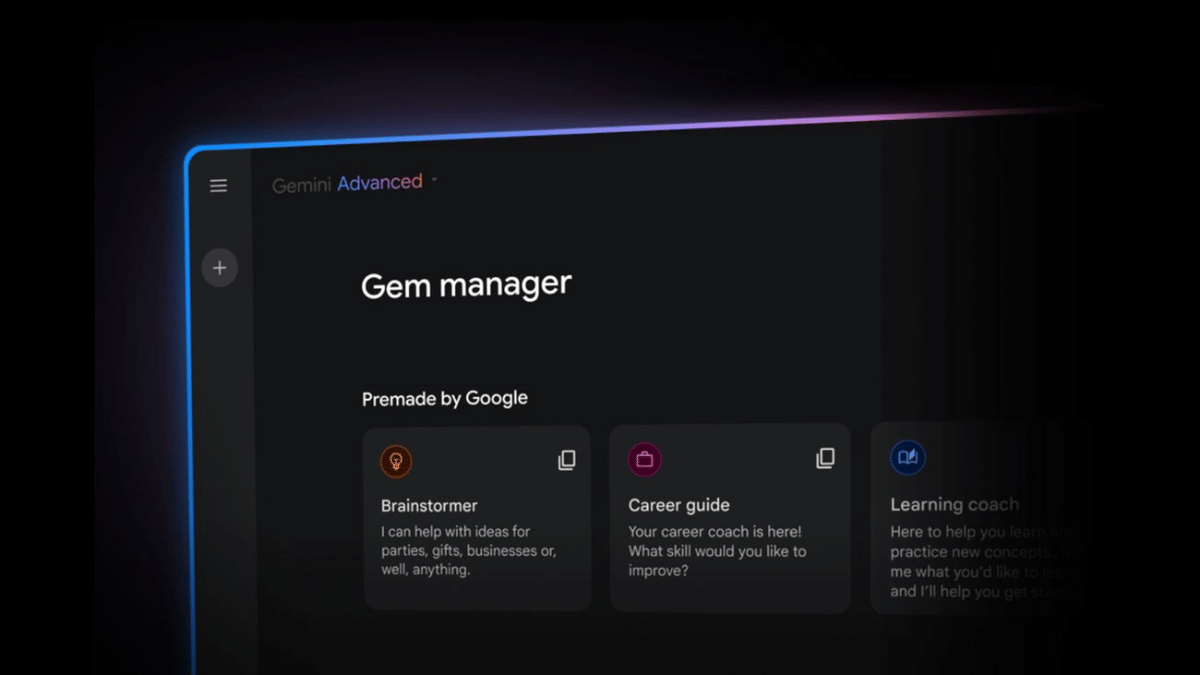
Gems is custom AI assistants built inside Gemini. Unlike regular AI chatbots, these assistants can be tailored to your specific needs by setting instructions for tone, response length, and even workflow preferences. Google provides five ready-made Gems to get started:

  • Brainstormer: Helps with creative ideas.
  • Career Guide: Offers job and career advice.
  • Coding Partner: Assists with programming tasks.
  • Learning Coach: Aids in studying and learning.
  • Writing Editor: Helps improve writing skills.

You can also create your own custom Gems and train them for specific tasks.

How To Access Gemini Gems

Step 1: On Android, go to the Gem manager inside the account menu.

Step 2: On the web, you will find it in the side panel at gemini.google.com.

Step 3: While you can use Gems on mobile, creating and customizing them is currently limited to the web version.

How To Customize A Gem

Step 1: Set instructions for tone and response style.

Step 2: Adjust response length to be brief or detailed.

Step 3: Upload files so your Gem can analyze and refer to specific documents.

This makes Gems great for automating repetitive tasks or creating a personal assistant that fits your workflow.

Google making Gems available for free users is a big deal. Previously, these features were only for paying customers, but now more people can experience AI customization without a subscription. Plus, with Google I/O 2025 coming soon, even more AI features may be announced for Gemini.

For the tech geeks, stay updated with the latest cutting-edge gadgets in the market, exclusive tech updates, gadget reviews, and more right on your phone’s screen. Join Giznext’s WhatsApp channel and receive the industry-first tech updates.
Categories
Apps Featured Info

EPFO Quick PF Withdrawal Via UPI Apps, ATMs Becoming Reality Soon? Transaction Limit, Eligibility Criteria

Key Highlights

  • EPFO to soon make changes to PF withdrawal process
  • Quick PF withdraw option coming soon
  • Transactions to be made possible via UPI apps and bank ATMs
  • Limit set for quick PF withdrawal
  • Changes could be implemented by May-end or June this year

EPFO (Employee’s Provident Fund Organisation) is all set to go a major transformation with its PF withdrawals procedures and schemes. The national organisation handling the backed by Ministry of Labour and employment has apparently established a dedicated centralised agency that will enable the quick PF withdrawal option via UPI apps and ATMs making transactions more simplified and hassle free for the working class.

For the tech geeks, stay updated with the latest cutting-edge gadgets in the market, exclusive tech updates, gadget reviews, and more right on your phone’s screen. Join Giznext’s WhatsApp channel and receive the industry-first tech update.

Also Read: Enhance Your Daily Productivity: How To Pair Android Smartphones With Windows 11 PC, Laptop Without USB Cable

EPFO PF Withdrawals Via UPI and ATM: When And How?

EPFO have received approval from the National Payments Corporation to introduce the option for its active members to withdraw PF funds directly via UPI apps and bank ATMs. The centralised agency specially to handle this entire process for a smoother fund transactions have been established by EPFO.

As of now, EPFO members don’t have any provision to withdraw their PF funds using any UPI app. But with the implementation of new policies and after getting a nod from NPCI, the same will be possible soon. This brings us to the timeline. As per a top official from the Ministry of Labour and Employment, this process will begin by May-end of June 2025.

Sumita Dawra, Secretary, Ministry of Labour and Employment, said “By May-end or June, members will experience a transformative change in accessing their provident funds.

Also Read: Worried About Heat And Water Damage? Here’s How To Protect Your Gadgets

Transaction Limit And Eligibility Criteria For Quick PF Withdrawal

Once this new change is implemented, EPFO account members will also get the provision to check their PF account balance directly via UPI apps. As for the transaction limit, a cap of Rs. 1 lakh is set for money withdrawal using the Quick PF withdraw option.

Adding on Dawra said, “They will be able to view their PF account balance directly on UPI, instantly withdraw up to Rs 1 lakh through an automated system, and choose their preferred bank account for transfers.”

Eligibility criteria for quick PF withdrwal has also been expanded beyond medical emergencies. PF account members will now be able to use their PF funds for housing, marriage, and education expenses while withdrawing it via UPI apps and ATM.

Categories
Apps Featured How To

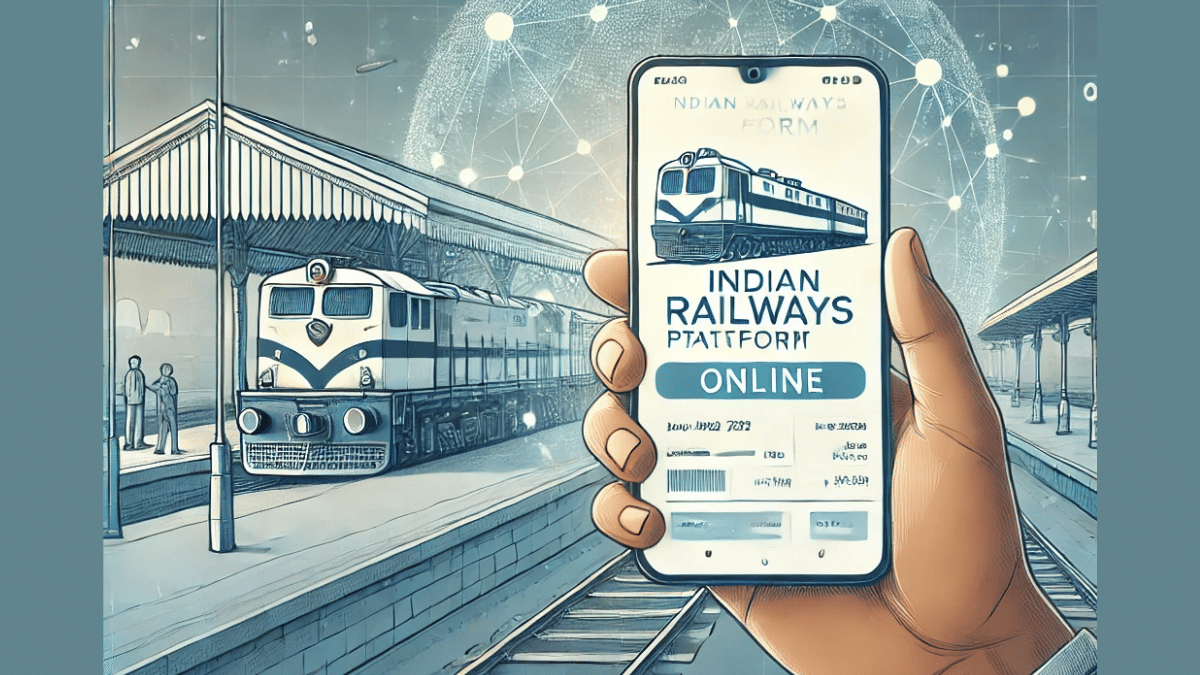
Hate Standing In Long Queues: Here’s How To Book Indian Railways Platform Ticket Online

Key Highlights

  • Platform ticket is required for station visits
  • Digital platform ticket booking process avoids long queues hassles
  • Dedicated mobile app available to book platform tickets online

Digitisation saw its peak in the country in the recent times. From paperless documentations to dedicated mobile apps for all kinds of services, India’s digital revolution has been massive. Indian Railways has also on-boarded this move making travel easier and more comfortable for the masses. Booking railways tickets and meals enroute can be done within a few minutes if you have a smartphone with an active internet connection. The same goes for platform ticket which is required when you go to see of or receive your loved ones at the station. While booking a train ticket is something you all might be aware of, but what about the procedure to purchase platform tickets online and avoid heavy penalties from the TTE avoiding long queues at the same time? Well, we have brought you the step-by-step guide to book a platform ticket online.

Also Read: Instagram Tips And Tricks: How To Share Music/ Songs As DMs With Friends On Instagram

How To Book Indian Railways Platform Ticket Online On Android And iOS

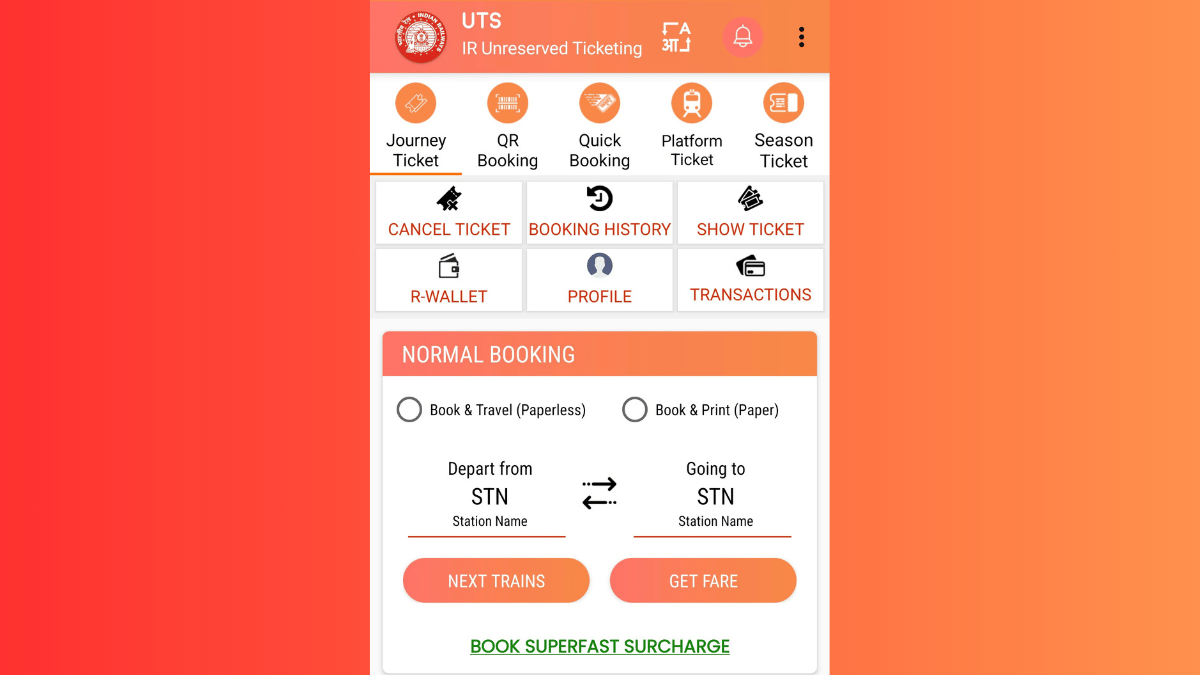
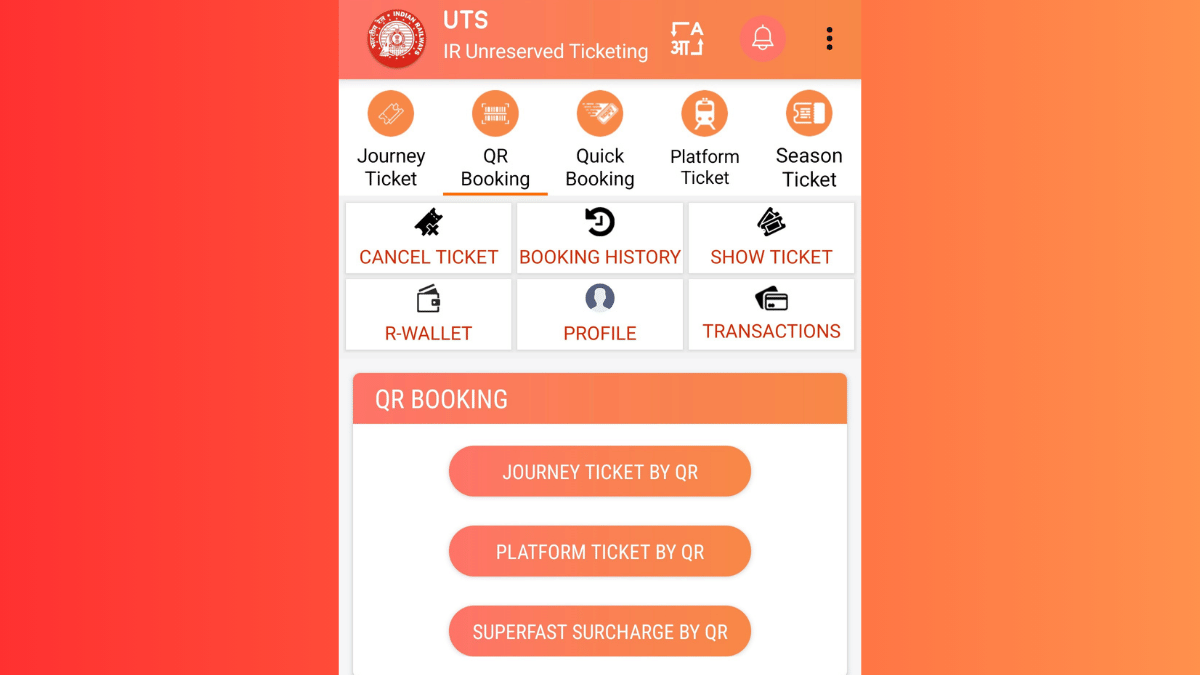
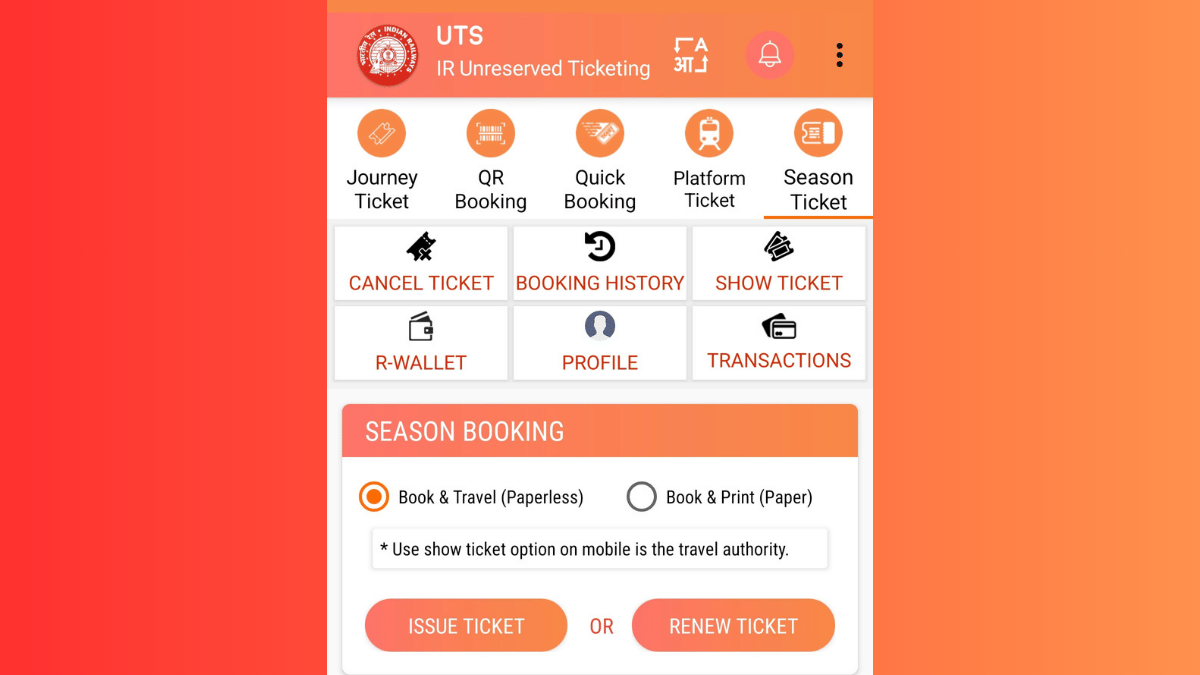
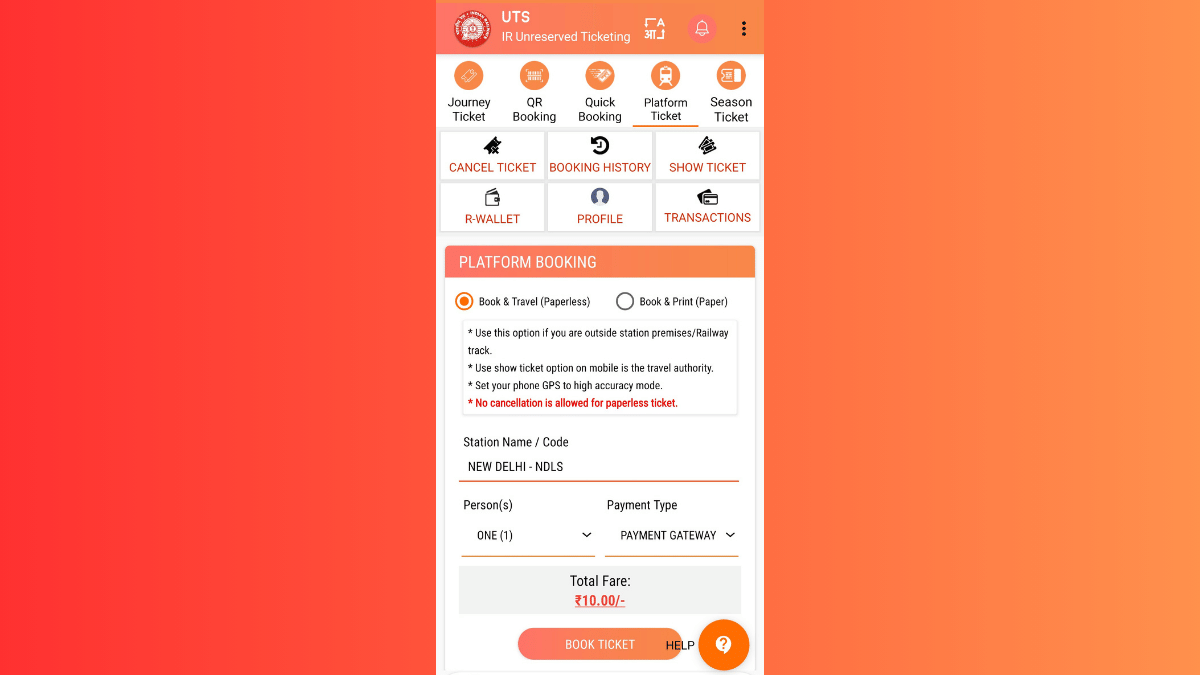
In order to book a platform ticket for your next railway station visit, you’ll need the dedicated mobile app called UTS. The Unreserved Ticketing System (UTS) can be downloaded on both Android and iOS devices via the Play Store and App Store respectively. Introduced by the government of India, the UTS mobile app integrates of host of features for convenient ticket bookings. For the unreserved travellers, this app offers the option to book platform tickets, journey tickets, season tickets, and more. Read the detailed steps to book a platform ticket using the UTS mobile app on your Android or iOS smartphone:

Step 1. Download the UTS Mobile App (Works On Both Android and iOS)

  • Search UTS app on Android Play Store and iOS App Store.
  • Download and install the app.
  • Allow all necessary permissions.

Step 2. Register (New Users) Or Log In (Old Users)

  • Launch the UTS mobile app after the installation
  • Tap on ‘Register’ if you are using the app for the first time
  • Enter the credentials including your mobile number.
  • If you already have an account, log in using your credentials.

Step 3. Navigate To Platform Ticket Section

  • Once you are logged in, you’ll see the Platform ticket on the top. Tap on it.
  • You’ll see two Booking type options ‘Book & Travel (Paperless) and (Book & Print (Paper). Select the former for digital platform ticket booking.
  • Enter the railway station code or select the railway station from the available list whose platform ticket you require.

Step 4. Complete Payment

  • You can choose your preferred payment method. Options include UPI, Debit/Credit Card Net Banking, or Digital Wallet (RWALLET)
  • Make the payment and complete the transaction process
  • Ticket booking will be done once the payment is complete

Step 5. Download Platform Ticket For Quick Access

  • Go back to the app’s homepage
  • Navigate to the ‘My Bookings’ section.
  • Download or take a screenshot of the platform ticket.

How to Show Online Platform Ticket to a TTE

  • If a TTE asks you to show your platform ticket, simply launch the UTS app on your smartphone
  • Open ‘My Bookings. option’
  • Show the digital platform ticket on your smartphone.
Categories
Apps Featured How To

Instagram Tips And Tricks: How To Share Music/ Songs As DMs With Friends On Instagram

Key Highlights

  • Instagram allows music sharing to contacts
  • Feature available on Android and iOS apps
  • Music and songs can be shared as DMs (Direct Messages)

Instagram is definitely a pandora’s box when it comes to features and tools. Started as a photo sharing app, it has evolved as one of the most popular social media platforms offering option to share short videos (Reels) and more. Even a simple post upload is more intuitive and engaging on Instagram which can be downloaded and installed across Android and iOS platforms. You all must be aware that Instagram has a vast music library that one uses for Reels and even standard posts. Selecting your favorite song for your Instagram post is a process of just a few taps. But do you know that instead of uploading a song as a Reel or post, you can share it with your friends too? Interested in knowing the steps? Read on below:

For the tech geeks, stay updated with the latest cutting-edge gadgets in the market, exclusive tech updates, gadget reviews, and more right on your phone’s screen. Join Giznext’s WhatsApp channel and receive the industry-first tech updates.
Also Read: Incognito Browsing Not So Private! Steps To Check Incognito Mode Browsing History And How To Delete

Steps To Share Songs/ Music As DMs On Instagram

Step 1: On your smartphones launch the Instagram mobile app. Make sure you are logged in to your profile

Step 2: Go to the DM (Direct Messaging section)

Step 3: Open the chat window where you want to send the song

Step 4: In the message type section tap on Sticker icon

Step 5: Now, click on the Music feature (Note, this a new feature addition)

Step 6: Search for the song or music that you wish to send to this contact as a DM

Step 7: If the song shows up in the music library, just tap on it to send to the contact

Categories
Apps Featured How To

Incognito Browsing Not So Private! Steps To Check Incognito Mode Browsing History And How To Delete

Key Highlights

  • Incognito Mode offers extra privacy during wen browsing
  • Using Incognito mode search history is hidden from local directory
  • Search history is stored in Google account or network admin
  • Using Incognito mode in Google as guest provides maximum privacy

Incognito Mode aka the Private Browser is a saviour when you want to do discrete web browsing. Available as a built-in feature in most of web browsers such as Google Chrome, Opera, and others, this privacy feature has also made its way to the Android and iOS platforms. But if you believe that browsing anything in Incognito mode is as private as claimed? Well, here’s a reality check. While the search history remains invisible from the local directory, it does get saved on your Google Account. So, you aren’t entirely invisible when you are browsing privately in Incognito mode. Surprised right? Read on here to know how can you look at your Incognito Mode’s search history and how can you delete it:

Also Read: Merge Two Different PF Accounts Into One: How To Guide

What Is Incognito Mode?

Incognito Mode is a safe browsing option where one can search one’s keen interest privately. A new private window is initiated where users can search the required topics without the history getting saved locally. While the browsing date is private from the public devices or users, website and Internet Service Providers, and the network admins will still be able to access all the information. Below is the list of information that is kept private in the Incognito mode.

  • Search and browsing history
  • Cookies and site data from any website
  • Data filled in any form or application

Is There Any Way Check Search History in Incognito Mode?

If we speak of Android smartphones, there isn’t any direct way that allows one to view Incognito mode’s search history. But that doesn’t mean there isn’t any other way to do so. The activity log is stored in Google account or network admins. The traceable activities in Incognito mode includes:

  • Via Google Account Activity (if a user is signed in while browsing in Incognito mode)
  • In the Wi-Fi/network logs of the device
  • If there’s any third-party monitoring app installed on the device

Also Read: Printer Not Working Right? Here’s Top Five Printing Issues And How To Solve Them

How To View Google Activity History (If Logged In):

  1. Open Google My Activity in a browser.
  2. You can also open the Google mobile app and go to My Activity option
  3. Head to the “Web & App Activity” section to see the detailed timeline of searches
  4. Note, the search history will only be visible of the above option is enabled

Also Read: DigiYatra Tips And Tricks: How To Add Flight Boarding Pass For Hassle Free Travel

How To Delete Incognito History On Android

While there is no direct method to view and delete Incognoto mode’s search history, you can follow the steps below to disable web activity tracing and deleting any saved history from Google Account.

Step 1: On your Android phone launch the Settings menu

Step 2: Navigate to Privacy And Setting tab

Step 3: Scroll down to the Privacy Controls settings and tap on it

Step 4: Head to the Activity Controls option

Step 5: Select the Google Account that you have been using for private browsing/ Incognito mode

Step 6: Disable Web & App Activity option

Step 7: Set the Auto Delete duration as per your preference


Categories
Apps Featured Info Mobile

New Smartphone? Swiggy Instamart Brings It Home In Just 10 Minutes

Key Highlights

  • Smartphones now delivered in 10 minutes via Swiggy Instamart
  • Available in 10 major cities with more coming soon
  • Wide range of top-brand phones and exciting discounts available

Swiggy Instamart has taken convenience to a whole new level by introducing smartphone deliveries within 10 minutes. Now, getting your hands on the latest mobile phone is as easy and fast as ordering groceries. Here’s everything you need to know about this exciting launch.

Also Read | Top 5 Alternatives To Blinkit For 10-Min Delivery In India

Smartphones Delivered In 10 Minutes

Swiggy Instamart has started delivering a wide range of smartphones from top brands across 10 major cities, including:

  • Bangalore
  • Delhi
  • Noida
  • Gurgaon
  • Faridabad
  • Mumbai
  • Chennai
  • Hyderabad
  • Pune
  • Kolkata

More cities will be added soon as part of the platform’s ongoing expansion.

Popular Models Available Now

Customers can now order some of the most in-demand smartphones, such as:

  • iPhone 16e
  • Samsung M35
  • OnePlus Nord CE Series
  • Redmi 14C
  • OnePlus Nord CE4 Lite

You will also find options from trusted brands like Motorola, Vivo, Oppo, and Realme, covering both mid-range and premium categories.

Fast, Easy, And Seamless Shopping Experience

Swiggy Instamart makes smartphone shopping effortless:

  • Browse easily via the app
  • Choose your preferred model
  • Get it delivered in just 10 minutes

Whether it’s an emergency need or a last-minute gift, this service is designed for ultimate convenience.

Exciting Offers On Mobile Purchases

To make things even better, Swiggy Instamart is offering an exclusive discount:

  • Get 5 percent off (up to Rs. 4000) on smartphone orders above Rs. 11,499
  • Offer applicable on payments made with ICICI Bank Credit Cards

Also Read | Ready To Float And Feast? Swiggy Now Delivering To Dal Lake Houseboats

With this smartphone delivery launch, Swiggy Instamart continues to push boundaries in the quick commerce space. After recently expanding to 100 cities (32 new ones in 2025 alone), this new service adds even more value for millions of users.

For the tech geeks, stay updated with the latest cutting-edge gadgets in the market, exclusive tech updates, gadget reviews, and more right on your phone’s screen. Join Giznext’s WhatsApp channel and receive the industry-first tech updates.

Categories
Apps Featured How To

DigiYatra Tips And Tricks: How To Add Flight Boarding Pass For Hassle Free Travel

Key Highlights

  • DigiYatra initiative allows seamless and faster air travel process
  • Identity veification can be done without any physical ID card or document
  • Flight boarding pass can be added to DigiYatra app

The Ministry of Civil Aviation in India has introduced a special initiative to ease the air travel process in India. The DigiYatra app developed by a private non-profit organisation called Digi Yatra Foundation helps the travellers to commute paperless. With this platform, passengers get a smooth air travel exprience where they don’t need to carry physical documents and identities for check-in. We previously explained the DigiYatra app in detail and also shared the steps guide to update your credentials and documents in the app. But are you aware that DigiYatra also allows the consumers to add boarding pass making their flight travels a seamless experience. What all steps you would need to follow to add a flight boarding pass in the DigiYatra app? We have shared the steps below:

For the tech geeks, stay updated with the latest cutting-edge gadgets in the market, exclusive tech updates, gadget reviews, and more right on your phone’s screen. Join Giznext’s WhatsApp channel and receive the industry-first tech updates.

Also Read: Google Maps Detailed Voice Navigation: What It Is & How to Use It on Android and iPhone

How To Add Flight Boarding Pass In DigiYatra App For Seamless Airport Travel Experience

One can easily access DigiYatra services via the mobile app. Both Android and iOS users can download and install the DigiYatra app on their respective smartphones and access all the available services including the option to add a flight’s boarding pass.

Step 1: Launch the DigiYatra app on your respective smartphones

Step 2: Add your credentials (as required)

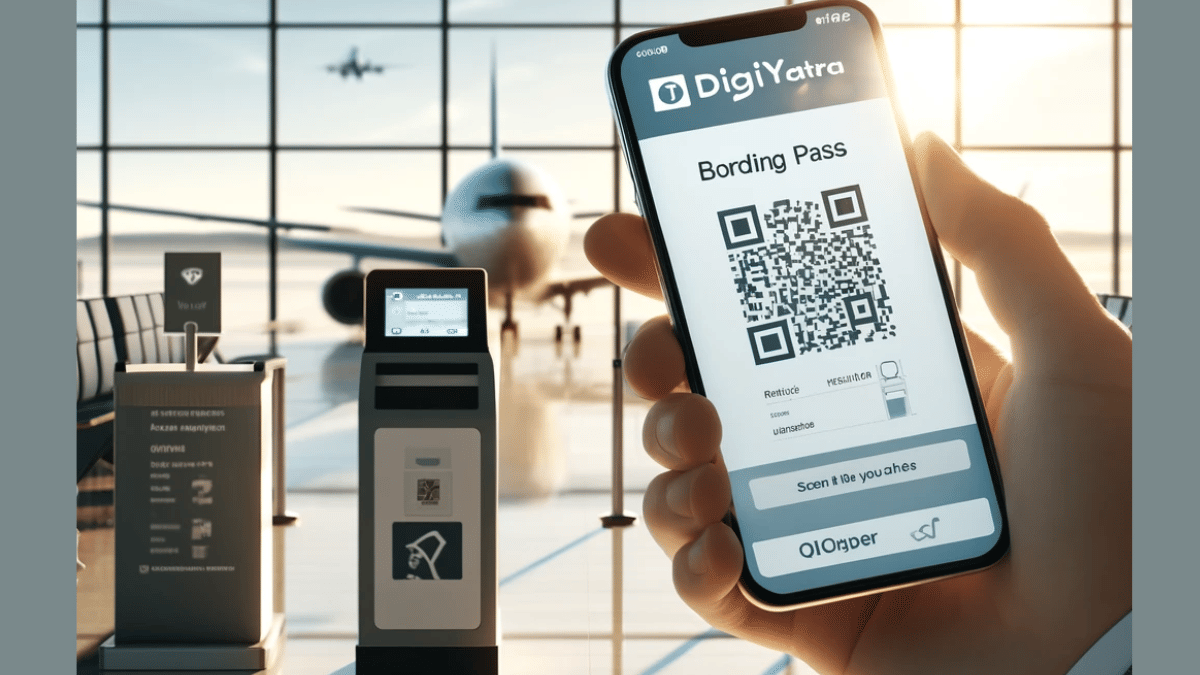
Step 3: Once the credentials are added and you are logged into your profile tap on the “Add Boarding pass” option

Step 3: Click in the checkbox in front of the “Agree to the terms and conditions”

Step 4: A new option will pop up to add the Boarding Pass PDF. You can also scan the Boarding Pass QR code to add it to the app.

Once the boarding pass is successfully added to the DigiYatra app, you’ll be shown all of the important travel details including the Flight name/ number, booking ID/ PNR, and seat number, etc. All the information will be displayed on the DigiYatra app’s homepage.