Categories
Apps Featured

Love Anime? Here’s Where You Can Buy The Coolest Merchandise In India

Key Highlights

  • Buy anime merch from top sites
  • Get cool t-shirts, posters, and more
  • Check reviews before shopping

Anime is more than just entertainment. It’s an emotion for many fans across India. From action-packed shows like Naruto and Demon Slayer to cozy slice-of-life anime, every fan loves collecting merchandise that keeps them connected to their favorite characters. If you have been wondering where to buy good quality anime merchandise in India, we have got you covered. From t-shirts and posters to figurines and keychains, here are some of the best websites to shop from.

Also Read | 100+ Instagram Name Ideas For Anime Lovers

The Souled Store

This popular Indian brand has a wide range of officially licensed anime merchandise.

  • Offers clothing like t-shirts, hoodies, joggers, and more
  • Anime collections include Naruto, Dragon Ball Z, One Piece, and more
  • Known for good quality and quick delivery
  • Also has regular discounts and offers
  • Website: www.thesouledstore.com

Redwolf

Redwolf is a great choice for fans looking for both anime and pop culture merchandise.

  • Offers t-shirts, mugs, badges, posters, and more
  • Collections include Attack on Titan, Tokyo Ghoul, Death Note, and more
  • Reliable delivery service and decent pricing
  • Often collaborates with official licensors
  • Website: www.redwolf.in

ComicSense

This is a go-to site for die-hard anime fans in India.

  • Offers anime-themed hoodies, stickers, collectibles, and accessories
  • Exclusive designs that you won’t find elsewhere
  • Collections from Naruto, Bleach, My Hero Academia, Jujutsu Kaisen, and others
  • Premium quality material with creative packaging
  • Website: www.comicsense.store

Amazon India

Yes, Amazon is still a great option for anime merch, if you know what to search for.

  • Wide variety of items like action figures, posters, stationery, cosplay items
  • You can compare different sellers and prices
  • Easy returns and fast delivery options
  • Be sure to check seller ratings before buying
  • Website: www.amazon.in

Also Read | 5 best manga reader apps for android

Qrioh
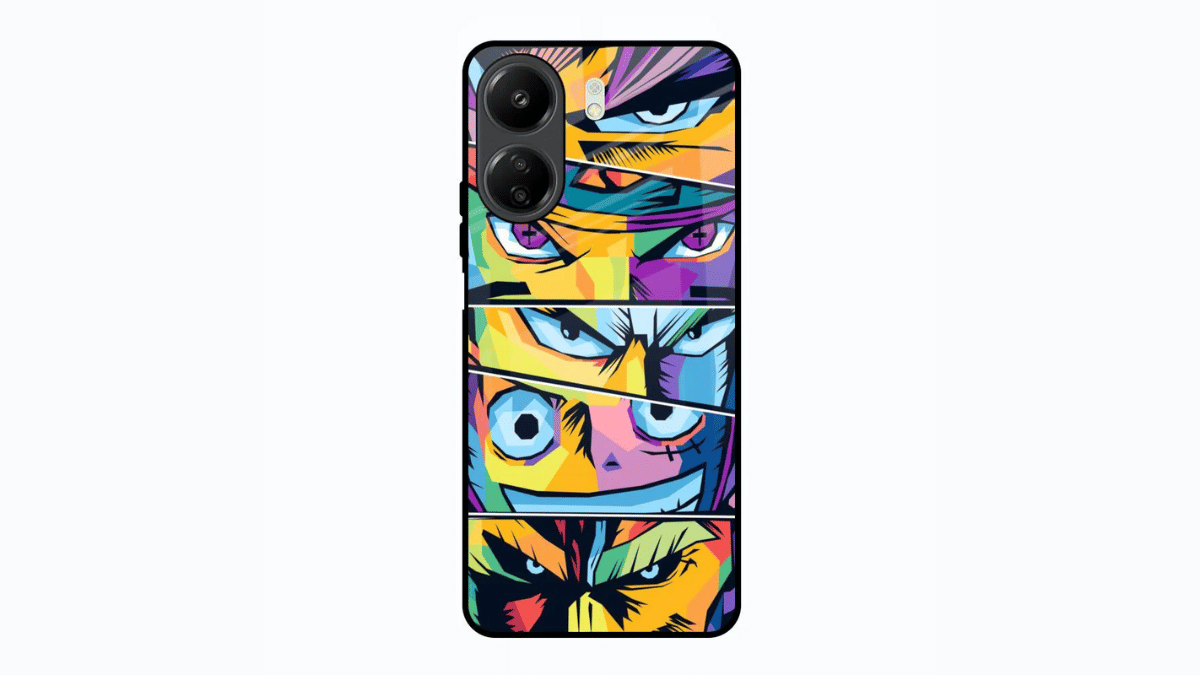
A lesser-known but stylish website that’s catching attention among anime lovers.

  • Offers anime phone cases, pop grips, wallets, and laptop sleeves
  • Features unique and artistic anime designs
  • Good for gifting and personalization
  • Affordable prices with combo offers
  • Website: www.qrioh.com

Always check for product reviews and authenticity before placing your order. Happy shopping, anime fans.

For the tech geeks, stay updated with the latest cutting-edge gadgets in the market, exclusive tech updates, gadget reviews, and more right on your phone’s screen. Join Giznext’s WhatsApp channel and receive the industry-first tech updates.

Categories
Apps Featured How To

ChatGPT Replacing Gemini As New Default AI Assistant On Android? Here’s How

Key Highlights

  • ChatGPT could replace Gemini as default AI assistant on Android
  • Update rolling out in the beta version
  • Google also planning to replace Google Assistant with Gemini on Android
  • ChatGPT if set as default would restrict users from invoking Gemini or Google Assistant

Google recently started incorporating Gemini as the default AI assistant tool for Android devices. In a bid to do so, the outgoing Google Assistant will be replaced with the newer and advanced version of AI. However, it seems Open AI is also not leaving behind this opportunity and has already planned to bring ChatGPT as default AI assistant for Android users. Here’s how you can also use ChatGPT as the default AI voice assistant on your respective Android smartphones:

For the tech geeks, stay updated with the latest cutting-edge gadgets in the market, exclusive tech updates, gadget reviews, and more right on your phone’s screen. Join Giznext’s WhatsApp channel and receive the industry-first tech update.

Also Read: ChatGPT Search Quick Hacks: How To Use ChatGPT As Default Search Engine In Google Chrome

Is ChatGPT The New AI Assistant For Android Smartphones And Tablets?

As per a new report from Android Authority, Open AI has released a new mobile app version of its popular AI chatbot, ChatGPT. The latest beta version brings along the provision of making it a default AI assistant tool replacing Gemini or the current Google Assistant from Android devices. This move to make ChatGPT the default virtual assistant for Android smartphones explains the competitive landscape of artificial intelligence in the consumer tech category.

Just for reference, only the ChatGPT’s beta version 1.2025.070 has the option to be the default virtual voice assistant for the Android devices. But there’s a small catch to it. While Android users can set ChatGPT as the default AI assistant tool, there isn’t any dedicated keyword to summon it unlike Google “Hey Google” or “Okay Google” commands. But considering it’s the beta version, we can expect the stable update to bring along this feature too.

Also Read: DeepSeek Vs ChatGPT: Which AI ChatBot Leads In 2025

How Can You Set ChatGPT As Default AI Assistant On Android Smartphones, Tablets’

Step 1: From Google Play Store, download and install ChatGPT beta version 1.2025.070

Step 2: Go to the Settings menu on your Android device

Step 3: Navigate to the “Apps” settings

Step 4: Click on the “Default Apps” icon

Step 5: Now, head to the “Default Digital Assistant App” option

Step 6: Tap on ChatGPT to set it as default AI voice assistant tool on your Android smartphone/ Tablet.

Categories
Apps Featured How To

Maximize Data Efficiency: Tips to Reduce Mobile Usage Without Downgrading Quality

Key Highlights

  • Mobile data integral to browse web and social media apps on the go
  • Limited data remains primary concern for most users
  • Heavy data usage can be easily compromised

If you are a smartphone user then you must be aware how crucial mobile internet has become in the current scenario. It’s almost impossible to imagine our lives without a working internet connection. And if you are always on the move, then its the mobile data that comes as a saviour. And with constant surge in online streaming, web browsing, and social media usage, mobile data getting vanished remains a big concern for the masses.

Specifically, those who solely rely on mobile data packs with usage caps. While there are unlimited data pack options available in the market, often high charges associated with it lets users turn to limited data pack options. But the good news is, you can optimize your mobile data consumption with just a few tweaks and make the most out of it without compromising or degrading the content quality. Interested in knowing the steps? Read on below:

For the tech geeks, stay updated with the latest cutting-edge gadgets in the market, exclusive tech updates, gadget reviews, and more right on your phone’s screen. Join Giznext’s WhatsApp channel and receive the industry-first tech update.

Also Read: How to Check FASTag Toll Payment History and File Complaints for Overcharging

Activate Data Saver Mode (Works on Android, iOS)

Enabling the data saver mode on your smartphones cuts down on the unnecessary data usage. This options limits the data consumption when not in use allowing saving mobile data for later use. This option can be enabled from the Settings menu on your respective Android and iOS devices.

Step 1: Go to the Settings menu

Step 2: Search data save mode

Step 3: Enable it

Also Read: DeepSeek R1 Explained: What Is It? How To Use For Free?

Restrict Background App Data Usage

Another reason for heavy data consumption is the apps running in background. Always keep a check for the apps that running in the background and close any unnecessary app. You can also restrict data usage for specific apps using the settings menu.

Step 1: Open Settings menu

Step 2: Locate “Data saving” option

Step 3: Check the “Unrestricted list”

Step 4: Only Keep Carrier Serivices, Google Play Services running in the background

Step 5: Disable Unrestricted option from the apps with heavy data consumption

Also Read: How To Watch IPL 2025: Schedule, Streaming, And Everything You Need To Know

Try Using Lite App Versions

Using Lite app versions also helps with data saving without compromising on the data quality overall. There are several official web browsers whose Lite versions can be downloaded via Google Play Store and Apple App Store. Web browsers such as Opera Mini, Facebook Lite, YouTube Go helps with low internet consumption.

Also Read: Google Maps Detailed Voice Navigation: What It Is & How to Use It on Android and iPhone

Disable Auto-Play Video Option In Social Media Apps

All the popular social media apps including Instagram and Meta are known for extensive data consumption. Specifically the built-in video playback feature in these apps drain mobile data faster. Disabling auto-play videos is what you need to consider to save mobile data. While doing so, there wouldn’t be any compromise with the video quality as well.

Also Read: Apple CarPlay Tips And Tricks: How To Use SharePlay And CarPlay Together For Music Playback In Car

Download Media Offline When On Wi-Fi

Whenever your mobile device is connected to Wi-Fi, download videos or music files in your device’s local library. This will not only ensure a smooth playback but also avoid excessive data drainage.

Also Read: Smart TV Hack: Learn How To Use Your Mobile Internet For Streaming

Set Auto-Updates On Wi-Fi Only

This setting will prevent apps from using mobile data for OTA updates. You can follow the steps below to disable auto update on your Android smartohones.

Step 1: Open Settings menu

Step 2: Go to System & update option

Step 3: Navigate to the Software Update menu

Step 4: Click More options

Step 5: Set the Auto Download option to Wi-Fi

Categories
Apps Featured How To

How to Check FASTag Toll Payment History and File Complaints for Overcharging

Key Highlights

  • FasTag toll payment history can be checked online
  • Complaints can be raised for overcharging
  • 1039 helpline number

FASTag has been one of the most rapidly adapted toll collection system in India. Introduced to ease the collection process, FASTag uses Radio Frequency Identification Technology for toll dedution . While the government is planning to replace the current RFID toll collection with more efficient satellite-based toll collection, FASTag continues serving its purpose of easing down the traffic flow at congested toll gates across the state highways. Despite offering seamless toll collection system, FASTag users often report common issues such as overcharging, payment failures, and others. In case of overcharging, there’s a provision to raise complaints. But to do so, you would need to cross check your transaction history. Here in this article, we have listed the steps with which you can not only check all the toll payments made via FASTag and raise disputes for overcharging.

For the tech geeks, stay updated with the latest cutting-edge gadgets in the market, exclusive tech updates, gadget reviews, and more right on your phone’s screen. Join Giznext’s WhatsApp channel and receive the industry-first tech update.

Also Read: Damaged FASTag? Here’s How To Get Duplicate FASTag Via Paytm

How To Check FASTag Toll Payment Transaction History

Using FASTag Bank Provider’s Portal

Step 1: On your smartphones or laptops/ PCs, go to the FASTag-linked bank’s website or app

Step 2: From the services tab or using the search go to the FASTag menu

Step 3: Login to your FASTag account

Step 4: Click on the Menu icon on the top right (three horizontal lines)

Step 5: Tap on the Statements option

Step 6: Select the Transaction Details option

Step 7: Now, enter the dates “From” and “To” for the period you need to check the toll payment transactions

Step 8: Enter the ‘Vehicle Registration’ number

Step 9: Hit the Generate Statement tab

Step 10: Export the file to Excel or PDF format

Also Read: No Cash, No Fuss: Here’s How To Pay At Fuel Stations Using Your Car’s FASTag

Using UPI APPs Such As Paytm

Step 1: Open Paytm mobile app

Step 2: Go to the Manage FASTag menu

Step 3: Scroll down to the Recent Payments tab

Step 4: Click on Request Statement

Step 5: Select the time period for the transaction history (default is 30 days)

Step 6: Select the file format for export. You’ll get CSV and PDF options.

Step 7: Click on Confirm to receive the FASTag toll transaction history

Also Read: Paytm Fastag Invalid: List Of Authorized Banks And Steps To Buy New Fastag

How To Raise Disputes For FASTag Toll Overcharging

Step 1: Contact the FASTag bank provider via customer care or email

Step 2: Raise complaints for overcharging

Step 3: Provide proper details such as Vehicle Registration number, Date and time of toll dedcution/ transaction, Toll plaza name, toll amount deducted.

Step 4: Alternatively, you can call on the NHAI toll free helpline for FASTag, i.e., 1033 and raise complaints for overcharging

Categories
Apps Featured How To Info

DeepSeek R1 Explained: What Is It? How To Use For Free?

Key Highlights

  • DeepSeek R1 is a new AI chatbot
  • Is developed by a China-based AI firm
  • Competes with likes of ChatGPT and Gemini AI

AI landscape is certainly evolving and new players are emerging to take on the existing pioneers. Open AI’s ChatGPT has been the dominating the AI era ever since its introduction. While Google Gemini AI takes a close lead, multiple other AI tools have entered the market offering users all kinds of solutions. And a new player has rattled up this industry giving a tough time to the primary players. We are speaking of the DeepSeek R1. Developed by the Chinese firm, the DeepSeek is as capable as ChatGPT offering services like AO conversations, content creation, code generation, and more. What all possibilities it offers and how can you use it for free? Here’s everything you should know about the DeepSeek R1 AI platform:

For the tech geeks, stay updated with the latest cutting-edge gadgets in the market, exclusive tech updates, gadget reviews, and more right on your phone’s screen. Join Giznext’s WhatsApp channel and receive the industry-first tech update.

Also Read: ChatGPT Voice Chat Feature Released: How Is It Different From Text Version?

What Exactly Is DeepSeek R1?

DeepSeek R1 is essentially the latest large language model (LLM) AI chatbot in the town. It offers similar services like the ChatGPT and Google Gemini AI where users can converse with the AI bot to get different kinds of tasks done. DeepSeek R1 is developed by DeepSeek AI which is a Chinese AI firm. This new LLM feeds on a multilingual and code-based data to deliver quick solutions.

DeepSeek R1 has been designed to provide accurate, fast, and coherent responses across a variety of use cases. One can simply ask an question or converse with DeepSeek R1 to get answers to different queries, for research, writing content to explaining code and even brainstorm ideas for projects and reports.

Also Read: DeepSeek Vs ChatGPT: Which AI ChatBot Leads In 2025

DeepSeek R1: Subscription Costs, Plans

DeepSeek R1 is a free to use platform. Yes, you read that right. Unlike the ChatGPT Plus and Enterprise editions that comes with a subscription costs, DeepSeek R1 is currently free to use. Customers don’t have to pay any subscription fee to use all of its exclusive features.

Also Read: Unable To Read Doctor’s Handwritten Prescription? Google Lens New AI To Help Decipher Any Bad Handwritten Doctor Prescription

DeepSeek R1: Compatible Platforms/ Devices

  • Android: Smartphones, Tablets
  • iOS: iPhones and iPads
  • Windows: Laptops. PCs, Chromebooks
  • macOS: Laptops, PCs

Also Read: How to Set Up Google Photos Shared Albums: Guide

How To Use DeepSeek R1 For Free On Any Smartphone/ Laptop/ PC

Step 1: Open any web browser on your laptop/ PC. You can also visit the Play Store and download the mobile app.

Step 2: Enter chat.deepseek.com in the search tab and hit enter

Step 3: Compete the registration process which is free of cost

Step 4: Start your conversations with DeepSeek R1

Categories
Apps Featured How To Laptop

WhatsApp Web Tips And Tricks: Quick Keyboard Shortcuts Chats, Replies, And More

Key Highlights

  • WhatsApp allows several keyboard shortcuts
  • Keyboard shortcuts makes using WhatsApp web super easy
  • Keyboard shortcuts on WhatsApp can be applied on Windows, Mac laptops/ PCs

WhatsApp Web is a convenient way to stay connected on your desktop, and knowing a few handy keyboard shortcuts can make your messaging experience even faster and smoother. Whether you’re replying to messages in a flash, muting noisy chats, or jumping between conversations, these time-saving shortcuts can seriously boost your productivity. In this article, we bring you the most useful WhatsApp Web keyboard shortcuts for Windows and macOS users—so you can chat smarter, not harder.

For the tech geeks, stay updated with the latest cutting-edge gadgets in the market, exclusive tech updates, gadget reviews, and more right on your phone’s screen. Join Giznext’s WhatsApp channel and receive the industry-first tech update.

Also Read: WhatsApp Introduces Document Scanning: Here’s How To Use It

WhatsApp Web Keyboard Shortcuts For Windows Laptops And PCs

WhatsApp Keyboard Shortcut keys Function (Windows)
Ctrl +Alt+ NStart a new chat
Ctrl+ Alt+ TabStart next chat
Ctrl+ Alt+ Shift+ MMute any chat
EscapeClose chat
Ctrl+ Alt+ Shift+ FSearch in specific chat
Ctrl+ Alt+ /Search
Alt+ KExtended search
Ctrl+ Alt+ LLock screen shortcut
Ctrl+ Alt+ Shift+ NCreate a new group
Ctrl+ Alt+ Shift+ EArchive chat
Ctrl+ Alt+ backspace Delete any chat
Ctrl+ Alt+ Shift+ PPin chat
Ctrl+ AltOpen settings
Ctrl+ Alt+ EOpen emoji tab
Ctrl+ Alt+ SOpen sticker pack
Ctrl+ Alt+ GOpen gift panel
Ctrl+ Alt+ PView profile and about section
WhatsApp Web Keyboard shortcuts

WhatsApp Web Keyboard Shortcuts For Mac Laptops And PCs

WhatsApp Keyboard Shortcut keys Function (Windows)
command+ NStart a new chat
command+ shift+ ]Start next chat
command+ option+ MMute any chat/call
EscapeClose chat
command+ option+ FSearch chat/calls or status
command+ FSearch in chat
command+ shift+ FSend a file
command+ +magnify text size
command+ Shift+ NCreate a new group
command+ 4Archive chat
command+ 5for ‘Starred’ messages
command+ shift+ [Go to previous chat
command+ 6Open settings
command+ option+ Venable or disable camera
command+ left arrowSwitch between stickers and GIFs
command+ shift+ FSend a file
command+ shift+ WHide chats
WhatsApp Web Keyboard shortcuts
Categories
Apps Featured

Best Party Playlists For Holi 2025: Here’s Where To Stream Top Holi Songs

Key Highlights

  • Music makes Holi parties more fun
  • Stream songs on apps like Spotify, YouTube, and Gaana
  • Mix old hits and new tracks for everyone

Holi is more than just colors. It’s also about music, dance, and full-on celebration. A great playlist can instantly lift the mood of your Holi party. Whether you enjoy classic Bollywood songs or energetic remixes, music is the heart of every Holi celebration. Here are the best platforms where you can stream top Holi songs and party playlists.

Also Read | Holi Beats: Top Audio Picks For Every Mood

Spotify

  • Search for ‘Holi Party Hits’, ‘Bollywood Dhamaka’, or ‘Desi Dance Beats’.
  • Includes popular tracks like Rang Barse, Balam Pichkari, Do Me a Favor Let’s Play Holi, etc.
  • You can also create your own custom playlist and share it with friends.
  • Easy to use and perfect for all age groups.

YouTube

  • Search for ‘Non-Stop Holi Songs’, ‘Holi DJ Remix’, or ‘Top Bollywood Holi Songs’.
  • Channels like T-Series, Zee Music, and Tips have long music compilations.
  • Great option for continuous music during the party.
  • Free and easily accessible for everyone.

Gaana

  • Look for playlists like ‘Holi Special’ or ‘Bollywood Holi Bash’.
  • Mix of old and new Holi tracks.
  • Auto-play and easy navigation make it party-friendly.
  • Ideal for Bollywood music lovers.

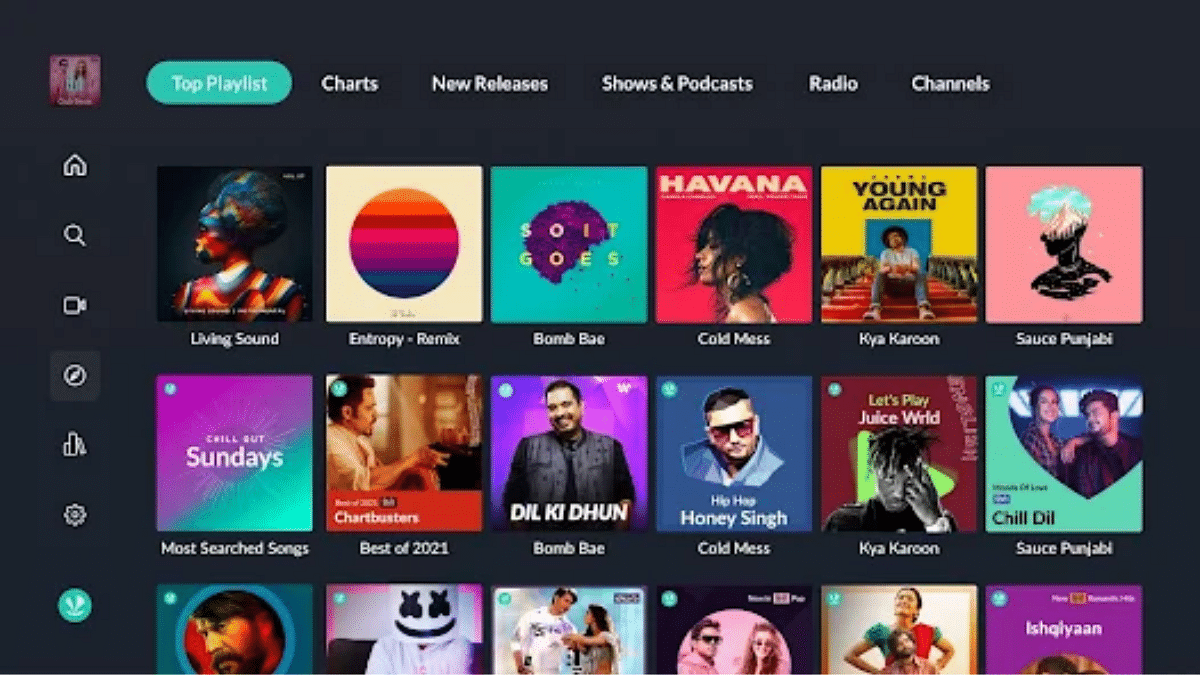
JioSaavn

  • Try playlists like ‘Holi Hungama’, ‘Desi Dance Beats’, or ‘Bollywood Dance Dhamaal’.
  • Includes a variety of songs, from folk to dance hits.
  • Good sound quality and curated collections for all moods.

Also Read | Get, Set, Splash! Top Five Gadgets to Make This Holi Unforgettable

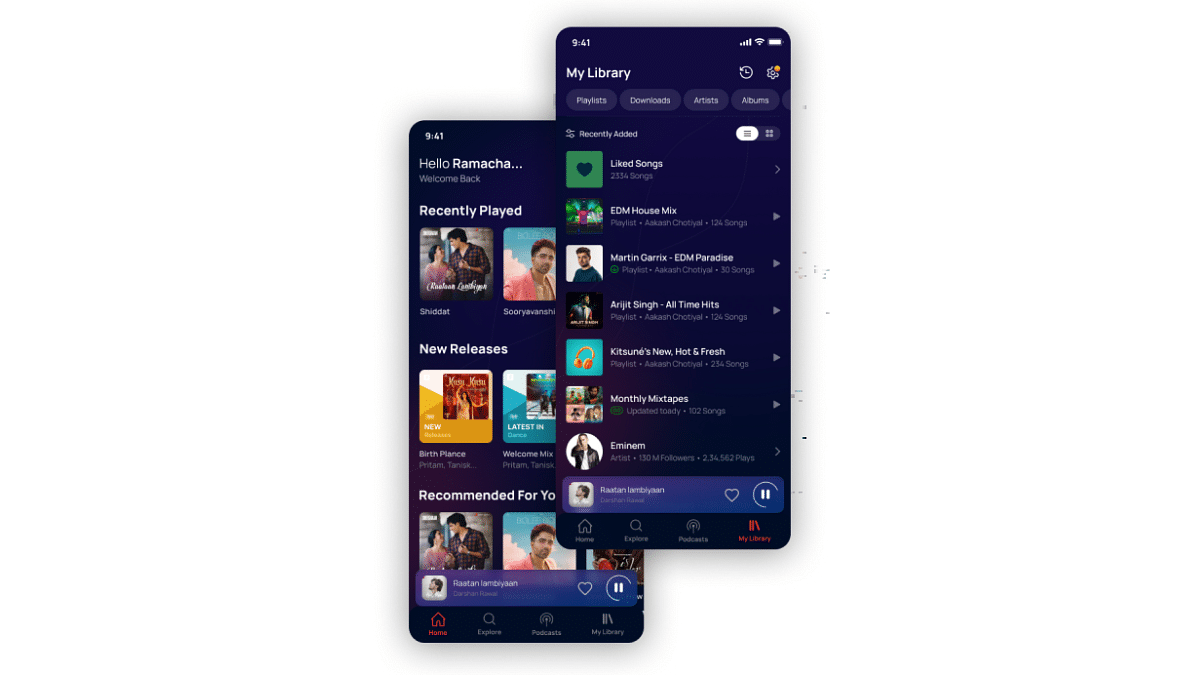
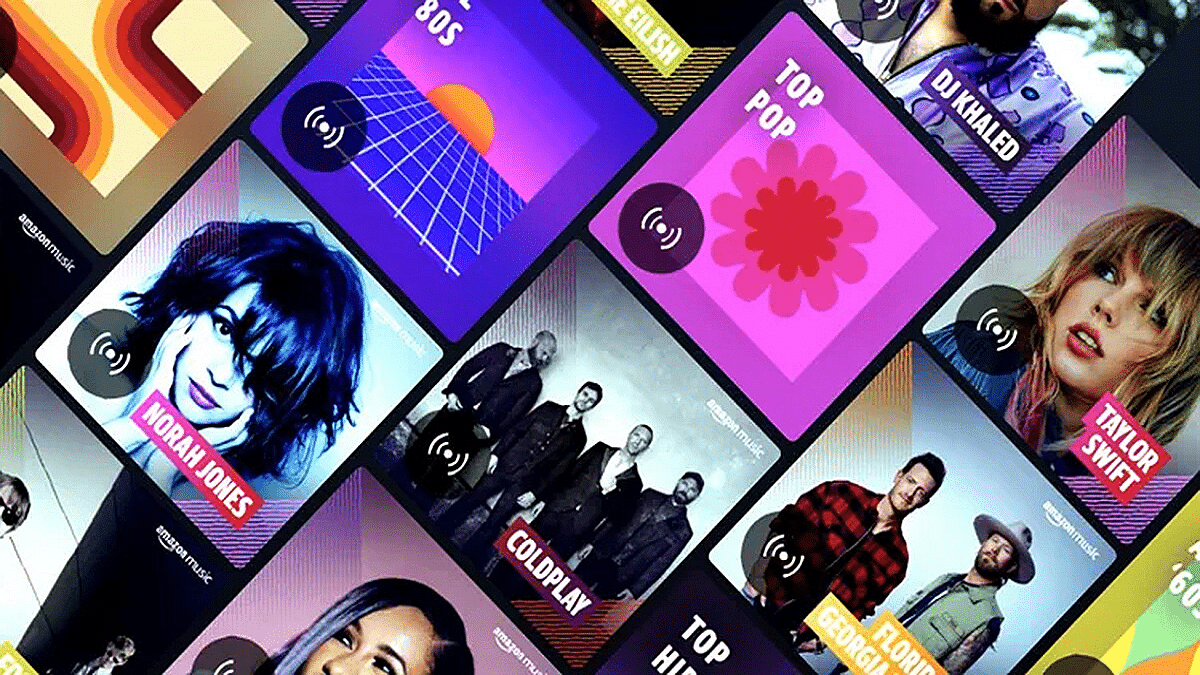
Amazon Music

  • Stream playlists like ‘Bollywood Holi Party’ or ‘Rangon Wali Beats’.
  • Best for Prime users, ad-free and smooth experience.
  • Offers high-quality audio and colorful song selections.

No matter which platform you choose, just press play and let the music bring your Holi party to life. Get your speakers ready and enjoy every beat with colors and dance.

For the tech geeks, stay updated with the latest cutting-edge gadgets in the market, exclusive tech updates, gadget reviews, and more right on your phone’s screen. Join Giznext’s WhatsApp channel and receive the industry-first tech updates.
Categories
Apps Comparison Featured

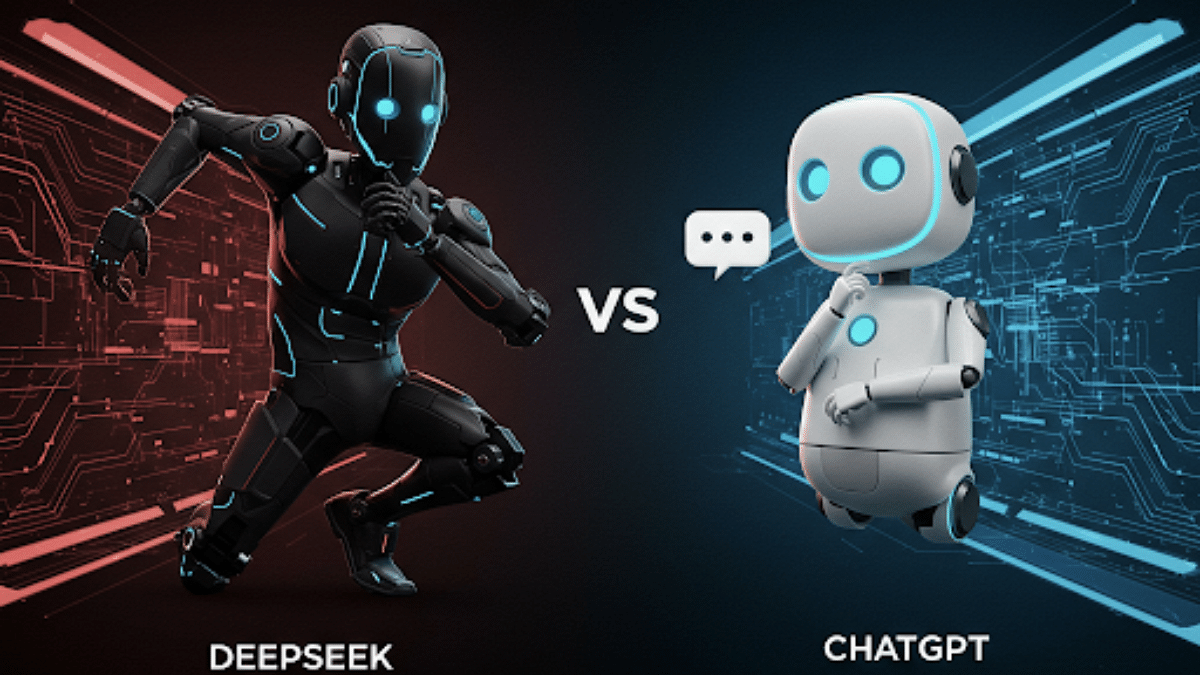
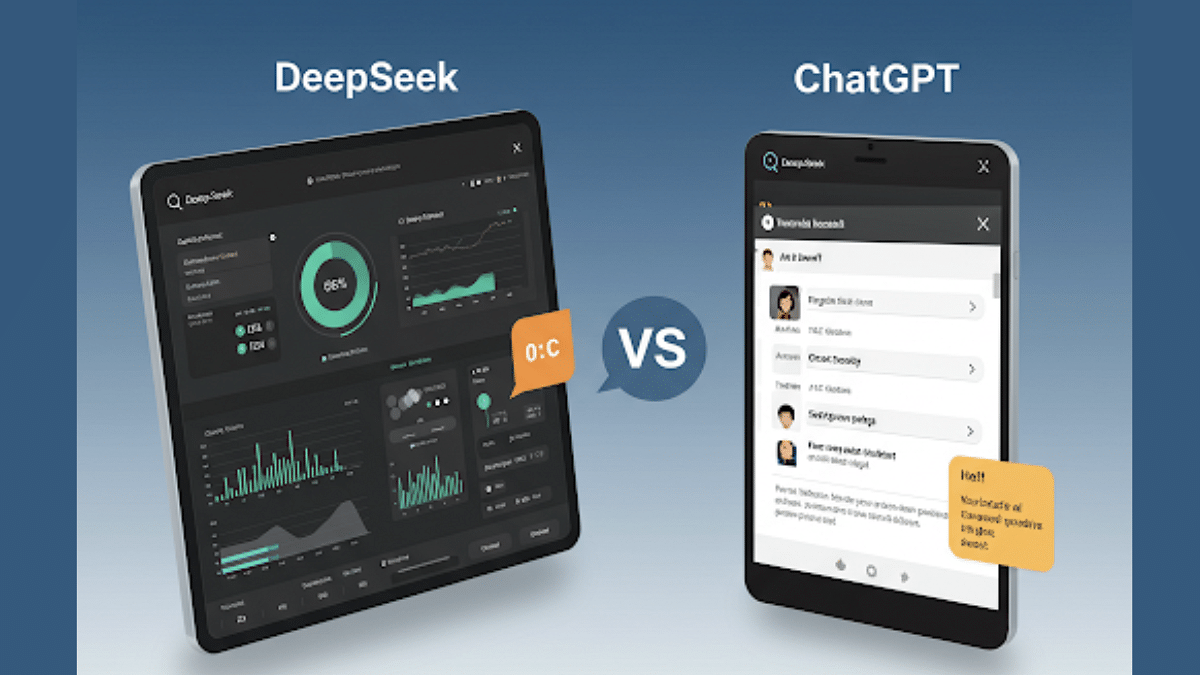
DeepSeek Vs ChatGPT: Which AI ChatBot Leads In 2025

Key Highlights

  • DeepSeek is the new AI chatbot tool in town
  • Offers free services unlike ChatGPT’s paid version
  • Is developed by a China-based open source AI firm
  • DeepSeek offers open access to developers and enterprises allowing further customisations

Artificial intelligence is the new trend setter in this technologically advanced era. Open AI’s ChatGPT arrived as a revolutionary tool allowing users to make the most of AI tech to get their job done faster than ever. With consumers readily adapting to the AI-enhanced ecosystems, the demand for AI chatbots is certainly surging across the globe. Open AI’s ChatGPT is one of the revolutionary AI chatbot which has paved in way for more such platforms. Besides Google’s Gemini, a new player is in the town making rifts in this segment. Yes, we are speaking of the DeepSeek AI which seems to be taking away ChatGPT’s fame. How does these two AI chatbots compare in terms of pricing, features, and accessibilty? Read on the comparison below:

For the tech geeks, stay updated with the latest cutting-edge gadgets in the market, exclusive tech updates, gadget reviews, and more right on your phone’s screen. Join Giznext’s WhatsApp channel and receive the industry-first tech updates.

Also Read: ChatGPT Vs Microsoft Copilot: The AI Battle In 2025!

DeepSeek Vs ChatGPT: Quick Overview

  • DeepSeek: This is the new AI chatbot offering similar services as the ChatGPT. DeepSeek is designed and developed by the China-based open-source AI firm called DeepSeek AI. With the help of DeepSeek AI Chatbot, users can get quick response to their queries, get images generated, and more.
  • ChatGPT: ChatGPT is amongst the first official AI chatbots that made its way to the market. Open AI-developed platform can be used both free and with subscription packages for advanced features. ChatGPT also helps the users to complete a range of tasks such as writing content, for coding programs, and even research using AI.

Also Read: Use AI Like a Pro on iPhone 16 Series: Check Steps To Integrate ChatGPT with Apple Intelligence

DeepSeek Vs ChatGPT: Subscription Costs And Pricing

ChatGPT DeepSeek Price/ Subscription Plan ChatGPTPrice/ Subscription Plan DeepSeek
ChatGPT Free Version DeepSeek Free Version Free / No CostFree
ChatGPT Plus/ ChatGPT Team DeepSeek Premium Starts at $20 per month Free
ChatGPT Enterprise DeepSeek Premium PaidComing Soon
ChatGPT Vs DeepSeek Plans and price

Also Read: Gemini Live Voice Chat Now Open To All Android Users: Features

DeepSeek Vs ChatGPT: Accessibility And Platform Support

Platform Support ChatGPT DeepSeek
Web application support Yes (can be accessed on Open AI website)Yes (via open-source demos)
Mobile app compatibility Available on both Android and iOS Available on both Android and iOS app stores
Third-party tools integration Offers native tools and integrates additional Notion, Zapier tools Developer-dependent tool integrations
API integrations Allows fill API access for apps and integrations Supports Github and Hugging Face APIs
DeepSeek Vs ChatGPT: Platform and accessibility

Also Read: China-Owned Deepseek AI Raises Global Security Concerns: Why Countries Are Blocking It?

DeepSeek Vs ChatGPT Final Conclusion: The Winner

Well, both DeepSeek and ChatGPT are power AI chatbot models that you can use in 2025. But it’ll be difficult to declare one of them as the winner. That considering both these AI chatbots cater to different segment of the masses. ChatGPT has established itself as a solid player in the consumer-centric AI race, while DeepSeek with its free services becomes a better model for open-source platform making it the preferred choice for developers.

Categories
Apps Featured

Celebrate Holi 2025 The Smart Way: Four Fun Tech Ideas To Try This Year

Key Highlights

  • Give your Holi celebration a fun digital twist with tech and gadgets
  • From smart lighting to social media reels, go beyond just colors
  • Mix tradition with tech for a truly memorable Holi experience

Holi is all about colors, chaos, and good vibes. But what if we give it a tech upgrade this year? Say hello to Holi 2025, where gadgets, games, and online fun add a fresh twist to your traditional celebration. Whether you are with your gang or connecting virtually, these ideas will add a splash of creativity to your festive mood. Let’s check them out.

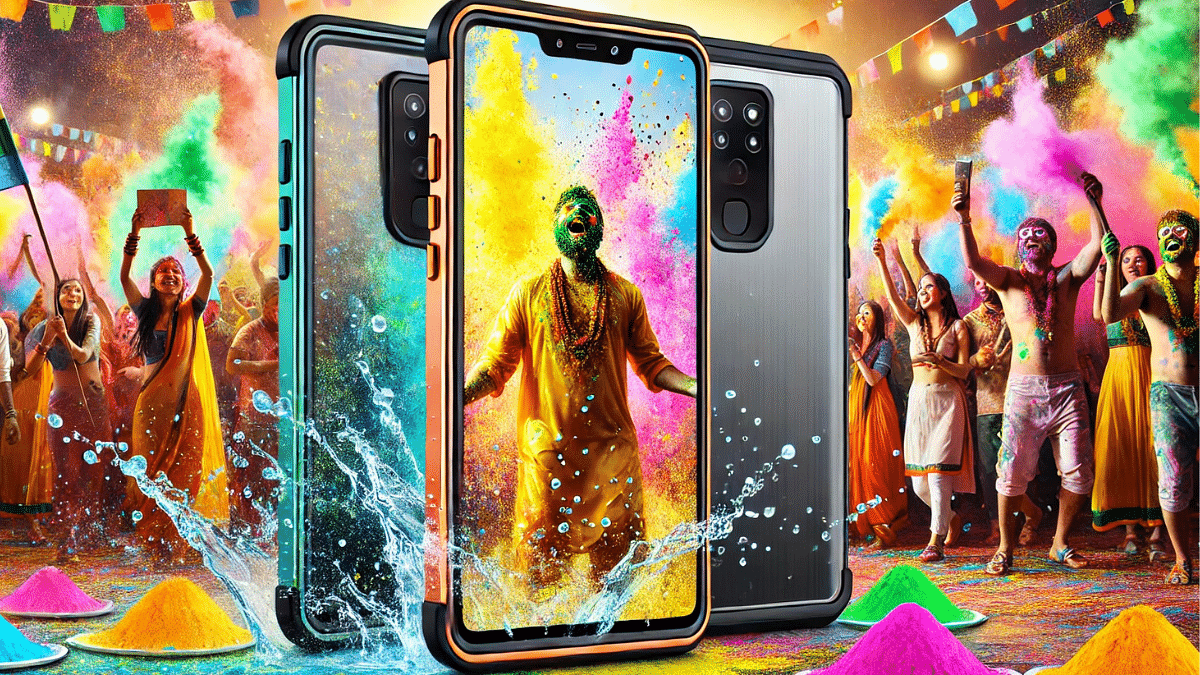
Also Read | Capture Every Splash: Top Waterproof Smartphones For Holi 2025

Color-Splash Photoshoots With AI Camera Phones

Make your Holi memories more magical with smartphones equipped with AI-powered cameras like the Google Pixel, Samsung Galaxy S25, or iPhone 16. Capture slow-motion gulal throws, cinematic video reels, or even 4K drone shots from above.

Pro Tip: Use apps like Snapseed or Lightroom Mobile to enhance the color tones post-shoot.

Go Live With Holi Reels And Vlogs

Turn your Holi bash into a mini social media festival. Go live on Instagram, YouTube Shorts, or Facebook Live and showcase the colors, food, and fun in real-time.

Pro Tip: Use action cameras like GoPro Hero 12 or Insta360 X3 for a dynamic 360-degree celebration capture.

Make It Musical With Bluetooth Speakers

Set the Holi mood with powerful portable speakers like JBL Boombox, Sony SRS-XG300, or boAt Stone 1200. Curate a custom Holi Beats playlist on Spotify or YouTube Music and let the colorful chaos sync with your sound.

Pro Tip: Add a twist by using sound-reactive lighting apps or smart LED strips that sync with your playlist. So your space not only sounds like a party, but also looks like one with colors dancing to every beat.

Also Read | Get, Set, Splash! Top Five Gadgets to Make This Holi Unforgettable

Ludo, But Make It Competitive

Who says Holi fun has to stop at colors? Amp up the festive spirit with some digital game battles. Fire up Ludo in Zupee and invite your friends and family for a Holi Special Game Night, either in-person or virtually.

Pro Tip: Set fun dares for losers like singing Holi songs on video call or applying virtual colors via Snapchat filters. It’s Holi, after all, fun should have no boundaries.

For the tech geeks, stay updated with the latest cutting-edge gadgets in the market, exclusive tech updates, gadget reviews, and more right on your phone’s screen. Join Giznext’s WhatsApp channel and receive the industry-first tech updates.

Categories
Apps Featured Info

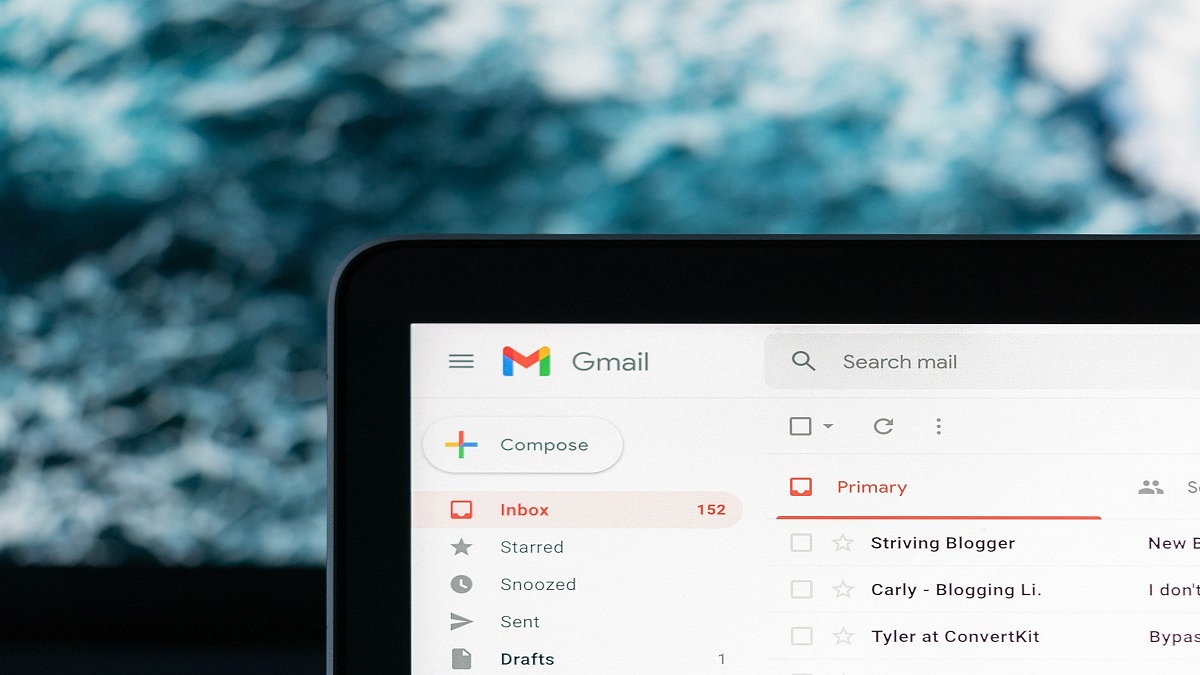
Google Introduces ‘Add to Calendar’ Feature In Gmail For Easy Scheduling

Key Highlights

  • Gmail now lets you add events to your calendar in one click using Gemini AI
  • The feature is rolling out from March to April 2025 for selected users
  • It helps save time but currently doesn’t support adding guests to events

Google is constantly upgrading its services to make our digital lives smoother and more efficient. Whether it’s Gmail, YouTube, or Maps, the tech giant always finds ways to enhance user experience. Now, Gmail is getting a useful new update, an ‘Add to Calendar’ button powered by Gemini, Google’s AI tool, to help you stay on top of your schedule.

Also Read | Gmail Tips And Tricks: How To Secure Your Google Account With Two-Factor Authentication

What Is The ‘Add to Calendar’ Feature?

The newly introduced ‘Add to Calendar’ button in Gmail is designed to make scheduling super easy. Whenever Gemini detects any calendar-related content like meeting invites or appointments in your email, it will show an ‘Add to Calendar option. One click on this button and the event will be added directly to your Google Calendar. It will help you save time, stay organized, and avoid missing important events. The feature also opens the calendar in a side panel, so you can instantly check and confirm your event.

Who Can Use This Feature?

The rollout begins on March 10, 2025 and is expected to complete by mid-April 2025. It will be available to selected users:

  • Business Starter, Standard, and Plus users
  • Enterprise Starter, Standard, and Plus users
  • Gemini Education and Gemini Education Premium users
  • Google One AI Premium users
  • Gemini Business and Gemini Enterprise plan holders

How To Use?

Using this feature is simple, but there are a few things to keep in mind:

  • Make sure smart features and personalization are turned on in Gmail
  • If you’re an admin, you can enable personalization settings for users
  • The feature is available only on the web and in English
  • The button won’t appear for events that Gmail has already auto-extracted

Also Read | From Chaos To Clarity: Five Proven Methods To Keep Your Gmail Inbox Organized

Currently, you can’t add guests to events using this feature. While it’s a helpful tool, this limitation may feel restrictive to some users. However, Google may add more options in future updates.

For the tech geeks, stay updated with the latest cutting-edge gadgets in the market, exclusive tech updates, gadget reviews, and more right on your phone’s screen. Join Giznext’s WhatsApp channel and receive the industry-first tech updates.