Categories
Apps Featured How To

Remove Copyright Claim On Your YouTube Video: Here’s How

Key Highlights

  • Creators risk infringement when using copyrighted music
  • Copyright owners can restrict videos or claim revenue
  • Removing claimed content allows monetization without major impact

In this digital era, the aim of content creators is to reach as many people as possible with interesting, helpful content. However, when they include copyrighted music in their video, whether on purpose or accidentally, they frequently run into infringement issues.

Also Read | YouTube Tips And Tricks: How To Download YouTube Shorts Videos Offline

Giving the copyright owner limited control since they can either decide to restrict your video globally or in select areas, or they can decide to keep all of the money that was made from the video. You wouldn’t want that to happen to your video, right?

In order to monetize the content posted, the most popular video sharing platform allows its users to delete the claimed portion of the content from their videos. This is beneficial because, in many cases, only a little amount of the video may be subject to a claim. Therefore, eliminating that tiny portion of content might not have a significant impact on the video’s overall message.

Here’s How To Remove Claimed Content From Videos

There can be limitations on the video’s availability or whether it can be made monetizable if a copyright claim has been made against it.

Step 1: Log in to your YouTube Studio.

Step 2: Search for the video with the claimed copyrighted content by tapping the ‘Videos’ tab.

Step 3: Here, click on the ‘Copyright claim’ notice of the video and then tap on ‘See Details’.

Step 4: Now click on ‘Select action’.

Step 5: Decide whether to Mute the song, Replace the song, or Trim out the part.

Trim Out Segment

This section lets you edit out the piece of your video that got the copyright claim.

Step 1: Edit the start as well as end time of the section you are removing.

Step 2: Tap on ‘Continue’. Then ‘Trim’.

Step 3: Be patient and wait for the video to be processed. Depending on the video, this can take up to a few hours.

Replace Song:

You can replace any claimed music in your video with tracks from the YouTube Audio Library using this option.

Step 1: To find a new audio track, use the search filters. Tap on ‘Play’ to preview tracks.

Step 2: Click ‘Add’ when you find a song you like. It will appear in the editor in a blue box.

Step 3: To change when the song should start, click and drag the box.

Step 4: Then, to change the amount of the song that plays, drag the edges of the box.

Step 5: For more precise adjustments, use the zoom options.

Step 6: Click ‘Save’ and then ‘Replace’.

Step 7: Once the claimed audio is replaced, any restrictions on your video will be cleared.

Mute Song:

You can mute the claimed audio in your video with this option. You can decide whether to mute just the music or the entire video’s audio.

Step 1: Choose how you would like to mute: ‘Mute all sound when song plays’ or ‘Mute song only (beta)’.

Mute all sound when song plays: In the section of the video with the claimed audio, this option mutes all audio.

Mute song only (beta): This option mutes just the specified music. No other audio will be muted, such as dialogue or sound effects. If the song is challenging to delete, this edit will likely take longer and may not be successful.

Also Read | YouTube Tips And Tricks: How Can You Watch Age Restricted Videos On YouTube Mobile App, Desktop Version

Step 2: Edit the start and end time of the audio mute.

Step 3: If some of the claimed songs stay in your video, the claim won’t be released.

Step 4: In the video player, preview the edit.

Step 5: Tap on ‘Continue’ and then ‘Mute’. The edit will start processing.

Any limitations on your video will be lifted if it is possible to muffle the audio that is allegedly protected by copyright.

For the tech geeks, stay updated with the latest cutting-edge gadgets in the market, exclusive tech updates, gadget reviews, and more right on your phone’s screen. Join Giznext’s WhatsApp channel and receive the industry-first tech updates.
Categories
Apps Featured Leaks

WhatsApp Mask Feature To Let You Upload Animated Avatars As Profile Picture

WhatsApp is the most frequently updated mobile application on the Android and Apple iOS ecosystem. Over the last few years, the Meta-owned messaging app has received multiple facelifts and also a set of new tools and features for an improved messaging experience. Currently, WhatsApp lets users set a personalized picture as the display pic for their contacts to see.

Users can select from a wide range of images including the self-portraits captured using the phone camera or a downloaded image from the web. But now, WhatsApp will let users apply an animated avatar as a profile pic. What is this new feature and when is it expected to release? Read on below:

WhatsApp Mask Feature Incoming: Animated Avatars As DP

WhatsApp is working on a new feature that will let users apply animated avatars as their profile pictures. This development has been reported by WABetaInfo. The publication has suggested that WhatsApp will allow its users to set the animated profile picture in the future. As per the report, this new feature is being tested with the WhatsApp beta version for Android.

The brand should start testing this animated avatar profile picture feature for the iOS beta version as well in the coming weeks. The stable version’s availability details are not confirmed just yet. WhatsApp could release the stable version of this new feature for both Android and iOS platforms once it’s done testing for all bugs and issues. It should be expanded to the desktop version in the later stages.

Additionally, the new feature will also allow users to set the animated avatars as a mask during a video call. This will enhance user privacy in multiple scenarios. Also, users will get the option to customize the avatar as per their requirements and also change the background color of the profile pic.

That said, it’s good to see WhatsApp is trying to give a new makeover to the way one display’s his/her profile picture to their contacts. Moving over the conventional ways will definitely improve the user experience with WhatsApp. Besides, the enhanced privacy factor is definitely a win-win situation with the new feature.

Categories
Apps Featured How To

Improve Google Maps Privacy: How To Delete Google Maps History On Your Smartphones And Tablets

Google Maps is the modern way of transportation with millions of users relying on its services for navigation and travel through new destinations. Google has been frequently updating the Maps ecosystem so that it’s accurate with directions every time one enters any location. Besides improving Maps’ frequency, Google has also made multiple customizations with the UI so that users can travel hassle-free to an unknown destination.

If you are a frequent Google Maps user, you must be aware of how to search for a destination and start a trip by selecting the preferred transit mode. The search history is often visible in direct eyesight so that you can easily access the last travel destination on your list. Anyone using the Maps application will be able to see the last places you have paid a visit.

Now, if you wish to avoid that and keep your privacy intact, you can also remove the places or the timelines from your Google Maps history. If you have been figuring out the correct way to do the same, we will be guiding you with the steps in this article. We’ll start with the basics including the method to view your Maps history. Take a look:

How To View History On Google Maps

Step 1: Open Google Maps application on your smartphones or tablets.

Step 2: Click on your profile icon.

Step 3: Tap on Settings.

Step 4: Click on Maps History. You will see the entire list of places you have visited in the last few months.

How To Remove Some Places From Your Google Maps History

Just for reference, you have the option to either remove some places from the history or the entire list itself. The below-mentioned steps are to remove some of the places from the Maps History list.

Step 1: Launch the Google Maps app and tap on your profile pic.

Step 2: Click on the Settings tab and then select Maps History.

Step 3: Tap on the places you want to remove and select Remove/ Delete.

How To Clean Google Maps History Completely

Step 1: Go to the Maps History option by following the aforementioned steps.

Step 2: Click on the More option (three dots).

Step 3: Tap on Delete activity by option. You will get the option to delete the timeline by date and the entire history.

Step 4: Select Delete by date option to select a specific timeframe.

Step 5: To delete the entire history select All time under the Delete by date option.

Step 6: Click on delete.

Categories
Apps Info

Snapchat Inc Paid Access In India: Here’s How To Get It

Snapchat has announced the launch new paid subscription in India. Snapchat+ is available for 100 million users of the app in the country. The paid access is providing features like a pre-release offer, exclusive collection, and experimental for Rs. 49 per month. Notably, this plan will provide new features to the paid members along with prioritized support.

It is worth noting that initially paid customers will get six features like Badge, Ghost Trails on Snap Map, Custom App Icons, Rewatch Indicator, Best Friends Forever, and Solar System.

“At Snap, our focus remains on creating relevant experiences for users through product developments, creative tools, and community engagements. India is an important market for Snap and investments in localizing the app experience have been key to our growth in the region. We’re very excited about offering exclusive, experimental, and pre-release features to our Indian Snapchatter community who is eager to try our new products and features,” said Lakshya Malu, Interim – Market Development Lead, Snap Inc.

Categories
Apps Featured How To

Want To Download A Product Invoice From Amazon India? Here’s How

Amazon is one of the major e-commerce platforms in the world. In addition to offering a large range of goods, Amazon India also offers incredible discounts and deals that are not typically found anywhere else. But sometimes customers don’t receive their invoice until after their order has been delivered.

An invoice is a bill for the products you have purchased. Therefore, this article will assist you if you haven’t received your invoice after purchasing an item from Amazon. We’ll help you know how you can download the invoices for the product you ordered on Amazon.

How To Download Invoice From Amazon App?

Users can easily download the product invoice from the Amazon India app. You can use the app to get the invoice for any order you’ve ever made on the online store. You must perform the following actions in order to do that:

Step 1: Launch the Amazon app on your iOS or Android device.

Step 2: Go to the Orders section by clicking the Hamburger menu.

Step 3: Now, search for the order that you wish to get the invoice for right now.

Step 4: Once done, tap on the ordered item and you will land on a different page.

Step 5: Under the Order Info tab, you will find the option to Download Invoice.

Step 6: Simply tap on it to obtain your order’s duplicate or new invoice.

How To Download Invoice Via Amazon website?

Step 1: Log in to the Amazon website using your email address and password on your PC/laptop.

Step 2: On the homepage, in the top right corner, select the return and order option.

Step 3: Find the order for which you wish to download the invoice at this point.

Step 4: You will see an option to view the invoice next to your view order information option, besides your order. Just click it.

Step 5: Amazon will provide you with a number of choices here, like invoice one, requesting an invoice, printed purchase summary, and more.

Step 6: Your new invoice will now be downloaded when you choose the invoice one option from the list provided. And you are all done!

Categories
Apps Featured How To

YouTube Shorts: How To Create And Upload YouTube Short Videos On Android, iOS

Google has one of the largest ecosystems of mobile and desktop apps. YouTube is one such service from the search giant which is being used by millions of users globally for entertainment. It is our go-to platform to watch random videos be it of any genre. And ever since Google has monetized YouTube creators have been flooding to take this app to upload videos and get some monetary benefit out of it.

Google has been adding new features to YouTube and is making it easy for users to upload and share their videos. It also has been following the modern footprints of popular social media applications such as Instagram and others which also have a huge fan base. Shorts is one such feature that YouTube has added to its platform ever since the reels and other short video features got the crowd hooked.

YouTube Short lets you create short-form videos (one or more clips) of up to seconds and share it with the target audience. If you are a new YouTube creator and wish to expand your reach to a larger segment of the audience, you should use this feature. If you aren’t aware of the steps, read on below:

How To Create And Share YouTube Shorts

Step 1: Launch the YouTube app on your smartphone.

Step 2: Select the  add symbol or the Create a shortcut option

Step 3: Just above the record button, you’ll see a timer with 15 seconds set as default. Tap on it to change it to 60 seconds of you want to record a  longer shorts video.

Step 4: Tap on the recording button.

Step 5: Once the video is recorded tap again on the recording button to stop. You can also undo if you wish to re-record or redo to add the video clip back.

Step 6: You will now get two options including close  or Save as draft. Tap on the latter to exit the camera.

Step 7: Click on Preview. You will now be able to watch the recorded clip and customize it as per requirements.

Step 8: Select Next to add the required details to the recorded shorts video. You will get the option to add a title and also modify privacy settings.

Step 9: You can now set the target audience. Click on Select audience and chose from “Yes, it’s made for kids” or “No, it’s not made for kids”.

Step 10: Click on Upload to publish your YouTube Shorts video.

Note that these steps mentioned above are for Android and iOS smartphones. We will be covering another article where we will share the steps to create YouTube Shorts videos via laptop and PCs.

Categories
Apps Featured Info

Bad News Stalkers: WhatsApp Blocking Screenshots On View Once Messages

Key Highlights

  • WhatsApp enabling screenshot blocking for View Once messages
  • The platform lets you leave the group silently
  • It will let you choose who can see that you’re active

WhatsApp never fails to impress its users, particularly with its privacy features. This time, the social media site owned by Meta has added a few more privacy measures.

A new feature that prevents users from taking screenshots of ‘View Once Messages’ is being rolled out by the platform. The fundamental goal of this is to provide more privacy and security while also retaining users on the site.

‘View once messages,’ which self-destruct once the recipient views them, have been introduced by WhatsApp. Users are able to send photographs, videos, and other messages, simply once. The message automatically vanishes after the recipient has read it. Because they could still capture screenshots of messages that were disappearing, some users nevertheless believe the feature to be useless.

In addition to blocking screenshots, WhatsApp is now testing the option to control who can see your online status. You can now select who can see your activity, enabling you to log into the app anonymously without anyone else knowing. Users can pick between contacts, everyone, or nobody using this recently discovered feature. Additionally, you have the option of selecting a blacklist of contacts from which to hide your status.

To add to that, Meta founder and CEO Mark Zuckerberg announced new privacy features that allow users to exit a group conversation secretly and choose who can see their online presence.

Users will be able to leave a group in private without having to inform everyone thanks to the silent leaving of group function. This feature has begun to roll out to all users and will progressively become available to all users this month. Only the admins will be notified when a member leaves the group. This will make it much simpler to end conversations without running the risk of receiving too many inquiries from other people.

Categories
Apps Featured How To

Paytm Live Train Running Status Feature Released; How To Check Train Status Using Paytm App

India has become a large market for UPI and digital wallet apps. The trend surged with the demonetization of old currency in the country and the call for digitization by the Indian government. Paytm, Mobikwik, and others have been amongst the first in the lot of UPI apps in the country. Paytm is one of the most rapidly expanding UPI apps with the company adding new features and services frequently. In the latest development, Paytm has made it easy for its users to check the live running status of their train. This new travel service is beneficial for users who wish to plan their journey as per the available schedule.

The Paytm Live train running status will now be available alongside the PNR train status which has been released already on the platform. The latest travel service on the Paytm app has been announced for both Android and iOS mobile versions. If you have a journey planned or are already on one of the trains bound for a long destination, you can easily check the live status to get updates on your arrival time.

However, in order to use the train live running status, you need to make sure the Paytm app installed on your respective phones is updated to the latest version. Update your app, if it isn’t the latest version only then proceed with the remaining procedure. This is your step-by-step guide to check the live running status of any train on the Paytm app. Take a look:

How Can You Use Paytm Live Train Running Status Feature

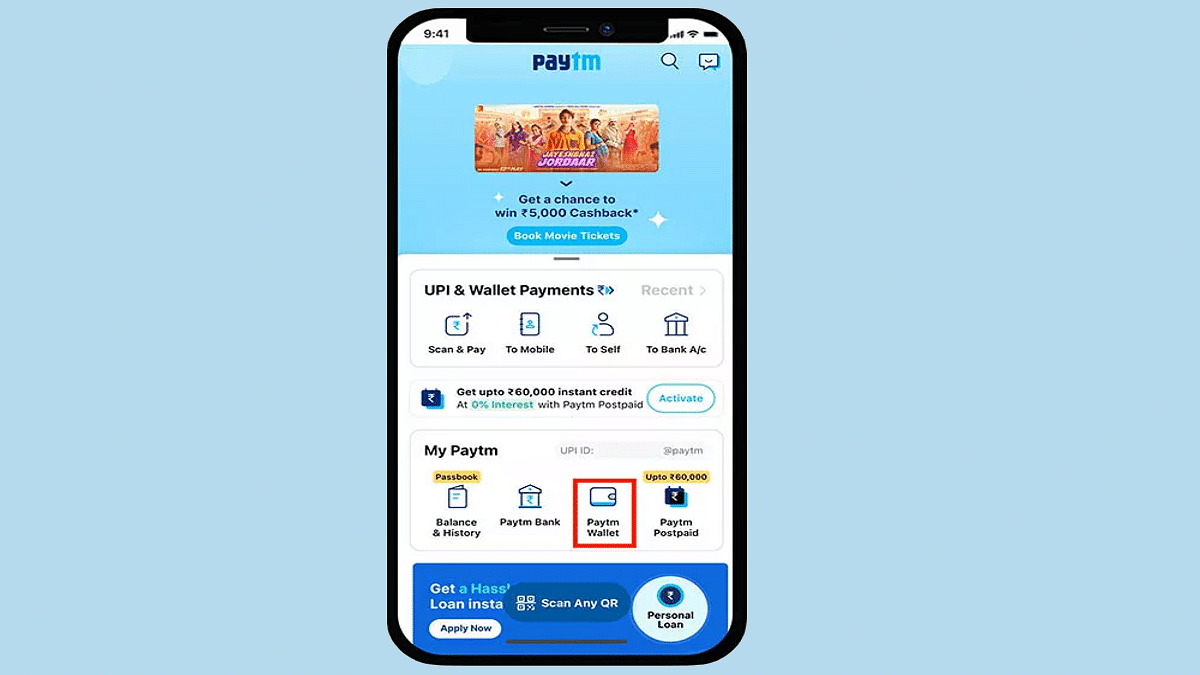
Step 1: Launch the Paytm application. These steps can be performed on both Apple iPhone and Android smartphones.

Step 2: Either go to the services and select Train services, or directly type the Train Status in the search bar.

Step 3: Once the Travel services page open up, you will get several other options including bus flights, and others. Select Trains.

Step 4: Another fresh tab will open up with PNR Status, Train Calendar, and Train Status options.

Step 5: You need to click on the Train Status tab.

Step 6: You will now get the option to enter the Train name or number. Once you feed in the details, you will see the name of the name in the list. Select it.

Step 7: Now, select the boarding station from where you wish to get the details. Make sure the boarding date is correct. Make the required modifications in case of any mismatch.

Step 8: Click on the Check Live Status tab.

Step 9: As soon as you perform Step 8, you will see the train running status live on the app’s screen.

Categories
Apps Featured How To

iOS Tips And Tricks: How To Set Up And Use Sleep Schedule On iPhone

With the release of iOS 14, Apple added the feature to set up sleep routines in the Health app. You can use the feature to determine how many hours of sleep you should get each night and then plan your wake-up time accordingly. Although this feature is widely accessible, few people are aware of it. Nonetheless, once you start using it, there is no turning back.

Through the Clock app, you can set up a one-time alarm that wakes you up every day. The main benefit of choosing a sleep schedule feature is that it enables users to set clear objectives and monitor their sleeping patterns.

In this post, we will take a look at how we can turn on and use the Sleep Schedule feature on iOS. But before we start, note that the feature will only work on iOS 14 and above.

How To Turn On Sleep Schedule On Your iPhone?

Step 1: On your iPhone, navigate to the ‘Health’ app.

Step 2: Click on the ‘Browse’ tab at the bottom right of the screen.

Step 3: Now, scroll down till you see the ‘Sleep’ option and click on it.

Step 4: Then, you will see the option ‘Set Up Sleep’, below that tap the blue ‘Get Started’ button. Hit Next on the following information screen.

Step 5: To set your desired sleep time in hours and minutes, use the ‘+’ and ‘–‘ buttons. Then tap Next.

Step 6: Now, set up your first sleep schedule. You can also set multiple schedules according to your sleep patterns. Click on the day symbols to add or subtract them from your initial schedule.

Step 7: Here, you can easily schedule your bedtime and wake-up time. You can press and hold the scroll wheel to set the desired time. The number of sleep hours is displayed according to the set timing. If your times don’t match up with the Sleep Goal you set at Step 5, the dial will turn yellow.

Step 8: After setting the time, scroll down to find the ‘Alarm’ option. Under that, you can set a wake-up alarm if you want. You can also set the alarm sound and vibration pattern and enable or disable the snooze option.

Step 9: Tap ‘Done’ once you are finished with the process. That’s all.

By following these simple steps, you can easily plan your sleep cycle on your Apple iPhone. This feature helps you stay disciplined by notifying you 30 minutes before bedtime. This allows you to interrupt whatever you’re doing and prioritize sleep.

Categories
Apps Featured How To Tech Gadgets

Telegram Tips And Tricks: How To Schedule Messages On Telegram Android, iOS App

While WhatsApp is one of the most preferred instant messaging applications for Android and iOS ecosystems, Telegram has gradually established itself as one of WhatsApp’s prime rivals. Telegram also operates on the same end-to-end encryption system so that privacy is never compromised. Telegram also offers a plethora of features to enhance the messaging experience. You get to make both voice and video calls as well on Telegram which is as private as text messages.

Amongst the several useful features offered by Telegram is the option to schedule any text message. You can set the time frame when you wish to send any of your contacts a message. This feature comes in handy when you might have to send someone a message and for some reason, you don’t have any internet connection. In such scenarios, you can pre-schedule a message using the Telegram mobile app. But how exactly you can do it? We have mentioned the steps below:

How To Schedule Any Message On Telegram

Step 1: On your respective Apple iPhone or Android, open the Telegram app. If you don’t have the app, make sure you have downloaded it from the App Store or Play Store and have registered.

Step 2: Go to the chat window or the contact to whom you wish to send the scheduled message.

Step 3: Start typing your message. Instead of a single tap on the send button, press and hold it.

Step 4: You’ll see two options including Schedule Message and Send Without sound. Select the schedule message option.

Step 5: You can now set the time frame by when you want to get the message delivered to the selected contact.  Set the date and time.

Step 6: Once you have set the preferred date and time, tap on the send message option below.

Step 7: That’s all you would need to do to schedule any message on the Telegram app.

Notably, the steps mentioned above are performed on an Android smartphone. The procedure to schedule messages on Telegram on iPhones would be the same. It is advised that you use the latest version of the Telegram app to get access to all the privacy features.