Categories
Apps Featured How To Mobile

How Can You Change YouTube Channel Name Using Smartphone App, Desktop

Despite the onset of major OTT players such as Netflix, Amazon Prime Videos, DisneyPlus, and others, YouTube still is one of the go-to platforms for the masses across online video streaming.  The Google-owned video service is popular not just amongst the general users but also professional content creators. YouTube has seen a major surge in the user base in recent years and numerous new users have signed up on the platform as content creators.

We bet YouTube is one of your favorite past times if you are a content creator; specifically, a budding one, you would have at least one channel under your name. You can create a YouTube channel easily from the official website or the Android and iOS mobile app. Editing your channel profile is a handy provision that YouTube offers.

Selecting the right user’s name for a channel could be a task since this is one of the factors that decide the popularity of a channel. But what if you have created a channel and want to rename it later on when it has started attracting an audience? Well, that’s quite easy if you have your smartphone handy or even a laptop or PC. So, how can you change your YouTube channel name using Android, iOS smartphones, and also Windows/ macOS laptops and PCs?

How To Change YouTube Channel Name Using Smartphones And Laptops?

Before you proceed with the steps to change the YouTube channel name, you would need to log into that specific YouTube studio account to get started.

Step 1: Once you have logged into the desired YouTube studio account click on the profile picture option.

Step 2: After you click on the profile picture option, you will see multiple options including the “Channel”. Tap on it.

Step 3: Enter the new channel name.

Step 4: Hit on the “Save” option and your channel will be renamed to the new one.

Notably, the aforementioned steps are to be performed on smartphones. You can also change the YouTube channel using the desktop version.

Step 1: Open any web browser and open the YouTube website.

Step 2: Log into the YouTube studio account and click on the menu option placed on the left.

Step 3: You would now need to click on the customization option.

Step 4: Tap on the “Basic info” option and then select the “Edit” tab.

Step 5: Select the “channel name” option and enter the new name.

Step 6: Lastly, select the “Publish” option to rename your YouTube channel.

Categories
Apps Featured Tech News

Escobar Android Malware Steals Crucial User Details; How To Stay Protected?

Google’s Android OS is a massive platform for mobile apps. The search giant has created a dedicated space from where you can download numerous apps for different tasks called the Play Store. Despite several security checks, malware and viruses often make their way to the Google Play Store disguised as authentic apps.  Joker Malware has been one of the most notorious malware that has been infecting Android devices for a long. But now another such dangerous malware called Escobar is targeting Android users. Below are the details:

Escobar Malware: What Is It?

The latest Android malware targeting users across 18 different countries has been reported by BleepingComputers. As per the report, Escobar isn’t entirely new spyware, rather it’s an older trojan virus with a new name. This is primarily a banking trojan virus that targets Android users and steals their confidential details.

The Escobar trojan virus was earlier infecting Android devices as Aberebot malware. However, along with the new name, the malware is also said to have grown stronger. The advanced Escobar malware now collects crucial user information including SMS, call logs, notifications, and Google Authentication codes.

This malware getting access to the Google Authentication codes is definitely a concerning situation for the users as it allows them to get a hold of the users’ private details. Notably, the aforementioned user details that is collected by the banking trojan are uploaded to a C2 server. Currently, the exact source or the country of origin of the Escobar malware remains unspecified.

The only available information is that this new Google malware has targeted users in 18 countries by far. As many as 190 different financial institutions have been impacted by the latest malware.

How Can You Stay Protected?

Google does keep a constant check on such viruses and malware disguised as real apps. The company also takes strict measures to keep the Play Store protected and also timely removes these threats from its platform. But if you want to stay protected from such apps, one of the best ways is to download authentic antivirus applications on your respective Android devices.

Also, try not to download any random third-party app. If in case you wish to try a new app, make sure you have checked its star ratings and also user reviews. Only go ahead with the installation once you are sure the app isn’t fake or is offering a good user experience.

If you want to stay updated with the latest technology news, you can follow the GizNext Tech Enthusiast Telegram group and GizNext Tech Enthusiast WhatsApp group.

Categories
Apps Featured Tech News

Telegram Latest Update Brings Much Awaited Semi-Transparent UI On Android; Other Features To Check Out

WhatsApp might be the most popular instant messaging platform across Android and iOS platforms, but it still has some strong contenders. Telegram is one of such applications that offers a similar safe platform for texting like WhatsApp and is loaded with features that enhance the messaging experience. Telegram has also been upgrading its platform by adding new features and enhancing the overall security on its platform.

Telegram generally adds the same set of features to both Android and iOS platforms. However, Telegram’s iOS version had one feature exclusive to it until now. We are speaking of the semi-transparent user interface which has been only available for iOS users and not Android. But that changes with the latest update which brings this much-awaited skin on the Telegram Android version. The latest update for Telegram also adds a few other features to the instant messaging platform.

Telegram Latest Updates Brings Much Awaited Feature On Android

The latest update released by Telegram has finally added the semi-transparent user interface for its Android app. This feature was available for iOS users all this while and its primary function is to fade out the headers to add a semi-transparent visual. Just for reference, this feature was released for iOS users last year only and has finally made its way to the Android platform.

In addition to the semi-transparent UI, Telegram has added and released a new version of the Download Manager. This improved feature will now allow users to send large-sized files to any contact. A new download icon will pop up on the search bar using which users will be able to control the downloading.

Telegram has also released a new attachment menu for its platform. This feature will make it easy for users to share media files including images, audio, and video files. Additionally, the login flow’s design has also been refreshed for easy operability. Telegram has released the stable version of the new update and all the aforementioned features are being rolled out along with it. You can check for the update manually if in case you haven’t received any notification for the same.

You can also follow GizNext Tech Enthusiast Telegram group and GizNext Tech Enthusiast WhatsApp group for more latest tech updates.

Categories
Apps Featured How To

Country Change Setting On Amazon Application: Here’s How To Do It?

In case if you are looking for ways to buy products internationally, then Amazon is the right platform for you. Yes, you heard it right as an e-commerce platform has recently added a shortcut option to the app and website so that users can shop from other countries, where the platform is available.

For the unaware, the services were launched in 2018 and allow you to buy all products like Electronics, Books, Clothing, Shoes, Toys, and much more.

“Customers have been asking for a way to easily find and shop only for products available to be shipped to them. The International Shopping experience solves this customer need and makes it simple to browse, shop and ship more than 45 million products to over a hundred countries around the world, ” the company said while launching the services.

“The International Shopping experience displays clear pricing, shipping costs, and import duty estimates, with Amazon coordinating with courier services for customs clearance on behalf of the customer so there are no surprises at the time of purchase or delivery,” the company added.

However, to access the services you should know some steps. So, in order to help you to buy products internationally, we are listing some steps.

Step 1: First, you need to open the Amazon shopping app and click on the menu icon at the left corner.

Step 2: After that, you’ll see the setting option with the flag of the country, you have chosen. Then, you need to click on the Change Country option.

Step 3: Then, you’ll see the entire list of countries where you can shop. You just need to select the region and language.

Step 4: After that, a new window will appear along with the message. Now, tap on the continue option in the box and this will redirect you to the country page that you are looking for.

Step 5: You are allowed to purchase a product from the Amazon page in the selected country. Now, you can see the product list that you are allowed to purchase from the same country.

Do follow GizNext Tech Enthusiast Telegram group and GizNext Tech Enthusiast WhatsApp group for more latest tech updates.

Categories
Apps Tech News

WhatsApp Web Gets Enahced Security With This New Feature

WhatsApp is one of the go-to apps for instant messaging across Android and iOS platforms. However, it also is quite popular amongst desktop users. Thanks to end-to-end encryption, this app is one of the safest platforms for exchanging texts and media files with any contacts. The Facebook-owned messaging platform has been consistently upgrading the messaging experience by adding new features to both its mobile and desktop version.

Besides adding new features and tools, WhatsApp has is also rapidly working on further improving the security aspects. The company has even added end-to-end encryption to the cloud servers that store the user data. This time, the company has added yet another security layer to the WhatsApp web version. What is this new feature which WhatsApp has released for the web version and how can you use it? Let’s find out:

WhatsApp Web New Security Feature: What Is It? How To Use?

WhatsApp has now released a new feature for the web version which is known as ‘Code Verify’. This is a new extension that will be available for all web browsers including Google Chrome, Microsoft Edge, and Firefox. The function of this new feature is to verify the security code’s authenticity while logging into the web version.

The ‘Code Verify’ feature will essentially make sure that a user’s privacy is intact and the login process isn’t compromised anyhow. WhatsApp has teamed up with Cloudfare to develop this new security extension and release it on a larger scale for the audience.

As per the company, there has been a massive surge in the user base in the desktop version This is one of the prime reasons the company decided to bring an additional security layer for the web version. Using the WhatsApp Web’s new “Code Verify” feature is also simple. You would just need to add the extension to the web browser that you use for WhatsApp web. The remaining procedure would be handled on the server level.

Do let us know your thoughts in the comments section below. If you want to stay updated with the latest technology news, you can follow the GizNext Tech Enthusiast Telegram group and GizNext Tech Enthusiast WhatsApp group.

Categories
Apps Featured Tech News

WhatsApp Chatbot Gets More Useful With This New Feature

WhatsApp is amongst those few names that come first when we speak of a fully-loaded instant messaging application for Android as well iOS mobile platforms. The Meta-owned messaging service is also available for desktop users across and offers the same secure platform for laptop users as well.

The company has introduced numerous new features for both WhatsApp mobile as well as desktop versions in recent times. However, the brand isn’t slowing down and is rapidly upgrading its platform with user-friendly tools and services.

For the Indian audience, the company introduced a dedicated chatbot that helped the masses with COVID-19 vaccination slot reservation and downloading certificates. However, this feature is now being expanded making it more resourceful for the masses. The company is working to make this chatbot a one-stop-destination for the masses to download government-issued certificates and documents in the country. Below are the details:

WhatsApp Chatbot To Allow Additional Download Options

The WhatsApp chatbot which was announced last year is now said to offer additional download options besides just COVID-19 certificated. The chatbot will now let users download all important official documents from a single window.

The certificates which the WhatsApp chatbot will let you download in the future include a driving license, PAN card, and even income tax certifications. This feature is currently under the testing phase and the pilot project has already commenced.

While it is not yet revealed when exactly the new chatbot feature will be up and running is not revealed, the rumor mill suggests it to be fully functional within the next few weeks. The chatbot will let the users save and access the official documents in the DigiLocker app. Users can then show the documents at required times to the government officials.

We might see some additional features added to the WhatsApp chatbot in India in the future. But how exactly the company plans to expand the services of chatbot remains to be seen. We will keep you posted with the remaining updates on the same. Till then, you can follow the GizNext Tech Enthusiast Telegram group and GizNext Tech Enthusiast WhatsApp group for more latest tech updates.

You can follow the GizNext Tech Enthusiast Telegram group and the GizNext Tech Enthusiast WhatsApp group for more latest tech updates.

Categories
Apps How To

How Can You Upload Instagram Stories In High-Quality

Key Highlights

  • Upload high-quality Instagram Stories posts without any quality loss
  • This is an easy and fast process that doesn’t require any third-party tools

Instagram is getting a fair share of recognition amongst content creators across the globe. In fact, this is one of those platforms that has popularized the concept of social media influencers in the online space. But Instagram also has to offer a plethora of activities for the general masses as well.

Apart from posting pictures and videos in the home feed, the Instagram story feature is what the audience is hooked to. You get the provision to highlight any of your favorite videos, or picture and even promote your newly created Reel video.

Also Read: 100 Best Instagram Name Ideas For Graphic Designers

You just need to add the required content from the device gallery for the Instagram status update. The app also lets you enhance the posts by adding music, filters, and more. While uploading an Instagram status post is a simple task, quality deterioration in this process is a common issue.

You might experience this issue despite recording a high-resolution video that you might be trying to upload from your mobile gallery. So, what can you do in such scenarios? Are there any modifications that you can make to your Instagram profile to upload high-resolution statuses? Below are the methods:

Also Read: 100 Best Instagram Boys Name With Alphabets M To Z

How To Upload Instagram Status Without Compromising Quality?

Step 1: Launch the Instagram application on your respective devices and log into your profile.

Step 2: Next, you will need to click on the menu option (hamburger tab).

Step 3: Now, tap on the Settings option.

Step 4: From the next window, click on the “Account” tab.

Step 5: In the next step, you will need to tap on the “Cellular Data Usage”.

Step 6: You now need to toggle off the “Data Saver” option.

This is the primary modification in the settings menu that you need to make in order to upload high-resolution content be it images or videos on Instagram status. This is due to the fact the Data Saver option compresses an image or video file before an upload so that less internet data is exhausted during the process.

Apart from this, you can also change the resolution settings of an image or video in the camera app. Selecting 60fps video settings will do the trick. Do note that by Instagram Status we are referring to stories here.

Also Read:100 Best And Catchy Instagram Names For Makeup Artists

Instagram has been updating the Stories features as well similar to other tools and options on the photo-sharing app. Instagram has now made it possible for users to upload longer-duration stories. Now, you can share or upload up to 60 seconds of videos as stories on Instagram instead of the older 30-seconds format. You can read the steps to upload longer-duration Instagram stories here.

For the tech geeks, stay updated with the latest cutting-edge gadgets in the market, exclusive tech updates, gadget reviews, and more right on your phone’s screen. Join Giznext’s WhatsApp channel and receive the industry-first tech updates.

Categories
Apps How To

How Can You Lock Your Facebook Profile or Account? Step By Step Guide

Facebook remains a trending social media app across the globe for smartphones as well as desktop users. Re-monikered as Meta, this platform has been offering a plethora of services to the masses. The company has been consistently upgrading its platform and has been roping in newer technologies for the best user experience.

Facebook’s popularity isn’t fading despite several players’ ventures into this space. A secure user platform along with multiple other features is the prime factor for its successor amongst the audience. Currently, Facebook has over 2.9 billion daily active users who access their profiles and other services almost on a daily basis. Creating a user account or profile is the first step you would require to access Facebook’s services.

The social media app has been gradually added new security features to keep a user profile or account protected from unwanted threats. The Facebook Profile Lock option is one of the newest security measures that the social media giant has introduced on its platform for added privacy. If you wish to keep your Facebook profile data including general posts, photos, video uploads, etc., at bay from strangers or even hackers, locking it is the best option to prevent it.

Once you lock any Facebook profile, none of the Facebook profiles that aren’t added to your friends will be able to view your account’s posts and other personal information. So, how do you lock your Facebook account or profile? We have listed the steps that you can perform to lock your Facebook account. Take a look:

How Can You Lock Your Facebook Account Or Profile?

Step 1: The option to lock a Facebook profile is present on both mobile app and the desktop version. Launch the Facebook app on your respective devices and log into your profiles using valid credentials.

Step 2: Tap on the menu option (three dots) that you can locate right next to the “Edit” profile option.

Step 3: You will see several options to modify accounts settings including the “Lock Profile” tab. Click on it. The next page will show all the benefits of the Facebook profile lock feature.

Step 4: Now, you will need to select the “Lock your profile” option to complete the Facebook profile lock process.

If you need more of such tech tips and tricks, make sure you follow GizNext Tech Enthusiast Telegram group and GizNext Tech Enthusiast WhatsApp group.

Categories
Apps Featured How To

Twitter Tips And Tricks: How To Download And Save Twitter Videos on Android, iOS Smartphones, Laptops/PCs

Social media platforms have seen a major boom in the last few years. Several apps and websites have been developed to cater to different audience requirements. Amongst the top user preferences are Facebook, Twitter, Instagram, etc. Twitter stands out from the remaining for being a microblogging platform that helps masses with sharing their valuable thoughts on different topics. Major brands and professionals from different organizations also keep the audience posted with the latest updates using Twitter threads.

Like other major social media portals, Twitter is also a feature-rich microblogging website that lets users perform multiple tasks. Video playback is one popular option that Twitter has also added to its platform to make social posts more engaging. The platform is a host to both user-generated and professional videos.

You must have stumbled upon at least a bunch of random videos that you would have wanted to download on your respective smartphones or laptops/ PCs. So how do you do it? Does Twitter provide any direct provision of downloading videos from its mobile app or desktop version? Well, in this article we are making it easy for you to download a Twitter video on your smartphones (Android, iOS) and also laptops/ PCs.

How To Download Twitter Videos Easily On Android and iOS Smartphones?

Twitter doesn’t allow direct downloading of videos either on its mobile app or the desktop version (externally). You will need a third-party app for the same. Several apps with good user ratings are available on both Google Play Store and Apple’s App Store.

If you wish to save the Twitter video in your mobile gallery (Android and iOS), you can search the respective app stores for Twitter video downloaders.

Step 1: Open Google Play Store or Apple App Store on your respective smartphones and download the supported apps such as Twitter Video Downloader, TWSaver, and Save Tweet Video (for Android phones). For iPhones, you can look for My Media Application on the App Store.

Step 2: Once the download and installation are complete, launch the application.

Step 3: Now, go to the Twitter feed and open the video that you want to download externally in your mobile gallery.

Step 4: Click on the Share tab from the Twitter video.

Step 5: Copy the video link and then head to the downloaded app and enter the link.

Step 6: Hit the download button from the bottom right of the app’s home screen to save the Twitter video into your mobile gallery.

Notably, the UI might be different on all the apps on both and Android iOS. However, the procedure to download Twitter videos remains similar on all these third-party apps. You just need to copy the link from a select Twitter video, paste and download it from the third-party apps.

How Can You Download Twitter Videos On Laptops/ PCs?

Likewise the mobile version, Twitter videos can also be downloaded on laptops/ PCs using the desktop version. You can either use third-party video downloader websites or can also use dedicated extensions on Google Chrome, Mozilla Firefox, and other browsers. Twitter Video Downloader, Video Downloader professional are a few examples. The remaining procedure to download any Twitter video on laptops and PCs remains the same as for mobile users.

Step 1: Once you have downloaded the dedicated extension on web browsers, go to the Twitter feed and download copy the video link.

Step 2: Paste the video link on the URL box on the designated website. If you are using an extension, you will see a notification pop up to download the Twitter video. Click on it and you are all set.

You can also follow GizNext Tech Enthusiast Telegram group and GizNext Tech Enthusiast WhatsApp group for more latest tech updates.

Categories
Apps Tech News

Regional OTT Applications In India: Check Price, Benefits, And Other Details

OTT platforms have become very famous ever since cinema halls are closed or not working with a 50 percent seating capacity due to COVID-19. However, this has helped OTT apps to get or to increase the subscriber base in India, which is why several players have also forayed into the same segment.

In fact, some regional OTT platforms have launched their platforms in different languages like Telugu, Bengali, Kanada, Malayalam, and more. However, to give you more clarity about these apps, we are listing the benefits and prices of the apps in this article.

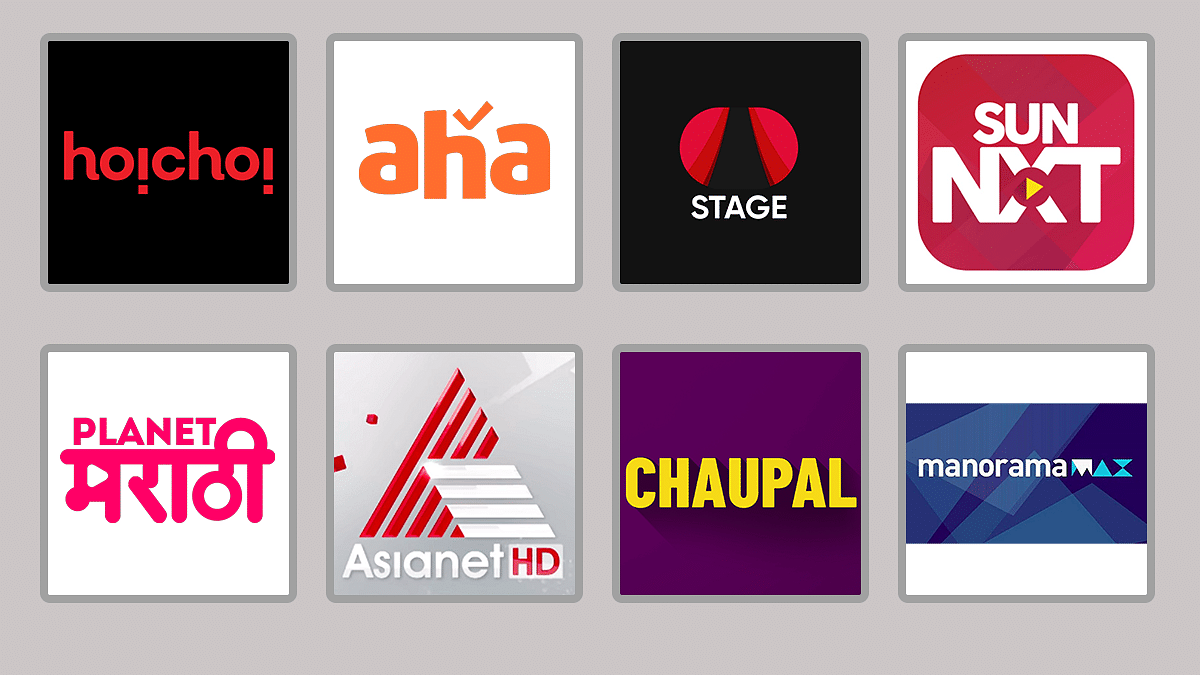
Sun NXT

Sun NXT, the on-demand video service brand was launched in 2017 and offers content in six languages such as Telugu, Malayalam, Kannada, Bengali, Marathi, and Tamil. The app is available on all Android, iOS devices, smart televisions, and more. In addition, the content app offers blockbusters from Tollywood, Kollywood, Mollywood, and Sandalwood.

The users will get monthly, quarterly, and annual plans that are priced at Rs. 50, Rs. 130, and Rs. 490. Notably, the monthly and quarterly plans will enable you to access the content on only one screen, whereas the annual pack allows you to get four screens.

Hoichoi

The Hoichoi streaming service brand offers content, web series, and movies in Bengali. The app also offers English subtitles, which means non-Bengali users can enjoy the content. Notably, the platform offers original regional content to iOS, Apple TV, Amazon Fire TV, Android TV, Roku, LG Smart TV, Mi TV, and Samsung Tizen.

Hoichoi offers two plans that are priced at Rs. 599 and Rs. 899. The Rs. 599 plan offers content on five devices and eight devices.

Aha (Telugu)

Aha is an OTT streaming service that provides content in the Telugu language. In addition, the platform offers subtitles in English and it is owned by Arha Media & Broadcasting Private Limited.

The platform is available with quarterly and annual plans. The quarterly plan will cost you Rs. 149 and Rs. 399. The first pack is valid for 90 days and 365 days. The company has not mentioned the supported device list, but users can access content on a laptop, tablet, smart television, and smartphone.

Stage ( Haryanvi)

The Stage is also a regional OTT platform that was launched in 2020. The platform offers content in movies, videos, web series in Haryanvi. In addition, the OTT platform offers content in the Rajasthani language. Besides, the platform offers comedy, songs, video, flok dance, Ragini Music in Haryanvi.

The platform is available with Rs. 199, Rs. 299, and Rs. 399 plans. Notably, the platform is available for three months, six months, and 12 months respectively.

Chaupal

Chaupal offers in content Punjabi, Bhojpuri, and Haryanvi. The platform was launched in 2021 and was launched by Pitaara TV. Besides, the app offers original, web series, music, documentaries, entertainment, exclusive movies, and podcasts. Plus, the app can be accessed on laptops, tablets, television, and laptops.

The OTT platform offers Rs. 99 for the single screen, two screens for Rs. 799 per year, and Rs. 999 plan. Besides, Rs. 999 plan is known as Family Plan allows you to access three screens along with 1080p resolution.