Categories
Apps Info

WhatsApp Tips And Tricks: Easy Ways To Record WhatsApp Video Calls

Smartphones and supported mobile apps are making our fast-paced lifestyle simpler. Communication remains the key usage of these tiny hand-held devices. With advancements in the tech sector over the last decade, communication also has modernized. Apps like WhatsApp and Telegram are replacing yesteryear’s popular video calling apps.

With added security and a myriad of user-oriented features for enhanced texting, voice and video calling is what keeps the audience hooked to such apps. WhatsApp is still ranking on top when it comes to a fully loaded instant messaging app for Android and iOS smartphones. You get to make one-to-one or group video calls using the Facebook-owned messaging app.

Keeping in mind a user’s privacy, WhatsApp hasn’t yet released the option to record an ongoing video call. That’s also because it’s illegal to record any voice/video call without the caller/receiver’s consent. But at some point with all consent, you might want to record a WhatsApp video call. What can you do when such a situation arises? We have shared some tips to record WhatsApp video calls on Android and iOS smartphones easily. Let’s take a look: 

Can You Record WhatsApp Video Call On WhatsApp?

As mentioned above, WhatsApp doesn’t provide any direct audio or video call recording feature with its mobile app. However, this doesn’t stop you from getting the task done. If you have the required permissions, you can use screen recording apps to record an ongoing WhatsApp video call.

Both new generation Android and iOS smartphones come with an in-house screen recording feature. However, some Android devices might not have this feature. Specifically, if they’re running on an older version of the Android OS. You can download third-party apps from Google Play Store for the same. Make sure, you check the star ratings and the user reviews of the app.

What Are Steps To Record WhatsApp Video Calls On Android Smartphones?

Step 1: Drag down the notification bar of your Android smartphone. Most Android devices have this feature already added in the notification bar. You can also search for this app from the app drawer or tools from the device menu.

Step 2: You can either start the screen recording option before making or answering any video call. Otherwise, tap on this feature if the call is already in progress.

Step 3: Click on Stop once done. The video file will be saved in your device gallery which you can access later.


Categories
Apps Info Tech News

List Of Best Android Apps To Chat With Random Strangers

Smartphones and other gadgets such as tablets and laptops have played a crucial role in shaping modern-gen communication. It has become easier to stay connected with distant peers and family. It’s not all voice calls and handwritten mails now, but video calling is what taking over the app. Third-party developers are coming out with new mobile apps designated for video calling with saved contacts.

But there is a constant rise in demands for video chat apps that allows one to connect with a random stranger. This is a fun social activity whose popularity is on a consistent rise. And thanks to the advanced privacy and security features, using such random video chat apps isn’t now a threat to user safety.

And when you speak of the current market, it is evident Android smartphones make up the majority. Google Play Store is a one-stop destination from where you can download a plethora of apps including random video chat applications. This article has some of the best available random video chat apps which download and use. Take a look:

Top Video Chat Apps On Android To Chat With Strangers

1. Azar- Video Chat App

The first name on the list of the best random video chat apps is Azar. It is a popular live social discovery platform that has 4.0-star ratings in Google Play Store. You would need to register an account to start using the services and make in-house purchases to use additional benefits. This app lets you connect to national as well as international users via video. You can also discover live streams and add effects to your video chat backgrounds.

2. Chatspin- Ramdom Video Chat app

This random video chatting application is created by SMV Co. for Android. The user rating is 4.1 stars. The option to chat anonymously with strangers gives this app an edge over others mentioned in this list. You can add face filters while chatting with strangers or also join live video chatrooms. Most of this app’s services are free to use. But there are some paid subscriptions as well.

3. HOLLA- Live Random Video Chat App

This is another video chat app that you can download on your Android smartphones to start video calls with random users in and outside India. You can either login using your Gmail or Facebook ID and start with random chats with strangers from different regions across the globe. This app has received 3.9 star rating at Google Play Store and weighs around 78MB.

4: Tango- Live Stream & Video Chat

This application is primarily a live streaming app where users can showcase their talents or conduct live sessions based on different topics. But, it also has a provision to connect with strangers for video calling. Of course, you would need to buy subscription plans to get access to all available features.

5: Skout- Meet Chat, Go Live

Another popular random video chat that you can download from Google Play Store is Skout which has been developed by Skout Inc. The app rating is slightly lower compared to the aforementioned chat apps. However, it is one of the oldest Android apps used for video calling which can also be used for live streaming.

6: Omegle Random Chat

One of the oldest and most popular chatting applications designed to talk with random strangers online is Omegle. However, unlike most of the apps in this list, Omegle isn’t available to download as a mobile app on Android and iOS. You would need to use a PC or laptop and access this chatting website using any browser. Over the years, Omegle has improved the privacy aspects and has made this platform safe from NSFW content. This is why this chatting application gets our recommendation.

Categories
Apps How To

Facebook Tips And Tricks: How To Disable Comments On A Facebook Post/ Page?

Key Highlights

  • Facebook has become a popular social media platform for both general users and professionals from various industries
  • The platform offers features like creating dedicated groups or pages for a wider audience reach
  • Content creators and professionals can enhance security and control by turning off comments on Facebook posts or pages

Facebook has marked its name in the social media space ever since its debut. The platform has gradually become a one-stop destination for not just general users but also professionals from different industries. Facebook has improved its services over the last few years and has made its platform secure for the audience. Also Read | Want To Hide Your Online Status From Friends On Facebook? Here’s How

Facebook, now known as Meta offers users the provision to create dedicated groups or pages for a larger audience reach. While Facebook itself is a secure platform to use, there are instances where unwanted profiles break into the security loops and turn out to be a menace to a general audience as well as content creators.

And one of the easiest ways that let any content creator or professional get a wider reach to the audience is by creating good quality posts and sharing them across different pages or social groups. Moderators of such pages are given the authority to control the activities on any socially shared posts on Facebook.

One of the handy features that post or page moderators have access to is the ability to turn off comments. This helps the users to keep unwanted or creepy and abusive content at bay. Turning off comments in a Facebook post or page enhances the overall security of the users associated with it. Below are the steps with which you will be able to turn off comments on any Facebook page or post.

Also Read | How To Edit Facebook Photos Via Mobile, Desktop App Directly

How To Stop/ Block Comments On Any Facebook Post Or Page?

Step 1: Go to the Facebook app on your respective smartphones or log in to the web version using your credentials.

Step 2: If you are a moderator of a page, you have the authority to make changes to any post shared on your Facebook page by you or any other member. You need to go to the post whose comments you wouldn’t want to appear.

Step 3: On the post, click on the three horizontal lines menu option. You will locate it in the top right corner of the post.

Step 4: You will be given several options including Edit post, Delete post, Turn off Notification, Turn Off Translation, and Turn off commenting.

Step 5: Select the last ‘Turn Off Commenting’ option to block users from adding new comments to a post. Note, once you select this feature the comment section won’t be visible in general public view. Also, none of the users will be able to post new comments.

Also Read | Want A Blue Tick On Facebook? Here’s How To Get Verified Today

Categories
Apps How To Tech News

WhatsApp Web Tips And Tricks: How To Use Multiple WhatsApp Accounts On Laptops/PCs?

Key Highlights

  • WhatsApp is an end-to-end encrypted instant messaging application available for Android and iOS users
  • Multiple account support on one device is yet to be released for Android, iOS, and desktop version
  • Using a separate web browser is one of the tricks to use more than one account on WhatsApp web

WhatsApp is undeniably the most preferred instant messaging service for smartphone users (Android, iPhone) across the globe. However, the Meta-owned messaging app has been serving desktop users as well as the WhatsApp Web version. The set of features such as the ability to send GIFs, media, contacts, and location, amongst others are available on the desktop version as well.

The availability of numerous user-friendly features along with privacy-centered end-to-end chat encryption makes WhastApp a go-to messaging app for laptop/ PC and smartphone users. Likewise the mobile app, you need one registered mobile number to get started with the WhatsApp web.

Also Read: How To Upload WhatsApp Status In High Quality (Images, Videos) On Android, iOS?

But what WhatsApp isn’t yet allowing users is the ability to use multiple accounts on the web version on a single app. What can you do in such cases? Well, there are a few workarounds with which you can use more than one WhatsApp account on a single laptop or PC. Following are the methods:

Also Read: WhatsApp Web Video Calling On MacBook Laptops: Step By Step Guide

How To Run More Than One Account On WhatsApp Web?

There is no direct way with which you can operate multiple WhatsApp accounts on the web version or a single PC or laptop. However, this doesn’t stop you from using several accounts on WhatsApp web simultaneously while using a laptop or PC. One of the easiest ways is to use a separate web browser altogether and launch WhatsApp web with a different account or mobile number.

If in case you are using Google Chrome or Safari as your default web browser on your respective Windows and macOS laptops/ PCs, launch a different app and get started with WhatsApp (use a different account here). Mozilla Firefox, Internet Edge are some of the options for Windows users.

Also Read: Want To View Instagram Story Secretly Without Notifying Contacts Or Followers: Here’s How

But if in case you would want to use two different WhatsApp Web accounts on the same browser, then you can do so with incognito mode. Using the incognito mode on any Web browser is a way to start a new session altogether. The credentials required to log into the WhatsApp web account wouldn’t be stored in incognito mode. Hence, you can sign in using a different account to the WhatsApp web version on the same web browser.

Also Read: How To Check Number Of Sim Cards Registered On Your Name And ID: How To Block Unauthorized SIM Cards Issued On Your Name?

Categories
Apps How To Tech News

Facebook Reels: What Is It? How To Create And Upload?

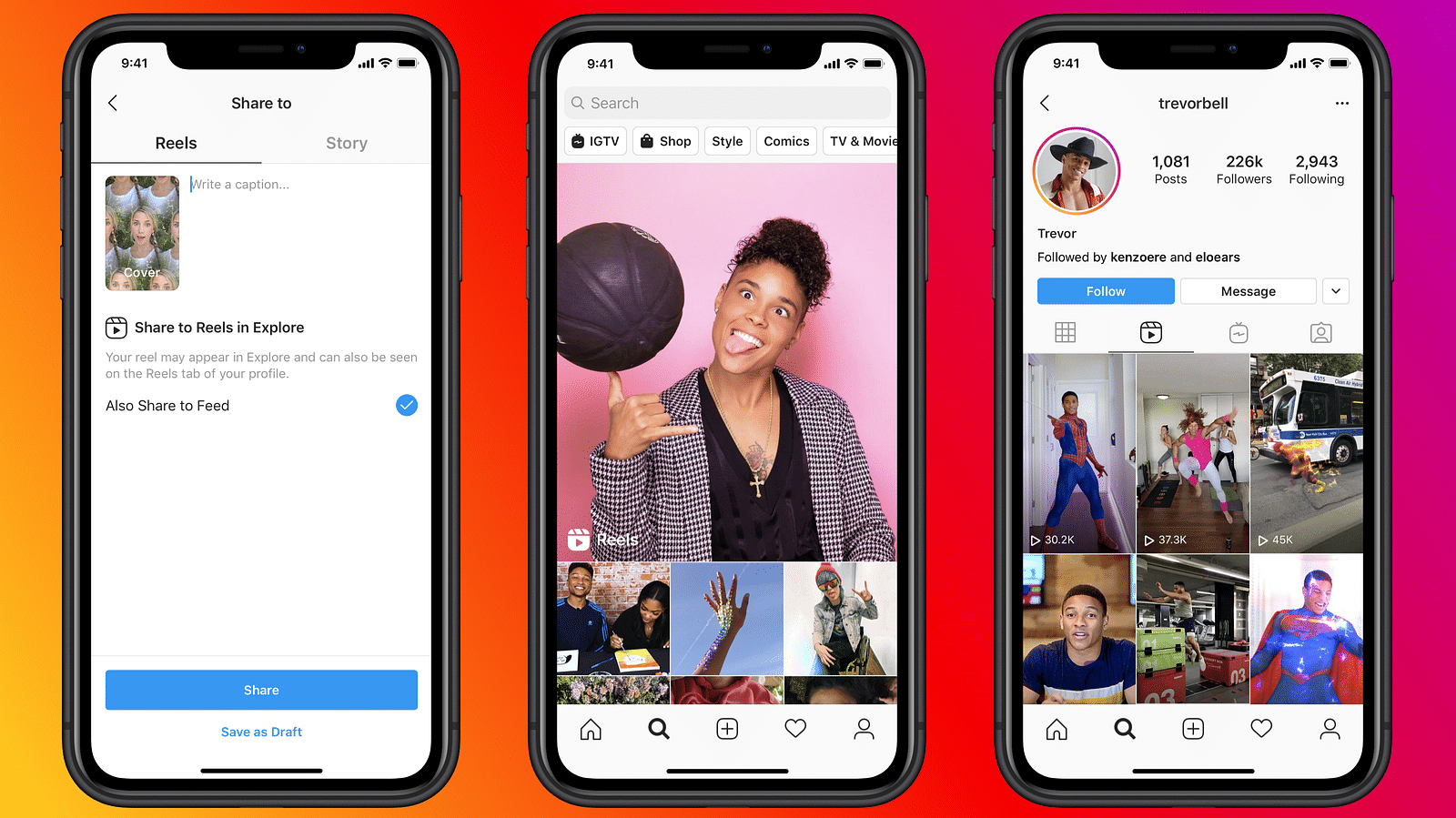
Facebook now called Meta has been the game-changer in the social media market. The company started this online service from the desktop version (for windows and Mac) and had later expanded its venture to the Android and iOS mobile operating systems with a dedicated app. Of late, the brand has been borrowing some features from its other social media arms such as Instagram and Facebook. Reels which is currently a hit amongst content creators on Instagram is one of such features which has made its way to the standard Facebook app.

Announced back in December 2021, Facebook Reels is a rip-off of Instagram’s Reel option allowing users to create and upload short-format videos. So, how exactly do you use the Facebook Reels option to showcase your talent? Read on to know:

Facebook Reels: What Is It? How Is It Different From Instagram Reels?

As mentioned above, Facebook Reels is nothing but the company’s new service for the masses to create and upload short videos. You can also use a series of clicked shots and edit them into a short video. It isn’t any different from what Instagram offers. It is worth mentioning that Facebook Reels is available for both desktops as well we mobile operating systems (Android and iOS). Creating and uploading Facebook Reels isn’t much of a hassle either. Take a look at the steps:

How To Create And Upload Facebook Reels Videos?

If you haven’t yet accessed the Reels section, you can do so by clicking on the menu (three horizontal lines) option. Select ‘Reels’ to get started.

Step 1: Once you are on the Reels section on Facebook, you will be able to see the ‘Create’ tab in the top right corner. Tap on it.

Step 2: You will need to grant access to the Facebook camera to create and share Reels. Click on ‘Allow Access”.

Step 3: You can either record a new video using the Facebook camera app or use previously captured images or videos.

Step 4: Now, add desired effects such as music, frames, etc.

Step 5: Select ‘Next’ once done with the video editing part.

Step 6: To increase the reach, add a good description (short) and then select the audience type for your video.

Step 7: Click on “Share” to upload your Facebook Reel.

Categories
Apps Info

List Of Best Voice Modulation Apps For Android, iOS Devices

Smartphone OEMs have been packing their new-generation phones with advanced technologies. Not just the hardware, but supporting mobile operating systems including Android and iOS are also being integrated with some unique features that combined with the modern days hardware take the mobile user experience to a whole new level.

Both Android and iOS mobile ecosystems offer numerous in-house and third-party apps helping with different user aspects. There are dedicated apps for gaming, photography, social media, and more. Entertainment apps such as voice modulators are one of such interesting concepts that have been made possible with new-generation smartphones.

Be it Android or iOS devices, you have this provision of downloading voice changer apps via the Play Store and App Store respectively for a fun session with your friends and family. So, what are some of the best voice changer apps for Android and iOS? Read on to know:

List Of Top Voice Changer Apps For Android Devices

1. Voice Changer with effects App

Google’s Android OS has a plethora of apps that cater to different user requirements. If you try searching for a voice changer app, you will get plenty of options. However, the Voice changer with effects apps comes first in the list for its user-friendly interface. Developed by Bauvix, this app is free to use. However, you can make some in-app purchases if you want access to additional features with voice modulations and added effects. This app is rated at 4.3 stars on Google Play Store and weighs around 7.1 MB in size

2. Voice Changer- Audio Effects

This is another popular voice modulation app that you can download via Google Play Store. This app has received a 4-star rating on Google Play Store and is smaller in size compared to the aforementioned app at 4.8MB. This app has been developed by OnePixel studio that offers multiple sound effects for voice modulations. If you want an ad-free experience and also would like to use the advanced features, you can buy additional subscription plans.

3. Voice Tooner- Voice changer with cartoons App

The third voice modulator app in this list is the Voice Tooner Voice Changer with cartoons app. As the name suggests, this is one fun app that’ll transform your voice recordings into cartoon characters’ audio. This app also has good star ratings on Play Store (4.1) and weighs 27MB in size.

4. Voice Changer Voice Recorder- Editor & Effect

Designed by Handy Tools studio, the Voice Changer Voice Recorder- Editor & Effect Android app is another good option when you are looking for a voice changer tool for your smartphones. This app is shining with a 4.1-star rating in Google Play Store and is loaded with features that aid with audio modulation with added effects.

List Of Best Voice Modulation App For iOS Devices

You will find most of the aforementioned apps in the iOS App Store. However, you might have to pay some additional bucks to use all the features offered by such apps. We also have listed down a few other apps that you can download and use on iOS devices to change any self-recorded audio.

Voice Changer Plus App

This voice modulation mobile application has been designed by Arf Software Inc. for iPads and iPhones. It weighs around 106.7MB in size and is compatible with iOS 11.0 or later. You can modify any recorded audio and add different sound effects using this app on your respecting iPhones and iPads.

Prank Voice Changer App for iOS

The Prank Voice Changer as the name suggests makes it easy for iOS users to change their voices with some funny elements. You can record any audio and then add the pre-set effects to prank your friends and family.

Categories
Apps How To Tech News

Reliance Jio Long-Term Prepaid Plans For Disney+ Hotstar: Here’s How To Activate

Reliance Jio has announced the launch of two new premium plans to offer Disney+ Hotstar access to its users. These premium prepaid plans are priced at Rs. 1,499 and Rs. 4,199. The long-term plans offer unlimited calling and data benefits. So, let’s take on the benefits of the newly launched plans.

Reliance Jio Rs. 1,499 Long Term Plan Details

India’s first telecom operator Reliance Jio offer Disney+ Hotstar access for one year. The 2GB of data per day for 84 days. Also, the Rs. 1,499 plan comes with unlimited calling and 100 messages per day. Besides, this pack offers Jio apps access.

Reliance Jio Rs. 4,199 Long Term Plan Details

The Rs. 4,199 plan is an expensive plan and it provides 3GB of data per day, 100 messages per day, and unlimited calling. This pack also ships complimentary access to the Disney+ Hotstar app for one year. In addition, this pack offers Jio application access like users are getting Jio prepaid plans. But, to access both premium plans, you have to follow these steps.

See All Steps To Activate Reliance Jio’s Disney+ Hotstar Long Term Plan

Step 1: First, you have to recharge your number with Rs. 1,499 and Rs. 4,199 plan, then you will get a unique Disney+ Hotstar Premium coupon code on your MyJio account.
Step 2: Then, you have to use the same coupon to get to avail the access to the Disney+ Hotstar Premium membership for one year.
Step 3: After that, you have to activate the subscription and for that, you have to visit https://www.hotstar.com/in/subscribe/promo.

Categories
Apps Info

Free Live Streaming Apps In India: Check All Details Here

Key Highlights

  • Free live-streaming apps in India have gained immense popularity
  • They provide a platform for entertainment and engagement
  • Apps like Hotstar, MX Player, JioTV, and Voot offer diverse content including movies, sports, and TV shows

The rising demand for content has forced several companies to launch their OTT platform in India. Similarly, telecom players have also launched their apps to offer content benefits to their users. In fact, there are predictions that the streaming market is likely to touch $247 billion by 2027. However, if you are looking for some applications that offer free live TV access on your smartphones, then you need to go through this article. Also Read | Best Apps To Detect Hidden Camera For Android And iOS

Disney+ Hotstar

Disney+ Hotstar offers local and international content in the country. The application offer content on a freemium-based model (free and premium), where users will get free content with ads and premium content with a subscription.

In addition, you will get access to the entire shows of the Star Plus channel, movies, live shows, and content from Disney. Besides, if you are looking for ways to watch Indian content, then you can also go for Hotstar.

SonyLiv

SonyLiv also follows or works on the freemium model, where users can watch movies and TV shows for free and fees. Besides, the app offer programs NBA, Football WC, Serie A, EPL, La Liga, and more. Also, offer live sports after 5 minutes delay, Live TV streaming channels Sony Movies, Animax, and more.

Voot

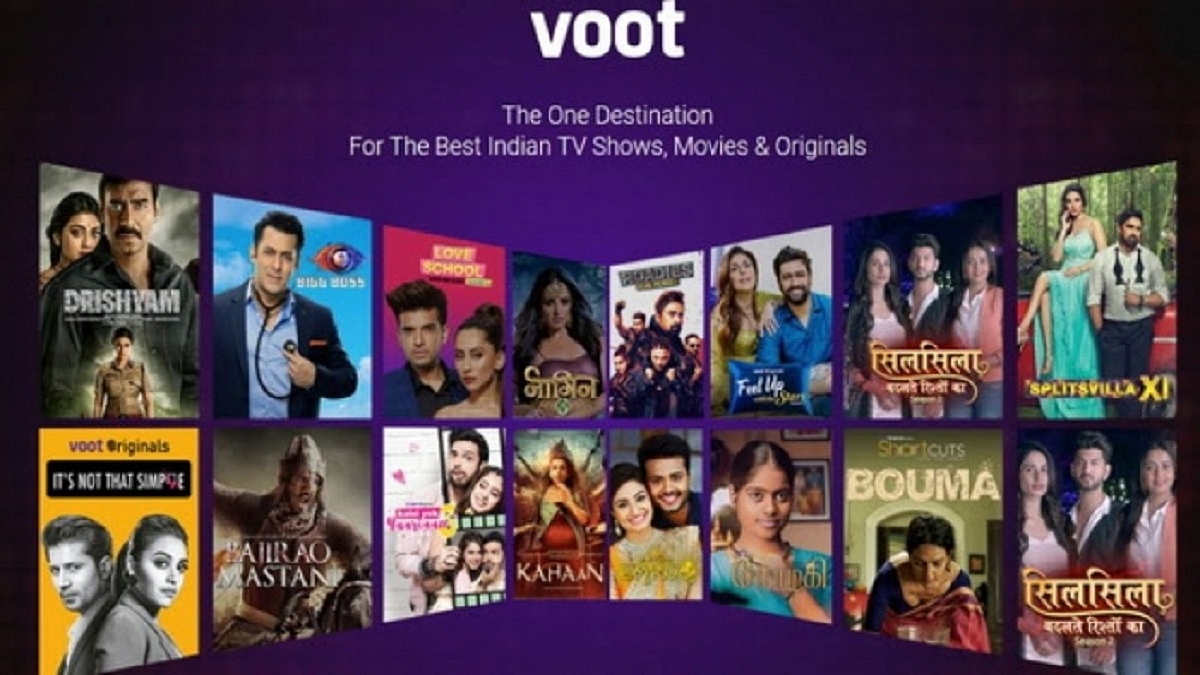
Voot shows all shows that have been aired on the Viacom 18 television channels. In addition, users will get content access from MTV, Colors, VH1, and more in all languages. The app can be accessed via Android, desktop, and iOS. In fact, the app provides original content to its users.

The app also allows you to watch content for free; however, you will not get access to the original shows and movies. The app is compatible with smartphones, desktops, and laptops. Additionally, the app can be downloaded from Apple Store and Web, and Google Play Store.

Also Read | List Of Best Government Apps Offering AI Chatbot Support To Improve User Experience

Airtel Xstream

The Airtel Xstream app has been designed for Airtel users so that they can get complete entertainment. The app allows users to access 350+ live TV channels and channels from several categories like Kids, News, Entertainment, Infotainment, Music, Movies, Devotional, Lifestyle, Sports, and more.

The app is available in different languages like Hindi, Tamil, Telugu, Oriya, Punjabi, Gujarati, Urdu, and Bhojpuri. Additionally, users will get access to several apps Hungama, Eros Now, ShareIt, YouTube, Shermarorme, Curiosity Stream, and more.

MX Player

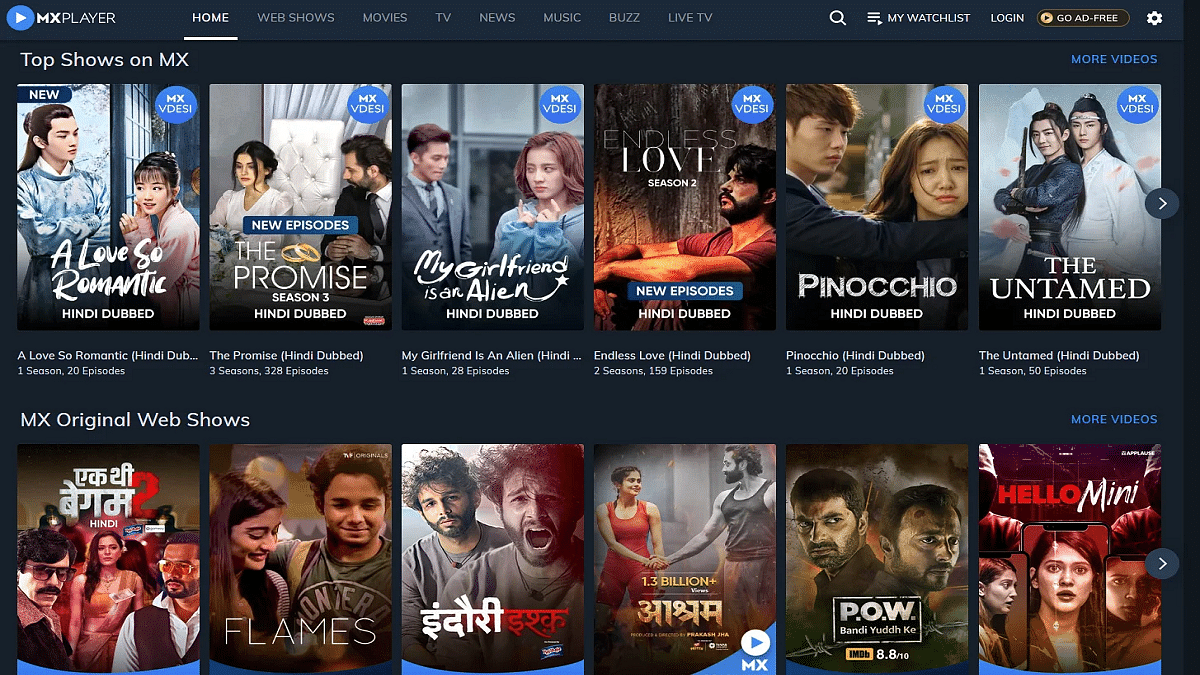
MX Player is the only app that offers content for free. In fact, the app allows its users to watch original content in Hindi and other regional languages. Also, you can watch shows in Hindi, Tamil, Malayalam, Punjabi, Bhojpuri, Kannada, and more. The app also allows users to watch channels like Sony Marathi, Zoom, ABP News, DD channels, Max HD, and more.

ZEE5 Streaming App

Another popular streaming service available for Android and iPhone users is ZEE5. The OTT app can be downloaded via both Google Play Store and Apple App Store. You can watch Hindi and regional content on this OTT app along with international movies and TV shows. The app also hosts over 150 web series along with news and over 30 million songs.

Also Read | Best Apps to Watch Live TV on Android

Categories
Apps How To

WhatsApp Web Global Voice Note Player Feature Under Testing: How To Use?

WhatsApp is one of those apps which has eventually made its way to every other available smartphone in the market. Its reign is expanded across both the Android and iOS mobile OS ecosystems. The Meta-owned instant messaging service has been consistently updated with new features for a better user experience. A desktop version of the app is also available for laptop and PC users.

The company has been experimenting with new features with the WhatsApp Web version as well. All of the special tools and services that are available on the WhatsApp Android and iOS app are gradually being added to the WhatsApp web. One of such features being tested for WhatsApp web is the global voice note feature. This audio playback feature is one of the recent releases and earlier made its way to the WhatsApp iOS version.

WhatsApp Web Voice Note Feature: When Is It Coming?

As per WAbetainfo, the WhatsApp Web version will soon receive the global voice note player. The company is currently testing this new feature for the WhatsApp desktop version with the beta version 2.2204.5. A stable update is yet to be released for the WhatsApp web that will add the audio message playback tool.

Currently, WhatsApp has not announced the exact date or timeline when it plans to launch a stable update adding the global voice note player to the web version. But, it’s expected to be made available once the company is done removing all the bugs and issues with this feature.

How To Use WhatsApp Web Voice Note Feature?

The steps to use the global audio note player on WhatsApp Web wouldn’t be different from the mobile version (both Android and iOS). Once the stable version is released, this option will be added at the bottom of the chat list window. This feature will highlight the newly received voice note along with the DP of the sender.

With this option, users will be able to listen to the voice messages or the audio notes in the background. Users will also be able to operate other apps while listening to the voice notes without the audio playback getting paused. This is one of those features which WhatsApp web users have been asking for since a while and is finally making its way to the masses.

Do let us know your thoughts in the comment section. You can also follow GizNext Tech Enthusiast Telegram group and GizNext Tech Enthusiast WhatsApp group for latest tech updates.

Categories
Apps Info Tech News

How To Get 12 OTT App Access For Rs. 149 From Airtel Xstream

Airtel Xstream Premium Pack is providing several benefits to customers. Besides, this platform offers OTT app access like Sony LIV, Epic On, and Eros Now under Rs. 1,499 annual plan. In addition, the company offers 10,000 movies, original shows in 12 languages, and TV shows.

However, this time Airtel has made huge changes and now it starts from Rs. 149 per month or Rs. 1,499 per year. Earlier, these packs were priced at Rs. 49 per month to Rs. 499 per year. So, let’s have all the changes and new plans of Airtel Xstream.

Airtel Xstream Rs. 149 Plan: See Details Here

According to the Telecom Talk report, users are allowed to choose a pack between Rs. 149 per month to Rs. 1,499 for the entire year. The report claims that customers can choose Rs. 149 per month plan or annual plan of Rs. 1,499; however, if a customer chooses an annual pack, then an effective monthly plan drops to Rs. 125.

Notably, these packs offer Epic On, ShortsTV, KLIKK, Divo, Dollywood Play, SonyLIV, Lionsgate Play, Eros Now, ManoramaMax, Hoichoi, ShemarooMe, Ultra, and Namma Flix.

The company also website claims that consumers who are purchasing these packs will get content on two screens at the same time. Also, users are allowed to use Xstream Box along with the Xstream app on iOS and Android smartphones.