Despite smartphones and tablets consuming the larger share of the consumer gadgets segment, Laptops and PCs still remain irreplaceable in most cases. That’s specifically with the complex tasks that can only be completed using a high-end computational machine. Dell is one of the largest players in the laptop market that has a wide catalog of laptop and PC lineups dedicated to gaming, general, and creative use.
Dell has a wide service network across India and is well known for its fast repair services. Dell laptops and PCs are equipped with the latest hardware technologies so that buyers get the best user experience throughout. Dell not just provides offline service repair but is also helping its customers through remote technical support. The latest laptop lineups from Dell are packed with the latest network technologies so that you get the fastest wireless and wired internet connection.
But while using your Dell laptop or PC, you would have come across certain scenarios where the internet speeds might slow down more than general. Also, in some cases, the Wi-Fi not connected error is frequent with Dell devices. What can be done when wireless internet connectivity is an issue with your personal or professional Dell laptop or PC? Here in this article, we will help you resolve the Wi-Fi network issues with Dell laptops and PCs.
Symptoms That You Need To Check With Your Dell Laptop/PC If Wi-Fi Is Not Working Properly
If suddenly you are experiencing slow internet speeds and video buffer on OTT websites and YouTube is higher than usual, your internet isn’t working fine.
If you are experiencing frequent disconnections or call drops with online conferencing apps, there might be some issues with the internet connection on your laptop or PC.
Quick Ways To Fix Wireless Networking Issues With Dell Laptops/ PCs
Step 1: Check your Wi-Fi connection with your respected laptops and PCs. Toggle on and off Airplane mode to restart the Wi-Fi connection. Keep the Airplane mode off to start the Wi-Fi network properly.
Step 2: Try placing your laptop or computer near the WiFi router. This will fix any wireless network range issues.
Step 3: Power off your Dell laptop and PCs and also the Wi-Fi router. You should wait for at least two to three minutes before switching the laptop/PC and the router. The internet connection should resume with good speeds.
Step 4: Try running the Windows Network Troubleshooter if the issue persists. The troubleshooter should resolve the Wi-Fi network issues.
Step 5: You can also try to fix the issue with Optimize Network option. You’ll be able to locate this option in SupportAssist.
Step 6: If in case the SupportAssist option is missing on your laptop or PC, download the wireless network drivers from www.dell.com/support/drivers.
Step 7: Now, you would need to run the SupportAssist diagnostics on your network adapter.
Step 8: You need to update the firmware of your router to fix any issues with the network.
With more than one billion active Instagram users each month, it’s understandable how a customer care department may become overburdened. Users can browse a range of help pages in the extensive ‘Help Center’ offered by the Meta-owned app.
Whatever you need help with will probably be addressed by the Instagram Help Center. Everything from changing your privacy settings to describing how your Instagram feed functions are covered. However, if you discover that you still require assistance, speaking with a human at Instagram may not be entirely impossible. Here’s where to find the Instagram Help Center and how to get in touch with Instagram, if necessary.
Contact The Instagram Support Number
Instagram do have a direct phone number and email – their contact phone number is (650) 543-4800, and their contact email is support@instagram.com. However, it’s unlikely you’ll get a human response through these channels.
Instead, Instagram offers a powerful help center that helps answer most questions and makes it easy to report issues with content you see on the site.
How To Get Instagram Support Through App
Step 1: Open the app and then tap your icon in the bottom-right corner.
Step 2: Tap the parallel bars in the top-right corner.
Step 3: At the bottom of the menu, tap ‘Settings’.
Step 4: Tap ‘Help’ on the next screen.
Step 5: Select ‘Help Center’, and from there you can browse by topic, narrowing in on the issue at hand.
How To Get Instagram Support Via Website
On a computer, you can follow most of the same procedures as above by logging into your Instagram account, but the quickest method to get to the help center is simply entering help.instagram.com into your navigation bar. From there, you can search for your answer. Here’s how:
Step 1: Sign in to Instagram. Access the Help Center by going to help.instagram.com.
Step 2: In the top-right, tap on your profile icon.
Step 3: From the drop-down menu, go to ‘Settings’.
Step 4: Scroll to the bottom of the page and tap ‘Help’.
Step 5: Select an issue or topic listed on the Help Center dashboard. That’s all.
Instagram is one of the biggest names in the social media space. This is a Meta-owned instant photo-sharing app that has gradually become a hot destination for content creators from across the globe. Instagram Reels video is what driving the major audience to this platform. But other features offered by Instagram are also beneficial for influencers that help them interact with the general audience. The Live broadcast feature offered by Instagram is one of them. If you are a social media influencer and wish to host a live Q&A session or wish to live stream any of your events, the live broadcast option will be your go-to option on Instagram or any other social media application such as Facebook and YoutTube.
The Live broadcast option isn’t available just for the social media influencers but also for the general user base. And going live on Instagram isn’t a difficult task. You just need a few taps on the app to get started with your live session. If you are new to the platform or with going live on the application, you need to be aware of the right steps.
Also, you would need an active internet connection with good speeds so that the live session isn’t jittery or pixelated. Here in this article, we have made it easy for you to start your live broadcast session on your Instagram profile and also how you can manage it. Take a look at the steps below:
What Are The Steps To Start A Live Broadcast On Instagram
Step 1: On you Android or iOS smartphone, open the Instagram app.
Step 2: When on the home feed, scroll right to open up the upload page.
Step 3: Scroll down to the Live tab placed at the bottom of the page.
Step 4: Add the title first by tapping the ‘Title’ tab on the left followed by the ‘Add Title’ option.
Step 5: Click on the Live icon. The session will initiate.
Step 6: Once the live broadcast has started, you’ll be able to see the total number of viewers and comments floating at the bottom of the screen.
Step 7: You can end the live session by clicking End on the top right. Select confirm to end the live broadcast session.
How To Manage A Live Broadcast Session During Instagram Live Broadcast Session
With Instagram Live broadcast, you can manage to turn off the comments and requests for collaboration from other users. Follow the steps below to do so:
Step 1: On your Android or iOS devices click on the turn comments off option which you’ll be able to locate at the bottom.
Step 2: You can turn off the collaboration requests by clicking of Turn off requests to go live option.
Mac Notebook users can troubleshoot their problems in a number of ways
Users can get in touch with Apple for extra assistance
Apple community is one of the most helpful technology communities
It doesn’t matter if you are new to Apple or an experienced Mac and iOS user—problems do happen. However, keep calm. You can easily troubleshoot your problems in a number of ways. On your Mac Desktop Or Mac Notebook, you can look up information right; get in touch with Apple for extra assistance. Additionally, the Apple community is one of the most helpful technology communities; all you have to do is ask. Also Read | Here’s How You Can Recover Lost Or Deleted Data In Windows 11 Laptops, PCs
How To Call Apple Customer Support By Phone
You can reach Apple customer service in India by calling 000800 040 1966. Be prepared to provide the serial number of your gadget when you call this number. When the customer support representative requests it, this will help you save time. To find your serial on a Mac computer, follow these simple steps:
Step 1: At the top-left corner of your screen, click the Apple icon.
Step 2: Tap on ‘About This Mac’.
Step 3: Now, you will see your serial number at the bottom of the pop-up window.
The customer service representative can help you if you need it, but there are alternative ways to locate the serial number of your Apple product.
How To Chat With Apple’s Customer Support
To chat with the Apple customer support team, all you have to do is:
You can also contact Apple Support through the @AppleSupport Twitter account. You can then select the envelope icon to send a private message. Apple’s Twitter customer service hours are 5 am to 8 pm daily.
YouTube mobile app is probably one of the easiest methods to use the platform. Both Android and iPhone apps are frequently updated. Its every update brings out a set of new features. Now, the YouTube app hardly ever lacks a feature. From using the Picture-in-picture feature and creating a shareable link at a particular period in a YouTube video, here are several YouTube features and tips you should be aware of.
Create GIFs From YouTube Videos
YouTube videos can be turned into GIFs far more easily than most people realize. By adding ‘GIF’ before ‘YouTube’ in the URL bar, you will be taken to a website where you can make GIFs with particular lengths. You can also visit the site and upload the video URL there. Additionally, you can add captions, stickers, and a few simple effects. The site, gifs.com, can also be used to create GIFs from videos downloaded from other websites, such as Instagram and Twitter, using the website gifs.com.
YouTube Restricted Mode
The restricted mode in YouTube is something you’ll need if your account is shared by children. By turning on this mode, they won’t encounter any mature or adult content on the platform. Just turn on the toggle for restricted mode under the General menu in YouTube Settings. However, one needs to turn on this mode on all devices individually.
Create Shareable Link For Specific Time
You can make a shared link if you’re viewing a long video and only want certain people to see a portion of it. All you have to do is access the relevant YouTube video, select Share, and select the Start time option by checking the box. Choose the start time, then copy the link that can be shared. Simply copy and paste it now to share it on other social media sites.
YouTube Picture In Picture (PiP) Feature
Users can access YouTube while using other apps at the same time. Picture-in-Picture is the name of this feature. But it only applies to non-musical content. Simply press on your profile photo, scroll down to the Settings area, then tap it to activate this mode. Next, select General from the menu and use the toggle to enable Picture-in-Picture.
YouTube Transcripts
Every video on YouTube has an automatic transcription of the audio into text that is accessible to anybody. To view the transcript, click the ‘more’ tab and choose ‘transcript’ from the drop-down menu. While uploading the video, you can also add the transcript, either as a pre-written file or by typing it out while you view the video.
Mac comes with a built-in backup feature called Time Machine
You’ll need an external storage device to use Time Machine
You can also use iCloud to store your data and documents
You probably don’t think about backing up your PC on a regular basis. Even if it hasn’t been in your thoughts recently, it will inevitably start to matter. If you’re like the majority of Mac users, your machine’s storage devices house a lot of highly critical documents and files. The consequences of a catastrophic data loss could be severe and have an influence on you in a number of different ways. It’s one of the risks we must acknowledge if we wish to benefit from the digital world.
In this post, let’s learn how to back up your Mac so that your important data is secure in the case of an unexpected circumstance that results in data loss.
How To Backup Your Mac Using Time Machine
Your Mac comes with a built-in backup feature called Time Machine. It automatically makes hourly backup versions of your computer that cover the preceding 24 hours, daily, and weekly for the previous month and all previous months, respectively.
Additionally, everything keeps the style you gave it, allowing you to look back on your setup rather than having to recreate it exactly as you remember it.
However, in order to use Time Machine to actually create backups, you’ll need an external storage device and, of course, a method of connecting it to your computer, whether that be by using an AirPort Time Capsule or a physical wire to an external hard drive. To begin, follow the listed steps:
Step 1: Plug the drive into your Mac and wait for the prompt to use it with Time Machine.
Step 2: By checking or unchecking the box (it is recommended to encrypt), you can decide whether to encrypt your backup disc. Then, click ‘Use as a backup’ to proceed.
How To Backup Your Mac Using iCloud
Using iCloud to store your data and documents is another option for backing up your Mac. You must set it up first before you can begin:
Step 1: Make sure your Mac is fully updated by choosing ‘Updates’ in the left sidebar after selecting ‘App Store’ from the Apple menu in the top-left corner of your screen. You first need to log in using your Apple ID.
Step 2: Select ‘System Preferences’ and then ‘iCloud’ from the Apple menu in the upper left corner of the screen.
Step 3: Sign in with your Apple ID and accept the terms of service.
Step 4: You can decide whether or not to use iCloud for your data and documents and the use of Find My Mac.
Following the steps explained above, you’ll be able to see which apps you can add to or remove from your iCloud account as well as how much of your 5GB of free storage space is presently being used by your data. If necessary, you can subscribe to a more expansive iCloud account for a variety of monthly costs.
Instagram is definitely the most addictive social media application that is available on Android, iOS smartphones, and also for desktop users. And ever since the Meta-owned giant released the Reels feature on its platform to counter TikTok and other such apps, we have seen a massive surge with new content creators and also the general audience on this platform. Instagram has been proactively adding new features and has now improved the user experience by creating Reels and other content.
Not just influencers, any general user on Instagram can easily create a new Reel video. All you need is the Instagram app on your phone, an account, and an active internet connection. If you already have been using Instagram, you would definitely know how to create stories or Reels and add different types of multimedia effects, and use hashtags for a better reach. Adding music, text, and even location is quite a simple task with Instagram Reels.
But are you aware that you cannot just add licensed music to the Instagram Reels background but also original sounds like your own voice? Well, this is one of the options that Instagram has added with Reels wherein you can add your own voice or audio recording to a Reels background. The steps aren’t too tricky either. Take a look below:
How To Record Reel With Your Own Audio And Mix It With Other Music Or Creator’s Original Audio
Step 1: Open the Instagram app on your respective devices.
Step 2: Go to the reels section and record your own reel video.
Step 3: Click on the Preview button. This will be placed at the bottom of the app’s home screen.
Step 4: Now, add the audio by tapping on the music icon.
Step 5: You would need to make the preferred selection here. You will get two options. The first “Music” option will let you use audio from other sources, while the ‘voiceover’ option will let you mix your own audio recording with the reel.
Step 6: If you want to add your own voice recording to the reel, click on the Voiceover option. You need to tap and hold the button to record the audio.
Step 7: Tap on Done once the audio recording is complete and is added to the video.
Step 8: Select the Sound effects options and add the desired audio effects to the reels video. Click Done.
Step 9: Now, make the required edits to the video by dragging the bars below each type of audio. You can also adjust the volume levels, add effects, and edit or remove some sections of the audio.
Step 10: Click on Done and then Next to upload and share the new reel with your contacts.
Direct in-app option to download Instagram stories with music is unavailable
Third-party apps required to download Instagram stories with music
One of Instagram’s coolest features is Stories. You can apply filters to your photos, GIFs, popular music, and more with a few clicks to create amazing content that you can share with the world. However, you won’t find an option to save your work with music if you love what you’ve made. This is because the Meta-owned app does not support downloading stories with music.
The good news is that you can still save Instagram stories with music. How? In this article, we are here with quick steps that you can take to download a Story with music from Instagram.
If you have a public account, you can install a third-party application to download your story with music without logging into your account. Besides, you have to sign in to your account if you have a private account and then download your story with music. To download your own Story, follow these steps:
Step 1: On your mobile phone, navigate to the Instagram app.
Step 2: Go to the profile of those whose Story you want to download.
And that’s all! You can easily download the Story to your phone’s gallery. Now you can send it to your loved ones or post it on Facebook or Twitter or other social networking websites. You should be aware that Instagram Stories disappear after 24 hours.
After the story has been uploaded, you have a certain amount of time to download it. For the unversed, as with screenshots, users have no way of knowing if their stories have been downloaded by users on the platform. All in all, you can now save stories with music in your gallery. Though some methods won’t work for private accounts, you can install the same free application to save videos.
For the tech geeks, stay updated with the latest cutting-edge gadgets in the market, exclusive tech updates, gadget reviews, and more right on your phone’s screen. Join Giznext’s WhatsApp channel and receive the industry-first tech updates.
With smartphone OEMs betting high on stylish design over performance and compromising on one or the other specification; finding a smartphone with the ideal balance can be a task. OPPO’s Reno series is famous for offering exceptional features and outstanding performance with each generation. We have seen the brand’s expertise in designing best-in-class phones in the Reno series from the initial days.
Now, the Reno series gets refreshed with top-of-the-line specifications and is back with the OPPO Reno8. This latest Reno series phone is designed to provide flagship-like performance and even a 5G connection at a reasonable cost. The all-new OPPO Reno8 is priced at Rs. 29,999 and can provide you with the best of everything, including a premium design, fantastic camera configuration, and outstanding performance. It easily gives some of the best-selling flagship handsets a hard run for the money. Check out the top reasons to buy this device.
Dazzling Design With New Colors
The OPPO Reno series has always been known for its premium and vibrant design language. Holding OPPO Reno8 instantly made me realize that this is a premium product. I like devices that are blocky but not heavy and Reno8 hits the right spot with that. The flat edges and a classy design, all packed in at 179 grams, are genuinely astonishing.
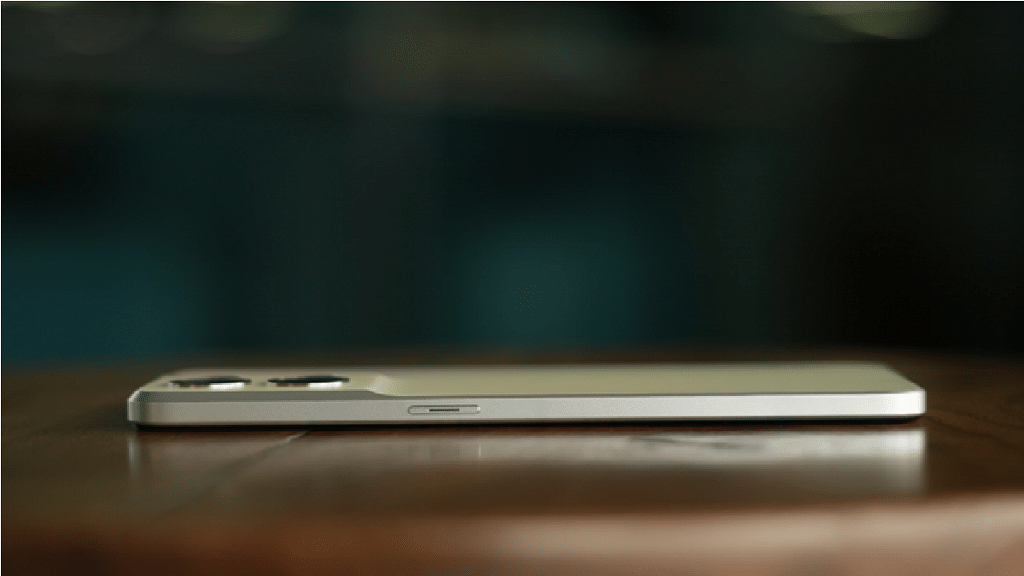
The design of the OPPO Reno8 will dazzle you for sure; it did me too. The latest Reno series phones wear a streamlined unibody design. The phone feels quite slim at 7.67mm and feels comfortable to hold. I even absolutely had no issue carrying it in my pocket for long hours. We have to give OPPO some extra pointers for this futuristic design. The Reno8 looks seamless and fluid due to the integration of the squarish camera module design. Additionally, it stops dust from gathering near the camera region. How cool is that!
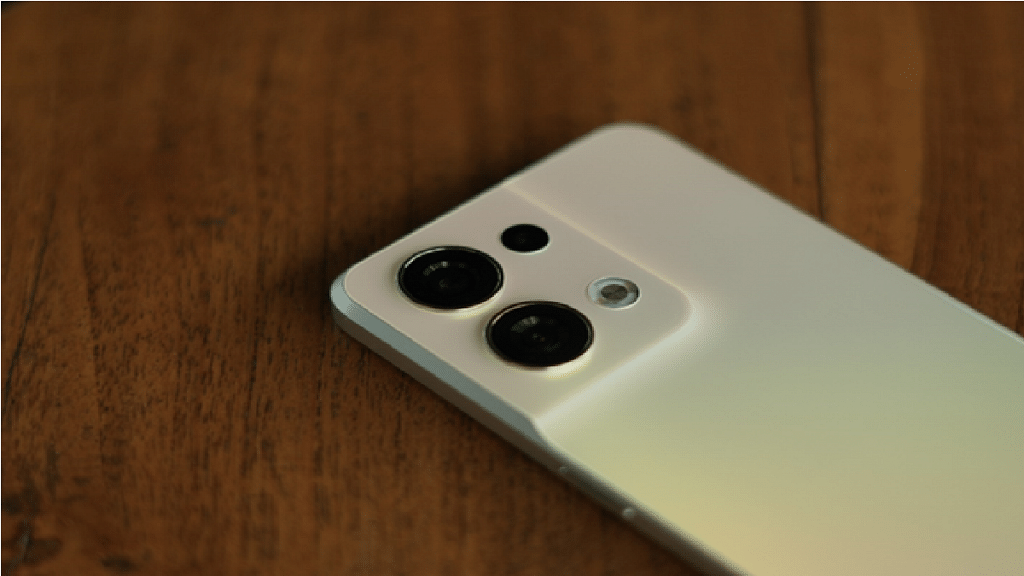
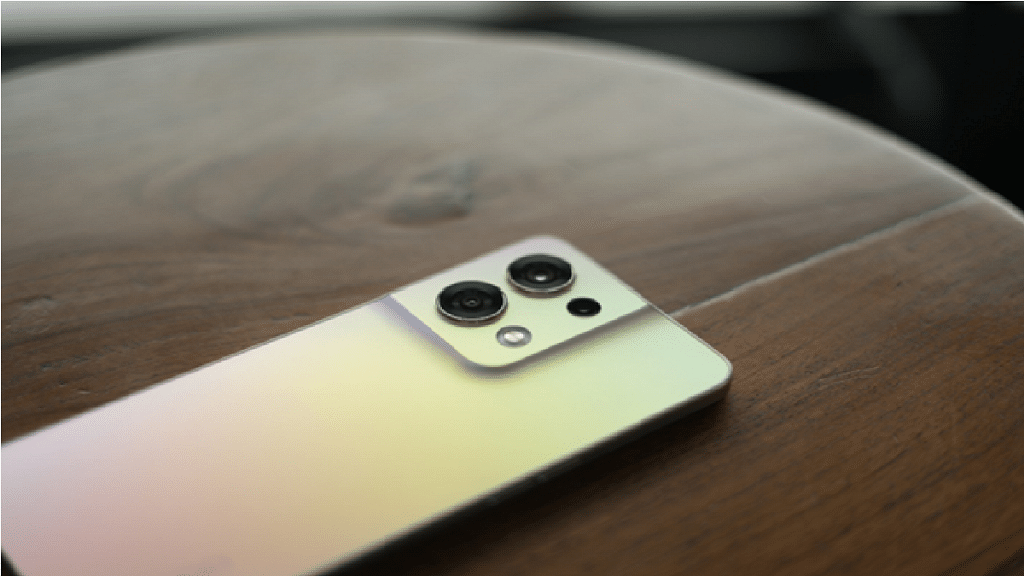
OPPO has merged the camera module with the phone’s rear panel. The arrangement looks seamless and unique. Undoubtedly, the OPPO Reno8 is a fashion statement in itself.
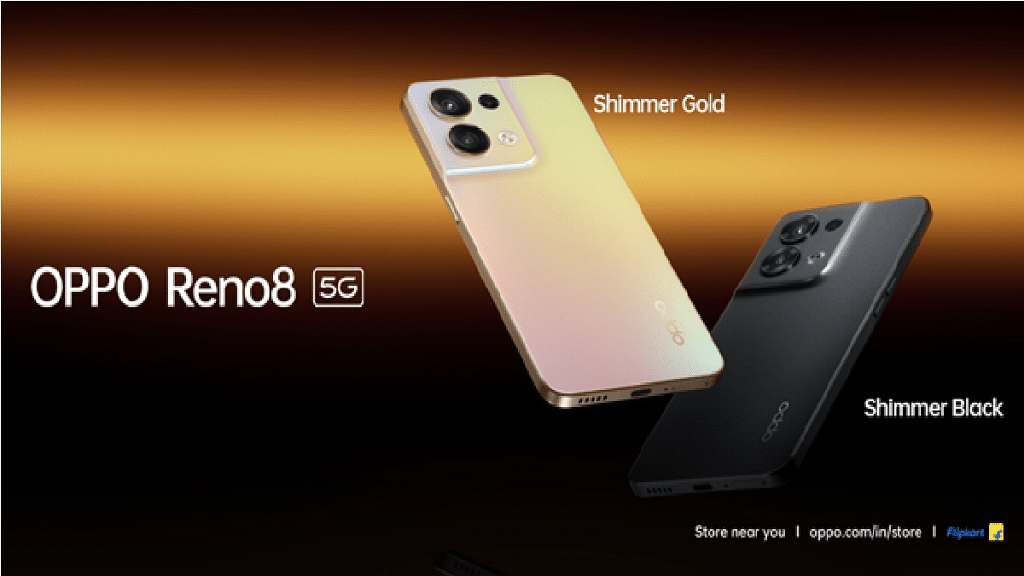
The OPPO Reno8 comes in two shades – Shimmer Black and Shimmer Gold which is the one I am using. On the back, color schemes produce an unprecedented gradient aesthetic impression while being fingerprint resistant.
Backed by the perfect design and finest features, the OPPO Reno8 is a stylish, trendy, and on-point smartphone. And for people like me who prefer to make a stunning style statement with minimal accessories, the OPPO Reno8 is the way to go.
80W SUPERVOOCTM with 4,500mAh Battery with Super Durable 1600 Charge Cycle
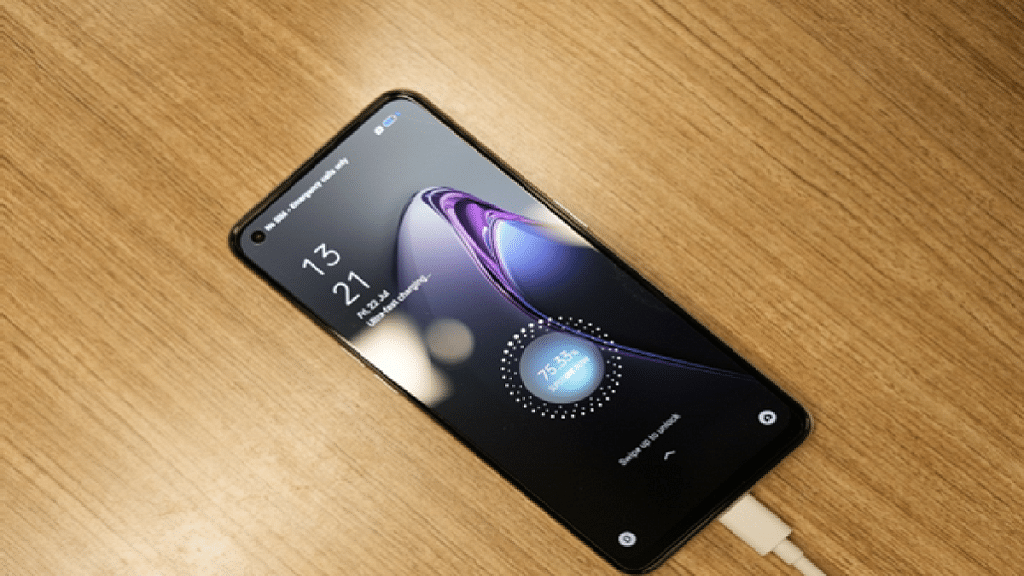
Packing a 4,500mAh capacity battery, the OPPO Reno8 comes with 80W SUPERVOOCTM charging support. Now that’s kickass! It is probably one of the fastest charging smartphones I have found so far. On a single charge, the Reno8’s battery can last an entire day. This is perfect when you have a busy schedule and use the smartphone throughout and hardly get time for a re-plug.
What I liked more is the fast-charging prowess of the OPPO Reno8, which can completely charge the phone in just 28 minutes. OPPO claims that the Reno8 can charge from zero to 50 percent in just 11 minutes and I dare not challenge this claim.
OPPO’s self-designed Battery Health Engine (BHE) technology solves the degradation problem to extend battery life. By intelligently controlling the charging current and voltage through real-time monitoring, the BHE can extend the battery lifespan to as many as 1,600 charge/discharge cycles. In short, I personally found the battery performance of the Reno8 actually solid with a good eight or so hours of continuous use.
Superior Cameras With Dual Sony Flagship Sensors
The OPPO Reno series has always been a pocket marvel with mobile photography. The brand has been creating wonders with the Reno series’ exceptional camera hardware and it is truly a photographer’s delight. The OPPO Reno8 is no exception. That’s one of the reasons I have been all excited to get my hands on this latest Reno model.
The OPPO Reno8 comes with the market’s favorite 50MP Sony IMX766 main camera. That’s the main star of the show. The IMX766 incorporates DOL-HDR technology which expands the video dynamic range with the ideal mix of brightness and shadow detail.
With natural lighting, I got to click the images that are crisp, clear, color accurate, and detailed. It also includes an 8MP ultrawide camera and a 2MP microsensor. Surprisingly, quality doesn’t take a hit when you switch to the ultra-wide camera or microsensor on the Reno8.
I am personally quite impressed with the Reno8’s unmatched camera performance. It lets you record your priceless moments with breathtaking clarity. Additionally, the camera provides fresh viewpoints through a variety of lens lengths which I bet will elevate your whole photography experience with the Reno8.
On the front, the OPPO Reno8 gets a massive 32MP Sony Flagship IMX709. Thanks to the customized RGBW sensor with OPPO’s Quadra Binning Algorithm the noise levels are almost zero with each selfie. Besides, the DOL-HDR technology helps with advanced image processing so that you get stunning portrait selfie videos. I honestly feel that the selfies taken on the Reno8 are a great way to capture the best version of me. With a host of other portrait features, it is one of the few rare smartphones in this price range that packs so much into the camera system.
I could click impressive pictures with the Reno8 in low-light conditions, thanks to its Night Mode. I am so glad that OPPO has managed to elevate the camera effects which is great news for a lot of people like me who are looking for a great camera experience on a decent budget.
Taking the photography experience a notch above is the additional professional-grade shooting modes such as Hyperlapse, 960fps AI Slow Motion, Ultra HDR, and Ultra Night video recording. Using the Hyperlapse shooting mode, you will be able to high-res time-lapse videos in motion. With this, I was able to record timelapse videos with different angles in one single shot.
If you wish to record high-grade movie-like videos, then the 960fps AI Slow Motion will be the ideal mode, while for refined low-light videos, you can use the Ultra Night Video. Note, this mode is enabled by default so you get amazing night shots without making any manual adjustments.
In addition to this, the OPPO Reno8 also supports 4K HDR recording which is claimed to offer up to 40 percent more dynamic range than standard HDR. The device comes with Ultra Night Video and Ultra HDR Video. Doesn’t matter if I pose in front of a sunset or the peaceful glow of the moon, every selfie video I took with the Reno8 appeared dynamically brighter and sharper.
Without any doubt, the new OPPO Reno8 unleashes its unlimited imaging power for you to produce gorgeous portrait videos and photos.
Powerful Hardware: MediaTek Dimensity 1300
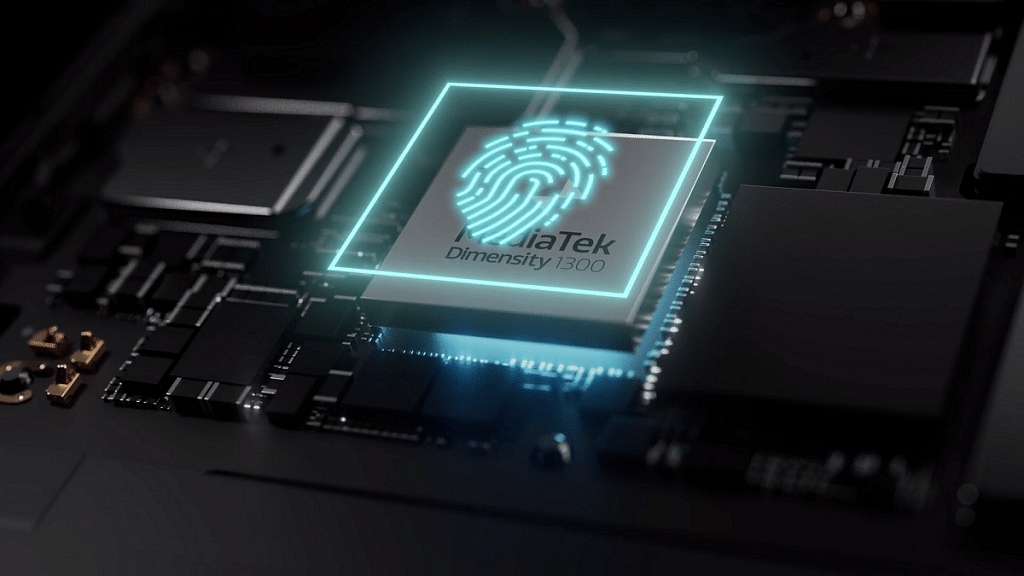
The new OPPO Reno8 launched with the new 5G chipset from MediaTek which is Dimensity 1300 5G-integrated SoC. It is the heart and soul of the new Reno phone and delivers powerful 5G connectivity and amazing computing power. The upgraded 5G processor, which is based on a cutting-edge 6nm manufacturing technology, offers significant improvements over its predecessor. I feel that it’s a worthy upgrade as delivered me a good mid-range performance just like I experienced with many other flagship devices.
The OPPO Reno8 is faster than other premium mid-tier smartphones thanks to the Arm Mali-G77 MC9. It is one of the most power-packed GPUs in this market right now. With this, the Reno8 can render even the most intense graphics fluidly.
The MediaTek Dimensity 1300 is a powerful processor that makes the Reno8 all potent. Be it gaming or switching between dozens of apps; functionality is swift. The octa-core Dimensity 1300 SoC has 3GHz Arm Cortex-A78 cores. The phone experience is substantially smoother thanks to these new, higher-performance cores. This new chipset is more optimized than the MediaTek Dimensity 1200 from the previous generation which is also a premium 5G chipset. The gaming technology HyperEngine 5.0 is also included in this chipset.
The OPPO Reno8 arrives in 8GB / 128GB storage variant. Now, whatever chores you throw at this phone should be more than enough for it. With UFS 3.1, the OPPO Reno8 features the fastest storage which will load the apps much faster.
Super-Conductive VC Liquid Cooling System For Ultimate Game Fluency
The OPPO Reno8 smartphone also employs an Ultra-Conductive Cooling system to lower the phone’s temperature. It maintains optimum temperatures while gaming, watching videos, and photography. The Reno8 features a Super-Conductive VC Liquid Cooling System which is said to remain cool and always run smoothly, even when you are playing games or watching videos. With the new cooling technology in this smartphone, it provides the most seamless overall gameplay experience.
The smartphone has also received TÜV SÜD 36-Month Fluency Rating A Mark certification for up to 36 months of smooth performance. Further, you can benefit from Dual GPS which offers better navigation while Game Boost 2.0 facilitates a smoother gaming experience on the Reno8. While I was using it, the phone perfectly went through routine tasks as well as intense gaming sessions. I undoubtedly had a fantastic experience using the OPPO Reno8.
Gaming Fluency With 90Hz Display Refresh Rate
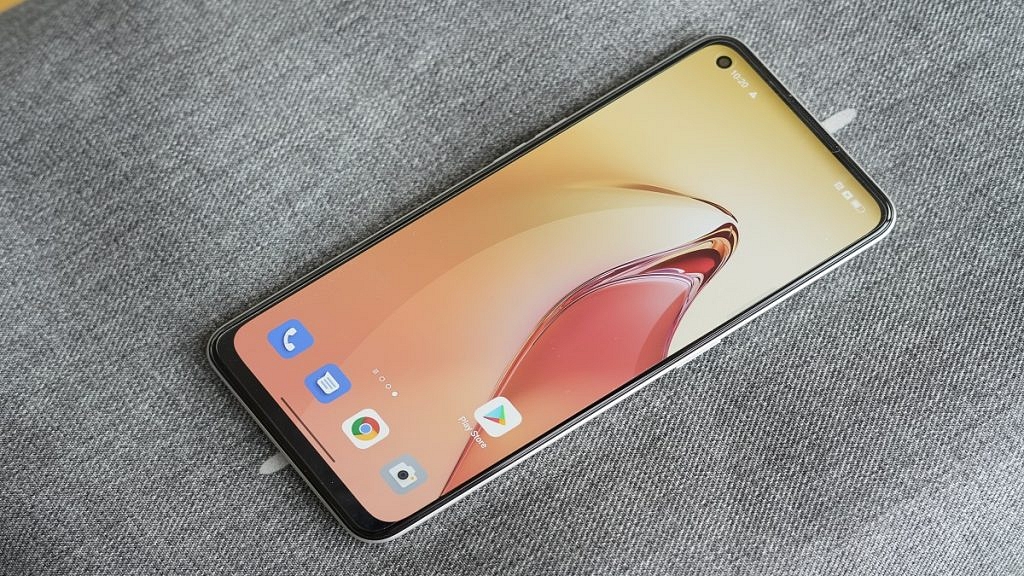
The display of any smartphone is a crucial aspect for most of us. It can make or break the mobile phone experience. After spending a couple of minutes watching videos on the Reno8’s AMOLED display, I can easily say that it’s one of the best displays I have used in this price range. The credit goes to the combination of the high-end AMOLED screen and FHD+ resolution.
The display of the OPPO Reno8 is a 6.43-inch 90Hz AMOLED panel coated with Gorilla Glass 5 protection. The AMOLED 6.43-inch panel coated with Gorilla Glass 5 protection delivers a comfortable viewing experience. So, whether you are playing games on it or watching your favorite Netflix series, you will get nothing but the best visuals for your eyes. The 90Hz refresh rate is super smooth and quite responsive in operations I must add.
My gaming experience on the phone was superb because of the 90Hz refresh rate and also the content watching was good with deep blacks and high contrast ratio. Thanks to DCIP3 technology. OPPO Reno8 is using the AMOLED panel which is good and can deliver faster performance with no touch lag issues. During my use, things run fantastically smoothly and the 90Hz screen refresh rate made any interaction with the software feel fluid.
Smart and Secure Operating Experience with ColorOS 12.1
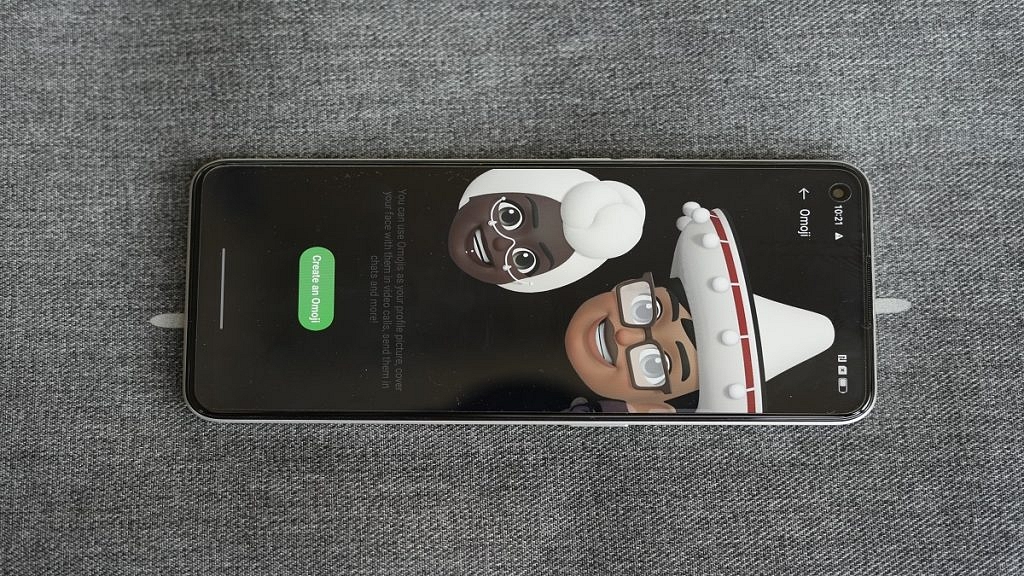
The OPPO Reno8 runs on the Android 12 + ColorOS 12.1 operating system. It comes pre-installed with Android 12 which includes tons of new features and is more configurable than Android 11.
The updated ColorOS 12.1 fixes long-standing issues including touch latency and adds new layouts, enhanced dark mode, and a gaming turbo engine. With its new custom ROM, OPPO is renowned for its strong software optimization.
ColorOS 12.1 will be more in tune with what you want and what matters to you than ever before. Reno8’s enhanced version of ColorOS 12.1 offers a smarter, more individualized, and more secure operating environment. It is jam-packed with helpful features designed to make your life simpler.
Dirty hands are no more a problem. I got to operate and navigate the smartphone with just a hand motion thanks to a feature called ‘Air Gestures’. I could quickly flick through social media apps like Instagram, Twitter, YouTube, and WhatsApp. Not only was this really simple for me, but it also saved my time. You can even pause YouTube videos and answer or mute calls using air gestures. That’s personally my favorite feature of the ColorOS 12.1.
Another helpful feature of the OPPO Reno8 is its ‘Multi-Screen Connect’, which helped me to clone my phone on my computer and collaborate easily between the two gadgets. Besides, the ‘Anti-Peeping’ notifications feature in the Reno8 is really useful for people like me who don’t want to go through my phone’s screen. This feature works toward hiding the detailed notification content when someone else looks at your phone.
Buy This Futuristic Premium Mid-Tier Phone As Your Daily Driver
OPPO is again on the right track and making strides in the right direction with the latest Reno series. The OPPO Reno8 not only impresses with its premium design but also assures high-end performance. The premium mid-tier smartphone comes with the latest MediaTek Dimensity 1300 processor which delivers a rich user experience. It’s a blazing fast phone that flaunts that can handle any task you throw without any jitters. The gorgeous 6.43-inch tall Full-HD+ AMOLED display complements the beautiful design and gets you instantly hooked. The Reno8’s silky smooth texture definitely makes it a joy to carry around. I believe OPPO has once again created a stunner with the Reno8. You get a stellar device that can be your personal DSLR with high-end Sony sensors. And that’s not just it, this entire package on the Reno8 is wrapped up with the 80W SUPERVOOCTM fast charging which is the fastest mobile charging technology in the premium mid-range segment. This combined with the OPPO’s in-house Battery Health Engine (BHE) technology that is designed to extend the battery life is bound to give you peace of mind with prolonged usage. It keeps a check on the charging current and voltage through real-time monitoring extending the battery lifespan to over 1,600 charge-discharge cycles and retaining its peak performance even after four years of daily use. The Reno8 is truly a marvel that you should own if you wish for a pocket-friendly all-rounder.
The OPPO Reno8 is priced at Rs 29,999 and is available on Flipkart, OPPO Store, and mainline retail outlets from 25th July onwards.
With the Reno8 Series, OPPO has also launched OPPO Enco X2 True Wireless Earbuds co-created with Dynaudio that delivers industry-leading Active Noise Cancellation and OPPO Pad Air with the first device in the segment to feature the power-efficient ‘6nm’ octa-core Snapdragon 680 processor coupled with AI System Booster 2.1.
The OPPO Enco X2 TWS is priced at INR 10,999 OPPO whereas the OPPO Pad Air is priced at INR 16,999 for the 4 GB + 64GB version and INR 19,999 for the 4GB + 128GB version and will be available on Flipkart, OPPO Store and Mainline retail outlets.
Customers can avail of the following offers on the Reno8:
• 10% cashback (up to INR 3000) on ICICI Bank, SBI Cards, Kotak Bank, Bank of Baroda credit cards and debit cards, etc.
• Cashback of INR 1200 is also available for non-EMI transactions through ICICI Bank, SBI cards, Kotak Bank, etc.
• No cost EMI up to 6 months on leading bank cards.
• EMI starting from INR 2500 approximately on 12-month EMI schemes from leading financiers.
• Low down payment starting from INR 4285 is also available from select financiers.
• OPPO upgrade offer INR 2000 is applicable on Reno8 for loyal users from 25 July 2022 to 31 July 2022.
• OPPO Premium Service – exclusive for oppo Reno users offer Easy EMI option during repair of the phones. Along with this Reno users can avail free pick up & drop service, 24/7 hotline support and free screen guard & back cover. Customers can avail the OPPOverse Bundle Offer and buy OPPO Reno8 Series and IoT devices before 31st Aug, register My OPPO App and get exclusive OPPOverse offer. Chance to get OPPO Watch Free worth 5,999 at just Rs 1
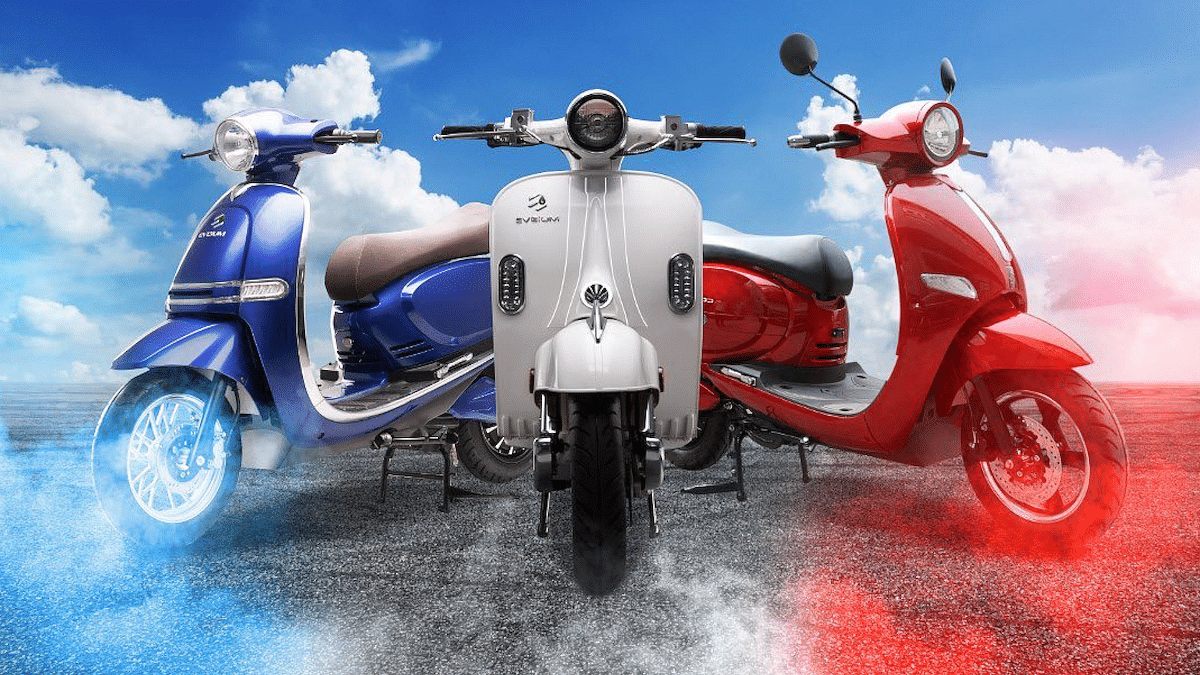
Another new entrant in the ever expanding electric space comes in the form of EVeium Mobility. This is a new Indian startup backed by Ellysium Automotives which is the automotive branch UAE based company META4 Group. However, we could not find any website for Eveium and the phone number listed on their Facebook page is also the number used for One-Moto. The last update from One-Moto was more than a year back but online reports state that the Eveium range will be open for bookings from 8th August. This does raise a few eyebrows. That said, let’s divulge deeper into the three new electric scooter products.
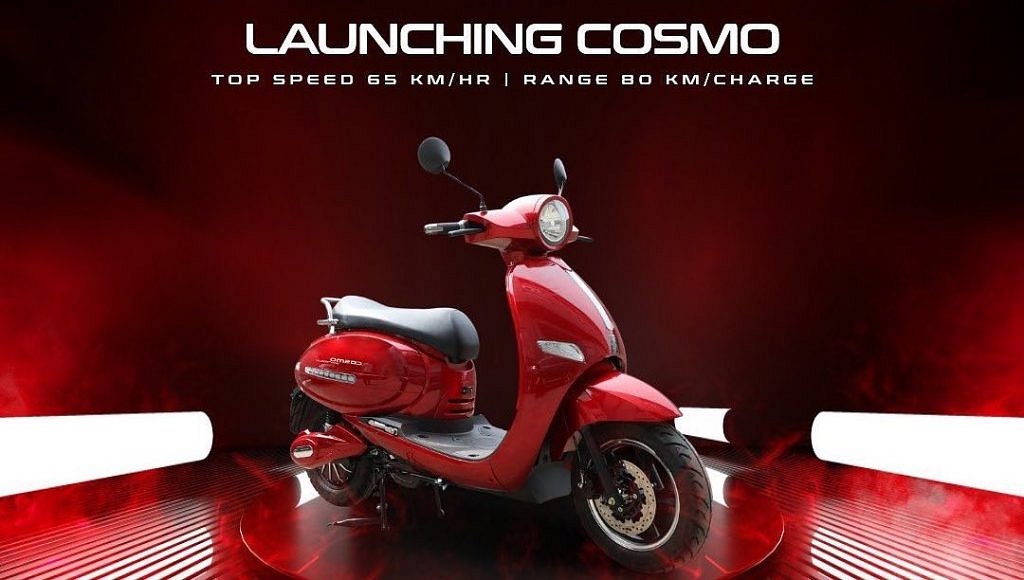
Eveium Cosmo
The most affordable among the three Eveium electric scooters is this one. Priced at Rs 1.44 lakh, the Cosmo is a retro looking scooter and doesn’t have any sharp edges, cuts, or folds. This is the brand’s entry level offering. The Eveium Cosmo has a 72V, 30Ah Lithium-ion battery. This powers the 2kW BLDC motor and the rated top speed is 65kmph. Claimed range is about 80km. The manufacturer states that it takes 4 hours to fully charge the battery. The braking duties on the scooter are done by front disc brake and rear drum brakes. The scooter is also offered in five stylish colours: Blue, Bright Black, Cherry Red, White, Lemon Yellow, and Grey.
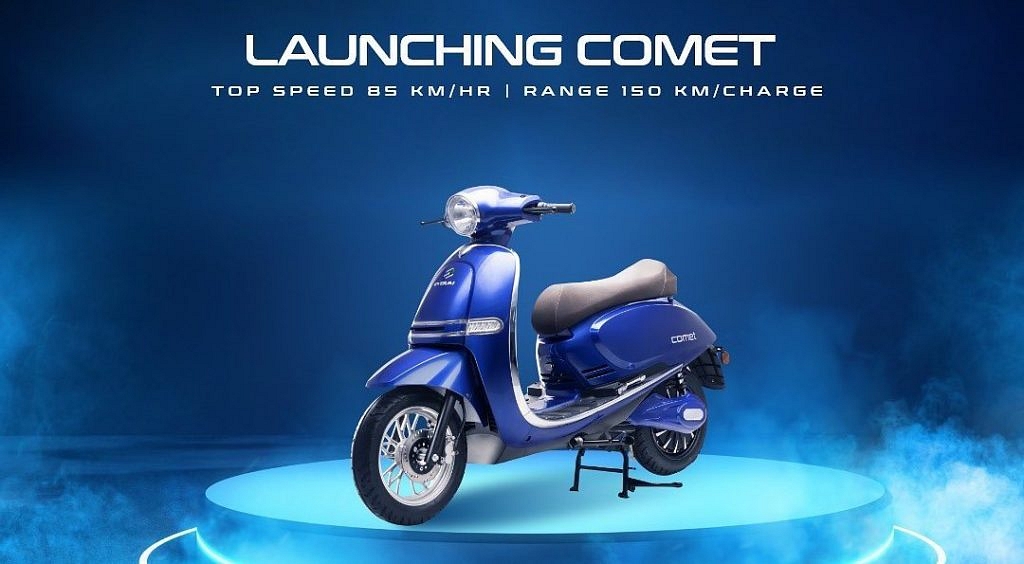
Eveium Comet
The slightly more modern looking Comet comes with a bigger 3kW motor and this helps bump up the top speed to 85 km/h. The scooter also features a larger 72V, 50ah Li-ion battery and gets a claimed range of 150 km. Wine Red, White, Royal Blue, Shiny Black, Matt Black, and Beige are the colour options for the Comet. This one is priced at Rs 1.92 lakh, pretty steep for the specs.
Eveium Czar
Finally, the top-of-the-line Eveium Czar electric scooter. This is the flagship offering from the brand and does carry over typical retro Italian lines. It has a 72V, 42Ah lithium ion battery which powers the 4000W motor. Top speed is rated as 85 km/h and the claimed range is same as Comet – 150km. The battery takes 4 hours for a full charge up. Glossy Black, Matt Black, Glossy Red, Light Blue, Mint Green, and White are among the subdued hues offeres in the Czar. Price stands at Rs 2.16 lakh.
Features
In terms of functionality, all the three Eveium electric scooters have three drive modes: Eco, Normal, and Sport. This is in addition to the scooter’s other features, which include an LCD instrument cluster, keyless entry, regenerative braking, find my car, overspeed alarms, and more. Additionally, the Comet and Czar offer a reverse driving option. The scooters may be reserved at EVeium dealerships in Hyderabad, Bengaluru, Pune, and Kozhikode for Rs 999 in booking fees. We feel the likes of the new Ather 450x Gen3, Ola S1 Pro and Simple One will offer stiff competition to the Czar and Comet.