Categories
Featured Gaming How To

How To Fix Lag In Garena Free Fire Games For Immersive Gameplay

Key Highlights

  • Garena Free Fire has become one of the best battle royale games of the last decade
  • It features graphics for gamers who enjoy gaming in highly realistic environments
  • Players must have experienced lag or stuttering in their games, even when running on medium-quality settings

Free Fire is a popular mobile battle royale game that has a large player base. Despite its popularity, some players experience lag in the game, which can affect their performance and overall gaming experience. This can be frustrating, especially for those who are serious about winning. This article will discuss tips and tricks to help you fix lag in Garena Free Fire games.

Also Read | Free Fire Booyah Pass 2023 Free Diamonds: How To Get All Free Diamonds In Free Fire Booyah Pass 2023

Check Your Device’s Specifications

Before anything else, checking if your device meets the minimum requirements for playing Free Fire is important. If your device is outdated or doesn’t meet the requirements, you might experience a lag in the game.

Update Your Game

Keeping your game up to date can help resolve bugs and improve performance. You can check for updates in the app store and install them.

Close Other Apps

Having too many apps running in the background can slow down your device and cause lag in the game. Make sure to close all other apps before playing Free Fire.

Clear The Cache

Clearing the cache can help free up space and improve performance. To do this, go to your device’s settings, select the app manager, and find Free Fire. Clear the cache and restart the game.

Adjust Graphics Settings

If you’re experiencing lag, try adjusting the graphics settings to a lower setting. This can help reduce the load on your device and improve performance.

Connect To A Stable Network

A stable and fast internet connection is crucial for a smooth gaming experience. Try connecting to a Wi-Fi network instead of mobile data and make sure your internet connection is stable.

Also Read | Free Fire Maps: Top Five Free Fire Drop Locations On Map For Maximum Loot

Use A Gaming VPN

If you’re still experiencing lag, you can try using a gaming VPN. A VPN can help reduce lag by improving the stability of your internet connection and reducing network congestion.

Fixing lag in Garena Free Fire games can be done by following the tips and tricks mentioned above. If you’re still experiencing lag, try restarting your device or contacting the game’s support team for further assistance. By taking these steps, you can improve your gaming experience and enjoy Free Fire to the fullest.

For the tech geeks, stay updated with the latest cutting-edge gadgets in the market, exclusive tech updates, gadget reviews, and more right on your phone’s screen. Join Giznext’s WhatsApp channel and receive the industry-first tech updates.

Categories
Apps Featured How To

Recharge Your Delhi Metro Card Using Airtel Thanks App: Here’s How

Key Highlights

  • Delhi Metro has partnered with Airtel Payments Bank
  • Delhi Metro cards can now be recharged via the Airtel Thanks app
  • This will make it easier for Delhi Metro users to recharge their smart cards

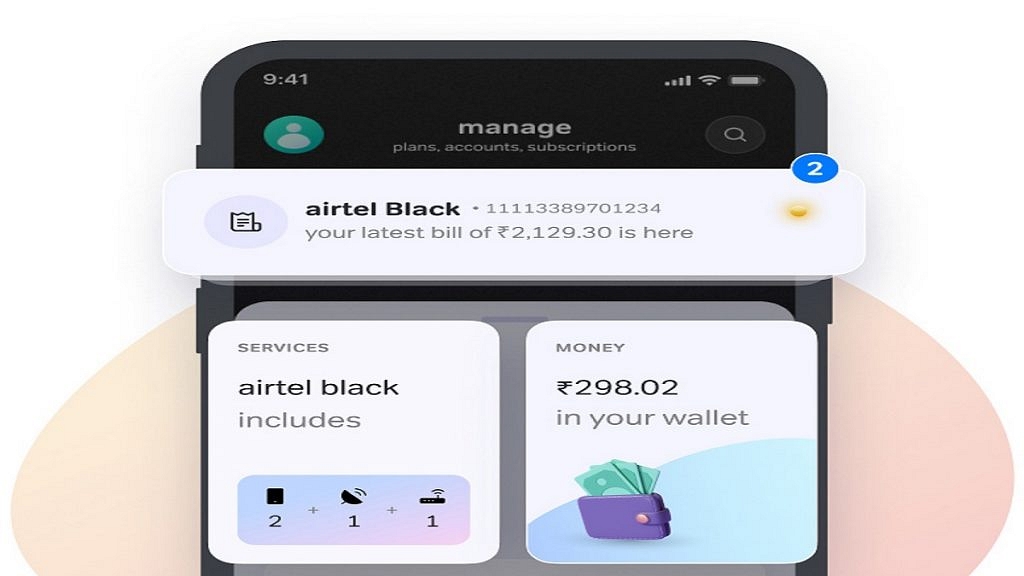
Airtel Payments Bank, a subsidiary of Bharti Airtel, recently announced a partnership with Delhi Metro. Recharging your Delhi metro card has become a lot easier now with the Airtel Thanks app. This app allows you to recharge your metro card quickly and easily without having to visit the metro station or a physical recharge outlet. In this article, we will explain the step-by-step process of recharging your Delhi metro card using the Airtel Thanks app. Also Read | How To Recharge Metro Smart Card Online: A Step By Step Guide

How To Recharge Delhi Metro Card Via Airtel Thanks App

Step 1: Download the Airtel Thanks app from the Google Play Store or Apple App Store. Once you have downloaded the app, open it and sign up for an account. If you are an existing Airtel customer, you can log in using your mobile number.

Step 2: Once you have logged in, you will need to add your Delhi metro card to the app. To do this, click on the “Metro Recharge” option and then select “Delhi Metro”. You will then need to enter your metro card number and the amount you wish to recharge.

Step 3: Now, make the payment for the recharge. You can do this using your debit card, credit card, net banking, or UPI. Once the payment is successful, the recharge amount will be credited to your Delhi metro card.

Step 4: You can check the status of your recharge by clicking on the “Recharge History” option in the Airtel Thanks app. This will show you a list of all the recharges you have made and the status of each recharge.

Step 5: Once the recharge is successful, you can use your Delhi metro card to travel on the Delhi metro as usual. The recharge amount will be automatically deducted from your card as you travel.

Recharging your Delhi metro card using the Airtel Thanks app is a simple and convenient process. With just a few clicks, you can recharge your metro card from the comfort of your own home. So, next time you need to recharge your metro card, give the Airtel Thanks app a try.

Also Read | How To Check Metro Card Balance Offline And Online? Learn Here

Categories
Apps Featured How To

WhatsApp Camera Not Recording: How To Fix Blank and Black Camera Issue In WhatsApp

WhatsApp is one of the most potent instant messaging applications developed for mobile users. Both Android and iOS smartphone users have chosen WhatsApp over their counterparts for instant messaging. Multimedia messaging, location sharing, and other features are the perks of WhatsApp which earned it the top spot among all available instant messaging applications on Android and iOS app stores.

What additionally makes WhatsApp special is the option to share voice notes, pictures, and video recordings as personal messages. WhatsApp has been adding tools and improving user experience with multimedia messaging on its platform.

Sending a photo or video directly from the app is a convenient option that the brand has released. Recent leaks have indicated a camera switch in the works which will allow users to record and send short videos with just a tap.

Well, until that feature is released the only way to send a self-recorded video is by pressing and holding the camera button while using the in-house WhatsApp camera. We have been sharing hacks to quickly fix common WhatsApp errors. In this article, we will be guiding you through the process to fix camera issues with WhatsApp.

How To Fix Camera Not Working Error In WhatsApp

The camera error is quite common in WhatsApp on both Android and iOS. Users have reported a black-on-blank screen while opening the camera app despite the camera shutter being present. Notably, this is not a major hardware-related issue and can be resolved with some easy troubleshooting steps.

  • Check WhatsApp Camera Permissions
  • Open phone Settings
  • Scroll to the Apps and Notifications option
  • Tap on WhatsApp and select Permissions
  • Move to the Camera option and ensure its enabled
  • Go back to WhatsApp and check if the camera is working.

Reboot Your Handset

Often apps become unresponsive of the cache memory is clogged. A quick reboot can fix any temporary issues with the WhatsApp camera app. Just power off your respective phones and then reboot after a few seconds.

Also Read: Best WhatsApp Status Apps To Download And Use On Android, iOS

Check For Updates

Older app versions are also known for app crashes and improper functionality of features available on WhatsApp and other apps. Update the application and the WhatsApp camera issue.

Also Read: How To Upload WhatsApp Status In High Quality (Images, Videos) On Android, iOS?

Categories
Apps Featured How To

Google Chrome Lets Android Users Lock Incognito Tabs With Fingerprint: Here’s How

Key Highlights

  • Google has rolled out the fingerprint lock for the Android users
  • The feature is already available on the iOS platforms
  • With this feature, users can ensure that only they can access their incognito tabs

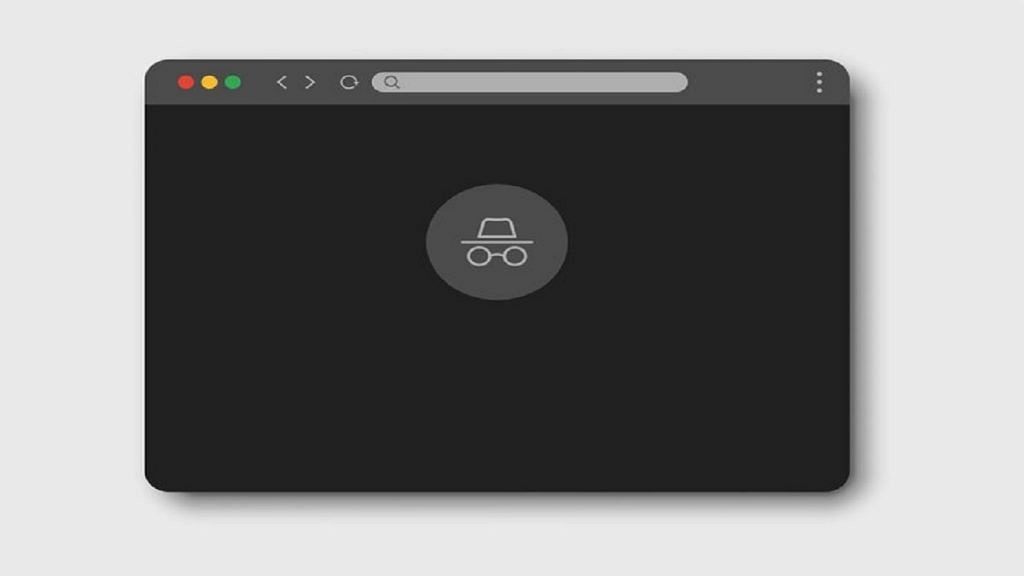
Google Chrome, the widely used web browser, has announced a rollout of a new feature for its Android users – a fingerprint lock for incognito tabs. This feature provides an extra layer of security for users who want to keep their online activities private and secure.

Incognito mode, also known as private browsing, has been a staple feature of Google Chrome for desktop and mobile for several years. It allows users to browse the web without saving their history, cookies, or search information. However, this mode does not prevent other people who have access to your device from seeing what you are doing. With the new fingerprint lock feature, users can ensure that only they can access their incognito tabs.

“You can require biometric authentication when you resume an interrupted Incognito session,”  the tech giant wrote in a blog post. Notably, the feature is already available on the iOS platforms and can now be used by Android users now. Also Read | How to search on google using images or video?

How To Enable Fingerprint Lock For Incognito Tabs

To use the fingerprint lock feature, users must have a device with a fingerprint sensor and the latest version of Google Chrome for Android. Once they have these requirements, they can activate the feature by following simple steps:

Step 1: Go to the Chrome settings.

Step 2: Now, select “Privacy and Security”.

Step 3: After that, enable the “Fingerprint lock for incognito tabs” option.

From then on, when you open an incognito tab, you will be prompted to scan your fingerprint to access the tab. If you have multiple fingerprints saved on your device, you can choose which one you want to use for this feature.

The feature is particularly important for those who use public Wi-Fi networks or shared devices. With the fingerprint lock, they can ensure that their incognito tabs are secure, even if someone else has access to their device.

In addition to the security benefits, the fingerprint lock feature is also convenient for users. It eliminates the need for them to remember a password or pattern to access their incognito tabs. Instead, they can simply scan their fingerprint to access the tabs. This is especially helpful for users who frequently use incognito mode and don’t want to be bothered with entering a password every time.

Also Read | Google Chrome Download Error? How To Fix Download Errors With Google Chrome On Laptops And PCs

Categories
Apps Featured How To

Instagram Dynamic Profile Photo Feature: What Is It? How To Use?

Key Highlights

  • Instagram has introduced a dynamic profile photo feature for its users
  • Anyone who visits your profile can switch between your photo and avatar
  • If you already have an avatar on Facebook, this update will cause it to automatically move into the third dimension

A new tool that allows users to create avatars and use them as profile pictures is being rolled out by Instagram. You don’t even have to change your original display image. In order to fit both your original profile photo and the avatar profile photo, Instagram has added a new “flip” feature. All users can access the new Dynamic Profile Photo feature. Check the Google Play Store or the Apple App Store for the most recent update to the Instagram app if you don’t see it there. Also Read | Create And Use Your Personalized Instagram Avatar: Here’s How To Do It

The feature was announced on Instagram’s microblogging site Twitter. “New profile picture, who’s this? Now you can add an avatar on the other side of the picture so anyone who visits your profile can switch between the two,” the company wrote in a tweet.

Dynamic Profile Picture On Instagram: How To Use This Feature?

The procedures to use the new feature of the Meta-owned photo-sharing app are listed below.

Step 1: Open the Instagram app on your mobile phone and go to your profile.

Step 2: Tap on “Edit Profile”.

Step 3: Using your camera and the customization choices, add an avatar at this point.

Now the profile picture will flip between the image and the avatar whenever someone opens your profile.

Additionally, throughout the company’s Quest and VR platforms, avatars can be shared as stickers, profile images, feeds, and more. New face features and “assistive devices for people with disabilities” are also part of the avatar feature.

According to the unversed, Meta just started using avatars on Instagram. If you already have an avatar on Facebook, it will instantly transition into the third dimension as part of this update, claims Meta. They can even enter the editor if they want to make their own improvements.

Also Read | Instagram Tricks: Here’s How You Can Change Instagram Language Settings On Android, iPhones

Categories
Featured How To Laptop

Here’s How You Can Recover Lost Or Deleted Data In Windows 11 Laptops, PCs

Key Highlights

  • Windows 11 allows users to restore older versions of files
  • Users can restore older versions of files from backups
  • Users can also restore older versions from previous versions of files

Although Windows 11 is a powerful operating system, there are times when data loss may occur. Virus attacks, complex disc problems, unanticipated power outages, program crashes, and insufficient backups are some common causes. Well, not to worry if you accidentally deleted a file on Windows 11. Your data can still be recovered in a number of ways. Contrary to popular opinion, Windows 11 frequently allows for the manual recovery of deleted files. This blog post will go through how to quickly and simply recover essential documents and data from lost files on Windows 11. Also Read | How To Check Available RAM Slots On Windows: A Step-By-Step Guide

Steps To Restore Deleted Files Via Backup

Step 1: Click on the Start button.

Step 2: Open the Control Panel. For that, scroll down and click on it.

Step 3: Now, choose the option System and Maintenance.

Step 4: Select the Backup and Restore option.

Step 5: Select the option to “Restore my files” after that, and then proceed as directed on the screen to finish the procedure.

Steps To Restore Backup Of A File Through A Previous Version

Step 1: Click on the Start button.

Step 2: Open the Computer app.

Step 3: Go to the folder where the file or folder once resided, right-click on it, and then choose the Restore Previous Versions option.

Step 4: Right-click the drive and choose to Restore previous versions if the folder was on the drive’s top level such as C:\.

Step 5: In the event that the file or folder is part of a library, right-click it where it is saved rather than in the library. And you are done.

Also Read | Want To Create A New Folder In Windows 11? Here Are Simple Ways To Do It

Categories
Apps Featured How To

How To Change Google Assistant Voice From Female To Male And Vice Versa On iPhone, iPad?

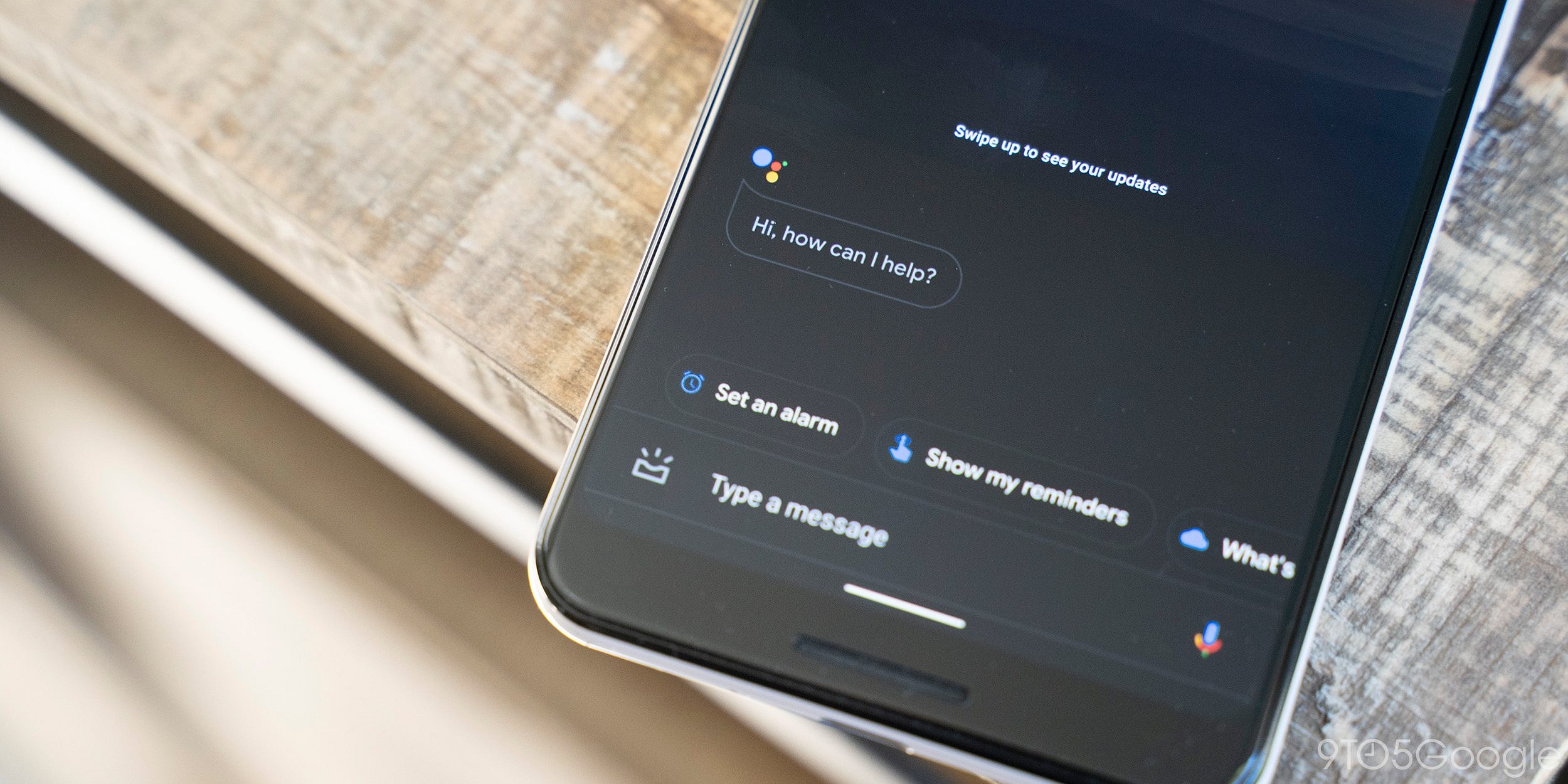
Google Assistance is one the most advanced features available for smartphone users globally. Developed by search giant Google, this advanced digital voice assistance system uses AI technology to allow users to perform various tasks by just using voice commands. Google is offering its voice Assistant services for both Android and iOS devices.

Google Assistant initially debuted back in 2016 featuring a female voice. By default, the voice used by Google Assistant on any device is female. Even if you are setting it up for the first time the default voice would be of a female. Google does provide an option wherein you can change the gender of Google Assistant voice.

We already have covered the method with which you can change the Google Assistant voice from female to male in all Android devices. But what if you own an Apple iPhone or iPad and are using Google Assistant instead of Siri for voice assistance and wish to change the language? Well, we have got you covered. In this article, you will help you change the Google Assistant Female voice to Male on all iPhones and iPads. Read on the steps below:

Also Read: Unable To Read Doctor’s Handwritten Prescription? Google Lens New Integrated AI To Help Decipher Any Bad Handwritten Doctor Prescription

How To Change Google Assistant Voice To Male In iPhones

Step 1: Unlock your iPhone and launch the Google Assistant application.

Step 2: Tap on the Profile image or name. You can locate this option on the top right corner of the app.

Step 3: Click on the Assistant Voice option.

Step 4: Select the Male voice if you wish to change it from female.

Step 5: Save the changes.

Also Read: How Can You Delete Google Pay Transaction History: A Step-By-Step Guide

Steps To Change Google Assistant Voice In iPads

The steps to change the Google Assistant Female or Male voice on iPads is identical as the iPhones. You can simply launch the application and follow the aforementioned steps. Just launch the Google Assistant app on your respective iPads and change the voice preference from the Profile option.

It is worth mentioning that Google Assistant isn’t a proprietary voice assistant feature available with iOS. Apple has its own voice-based digital assistant called Siri. But for many Android users transitioning to iOS for the first time, Google Assistant could be the preference.  

Also Read: How To Access Google Maps Without Phone On Wear OS

Categories
Apps Featured How To

Signal Privacy: Here’s How To Back-Up Your Messages And Images

Key Highlights

  • Signal only offers local backups of your conversation
  • Signal users can restore all of their chats up to the most recent backup

Signal has gone from being a relatively unknown app to being the best free app in various nations including India. WhatsApp’s revised terms of service and privacy regulations are to credit for the large influx of new users to the open-source application. The number of downloads has increased as people look for WhatsApp alternatives. Worldwide users of the platform can freely connect with one another via messaging, sending stickers, emoticons, pictures, videos, audio, voice messages, contacts, files, and even user location.

Signal generates a variety of data after being used for a while or for a long time. And the majority of us have tried to free up phone memory by deleting the cache on the app which includes messages, images, videos, etc. Or then, we simply removed some old data from the contact list. Therefore, if you accidentally erase something on Signal, you can easily recover it. Here’s how:

Also Read | WhatsApp Privacy: How To Activate Or Deactivate End-To-End Cloud Backup For Google Drive, iCloud On WhatsApp

How To Backup Messages In Signal

One of the most useful features of WhatsApp that Signal currently lacks is the ability to create a cloud backup of your chats. Unlike WhatsApp, Signal only offers local backups. However, you can restore all of your chats up to the most recent backup if you unintentionally delete a chat. Follow these steps to backup and restore your Signal chats:

Step 1: Open the Signal app on your device and click on the three dots menu at the top right corner.

Step 2: Now, click on settings.

Step 3: Then, click on ‘Chats and Media’.

Step 4: Now, click on ‘Chat backups’.

Step 5: On the next screen, click on ‘Turn on’ to enable chat backups.

Step 6: Now, click on ‘Choose folder’ to select where the backup is saved.

Step 7: After choosing the folder, select “Use this folder” at the bottom.

Step 8: To provide Signal access to the files in the chosen folder, click the “Allow” button now.

Step 9: You will now be given a 30-digit passcode that you must remember in order to restore backups later.

Step 10: Write down or take a screenshot of these numbers and click “Enable backups” That’s all.

Also Read | WhatsApp iOS: How To Restore And Export WhatsApp Chats Using iCloud Backup On Any iPhone

Categories
Featured How To mobile

OnePlus Factory Reset: How To Use Recovery Mode In OnePlus Phones To Wipe All Data

OnePlus is a known player in the smartphone industry. The Chinese brand has earned a rapport for its flagship grade Android handsets earlier marketed as flagship killers. OnePlus has created its niche within the value flagship smartphone industry and is consistently upgrading its smartphone lineups with high-end models. The latest from the company is the OnePlus 11 5G series which has some top-of-the-line hardware features including chipset, battery, and camera.

OnePlus has been showing expertise in mobile technology that allows all its smartphones to deliver a rich user experience in all scenarios. While OnePlus smartphones are all capable of performance and can easily complete any given task, there is one drawback that limits its capabilities. At least for a certain group of users who rely on their smartphones for content creation and have to store large-sized files and documents on the go.

Also Read: Lenovo ThinkPhone By Motorola Vs OnePlus 11 5G Flagship Phone Comparison: Which Is More Practical?

The limited storage capacity with no expansion support is what we are speaking of. OnePlus has used a hybrid SIM slot with almost all of its flagship models which restricts users from using an external microSD card for additional storage space. This often leads to the onboard storage getting clogged and slowing down the phone’s speed.

In such scenarios, performing a hard factory reset is the best way to restore the slow OnePlus phone’s high-speed performance. You can either clear out the OnePlus phone’s space by using the “Erase All Data” option from the settings menu or by entering the recovery mode. The latter is advised to use if you wish to wipe out your handset clean and restore the default factory settings. We have listed the steps with which you can enter the recovery mode in any OnePlus phone and clear cache and erase all the data. Take a look:

Also Read: OnePlus 11 5G Vs iQOO 11 5G: Latest Flagship Mobile Comparison

How To Enter Recovery Mode And Reset OnePlus Phones

Step 1: Power off your OnePlus phone.

Step 2: Reboot the device.

Step 3: As soon as the boot page shows up with the OnePlus logo, press the power and the volume key simultaneously.

Step 4: Wait for the Recovery mode screen to show up.

Step 5: You will see three options in the Recovery mode window on the OnePlus phone including Reset Pone, Reboot, and Power off.

Step 7: Tap on the Reset option. That’s it, you have reset your OnePlus phone using the recovery mode.

Also Read: Unable To Cast Screen On OnePlus TV? Quick Fix Guide To Resolve Chromecast/Miracast Issue With OnePlus Smart TVs

Categories
Featured How To TV

Want To Install Jio TV On Your Smartphone? Here’s The Step-By-Step Guide

Key Specifications

  • The Jio network comes with the company’s suite of apps
  • There is no official app to play Jio TV on a PC or desktop
  • You can install the Jio TV application on your smartphone and watch all the Live TV channels for free

On JioTV, customers can watch their preferred TV series and movies on their smartphones, laptops, and Smart TVs. It is one of the best entertainment platforms. The app is an online streaming platform where you can watch free live cricket events as well as your favorite movies and TV shows, particularly Indian daily dramas.

The JioTV app is available for free on Android and iOS devices. However, a Jio SIM is required to use the app. We have also covered how to use the app without a Jio SIM in case you don’t have one. Also Read | JioTV App On Laptop: Here’s How To Install And Use

Steps To Install Jio TV On Android Smartphone

Step 1: Download the Jio TV app from the Google Play store.

Step 2: Open My Jio TV and sign in with your Jio number to finish the signup procedure. An OTP verification will follow.

Step 3: You can now choose a language and grant access to the media and storage on your phone.

Step 4: After then, you can use your smartphone to watch every live concert for free.

Note: To use Jio TV, you either need a Jio SIM or the login information for an existing Jio TV account.

How To Use Jio TV Without Jio Sim?

Step 1: Install the JioTV app on your Android or iOS smartphone from the respective app stores.

Step 2: Now open the app and select the Jio ID option instead of Jio Number and here enter your Jio ID and password. These details can be fetched from Jio’s website in case you previously had access to the Jio SIM card.

Step 3: If not, you might ask your pals who own Jio SIMs for credentials. You can access these credentials by logging into your Jio account on the MyJio app or the website.

Jio TV cannot be accessed on any Windows or macOS desktop or laptop, though. There isn’t yet a specific app for these devices; one is being developed.

Also Read | Airtel Digital TV: How To Add Or Remove Airtel DTH Channels