Categories
How To Mobile Tech News

How to remove unwanted Apps that Phone won’t Let You Uninstall

Android phones from companies like Samsung, Xiaomi, and Realme come with a slew of system apps that you may or may not want to use. Nonetheless, they’re sapping your device’s resources unnecessarily. Don’t worry if you wish to remove these pre-installed programs; we’ve got you covered. Here are several simple ways to get rid of pre-installed apps that your phone won’t allow you to erase.

Can’t uninstall app, what to do?

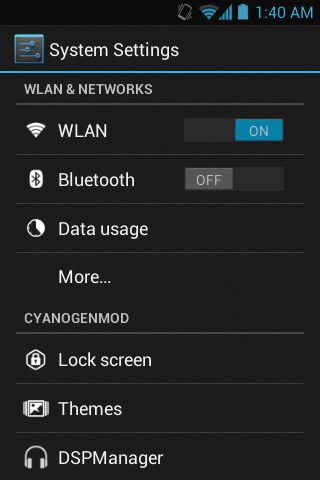
  1. Disabling the App From the Settings

Source: Google Images

The simplest way to remove pre-installed programs or bloatware is to turn them off completely, as seen below.

Step 1: Access the Settings option

Step 2:  Go to Apps or Manage Applications and locate All Apps (this may vary based on the brand and model of your phone).

Step 3:  Next, look for the apps you wish to get rid of. You can find it by typing its name into the top search box.

Step 4: Disable the app by tapping its name. When prompted, select confirm.

.That is all there is to it. The app will be removed from your home screen and app drawer once disabled. It will also no longer run in the background or consume unneeded disc space by gathering cache. Some bloatware can be deleted like regular apps, while others must be disabled using the methods outlined above.

  1. Uninstalling App Without Having Admin Authorization

Source: Google Images

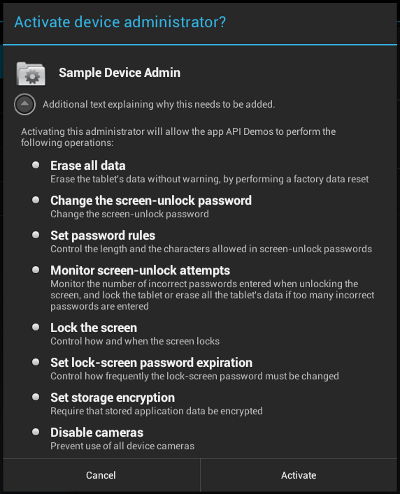
Some apps require device admin authorization and hence are difficult to uninstall. This is typically the case with antivirus, app lock, and other apps for which you have granted device administrator authority.

To get rid of such apps, follow the procedures below to revoke administrator privilege.

Step 1: On your Android, go to Settings.

Step 2: Go to the section on security. Look for the Device administrators tab on this page.

Step 3: Press the Deactivate button next to the app’s name. The software can now be uninstalled whenever you want.

Removing Apps Without Rooting Your Phone

Another alternative is to connect your phone to your computer and uninstall each program one by one. It’s worth noting that it’s a little tedious and necessitates a basic understanding of computers. However, the procedure can be used to delete programs that cannot be disabled on Android.

Step 1:Enable USB debugging

Source: Google Images

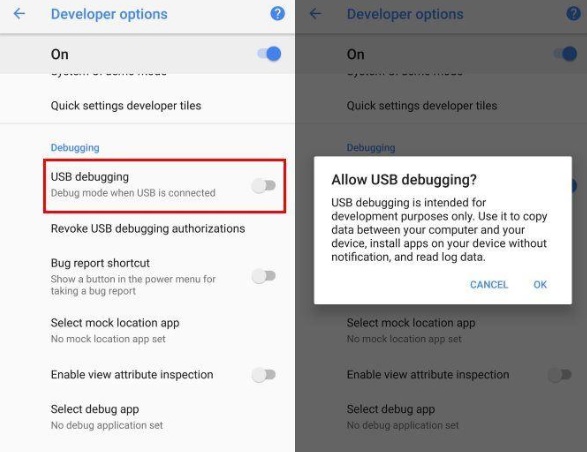
 To establish an ADB connection between your phone and PC, you must first activate USB debugging on your phone.

  •  Go to your phone’s Settings and scroll down to the About Phone section.
  • Tap on Build Number or Version seven times in a row till the toast message “You are now in Developer Mode” appears.
  • Return to the Settings page. Select Developer Options from the System menu. This feature is available in the ‘Additional Settings’ section of some phones.
  •  Turn on Developer Options by clicking the toggle. Now go to the bottom of the page and enable USB Debugging.

Step 2: Connecting Phone to PC

You can connect your phone to a PC or laptop using a compatible USB cable after you’ve enabled USB debugging.

Make sure the notification pane is set to ‘Transfer Files’ mode. When prompted to “Allow USB Debugging,” select “Always allow from this computer” from the drop-down menu and tap OK.

Step 3: Instal ADB drivers

Install ADB drivers on your computer if you haven’t already. These links will allow you to get the package for Windows, Mac, and Linux.

Open the ADB directory once it has been installed.

 Select Open PowerShell Window here by pressing Shift + Right Click.

 Check whether your device’s code name appears in the following line, along with its serial number. To use the commands to uninstall apps on your Android, enter the same code again.

Step 4: Use ADB commands

  • You may now remove unwanted bloatware from your phone with precise ADB commands. “pm uninstall –k ––user 0 names of package>” without quotes is the general command.
  • Simply download and install the App Inspector app from the Play Store to learn the package names of the apps on your phone. The package name of the targeted application can then be found and used in the command line to delete the app.

Conclusion

Apps are an essential part of what makes your Android smartphone unique, but what if you need to remove them but can’t? Apps might be obstinate at times, but they don’t have to stay with you indefinitely. You can use one of these remedies if you want to uninstall any app from your device.

Categories
How To Mobile Tech News

How to Check Phone’s RAM Type, Speed, and Operating Frequency on your Android Phone

Key Highlights

  • Smartphones have become an essential commodity for modern users
  • Slow speed issue is commonly reported by smartphone users after prolonged usage
  • Speeding up smartphones is an easy process

Getting in-depth knowledge about your phone is something most of us want to do. Having an android phone makes it far easier. If you are curious about your phone’s RAM type, RAM speed, and its operating frequency, you have come to the right place. Checking these details will let you know about your RAM’s capabilities and will also help you compare the performance of your phone with other models in the market. Here is how you do it:

1. Check the RAM Stats 

Beginning with the RAM’s total capacity, you can check the space that is available for use at any given time to the user. This can be done in two ways:

Use Developer Options

Follow the steps mentioned below to check the RAM stats through Developer Options.

  • You can check the RAM stats by going to your phone settings and then into the ‘About Device’ section. 
  • Type your build number seven times. 
  • Once you have done that, you will have to go back to the phone settings and look for the Developer Options menu. 
  • Go to the Running Services option. 
  • Once you are here, you can see the current status of the RAM of your Android phone. This will include the space used by the system and the downloaded apps, and the space left for the user to use. 
  • To see the RAM occupied by cache, you can tap the top-right button in the Running Services option.

Use Third-party Apps

There are apps available for everything on Android platforms. If you are looking for an app to see the RAM stats, you can find such on Google Play Store. These apps will provide you a detailed overview of how your RAM is occupied at any given moment. Following is an Android app that will let you know the RAM stats of your phone:

RAM Truth: This is a third-party app that will let you know the current RSM capacity of your phone and will also let you know about any space allocations in the RAM. This includes: 

  • ‘Reserved’ for kernel functions and is a hidden area.
  • ‘User’ is the RAM space that is available for the user to use.
  • ‘Active’ includes the RAM space, which is currently active use by the system.
  • ‘Hibernating’ is the RAM space that is currently being used to house the cache memory, which is not using power resources.
  • ‘Idle’ is the RAM space that is unused by the system currently.

2. Find RAM Type and Operating Frequency

A third-party app like DevCheck will let you know all the details about the RAM type and the operating frequency. After you have installed the app, you can begin exploring. Follow the steps mentioned below:

  • Go to the ‘Hardware’ tab in the app.
  • Go to the ‘Memory’ section. This will show you the RAM type of your phone, along with the bandwidth and the channels. 

Before checking the RAM type, you need to know that if the RAM type is given as “LPDDR,” it is to define the generation of DRAM technology. When it comes to RAM type, speed, and efficiency, the newer the generation of low power DRAM technology, the better. Different smartphones use different RAM types, from LPDDR4 and LPDDR4X standard to LPDDR5 certain flagships like Samsung Galaxy S20 and OnePlus 8. The RAM bandwidth of the different types of RAMs is given below:

  • LPDDR3 has a bandwidth of up to 1,066 Mbps
  • LPDDR4 provides performance up to 3,200 Mbps
  • LPDDR4x has a RAM bandwidth of 4,266 Mbps
  • LPDDR5 can give the fastest RAM bandwidth of up to 6,400 Mbps

Many phones will show the operating frequency of the RAM in MHz along with the RAM type. The RAM bandwidth can be distinguished from other data by its unit of measurement as GB/s. The bandwidth of the RAM will let one know the maximum rate at which the RAM can read data and store it into memory by the phone’s processor.

3. Checking your Android phone’s RAM Speed 

Checking the RAM speed of your Android phone can also be done in a different way. You can check the RAM speed via the A1 SD Bench. This is a third-party app that you can easily find on the Google Play Store. After installing it, follow the steps mentioned below to check the RAM speed of your phone:

  • Open the app.
  • Tap on RAM. This will start the benchmark. 
  • Once the process has begun, wait for a few seconds, and the app will tell you the memory’s R/W (or copy) speed.

If you are interested in comparing performances with other phones from the same company or different phones from different companies, you can do so by installing this app on those models as well. Another way on which this can be done is to see the results of other benchmarked phones within the app. 

The Takeaway

Whether you are tech-savvy or not, checking your Android phone’s RAM Type, Speed, and Operating Frequency will acquaint you with the details of how your phone works which is always interesting to learn.

Categories
How To Mobile

How to Edit Audio On An Android Phone

Key Highlights

  • It’s a great convenience to be able to capture audio on your phone
  • Android phones are incredibly practical and already have a microphone and audio recorder pre-installed
  • You must choose the type of editing features you require before you can find the best software for editing audio on your phone

Being able to record audio on your mobile phone is a wonderful convenience. Knowing how to record audio on an Android phone can be incredibly helpful, whether you’re using it to record an important story or your newest song.

Now, editing audio recordings on your Android phone requires the use of a third-party app. This is so because not all Android phones have the option of cropping audio recordings yet. Renaming the audio recording is possible on your phone, and you can also change the playback speed of the audio recording via the audio recorder app on your phone. In this article, we will look at the various ways to edit the audio recording on your Android mobile phone.

Also Read: Audio Not Playing With Recorded Videos On Realme Phones? Here’s The Fix

Editing the Audio Recording: Cropping

There is a simple way to check if your phone allows you to crop the length of the audio recording or not. If it has no such feature, you will have to download a third-party app. 

Also Read: WhatsApp TV: How To Use WhatsApp On Smart TV For Messaging, Video Calling

Default Recording App

Here is how you crop an audio recording on your Android phone:

Step 1: Open the default voice recording app on your phone.

Step 2: Record a new voice note or choose a previously recorded audio recording.

Step 3: Click on it so that it plays.

Step 4: Click on the button at the top right corner of the phone screen.

Step 5: From the drop-down menu, select the crop option.

Step 6: The audio recording will be opened, and ready to be cropped as per your requirement.

Step 7: After trimming the recording, click Save.

Also Read: Stop Call Recording Announcement On Realme Smartphones: Here’s How

On Google Pixel

If you have a Pixel phone, you can easily crop the length of your audio recording. The Pixel 4 model allows the users to transcribe the audio content even without an internet connection. The user can search for important parts in a recording through the transcribed text. Google takes this a step further with the Pixel 5, which includes the crop audio recording feature on the phone. 

This is better than other Android phones, and you do not have to listen to the audio to crop it. You can simply select the transcribed contact you want to remove, and the respective audio part will be deleted. Follow the following steps to cut audio recording on Pixel phones:

Step 1: Open the audio recorder app.

Step 2: Choose the recording you want to cut.

Step 3: Open the transcript and select the sentence you want to crop out.

Step 4: Tap on Remove, and it is done!

You can also crop a certain sentence out of the recording so that it becomes a separate audio clip feasible for sharing. The app also helps the user mark important parts and phrases in the transcript generated in longer audio. 

Also Read: How To Turn Off Call Recording Announcement In Vivo Smartphone

Via Third-Party Apps

The best part about having an Android phone is that anything is possible if you have the right apps installed on your phone. There are multiple apps to choose from that work similarly but offer different services. You can choose any such audio editing app from the Google Play Store based on reviews and specifications. Here is how you can take advantage of third-party apps for cropping audio recordings:

Step 1: Go to the Google Play Store and select the app you want to download.

Step 2: Install it and open it.

Step 3: It will ask for access to your storage. Grant permission.

Step 4: Upload the respective audio recording that you want to crop.

Step 5: Select the crop option in the app. Crop the duration of the audio you want to keep.

Step 6: Save the audio recording to your device.
Step 7: You can also rename the audio recording to make finding it easier.

Also Read: Best Government Apps Offering AI Chatbot Support

Editing The Audio Recording: Renaming

Renaming the audio recording can be done in two different ways. The best part about renaming an audio recording is that you do not need to download a separate app on your phone for it. You can either rename the recording on the voice recorder app itself or via the file manager. 

Renaming Via The Voice Recorder

This is something you do not even need a guide for. But if you want to know the steps, here is how you do it:

Step 1: Open the voice recording app on your phone.

Step 2: Select the audio recording you want to rename.

Step 3: Tap the button on the top right corner of the phone screen.

Step 4: From the drop-down menu which will appear, choose the Rename option.

Step 5: Name the audio clip and click OK or Done.

Step 6: The app will automatically save the new name of that audio recording.

Also Read: WhatsApp Hacks: How To Send WhatsApp Images In High Resolution As Document On iPhones?

Renaming Via The File Manager

Here is how you can rename the audio recording by using the file manager app on your phone:

Step 1: Open the File Manager app.

Step 2: Go to Documents.

Step 3: Select the Recordings folder.

Step 4: Select the Voice Recordings folder from the Recordings folder.

Also Read: Want To Install Jio TV On Your Smartphone? Here’s The Step-By-Step Guide

Step 5: Select the audio you want to rename from the list of audios that appear.

Step 6: Long press on the audio to select it or tap on the three-dot icon appearing on the right of the screen in front of the audio.

Step 7: A drop-down menu will appear—select Rename.

Step 8: Change the name.

Step 9: Click OK or Done.

Also Read: Here’s How To Hard Reset / Factory Reset Realme Smartphones

Conclusion

Whether you use the phone’s default app or third-party app, there are many ways in which you can successfully edit an audio recording on your Android phone. The recorder app also works offline without an internet connection.

Also Read: Instagram Reel: How To Create And Share Instagram Reel Videos Using Templates On Android, iOS

Categories
Leaks Mobile Tech News

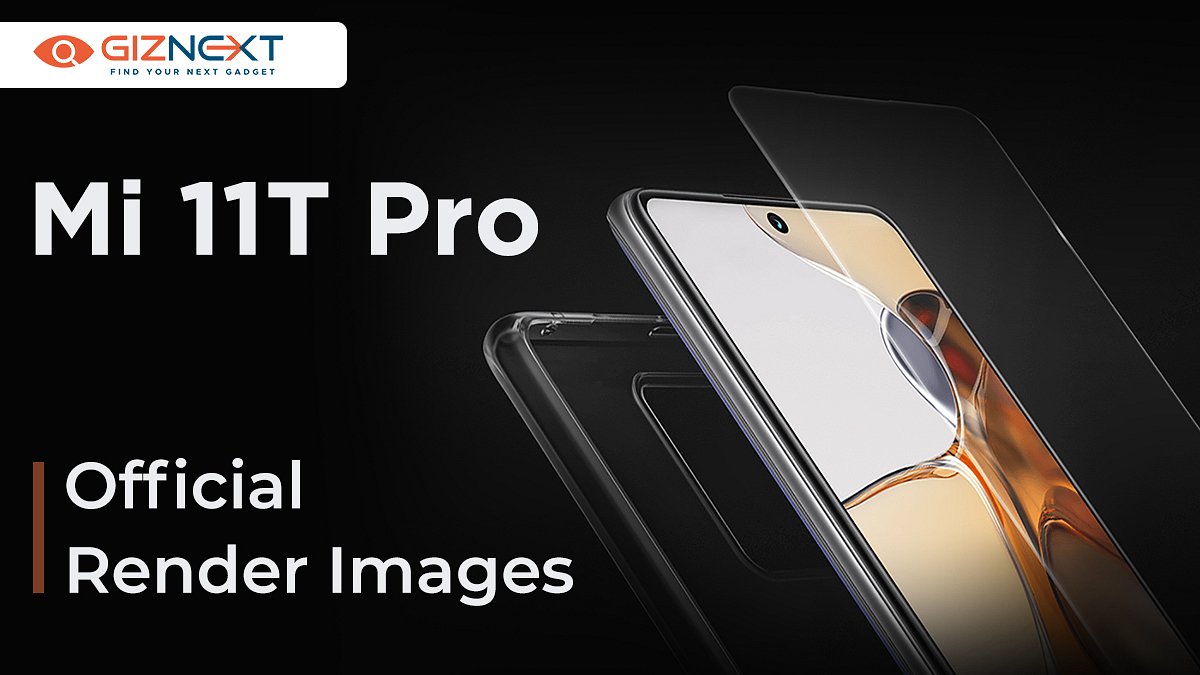
[Exclusive] Xiaomi 11T Pro Official Images, Specs Revealed ahead of Global Launch

Xiaomi is gearing up for the launch of its new-generation version of unique flagship-grade phones. The organization has scheduled the upcoming event for September 15, 2021. This will be an event in which the company will launch a bunch of new Xiaomi devices including the Xiaomi 11T, 11T Pro, and 11 Lite NE 5G and now, ahead of its official launch, we have exclusively managed to get 11T Pro high-resolution Official Images.

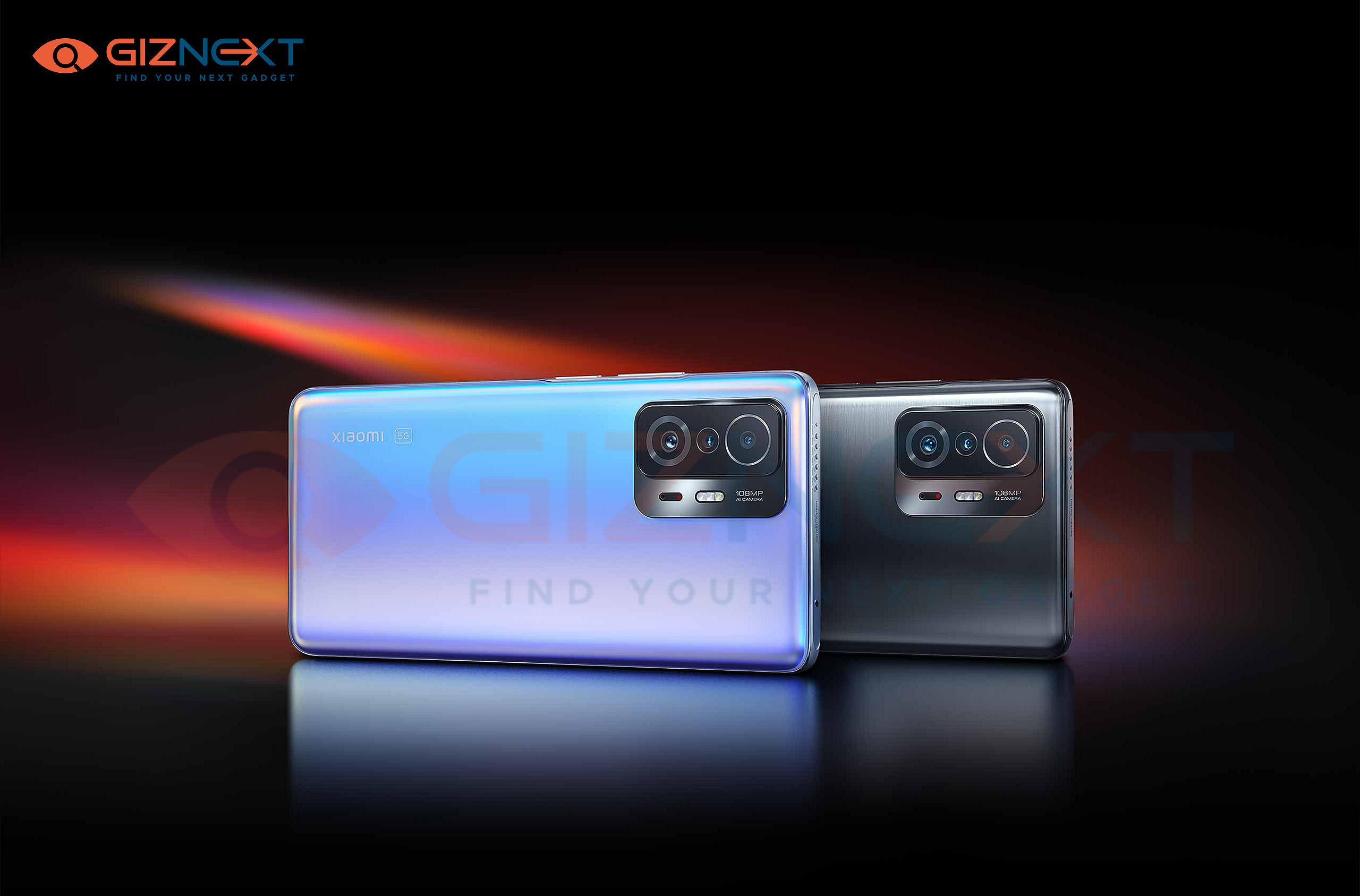
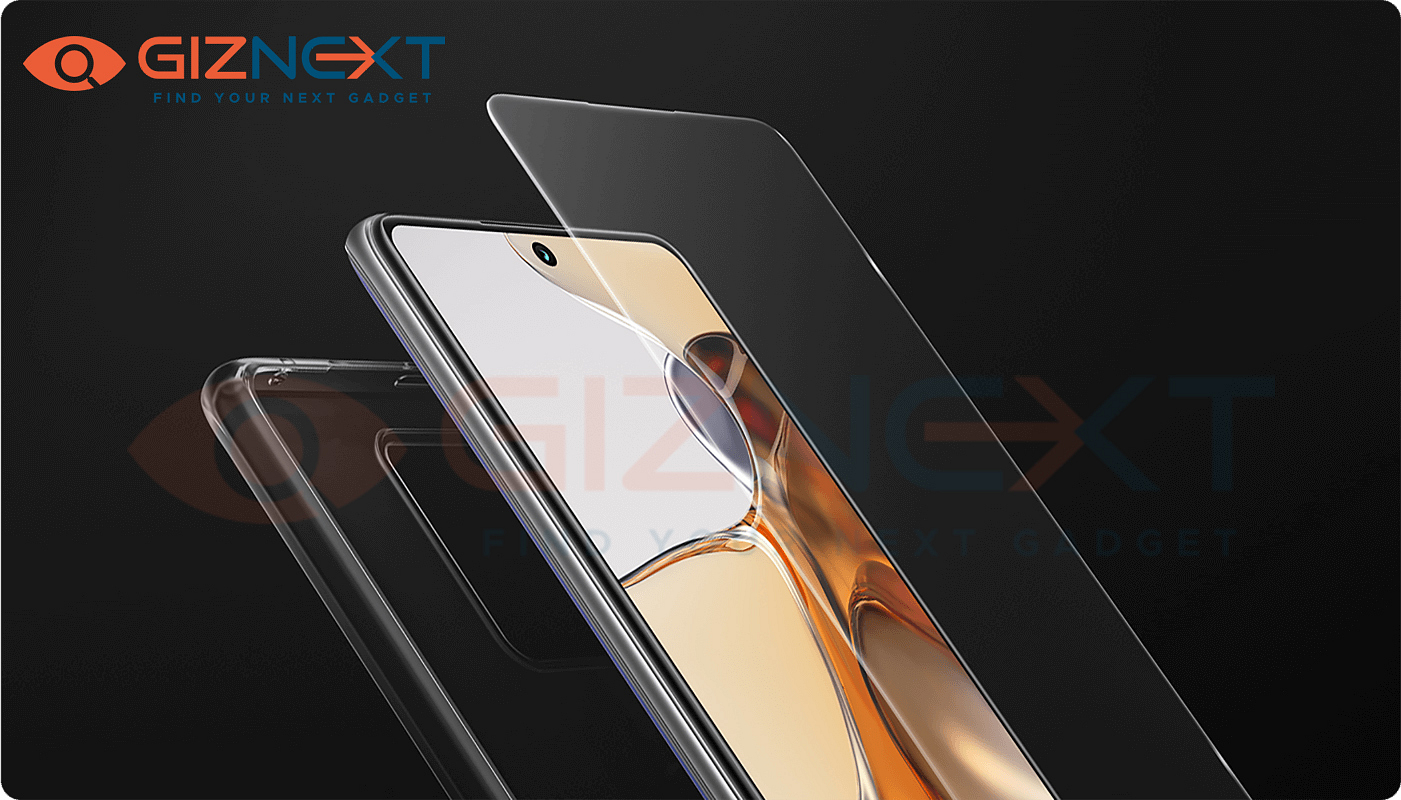
Xiaomi 11T Pro Official Images

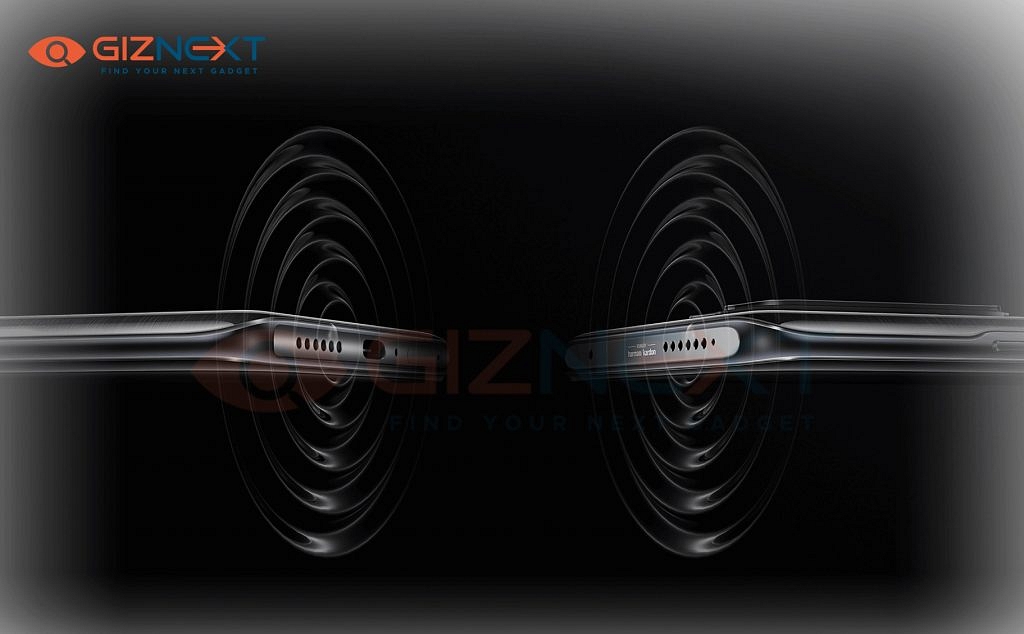
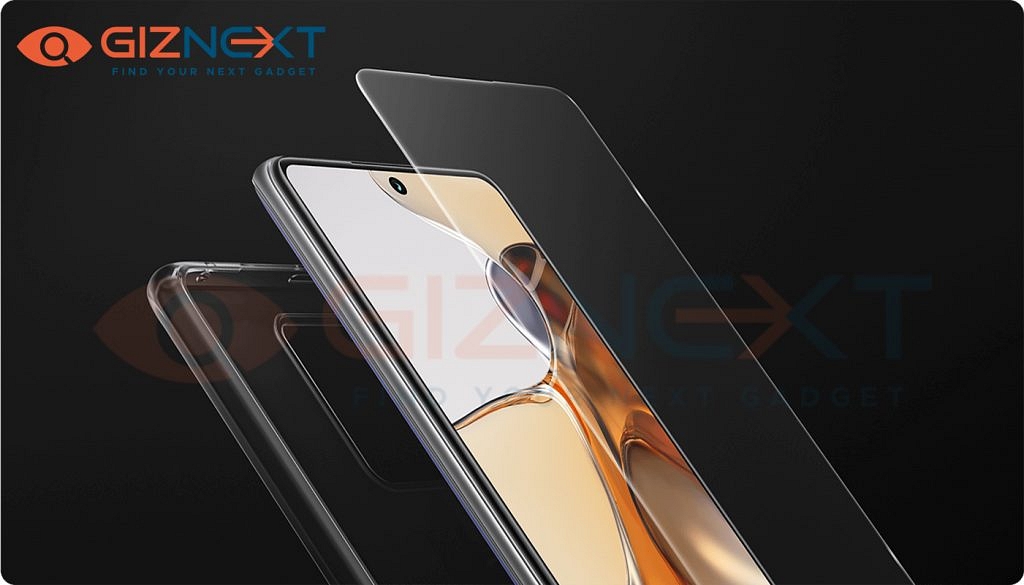
The above images show that the new model comes in following color options: blue, white, and grey. The side profile of the phone reveals that there is a volume button and recessed power button that looks more like an embedded fingerprint sensor. 11T Pro will come with an OLED panel with a refresh rate of 120HZ. In addition to it, the phone also has 8GB RAM, 1200 SoC, and storage of up to 256 GB. 

Also Read: [GizNext Exclusive] Realme GT Neo 2 5G Revealed Via Official Render Images – Check Out All Details

Mi 11T Series Specifications

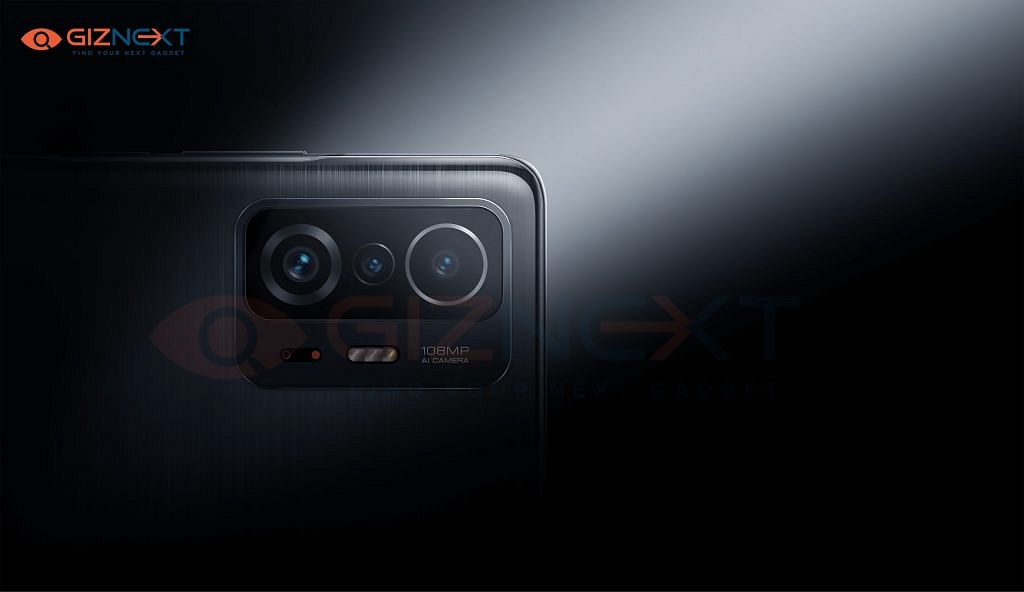
The Mi 11 Lite 5G comes with a display of 6.55-inch AMOLED FHD+ with a refresh rate of 90Hz. It features 108 megapixel triple rear cameras and a beefy battery of 120W fast charging. 

Some other features of the Xiaomi 5 series include MIUI 12.5 based on Android 11, with a whopping battery backup of 4,250 mAH. It has a fast-charging feature of 33W. Images of the phone are leaked even before the launch event of this model. 

Mi 11T Pro is expected to come with Dimensity 1200 SoC, 8GB RAM, and up to 256GB storage. In terms of camera, Mi 11t Pro is expected to feature 108-megapixel triple rear cameras. The Xiaomi 11T would have similar specs but will feature a 64-megapixel primary shooter instead of a 108-megapixel unit.

The renders of this phone were released before, but the users are all excited for its launch event. The company swears by the drool-worthy performance of the new model and is all set to unveil all new models of the same series.

Summary

SpecificationsXiaomi 11T Pro
ColorsWhite, Blue, and Grey
ProcessorDimensity 1200 SoC
Rear Camera108-megapixel triple rear cameras
PanelOLED Panel
Battery120W fast charging
RAM + Storage8GB RAM + 256 GB Storage

With impressive color options and camera specifications, the phone will significantly return the investment made. With several connectivity options, the model becomes highly accessible. Also, excellent battery backup keeps you away from the worries of charging it again and again.  Check more images to get a better look at phones’ design, camera, speakers, and colors.

Categories
Featured Mobile Tech News

[GizNext Exclusive] Realme GT Neo 2 5G Revealed Via Official Render Images – Check Out All Details

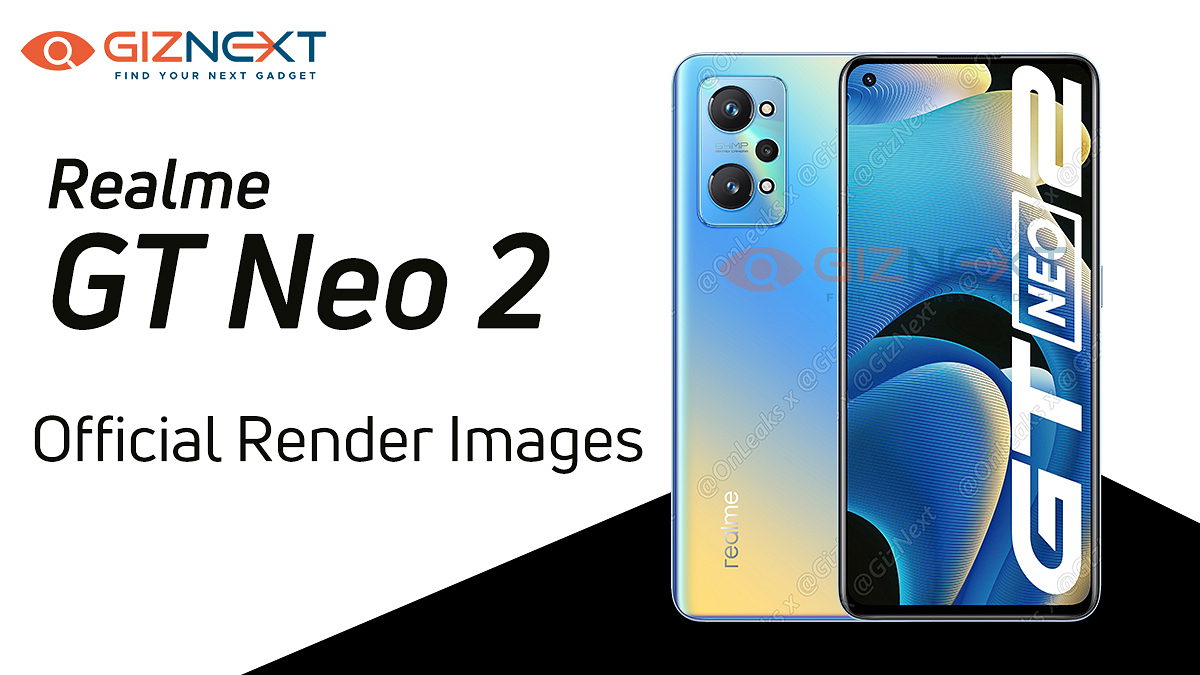
Realme is a young smartphone brand and the company launches multiple new smartphones every month not just in India but all over the world. Originally, Realme used to have only mass-market low-end and mid-range smartphones but the company has now started focusing on its premium range too. Realme will soon launch the new Realme GT Neo 2 5G in global markets and ahead of its official launch, we have managed to get its official render images in collaboration with OnLeaks. So, let’s check out all the details about it.

Realme GT Neo 2 5G

Design and Colour Variants

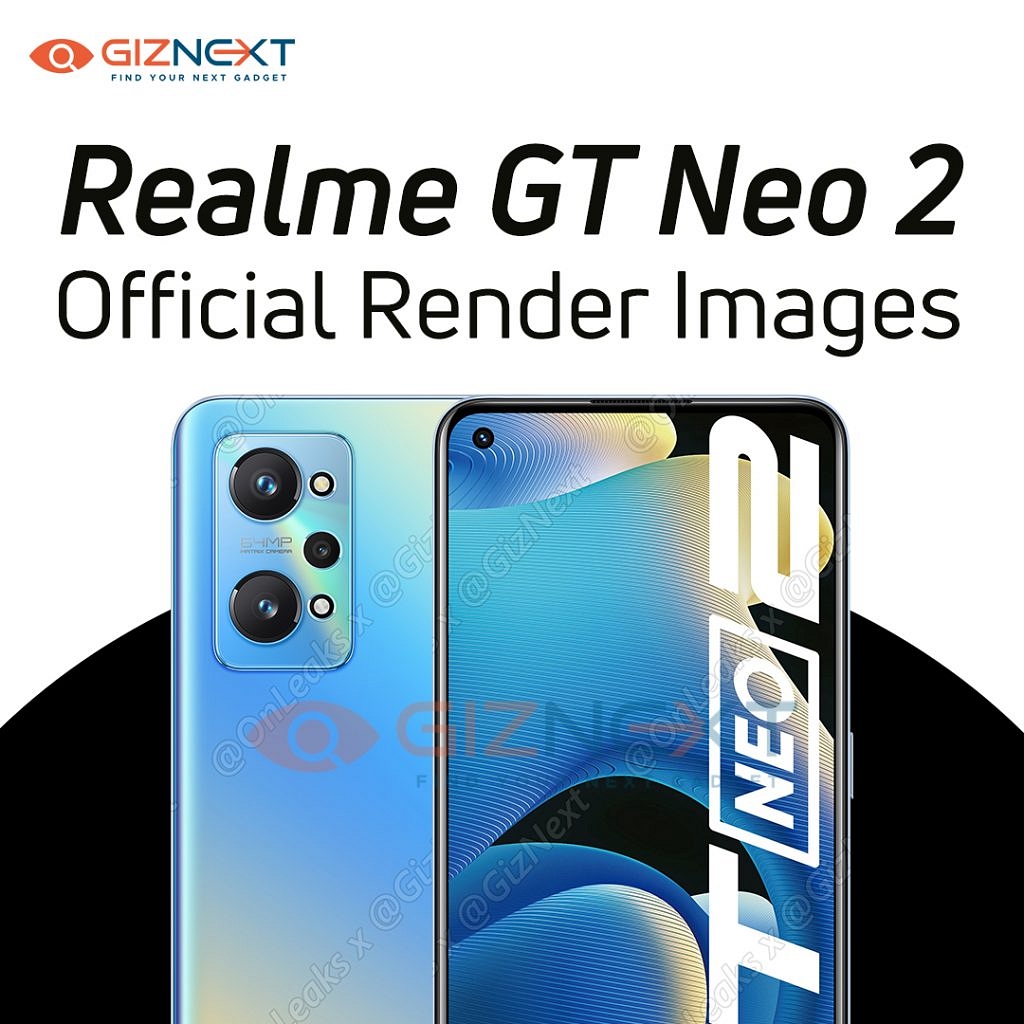
Realme is known for making some great looking smartphones and the upcoming new Realme GT Neo 2 will be no different. Our exclusive official render images of this smartphone shows that it will get a slim design with premium appeal. The new Realme GT Neo 2 will get a triple-camera set-up at the rear with a dual-LED flash. It will feature thin bezels and there will be a punch-hole cutout at the left corner that will house its selfie camera. The Realme GT Neo 2 will be available in two colours. They are – Black and Blue.

Key Specifications

The global launch of the new Realme GT Neo 2 is imminent and so most of its specifications are already out on the internet. This new Realme smartphone will feature a 6.62-inch FHD+ AMOLED display with a 120 Hz high refresh rate system. It will be powered by the new Qualcomm Snapdragon 870 chipset. This SoC supports 5G mobile networks too. The smartphone will feature Android 11-based Realme UI 2.0. 

Camera Features and Battery

Now, if we talk about camera specifications, so the new Realme GT Neo 2 will sport triple cameras at the rear along with dual-LED flash. The camera module of the smartphone looks good. The primary sensor of the smartphone will be a 64 MP unit and it will be accompanied by an 8 MP wide-angle camera and a 2 MP macro lens. At the front, it will get a 16 MP camera for selfies and videos. The new Realme GT Neo 2 will pack a massive 5000 mAh battery and the smartphone might be shipped with a 50W or 65W fast charger.

Also Read: Realme GT Master Edition Prototype With MagDart Leaked In Live Image – All Details

Launch Date, Expected Price and Variants

According to the latest media reports, the new Realme GT Neo 2 will be available in a single variant that will sport 8 GB of RAM along with 128 GB of internal storage. This new 5G smartphone from Realme will be launched in the global markets within this month while the India launch might take place in October. It is expected to be priced around Rs 21,990 and at this price point, it will rival the OnePlus Nord CE 5G, etc.

Summary

SpecificationsRealme GT Neo 2 5G
Screen Size6.62-inch Super AMOLED
ProcessorQualcomm Snapdragon 870 SoC
Rear Camera64 MP + 8 MP + 2 MP
Front Camera16 MP selfie camera
Battery Capacity5000 mAh
Charger Capacity50W / 65W fast charging
Also Read: [GizNext Exclusive] Samsung Galaxy Z Flip 3 5G Revealed In Full Glory: Official Brochure & Features

So, this was all about the upcoming new Realme GT Neo 2 5G. Are you excited about the launch of this new smartphone? Do feel free to share your thoughts and opinions with all of us in the comments section below. You can also join our GizNext Tech Enthusiast Telegram group (click via mobile to join) and even the GizNext Tech Enthusiast WhatsApp group which have been curated exclusively for the tech geeks.

Categories
Featured How To Info Mobile

How To Disable the ‘This Call Is Now Being Recorded’ Warning On OnePlus

Key Highlights

  • Call recording feature is available with all OnePlus phones
  • Users get notified when any call is being recorded on OnePlus phones
  • Google has already banned call recording apps on Android phones

There is no OnePlus stock dialer app on any of the latest OnePlus mobiles, including the OnePlus 8T, OnePlus Nord, OnePlus 9, OnePlus 9R, and OnePlus 9 Pro. All recent OnePlus phones come with Google Dialer and Contacts instead. There is still the option to record calls on these phones. However, Google Dialer’s call recording plays a warning audio message before it begins recording: “This call is now being recorded”. OnePlus phones such as the OnePlus 8T, OnePlus Nord, and OnePlus 9 can come with an annoying call record warning. In this article, we’ll give you a working trick to fix it.

Google Dialer notifies the other party when you press the record button that a call is being recorded, effectively defeating the purpose of recording the call in the first place. Using the standard OnePlus Dialer, you can get rid of this warning even though there is no option to disable it in Google Dialer.

Also Read: OnePlus 9RT 5G Review: A Mixed Bag Or A Complete Package?

The official dialer from OnePlus can be manually installed and switched to. It has an automatic call recording built in that doesn’t notify the other party of the recording. Using the stock OnePlus Dialer will allow you to get rid of this unwanted warning, which defeats the purpose of recording the call in the first place.

Google Dialer doesn’t offer an option for disabling this warning, but OnePlus Dialer allows you to disable it. With this functionality, you can record call audio on any OnePlus phone, including the OnePlus 8T, OnePlus 9R, OnePlus 9, OnePlus 9 Pro, OnePlus Nord, and many others. Below are three easy steps that will guide you on how to install the OnePlus Dialer so you won’t get the call record warning on OnePlus devices.

Also Read: WhatsApp Call Recording: Here’s How You Can Easily Record Call On Android And iOS

Step 1: Download And Install Oneplus Dialer

  • Download the OnePlus Dialer APK 
  • After downloading the app, you can install it like a normal APK file.
  • Apps from unknown sources may be requested from your phone during installation.
  • Grant the necessary permissions when prompted.

Also Read: Realme GT 3 Vs OnePlus 11R: Value Flagship Phones Battle

Step 2: Make Oneplus Your Default Dialer

  • Launch the OnePlus Phone app.
  • If you choose to set it as your default app, it’ll automatically prompt you.
  • At the bottom right corner, click Default Phone App
  • Click Set as Default on the OnePlus Phone.

                                OR

  • The Settings app on OnePlus phones allows you to access the phone’s settings.
  • After that, click on Apps and notifications.
  • Select Default Apps from this menu
  • Go to the Phone App screen and choose OnePlus Phone.

Also Read: Factory Reset OPPO ENCO TWS Earbuds (All Models): How To Fix Audio/ Pairing Issues With OPPO TWS Earbuds By Factory/ Hard Reset

Step 3: Activate Automatic Call Recording

  • On your phone, open the OnePlus Dialer.
  • Go to the three-dot menu on the right and click Settings
  • Activate the toggle for Call Recording by clicking on Call Recording.
  • You can also record calls automatically using the Auto-recording option.

That’s all there is to it; you won’t bother with the audio warning. The person you’re calling will never know that you’re installing the Google Dialer on your phone. Furthermore, you can disable the app if you want. You can disable Google Dialer by holding it in your hand and clicking on App Info. Then, tap Disable.

Also Read: How To Turn Off Call Recording Announcement In Vivo Smartphone

The aforementioned instructions make it simple to record OnePlus phone calls on your device without alerting the call recipient. Users of OnePlus lose that privacy when they use Google Dialer. Anyone can follow the steps because they are simple and easy to follow. However, make sure you abide by the local laws if you intend to record someone without permission.

Also Read: OnePlus Buds Pro 2 Review: Hitting The Right Notes?

You have now learned how to disable the call recording warning on OnePlus handsets. Hope you will be able to disable the notifications on your OnePlus 8T, OnePlus 9R, OnePlus 9, OnePlus 9 Pro, OnePlus Nord, or any other OnePlus handset.

Note: Google has updated its policy with call recordings on smartphones. The search giant has already removed multiple third-party call recorder apps from the Play Store. One of the primary reasons has been user privacy which was being compromised with these third-party call recorder apps.

Also Read: OnePlus 10T Review: Speed Performance And Reliability At Its Best

Categories
Mobile

Fix ‘Android Process Acore Has Stopped’ Error: Here’sAre The Quick Steps

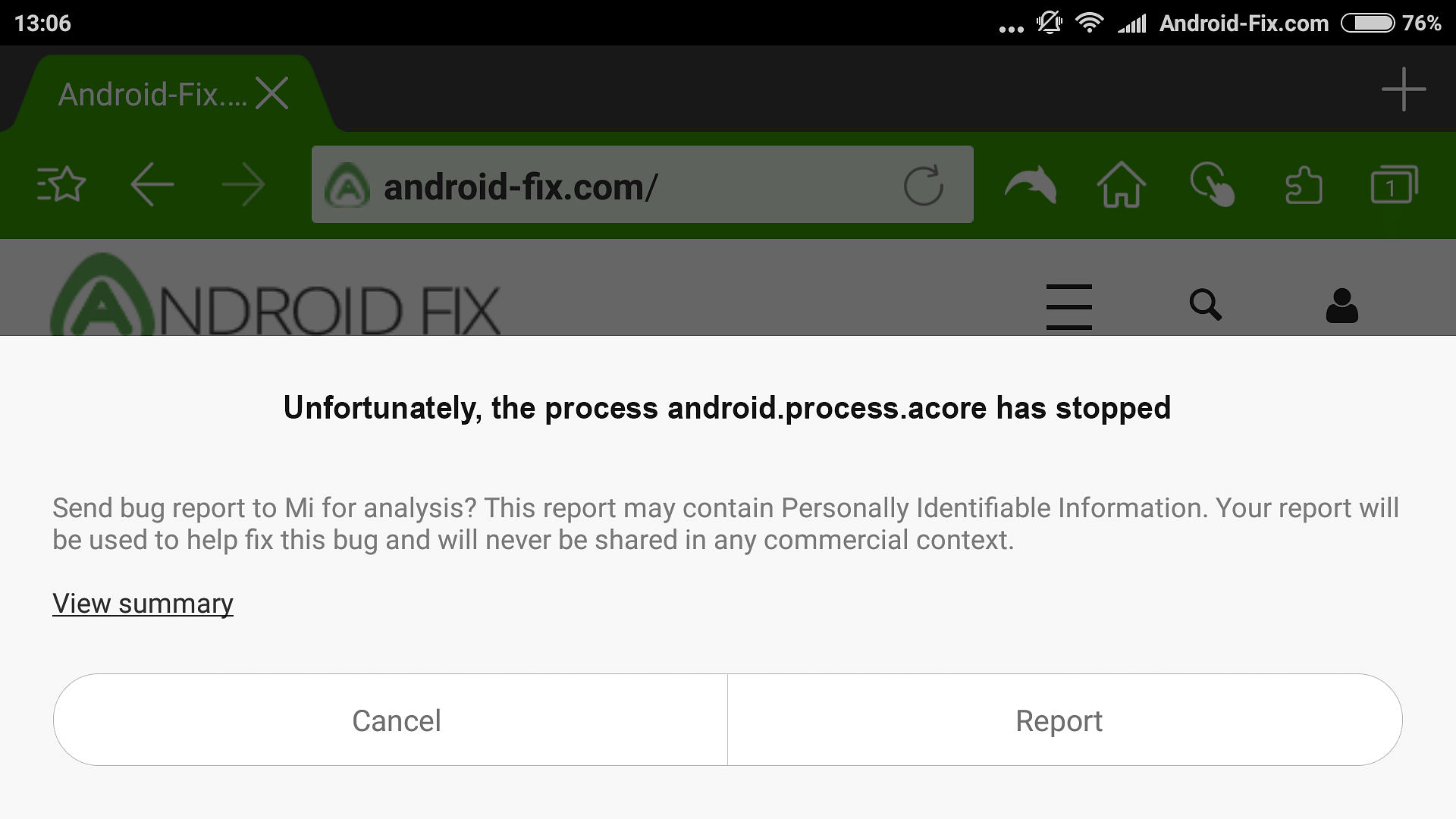
There are plenty of glitches and bugs that start showing as your smartphone gets old. While navigating the contact list or when you try to call someone, if a message pops up showing ‘unfortunately, the process android.process.acore has stopped’, then it may be another bug that can be due to several reasons. To fix this issue, here are some working methods mentioned below:

Check For Updates And Restart Your Device

If the android.process.acore has stopped and shown an error, then start checking for updates and restart your android device. Go to the Google Play Store and check if there is any update pending or not. Update the applications for which updates are available.

Also read: Google Play Pass Launched In India; Offers 1000 Apps And Games

Sometimes the android.process.acore keeps stopping when the apps are not updated for a long time. Once you finish updating all the applications to the latest version, restart your phone. This will probably fix the issue.
Remove And Add Your Google Accounts

Another working trick to fix the android process that has stopped working is by removing all your Google accounts from your smartphone. Go to settings – accounts – Google. All your Google accounts will open. Now remove all your Google accounts from your phone.

This will fix any issues with your contacts or Google accounts that may be the reason that the android.process.acore has stopped. Now restart your Android device and add back all your accounts.

Reset App Preferences To Default

To fix the android.process.acore has ‘stopped’ error, reset your app preferences to default and check if you have disabled any important system app by mistake. Sometimes disabling any system apps may be the reason why the android.process.acore keeps stopping.

To reset app preferences to default, open your phone settings – apps and notifications – manage apps. Now tap on the three dots on the top-right side of the screen, select reset app preferences, and click on the ‘reset apps’ option.

Also Read: Editing Videos On iPhone: Here Are The Best Free Third-Party Video Editor Apps For iPhone And iPad

Clear All Data From Contacts

You can try to clear all the data from contacts to fix the ‘unfortunately, the process android.process.acore has ‘stopped’ error. Clearing all data, including the cached data, will also fix the issue that may have been caused due to some bug or glitch.

To clear all data from contacts, open your phone settings – apps and notifications – manage apps. Now search for ‘contacts’ from the list of applications and open it. Now tap on the ‘clear data’ option at the bottom of the screen. Now tap on the ‘clear all data’ option. 

Check For Software Updates

Sometimes not updating the software can lead to bugs and glitches in the software and might cause problems. If android.process.acore keeps stopping in your smartphone, then check if there is any software update.

To check software updates go to settings – about the phone – check for updates. Download the software update, if any, and restart the device to fix the issue.

Factory Reset Your Device

This is the last option to fix the android.process.acore has a ‘stopped’ error. If all the above methods don’t work, then you don’t have any other choice other than to perform a factory reset on your android smartphone.

This will erase all the data, so get a backup of all your data in an external SD card before doing a factory reset. This will reset your android phone to default factory settings and will fix all issues.

Wrapping Up

These were the methods that will fix the android.process.acore has ‘stopped’ error. Follow the steps carefully to get rid of the annoying pop-up appearing on your screen again and again.

Do let us know your thoughts in the comments below. You can follow the GizNext Tech Enthusiast Telegram group and GizNext Tech Enthusiast WhatsApp group for fresh technology updates.

Categories
How To Mobile

Samsung Phone Sensors Secret Codes: What Is It And How To Check?

Key Highlights

  • All Android and iOS smartphones are equipped with multiple sensors
  • Samsung phones also pack secret sensors
  • Secret sensors on Samsung phones can easily be checked

Every smartphone comes with a set of sensors that provide you with additional features. These sensors are installed in smartphones that offer you these additional features. After a certain time, these sensors may start malfunctioning or stop functioning and can provide you with wrong information. Hence, you must check the functioning of these sensors regularly, using Secret Codes To Check Samsung Phones Sensors

Also Read | Secret Codes To Check Chinese Smartphone Sensors

If you have a Samsung smartphone, checking your phone sensors is very easy. Samsung users who own a smartphone manufactured after 2017 can check their smartphone sensors using secret codes to check Samsung phones’ sensors.

Several codes allow Samsung users to check smartphone sensors and several other features like IMEI number, battery status, hardware version, etc. To check your smartphone sensors, you must dial *#0*# in the phone’s dialer.

Also Read | Ways To Hard/ Factory Reset OPPO Smartphones: Step By Step Guide

Steps To Check Samsung Phone Sensors

To check if your phone sensors are working fine, follow the steps mentioned below:

Step 1: Open your phone’s dialer and dial the secret code *#0*#, and the diagnostic mode will open automatically.

Step 2: Now, a list of options will appear on the HwModule Test screen. The list contains all the features of your phone that you can test on your own, including sensors.

Step 3: Now, search for the sensors option and open it to see the list of sensors available on your smartphone.

Step 4: Now click on each sensor to test if your phone’s sensors are working fine.

Also read | No SIM Card Error: How To Fix No SIM Card Detected/ SIM Toolkit Issue With Smartphones

Types Of Sensors And Their Function

Different smartphones offer different sensors depending on the price of your smartphone. Expensive smartphones have more sensors as compared to cheaper ones. The common sensor is mentioned below:

Accelerometer sensor

The accelerometer is the most common sensor installed in every smartphone. It detects the orientation and motion of your smartphone from all three different axes. Select the ‘image test’ or ‘graph’ options to check the working status of the accelerometer sensor.

Also Read | List Of Best Budget 5G Phones Driven By MediaTek Dimensity Chipsets In India

Proximity sensor

The proximity sensor turns off the phone screen when placed close to your ear to avoid accidental touches on the screen and also reduces battery consumption when you are not using your smartphone for a certain time. Place your hand near the front camera of your screen, and the screen turns green, then the proximity sensors are working fine.

Magnetic sensor

The magnetic sensor is usually used to locate the direction when you use a compass on your phone. It measures the earth’s magnetic field to provide you with directions. Click on the ‘self-test option to check the magnetic sensor.

Also Read | Download Music From Instagram To Your Phone: Here’s How

Light sensor

The light sensor gives you information on the ambient light levels around your smartphone and controls the auto-brightness feature on your smartphone. To perform this test, click on the ‘light sensor’ option and select the level of brightness of your phone’s screen from dark to bright.

Wrapping Up

Sensors in your phone are very useful, and you must check if the sensors are functioning fine on a regular basis. If it passes all the tests, then it’s working well. There are different other secret codes to find other secret information about your phone.

Categories
How To Mobile

Incoming Call Not Showing On Android Smartphones? Here’s How To Fix It

Key Highlights

  • You can fix your smartphone’s incoming call notification issues with some simple steps
  • Steps to fix call if not showing on your Android Screen
  • Users can open special app access on their smartphones and fix this issue in just a few minutes

Understanding technology can be a little overwhelming. With so many features, you never know when you mistakenly click on some option that can cause you trouble. Sometimes due to several reasons, your phone screen might not show notifications for incoming calls. Here are the reasons and how you can fix incoming calls not showing on the screen Android.

Restart Your Smartphone

Sometimes there might be a problem with your phone’s software or some lag which can be the reason for incoming calls not appearing on your screen. To fix this issue on your android devices, power off your smartphone and switch it on after 5-10 minutes.

Make a call from another phone to check whether the problem is fixed or not. If the problem continues, then use the next method.

Check DND Mode On Your Smartphone

There might be chances you have turned on the DND mode in your smartphone because of which incoming call notification isn’t showing. It silences every sound, including incoming calls and notifications and turns of vibration except for alarms.

To turn off this feature, go to settings – sounds and notification, look for the DND option, and turn it off. You can also turn off DND directly from the notification.

Also Read: Want A Male Google Assistant Voice On Android Phone? Here’s How To Enable

Enable Call Notification

You might have mistakenly disabled call notifications, which can be the reason why incoming call notifications are not showing. Disabling this feature will not show a notification during an incoming call. To enable this feature open your phone settings and follow the steps.

Step 1: Look for the ‘apps’ option in your phone settings and open it.

Step 2: Then open the ‘manage system’ app and look for ‘call settings’.

Step 3: Open ‘call settings’ and select ‘advanced settings.

Step 4: Open ‘advanced settings’ and check if show call notification is enabled. If not, then enable it to fix the problem.

Enable Special App Access

If you are using another application during an incoming call, the incoming call might not show on the screen, but the phone is ringing. This is because you have not enabled special app access. To enable this feature open your phone settings and follow the steps.

Step 1: Open phone settings and search for the ‘apps’ option and open it.

Step 2: Then click on the ‘manage apps’ and search for the ‘phone services’ option.

Step 3: Now open ‘app permission’ and look for ‘special app access’.

Step 4: Open ‘special app access’ and enable the ‘display over other apps’ option. Now incoming calls will be visible on your screen even when you are using another application.

Reset App Preferences

Sometimes the reason why incoming calls are not appearing on your screen is that you have given preference to other applications over phone services. To fix the issue reset app preference to default, and your notification for calls will appear. Open your settings and follow the steps.

Step 1: Search the ‘apps’ option in your phone settings and open it.

Step 2: Look for ‘manage apps’ and open them.

Step 3: Now click on the 3 dots on the top-right side of the screen.

Step 4: Now select reset app preferences and a pop-up will appear with the ‘reset apps’ option.

Step 5: Tap on the ‘reset apps’ option to reset your app preferences.

Also Read: WhatsApp Security Code: What Is It? How To Get WhatsApp Security Code Notification On Android, iPhones, And Laptop/ PC?

Wrapping Up

These are some of the reasons why incoming calls are not showing on your android screen and how to fix it. Even after using these methods, if the problem continues, then go to a service centre and get your phone repaired.

Also Read | List Of Best Android Phones Priced Under Rs. 8,000 In India

Categories
Info Mobile

Get A Fresh Look: Five Best Free 3D Parallax Wallpapers For Android

Key Highlights

  • Android smartphones offer various customization options, including wallpapers, themes, and ringtones
  • These features allow users to personalize their devices according to their preferences and mindset
  • By exploring these latest trends in wallpapers, readers can discover visually appealing options to enhance their Android smartphone experience

People using Android smartphones must have heard about customizing wallpapers, themes, ringtones, and other options that are available on Android mobile. Some people prefer to set wallpapers and themes according to their mindset, and some people may set wallpapers to have a good mindset. 

In today’s situation, android mobiles play a vital role in everyone’s life. In this article, we have listed the top 3d parallax wallpaper for Android so that people can learn about the latest trends in wallpapers. Also Read | Want To Enhance Your Phone’s Appeal? Here Are The Best 3D Wallpaper Apps For Android Phones

Why Should People Use 3D Wallpapers For Android Mobiles?

Usually, people prefer to set live wallpapers for having a realistic feel on their mobile phones. Likewise, you can see the top 5 3d wallpapers for Android in this article. People can choose the theme of the 3d wallpapers according to their preference so that they can have a personalized feel. 

A Marvel lover may have an interest in downloading and setting his favorite superhero theme, whereas another person might have an interest in downloading devotional themes. So people can choose the theme which they like the most. Themes and wallpapers can be downloaded using the 3d parallax wallpaper app, where people can find lots of themes to fulfill the needs of all the customers.

Also Read | WhatsApp Chat Lock Privacy Feature Released For Android, iOS: How To Lock WhatsApp Chats Using This New Feature?

Five Best Free 3d Parallax Wallpaper For Android Phones

Alone In Forest:

This wallpaper is a theme, where a person walks in a forest alone, and there he can find a road which is filled with trees and colorful flowers. This is a 3d parallax wallpaper that can be downloaded in apps that are available in the play store. The movement of flowers and leaves while moving your mobile can fill your day with happiness. 

The Deep Blue Sea:

This wallpaper showcases a dolphin that lives under a deep blue sea, where people can see a live dolphin rolling and moving on their screen. This dolphin and the picturization of that deep blue sea have made this wallpaper a perfect fit for dark lovers. So people who prefer to set dark wallpapers can prefer to download this.

SunSet:

It’s a wallpaper where people can see a sunset by using an Android mobile. Animations and graphics are real in this wallpaper. Usually, bright wallpaper lovers will love to set this wallpaper. The rolling sunlight on the screen will make your mobile phone bright.

Seven Stones:

Other wallpapers we saw have a theme to impress users, but this wallpaper just has a river filled with water and seven stones to act as a way. The clarity of the picture with the pleasant climate will fit your screen and will give a pleasing effect.

Moms Love:

Elephants are known for their motherly love. Likewise, this wallpaper portrays the love of an elephant towards its younger one. The mother elephant covers the child elephant and makes him walk in the shade, which shows the unconditional love of elephants toward their children.

The Bottom Line

We have seen some 3d parallax wallpapers which fit most Android mobiles. People can choose their preferred wallpaper! Thank you for reading this article.

Also Read | Top Five Features Of Android 14