Categories
Apps Featured Info

Google Launches Gemini: Most Advanced AI Model Yet

Key Highlights

  • Gemini: Google’s Largest AI Model Unveiled
  • Gemini Sets New Standard in AI Technology
  • To be available starting December 13

Google has just unveiled its latest and most advanced artificial intelligence (AI) model, Gemini, amidst growing anticipation about the company’s AI monetization strategy. Gemini is set to revolutionize AI capabilities, offering three distinct versions: Gemini Ultra, Gemini Pro, and Gemini Nano. Let us explore Google’s new AI key features and potential applications.

Also Read: Google Pixel Buds Hacks: How To Pair Pixel Buds With Windows Laptops And PCs

What Is Gemini?
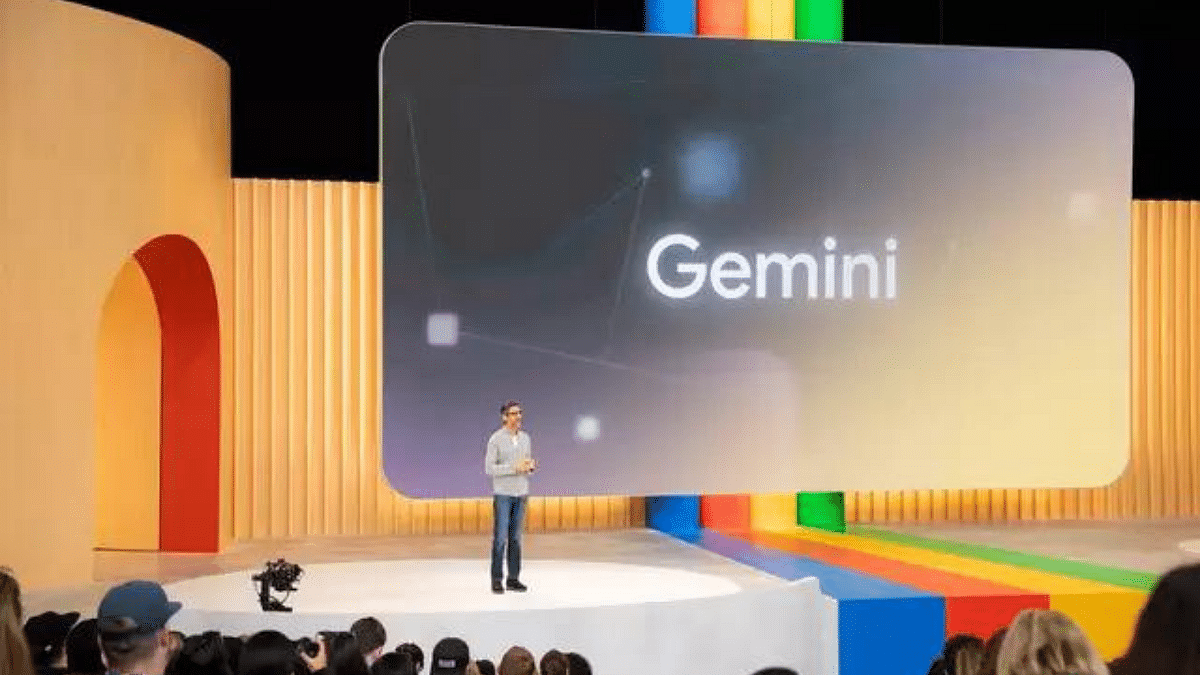
Google has just introduced Gemini, its most powerful artificial intelligence (AI) model to date. Gemini comes in three sizes: Gemini Ultra, the largest and most capable; Gemini Pro, versatile across various tasks; and Gemini Nano, designed for specific tasks and mobile devices. The model is set to be licensed through Google Cloud for customer use in their applications.

Gemini In Action

Starting December 13, developers and enterprise customers can access Gemini Pro via the Gemini API in Google AI Studio or Google Cloud Vertex AI. Android developers can also harness the power of Gemini Nano for mobile applications. Google is set to incorporate Gemini into its products, including the Bard chatbot and Search Generative Experience (SGE), which aims to answer search queries with conversational-style text.

Applications Of Gemini

Gemini is not just a standalone creation; it will be integrated into various Google products, including the Bard chatbot and the Search Generative Experience (SGE), aiming to respond to search queries with conversational-style text. Enterprises can leverage Gemini for advanced customer service through chatbots, personalized product recommendations, trend identification for advertising, and even content creation for marketing campaigns or blog content.

Capabilities Of Gemini

Image Credit: ZDNET

Gemini Ultra stands out by surpassing human experts in Massive Multitask Language Understanding (MMLU), covering subjects like math, physics, history, law, medicine, and ethics. It can understand complex subjects, demonstrating nuanced reasoning. Google’s CEO, Sundar Pichai, highlighted that Gemini is multimodal, seamlessly processing different types of information, including text, code, audio, image, and video.

Integration With Bard

Google’s chatbot Bard will now use Gemini Pro for enhanced reasoning, planning, and understanding. Shortly, “Bard Advanced” will leverage Gemini Ultra, marking a significant upgrade to the ChatGPT-like chatbot.

Efficiency And Safety

Despite its size, Gemini Ultra is more cost-effective to serve, showcasing improved efficiency in training AI models. Google underscores its commitment to safety, claiming that Gemini is the most highly tested AI model the company has built.

Also Read: Google Unveils OpenAI Competitor Gemini 1.0
Categories
Apps Featured Info

How To Use WhatsApp’s Disappearing Voice Notes Feature: Guide

Key Highlights

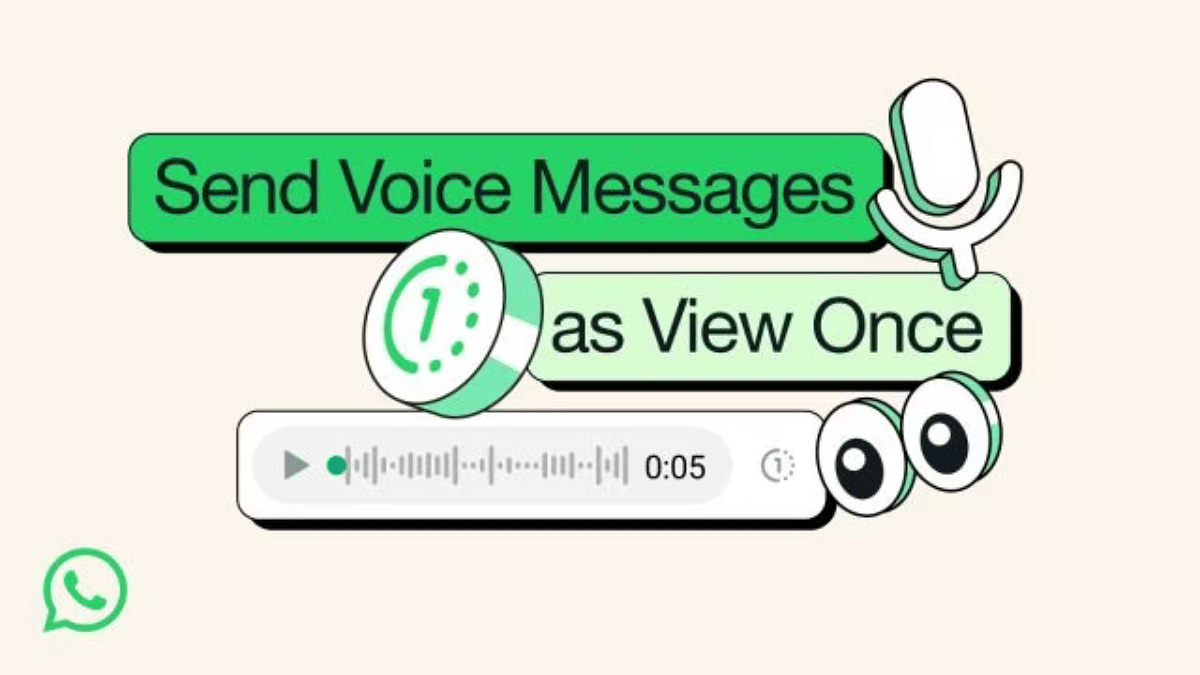
  • Whatsapp rolled out view once voice note feature globally
  • Record and Tap: Create voice note, tap clock icon to vanish.
  • Messages disappear, safeguarded by end-to-end encryption.

WhatsApp has recently rolled out a new privacy-focused feature called View Once for voice messages, providing users with the ability to send voice notes that vanish after being listened to. This guide will walk you through the process of using this innovative disappearing voice notes feature.

Also Read: How To Use WhatsApp’s Music Sharing Feature On iPhone During Video Calls: A Step-by-Step Guide

Step 1: Update Your WhatsApp

Before you can start using the disappearing voice notes feature, make sure your WhatsApp application is up to date. Head to your app store, search for WhatsApp and install any available updates.

Step 2: Record Your Voice Note

Open the chat where you want to send a disappearing voice note. Press and hold the microphone icon to record your message as you normally would. Once your voice note is ready, proceed to the next step.

Step 3: Activate View Once Feature

Before sending your voice note, look for the new one-time icon – it resembles a clock. Tap on this icon to activate the View Once feature for your voice message.

Step 4: Send and Wait

After activating the View Once feature, hit the send button. Your recipient will be able to listen to the voice message only once. Once they’ve heard it, the message will disappear from their chat history.

Step 5: Enjoy Enhanced Privacy

Rest easy knowing that your voice notes are now equipped with an extra layer of privacy. The disappearing feature ensures that your messages won’t be forwarded or linger in chat histories, adding a new level of confidentiality to your conversations.

Important Note: End-to-End Encryption

Remember that, like all personal messages on WhatsApp, disappearing voice messages are protected with end-to-end encryption by default. This ensures that only you and your recipient can access and hear the message.

Also Read: WhatsApp Unveils Self-Destructing Voice Messages: Details

Categories
Apps Featured How To Info

How To Use WhatsApp’s Music Sharing Feature On iPhone During Video Calls: A Step-by-Step Guide

Key Highlights

  • iPhone users can share music during a video call on WhatsApp.
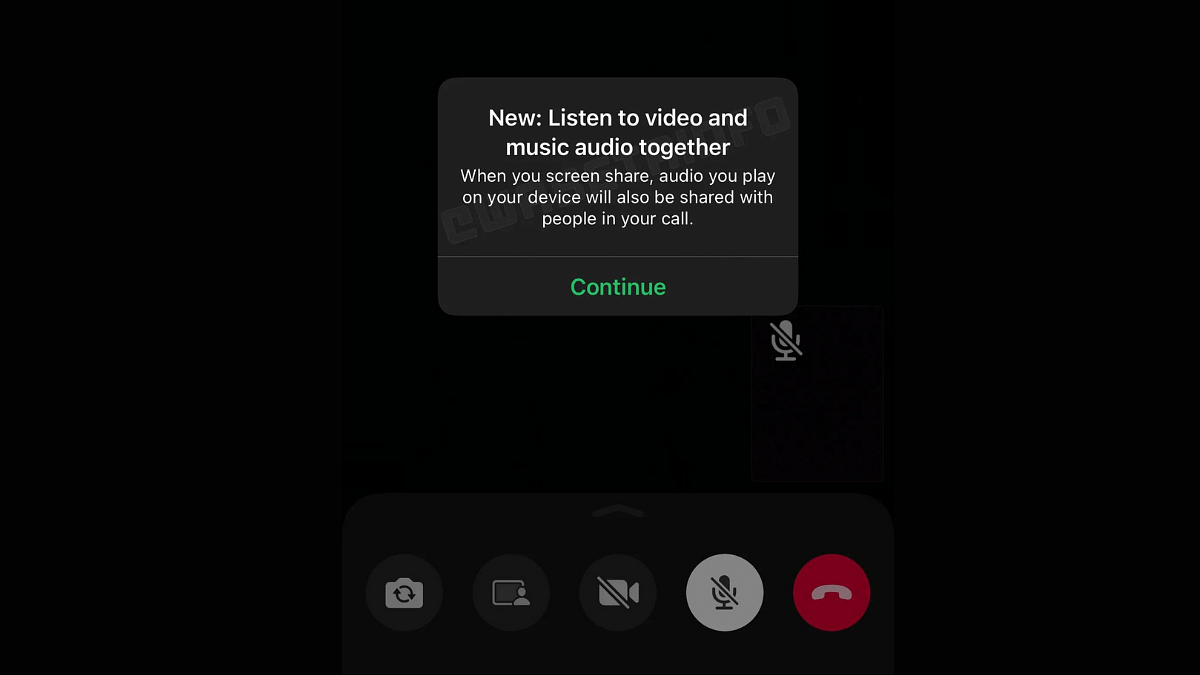
  • Playing audio on the device automatically shares the music with participants in the video call.
  • This feature allows users to enjoy their favourite music while engaged in a video call.

WhatsApp is always on the lookout for innovative features to enhance user experience. After the successful rollout of the screen-sharing feature a few months ago, the platform is now testing a music-sharing feature, adding a new dimension to video calls. This feature, currently in beta, is specifically designed for iOS users, allowing them to share and listen to music during video calls.

Also Read: How To Use WhatsApp’s New Voice Chat Feature For Group Calls: Step-By-Step Guide

The Beta Testing Phase

WABetaInfo first spotted this upcoming feature, and it’s important to note that it won’t function during audio-only calls. Although there is no official timeline for the rollout to Android users, this new addition promises to make WhatsApp video calls more engaging and interactive.

How It Works

Step-by-Step Guide to Using WhatsApp’s Music Feature During Video Calls:

1. Ensure App and Device Compatibility:

  • Confirm that you have the latest version of WhatsApp installed on your iPhone.
  • Ensure that your device is running the necessary iOS version supporting this feature.

2. Initiate a Video Call:

  • Start a video call with your desired contact by selecting the video call icon within the chat.

3. Enable Screen Sharing:

  • During the video call, locate and tap on the “Screen Share” option. This may be found in the call interface, typically as an icon representing screens or devices.

4. Play Music or Video:

  • Once screen sharing is activated, open your preferred music or video player on your iPhone.
  • Play the desired music or video file that you want to share with your contact.

5. Real-Time Audio Sharing:

  • As you play the music or video, the audio will be shared in real-time with all participants in the video call.
  • Enjoy an immersive audio-visual experience, creating a shared atmosphere with your friends.

Limitations And Compatibility

  • This feature works exclusively during video calls and is not compatible with voice calls on WhatsApp.
  • Additionally, it won’t function if the video is turned off during the call.
  • In case the feature doesn’t work, ensure that both you and your contact have the latest versions of WhatsApp.
  • Verify that your device and iOS version meet the requirements for this feature.

What’s Next For WhatsApp?

This music-sharing feature follows the August rollout of the screen-sharing feature, which simplifies collaborative tasks during video calls. Whether it’s sharing documents in a work meeting or showcasing a presentation, WhatsApp’s screen-sharing feature has become a valuable tool.

In addition to the music-sharing feature, WhatsApp is exploring new capabilities, including directly sharing WhatsApp Status updates to Instagram. This aligns with Meta’s vision of achieving cross-platform compatibility across all its applications.

Also Read: WhatsApp Beta Update: AI Chatbot Access Button Rolled Out To Selected Users

Categories
Apps Auto Tech Featured

Are You EV-Ready? Top Apps Every Electric Car Owner Should Have

Key Highlights

  • Many apps offer services from locating charging stations to improving driving routes
  • MapmyIndia offers electric vehicle-specific features
  • ChargeGrid simplifies the EV charging process

In recent years, India has witnessed a surge in the adoption of electric vehicles, driven by a growing awareness of environmental issues and the government’s push towards sustainable transportation. Electric car owners are now seeking efficient ways to enhance their driving experience and make the most of their electric vehicles. To assist in this journey, several essential apps have emerged, offering a range of services from locating charging stations to optimizing driving routes. Here, we explore the must-have apps for electric car owners in India. Also Read | Spark Or Strain? The Pros And Cons Of Choosing An Electric Vehicle

PlugShare

PlugShare is a global platform that facilitates electric vehicle charging station discovery. For Indian electric car owners, this app is a game-changer. PlugShare allows users to find charging stations, check their availability, and even review them based on personal experiences. The app’s community-driven approach ensures that users have access to real-time information about charging stations, making it an indispensable tool for planning road trips or daily commutes.

ProsCons
Global NetworkReliability Concerns
Community ReviewsLimited Offline Functionality
User-Friendly InterfaceAvailability Accuracy

ChargeGrid

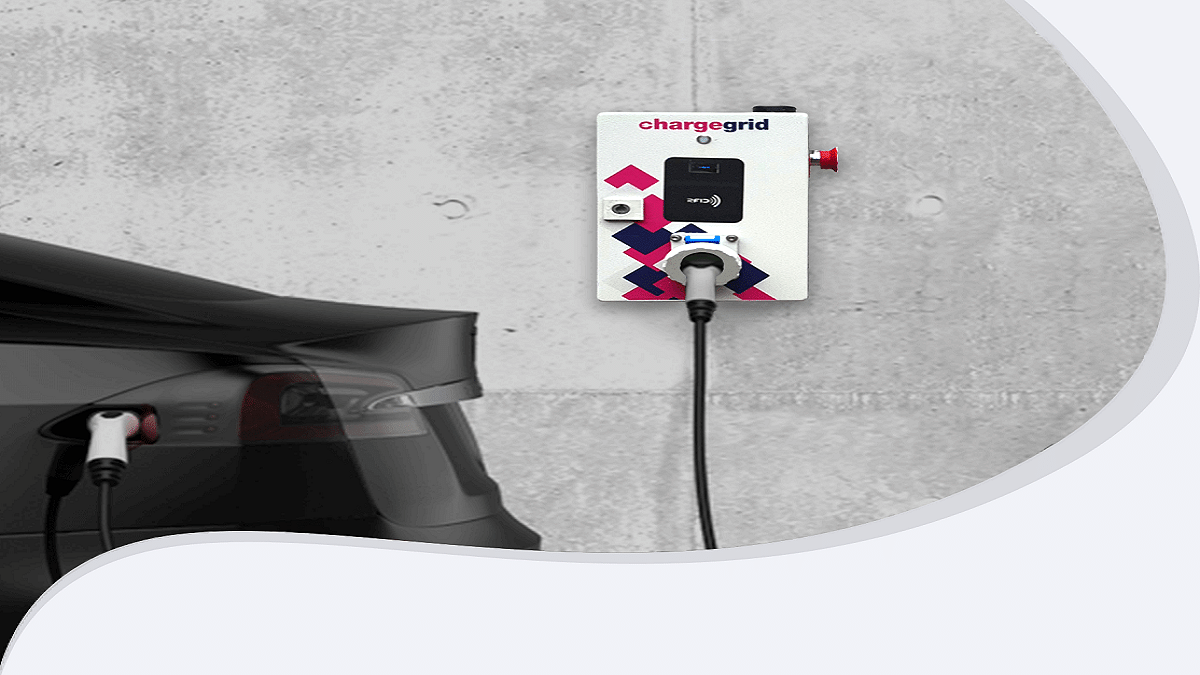
ChargeGrid, developed by Magenta Power, is a comprehensive app designed to simplify the charging process for electric car owners. The app not only helps users locate charging stations but also provides real-time updates on station status and availability. Additionally, ChargeGrid enables users to initiate and monitor charging sessions, making it a one-stop solution for a hassle-free charging experience.

ProsCons
Seamless Charging InitiativesLimited Network Coverage
Comprehensive Station InformationBrand-Specific Limitation
User-Friendly InterfaceOccasional Technical Glitches

Also Read | Top 3 Electric Scooters That You Can Drive Without License In India In 2023

MapmyIndia

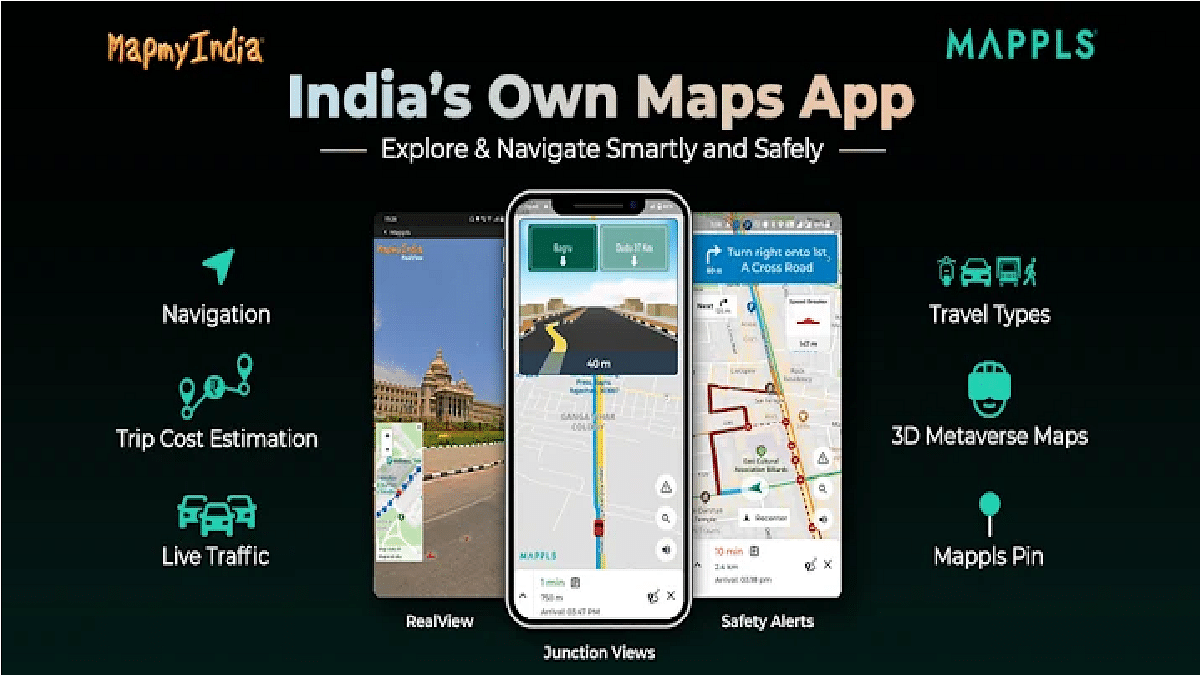
MapmyIndia, a leading mapping and location-based services provider, offers a valuable app for electric car owners. The app incorporates EV-specific features, such as locating charging stations, planning routes with charging stops, and estimating charging times. With detailed maps and real-time traffic updates, MapmyIndia becomes an essential companion for electric car owners looking to optimize their travel plans.

ProsCons
EV-Specific FeaturesLimited Global Coverage
Detailed MapsOccasional Interface Lag
Real-Time Traffic UpdatesLimited Community Interaction

Ather

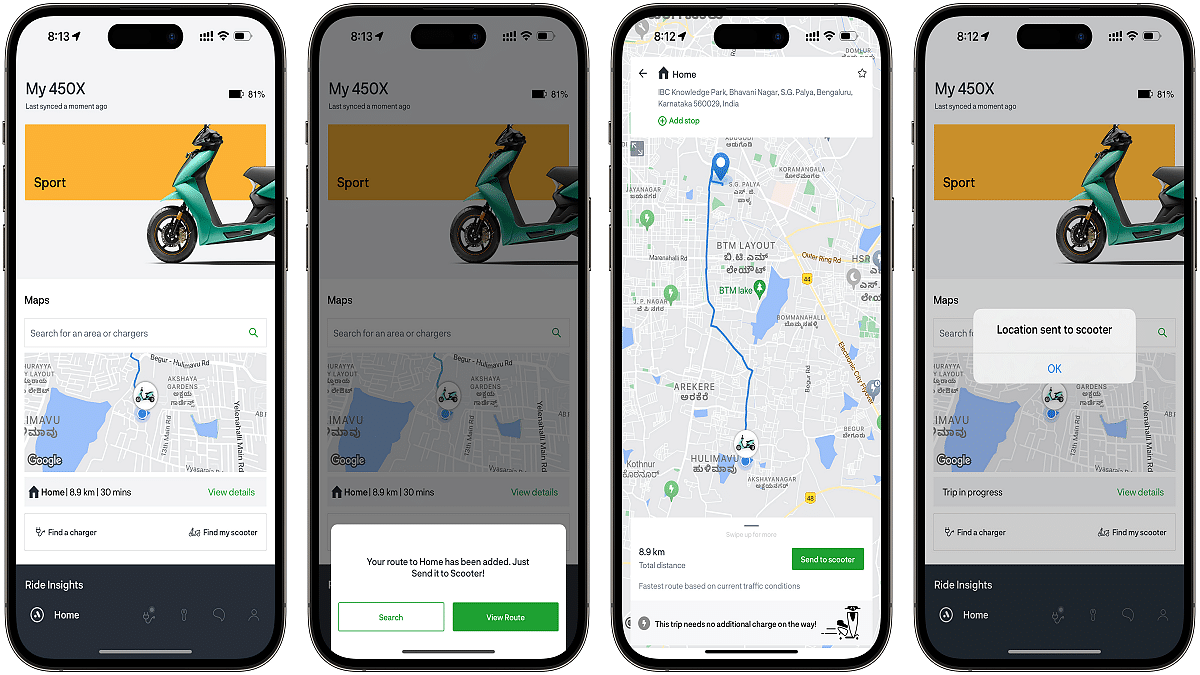
For owners of Ather Energy’s electric scooters, the Ather app is a must-download. Apart from standard features like locating charging stations and planning routes, the Ather app provides specific functionalities tailored for Ather electric scooters. Users can track their vehicle’s health, receive over-the-air updates, and even customize ride parameters. This brand-specific app enhances the overall ownership experience for Ather electric vehicle users.

ProsCons
Brand-Specific FeaturesLimited to Ather Owners
Customization OptionsPotential Brand Dependency
OTA UpdatesLearning Curve

Verdict

As India accelerates its transition towards sustainable transportation, electric car owners can leverage a variety of apps to enhance their driving experience. From finding charging stations to staying informed about the latest developments in the EV sector, these apps play a crucial role in supporting the growing community of electric vehicle enthusiasts. Embracing these essential apps ensures that electric car owners are well-prepared to navigate the electric road ahead, making every journey a seamless and eco-friendly experience.

Also Read | List Of Most Anticipated Electric Cars In 2024

Categories
Apps Featured How To

ChatGPT Voice Chat Feature Released: How Is It Different From Text Version?

Key Highlights

  • Open AI launches ChatGPT voice feature
  • Advanced version of text chatbot
  • Can be downloaded on both Android and iOS devices
  • Usage is free of cost

Open AI’s ChatGPT is one of the most sensational launches of 2023. The AI-enabled chat bit allows users to get answers for different queries and also get done with different projects that otherwise requires loads of research work. But now Open AI is taking ChatGPT a step ahead with the launch of the voice chat feature for the masses. Notably, ChatGPT has already released the voice feature for premium consumers including ChatGPT Enterprise and ChatGPT Plus users, but now has expanded its reach to all users. What is this ChatGPT voice feature and how can you use it?

Also Read: ChatGPT Is Now Available On Android Starting Next Week

ChatGPT Voice Feature Available For All Users: How Is It Different From Text?

In a post shared on X (formerly Twitter), Open AI has announced the launch of ChatGPT voice for all users. For reference, ChatGPT voice has been made available earlier to the Enterprise and Plus subscription users.

Now, it can be used by both Android and iOS users too. The post confirms ChatGPT voice can be used for free and no additional service charge would be required to use this new advanced chatbot feature.

As for the functionality, the ChatGPT voice is not much different from the text. The primary difference is the use of voice commands instead of text to get desired responses from the ChatGPT chatbot. Moreover, the responses received are in audio format and not text.

It is worth mentioning that the audio responses/ voice chat with the chatbot comes with multi-lingual support. This will make it convenient for the users from different global regions.

Open AI has also clarified that the audio from the voice chats will be saved in the form of transcripts. Users will get the option to access to go through these transcripts from the chat history but will not be able to listen to the audio clips.

Furthermore, users won’t need to pay any amount in order to access the ChatGPT voice feature. It can be downloaded for free from Google Play Store and Apple App Store on respective Android and iOS devices.

Also Read: OpenAI Introduces Dall-E 3: A New AI That Converts Text To Images Using ChatGPT

Categories
Apps Featured How To Info

How To Instantly Download Publicly Posted Reels On Instagram: A Step-By-Step Guide

Key Highlights

  • Global Access to Download Public Reels
  • Save Reels Directly to Your Camera Roll
  • Can Now Share Beyond Instagram Platform

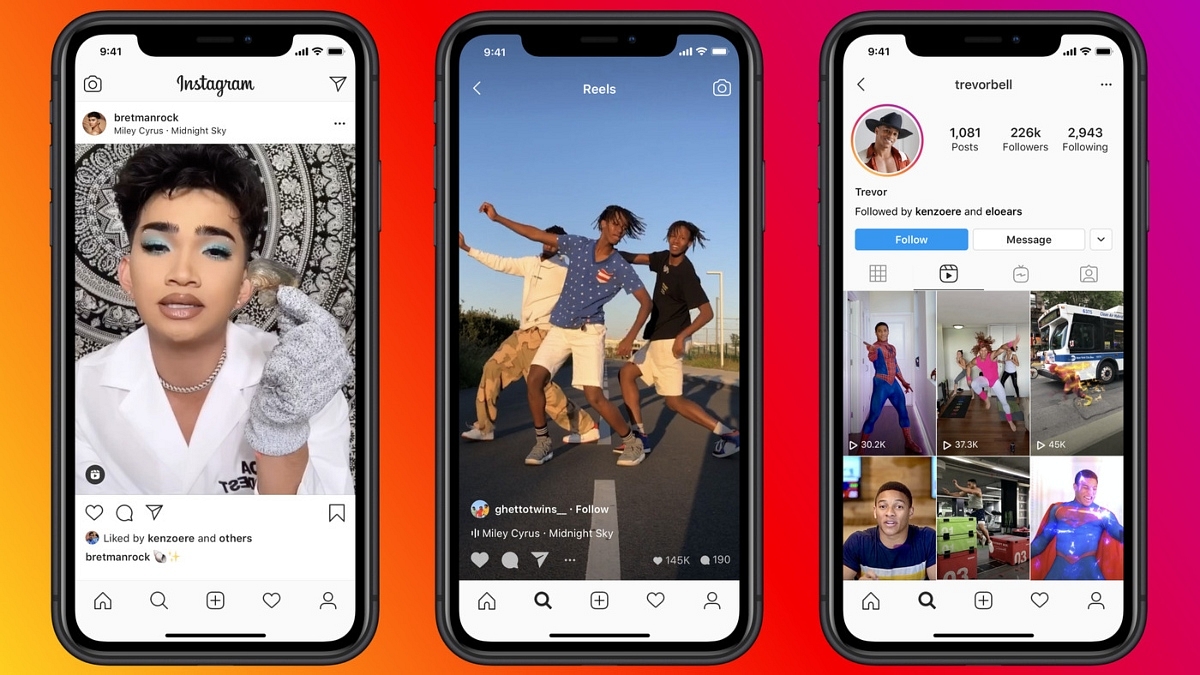
Earlier this year, Instagram introduced the ability to download Reels from public accounts, initially in the United States. The good news? This feature is now going global and is now available in India and one can now save Reels directly to their camera roll. Let’s understand how you can download the reels in three simple steps below.

Also Read: How To Use Instagram’s New Song Lyrics Feature In Reels: A Step-By-Step Guide

How to Use Instagram’s Reels Download Feature In 3 Simple Steps

Instagram Head Adam Mosseri, through his Broadcast channel, confirmed the global rollout of the Reels download feature. Users can now save Reels directly to their camera roll, complete with the creator’s Instagram handle as a watermark.

Here’s a quick guide on how to download any reel in just three simple steps:-

Step 1: Locate the Reel

Start by identifying the Reel you want to download. Navigate to the public account where the Reel is located. Browse through their profile or stories until you find the Reel you wish to save.

Step 2: Download the Reel

Once you’ve found the Reel, tap on the Share button located on the bottom right of the post. A menu will appear with various options. Select the “Download” option from the menu. If the public account has allowed downloads, the Reel will be saved directly to your device’s camera roll.

Step 3: Access Your Downloaded Reel

To access your downloaded Reel, head to your device’s gallery or camera roll. The saved Reel will appear as a video file with the Instagram handle of the creator as a watermark.

If you encounter any issues downloading Reels, ensure that the public account has not disabled the download feature. Public accounts have the option to control whether users can download their Reels.

Also Read: Instagram Close Friends Feature Takes Center Stage In Main Feed: How To Use

Categories
Apps Comparison Featured

Hotstar vs Netflix vs Amazon Prime Video: The Best OTT Platform?

Key Highlights

  • Netflix offers a budget-friendly plan for users in India
  • Disney+ Hotstar provides a complimentary subscription plan that grants access to a selection of limited shows and movies
  • Amazon Prime combines streaming service with additional Prime perks at a competitive price

In the ever-evolving world of digital entertainment, the competition among Over-The-Top (OTT) platforms is fierce, with Hotstar, Netflix, and Amazon Prime Video emerging as the frontrunners. Each platform boasts a unique set of features, exclusive content, and user experience, making the decision of choosing the best OTT platform a daunting task.

Also Read | Free Netflix, Disney+ Hotstar, And Amazon Prime Access: Here’s How To Get With JioFiber Plans

The Variety Of Content

When it comes to content, these platforms offer a diverse range of shows, movies, and documentaries.

  • Netflix is renowned for its extensive library of original content, including critically acclaimed series like “Stranger Things” and “The Crown.”
  • Amazon Prime Video follows closely with a mix of originals and an impressive collection of Bollywood and regional content.
  • Hotstar, on the other hand, stands out for its vast array of live sports, including cricket, making it a go-to platform for sports enthusiasts.

User Interface And Experience

The user interface plays a pivotal role in enhancing the streaming experience.

  • Netflix is celebrated for its in-built and user-friendly interface, making navigation simple.
  • Amazon Prime Video excels in personalization, offering custom-made recommendations based on viewing history.
  • Hotstar, with its clean and simple layout, ensures users can effortlessly find their favorite content.

Exclusive Features

Each platform brings something unique to the table in terms of exclusive features.

  • Netflix leads with the ability to download content for offline viewing, catering to users on the go.
  • Amazon Prime Video shines with its additional benefits, including free shipping on Amazon purchases and access to Kindle books.
  • Hotstar’s USP lies in its live streaming of major sporting events, setting it apart as the preferred choice for sports aficionados.

Also Read | Want To Cancel Your Disney+ Hotstar Subscription? Here’s How

Subscription Plans And Pricing

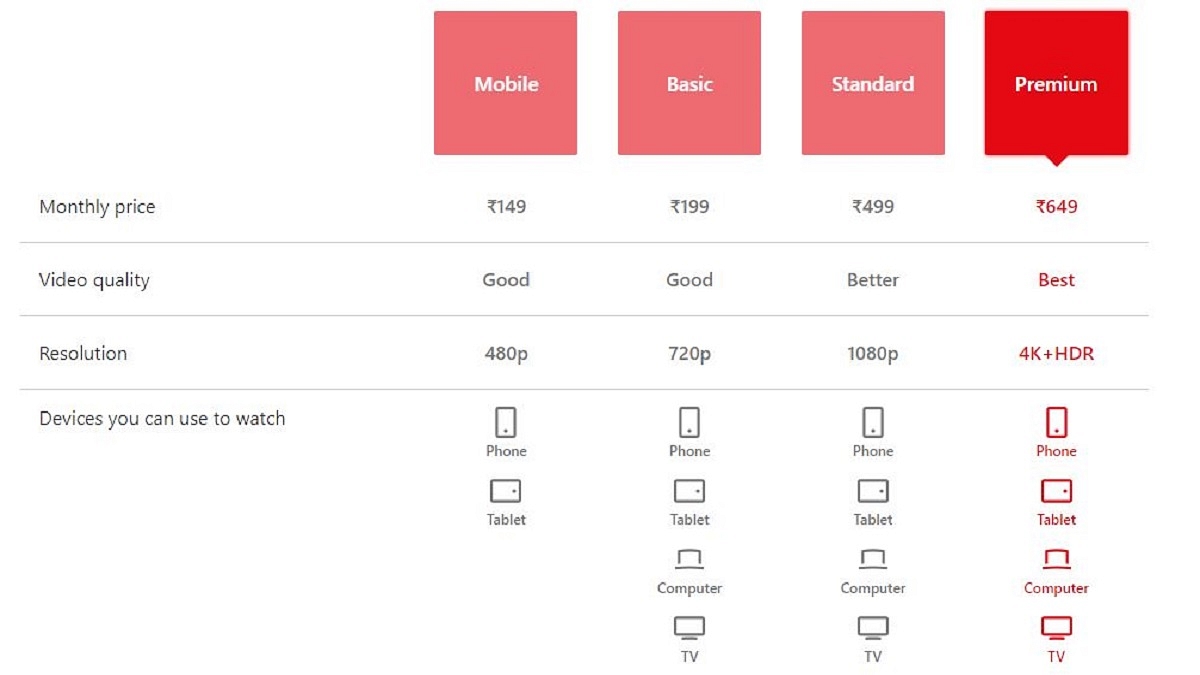
Affordability is a key factor for many users when choosing an OTT platform. Netflix offers a range of subscription plans, giving users the flexibility to opt for the one that aligns with their budget. These plans are valid on a monthly basis. Although long-term or annual plans are not part of Netflix’s offerings, the platform does provide a complimentary 30-day trial for new users. With the Premium plan, users can concurrently stream on four devices, two with the Standard plan, and one with the Basic and Mobile plans.

Amazon Prime Video combines its streaming service with additional Amazon Prime perks at an attractive price. You have the option to select from three Amazon Prime membership plans – monthly, quarterly, and annually. Securing a Prime membership is crucial, as it serves as the key to unlocking Prime Videos and various other services including shopping benefits, a Prime music subscription, and early access to deals provided by Amazon India.

PlanPrice
Monthly Prime (1 month)Rs. 299
Quarterly Prime (3 months)Rs. 599
Annual Prime (12 months)Rs. 1,599

Hotstar, offering a distinctive blend of complimentary and premium content, serves a broad audience. With a premium subscription, you gain access to the entire library of Disney+ Hotstar. The highest-tier subscription enables concurrent streaming on up to four devices and provides the added benefit of viewing content in 4K resolution.

PlanPrice
Disney+ Hotstar Premium (1 month)Rs. 299
Disney+ Hotstar Super (12 months)Rs. 899
Disney+ Hotstar Premium (12 Months)Rs. 1,499

Also Read | Here’s How To Download Videos From Netflix, Amazon Prime, And Disney+ Hotstar

Which One To Choose?

In the battle of Hotstar vs Netflix vs Amazon Prime Video, there is no one-size-fits-all answer. The choice ultimately depends on individual preferences, content preferences, and budget constraints. While Netflix leads in original content, Amazon Prime Video sweetens the deal with additional perks, and Hotstar dominates the sports streaming arena. Assessing the unique offerings of each platform will undoubtedly lead to finding the perfect OTT companion for your entertainment needs. So, buckle up, grab some popcorn, and embark on a thrilling digital entertainment journey.

For the tech geeks, stay updated with the latest cutting-edge gadgets in the market, exclusive tech updates, gadget reviews, and more right on your phone’s screen. Join Giznext’s WhatsApp channel and receive the industry-first tech updates.

Categories
Apps Featured How To

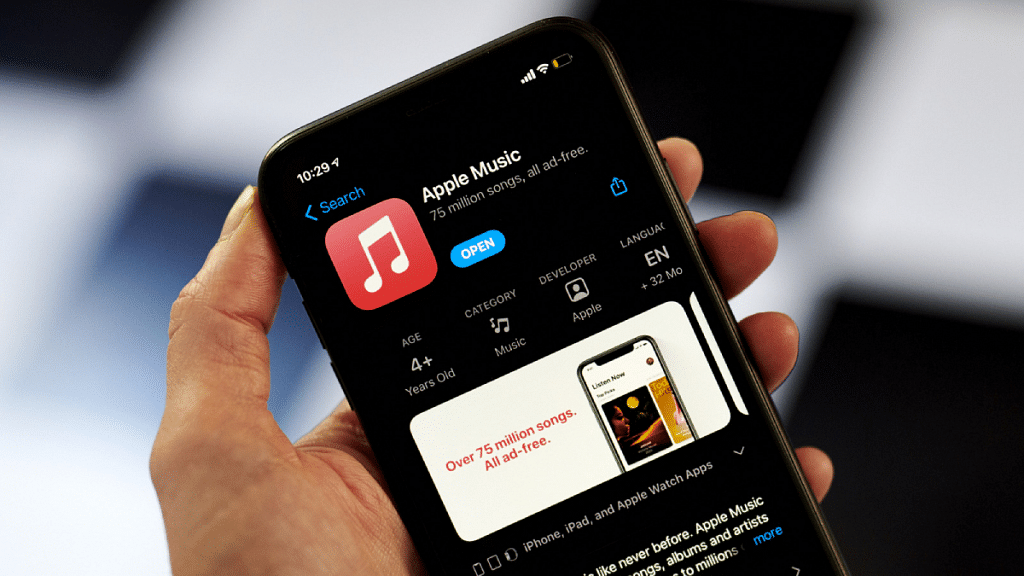
Apple Music Tips And Tricks: Here’s How To Create Collaborative Playlists

Key Highlights

  • Apple Music lets you create and share playlists
  • For this, users must have iOS 17.2 or later installed
  • This feature allows you to co-create, modify, and enjoy playlists with friends and family

Discover a new dimension of music-sharing with Apple Music’s latest feature—Collaborative Playlists. This innovative addition allows users to co-create, modify, and enjoy playlists with friends and family, opening up exciting possibilities for musical exploration and shared experiences.

Also Read | Spotify Tips & Tricks: How To Tune Into Podcasts In Your Native Language

Getting Started

To embark on this musical journey, ensure your device is updated to iOS 17.2 or later, and you have an active subscription to Apple Music. Once prerequisites are met, invite fellow Apple Music enthusiasts to join in the playlist creation and customization.

Step-by-Step Guide: How To Create Apple Music’s Collaborative Playlist

Step 1: Open the Music app on your iPhone and navigate to the Library section at the bottom of the screen.

Step 2: Within the Library, tap on Playlists. Here, you can either create a new playlist or select an existing one to transform it into a collaborative masterpiece.

Step 3: Tap on the Collaborate button or the three dots icon in the top-right corner. Choose the Collaborate option to initiate the shared playlist experience.

Step 4: Toggle on “Approve Collaborators” if you wish to control who can join the playlist. If disabled, anyone with the link gains immediate access.

Step 5: Tap on “Start Collaboration” and share the generated link or QR code through Messages, Mail, AirPlay, or other preferred methods.

Also Read | How To Maximize iPhone Battery Health: Tips & Tricks

Step 6: To add or remove collaborators, tap on the Collaborate button or three dots icon. Select “Manage Collaboration” for comprehensive control.

Step 7: Monitor playlist access, approve or reject joining requests, and remove collaborators by swiping left on their name and selecting “Remove.”

Step 8: When you’re ready to conclude the playlist sharing experience, tap on “Stop” to halt collaboration.

Also Read | iOS Tips And Tricks: How To Download Offline Maps On Apple iPhones, iPads?

Benefits Of Collaborative Playlists

  • Enhance your music enjoyment by embracing collaborative playlists
  • Create multiple playlists, inviting anyone with Apple Music to join
  • Personalize each playlist by editing your name and photo through the “Edit” option next to your name.

In summary, Apple Music’s Collaborative Playlists offer an engaging and interactive way to share the joy of music with others, fostering a sense of community and exploration.

For the tech geeks, stay updated with the latest cutting-edge gadgets in the market, exclusive tech updates, gadget reviews, and more right on your phone’s screen. Join Giznext’s WhatsApp channel and receive the industry-first tech updates.

Categories
Apps How To

How To Add Catchy Music And Text To Your Moj Videos: A Step-by-Step Guide

Key Highlights

  • Music is a powerful tool for shaping the mood of your Moj videos
  • Users can add texts that align with their aesthetic
  • Can also customize the font, color, and position

In the dynamic realm of short-form video content, Moj has captivated millions, offering a platform to unleash creativity and engage audiences authentically. Enhancing your Moj videos with catchy music and text can significantly amplify their allure, allowing you to express yourself, share relatable stories, and showcase unique talents in an entertaining and new way. This guide takes you through the process step by step on how to add music and texts to your Moj videos.

Also Read | Moj Filters Unleashed: Here’s How To Transform Ordinary Videos In Five Simple Steps

Moj Videos: How To Add Music And Text

Step 1: Clarify the type of video content you want to create. Whether it’s a dance performance, lip-sync, cooking demonstration, or a unique concept, having a clear theme is crucial.

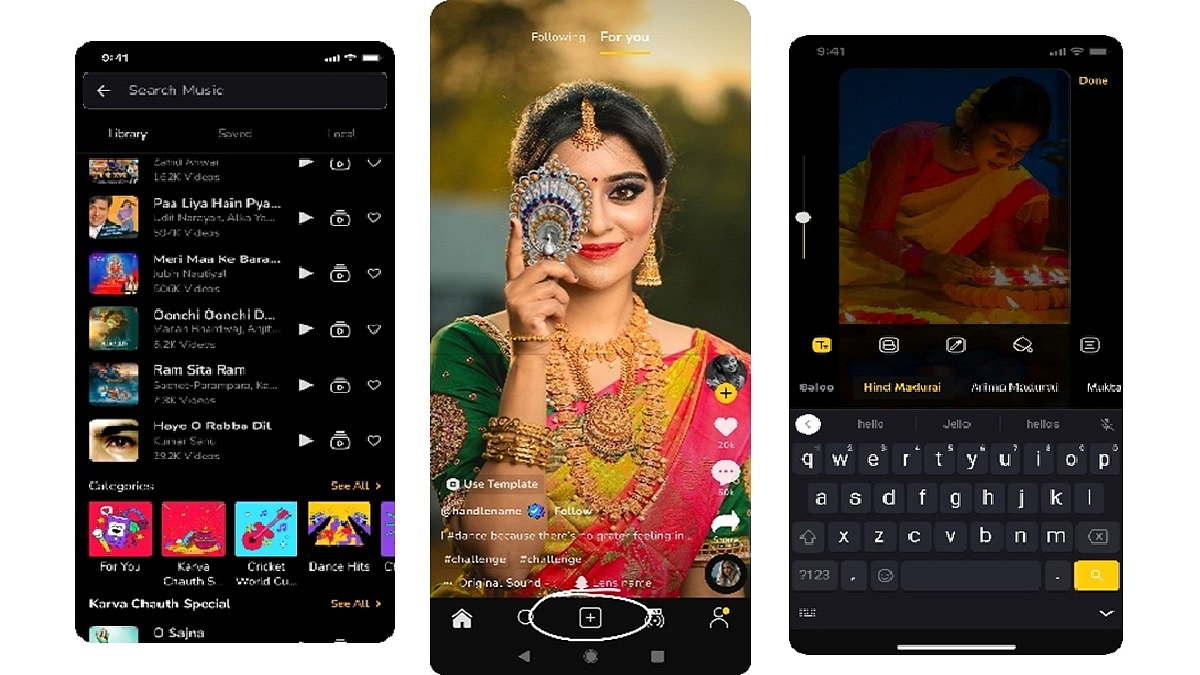
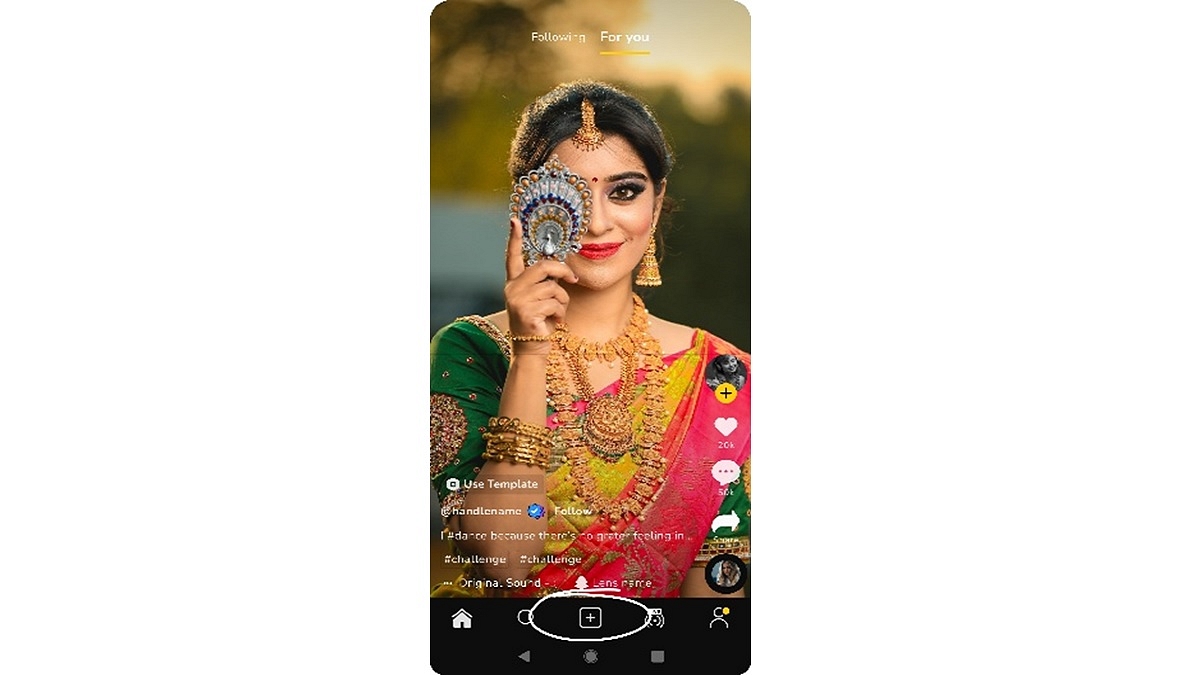
Step 2: Open the Moj app on your device and locate the “+” sign at the bottom of the screen. If you’re recording a new video, ensure optimal lighting and clear audio. Frame your shot, hit the record button, and let your creativity shine, as Moj encourages free self-expression.

Step 3: Music plays a pivotal role in shaping the mood of your video. Select the video you wish to upload, tap the “Music” icon on the bottom menu, and explore the extensive song library. Choose a song that complements your video’s theme, adjusting the starting point and duration as needed. Click ‘Done’ to proceed.

Also Read | Master Moj’s 90-Second Guide: How To Edit Captivating Videos In No Time

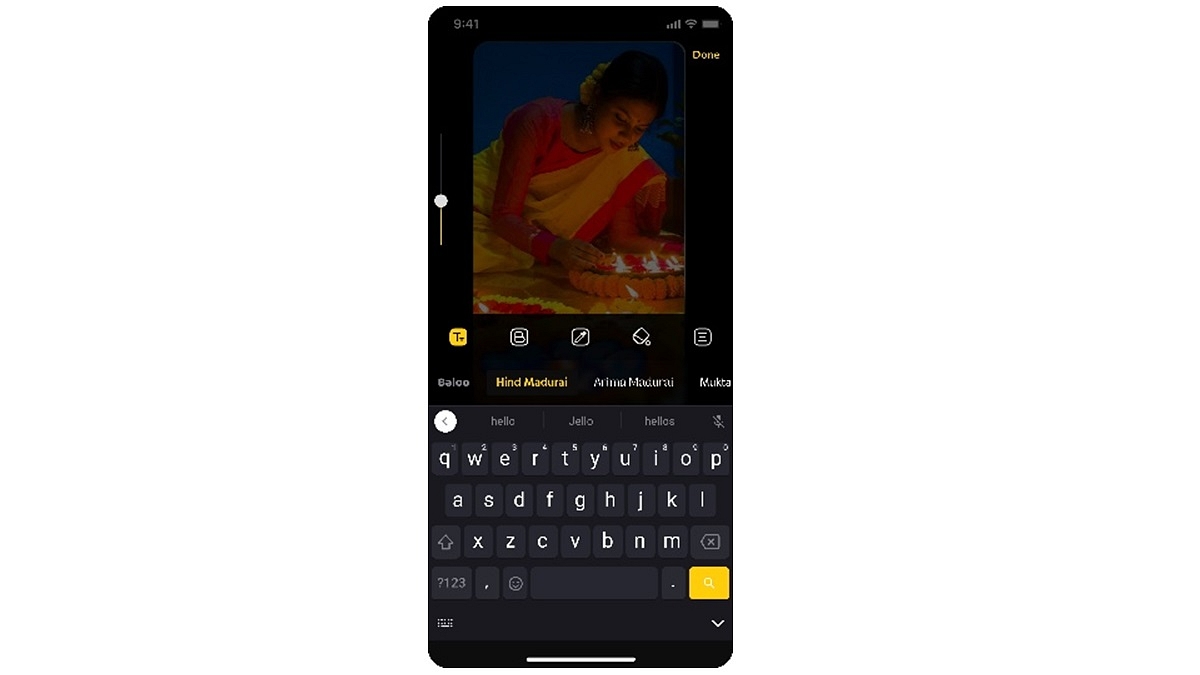
Step 4: Tap on the “Text” icon at the bottom after selecting your music. Choose a text style that aligns with your video’s aesthetic. Enter your desired text and customize the font, color, and position. Adjust the text overlay duration using the timeline feature.

Step 5: Moj provides various editing tools to enhance your video further. Trim your footage, adjust the speed, and apply filters for a unique visual touch. Experiment with these tools until you achieve a result that satisfies your creative vision.

Also Read | Need To Save Moj Videos For Later? Learn How To Download For Free

Step 6: Before sharing your masterpiece on Moj, preview it for perfection. Tap ‘Next’ to seamlessly share your enhanced video with friends and family, contributing to the vibrant community’s joy and creativity.

Incorporating catchy music and expressive text into your Moj videos elevates their appeal, allowing you to share your creativity and unique talents with the Moj community. Follow this step-by-step guide, and you’ll be well on your way to standing out as a Moj video superstar.

For the tech geeks, stay updated with the latest cutting-edge gadgets in the market, exclusive tech updates, gadget reviews, and more right on your phone’s screen. Join Giznext’s WhatsApp channel and receive the industry-first tech updates.

Categories
Apps Featured Info

WhatsApp Beta Update: AI Chatbot Access Button Rolled Out To Selected Users

Key Highlights

  • AI Chatbot Integration
  • User-Friendly Button Enhances Accessibility
  • Meta AI Powers WhatsApp’s Experimental Upgrade

WhatsApp is planning up for an upgrade with the introduction of an AI chatbot. The latest beta version of the app shows a dedicated button designed to streamline access to this feature, promising more convenient user experience.

Also Read: How To Hide Your IP Address On WhatsApp Calls

Swift Access To AI Chats

In a recent report by WABetaInfo, the new AI chatbot feature is spotlighted for its prominent placement above the ‘New Chat’ icon in the Chats tab. This strategic positioning ensures users can effortlessly open AI-powered chats, marking a departure from the initial beta release where the feature was somewhat concealed within the contact list.

The AI chatbot was first introduced by Meta CEO Mark Zuckerberg in September. The ongoing testing phase focuses on a specific segment within the USA.

Also Read: WhatsApp Enhances Group Calls For iOS Users: Up To 31 Participants Now Supported With Latest Update

Experimentation And Limited Rollout

While the AI chatbot has made its debut in the September beta release, it’s essential to note that its presence doesn’t guarantee inclusion in the global release of the same version. The rollout is currently limited.

Also Read: WhatsApp Phasing Out Support For These Old Android Smartphones: Time To Upgrade Your Device?

Privacy Upgrade: ‘Protect IP Address In Calls’

WhatsApp is addressing privacy concerns related to its calling feature. A new privacy feature, ‘Protect IP Address in Calls,’ has been introduced to safeguard user information. By routing individual calls through a server instead of relying on peer-to-peer connections, this feature conceals users’ IP addresses, ensuring a more secure communication environment.

Also Read: How To Use WhatsApp’s New Voice Chat Feature For Group Calls: Step-By-Step Guide