Categories
Apps Featured How To

Instagram Stylish Name And Bio: How To Write Instagram Profile Name And Bio With Stylish And Cool Fonts

Social media apps gave seen a boom in the last few years, specifically with the youth grabbing professional opportunities from such platforms. Instagram is one such popular app that has gained popularity amongst both general users and content creators. The photo-sharing app is offering endless possibilities to creators and business users to get a better reach of the audience. But for general users as well, Instagram still is one of the best apps for entertainment.

When you create an Instagram profile, you can add a small bio along with a profile pic and your name. This helps your contacts to reach out easily. Besides, if you are a content creator, your Instagram name and description help your audience to find your account.

Having a vibrant Instagram profile is the best way to grab a large user base. In addition to the content such as photos and reels videos, profile names, and bios written in a fancy font will definitely steal some stares. In fact, you might have come across multiple such profiles where the names are written in stylish fonts. Wondering if that’s possible with any general account. Well, the answer is yes.

Instagram lets you add and edit your profile name. However, the text is simple and there is no option to add stylish fonts directly from the app. But that doesn’t stop you from adding a fancy touch to the profile name. We have listed the method with which you can create a stylish Instagram name and bio.

Also Read: 100 Best Instagram Boys Name With Alphabets M To Z

How Can You Create Stylish Instagram Names On Android, iOS

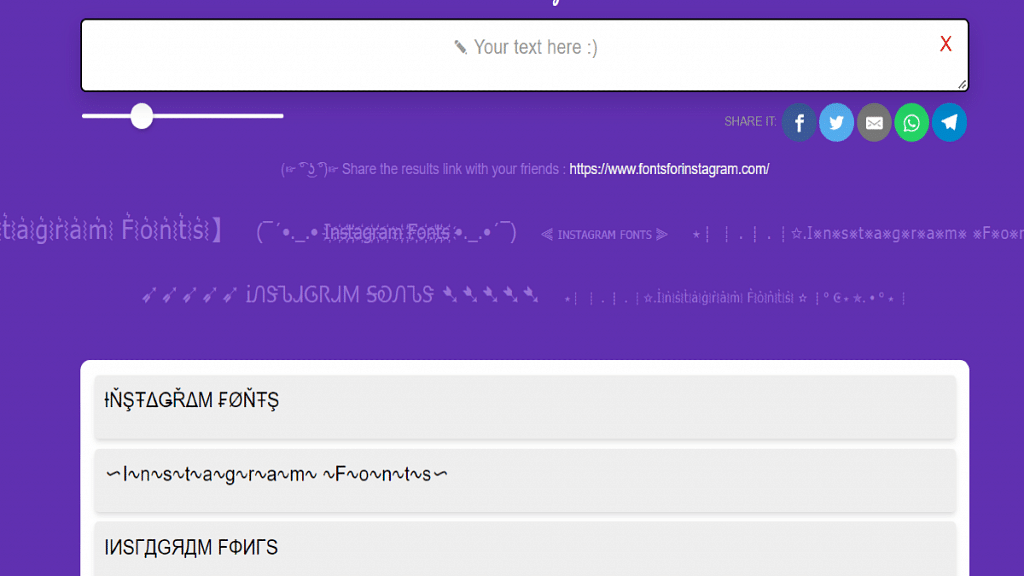
As mentioned above, Instagram doesn’t provide the option to type text in fancy fonts so that you can use it for a profile name and description. Also, most of the in-house smartphone keyboards come void of this fancy text feature. The trick is to use a fancy text writer website or mobile app. You can find a plethora of fancy text converter apps on Android and iOS app stores, download any of those apps to create a stylish Instagram name. The remaining steps are listed below:

Step 1: Open Instagram mobile app on your smartphone (Android or iOS). Note, you can create a stylish Instagram name using the desktop version on laptops and PCs.

Step 2: Go to your profile page.

Step 3: You will see the Edit Profile option under the profile name and bio. Tap on it.

Step 4: Now, copy the fancy text that you have converted using a fancy text creator mobile app or website.

Step 5: Go back to the Edit Profile option on the Instagram app and paste the stylish font name that you have copied from the fancy text creator app.

Step 6: You can also change the description in fancy font.

Step 7: Save the changes. Your Instagram name will now be displayed in a stylish font.  

Also Read: 100+ Best Instagram Names For Boys

Categories
Apps Featured How To

WhatsApp Self Message Feature Goes Official: How To Self-Chat On WhatsApp Using Android, iOS Devices

Key Highlights

  • WhatsApp Self-Message feature released
  • Available for both Android and iOS devices
  • Users will be able to self chat with this new feature

WhatsApp has released several new features for its iOS and Android apps this year and seems like isn’t done just yet. There are multiple reports of new WhatsApp features being tested out of which one has been released for smartphone users. WhatsApp has now added the option for users to self-chat using the application. This feature was in the testing phase for a while and was earlier spotted in the beta version. If you are wondering how will you make use of this Message Yourself feature and what are the steps you need to chat with yourself? Read this article for the details:

WhatsApp Self-Message Feature: What Is It? How To Download?

WhatsApp Message Yourself as the name suggests is a messaging feature that will allow all users to chat with themselves on the app itself. This new option will basically help users keep notes or save important messages which might be required in the later stages. Users will also be able to send themselves to-do or shopping lists that otherwise can’t be sent to friends or other contacts.

WhatsApp is rolling out this feature in a phased manner and the mass rollout should be complete in the coming days. This feature will be added automatically to the WhatsApp application on your respective Android or Apple phones respectively. However, you can also check if there is any update available manually via Google Play Store or Apple App Store.

Also Read: Worried About WhatsApp Group Privacy? Top WhatsApp Security Features You Should Use Daily For Enhanced Privacy

How Can You Use WhatsApp Self Messages Feature And Send Yourself Texts And Other Data

Step 1: Open the WhatsApp application on your respective smartphones and tablets.

Step 2: Go to the Chat option.

Step 3: If the feature is available for your handset, you will be able to see your profile at the top of the contact list.

Step 4: Tap on it.

Step 5: Start typing your message. You can also attach media files, send location, and voice notes etc., using the Self Message feature on WhatsApp.

Step 6: Click send once done. The message or media files will be sent to you which you can view on the chat screen itself. You can view these self-chat messages on WhatsApp later directly from the app’s homepage.

Categories
Apps How To Info

Google Pay 9x Booster: Confirmed Working Trick To Get 9x Booster In Gpay Food Market Offer

Google is offering a myriad of services for smartphone and PC users. The search giant is also actively contributing to digitization in India and is offering multiple apps and tools for Indian audiences to help with an easy lifestyle. Google Pay is one such dedicated app for the Indian market that helps with online transactions and bill payments. It is one of the primary UPI apps that is available to download on both Android and iOS smartphones.

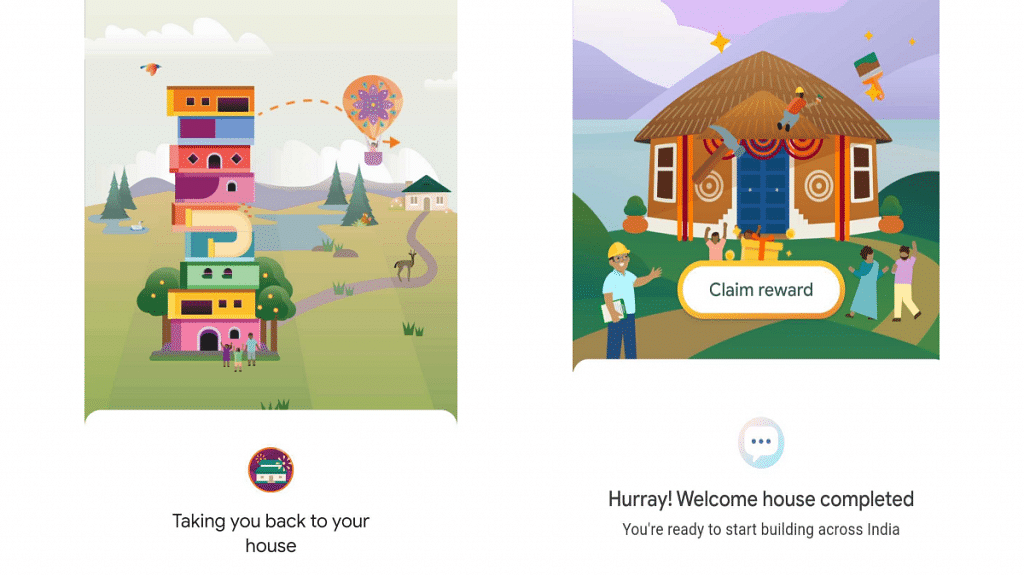
Google frequently organizes games and other competitions and offers cashback and other discounts as prize for the winners. This year Google Pay announced Indi- Home games on Diwali and has hosted three different rounds of the games. For the users who have completed all the levels, the UPI app has now released the 4th round of the game which is live since November 25.. The 4th round of the Google Pay Indi – Home game is called The Food Market and will conclude on December 5, 2022.

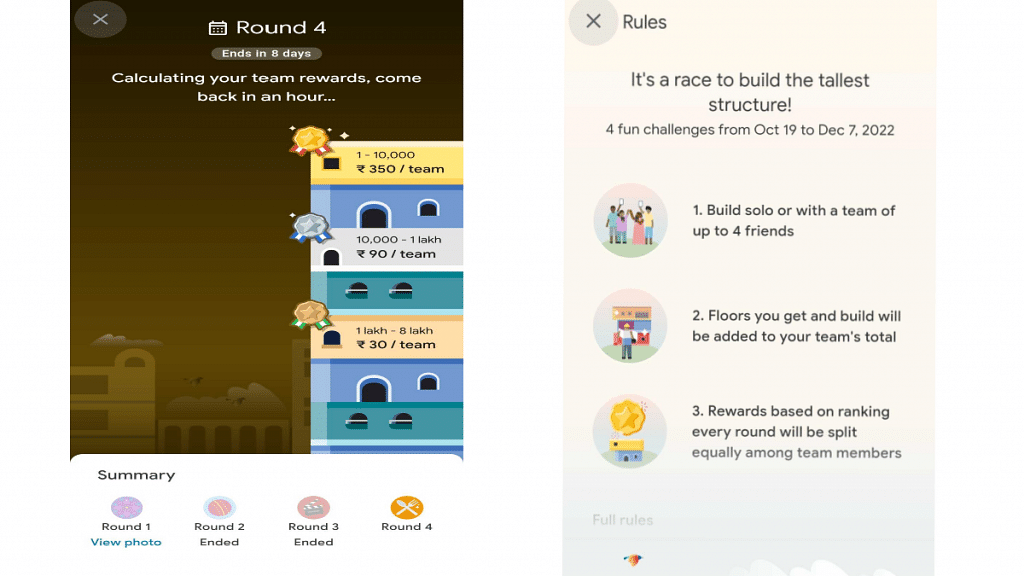
Google Pay is offering up to Rs 350 as a prize to the users who complete the Indi- Home The Food Market game. Google is also offering up to 9x booster which can be earned by building the tallest floors. Google Pay users are receiving promotional notifications for the 9X Boosters and need to follow some steps in order to claim the 9x floor booster points. Let’s look at the steps to claim 9x Booster in Indo- Home Food Market round 4 in Gpay. Let’s look at the steps:

Also Read: Want To Make Paytm UPI Payments To Non-Paytm Users? Here’s The Trick

Steps To Unlock And Claim 9x Floor Booster In Food Market Round 4 In Google Pay

To ensure you get 9x floor booster in the round 4 of GPay Food market offer, you would need to first complete all the tasks. Users will earn up to 9x floors by the end of the fourth round. Do note that these points could be as low as 2x floors. There are a bunch of tricks as well with which you can get Google Pay 9x booster.

Step 1: Open Google Pay app on your smartphones.

Step 2: Scroll down to the Indi- Home option. Tap on it.

Step 3: Click on the Play Now option.

Step 4: You can complete the set of tasks such as bill payments, mobile recharge, Pay a shop via QR, and others to earn additional points. Google adds 2x points as soon as you start building floors.

Step 5: You can also pay a minimal fee to build up to 8 floors. Multiple such offers are available to add extra floors that will help you build the tallest buildings.

Step 6: Inviting team members will also help you build the tallest building that will eventually let you earn up to 9x floor booster in Google Pay Indi – Home Food Market offer.

Step 7: You can also tap on the Get more floor option to see the list of tasks that can help you earn extra floors in the Food Market offer on Google Pay. Building floors daily is one of the tasks that will ensure you get 9x booster in Gpay.

Step 8: Completing all the tasks is the best and authentic method to earn 9x booster in Gpay Food Market game.

Also Read: How To Pay Utility Bills Using Google Pay? Here Are The Steps

Categories
Apps How To

Want To Hide Unwanted Memories In Google Photos? Here’s The Trick

Key Highlights

  • Google Photos users can hide certain images if they want to
  • They can also choose to hide pictures from a particular time frame
  • Users can choose which friends, family members, or pets they do not want to appear in their memories

Google Photos is the ideal companion for managing photos and videos. Its functionality is improved by plenty of effective features that it offers. Google Photos is a great pick if the idea of always being reminded of former moments and events thrills you. However, there are always two sides to every story. There might be some photos from the past that you prefer to avoid. Thus, if you are unprepared for the occasion, it could destroy your mood. Google Photos gives you the option to turn off this feature easily. Also Read | Gmail Gets Google Calendar Schedule Feature: What Is It? How To Use?

How To Hide Memories From Google Photos?

Step 1: When you open Google Photos, you will find a Story-like format Spotlight, Recent Highlights, One Year Ago, and other options.

Step 2: The Settings icon is located at the bottom right of the options to favorite an image, share it, or interact with settings more. Tap on any of these creations to access it.

Also Read | Want To Translate Text With Your Voice? Meet Google’s AudioPaLM

Step 3: Go to the menu and select “Memories Settings.”

Step 4: You can now pick which images you want to hide.

Users can choose which friends, family members, or pets they do not want to appear in their memories. You can select “Hide People and Pets” in the Settings menu. To avoid seeing certain people or animals, simply tap them. Sadly, Google Photos will crop out the subject of the photo but leave them visible in the memories. These pictures can still be found when you navigate through the Photo View. You have the option to completely delete such photographs if you are not okay with that.

You can also choose to hide pictures from a particular time frame. You can easily hide images from a certain time period by tapping “Add Dates” in Settings. Notably, you can hide pictures dating back to 1970.

Also Read | Improve Google Maps Privacy: How To Delete Google Maps History On Your Smartphones And Tablets

Categories
Apps Featured Info

Worried About WhatsApp Group Privacy? Top WhatsApp Security Features You Should Use Daily For Enhanced Privacy

Key Highlights

  • WhatsApp has released multiple security features for enhanced security
  • For group users Block&report, group privacy settings, and silent group exit are few of the features
  • WhatsApp also has a dedicated Fact check chatbot to verify authenticity of the information shared

WhatsApp has evolved from being just an instant messaging application for smartphones. The Meta-owned brand has incorporated numerous features over the last few years to provide a secure yet feature-rich platform for messaging. With WhatsApp, you aren’t just limited to sending messages or making voice/video calls to a single individual, but also to groups. You can create or be a part of any WhatsApp group and can access all the messaging features with a single contact.

You can create personal or professional groups as per your convenience and use all private messaging services simultaneously. While WhatsApp groups have all privacy elements, there can be some situations that can compromise user security. Being added to an unwanted group is one of the major concerns among users. Group admins and users can find it a challenging situation when others take over the control in any group.

Safety Features That Ensure Privacy With WhatsApp Groups And Standard Chats

Block & Report

 WhatsApp unlike any other traditional SMS app offers several privacy and security measures. Block and report is amongst the top security feature using which you can easily notify WhatsApp of any scam or spam profile and messages. WhatsApp is stringent with its privacy policies and any account reported will be monitored closely. WhatsApp also now lets users keep the reported messages on their devices so that they can be used in the future in case of legal actions.

Also Read: WhatsApp Polls: What Is It And How Can You Create WhatsApp Polls For Individual User Or Groups?

Group Privacy Settings

Another useful security feature offered by WhatsApp is the Group privacy settings. If you toggle on this option, you can apply the settings as to who can add you to any group. You can select from everyone, only contacts, and selected contacts who can add you to any group.

Also Read: WhatsApp To Allow You To Use The App On More Than One Phone Soon

Forward Limits

WhatsApp grabbed some major attention with multiple reports of false news and information spreading using this messaging app. WhatsApp soon capped the message forwarding limit and also added a “forward” label to the messages sent multiple times by multiple users. The reduced forwarding limit and label lets users identify the authenticity of the messages or the news shared on the platform.

Also Read: Now Hide Your WhatsApp Online Status: Here’s How

Silent Group Leaving Option

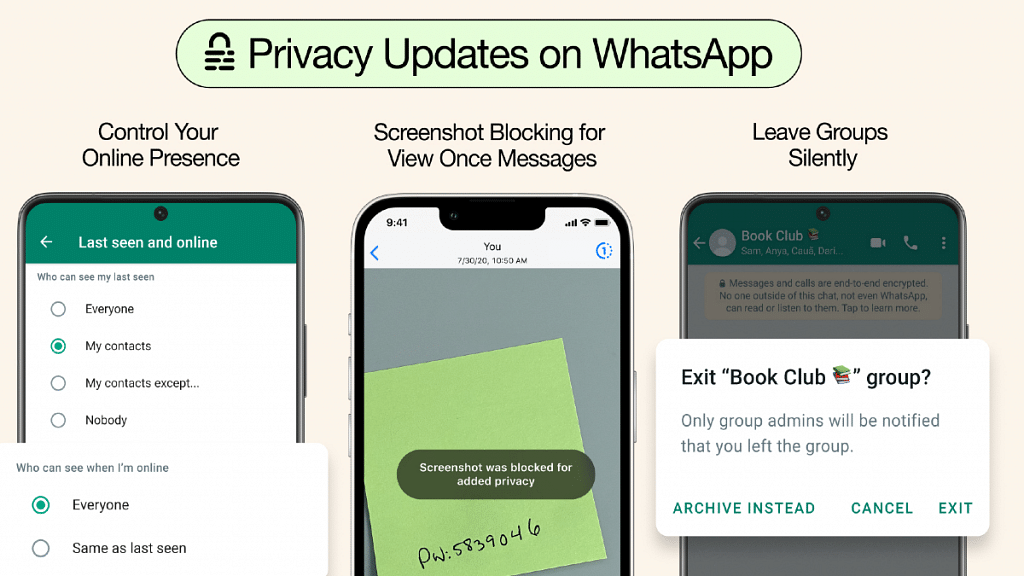
WhatsApp previously notified group members if any of the added members has left the group. Later, the brand added the silent group exit feature which once enabled doesn’t notify if anyone has left the group. Only the group admins will be notified about the exits and not all the contacts.

Also Read: WhatsApp Security Code: What Is It? How To Get WhatsApp Security Code Notification On Android, iPhones, And Laptop/ PC?

Admin Control

WhatsApp offers the provision to all the group participants to change the group information such as the icon and subject. However, the brand has also enabled administrator settings with which admins can decide which users can send messages to the group or can make modifications to the group subject or icon.

Also Read: WhatsApp Customised Avatar For Profile Pictures, Video Calling Arriving Soon

Fact Checking Feature

WhatsApp has released a chatbot developed by Poynter Institute’s IFCN group that helps users verify the authenticity of any information. This Fact checking chatbot has been released with the aim to curb the spread of fake and false information on the messaging application. Using this IFCN chatbot, WhatsApp users will be able to verify fake-sounding news and messages.

Also Read: Not Receiving WhatsApp Message Notifications On Google Chrome? Here’s The Fix
Categories
Apps Featured How To

Want To Make Paytm UPI Payments To Non-Paytm Users? Here’s The Trick

Key Highlights

  • Paytm allows users to send money to any mobile number registered with UPI
  • Recipients do not need to have a Paytm account to receive money
  • Paytm also allows users to send money via a QR code

Users of Paytm can now send UPI payments to any mobile number using any UPI payment app. The provider of the digital payment service revealed that Paytm customers can transfer UPI payments to any mobile number registered for UPI even if the recipient doesn’t have a Paytm account.

With the addition of instant money transfers via the Paytm app, this new Paytm feature will encourage users to switch to the Unified Payments Interface (UPI). Therefore, the recipient can send money via Paytm UPI transfer if they have a registered UPI ID on Gpay, Amazon Pay, PhonePe, or any other payment app. Previously, in order to receive a mobile money transfer, the recipient had to have a UPI ID that was registered on the Paytm app. Also Read | Need Help With Zomato UPI Payments? Here’s A Step-by-Step Tutorial

How To Send Money To Other UPI Apps Via Paytm App?

Step 1: Open Paytm and select “UPI Money Transfer” to get started.

Step 2: In the Paytm app’s “UPI Money Transfer” section, tap on “To UPI App.”

Step 3: Then you need to tap on “Enter mobile number from any UPI app” and enter the recipient’s mobile number.

Also Read | UPI Tips And Tricks: Here’s How You Can Set UPI PIN Without Using Debit Card Details

Step 4: The payment screen will then appear, where you must input the desired payment amount and select “Pay Now” to make an instant transfer of money.

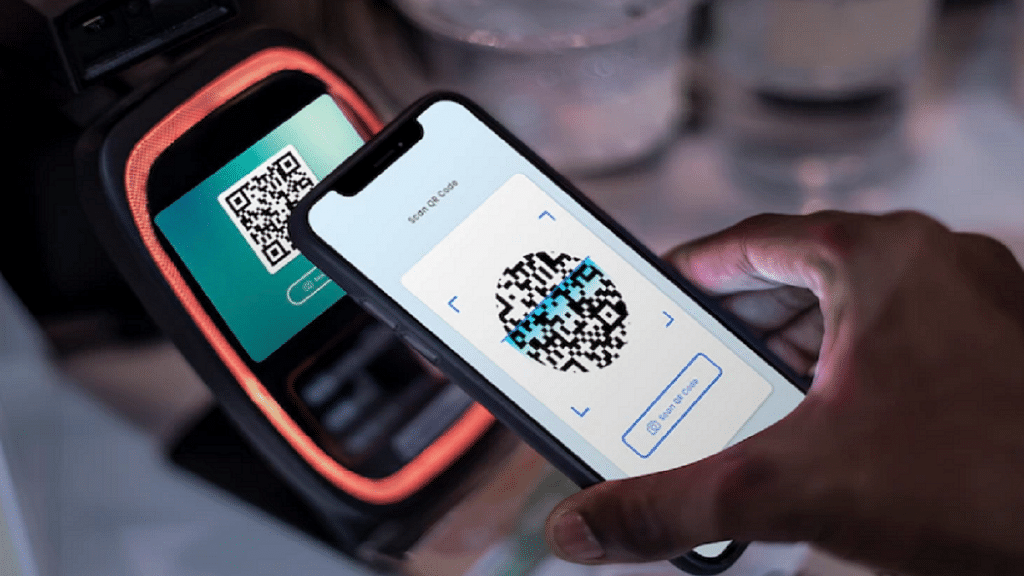
By scanning the QR code for the recipient, you can send money through UPI as well. On the Paytm app, hit “Pay” and then choose “QR code” to send money using a QR code. Enter the desired payment amount and scan the recipient’s QR code. Your payment transfer will be completed after you enter your PIN.

Paytm claims that the National Payments Corporation of India (NPCI) has made UPI payments interoperable by allowing all payment service providers to access its universal database.

Also Read | Paytm Hacks: How To Transfer Or Send Paytm Wallet Money To Bank Accounts

Categories
Apps

100 Best Instagram Boys Name With Alphabets M To Z

Key Highlights

  • Unique Instagram names make your account special.
  • Choose a username that fits your goals.
  • Get inspired by these great Instagram name ideas.

Choosing the perfect Instagram username for your account is the first step in making your account stand out from the crowd. It’s important to choose a username that fits your personality and brand. A good Instagram username for boys should be memorable, unique, and easy to remember. Before deciding on your Instagram name, it’s important to think about what you want to say about yourself. In this post, we are here to help you choose the best usernames for boys. You can use our list of top Instagram usernames for boys with the letters M to Z below to come up with your own username. So, without any further ado, let’s dive in:

Also Read | 100+ Best Instagram Hashtags For Boys, Male Social Influencers

Best Instagram Usernames For Guys (M To Z)

Pasta PinsTeam of TangsYellow_MenaceTurnip_KingTales Gamer
MankindRacer PartyPlot RacerTattoo_PuncherSwag Football
Take_AwaySuicide_JockeyStrange_EvilMarspageone
War like BikersMicky MackTraining TentSkull CrusherNomnomguy
Texas TigerRandomIdoitReadingSpaceUniversalTruthTruth AND Dare
Various EyesVirgin VanillaWomen VineProgramerMollen Mist
News DealNatureCareVeal DealRoundglobePlanet Zoom
Show RunnerThink BigSwag SwampedSwagyboyTheTravelTime

Also Read: WhatsApp TV: How To Use WhatsApp On Smart TV For Messaging, Video Calling

Cool Instagram Boys Name With Alphabets M To Z In 2023

Training_TentmusicdreamsandmagicVertical BikersneveraloneUnused_Guy
ToxicmecRacer hellZebulonWhoCereal
ShaktimaanPlutoThe ThunderSecretagentStuffy
Noob9ExsectNatureBoynotafitnessaccountoutofshapeselfiegod
Team_of_TangsPolly_CrestTonight_GamerParodyGuyNewsNight
News_DealPlot_RacerRightHellMogonMistTiny_Hunter
Manic_PsychoMirrorselfieMr._LuckyMidnight_RamblerMoles Mist
Mustache LoverWillferrrrrelRacer_HellMake RacerTEH_CATFACEPlanetPie

Also Read: Need A Cool Instagram Boy Name? Top 100 Instagram Boys Name With Alphabets A To L

Stylish Instagram Boys Name With Alphabets M To Z In 2023

SeekerWolverineStargaZersVarious_Eye
Yoyo_GuitaristNew_Jersey_JackMouth_of_MexicoRolodex_ Propaganda
Well_CheckedWindy_OrbitsZinnobermomsloveme
tattedupToppertattedkingNinty_Nun
OutlawNature_NutkingwithoutacrownWill_of_ Washington

Also Read | Are You A BTS Fan? Here Are The 100 Best Instagram Names For BTS Army

Categories
Apps Featured How To

Twitter Crashing Soon? Here’s How To Download Your Twitter Account History And Data Before App Crashes

Key Highlights

  • Twitter app under heat with massive layoffs and rumored mass job quits
  • #Twitteris dead, #Twittershutdown, and more hashtags trending
  • Downloading Twitter account data and history is a must given the current scenario
  • You can request data archive to download from Twitter Android and iOS app
  • Twitter provides account data archive within 24 hours

Twitter has had its share of popularity amongst the masses as the best microblogging platform. But lately, it is getting all the negative rapport since Elon Musk’s acquisition. It seems all fiasco with instances such as the massive layoffs and the rollout of the Twitter Blue badge paid subscription. But the major chaos within the organization with the rumors of additional job cuts is fuelling concerns amongst users of the impact on the services.  

Also Read: Twitter Official Badge Is Not Blue Tick: Confusion Calls For Roll Back

Musk’s stern ultimatum to Twitter employees to either be prepared to work extremely hard or leave is getting all criticized on social media platforms. Rumors of Twitter collapsing are also hitting the web.  Meanwhile, active Twitter users have started taking backups of their accounts and data with fear of its crash. #RIPTwitter, #TwitterIsDead, #Twittershutdown, and #Twittermigration are some of the trending Twitter hashtags that explain the uncertainty of Twitter’s future.

Downloading a Twitter account’s data is also a must if you have a verified profile with hundreds and thousands of followers. But it is also better to keep the data secure if you need it later for reference. The steps to download Twitter account history along with the data such as media files and tweets is easy. You can do it using both the Twitter mobile app and the desktop version. If you are unaware of the steps, the method is listed below:

Also Read: Planning To Leave Twitter? Here Are The Best Twitter Alternatives To Download

Steps To Download Twitter Account Data Using Android, iOS Mobile App

Step 1: Open the Twitter app on your smartphone (Android or iOS).

Step 2: From the app’s home page, swipe right to see the menu option.

Step 3: Tap on “Settings and privacy” option

Step 4: Now, click on “Your account” option.

Step 5: Scroll down to the “Download an archive of your data”.

Step 6: Enter you email address or phone number with which you register to your account.

Step 7: A pop-up will appear wherein you will need to enter the password for account verification.

Step 8: Once the account verification is complete, you can place a request for the ZIP file comprising the archive of your Twitter data.

Step 9: It could take up to 24 hours for the email to be received in your mailbox.

Also Read: Elon Musk Takes Over Twitter, Fires CEO Parag Agrawal: What Just Happened?

Categories
Apps

Planning To Leave Twitter? Here Are The Best Twitter Alternatives To Download

Key Highlights

  • Twitter enables users to share their work and engage with one another
  • Because of the problems that Twitter is having under its new owner Elon Musk, alternative social media sites are receiving more attention
  • Many users are not happy with the changes made by Musk

Since Elon Musk bought the microblogging site, Twitter has been in the news for all the wrong reasons. It appears that many users are dissatisfied with the modifications made by the new CEO, and some have even switched to other platforms. Of course, Musk maintains that the use of the platform has increased significantly during the past two weeks. But if you’re one of them and searching for Twitter alternatives, here are your choices: Also Read | Instagram Threads: What Is It And How To Use Meta’s Twitter Alternative

Koo

Koo is the most effective Twitter substitute since it is so similar to it. Actors, politicians, athletes, and media figures have all downloaded this app. Koo’s about page states that the platform was created to promote digital freedom of expression for a billion voices with the help of technology, consumed by people who speak different languages. Koo currently supports 10 languages: Hindi, English, Marathi, Bangla, Kannada, Gujarati, Assamese, Telugu, Tamil, and Punjabi.

Cohost

Cohost is a platform that is still in its early stages. It was first introduced in February by a small team of developers, and it promises to be free of sneaky algorithms and ad tracking. Similar to Facebook, it has a blog-like vibe, and posts appear in a timeline that scrolls vertically. There is no character restriction here either. The only catch is that Cohost is currently not free, with its website requesting donations of a few bucks a month to “help us keep the lights on.”

Also Read | Twitter Direct Message Feature Removed For Android, iOS Users: What Will Be The Impact?

Mastodon

Another best Twitter substitute, launched in 2015, is Mastodon. It is open-source software that is free. A 500-character message can be posted on the platform. The app is available in 93 different languages. According to the Google Play Store, it has been downloaded by 5,00,000 people worldwide.

Clubhouse

Clubhouse was only accessible through invitation at the time of the Launch in 2020. It is unlike any other platform because it offers voice-based talks rather than text-based chats. Many companies now use social audio solutions. According to the Google Play Store, Clubhouse currently has 10 million downloads.

Also Read | Twitter Blue Badge Profile Verification Re-Launching On November 29: Paid Or Free This Time?

Categories
Apps Featured How To

WhatsApp Polls: What Is It And How Can You Create WhatsApp Polls For Individual User Or Groups?

Key Highlights

  • WhatsApp Polls feature stable version released
  • Available for both Android and iOS users
  • WhatsApp Polls can be created for both individual users and group chats
  • Up to 12 options can be added as answers

WhatsApp is topping the charts when it comes to instant messaging applications. The private messaging app enabled with end-to-end encryption is available for both Android and iPhone users and allows sending photos and videos to contacts instead of just text messages. WhatsApp has been testing and releasing new features for an advanced user experience with messaging on its platform.

From uploading a new status to creating a personalized avatar as a profile pic, multiple new features have been released by the company for the audiences. WhatsApp was also rumored to be testing the poll feature which finally is being dished out in the stable form via OTA update. What is the new Polls feature on WhatsApp and how can you create a new poll for an individual or group chat? Read on below:

WhatsApp Polls Feature Explained

The WhatsApp Polls feature as the name suggests will allow users to create polls if they need any opinion on any matter. WhatsApp has been testing these new features with the beta build but now has expanded its support to both Android and iOS devices.

The WhatsApp Polls is being made available to all Android and iPhone users as a stable version via an OTA update. This is a phased rollout that might take a while to complete. If in case, you aren’t able to see the Polls option on your WhatsApp app, try manually updating the app from the Play Store or wait for a while to get this option.

Also Read: Now Hide Your WhatsApp Online Status: Here’s How

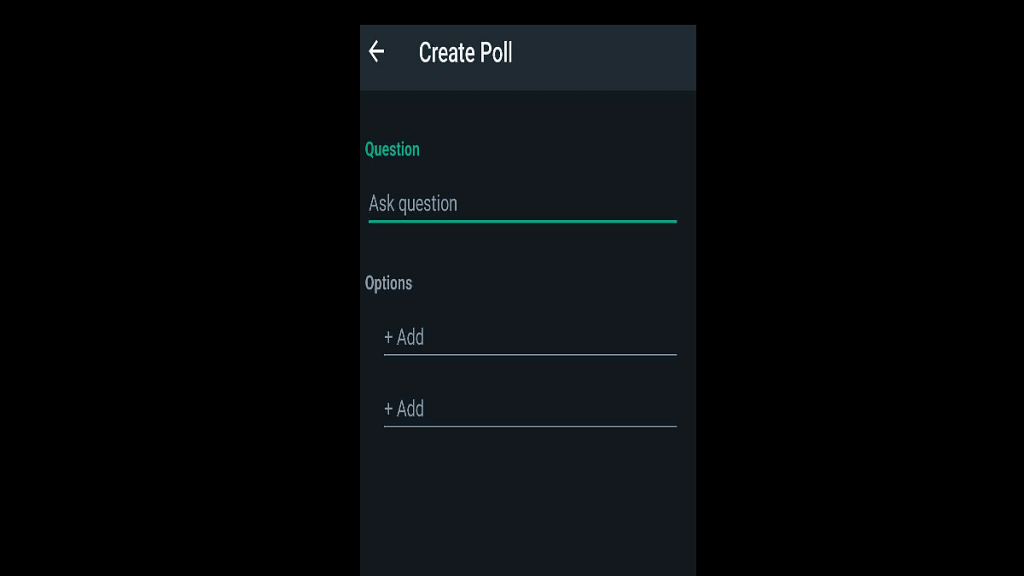
Using the WhatsApp Polls feature, you can easily create a poll and set up to 12 options for the contacts to select as an answer. Also, poll creators have the provision to create polls for both individual users and groups. This is unlike the beta version where polls could be created only for group users. But what are the steps to create a poll on WhatsApp for an individual user or a group chat? The steps are mentioned below:

How To Create A WhatsApp Poll For Single User Or Group Chat

Step 1: Open WhatsApp app on your respective iPhones or Android smartphones.

Step 2: Open the individual chat or group chat from where you wish to create a new poll.

Step 3: Click on the attachment of “+” add icon. This is the same option using which you send photos, location, and other media files.

Step 4: You’ll see the Polls option. Tap on it.

Step 5: Add the Question and options and click on the send option. Your poll will be created on WhatsApp.