Categories
Accessories Featured Info Laptop

Croma New Year Sale 2023: Hard To Miss Deals On Laptops, Smartphones, And Other Popular Gadgets

The Festival of Dreams New Year Sale is back at the Tata-owned retailer Croma. The retail company is providing heavy discounts and great deals on smartphones, TVs, laptops, and other products.

A New Year’s sale called the Croma Festival of Dreams is currently live and will end on January 2, 2023. Customers can make purchases on the company’s official website or at one of Croma’s physical retail stores. It’s interesting that the retailer has implemented three new discount regimes tied to the colors Red, Green, and White. A particular discount percentage is represented by each color. Here are some of the deals and offers you can get during the Croma sale:

Also Read | Best In 2022: Top TVs That Ruled The Indian Market In 2022

ModelDiscount Price On Croma
Apple iPhone 12 (128GB)Rs. 58,900
Sony Bravia 43-Inch Full HD LED Smart Android TVRs. 42,740
Acer Aspire 3 Intel Core i3 11th GenRs. 37,990
Whirlpool 7.5 kg 5 Star Fully Automatic Top Load Washing MachineRs. 21,990

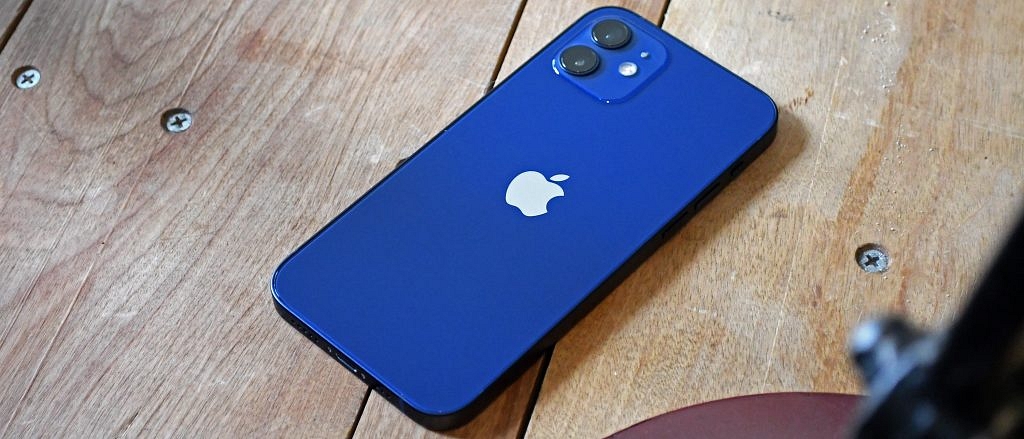
Apple iPhone 12 (128GB)

The Apple iPhone 12 (128GB) is now offered for Rs. 58,900, instead of Rs. 64,900. Users can use this offer to instantly save Rs. 3,000 on an HDFC Bank credit card. Powered by the Apple A14 Bionic processor, the smartphone runs iOS 14. Compatible with the latest iOS 16 software update, adding new features like iPhone screen lock and battery indicator.

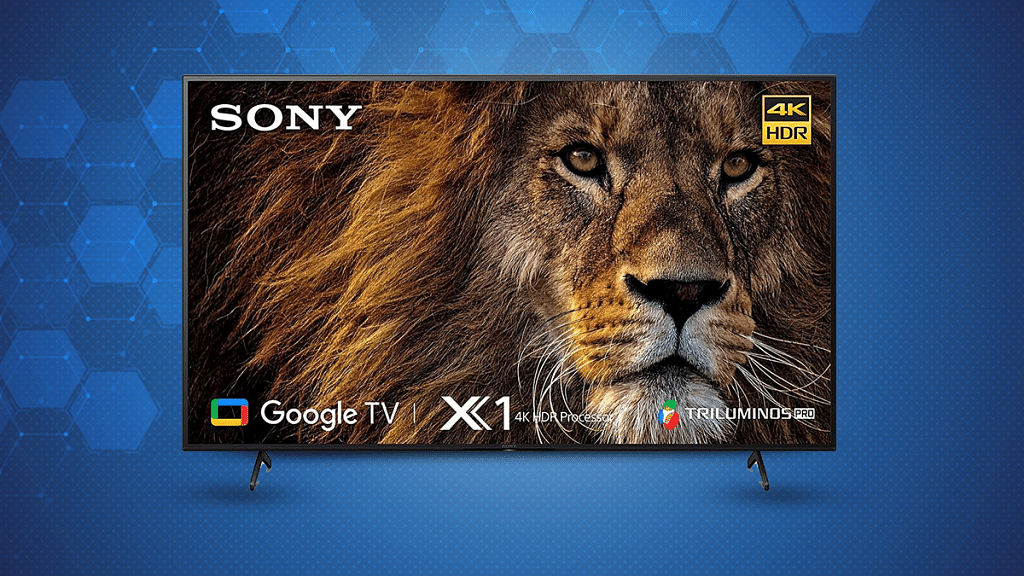
Sony Bravia 43-Inch Full HD LED Smart Android TV

The Sony Bravia Full HD LED Smart Android TV is available at a discounted price of Rs. 42,740 instead of Rs. 64,900. The TV comes with a Full HD LED display along with 1920 x 1080 pixels resolution and 60Hz refresh rate. It has a 20W speaker and Dolby Audio. Motion Flow XR200 and X Reality Pro are some of the USPs of this Android TV.

Acer Aspire 3 Intel Core i3 11th Gen
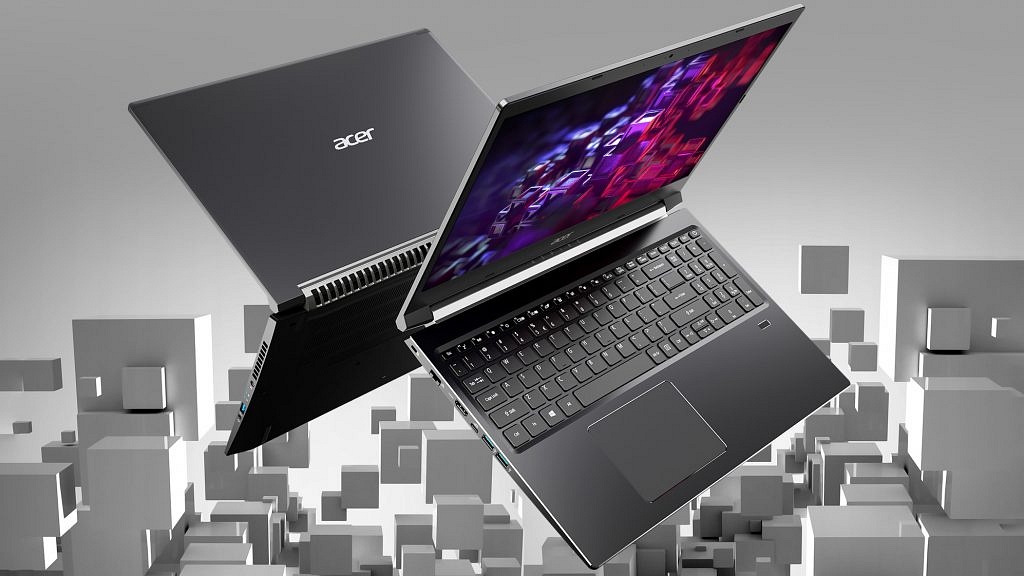
The Acer Aspire 3 Intel Core i3 11th Gen laptop receives a 24 percent discount. It is available at a discounted price of Rs. 37,990 instead of Rs. 49,999. The laptop sports 15.6 inches, FHD LED-Backlit. It is equipped with an Intel Core i3 11th Generation processor and has an Intel UHD graphic card. The laptop has 8GB DDR4 and 512GB SSD ROM.

Whirlpool 7.5 kg 5 Star Fully Automatic Top Load Washing Machine

The Whirlpool 7.5 kg 5 Star Fully Automatic Top Load Washing Machine can help you save up to Rs. 10,000 during the sale. It is available at a discounted price of Rs. 21,990 instead of Rs. 32,500. The washing machine comes with 12 wash programs, power dry technology, and more. Besides, you get 36 months of warranty and 10 years motor warranty with this machine.

Also Read | Croma New Year 2023 Sale: Grab Up to 80 Percent Discounts On Best Smartwatches, TWS Earbuds, Smart TVs, And Tablets

Categories
Featured Laptop Leaks

Infinix Zero Book Ultra India Launch On Cards: Upgrades Expected Over Inbook X1

Key Highlights

  • The launch of Infinix Zero Book Ultra in India has been officially announced
  • With an Intel Core i9 processor, the Infinix Zero Book Ultra will be a high-end notebook
  • The laptop is expected to release in January 2023

Infinix has hinted towards the debut of the Infinix Zero Book Ultra in India. It will come with the Intel Core i9 CPU. The company revealed the new laptop’s launch schedule during the launch event of the Infinix Zero Ultra and Infinix Zero 20. With this, Infinix will add to its lineup of laptops which already includes the InBook X1 Slim and InBook X1. Because the Infinix “Zero” brand is essentially the company’s premium portfolio, we believe the laptop would cost more in India.

Infinix Zero Book Ultra Launch Date (Expected)

Infinix has confirmed that it will soon launch the Zero Book Ultra in India. No exact release date has been confirmed, but it is expected to arrive in January 2023.

Also Read | Infinix InBook X1 Pro Laptop Full Review: Does It Fit All The Bills?

Infinix Zero Book Ultra Specifications (Expected)

The Infinix Zero Book Ultra will have a strip-like design and a matte silver finish. Additionally, it will be marked with the word “Zero,” giving it a more menacing appearance. A 15.6-inch Full HD display with 400 nits of brightness will be available on the laptop. It will have an Intel Core i9 processor, according to Infinix. It is most likely to have an Iris Xe graphics card and an Intel Core i9-12900H processor.

Display15.6-inch LED-backlit display with IPS technology
ProcessorIntel Core i9
Memory16GB/32GB LPDDR5
Storage512GB/1TB NVMe PCIe4.0 SSD
OSWindows 11 Home

It will include a fingerprint scanner and a lighted keyboard. It will have a dual-array microphone arrangement and a quad-speaker setup. One terabyte of SSD storage and up to 32GB of LPDDR5 RAM are anticipated to be included in the laptop. Being a premium laptop, it will also have dual fans and a heat dissipation system. The device will be equipped with a 70Wh battery and supports 100W fast charging. It will boot on Windows 11.

Also Read | Infinix Zero 20 And Infinix Zero Ultra Announced In India: Full Features, Price, Sale

Categories
Featured How To Laptop

Effortless Typing In Laptop/PC: Here’s How To Use Voice Typing Feature On Windows 11 To Type Without Keyboard

Key Highlights

  • Windows 11 users can set up the speech recognition feature
  • The features help you to dictate commands and text
  • Users can press the Window key +H and dictate whatever they want to write

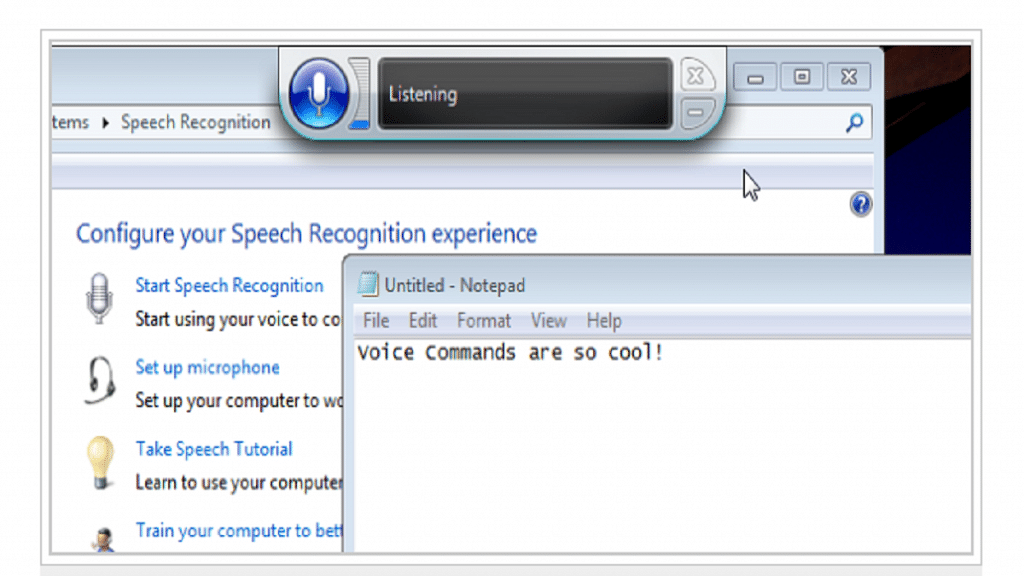
The voice typing experience in Windows 11 is without a doubt one of the coolest new features of the operating system. It is seamless, accurate, and pleasantly proficient. Microsoft’s online Speech Services appear to have undergone significant improvement. Therefore, follow the simple instructions below if you wish to enable and use voice typing on Windows 11. Let’s start now. Also Read | Worried About Laptop Privacy: Best Windows Laptop With Fingerprint Reader Biometrics

How To Start Voice Typing In Windows 11

Step 1: A search box, text field, the Notepad app, or a Microsoft Word document are all places where you can insert text. Press the Windows key and H.

Step 2: When you first use the tool, you’ll see a notice; click the microphone button to begin typing. When voice typing is in use, the button will turn blue.

Step 3: Up until you press the Windows key + H or click the microphone button again, voice typing will transcribe whatever you say into text. Press Windows + Alt + H to focus on the window or area where you are using voice typing.

Also Read | Best Gaming Laptops Under Rs. 50,000

Step 4: Search engines, the address bar of your browser, and search features on websites like this one are all places where you can use voice typing.

Step 5: Click the Launcher’s Options button to see the tool’s settings. If you want the Voice typing launcher to appear anytime you click in a text box or on a document, toggle it on.

Step 6: To have the tool automatically punctuate your text as you talk, flip the Auto punctuation setting on. According to standard grammatical standards and the length of any pauses in your voice typing, it will add commas, full stops, and other punctuation marks.

If this doesn’t work, it’s possible that your computer’s settings are controlled by another party (such as an administrator or IT department), in which case you’ll need to get in touch with them to access these settings or for additional assistance.

Also Read | Best Laptops To Buy For Programming In India

Categories
Featured Laptop

Best In 2022: List Of Top Laptops For Medical Students And Professionals In India

Key Highlights

  • Medical students will benefit from lightweight, portable multitasking laptops
  • Brands like Apple, HP, Dell, and others provide the best laptops
  • Factors like CPU, GPU, and Storage should be kept in mind while purchasing one

It’s crucial to have a laptop that can accommodate your educational requirements if you’re a medical student. Your laptop should be able to handle tasks like writing papers, researching online, and studying for exams. The good news is that several excellent laptops are available nowadays that are ideal for students. We’ll look at some of the best laptops for medical students in this blog post.

Also Read | How To Fix Bluetooth Pairing Issues With Dell Laptops (All Models)?

Apple MacBook Pro M1

The Apple MacBook Pro M1 is equipped with an 8-core M1 chip. It features a 2K retina display. The laptop’s 13.3-inch display has a resolution of 2560 by 1600. The device has 256GB SSD storage and 8GB RAM. Additionally, the laptop has 512GB of SSD storage. The device has a backlit keyboard with WiFi6 and a 15-hour-long battery life. The ultralightweight laptop weighs just 1.4 Kg. This will cost you Rs. 3,06,990 on Amazon.

CPUApple M1
GPUApple M1 GPU
Memory8GB/256GB SSD
Battery15 Hours

ASUS ZenBook 14

The ASUS ZenBook 14 has an AMD Ryzen 7 5700U processor with 8 cores, 16 threads, 8 MB of L3 cache, and 16 GB of RAM. The display has an anti-glare panel and Wide View IPS technology. The inbuilt 16GB LPDDR4X RAM speed of the ZenBook 14 is 4266MHz. The laptop comes with a full-size, borderless, backlit keyboard with 1.4mm key travel. Its price is set at Rs. 2,03,734 on Amazon.

CPUAMD Ryzen 7 5700U
GPUAMD Integrated Graphics
Memory16GB/512B SSD
Battery10 Hours

HP 13 (2021) Intel i7 11th Gen

The HP Pavilion 13 comes with a 13.3-inch FHD display with an IPS panel, micro-edge, and BrightView technology. Since the display is full HD, the screen resolution is naturally 1920 x 1080. It is equipped with 11th Gen Intel Core i7 processor which can perform at high speeds with a turbo boost speed of up to 4.7 GHz. This processor 4 cores, 8 threads, and a 12 MB L3 cache. It is available on Amazon for Rs. 99,000.

CPUIntel i7 11th Gen
GPUIntel Iris Xe Integrated Graphics
Memory16GB/1TB SSD
Battery8 to 9 Hours

Dell Inspiron 5418

The Dell Inspiron 5418 has an 11th Generation Intel Core i5-11300H processor (8MB Cache, up to 4.4GHz). The display is a 14.0-inch FHD (1920 x 1080) Anti-Glare Narrow Border WVA. It contains 512GB M.2 PCIe NVMe Solid State Drive and 16GB, 2x8GB, DDR4, and 3200MHz RAM. The price of Dell Inspiron 5418 is Rs. 73,500 on Amazon.

CPUIntel i5 11th Gen
GPUIris Xe Graphics
Memory16GB/512B SSD
Battery8 Hours

Also Read | Best Of 2022: List Of Top Laptops With Backlit Keyboard And Touchscreen Display In 2022 In India

Categories
Featured How To Laptop

Google Chrome Download Error? How To Fix Download Errors With Google Chrome On Laptops And PCs

Google Chrome is the most common web browser that you can find on any Windows-powered laptop or PC. The search giant has also expanded Chrome’s web services to smartphone users allowing web browsing on the go. Google has also prioritized all the privacy aspects to make Google Chrome a secure platform for internet surfing. Downloading data such as images, documents, and videos, is also quick and easy with Google Chrome.

Users can also download large-sized files using the Google Chrome web browser on laptops, PCs, smartphones, and tablets. Additionally, the option to download browser extensions, apps ad themes is also available with Google Chrome. It’s quite a swift process with which you can download any files or apps using the Google Chrome web browser.

But at times, users get errors with the download process on Google Chrome. Connection errors are quite common with the Google Chrome web browser. But there are some additional error messages as well that users have reported frequently. Network failed, No File and Virus scan errors are a few of them.

If you come across any of such error messages while downloading data using Google Chrome you can perform a bunch of troubleshooting steps for a quick fix. The steps for the same are listed below:

Also Read: Top Chrome Flags to Improve Browsing Experience

How To Fix Common Download Errors On Google Chrome

Step 1: You need to check the internet connection first. An unstable internet connection or low network speeds is one of the prime reasons for connection errors with Google downloads.

Step 2: Check if the website url has any typo that could hamper the connection process.

Step 3: Once the internet connection is restored and stable, try re-downloading the file.

Step 4: Chrome also automatically resumes downloading when the internet is working fine. However, you can also manually resume the downloading by tapping on the More option.

Step 5: You can also try restarting Chrome and then downloading the file again.

Step 6: If the issue persists, reboot the laptop/ PC and then retry downloading.

Also Read: Here’s How To Print Documents And Images From Google Chrome Web Browser

How To Fix Network_Failed Download Issue With Google Chrome

Step 1: The Network_Failed download error message generally appears due to an unwanted software or app. Try identifying the software and remove it to fix the Network_Failed issue with Google Chrome downloads.

Step 2: You will need to uninstall and re-install Google Chrome if this error message re-appears during downloads.

Also Read: Unable To Cast Screen On OnePlus TV? Quick Fix Guide To Resolve Chromecast/Miracast Issue With OnePlus Smart TVs

Categories
Featured Laptop

Acer Swift Edge Debuts As Lightest 16-inch OLED Laptop Powered By AMD Ryzen Pro Processor In India: Price, Full Features

Key Highlights

  • Acer Swift Edge launched in India with 16-inch OLED display
  • Lightweight design and alloy body material
  • Powered by AMD Ryzen 6800U chipset
  • 16GB LPPDR5 RAM and 1TB PCIe Gen4 NVMe storage
  • Priced at Rs. 1,24,000

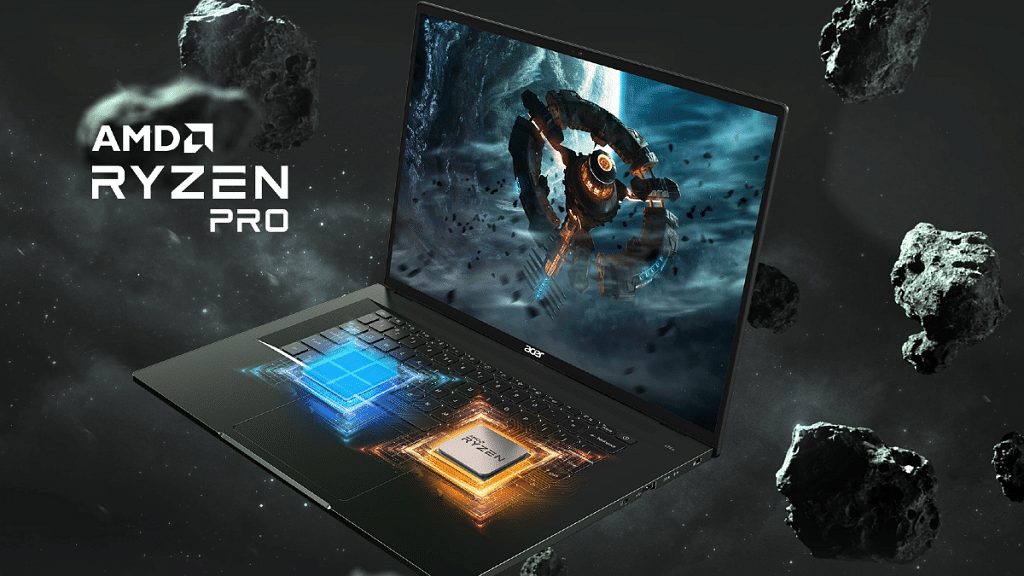
Acer has launched a new high-end laptop in the Indian market. The Taiwanese tech giant has launched the latest Microsoft Pluton security processor-powered notebook for productivity-oriented consumers in India. Called the Acer Swift Edge, this 16-inch notebook comes with a durable lightweight design and premium features such as a 4K display and AMD Ryzen Pro processor. Read on the pricing details along with the spec-sheet below:

Acer Swift Edge 16-inch Laptop Full Specifications And Features

Acer Swift Edge 16-inch LaptopKey Specifications
Display16-inch OLED
3800 x 2400 pixels resolution
Web CamIntegrated FHD
60fps recording
ProcessorAMD Ryzen 6800U
RAM16GB LPDDR5
Windows 1TB PCIe Gen4 NVMe
BiometricsFingerprint scanner
Battery54Wh
Adapter65W PD adapter

The Acer Swift Edge laptop is a flagship-grade laptop crafted with an alloy body material. As per Asus, the material used to design the Swift Edge cuts down on the weight by up to 20 percent as compared to the standard aluminum. This productivity-centered laptop gets power for all the tasks from the AMD Ryzen 6800U chipset. This octa-core chipset is combined with 16GB LPDDR5 RAM.

This laptop will be available with a 1TB PCIe Gen4 NVMe storage option. Acer has added a 16-inch display on the Swift Edge laptop. The OLED panel comes with a 3840 x 2400 pixels screen resolution. This laptop is also integrated with an FHD webcam. This built-in camera is capable of recording up to 60fps videos.

Audio delivery is handled by stereo speakers on the Swift Edge laptop. To enhance the audio with video calling, this laptop has Temporal Noise Reduction technology. The Swift Edge laptop has multiple connectivity options. It features one HDMI port, one USB Gen 3.2 Gen 1 port, and two USB Type -C ports.

It also has Wi-Fi 6W and Bluetooth 5.2 wireless network options. A large keyboard sans keypad is also present. For security, it has a fingerprint reader on the trackpad. It also features the Microsoft Ploton security processor.

The Acer Swift Edge will ship with the Windows 11 Home Edition pre-installed. It will also bring along Microsoft Office 2021. Furthermore, the laptop comes with a 54Wh battery and a PD adapter of 65W.

Also Read: Best Of 2022: List Of Top Laptops With Backlit Keyboard And Touchscreen Display In 2022 In India

Acer Swift Edge Price In India And Buying Details

Acer has announced the Swift Edge at Rs. 1,24,000 in India. The premium range productivity laptop will be up for grabs via the company’s official e-store and also Amazon.

Categories
Featured Laptop

Best Of 2022: List Of Top Laptops With Backlit Keyboard And Touchscreen Display In 2022 In India

Key Highlights

  • Laptops and regular keyboards come with backlit models from many brands
  • Gamers often prefer a sleek-looking device to make the game more immersive
  • Display, storage, and other features should be checked while buying a laptop

Backlit keyboards may appear a little fancy, but they are rapidly evolving into more of a convenience tool. Due to the environment you are working in, you don’t need to turn on the lights because the keyboard illuminates the keys for your convenience. A back-lit keyboard will make typing simple even when it is dark outside, whether you are a student with an urgent assignment due or an office worker whose power just went out in your room. Some of the best laptops with touchscreens and illuminated keyboards are mentioned below.

Asus TUF Gaming F15 Laptop

The Asus TUF Gaming F15 laptop has a 15.6-inch FHD LED-backlit screen with a refresh rate of 144Hz. The device is said to be equipped with 4GB of dedicated NVIDIA GeForce GTX 1650 graphics. A 10th Generation Intel i5 processor powers it. The laptop has a backlit keyboard, which ought to improve visibility in dim light. The Asus TUF F15 laptop has 512GB SSD storage and 8GB RAM. The Asus TUF Gaming F15 price in India starts from Rs. 70,000 on Amazon.

Screen Size15.6 Inches
Hard Disk Size512GB
CPU ModelCore i5
RAM8GB
OSWindows 10 Home

Also Read | Best Laptops To Buy For Programming In India

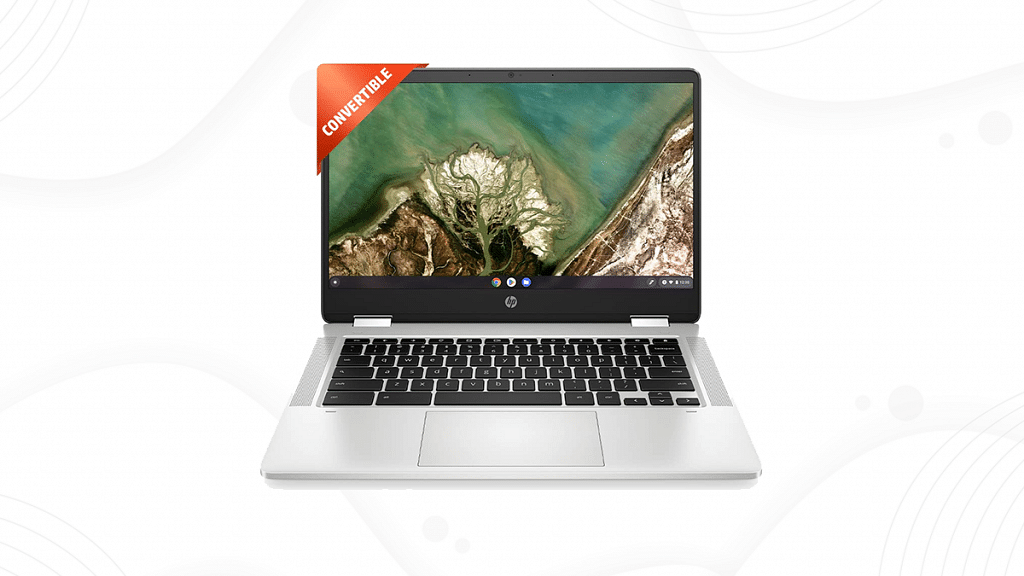
HP Chromebook Intel Celeron 14-Inch Thin and Light Touchscreen Laptop

The HP Chromebook laptop boots up in less than 10 seconds and is constantly updated to operate at its best. Your favorite Google Play apps, like Google Drive, Gmail, YouTube, Amazon Prime, Evernote, Slack, Infinite Painter, Lightroom, WhatsApp, and many more, are available to you on the laptop. The laptop is powered by an Intel Celeron-N3350 processor, which has two cores, a 2MB cache, and a 1.1GHz base speed that can be increased to 2.4GHz. It can be purchased for Rs. 29,990 from Amazon.

Screen Size14 Inches
CPU Speed2.3 GHz
CPU ModelA-Series
RAM4GB
OSChrome OS

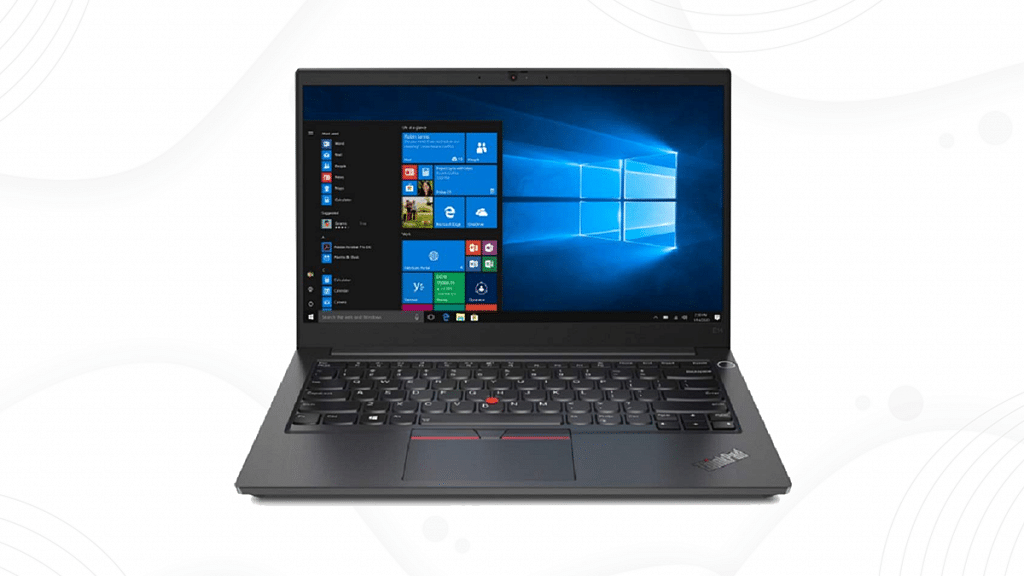
Lenovo ThinkPad E14 Intel Core i5 10th Gen 14-inch Laptop

The Lenovo ThinkPad laptop is equipped with a 14-inch anti-glare FHD display with IPS wide-angle display. Powered by the 10th Gen Intel Core i5-10210U processor, it has a base speed of 1.6GHz with 4 cores and 6MB of smart cache. The laptop comes pre-installed with Windows 10 Home and 8GB RAM, and internal storage of 1TB HDD + 128GB SSD. It can be purchased via Amazon for Rs. 77,750.

Screen Size14 Inches
Hard Disk Size512GB
Graphics CoprocessorIntegrated AMD Radeon Graphics
RAM16GB
OSWindows 10 Pro

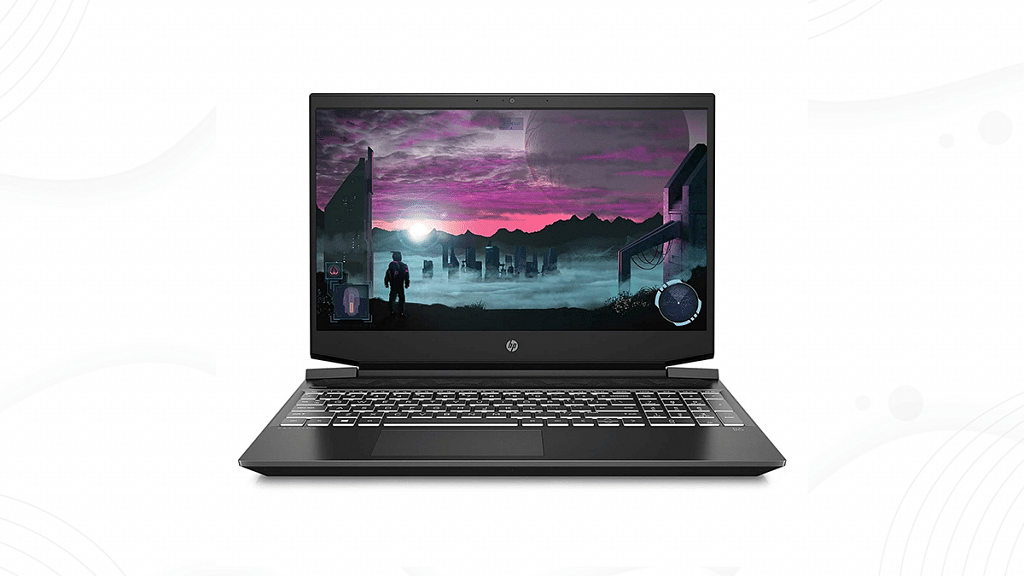
HP Pavilion Gaming Laptop

The HP Pavilion Gaming Laptop is equipped with a 4GB discrete graphics card, a 15.6-inch display with a refresh rate of 144Hz, and a cooling system. This laptop is powered by an AMD Ryzen 5 processor and comes with 8GB of RAM and 512GB of SSD storage. The HP Pavilion Gaming Laptop is said to feature a backlit keyboard and micro-bezel display. You can purchase this laptop on Amazon for Rs. 60,500.

Screen Size15.6 Inches
Hard Disk Size512GB
CPU ModelR series
RAM8GB
OSWindows 10 Home

Also Read | Best Laptops Under Rs. 25,000 In India: Check Out The Most Popular Models

Categories
Featured Laptop

Worried About Laptop Privacy: Best Windows Laptop With Fingerprint Reader Biometrics

Key Highlights

  • Having as many security checks as possible on your laptop is a good idea
  • Buying a laptop with a fingerprint sensor can provide easy unlocking and the utmost security
  • This feature is quite mandatory for people who work on the go

It’s crucial to keep a security lock on all of your electronic gadgets. Even with laptops, it’s crucial to maintain a password or PIN to prevent unwanted access. You can use various security features like face unlock and fingerprint sensors in addition to PINs and passwords. Some laptops are equipped with fingerprint sensors, just like some smartphones. By doing this, you can quickly and conveniently login to your laptop without having to type the PIN or password. Here is a list of the best laptops with fingerprint sensors if you’re seeking a feature like this.

HP Pavilion 14

The HP Pavilion 14 features a fingerprint scanner on the bottom right of the laptop, just next to the touchpad. The laptop includes a 14-inch Full HD display and an 11th Gen Intel Core i5-1135G7 processor. The HP Pavilion 14 comes with 512GB of SSD storage and 16GB of RAM. With this laptop, you also get Intel Iris Xe Graphics. Along with Office Home and Office 2019, it has Windows 10 Home pre-installed. You can get the HP Pavilion 14 at Rs. 67,850 from Amazon.

Screen Size14 Inches
Hard Disk Size512 GB
CPU ModelCore i5 Family
RAM Memory Installed Size16 GB
Operating SystemWindows 10 Home

Mi Notebook Ultra

A fingerprint scanner is built into the power button of the Mi Notebook Ultra. The laptop’s 15.6-inch QHD+ screen boasts minimal bezels. It is powered by an Intel Core i5-11300H CPU from the 11th generation. It has 512GB of SSD storage and 16GB of RAM. Along with Office Home and Student 2019, you also get Windows 10 Home. The Mi Notebook Ultra is available for sale on Amazon for Rs. 63,999.

Screen Size15.6 Inches
CPU ModelCore i5
RAM Memory Installed Size16 GB
Operating SystemWindows 11 Home

Also Read | Best Laptops Under Rs. 25,000 In India: Check Out The Most Popular Models

Lenovo IdeaPad Slim 3 2021

The 14-inch FHD display of the Lenovo IdeaPad Slim 3 has four-sided minimal bezels. It has an Intel Core i5 processor that is up to 11th generation. Additionally, the laptop has NVIDIA MX-450 graphics. There are numerous ports on the IdeaPad including USB-C. It also has a 13.5mm headphone/microphone port, one HDMI, one USB 3.2 Gen 1, one USB, and one Card Reader Slot. The Lenovo IdeaPad Slim 3 will cost you Rs. 43,250 on Amazon.

Screen Size14 Inches
Hard Disk Size256 GB
CPU ModelCore i3
RAM Memory Installed Size4 GB
Operating SystemWindows 10 Home

Asus VivoBook 15

The Asus VivoBook 15 has textured surfaces and diamond-cut edges. The ultrathin design and an overall weight of just 1.2kg make it convenient to carry. A low battery can be fully recharged to 60 percent with the rapid charge option in just 49 minutes. You can get the Asus VivoBook 15 from Amazon for Rs. 56,389.

Screen Size15.6 Inches
Hard Disk Size128 GB
CPU ModelCore i3
RAM Memory Installed Size4 GB
Operating SystemWindows 10 S Mode

Also Read | Best Laptops To Buy For Programming In India

Categories
Featured How To Laptop

Unable To Pair Bluetooth Device To Laptop/ PC? How To Resolve Bluetooth Pairing Issue With Windows 11

Windows 11 is a feature-loaded operating platform for laptops and PCs. Microsoft released this latest edition of Windows OS as an upgrade to Windows 10 with multiple new tools and features. This new version is also improved with the security aspects and overall user experience. The connectivity aspects are also enhanced and support for the latest networks has also been added.

Wireless connectivity is also better with Windows 11 machines and pairing Bluetooth devices is now a hassle-free task. All modern smartphones, tablets, and other compatible gadgets can be easily paired with a Windows 11 laptop or PC. While the Bluetooth pairing issue is least experienced with Windows 11 laptops/ PCs, it can occur randomly at any point.

It could be a general issue that can be fixed with basic troubleshooting steps and a visit to the service centers could be avoided. The Bluetooth issue pairing issue could randomly occur when you try connecting devices such as wireless audio devices including headphones and TWS earbuds. But if you are unaware of the troubleshooting steps to fix Bluetooth issues with Windows 11 OS, this article will help you with the steps:

Also Read: Dell PC, Laptop Support: How To Fix Display Issues With Dell Monitors At Home

Steps To Troubleshoot And Fix Bluetooth Pairing Issues With Windows 11 OS Laptop

Step 1: Check if the Bluetooth adapter on your laptop/PC is on. You can either check this via Bluetooth quick settings. Go to the Settings app and select Bluetooth & Devices option. Toggle on the Bluetooth settings if it’s off.

Step 2: Reboot the Bluetooth device that needs to be paired with the laptop or PC. Turn it off and wait for a few seconds before powering it on. This shall resolve general connectivity issues. Also, do check if the device is within range, otherwise, pairing won’t be successful.

Step 3: Turn off Airplane mode on your laptop or PC. This is one of the reasons that affect Bluetooth connectivity on laptops and PCs.

Step 4: Unplug and replug any Bluetooth device that is connected to the laptop/ PC.

Step 5: If this also doesn’t work, try re-pairing the Bluetooth device. First, remove the paired device and then re-initiate the connectivity process.

Step 6: You can also try rebooting the Windows 11 laptop or PC after performing the above steps. This should resolve the pairing issue.

Step 7: Running the Windows diagnostics test will also help you to identify and resolve the issue with Bluetooth. If there is any hardware issue, you will be notified and get it fixed from repair centers.

Also Read: Best Laptops To Buy For Programming In India

Categories
Featured How To Laptop

Snapchat Update: Here’s How To Download And Use Snapchat In Windows Laptop And PC

Key Highlights

  • Snapchat for Windows is now available as a Progressive Web App in the Microsoft Store
  • It doesn’t have all the features but it does have important features like video chat
  • Windows treats Snapchat as a native version app

The picture-sharing and instant messaging app Snapchat has refrained from arriving on Windows but it has officially made its debut on the Microsoft Store as a Progressive Web App.

It’s interesting to notice that the app on the Microsoft Store is based on the recently launched Snapchat web version. It is only 1.4MB in size and has the same features as the web version. The app is powered by Microsoft Edge, a Chromium-based browser.

How To Download Snapchat On Your Windows?

Since it is a progressive web app, the Snapchat app requires Microsoft Edge to be installed on your PC or laptop. Snapchat suggests using Edge’s most recent version.

Step 1: On your Windows laptop or computer, launch the Microsoft store.

Also Read | Dell PC, Laptop Support: How To Fix Display Issues With Dell Monitors At Home

Step 2: Use the top search bar to look for the Snapchat app.

Step 3: Tap on Get.

Step 4: The app will start downloading once you tap on Get. After that, click Open.

Step 5: Now, enter your information to log in. The Snapchat app is now accessible on your computer.

However, Windows treats it as the native app version. So, Snapchat for Windows has an app icon in the Start menu and supports responding to chats with notifications, replies, video filters, and more. The app will open the web address and allow you to use it. Since it isn’t a full-fledged version of the app, it makes more sense to use the web platform directly.

Visit Snapchat.com to go to Snapchat on the web, then sign up to start chatting. You can only accomplish a limited number of things on the online platform or the PC app, like video calling and chatting. The app’s mobile functions, such as filters and maps, are not accessible on a PC.

Also Read | Lost Your Snapchat Streak? Here’s How To Restore It With These Steps