Categories
Featured How To Laptop

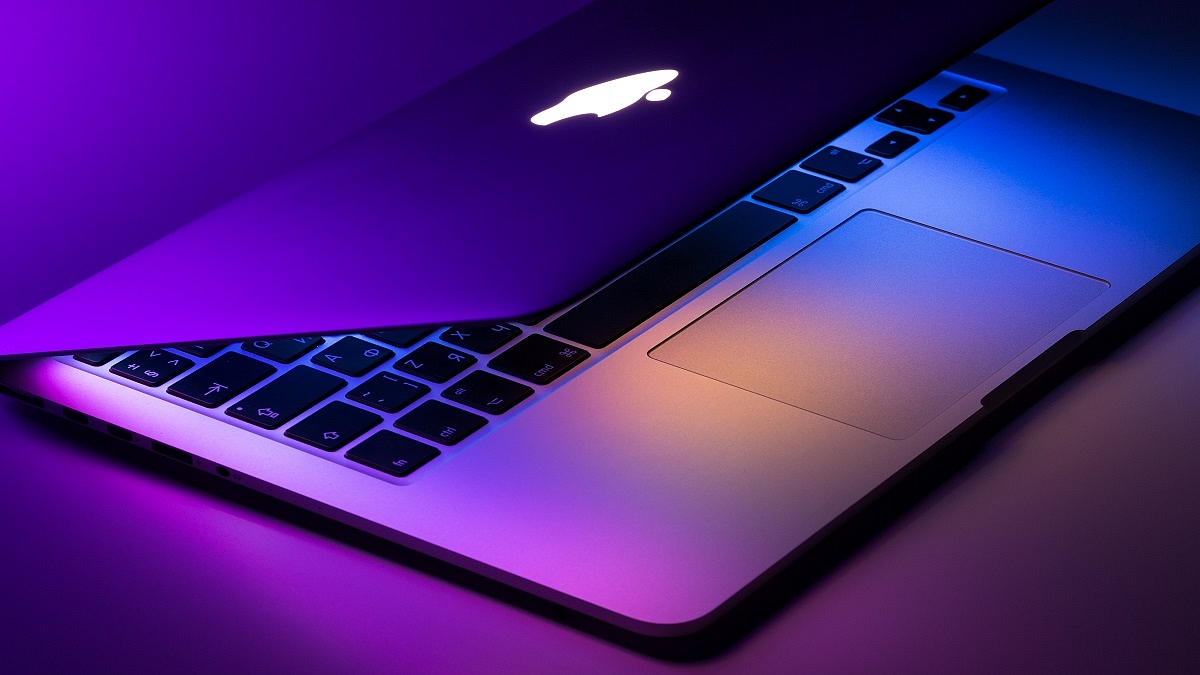
Need Apple Customer Support For Your Mac Desktop Or Mac Notebook? Here’s How

Key Highlights

  • Mac Notebook users can troubleshoot their problems in a number of ways
  • Users can get in touch with Apple for extra assistance
  • Apple community is one of the most helpful technology communities

It doesn’t matter if you are new to Apple or an experienced Mac and iOS user—problems do happen. However, keep calm. You can easily troubleshoot your problems in a number of ways. On your Mac Desktop Or Mac Notebook, you can look up information right; get in touch with Apple for extra assistance. Additionally, the Apple community is one of the most helpful technology communities; all you have to do is ask. Also Read | Here’s How You Can Recover Lost Or Deleted Data In Windows 11 Laptops, PCs

How To Call Apple Customer Support By Phone

You can reach Apple customer service in India by calling 000800 040 1966. Be prepared to provide the serial number of your gadget when you call this number. When the customer support representative requests it, this will help you save time. To find your serial on a Mac computer, follow these simple steps:

Step 1: At the top-left corner of your screen, click the Apple icon.

Step 2: Tap on ‘About This Mac’.

Step 3: Now, you will see your serial number at the bottom of the pop-up window.

The customer service representative can help you if you need it, but there are alternative ways to locate the serial number of your Apple product.

How To Chat With Apple’s Customer Support

To chat with the Apple customer support team, all you have to do is:

Step 1: Go to getsupport.apple.com.

Step 2: Select the Apple service or product you need assistance with, followed by the problem you’re having.

Step 3: Finally, choose Chat and log in using your Apple ID or the serial number of your product.

Step 4: After you select Chat, a pop-up window will appear.

Step 5: You can start a chat with an Apple customer service representative by typing your issue in the text box at the bottom of the window.

If you forgot or don’t know your Apple ID, check out our step-by-step guide on how to reset your Apple ID on an iPhone.

How To Contact Apple Customer Support On Twitter

You can also contact Apple Support through the @AppleSupport Twitter account. You can then select the envelope icon to send a private message. Apple’s Twitter customer service hours are 5 am to 8 pm daily.

Also Read | Effective Ways To Keep Dirt And Dust From Your MacBook Laptop At Bay
Categories
How To Mobile

How To Create Manual, Automatic WhatsApp Chat Backup On iCloud Using iOS

WhatsApp is one of those applications which has over a million users in the global markets. This messaging application has been made available for both Android and iOS smartphone users. The company has also released the web version of this application which can be used on laptops and PCs. It wouldn’t be wrong to say that WhatsApp is currently the prime mode of communication for smartphone users all across the globe including in India.

You would generally get all the latest features that WhatsApp adds to its platform on both Android and iOS ecosystems. But what remains the same since the beginning is the format where you can access your previous chats and conversions with different contacts at any given point in time. All the chats are stored and will be available on our devices unless deleted manually.

WhatsApp also lets you create chat backups which you can set to default so that you don’t lose the chat data be it texts or media files. Creating a backup is one of the safest ways to protect your WhatsApp data from accidental loss. But you would need to restore the old backup to see the previous chats with any contact.

In this article, we are guiding you with the methods with which you can create a WhatsApp backup on iCloud. We will also be covering the process to restore the chat history using iCloud in the next article.

How To Create WhatsApp Back Up To iCloud

Using Manual Backup Method

If you are opting for the Manual backup method, the chat history will be saved only till the time performed the manual backup. The steps for a manual backup are below:

Step 1: Launch the WhatsApp application on your respective iPhones.

Step 2: Open the WhatsApp settings.

Step 3: Click on Chats and then select Chat Backup.

Step 4: Tap on Back Up Now.

Setup Automatic Backup

If in case you want to get free from the hassle of creating a manual WhatsApp backup on iCloud then using setting up an automatic backup is the best option. Once you have activated the Auto Backup option all your WhatsApp chats will be saved on your iCloud account. It could take a while for the backup to be completed. It all depends on the internet speeds.

Step 1: Make sure you are signed in to your Apple ID with which you access your iCloud.

Step 2: From the Chat backup, select Auto Backup.

Step 3: Select the frequency for backup.

That’s it, your WhatsApp chats will now be backed up automatically to the iCloud account. Besides an active Apple ID, you would need an iPhone running on iOS 12 or above. Also, the device should have enough space on both iCloud and iPhone. You can also set back up over Wi-Fi to save your mobile data.

Categories
Featured How To Laptop

Backup Your Mac Using Time Machine Or iCloud: Check Out The Steps

Key Highlights

  • Mac comes with a built-in backup feature called Time Machine
  • You’ll need an external storage device to use Time Machine
  • You can also use iCloud to store your data and documents

You probably don’t think about backing up your PC on a regular basis. Even if it hasn’t been in your thoughts recently, it will inevitably start to matter. If you’re like the majority of Mac users, your machine’s storage devices house a lot of highly critical documents and files. The consequences of a catastrophic data loss could be severe and have an influence on you in a number of different ways. It’s one of the risks we must acknowledge if we wish to benefit from the digital world.

In this post, let’s learn how to back up your Mac so that your important data is secure in the case of an unexpected circumstance that results in data loss.

How To Backup Your Mac Using Time Machine

Your Mac comes with a built-in backup feature called Time Machine. It automatically makes hourly backup versions of your computer that cover the preceding 24 hours, daily, and weekly for the previous month and all previous months, respectively.

Additionally, everything keeps the style you gave it, allowing you to look back on your setup rather than having to recreate it exactly as you remember it.

However, in order to use Time Machine to actually create backups, you’ll need an external storage device and, of course, a method of connecting it to your computer, whether that be by using an AirPort Time Capsule or a physical wire to an external hard drive. To begin, follow the listed steps:

Step 1: Plug the drive into your Mac and wait for the prompt to use it with Time Machine.

Step 2: By checking or unchecking the box (it is recommended to encrypt), you can decide whether to encrypt your backup disc. Then, click ‘Use as a backup’ to proceed.

How To Backup Your Mac Using iCloud

Using iCloud to store your data and documents is another option for backing up your Mac. You must set it up first before you can begin:

Step 1: Make sure your Mac is fully updated by choosing ‘Updates’ in the left sidebar after selecting ‘App Store’ from the Apple menu in the top-left corner of your screen. You first need to log in using your Apple ID.

Step 2: Select ‘System Preferences’ and then ‘iCloud’ from the Apple menu in the upper left corner of the screen.

Step 3: Sign in with your Apple ID and accept the terms of service.

Step 4: You can decide whether or not to use iCloud for your data and documents and the use of Find My Mac.

Following the steps explained above, you’ll be able to see which apps you can add to or remove from your iCloud account as well as how much of your 5GB of free storage space is presently being used by your data. If necessary, you can subscribe to a more expansive iCloud account for a variety of monthly costs.

Categories
Info Tablet

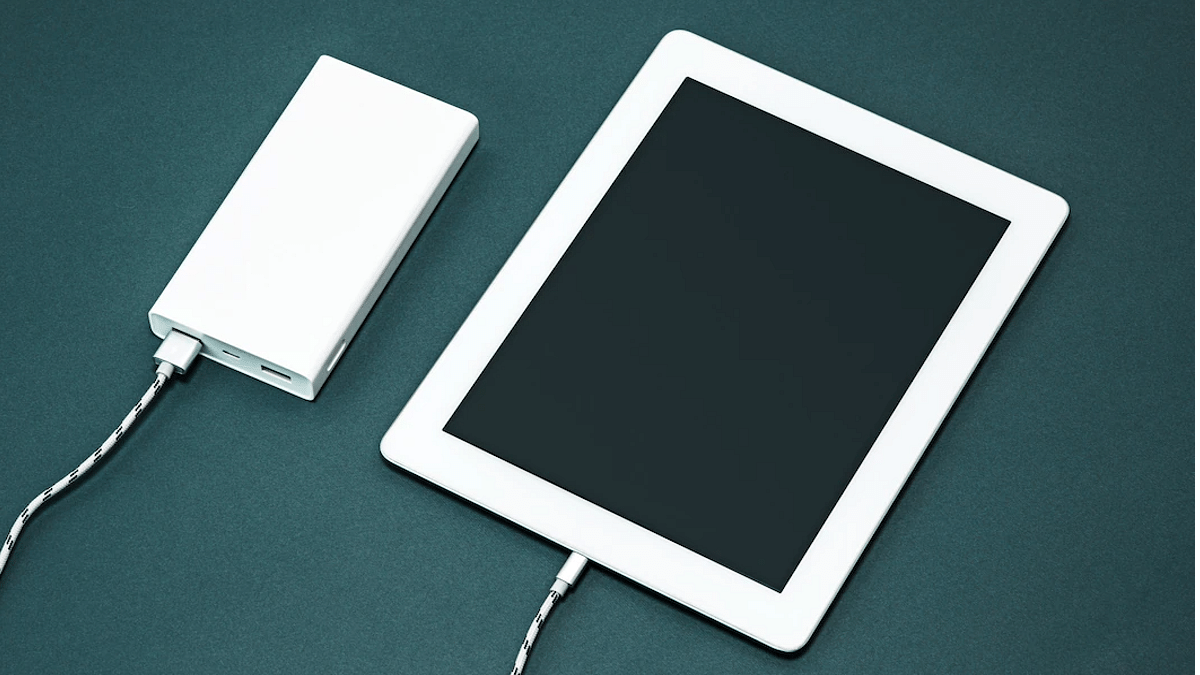
iPad Slow Charging Or Not Charging At All? Here Are Some Quick Fixes For iPad Charging Issues

Apple has one of the strongest ecosystems with consumer gadgets. The Cupertino giant is all popular amongst the Indian and the global audience with its premium range of iPhones, iPads, MacBook laptops, Apple Watch, and even audio accessories. The Apple iPad tablets are known for offering a premium end-user experience. The iPads have been a preference for users who don’t wish to carry around a bulky notebook yet don’t wish to compromise anyhow with performance.

Apple has been shipping iPads with a powerful set of battery hardware so that the users get a long-lasting backup to complete all tasks. The powerful battery and fast charging hardware also allow the iPads to be the best travel companions. But with time and extensive usage, the battery performance might not be as good as you would generally get with a new iPad.

The fast battery drainage is an issue with not just iPads but also Android tablets and smartphones. In some cases, you might also notice the iPad not charging properly with the charging icon missing as soon as you plug in a charger. There are several ways with which you can improve your iPads battery health and also fix no charging issues without paying a visit to the service center directly. If you are also experiencing frequent issues with iPad charging, then this article will be your guide to fix it:

Check The Accessories: Only Supported Charging Accessories Should Be Used With iPads

Step 1: Do check the charging accessories including the power brick or the charging cable. It should be the genuine accessories that Apple ships for its iPads. It is preferred that you use the charging cable as well as the adapter that ships with the retail box of your iPad or is purchased from authorized service centers.

Step 2: Connect the USB power adapter to your iPad.

Step 3: Complete the connection by pairing the cable with a USB Power adapter that is plugged into the wall outlet (make sure it’s working).

Step 4: If in case the iPad isn’t getting charged using the USB power adapter, try connecting it to the laptop or computer’s USB port. It should be a USB 2.0 or above port. Also, the laptop should not be in sleep mode. If your tablet starts charging, this is a sign you need to replace the power adapter.

Step 4: You can also check the iPad charging using another Apple-certified accessory including a USB hub.

Try Force Start And Other Methods To Check iPad Charging

Step 1: If you already have tried changing the power adapter and the USB cable and still have no results, you can perform a hard reset or force restart your iPad.

Step 2: Before you proceed with the force restart, you need to make sure your iPad’s temperatures are stable. Only if the device isn’t super hot or cold then only go ahead with the restart method.

Step 3: If your iPad doesn’t feature a Home button then first press and instantly release the volume key closest to the top button and then press and release the second volume button.

Step 4: Press and hold the top button. Do this until the iPad reboots.

Step 5: If you own an iPad with the Home button, you would need to press and hold the top or side button and simultaneously press the Home button. Release the keys once the Apple logo shows up on your screen.

Do note that these steps will only resolve issues with the charging when there is no major damage to the circuitry or the charging system on a hardware level. If for some reason your iPad still won’t charge after performing the aforementioned steps, you would need to contact Apple support.

Categories
How To Mobile

Recovery Mode In Vivo: How To Use Recovery Mode In Vivo Phones To Wipe Data And Fix General Issues

Key Highlights

  • Vivo smartphones speeds can be boosted with hard reset
  • Hard Reset can be performed using settings menu
  • Recovery mode can also be used for hard reset of Vivo phones

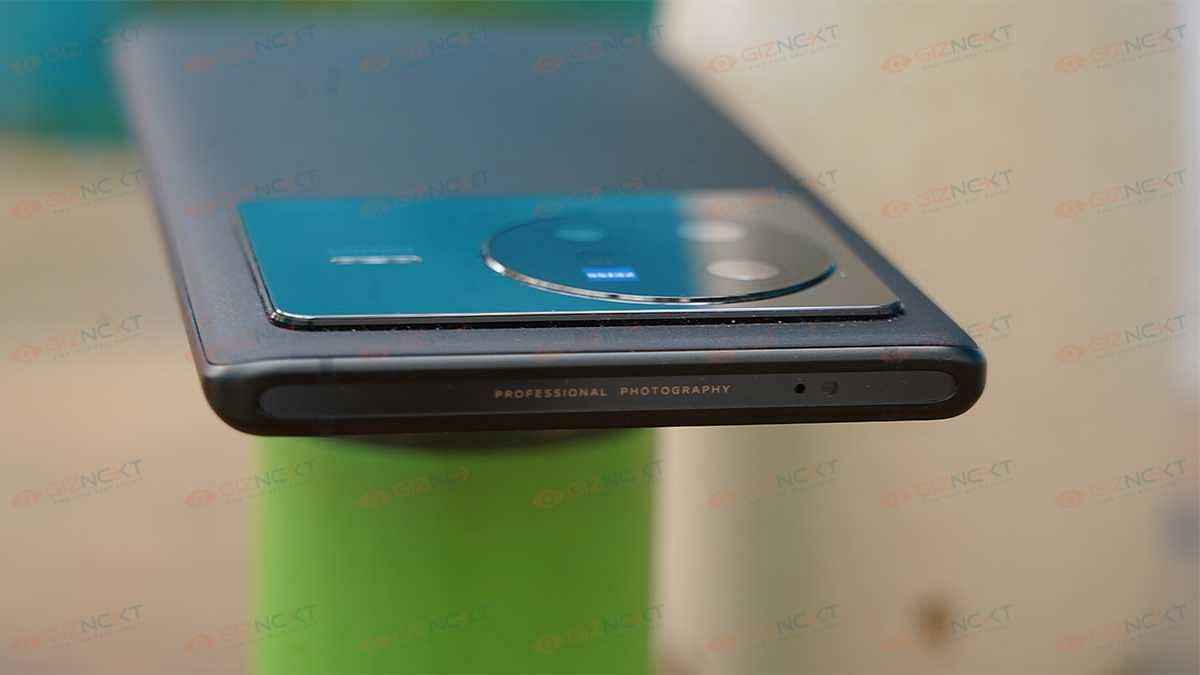
Vivo is one of the most popular Android smartphone manufacturers in India and the global markets. The brand is competing against the popular Chinese and non-Chinese smartphone brands with the Vivo V, Y, T, U, and X smartphone lineups. All of the Vivo smartphones are equipped with the latest hardware and firmware. Vivo has been using the Android OS along with its in-house Fun Touch OS and OriginOS user interfaces to power all its smartphone lineups.

All Vivo smartphones bring the goodies you would get with the latest Android version. While some of the features are in direct sight, some are hidden and need specific steps to launch. The Recovery mode is one of those options that you can find on any Vivo or other brand’ smartphones that you can use to fix general issues with performance and privacy.

Also Read: OnePlus Call Being Recorded Notification: How To Stop ‘Call Is Now Recording’ Message On OnePlus 10T, 10 Pro, OnePlus 9, 8 Series

Consider forgetting your phone’s password. The recovery mode on your Vivo smartphone will be your savior here and help you reset your device and set it up all fresh. If you aren’t aware of the steps to enter the recovery mode on your Vivo or any other brand’s Android smartphone, this article is what you need to check:

Also Read: Vivo Y100 Detailed Review: 100 Percent Complete Package Or A Mixed Bag?

How To Use Recovery Mode In Any Vivo Or Other Android Smartphone

The steps we have listed here will work with all Vivo smartphones running on Android v8 and above. If you own any other Android phone running on the same or above firmware the steps to enter and wipe the data using the recovery mode would be the same. And also, make sure device battery is over 50 percent so that the entire procedure is completed without any issues.

Step 1: Power off your respective smartphones.

Step 2: Press and hold the power key and at the same time keep pressing the volume up key. Do this until the Fastboot menu pops up on the screen.

Step 3: You’ll get two options on the screen Reboot and Recovery mode. Use the volume down key to scroll to the Recovery mode option.

Step 4: Use the power key to select enter the Recovery mode on your Vivo phone.

Step 5: From the next screen you’ll be able to Reboot System, Wipe Data, Install Update, enter System Repair mode, use power down, and Advanced options. Select the desired option using the power key and boost the performance and privacy of your Vivo phones.

Also Read: Vivo X80 Long Term User Review: Worth A Buy Under Rs. 60,000?

Categories
Mobile Tech News

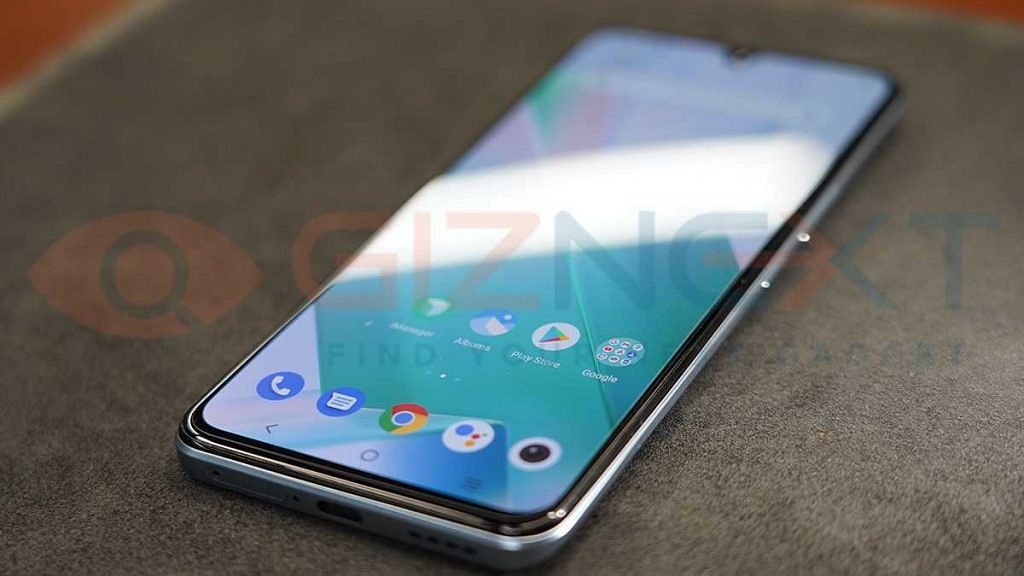
Infinix Launched Smart 6 Plus With 6.82-inch Display In India: See Price, Specifications, And Availability

Infinix has announced the launch of a new smartphone in India. The Smart 6 Plus smartphone has been launched in a budget segment with a waterdrop notch, rectangular module, fingerprint scanner, and dual camera sensors at the back.

In addition, you will find a dual-LED flash for selfies, video chats, and DTS surround sound system. The newly launched device has a 5000mAh battery along with 10W charging support, 6.82-inch HD+ display, Android 12 (Go Edition), 8MP dual camera sensors, and a 5MP front camera lens.

Infinix Smart 6 Plus Smartphone: Price And Availability

The Infinix Smart 6 Plus will cost you Rs. 7,999; however, this is just an introductory price, which means the price might change after a few days. Notably, the device will be available on Flipkart from August 3rd and will be available in two color options: Miracle Black and Tranquil Sea Blue.

Infinix Smart 6 Plus Smartphone: Specifications Details

The Infinix Smart 6 Plus comes with a 6.82-inch HD+ display along with a waterdrop notch, 440nits brightness, Panda MN228 Glass layer for protection,90.66 percent screen-to-body ratio, and 72 percent NTSC color gamut.

The Newly launched device is powered by the MediaTek Helio G25 processor along with IMG PowerVR GE8320 GPU. Besides, the device has 3GB RAM and 64GB in-house storage. The storage can be expandable up to 512GB which is 3GB of virtual RAM.

Categories
How To Tablet

Forgot Apple iPad Passcode? Here’s How To Reset iPad Passcode Of Any Model

The Apple iPad series is widely popular for its high-end performance and the wide array of user-friendly features. At its WWDC 2022 event, Apple unveiled the new-generation iPad OS 16 with a slew of new upgrades. The brand has also improved privacy with the new iPad OS. The previous-gen iPad OS has also offered a secure ecosystem for the users in terms of privacy. Setting up a passcode is one of the key security features offered by the iPad OS.

Bypassing this passcode feature on any iPad model isn’t an easy task for any unauthorized user that gets access to your tablet without permission. The iPad will get disabled if multiple failed login attempts are made to unlock it. But that can also happen if you have forgotten what passcode you set last and can’t log in to your iPad despite multiple attempts.

Well, resting the iPad passcode is the only option that you are left with in such scenarios. If you aren’t aware of the procedure, we have brought you the solution. But before you attempt to reset your Apple iPad’s passcode, you should be aware that the data stored will be lost. You would need a laptop or computer handy to initiate the process of passcode reset with iPad. If you have previously created a data backup, you will be able to restore the data post the passcode reset process. Now, let’s look at the steps:

How To Reset Passcode On Any iPad in 2022

You would first need to power off your iPad so that you can enter the recovery mode on your iPad. To power off the iPad follow the steps below:

Step 1: Make sure your iPad isn’t connected to any computer or laptop. Unplug it if it’s connected.

Step 2: If you have an iPad model with a Home button then press and hold one of the volume buttons along with the top button simultaneously. Leave the keys once the power off slider pops up on the screen.

Step 3: Power off your iPad using the slider. Don’t proceed to the next steps until one minute. That’ll make sure your iPad has switched off completely.

Using The Recovery Mode On iPads

Step 1: You need to immediately press and hold the correct Home button while connecting the iPad to the computer and laptop. For the models that don’t have the Home button, they need to use the top button.

Step 2: Don’t release the key until the recovery mode shows up on the screen.

Step 3: Now, once the passcode screen shows up, power off your iPad to reboot.

Complete The Reset iPad Passcode Using Computer

Step 1: On your PC or laptop, locate the connected iPad in iTunes or the Finder.

Step 2: You will get two options Restore or Update. Select the former if you wish to restore the iPad and the latter if you want the update.

Step 3: Wait until the entire process is complete and the iPad exits out of the recovery mode screen. Reboot your iPad and you are all set.

Categories
How To Mobile

iOS Tips And Tricks To Free Up Your iPhone Space

If you are running out of space on your iPhone or iPad, then we are here to teach you some handy tricks to help you reclaim a lot of that space. We are also going to teach you how to change a few different settings on your iOS devices to help prevent this from being an issue in the future.

How To Free Up iPhone Space?

Here, we are going to help you change a few settings on your iOS devices so that it automatically offloads data to iCloud in order to free up space on your local device. Now, for some of you out there, you may discover that you need to purchase a little bit more iCloud storage, but before we go down that road, let’s start by cleaning up iCloud.

Step 1: Open Settings and tap on your name at the very top.

Step 2: Then, tap on iCloud.

Step 3: Tap on where it says ‘Manage Storage’.

Step 4: On the next screen, you’ll see ‘Backups’ as one of the items towards the top of the list. Tap on it.

Step 5: You can now see all of the different devices that iCloud is currently backing up.

Now, a lot of things that a lot of people forget about is when you purchase a new iOS device, whether that’s a new iPhone or a new iPad, iCloud doesn’t know to stop backing the old device. Furthermore, it is unaware of how to delete those outdated backup files. As a result, many individuals end up buying far more iCloud storage than they actually need as they don’t realize how much space is being taken up by backups of old devices. So, if you see older devices that you have since replaced in the list, just go ahead and tap on them and then select delete back up.

So, now that we’ve reclaimed all of that iCloud storage, we would like to show you two settings that you might want to consider changing.

Optimize Your iPhone Photos

There are a few ways your iPhone can make it easier for you to store images. The first option is to take all of your images in Apple’s new ‘High Efficiency’ mode if you have an iPhone 7 or later. The quality of your images won’t suffer, but each photo takes far less storage space. It’s worth checking again even if it’s already on.

Step 1: Let’s start by going back into Settings.

Step 2: Tap ‘Camera,’ and then tap ‘Formats.’

Step 3: Make sure that the camera capture mode is set to ‘High Efficiency’.

Additionally, you can instruct your phone to preserve lower versions of your photographs on the device while syncing the original full-resolution versions with iCloud. If you send photographs directly from your phone, you’ll be sharing lower-res versions, so this is admittedly a trade-off for the potential gigabytes of space you can save. If you want to turn it on, follow these steps:

Step 1: Open the ‘Settings’ app.

Step 2: Tap ‘General,’ and then tap ‘iPhone Storage’.

Step 3: To the right of ‘Optimize Photos’, tap ‘Enable’.

And there’s more. If you frequently use the iPhone’s HDR mode, you may unintentionally save two copies of each image: the enhanced HDR image and the original, unaltered image that you probably don’t need.

Step 1: Open the Settings app.

Step 2: Tap ‘Camera’.

Step 3: Turn off ‘Keep Normal Photo’ by sliding the switch to the left. That’s all.

Clear Safari’s Cache

All those temporary internet files build up, and your web browser’s cache may be taking up a lot of space. You should be aware that if you do this, all of your cookies will be deleted and you will be logged out of any websites that you are signed into. But you can save dozens of gigabytes by doing this. See our article “How to Clear Safari/ App Cache on iOS” to clear your cache.

Categories
How To Mobile

iOS 16 Tips And Tricks: How To Unsend And Edit Text Messages On iMessages? What’s The Timelimit?

iOS 16 made its debut at the Apple WWDC 2022 event held earlier this year. The Cupertino giant introduced the iOS facelift with tons of new features and upgrades over the previous generation. With iOS 16, Apple made some notable upgrades to the iMessages application and added SharePlay support along with the option to edit or recover recently sent messages.

Currently, all the latest iOS 16 are being tested for a stable release. However, most of them are accessible with the iOS 16 beta version. If your iPhone is eligible for the iOS 16 update, you can download and use the iOS beta version to test all the features. We have previously shared the method with which you can easily install and use the beta iOS 16 on supported iPhones. Now, we will share the steps on how you can use the edit or unsend messages via the iMessages app.

How Can You Unsend Messages Use iMessages on iOS 16 Beta?

Step1: After you have successfully installed the iOS 16 Beta version on your iPhones, launch the iMessages app.

Step 2: Open the chatbox and scroll to the message that you want to unsend or delete.

Step 3: Now, you would need to press and hold on to the text message until the options pop up.

Step 4: From the bunch of options on the screen, select Undo message. Once you perform this step, the message will be deleted.

 We would like to add the time frame within which you can delete an already sent message is two minutes. The sent message will stay permanently in the inbox unless the receiver deletes it if the time exceeds two minutes. Also, the receiver will be notified that a message has been deleted.

Steps To Edit Sent Messages On iOS 16 Beta Version?

Step 1: Launch iMessages application on your respective iPhones.

Step 2: Open the chat window from where you wish to make the changes.

Step 3: Go to the message that you want to edit.

Step 4: Press and hold on the message.

Step 5: Now, select the Edit message option placed right below the Unsend option.

Step 6: Make the required changes and click ok.

Step 7: The message will have an Edited text highlighted next to it once it has been updated.

Categories
Comparison Tablet

Nokia T20 Vs Moto Tab G20 Vs Lenovo Tab K10: Best Budget Tablet India

India is one of the developing markets for mobile and PC tablets. The contribution is now coming from the major tech giants and smartphone players. A few of the names added to the list are Oppo, Realme, Nokia, and Xiaomi. Other players such as Lenovo and Motorola have already marked their presence in the tablet space and have introduced a plethora of tablets in the last few years.

We have multiple choices if we go out to buy an affordable tablet in the Indian market. We have compared several tablets in the mid-range and premium tablets available for sale in the country. This article is for the budget audience who are specifically looking for tablets in the price range between Rs. 10,000- Rs. 15,000. In this list, we have done a spec-sheet-based comparison between the Nokia T20, Moto Tab G20, and the Lenovo Tab K10 tablets. Which budget tablet is a complete package? Read on to know the details:

Nokia T20 Vs Moto Tab G20 Vs Lenovo Tab K10: Display Specifications

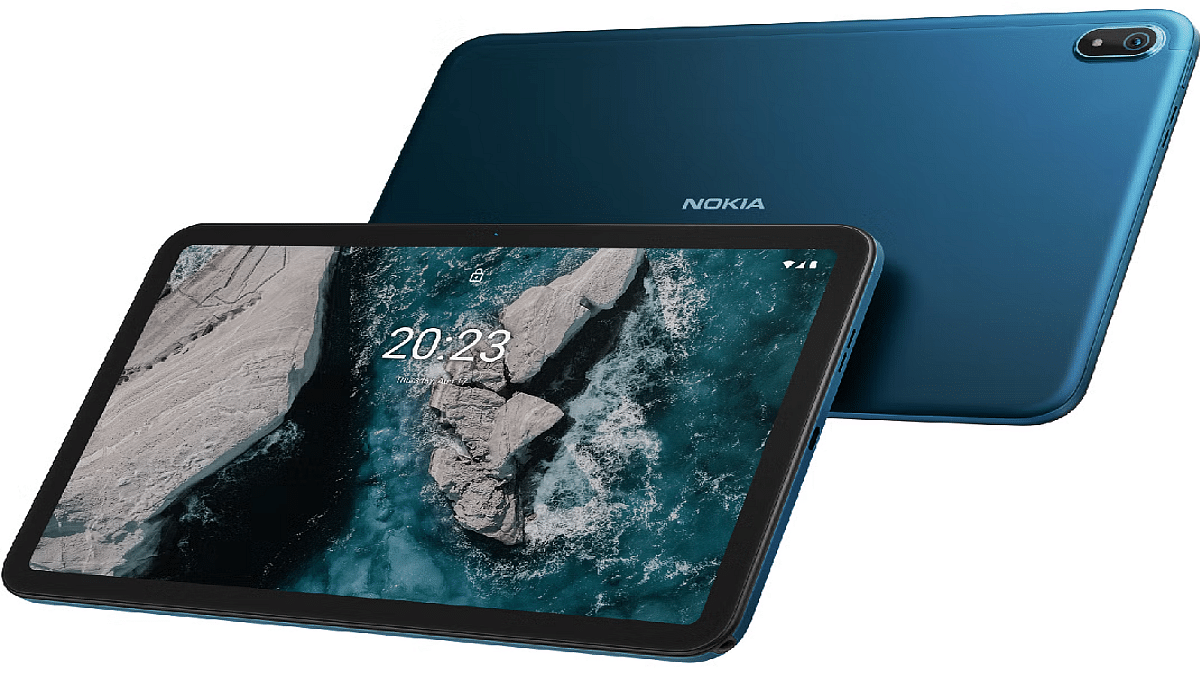
The Nokia T20 has been introduced just a few months back in the Indian market with an IPS LCD screen that measures 10.4-inches and supports a pixel density of 224 PPI. The display of the Nokia T20 supports a 2K screen resolution of 1200 x 2000 pixels and has a scratch-resistant coating.

The Motorola Moto Tab G20 also features an IPS LCD screen but it is smaller compared to the Nokia T20 and measures only 8.0-inches. The Moto Tab G20’s display offers a pixel density of 189 PPI and supports a lower screen resolution of 800 x 1280.

The Lenovo Tab K10 flaunts a 10.3-inch display. It is an IPS LCD panel similar to the remaining two budget tablets. The display on the Lenovo K series tablet supports a screen resolution of 1200 x 1920 pixels and has a pixel density of 220 PPI. The panel quality is good on all three models with amole clarity levels and balanced color production. However, the Nokia T20 and the Lenovo Tab K10 will deliver the best performance with video playback due to the higher resolution support.

Nokia T20 Vs Moto Tab G20 vs Lenovo Tab K10: Camera Specifications

The camera hardware is identical on both Nokia T20 and the Lenovo Tab K10. Both these tablets are packed with an 8MP main camera sensor at the back. The main camera on the Nokia T20 and the Lenovo Tab K10 can capture 1080p@30fps videos.

Moving on to the Moto Tab G20, it’s packed with a smaller 5MP main camera at the back which is also capable of recording 1080p@30fps. The selfie camera is also identical on both the Nokia T20 and the Lenovo Tab K10. They both ship with a 5MP selfie snapper.

The Moto Tab G20 has the smallest camera sensor out of the three, i.e., a 2MP lens. Optics are better with the Nokia T20 and the Lenovo Tab K10. You can expect good performance with their cameras in broad daylight.

Nokia T20 vs Moto Tab G20 Vs Lenovo Tab K10: Chipset, UI

Under the hood, the Nokia T20 is packed with the Unisoc T610 processor that is fabricated using 12nm TSMC process. The octa-core Unisoc chipset has Mali-G52 MP2 GPU support for graphics and 3GB/4GB RAM for multitasking. The Nokia tablet offers a storage space of 32GB and 64GB which can be further expanded using a shared microSD card slot.

The Moto Tab G20 features the octa-core MediaTek Helio P22T Procesor which is also based on a 12nm fabrication process and has only 3GB RAM option for multitasking. The Motorola tablet comes with an onboard storage capacity of 32GB.

Lastly, the Lenovo Tab K10 tablet is driven by the MediaTek Helio P22T processor as the Moto Tab G20 with PowerVR GE8320 GPU. The firmware is Android 11 on all three tablets layered with a custom user interface on top.

Nokia T20 Vs Moto Tab G20 Vs Lenovo Tab K10: Battery And Fast Charging

Powering the Nokia T20 is a massive 8,200 mAh battery unit with 15W fast charging support, while the Nokia T20 is packed with a compact 5,100 mAh battery unit. Unfortunately, there is no fast charging support with the Moto Tab G20. The Lenovo Tab K10 has a 7,700 mAh battery unit.

Nokia T20 Vs Moto Tab G20 Vs Lenovo Tab K10 Verdict: The Best Affordable Tablet

The Nokia T20, Moto Tab G20, and Lenovo Tab K10 are good options when you have a budget constraint. All three tablets flaunt a big display with 2K resolution which is suitable for binge-watching shows and movies. The chipset and camera configuration are also decent on all three tablets. You can consider any of the models as a daily driver.