Categories
Apps Featured Info

Google Wallet Rolls Out In India: Here’s What’s Different

Key Highlights

  • Google introduces Wallet for NFC payments and document storage
  • Wallet focuses on NFC transactions and document storage
  • Users add cards and documents; payments are made by tapping the phone

Google has begun rolling out its Google Wallet service to users in India, marking a significant move in the country’s digital payments landscape. While the app is not yet available to all Android users, it is gradually becoming accessible to more people over the coming weeks. Also Read | How Can You Delete Google Pay Transaction History: A Step-By-Step Guide

Difference Between Google Wallet And Google Pay
To understand Google Wallet’s introduction in India, it’s essential to differentiate it from Google Pay. Google Wallet was initially launched in 2011 as Google’s first foray into digital payments. In 2015, Android Pay (now Google Pay) was introduced to offer additional payment features, such as bill payments, which Google Wallet lacked.

In 2018, Google unified its payment services under the Google Pay brand. However, earlier this year, it announced that Google Wallet would replace Google Play in the United States.

Google Pay vs. Google Wallet In India

Google Pay in India primarily facilitates UPI-based payments, allowing users to send and receive money, pay utility bills, purchase tickets, and make payments to supported platforms. On the other hand, Google Wallet brings support for NFC-based payments using stored cards. Additionally, users can store digital documents and even car keys within the Google Wallet app.

Reports suggest that both Google Pay and Google Wallet will coexist in India, offering users different payment options based on their preferences and needs.

How To Set Up Google Wallet

Setting up Google Wallet is simple:

Step 1: Download the Google Wallet app from the Google Play Store on your Android phone.

Step 2: Log in using your Google account.

Step 3: If you’re a first-time user, you’ll be prompted to add a card. You can either scan your debit or credit card using your phone’s camera or enter the details manually.

Step 4: You can also add other passes and documents within the app.

Also Read | Never Miss A Payment Again: Learn How To Set Up Payment Reminders On Google Pay

How To Make Payments With Google Wallet
To make payments using Google Wallet:

Step 1: Turn on NFC (Near Field Communication) on your Android phone.

Step 2: Set Google Wallet as your default payment app.

Step 3: Unlock your phone.

Step 4: Tap your phone at the payment terminal to complete the transaction.

Conclusion

With the introduction of Google Wallet in India, users now have another option for digital payments, especially for NFC-based transactions. While Google Pay remains focused on UPI-based payments, Google Wallet offers additional features such as storing cards and digital documents. As the rollout continues, more Android users in India will have access to this convenient payment solution.

Categories
Apps Auto Tech Featured

Google Maps 3D Building View: What Is It? How To Enable?

Key Highlights

  • Google Maps offer 3D view for buildings
  • Option can be toggle on or off manually
  • Offers a 3D view of nearby buildings on the route

Google Maps is one of the most advanced navigational apps available on Play Store and Apple’s App Store. Gradually, the Google-owned navigation app is making way to the digital consoles of automobile with the connected car technology. Google Maps offers multiple street view option offering users both 2D and 3D view of any route. Off late, the search giant started testing an additional 3D view option for Maps. The latest feature will allow the users to see building as well in 3D.

Also Read: Steps To Use Google Maps Navigation Using Apple Car Play

What Is 2D Building View In Google Maps?

Spotted earlier with the Google Maps beta version 125, the 3D buildings Google Maps options seems to be making its way to the compatible devices in a phased manner globally. With just a few taps, the one can easily enable Google Maps 3D building. This feature makes maps more interactive while traveling to new and unknown destinations. The steps can be checked below:

Also Read: Password Privacy: How To Create And Remember Strong Passwords

Steps To Enable Google Maps 3D Building View

Step 1: Launch Google Maps application on the Android or iOS device you are using. Make sure the app is updated to the latest version. You can do a manual update if required.

Step 2: Tap on the Profile icon from the top right of the app.

Step 3: Select the Setting menu

Step 4: Scroll down to the Navigation settings tab and click on it.

Step 5: Move to the Map display segment in the Navigation settings menu

Step 6: If the feature is rolled out to your device, you will be able to see the ‘Show 3D building’ option right above the ‘keep map north up’ option. Toggle the former option on.

Step 7: Once the ‘show 3D maps’ tab is enabled, you will be able to see 3D buildings on the Maps.

Categories
Apps Featured Info

WhatsApp To Provide Solution For Finding Favorite Contacts Faster

Key Highlights

  • WhatsApp beta introduces AI chatbot for image creation and lets users rearrange favorite contacts
  • Beta version includes a feature to see recently online contacts
  • WhatsApp focuses on enhancing user experience with new features in the pipeline

WhatsApp is working hard to improve its platform, offering new features to enhance user experience. The beta version of WhatsApp provides a sneak peek into the upcoming changes. Here, let’s take a look. Also Read | WhatsApp Tips And Tricks: Easy Ways To Record WhatsApp Video Calls

AI Chatbot and Image Creation

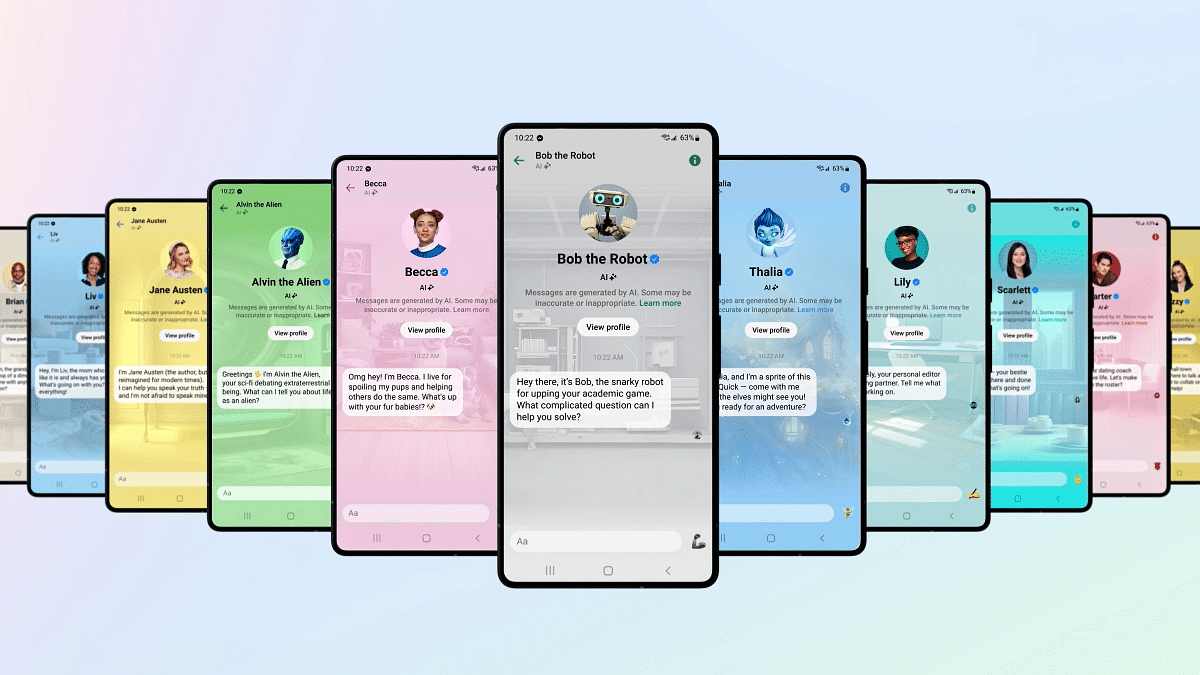
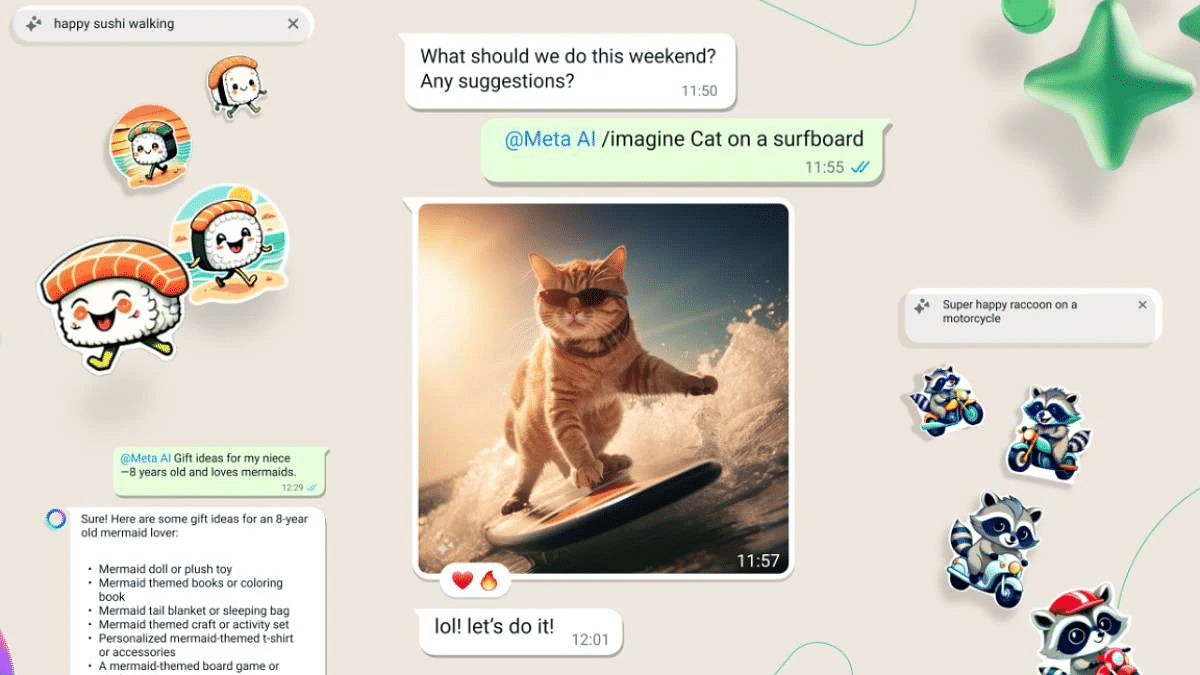
The latest addition to the beta version is an AI chatbot that allows users to create AI-generated images and answer queries. While this is a significant addition, WhatsApp is also focusing on simpler features that improve usability.

Rearranging Favorite Contacts

One such feature is the ability to rearrange contacts in the favorites tab. This new tab, currently in beta testing, will be accessible from the main settings page. Users can reorder contacts based on their frequency of communication, making it easier to connect with their top contacts.

Enhanced Contact Management

By moving your most frequently contacted individuals to the top of the interface, WhatsApp aims to streamline communication. While still in beta, there’s a possibility that this feature may not make it to the public version or could be officially released in the coming weeks.

Tracking Online Status

WhatsApp is also testing a new feature to show which friends or contacts were recently online. This feature, currently in beta for Android users, adds a new tab called “Recently Online” above the contact list. While it doesn’t provide a comprehensive online list, it displays a limited number of recently active contacts. This makes it easier to identify who’s available for a call.

Also Read | WhatsApp Tips & Tricks: How To Unblock Yourself And Regain Access

What’s Next?

WhatsApp’s commitment to innovation means more features are likely on the horizon. Whether it’s AI-driven capabilities or simple improvements to contact management, the messaging app continues to evolve to meet users’ needs. Keep an eye out for these updates as they roll out in future releases.

Categories
Apps Auto Tech Featured

Steps To Use Google Maps Navigation Using Apple Car Play

Key Highlights

  • Google Maps can be accessed using CarPlay
  • Manual steps needs to be performed
  • Latest iOS version required for downloading and accessing Google Maps on CarPlay

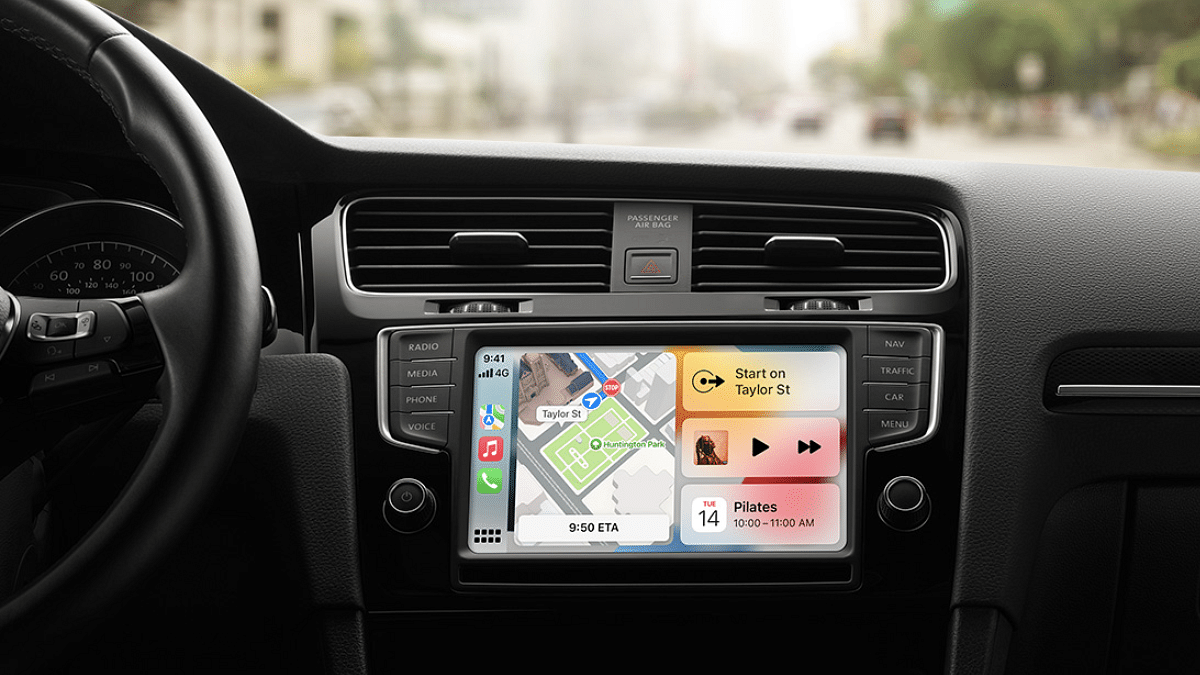
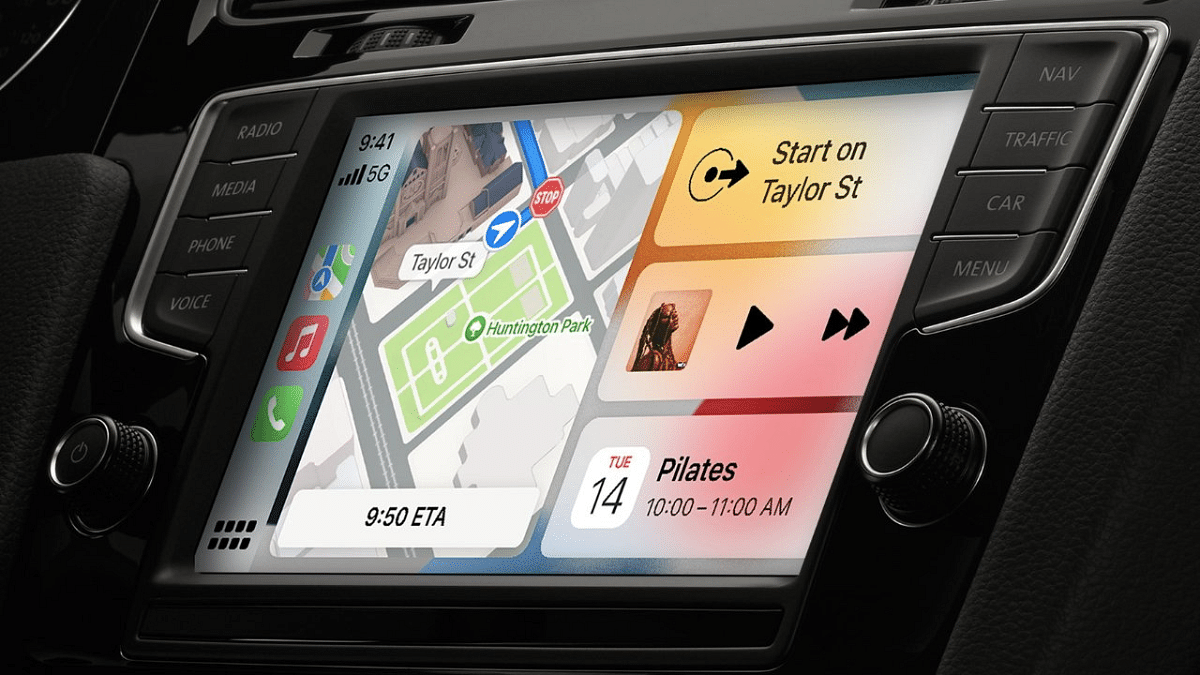
Apple CarPlay today is one of the most demanded features by four wheeler buyers. And automobile giants are now making connected tech-enabled cabins a common feature across all segments. Be it Apple CarPlay or Android Auto, one of the commonly used features is the turn-by-turn navigation feature besides entertainment. While built-in infotainment module have their own or Waze navigation app integrated, a vast majority still prefers using Google Maps for navigation on the paired console.

Also Read: Lok Sabha Elections 2024: Here’s How To Download Your Voter ID Card Online In Minutes

And for the iPhone users too, Google Maps accessibility using CarPlay is a possibility now. But how can you install and use Google Maps for navigation in your car if you are using CarPlay paired with an iPhone? Well, the steps aren’t tricky and with just a few taps you can get the job done. Interested in knowing the steps? Read on below:

Also Read: Password Privacy: How To Create And Remember Strong Passwords

How To Activate And Use Google Maps On CarPlay-Enabled Console

Step 1: Google Maps is supported by all new iOS devices. Ensuring the paired device runs on iOS 17 will ensure seamless connectivity and usage experience. So first, you’ll need to check the iOS version and update if required.

Step 2: On your iPhone, launch the Settings menu.

Step 3: Click on the General option.

Step 4: Scroll to the CarPlay option and tap on it.

Step 5: Now, select the Customize option and add Google Maps icons to the CarPlay screen.

Step 6: After all the aforementioned steps are complete, pair your iPhone with the CarPlay console. You will be able to use Google Maps for navigation by default.

Categories
Apps Featured Info

Upgrade Alert: Paytm Begins To Shift Users To New UPI IDs

Key Highlights

  • Paytm shifts to TPAP status due to RBI sanctions
  • Users transition to new UPI handles with partner banks
  • Check for potential transaction failures and update QR codes after migration

In a move to comply with regulations from the Reserve Bank of India, Paytm is undergoing a transformation into a Third-Party App Provider (TPAP). This change is necessary after the RBI imposed sanctions on Paytm for regulatory reasons. Here are all the details. Also Read | Paytm Lite: What Is It? How To Setup And Use Paytm Lite On Smartphones?

Migration To New UPI Handles

Due to regulatory restrictions, Paytm can no longer use its in-house @paytm virtual payments address for UPI services. Consequently, the National Payments Corporation of India (NPCI) has granted Paytm TPAP status. This status enables Paytm to transition its users to new UPI handles.

Impact On Users

Previously, Paytm users had UPI addresses ending with ‘@paytm’. Now, Paytm is partnering with four banks: SBI, Axis Bank, HDFC Bank, and Yes Bank, to offer UPI services. Users will now have new UPI handles ending with ‘@ptsbi’, ‘@ptyes’, ‘@pthdfc’, or ‘@ptaxis’.

Automatic Transition Process

The migration to new UPI handles is automatic for users. They don’t need to take any additional steps. Users can continue using the app for regular UPI payments and other services.

Unaffected Services

Functions like bill payments, recharges, and booking services remain unaffected. Users can link external bank accounts to pay for these services.

Also Read | Want To Make Paytm UPI Payments To Non-Paytm Users? Here’s The Trick

Things To Check After Migration

Despite the seamless transition promised by Paytm, users should check for certain things. Active UPI mandates with the old ‘@paytm’ address may fail, depending on the merchant. Users should also update their QR codes and inform contacts of the new UPI handle to avoid transaction failures.

Consequences Of Old UPI Handles

After receiving a new UPI handle, the old ‘@paytm’ VPA will cease to work. Transactions attempted with the old handle will fail, and users must ensure others use the new UPI handle for payments.

Categories
Apps Featured

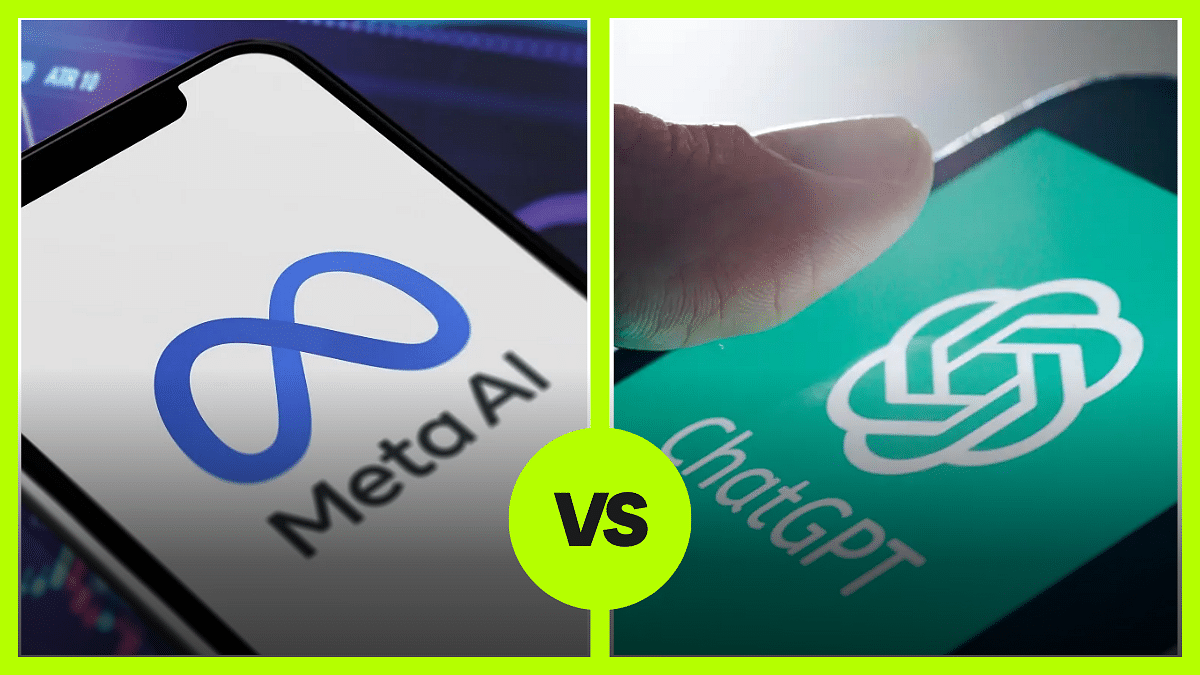
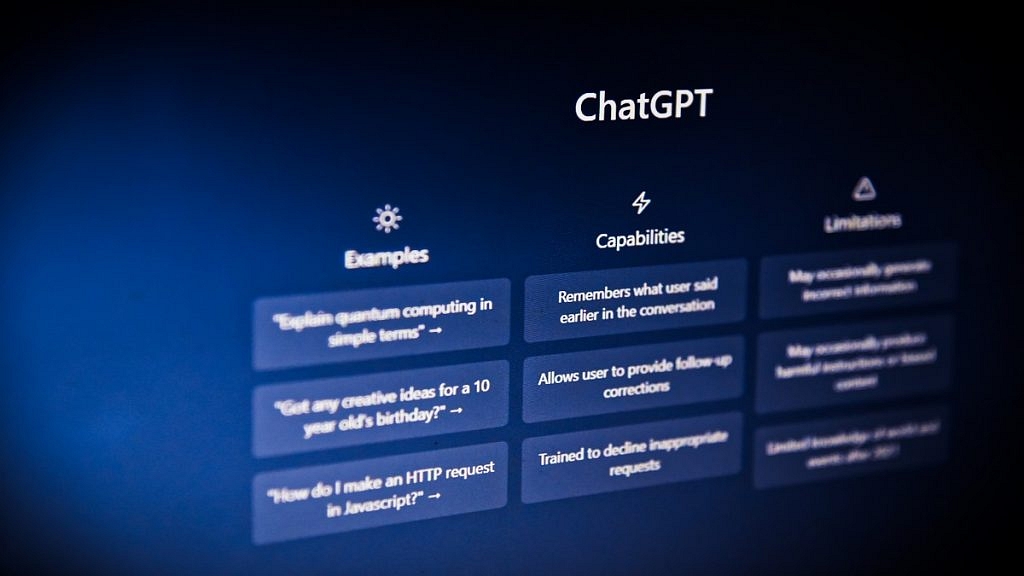
Meta AI vs ChatGPT: Which Chatbot Fits Your Needs?

Key Highlights

  • Meta AI for informative talks, ChatGPT for creativity
  • Meta AI on Meta platforms, ChatGPT with “freemium” model
  • Both prioritize safe AI, but with unique strengths

In today’s tech-driven world, chatbots powered by advanced AI are changing how we interact with technology. Let’s take a closer look at two major players in this field: Meta AI, developed by Meta (previously Facebook), and ChatGPT, created by OpenAI. Understanding the differences between them can help you choose the right one for your needs. Also Read | Google’s Gemini Outperforms ChatGPT in Multi-Discipline Benchmarks, Report Claims

Meta AI: The Chatbot Librarian

Meta AI is still in development and aims to create chatbots that can have detailed and informative conversations. It uses Meta’s vast knowledge and understanding of social interactions to make AI companions that are well-rounded.

ChatGPT: The Creative Assistant

On the other hand, ChatGPT is already out there and excels at generating creative text in various forms like poems, code, and scripts. It’s known for being able to follow instructions and complete tasks through conversation.

Meta AI Vs. ChatGPT

Think of Meta AI as a digital librarian. It can search and analyze information from the internet using Google Search, ensuring its responses are accurate. You can ask it about complex topics, translations, or even help with creating different types of content.

ChatGPT, on the other hand, is more about creativity. It can brainstorm ideas for your next blog post, write funny pieces, or even code a basic program based on your instructions.

Where To Find Them

Meta AI is mainly integrated into Meta’s platforms like Facebook Messenger and WhatsApp. This makes it easier for users and businesses to interact in a controlled environment while Meta fine-tunes the technology before releasing it widely.

ChatGPT, however, is available through a “freemium” model. While there’s a free version with limitations, you can opt for a paid version for more features and broader access.

Safety First

Both Meta and OpenAI are committed to responsible AI development. They train their chatbots to give accurate and unbiased responses while avoiding harmful content. But like with any new tech, there’s always a risk of misuse. It’s important to use these chatbots responsibly and stay aware of potential risks.

Also Read | No Sign-Up Needed: OpenAI Enables Account-Free ChatGPT Access

Looking Ahead

ChatGPT

AI chatbots are evolving rapidly. Meta AI’s focus on real-world information could lead to chatbots becoming virtual assistants, helping with complex tasks and managing information overload. Meanwhile, ChatGPT’s creativity could make it a valuable tool for artists, writers, and programmers.

Choosing The Right Fit

Ultimately, the best chatbot for you depends on your needs. If you want reliable information and engaging conversations, Meta AI might be the way to go. But if you need help sparking creativity, ChatGPT could be perfect. As these technologies develop, the possibilities for AI chatbots are endless.

Categories
Apps Featured How To

Your Soundtrack, AI-Curated: Here’s How To Create Next-Gen Playlist On Amazon Music

Key Highlights

  • Amazon Music’s Maestro creates playlists from text inputs, in beta for US users
  • Available to Amazon Music Unlimited subscribers
  • Maestro offers instant playlist access at no extra charge

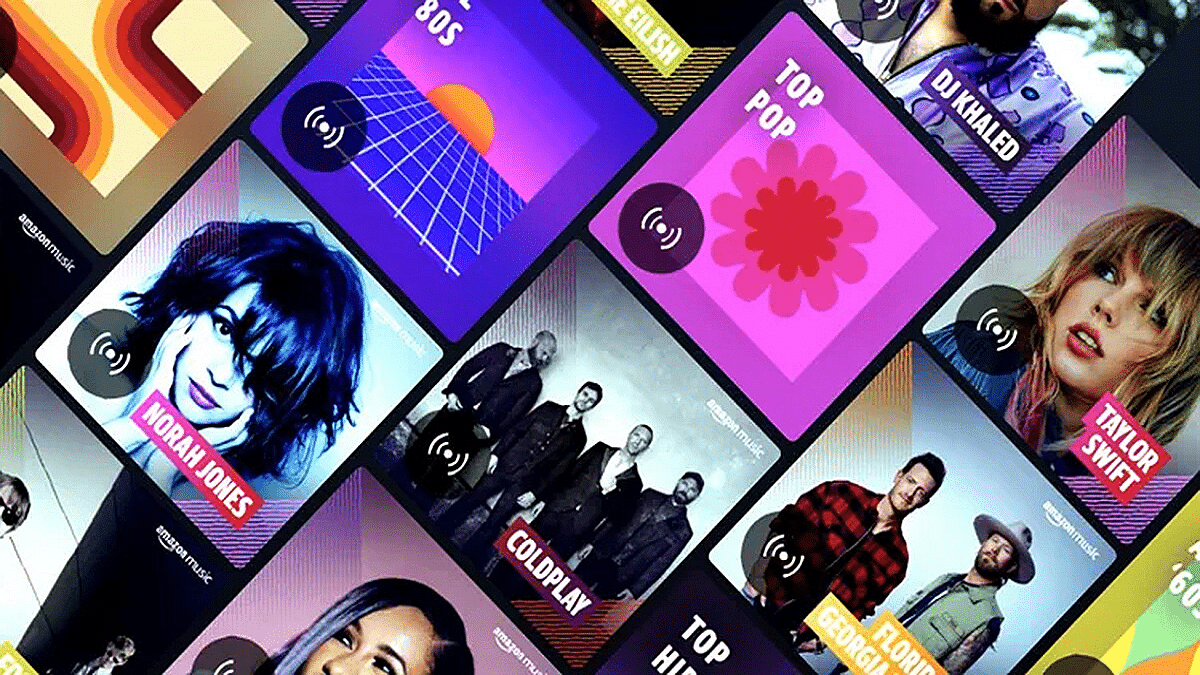
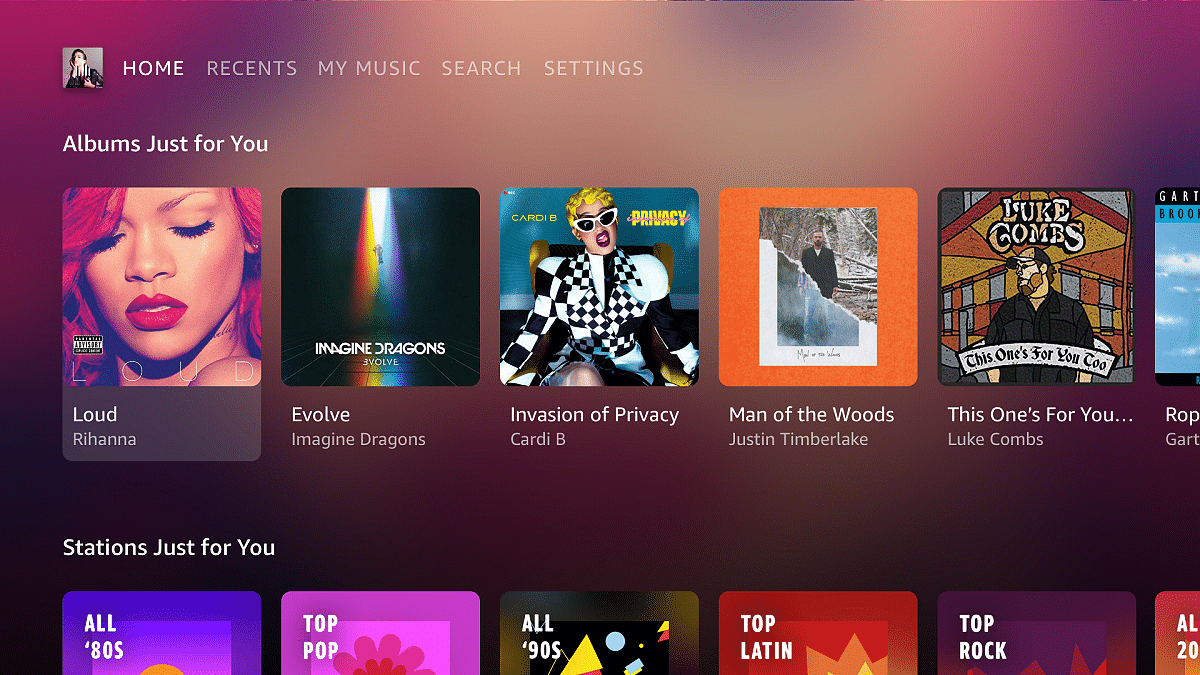
Amazon Music, a popular music streaming platform, has launched a new tool called Maestro. Maestro uses AI to create playlists based on text or text-and-emoji inputs. It’s like having a personal DJ, but with AI doing the mixing. Currently in beta testing, Maestro is only available to users in the US. Also Read | Spotify’s New: Personalized Playlists Made Simple With AI Prompts

How Does It Work?

It’s super easy. You just type in what you want to listen to or how you’re feeling, and Maestro does the rest. You can even talk to it using speech-to-text. So, if you’re feeling left out because your friends are hanging without you, just say it, and Maestro will whip up a playlist based on that.

Where Can You Find It?

Maestro lives in the Amazon Music mobile app, so you can’t access it on the web or your TV. It’s all about the phone for now.

How Is It Different From Spotify’s AI?

Well, both Amazon Music Maestro and Spotify’s AI Playlist do the same thing: create playlists based on what you ask for. But Maestro is still in the US and only for Amazon Music Unlimited subscribers, while Spotify’s AI works for Premium users in the UK and Australia.

Also Read | Apple Music Tips And Tricks: Here’s How To Create Collaborative Playlists

How Much Does It Cost?

Right now, if you’re one of the lucky beta testers in the US with a Prime membership or using the ad-supported version, you can get a sneak peek for free. Amazon Music Unlimited subscribers can dive right in and save their playlists without any extra charge.

Conclusion

Amazon Music Maestro is like having a music-savvy friend who’s always ready with the perfect playlist. Just tell it what you want, and it’s on it. And while it’s still getting started, it’s already making waves among music lovers. So, if you’re in the US and itching to try it out, keep an eye out for Maestro in your Amazon Music app.

Categories
Apps Featured Info

Elon Musk’s Antispam Initiative: X May Require Payment For Just Posting

Key Highlights

  • Twitter’s making new users pay a small fee
  • Elon Musk backs it to fight spam and fake account
  • Test-run in New Zealand and the Philippines

Twitter, or X as it’s sometimes called, has announced a big change: new users will have to pay to join. Elon Musk broke the news, saying that from now on, people who sign up for X will need to pay a “small” fee. This fee covers everything from liking and posting to replying and bookmarking tweets. Also Read | Planning To Leave Twitter? Here Are The Best Twitter Alternatives To Download

Spotting The Shift

The first to catch wind of this change was an account called X Daily News. They noticed that the text on the website had been updated. Now, it says that new users will have to pay a small yearly fee to use the social network.

Where It’s Happening

According to X Daily News, this payment policy was already happening in New Zealand and the Philippines. They say it was a test to see if it could help stop spam and make the site better for everyone.

Musk’s Take

Elon Musk chimed in on Twitter, explaining that charging new users is the only way to stop the flood of bots. Bots are automated accounts that can do things like post spam. Musk worries that bots are taking up all the good usernames and making it hard for real people to join.

While Musk thinks charging will help fight spam, he hasn’t said exactly how it will work. Some people worry that spammers might just pay the fee or make lots of accounts to keep sending spam. Plus, some users might not want to join X if they have to pay when other social networks are free.

Also Read | Instagram Threads: What Is It And How To Use Meta’s Twitter Alternative

The Price Tag

The fee seems to be around $1, since it’s $1.75 in New Zealand money. Right now, only people in New Zealand and the Philippines have to pay.

Musk’s Concerns

Elon Musk has been speaking out about spam and bots on Twitter for a while. He’s worried that the ads on Twitter make it easy for fake accounts to thrive. Musk thinks that Twitter might be exaggerating how many real users it has, which could trick advertisers and investors.

Categories
Apps Featured How To

Use Meta AI On WhatsApp And Instagram In Three Steps: Here’s How

Key Highlights

  • Meta AI improves WhatsApp and Instagram with personalized features
  • Access Meta AI directly through the apps’ search
  • Enhances user experience and aids targeted advertising

WhatsApp and Instagram users are in for a treat as Meta, the parent company of these popular social media platforms, has initiated limited testing of Meta AI features. This move aims to enhance user experience and engagement by integrating AI directly into the messaging and photo-sharing apps. Also Read | Best Government Apps Offering AI Chatbot Support

How To Use Meta AI On WhatsApp

  1. Locate the Meta AI Icon: To begin, open WhatsApp and navigate to the bottom right corner of the screen where you’ll find the Meta AI icon.
  2. Access the Meta AI Chatbox: Click on the icon to access the Meta AI chatbox, where you can engage with the AI directly
  3. Engage with Meta AI: Once in the chatbox, users can ask the AI various questions, generate images, and even discuss their interests, all within the familiar WhatsApp interface.

How To Use Meta AI On Instagram

  1. Update and Open Instagram: Ensure you have the latest version of the app from the PlayStore or AppStore, then open Instagram.
  2. Tap the Search Button: Look for the search button located at the bottom of the screen and tap on it.
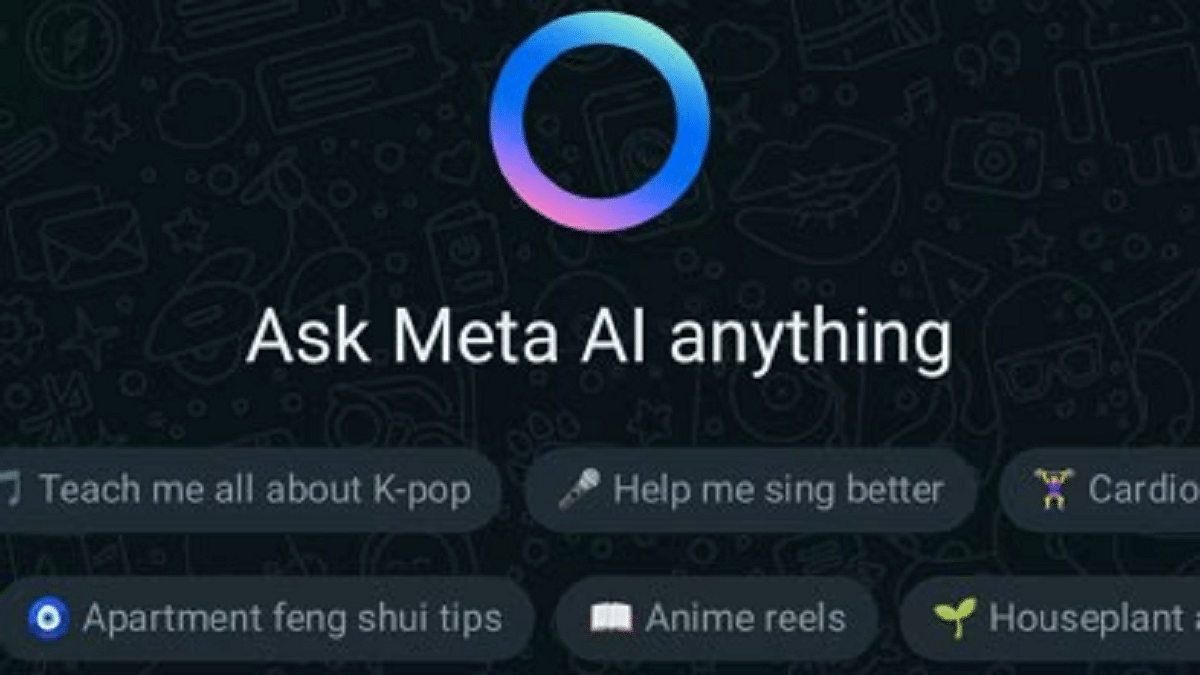
  3. Activate Meta AI: Upon accessing the search bar, you’ll notice a ‘Blue Ring’ indicating Meta AI availability. You can then type your questions or use the microphone to interact with the AI.

Also Read | Is Google’s Gemini A Better ChatGPT Alternative? Let’s Find Out!

More About Meta AI

According to reports from the Financial Times, Meta AI is positioned as a “fun product” for users, offering recommendations and a new search feature. While this adds to the user experience, it also holds significance from a business perspective. Chatbots, including Meta AI, have the potential to gather vast amounts of user data, enabling better targeting of content and advertisements. This data-driven approach can enhance Meta’s ability to connect with its target audience effectively.

Conclusion

The introduction of Meta AI on WhatsApp and Instagram signifies a step towards more personalized and interactive experiences for users. By seamlessly integrating AI into these platforms, Meta aims to enrich user interactions while also leveraging the data generated to improve its services and offerings. As the testing phase progresses, users can expect further enhancements and innovations, making their social media experience more engaging and enjoyable.

Categories
Apps Featured Info

Google Cloud Next 2024: AI-powered Features Enhance Gmail, Docs, Sheets, And More

Key Highlights

  • Google unveils updates for Workspace collaboration at Cloud Next 2024
  • AI-powered features enhance Gmail, Docs, Sheets, Chat, and Meet
  • New add-ons boost security and advanced AI capabilities for businesses

Google has just shared some exciting news at its Cloud Next 2024 conference. They’re making changes to their Workspace suite to help people work better together. These updates, like the new Gemini features, are all about using artificial intelligence (AI) to improve their tools. Also Read | Google Maps Tips & Tricks: How To Use Fuel-Efficient Routing In India

Better Email On The Go

If you use Gmail on your phone, you’re in luck! Google is adding voice commands and a “Help me write” feature. This makes it easier to write emails when you’re not at your computer. They’re also adding a feature that can make your rough notes look like polished emails with just one click.

Organize Your Docs

In Google Docs, they’ve added tabs to help you organize your work better. This means you can keep all your information in one document without making a mess. Plus, soon you’ll be able to add big cover images to your documents to make them look nicer.

Simple Spreadsheets

For people who use Google Sheets, they’re introducing new tables feature. This makes it easier to organize and format your data. They’re also adding templates for different types of sheets and alerts that pop up when something important happens.

Chatting Gets Smarter

Google Chat is getting a boost from Gemini’s AI. Now, it can summarize conversations and answer your questions. Plus, it’s adding translation for messages and letting bigger groups chat together.

Meetings Made Easier

In Google Meet, they’re adding automatic captions in many languages. They’re also testing a feature where Meet takes notes for you during meetings.

Also Read | Gmail Tips And Tricks: How To Secure Your Google Account With Two-Factor Authentication

New Add-Ons For Businesses

Google is introducing two new add-ons for businesses. One focuses on making Chat and Meet smarter with AI, and the other focuses on keeping files safe in Google Drive.

Conclusion

These updates show that Google is serious about using AI to make their tools easier to use and more secure for everyone, whether you’re working alone or with a team.