Categories
Apps Featured How To

Struggling With Message Composition? Let Google Magic Compose’s AI Assist You! Here’s How

Key Highlights

  • Magic Compose was introduced by Google during Google I/O 2023
  • Only RCS conversations can presently use Google Magic Compose
  • Google Magic Compose has seven different methods for rewriting messages

Google unveiled the Magic Compose beta at the Google I/O 2023 event, and it has now commenced the rollout of this feature. Powered by generative AI, Magic Compose assists users in composing text messages. The initial rollout is prioritized for premium Google One subscribers in the United States who are also part of the Messages beta program on the Play Store. Also Read | Gmail Tips And Tricks: How To Secure Your Google Account With Two-Factor Authentication

Accessing Magic Compose And Its Features

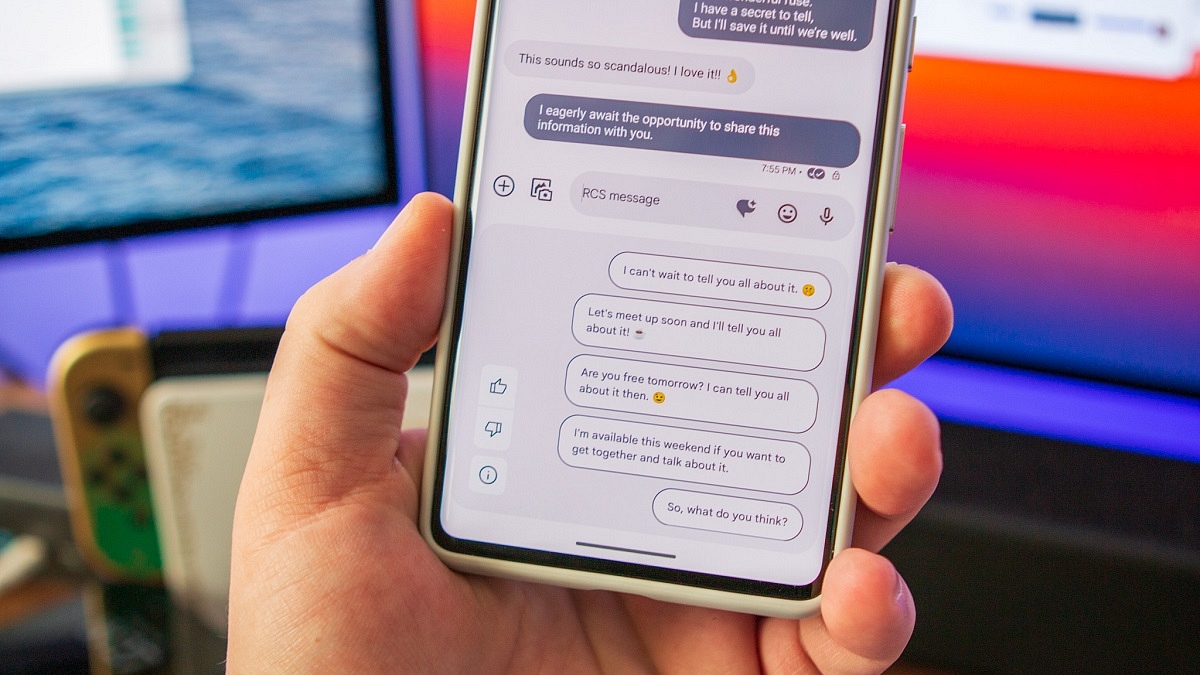
Magic Compose is currently available for RCS conversations in the Messages app. Beta users who have received the feature can enable it from the app’s settings menu. Once enabled, users can use Magic Compose to engage in conversations and rephrase their messages in various tones and styles.

Using Magic Compose Styles

To access Magic Compose, users can tap the pencil icon located next to the typed message. They will then be able to rewrite their message using any of the seven available styles, including Remix, Excited, Chill, Shakespeare, Lyrical, Formal, and Short.

Privacy Considerations

Before using this feature, users should be aware that Google sends up to 20 of their most recent messages, including emojis, reactions, and URLs, to its servers for generating responses. As a result, end-to-end encryption may be compromised. However, Google clarifies that it does not store messages or employ them for training its machine-learning models. Messages with attachments, voice messages, and images are not sent to Google servers, although image captions and voice transcriptions might be transmitted.

Also Read | Google Photos Hacks: How To Edit Videos And Adding Effects Such As Filters On Google Photos

How To Enable And Use Magic Compose

To enable Magic Compose, follow these steps:

Step 1: Open the Google Messages app.

Step 2: Open or start an RCS conversation.

Step 3: Click on “Message suggestions.”

Step 4: To opt in, click “Try it.” To keep Magic Compose turned off, tap “No thanks.”
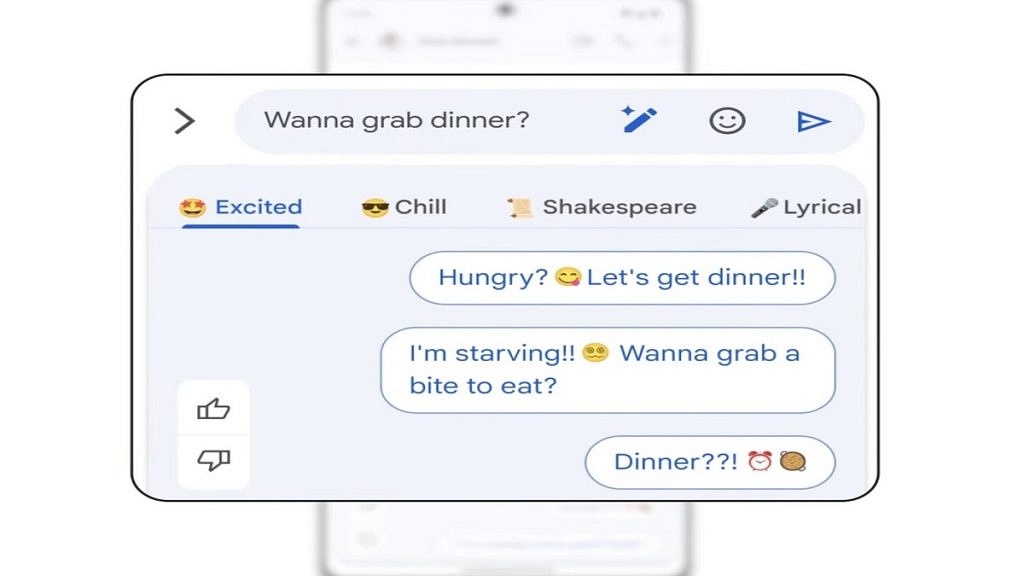
Step 5: Click on the rewrite suggestions icon to access style options.

Step 6: Choose a style to view rewrite suggestions.

Step 7: Select the desired suggestion, optionally editing the message.

Step 8: Click “Send.”

Google Introduces Search Labs For Early Experiment Access

In addition, Google has announced the introduction of Search Labs, an initiative allowing users to participate in early testing of experiments prior to widespread availability. Users who have joined the waitlist at Google Search Labs will receive email notifications when they can try out Labs experiments, which include the Search Generative Experience, Code Tips, and Add to Sheets.

Also Read | Google Pay Expands Payment Options In India With UPI Payments Using RuPay Credit Cards

Categories
Apps Featured Info

ChatGPT App Now Launched In India And 32 Other Nations: Who Can Use?

Key Highlights

  • ChatGPT reaches 33 countries.
  • Available to iOS users.
  • ChatGPT app is available for free download.

OpenAI’s ChatGPT has gained immense popularity worldwide through its web version. To cater to the growing demand, OpenAI recently introduced the ChatGPT mobile app exclusively for iOS users in the United States. Building on this success, OpenAI has expanded the availability of the ChatGPT app to 33 additional countries, including India, Canada, and the UAE. However, for now, the app remains limited to iOS users.

Also Read: OpenAI ChatGPT iOS Mobile App Launched: Full Details

ChatGPT App Available in These Countries

Expanding its reach, the ChatGPT app is now accessible to iOS users in India and 32 other countries. This release comes just a week after its launch in the United States. The list of newly supported countries includes Algeria, Argentina, Azerbaijan, Bolivia, Brazil, Canada, Chile, Costa Rica, Ecuador, Estonia, Ghana, India, Iraq, Israel, Japan, Jordan, Kazakhstan, Kuwait, Lebanon, Lithuania, Mauritania, Mauritius, Mexico, Morocco, Namibia, Nauru, Oman, Pakistan, Peru, Poland, Qatar, Slovenia, Tunisia, and the United Arab Emirates.

ChatGPT: Features and Availability

The ChatGPT app is available for free download from Apple’s App Store, with a similar ad-free experience as the web version. The interface is user-friendly, providing a seamless and intuitive chatbot interaction. Additionally, the app incorporates OpenAI’s speech recognition system called Whisper, enabling users to utilize voice input. Notably, ChatGPT Plus subscribers gain access to advanced features, leveraging the power of GPT-4.

Final Verdict

While the ChatGPT app is currently exclusive to iOS devices, OpenAI has plans to develop an Android version as well. However, there is no official timeline or release date available at this moment. Android users can look forward to the potential arrival of the app in the coming months, as OpenAI continues to work towards expanding its accessibility across multiple platforms.

Also Read: ChatGPT Mobile App Finally Launched For Masses: Check Compatible Devices, Features Offered

Categories
Apps Featured

100+ Funny YouTube Channel Name Ideas To Make You Smile

Looking for a chuckle-inducing YouTube channel name? Look no further! In this collection of rib-tickling suggestions, we’ve compiled a list of hilarious and catchy channel name ideas that are sure to make your viewers giggle. From puns to wordplay and clever combinations, these names are designed to tickle funny bones and leave a lasting impression. Whether you’re planning a comedy skit channel, a prank extravaganza, or a humorous commentary series, these suggestions will add a dash of humor to your online presence. Get ready to make your viewers laugh out loud with these side-splitting YouTube channel name ideas! Also Read | 100+ Brilliant YouTube Channel Name Ideas For Pranksters

Trendy YouTube Channel Name Idea For Comedy

Guffaw GardenThe Prank PalaceComedy Colony
Comedy CrewGiggle GardenLaugh Lounge
Laugh LibraryThe Humor HiveHumor Hideaway
The Funny FortressComedy CoveComedy Carousel
Haha HangoutLaugh LegendsThe Joke Joint
Joke MastersFunny FactoryHaha Headquarters
Comedy CollectiveJokevilleThe Giggle Gallery
LOL LaboratoryGiggling GeniusesChuckle Circus

Catchy YouTube Channel Name Idea For Comedy

Comedy ComradesHaha HangoutLaugh Legends
Laugh LandJoke MastersFunny Fiesta
Funny FusionComedy ConnoisseursHilarious Hideout
Jokers JunctionLOL LaboratoryJoke Vault
Guffaw GardenThe Prank PadThe Giggle Gang
Comedy CrewGiggle GalaxyComedy Coalition
Laugh LibraryThe Humor HavenChuckle City
The Funny FortressComedy CastleThe Joke Depot

Also Read | 100+ Best DIY YouTube Channel Name Ideas In 2023

Hilarious YouTube Channel Name Idea For Comedy

Haha HuddleThe Chuckle ChestThe Humor Hub
Comedy CabaretGag GaloreComedy Corner
Laugh LoversComedy ChroniclesLaugh-a-Thon
Funny FiascoLaugh LabFunny Fusion
Jokers UnitedThe Funny FarmChuckles and Guffaws
Giggle GeeksHaha HeadquartersHilarious Heights
Comedy CartelJokesters AnonymousJoke Junction
The Prank PartyGiggling GurusComic Central

Attractive YouTube Channel Name Idea For Comedy

The Giggle GazetteComedy ChaosComedy Craze
Comedy CarnivalLOL LegendsFunny Frenzy
Laugh LoungeThe Comedy CaperChuckle Channel
Humor HeadquartersThe Prank PatrolHilarious Hacks
Crack Me UpGiggles GaloreLaugh-a-Palooza
The Jokers’ LairComedy ClubhouseThe Funny Files
Funny FestLaugh Out LoudComedy Kingdom
Haha HavenThe JokestersJokes R Us
FunnyFlixComedy CentralThe Laugh Factory

Feel free to mix and match words or add your own creativity to come up with the perfect funny YouTube channel name that suits your content and style.

Also Read | 100+ Creative And Memorable YouTube Channel Name Ideas For Unboxing

Categories
Apps Featured How To

WhatsApp Edit Message Feature Is Now Available For Android And iOS: How To Correct WhatsApp Message Spelling Errors And More

Key Highlights

  • WhatsApp Edit message for chat released
  • Stable version vailable for Android and iOS
  • Edited messages are also end-to-end encrypted
  • Time limit to edit messages is 15 minutes

WhatsApp has been working proactively to offer the most secure messaging platform for smartphone and desktop users. Meta has released several such privacy-centered features in the last couple of months and has been working on the highly demanded chat edit feature. The WhatsApp chat editing feature was available with the beta build all this while, now, the company has released the stable version for both Android and iOS ecosystems.

Also Read: How To Upload WhatsApp Status In High Quality (Images, Videos) On Android, iOS?

WhatsApp Chat Edit Feature Available

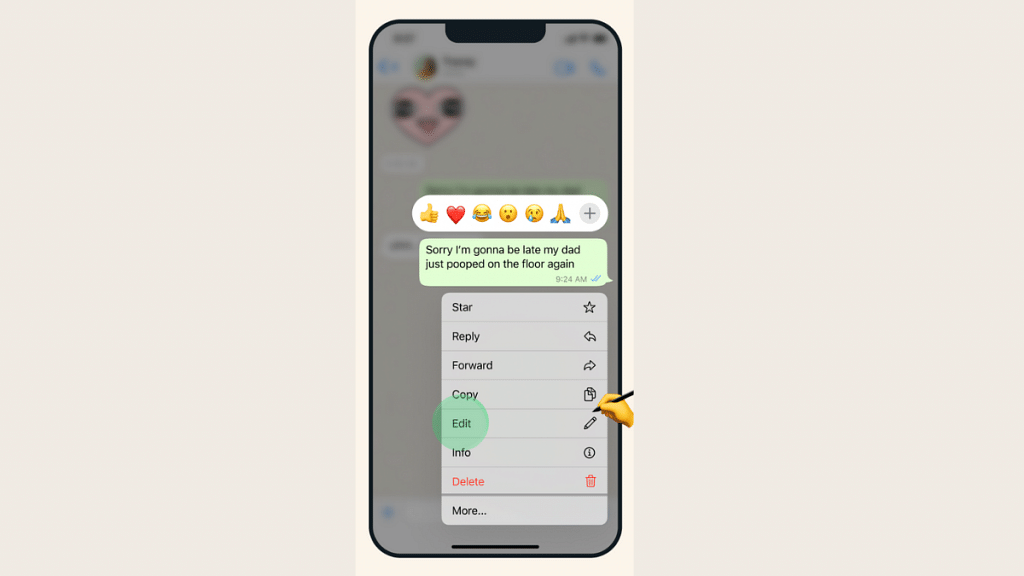
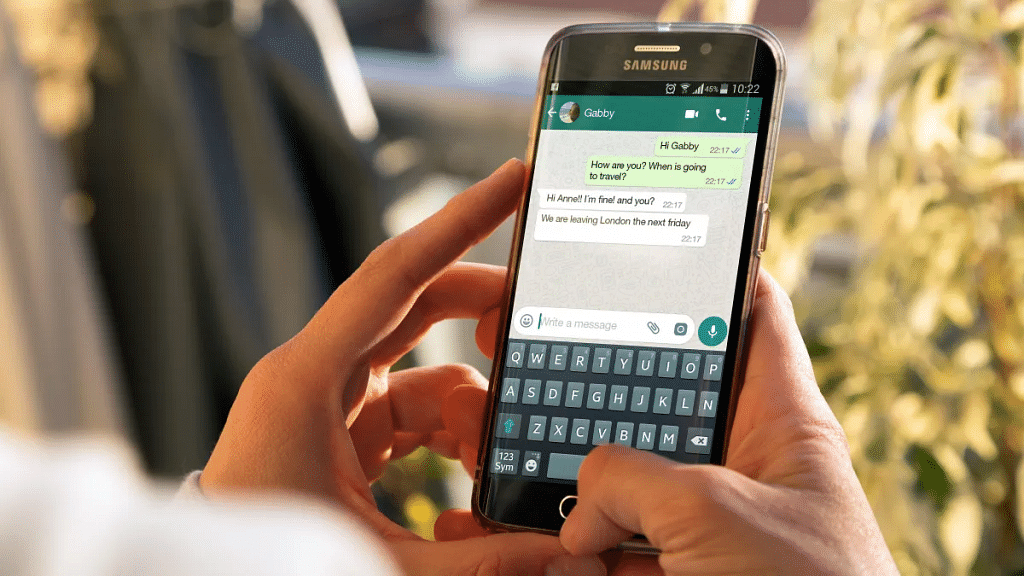
WhatsApp has confirmed the arrival of the Edit feature for chats via its official blog. This new messaging feature is designed to allow the users to correct spelling errors and also add any extra text to a message if required. The WhatsApp Edit message stable version is now available for Android and iOS users. This option will be rolled out in a phased manner to all the users and could take a while before the mass rollout is complete.

It is worth mentioning one needs to have the latest version of the WhatsApp app downloaded on their respective Android and iOS smartphones in order to use the Edit chat message feature. Another key catch here is that the Edit option for chat has a limited time frame.

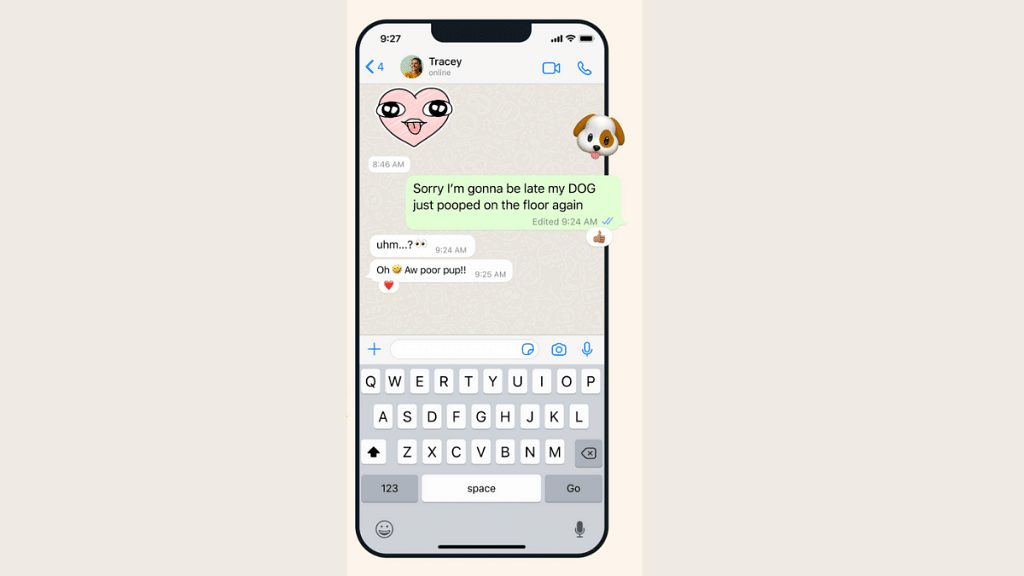
One would only be able to make changes or do any corrections with the sent messages for up to 15 minutes. Post that, users won’t be able to change the errors or make any further modifications to the sent messages. WhatsApp has also confirmed that the corrected statements will have “edited” written alongside it. Therefore, the receiver will know that the text has been edited. The edited messages will have the same end-to-end encryption as for calls, media, and other texts and documents.

Also Read: WhatsApp Sticker Maker Tool Launching Soon: How To Create Stickers Directly Using WhatsApp App

Steps To Use WhatsApp Edit Message Feature On Android and iOS

Step 1: First check if the WhatsApp app installed on your phone is updated to the latest version

Step 2: Launch the WhatsApp application on your respective phones

Step 3: Go to the Chat window or the conversation tab where you wish to make changes to the text

Step 4: Now, scroll to the message that requires editing

Step 5: Press and hold the message and wait for the options to pop up

Step 6: Select the Edit option

Step 7: Make the required changes to the text including correcting spelling errors and adding info

Also Read: WhatsApp Chat Lock Privacy Feature Released For Android, iOS: How To Lock WhatsApp Chats Using This New Feature?

Categories
Apps Featured Info

Google Pay Expands Payment Options In India With UPI Payments Using RuPay Credit Cards
Key Highlights

  • Google Pay now supports RuPay credit card payments
  • The feature is available of most RuPay credit card card holders
  • RBI allowed linking of RuPay credit cards to the UPI platform in june 2022

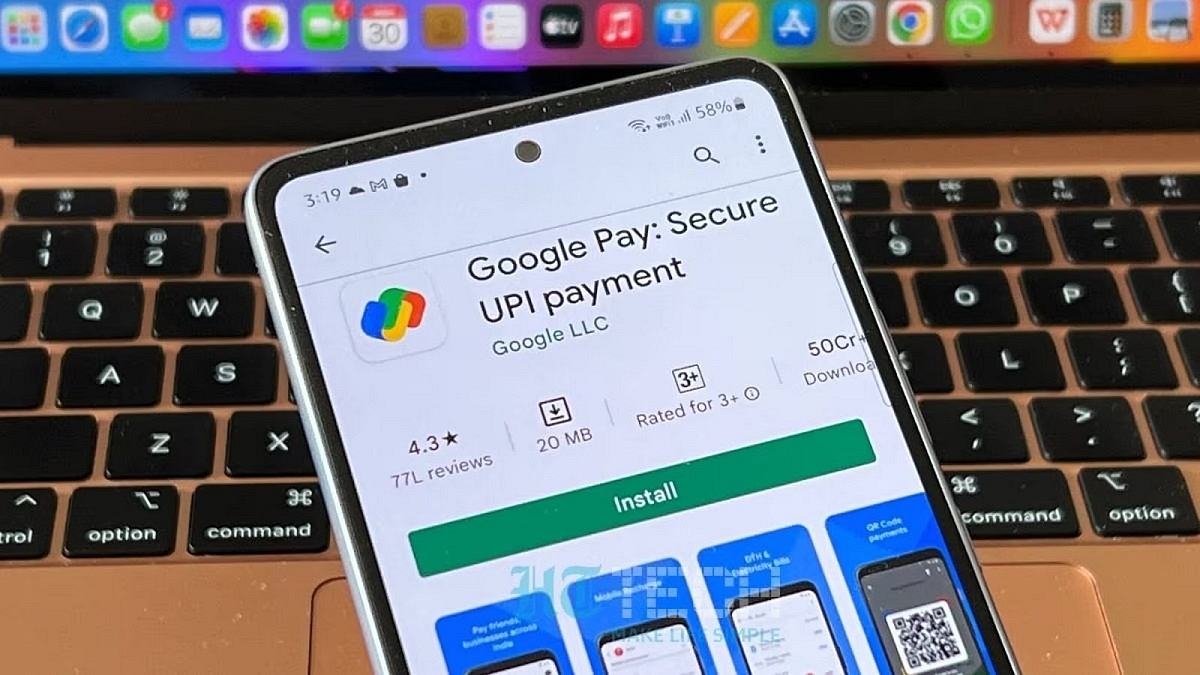
Google Pay now accepts RuPay credit card payments thanks to a partnership with the National Payments Corporations of India (NPCI). Google Pay users may now link their RuPay credit cards and pay both online and offline merchants.

Google Pay currently accepts Axis Bank, Bank of Baroda, Canara Bank, HDFC Bank, Indian Bank, Kotak Mahindra Bank, Punjab National Bank, and Union Bank of India are among the credit card issuers that RuPay accepts. The company has also said that it will add more banks in the near future.

For the unaware, GooglePay is a UPI-based payment service that, like the majority of payment apps, only accepts debit card payments. Users may now connect their RuPay credit card and make payments conveniently to businesses nationwide thanks to this upgrade. There isn’t yet a way to add credit cards from Visa and Master to Google Pay or any other UPI payment app in India.

Also Read: Google’s Big Clean-Up: Inactive Accounts To Be Deleted Starting December

How To Add A RuPay Credit Card To Google Pay?

Adding a RuPay credit card to Google Pay is as simple as adding a bank account via a debit card.

Step 1: Open Google Pay and go to settings

Step 2: Select the setup payment method and click on Add RuPay credit card

Step 3: Enter details like the last six digits of the credit card, expiry date, and pin Authenticate the same using OTP

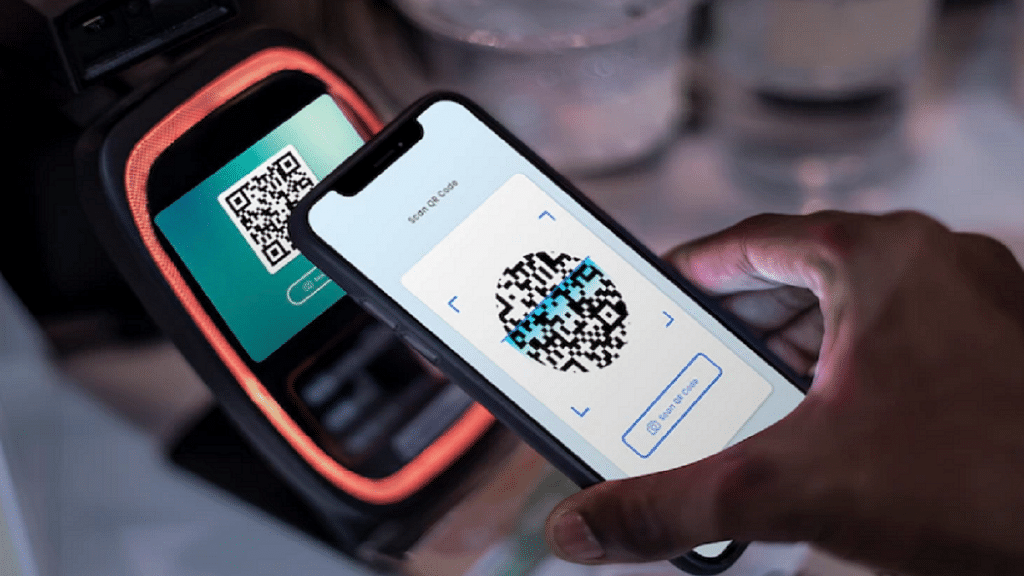
Step 4: You can now select a RuPay credit card while making payment to any UPI vendor, which can be done by either scanning the barcode or by entering the UPI ID or the phone number of the user

Also Read: Gmail Help Me Write Feature: What Is It? How To Use?

Categories
Apps Featured How To Mobile

Use UPI On Your Feature Phone With Ease: Here’s How

Key Highlights

  • One of the most widely used digital payment systems in India is UPI
  • Users of smartphones can make UPI payments using a variety of apps
  • Users using feature phones can also send money using UPI

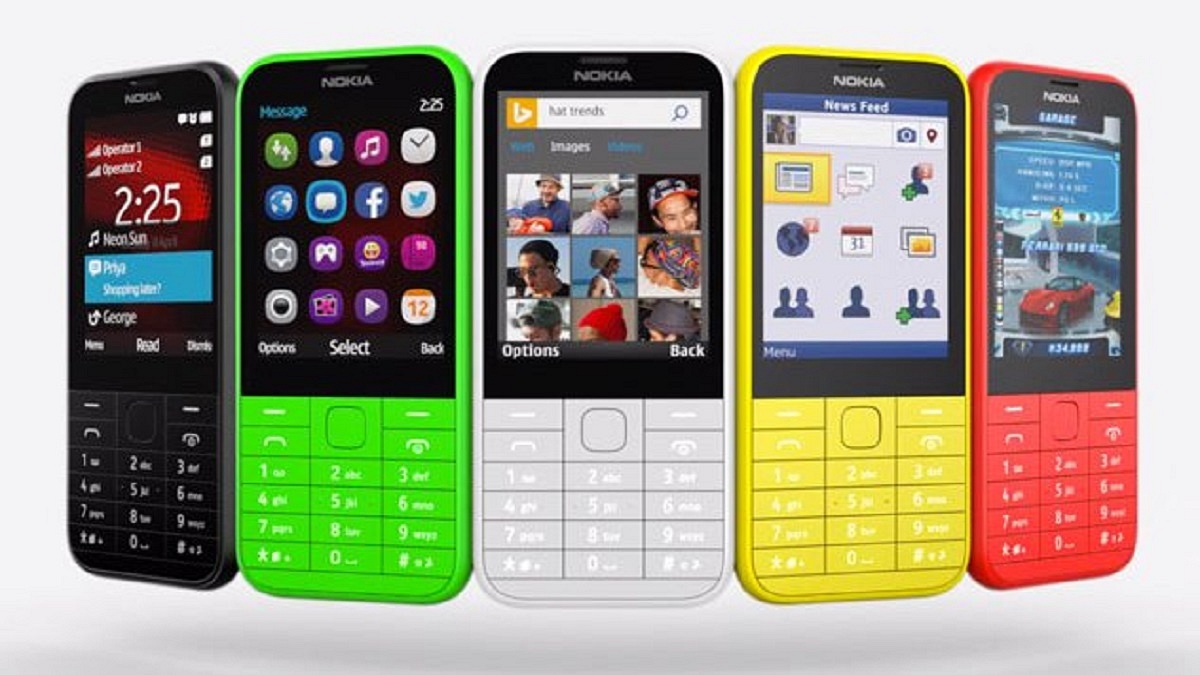
In today’s digital age, UPI has become a crucial mode of payment. While UPI is widely known among smartphone users, it’s crucial to understand that even feature phone users can now leverage this convenient payment method. To cater to the needs of feature phone users, the National Payments Corporation of India (NPCI) introduced 123PAY, a UPI facility designed specifically for them. With the use of this service, users of feature phones can create a UPI ID and carry out UPI transactions without a smartphone. This development holds great significance as there are approximately 400 million feature phone subscribers in the country, promoting financial inclusivity.

Also Read | PhonePe UPI Lite: What Is It? How To Send Up To Rs. 200 Without UPI Pin On PhonePe?

How To Create A UPI ID On A Feature Phone

To enable feature phone users to have UPI functionality, the process of setting up a UPI ID is straightforward. Here are the steps:

Step 1: Dial *99# on your feature phone.

Step 2: Select your bank’s name and provide the necessary information, such as the last six digits of your debit card and the expiry date.

Step 3: Set up a secure UPI PIN.

Step 4: Once completed, your UPI ID will be activated.

How To Make UPI Payments On Feature Phones

If you want to make payments using your UPI ID on a feature phone, follow these steps:

Step 1: Dial the IVR number 080451 63666.

Step 2: Select your preferred language.

Step 3: Choose the bank linked with UPI.

Also Read | Need Help With Zomato UPI Payments? Here’s A Step-by-Step Tutorial

Step 4: Press ‘1’ to confirm the details.

Step 5: Press ‘1’ again to send money using your mobile number.

Step 6: Enter the recipient’s mobile number.

Step 7: Confirm the details and enter the amount.

Step 8: Enter your UPI PIN and authorize the money transfer.

Transaction Limits For Feature Phones Using UPI

To ensure security and manage risk, certain transaction limits apply to UPI payments on feature phones:

Per day transactions limit: Rs 1,00,000

Per transaction limit: Rs 5,000

Also Read | UPI Money Transaction Limit In India: Here’s The Limit Of Transactions You Can Do Via GPay, PhonePe, Paytm Daily

Users of feature phones can now take advantage of UPI payments without a smartphone thanks to NPCI’s introduction of 123PAY. By following a few simple steps, feature phone users can create a UPI ID and seamlessly carry out transactions.

Categories
Apps Info Leaks

WhatsApp Long Awaited Edit Message Feature Teased Officially: Coming Sooner Than Expected?

Key Highlights

  • WhatsApp confirms the upcoming edit message feature
  • The teaser video hints at multi-language support for editing messages.
  • The feature is currently in beta testing for Android and web users.

WhatsApp has recently confirmed that it will soon be launching an edit message feature, allowing users to edit messages even after they have been sent in a chat. This feature has been tested by WhatsApp beta users on Android and the web, and now it is on the verge of being available to all users.

Also Read: WhatsApp Sticker Maker Tool Launching Soon: How To Create Stickers Directly Using WhatsApp App

Teaser Video Hints at Editing Capability

In a teaser video shared on Twitter, WhatsApp provides a glimpse of what is likely to be the much-anticipated editing feature. The video showcases users editing messages in various languages, indicating that the feature will support multiple languages within the app.

How to Edit WhatsApp Messages

As the edit message feature is already available in beta, we have some insights into how it will function once officially released. For users on WhatsApp beta for Android or the web, the following steps can be followed to test the feature:

  1. Open any chat on WhatsApp and send a message.
  2. Tap and hold the message, then select the ‘Edit’ option from the prompt.
  3. Edit the text as desired and send the revised message in the chat.
  4. WhatsApp allows users to edit messages within 15 minutes of sending them.
  5. During this time period, users can make multiple edits to the same message.

Release Details

While an official launch date has not been announced yet, the fact that WhatsApp has teased the feature and made it available in beta indicates that it will be available to all users soon.

Categories
Apps Featured How To

How To Book Your Uber Ride 90 Days In Advance: A Step-by-Step Guide

Key Highlights

  • Riders will now be able to book Uber rides 90 days in advance
  • Riders can cancel for free up to 60 minutes prior to the pickup, according to Uber
  • Prior to booking, riders who are scheduling the ride can view the cost

Uber has launched a new feature called Uber Reserve, allowing users to book cab rides up to 90 days in advance. Similar to the process of booking flights and hotels, riders can now plan their trips and secure Uber rides well ahead of time. This feature is currently available in the United States and Canada.

Also Read | Book An Uber Ride Using WhatsApp: Follow These Steps

Booking Rides In Advance With Uber Reserve

To facilitate advanced bookings, Uber Reserve provides users with the upfront price and advanced details about their assigned driver. According to an official blog post, Uber has begun rolling out this feature, enabling riders to schedule rides up to 90 days in advance. This allows for better trip planning and eliminates last-minute transportation concerns.

Steps To Book Uber Rides In Advance

Here’s a step-by-step process for booking Uber rides 90 days in advance:

Step 1: Open the Uber app on your device.

Step 2: Look for the “Uber Reserve” option and tap on it.

Step 3: Select the desired date and time for your pickup.

Also Read | From Ola To Rapido: Top Five Ride-Hailing Apps In India

Step 4: Review the details and price of the ride before confirming the booking.

Step 5: Keep in mind that you have the option to cancel the reservation for free up to 60 minutes before the scheduled pickup time.

Additionally, Uber offers some new features for users, such as Directions to Pickup and Walking ETAs. With the Directions to Pickup feature, the app provides step-by-step in-app directions to guide you to the designated Uber pickup area. This feature is currently available at over 30 airports worldwide, with plans for expansion. The Walking ETA feature helps you estimate the time it will take to walk from the gate to the baggage claim area. It will soon be available in more than 400 airports globally.

Also Read | From The Road To The Air: Uber Now Offers Flight Booking From Its App

Uber’s Advanced Booking And Features

By following these steps, users can take full advantage of Uber’s new features and easily book rides up to 90 days in advance. With Uber Reserve, riders can secure their transportation well ahead of time, gaining peace of mind and eliminating last-minute worries.

For the tech geeks, stay updated with the latest cutting-edge gadgets in the market, exclusive tech updates, gadget reviews, and more right on your phone’s screen. Join Giznext’s WhatsApp channel and receive the industry-first tech updates.

Categories
Apps Featured How To

Simplify Your Sharing Experience: How To Use Nearby Share On Windows

Key Highlights

  • Google makes Nearby Share available for Windows desktops and laptops
  • Nearby Share for Windows is still in beta, but anyone can download and use it
  • Files can be wirelessly and quickly transferred from an Android device to a Windows PCs using Nearby Share for Windows

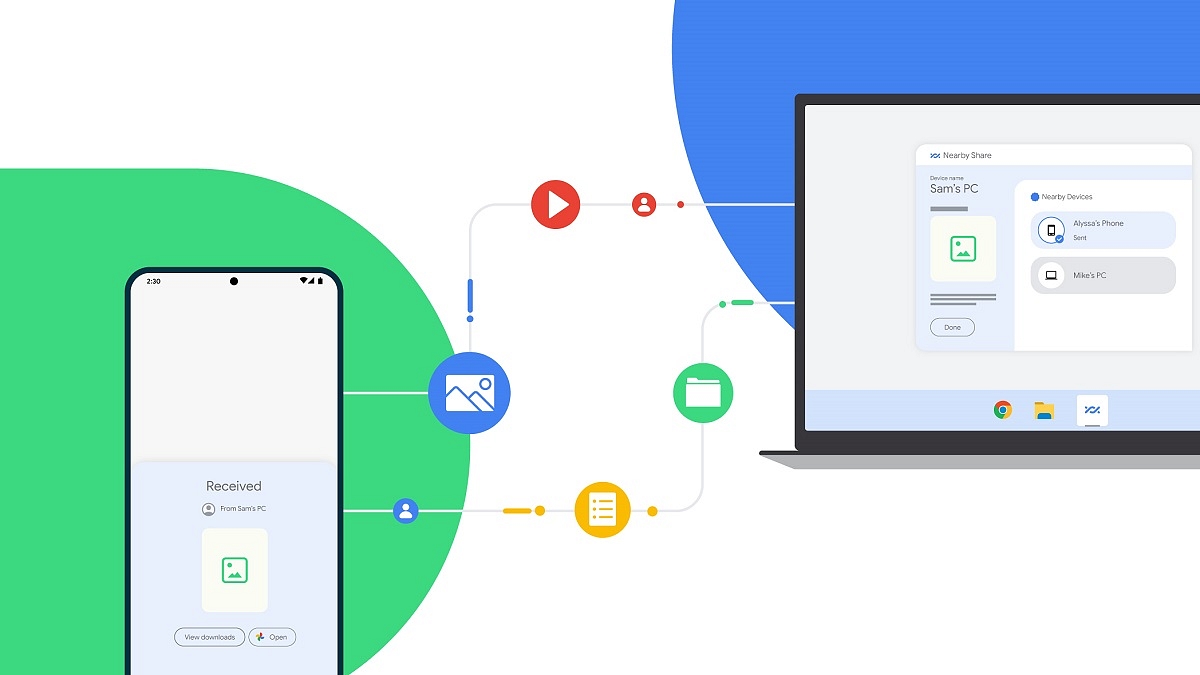
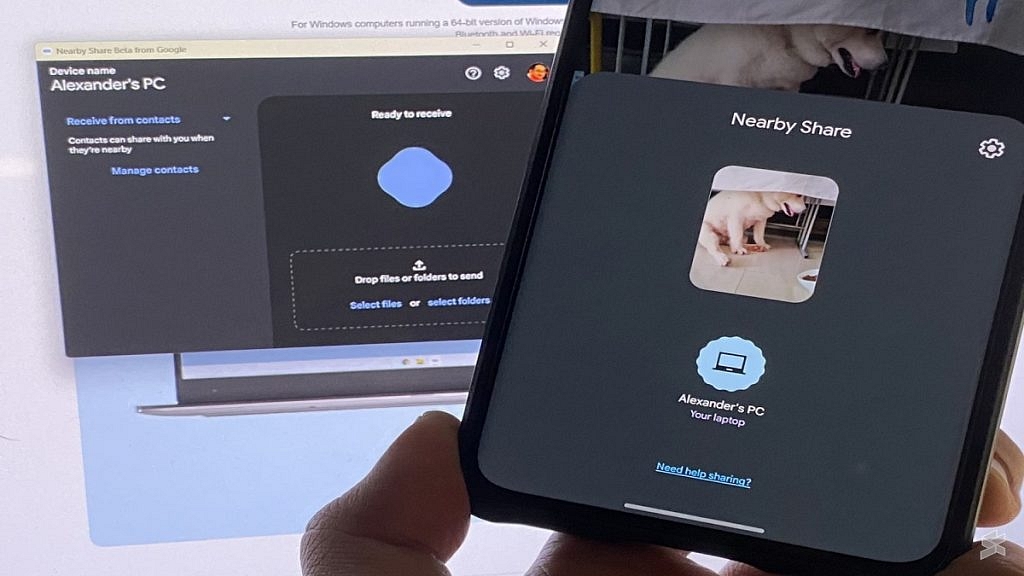
Google’s Nearby Share on Android offers fast and simple file transfers between Android devices. As for Apple users, AirDrop enables quick file sharing between iPhone, iPad, and Mac devices. However, when it comes to Windows PCs, users often rely on third-party alternatives or use P2P file-sharing websites, as well as the traditional wired transfer method. Thankfully, there’s no longer a need to resort to such inconvenient approaches, as Google has recently introduced Nearby Share for Windows, which functions flawlessly on Windows 11 machines. In this article, we will guide you through the process of wirelessly sharing files in a matter of seconds between an Android phone and a Windows PC.

Also Read | Want To Create A New Folder In Windows 11? Here Are Simple Ways To Do It

Steps To Share Files Between Android And Windows Via Nearby Share

It is important to mention that Nearby Share for Windows is currently in beta but accessible to everyone. Google anticipates receiving direct feedback on the feature from the general public. Here are the steps to follow:

Step 1: Launch a web browser on your Windows PC.

Step 2: Visit the Nearby Share Beta for Windows website.

(Please note that the app is compatible with Windows 10 64-bit and higher versions and does not support ARM devices.)

Step 3: Click on ‘Get Started with Beta’ to initiate the app download.

Step 4: After downloading, install and open the app.

Also Read | Worried About Laptop Privacy: Best Windows Laptop With Fingerprint Reader Biometrics

Step 5: Sign in with your Google account and grant the app all necessary permissions. Choose between ‘Everyone’ or ‘Contact’ from the dropdown menu, based on your preference. Selecting ‘Everyone’ allows anyone near your PC to share files with it.

Step 6: Open the gallery on your Android phone, select the desired media (photos, videos, or other files), and tap the Share button.

Step 7: Choose ‘Nearby Share’ from the available options and wait for your PC to appear on the screen.

Step 8: Tap on your PC, and the selected media will be swiftly transmitted to it. You can also utilize this process in reverse by sending files from your Windows PC to your Android phone. Be aware that as the Windows app is in beta, you may encounter certain issues. However, Google aims to address these problems as it prepares the stable version.

For the tech geeks, stay updated with the latest cutting-edge gadgets in the market, exclusive tech updates, gadget reviews, and more right on your phone’s screen. Join Giznext’s WhatsApp channel and receive the industry-first tech updates.

Categories
Apps Featured Info

WhatsApp Sticker Maker Tool Launching Soon: How To Create Stickers Directly Using WhatsApp App

Key Highlights

  • WhatsApp Sticker maker tool under development
  • Spotted in iOS beta build
  • Release timeline not been announced

WhatsApp has been releasing a new set of features for its iOS and Android app without fail almost every single month. From privacy-centered to media-related new features are being consistently added on WhatsApp. Just recently the company released the Chat Lock privacy feature for the users and is now reportedly working on a new sticker feature. What is the new tool that WhatsApp now plans to bring? Let’s find out:

Also Read: No More Switching Between Devices: WhatsApp Now Allows Account Use On Up To Four Phones

WhatsApp Sticker Maker Feature: What Is It? How To Use?

WhatsApp allows users to send stickers as messages on both its Android and iOS apps. However, until now there is no direct feature with which you can directly create and send stickers to any chat. For this, downloading a third-party sticker app has been the option all this while. But now, WhatsApp is apparently working on a new option that will allow users to create stickers directly in the app and share them with their respective contacts without downloading any additional third-party sticker app.

A fresh report released by the publication WABetaInfo reveals that the sticker-making tool for WhatsApp is in the works. The feature will probably be called “New Sticker” which will be added to the platform probably in the coming months. The sticker maker feature has been spotted in the iOS 16 APIs. The report further suggests that this new tool will extract the subject from an image and convert it into a sticker.

According to the report, users will be able to access and use the sticker maker tool from the chat share action page. A “New Sticker” tab will be added that users would need to click followed by selecting an image from the device gallery that they wish to convert into a sticker.

Also Read: WhatsApp Chat Lock Privacy Feature Released For Android, iOS: How To Lock WhatsApp Chats Using This New Feature?

When Is WhatsApp Sticker Maker Feature Releasing?

Unfortunately, the WhatsApp Sticker maker app is in the development phase and has been spotted with the WhatsApp iOS beta 23.10.0.74 build. There is no clear insight related to the release of the stable version. But WhatsApp has been proactive with the addition of new features to its platform and could release the Sticker maker tool for Android and iOS mobile versions in the next few months.

Also Read: WhatsApp Tips & Tricks: How To Unblock Yourself And Regain Access