Categories
Featured How To TV

Remove Pre-Installed Apps On Android TV: Here’s How To Do It

Key Highlights

  • Android TV offers similar benefits to Android smartphones but can also have preinstalled apps
  • Users have the option to mass-delete or disable pre-installed apps on their Android smart TVs
  • This allows them to remove unwanted bloatware and customize their TV experience according to their preferences

Android TV is essentially Android on a television. This has many benefits that we enjoy with Android smartphones, but it also has drawbacks, such as preinstalled apps that we don’t want, commonly known as “bloatware.”

On your Android smart TV, there is a simple option to mass-delete all of these pre-installed apps or, if you’d like, just disable them. Follow this post to learn how to remove bloatware from your Android TV if you’re looking for exactly that. Let’s find out:

Also Read | Buying A New Smart TV: Top Premium 43-inch. 50-inch, 55-inch Smart TVs Under Rs. 50,000 In 2023

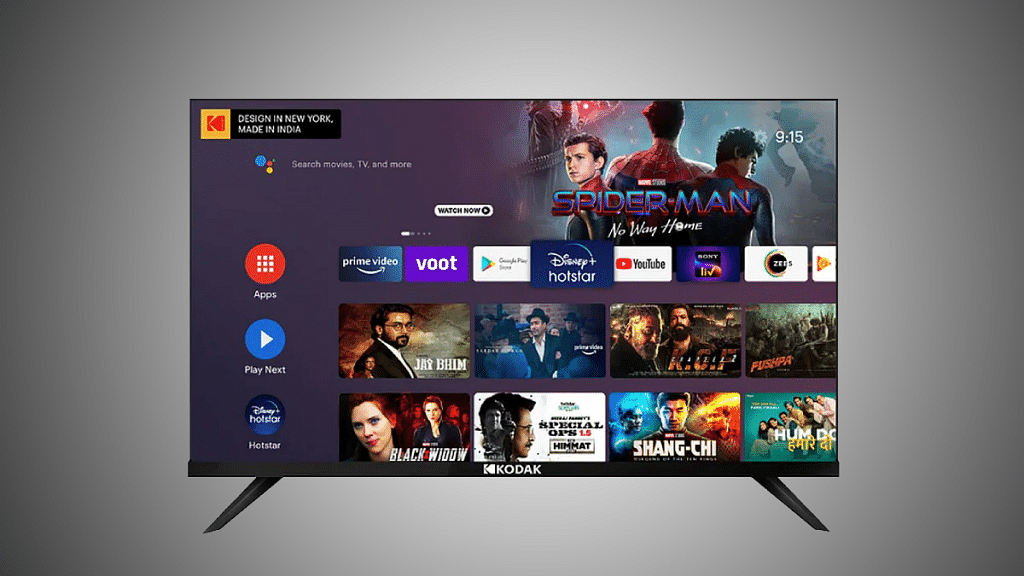
How To Uninstall Apps On Android TV?

Let’s first go over how to remove an app using the Settings menu. Every app you install on your devices, including several that come preinstalled by the manufacturer, will function after you follow this procedure. To start:

Step 1: Go to the Settings menu. You can get there by tapping the gear-shaped icon in the home screen’s upper right-hand corner.

Step 2: To go to that sub-menu, click on Apps.

Step 3: You’ll need to tap ‘See All Apps’ and scroll down until you find the one you’re looking for.

Step 4: Click on the app you want to uninstall to get to its detail page.

Step 5: Tap on ‘Uninstall’ to continue.

Step 6: A new screen will pop up and the system will ask if you really want to uninstall this app from your Android TV. Click ‘OK’ to continue.

The screen will temporarily flash white while it’s removing the application. Once finished, the app will no longer be listed when you return to the Settings screen.

Read Also | How To Set Up Google Duo On Your Android TV: Follow These Steps
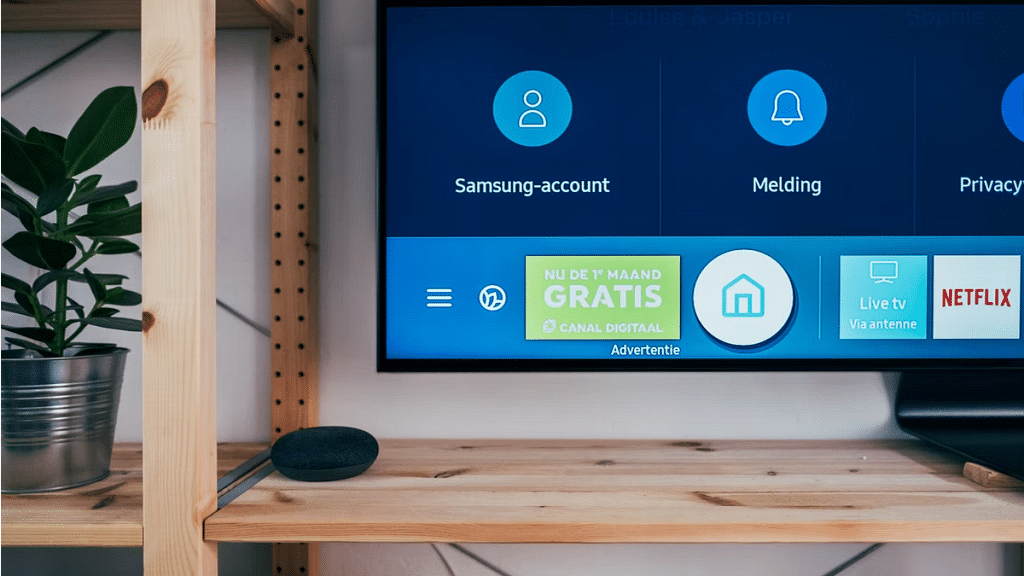
Disable Apps On Android TV

It’s likely that you’ll run into applications that don’t have the ‘Uninstall’ option available. You will discover Deactivate in its place. Disabling an app means that it will no longer appear anywhere and will still stream on TV even though its data has been removed.

The majority of the TV bloatware should now be gone, but there will always be preinstalled system apps that you cannot remove or disable from the menus. Although there are a few extra stages, you can also skip them.

Also Read | Best 55-inch High-Res Smart TVs Under Rs. 40,000 In 2023
Categories
Featured Gaming How To

Want To Make A Book In Minecraft? Here’s How

Normally, it doesn’t seem like books and gaming are things that go together in the actual world. However, books are a crucial game mechanic for advancement in the world of Minecraft. You require them for adornment, enchantments, and—thanks to the contentious report system—also for self-expression. But that can wait until later. It’s time to learn how to create a book in Minecraft for the time being, as well as how to get a large number of them quickly as a bonus. Let’s dive in.

Items Required To Make A Book

To make a book in Minecraft, you need the Listed three items:

  • Leather
  • Crafting Table
  • Enchanting Table

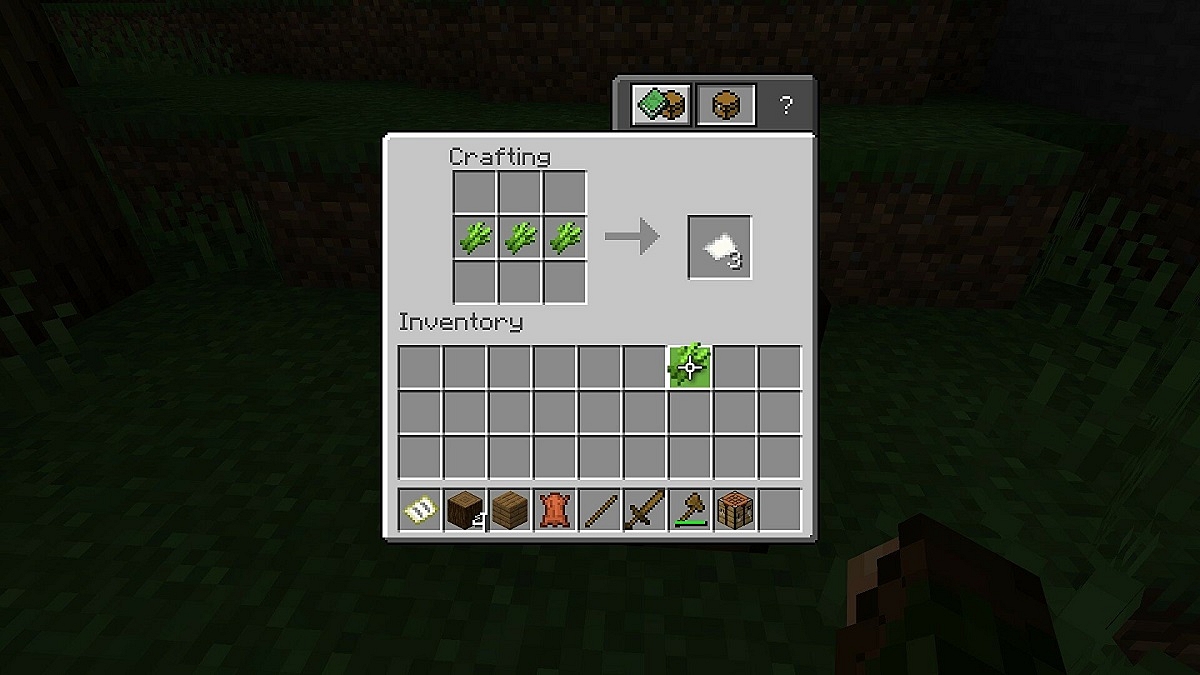
Craft Your Paper

Step 1: Open your Crafting Table.

Step 2: Put one sugar cane into each of the three blocks in the middle row.

Step 3: You have to drag the three sheets of paper into your inventory. All three sheets are required for your book.

Craft Your Leather

Step 1: Open your Crafting Table.

Step 2: Fill the top and middle squares of the first column with one rabbit hide.

Step 3: Into the top and middle squares, place one rabbit hide each in the second column.

Step 4: Drag the resulting leather down in your inventory.

Craft Your Book

Step 1: Open your Crafting Table.

Step 2: In the top and middle squares, place one rabbit hide in the first column.

Step 3: In the top and middle squares, place one rabbit hide each in the second column.

Step 4: Then, drag the resulting leather down in your inventory.

How To Make A Minecraft Bookshelf?

When you have a book, it makes sense to build a bookshelf in Minecraft. Fortunately, it’s just as simple as creating a book. First, arrange three books side by side in the center row of the creating space. After that, you must construct the bookshelf by enclosing them with planks. When you have enough bookcases, you can use them in Minecraft to level up your enchanting table.

You are now prepared to create your own Minecraft collection of books. They make the ideal addition to your Minecraft home. On the top Minecraft servers, some players use it to communicate ideas. For the best Minecraft unlocks, others rely on them for unlocking.

Categories
Chipset Comparison Featured

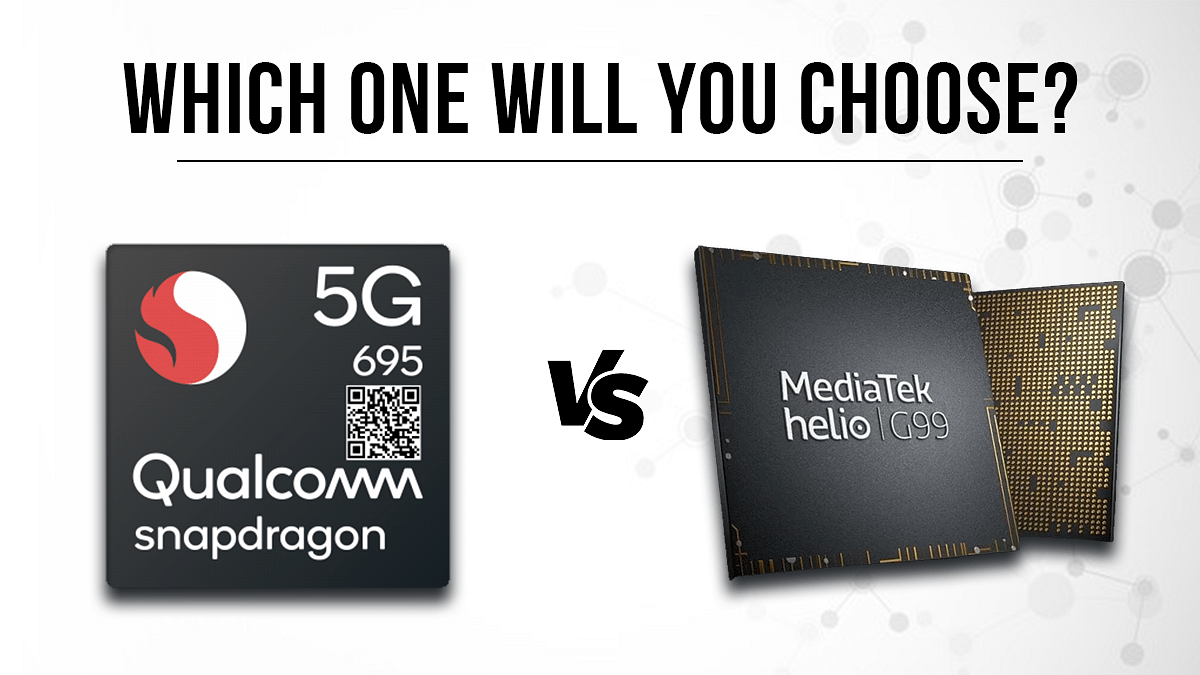
Qualcomm Snapdragon 695 Vs MediaTek Helio G99 Chipset: Quick Comparison

Key Highlights

  • Qualcomm Snapdragon 695 is built on the ARMv8-A Instruction set and has a total frequency of 2000MHz.
  • The SD 695 is built on an 11nm fabrication process
  • Below is the comparison of Qualcomm Snapdragon 695 Vs MediaTek Helio G99 Chipset.

Qualcomm had released the Snapdragon 665 octa-core 5G chipset for mid-range Android smartphones. Multiple smartphone OEMs have used this chipset in recent times for their new product lineup. MediaTek is one of Qualcomm’s biggest contenders in this race and has the Helio G99 processor to take on the Snapdragon 665 processor. In this article, we compare these processors’ CPU, GPU, and Memory compatibility.

Key Features Snapdragon 695 5G Helio G99
CPUocta-coreocta-core
GPUAdreno 610 GPUMali-G57 GPU
MemoryLPDDR4X RAMLPDDR4X RAM
StorageeMMC 5.1 and UFS 2.1.UFS 2.1

Qualcomm Snapdragon 695 Vs Helio G99 Chipset: CPU Performance

The Qualcomm Snapdragon 695 processor is built using 11nm fabrication process, whereas, the Helio G99 gaming chipset is built using a thinner 6nm process. The SD 695 is built on the ARMv8-A Instruction set and has a total frequency of 2000MHz. This mid-range Qualcomm octa-core chipset has four Cortex-A73 cores clocked at 2GHz and four Cortex A53 cores clocking at 1.8GHz.

MediaTek’s Helio G99 is based on the ARMv8.2-A instruction set and has a 2200MHz base frequency. This processor has two Cortex A-76 Cores clocked at 2.2GHz and six Cortex-A55 cores clocked at 2GHz. Both chipsets are good with power delivery and can handle media playback and gaming decently.

Also Read: Qualcomm Snapdragon 8 Gen 2 Vs MediaTek Dimensity 9200 Chipset Comparison: Most Advanced 5G Flagship Mobile Processor?

Snapdragon 695 Vs MediaTek Helio G99 Processor: GPU Performance

The Qualcomm Snapdragon 695 processor ships with the Adreno 610 GPU which is designed on the Adreno 600 architecture. This GPU has a frequency range of 600MHGz and offers two execution units. The MediaTek Helio G99’s Mali-G57 MC2 GPU is designed on the Valhall architecture with two execution units and 32 shading units. The GPU performance of both the Qualcomm Snapdragon 695 and the Helio G99 is good with the hardware being apt to render even extensive graphics smoothly.

Also Read: MediaTek Dimensity 9200 Processor Vs Qualcomm Snapdragon 8 Gen 1 Chipset: High-End Mobile Chipset Comparison

Qualcomm Snapdragon 695 Vs MediaTek Helio G99: Memory, Multimedia (ISP)

The memory compatibility with both Qualcomm Snapdragon 695 and the Helio G99 processor is LPDDR4X. The maximum RAM memory allocation with the Snapdragon chipset here is 8GB, while the Helio G99 chipset has up to 10GB memory support. The former has a memory frequency of 1866MHz, while the latter has a 4266MHz memory frequency. The storage compatibility with the SD 695 is eMMC 5.1 and UFS 2.1. The MediaTek Helio G99 comes with single UFS 2.2 memory compatibility.

The multimedia aspects of the Snapdragon 695 and the Helio G99 is same with the max display resolution (1080 x 2520). The max camera resolution varies with the Snapdragon chipset offering support for 1x 48MP and 2x 16MP cameras. The MediaTek chipset offers 1x 10⁸MP and 2x 16MP max camera resolution compatibility. The video recording supports is 4K@30fps with the Snapdragon 695 and 2K@30fps with the Helio G99.

Also Read: MediaTek vs Exynos Chipset Comparison: Which one is Better? Pros, Cons, And More
Categories
Comparison Featured TV

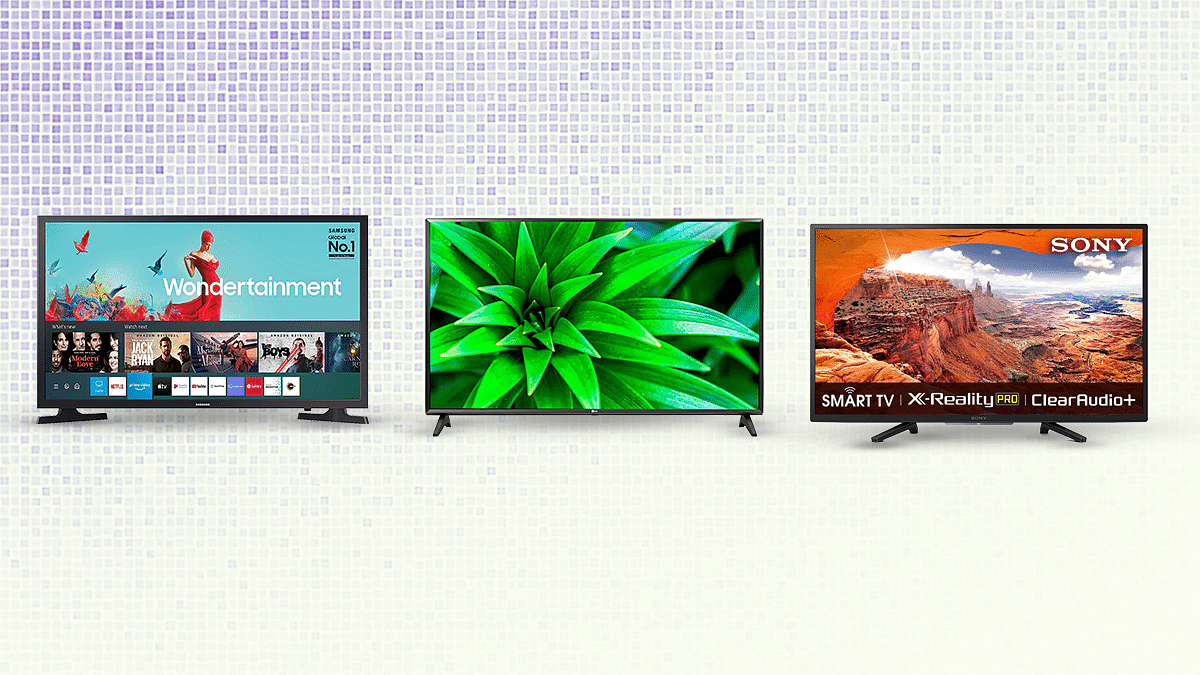
Samsung HD Ready LED Smart TV Wondertainment Series Vs LG HD Ready Smart LED TV Vs Sony Bravia HD Ready Smart LED TV: Best 32-Inch Smart TV?

Key Highlights

  • The Samsung HD Ready LED Smart TV Wondertainment Series is perfect for families with children.
  • Comes with mega contrast, PurColor, and HD picture quality.

Unlike smartphones, TVs have significantly decreased in price, making the great new TV technology affordable to everyone. Additionally, three stand out among the various TV manufacturers on the market, i.e., Samsung, LG, and Sony. They set the bar for the best TVs out there with smart TV technology, high picture quality, a sleek and elegant design, and some pretty remarkable screen sizes.

In this article, we are comparing three smart TVs, i.e., Samsung 32 Inches HD Ready LED Smart TV Wondertainment Series, LG 32 Inches HD Ready Smart LED TV and Sony Bravia 32 inches HD Ready Smart LED TV. Every brand has models that stand out in particular categories. But the bottom line? We’ll tell you here.

Design And Display

The Samsung HD Ready LED Smart TV Wondertainment Series sports a slim and stylish design. It has a 32-inch HD Ready (1366 × 768) LED panel with a 60Hz of refresh rate. The display further has mega contrast, PurColor, and HD picture quality.

On the other hand, the LG HD Ready Smart LED TV has a standard plastic frame style. If hung on a wall or even just placed on a flat surface, its wider and blockier shape takes up room. It is a 32-inch Smart TV with an HD resolution that is natively supported. This TV’s feature set is better than most entry-level 32-inch TVs.

Moving to the Sony Bravia HD Ready Smart LED TV, its design is more classical with narrow bezels on all four sides and an elongated chin underneath the company logo on the bottom bezel. It has a 32-inch panel with a resolution of 1366 x 768 pixels and a 50Hz refresh rate.

Also Read: LG India Launches OLED 2022 Smart TV Series: See Here For Price And Other Details

OS And Features

The Samsung HD Ready LED Smart TV Wondertainment Series comes equipped with features like voice assistants, SmartThings app, personal computer, home cloud, live cast, screen share, and music system. As for connectivity, it has two HDMI ports to connect the set-top box, Blu-Ray players, and gaming console. Also, it comes with one USB port to connect hard drives and other USB devices.

The Samsung TV has 20W sound output with Dolby Digital Plus. It further has Alexa built-in. Simply ask Alexa to play music, control smart home devices, find movies, get sports updates, and more.

On the other hand, the LG TV’s latest version of the operating system has received a webOS Notify feature that works like the notification feature on our phones. From texts, incoming calls, and emails, to software updates, you can check notifications right away. The LG TV’s AI ThinQ function is its most intriguing feature. The built-in AI features in this TV, according to LG, will handle more than 800 voice search requests. It includes three HDMI ports in total, including one HDMI ARC port, and one USB port.

The quad-core processor within the Sony Bravia HD Ready Smart LED TV has four ARM Cortex A55 cores and a Mali-G31 GPU. You get 1.5GB RAM and 16GB of internal storage, of which the OS and preinstalled apps use around half and the remaining third is left over for your use. Moving on to connectivity, this Sony TV has the majority of common input/output ports. A 3.5mm headphone jack, an optical audio out, coaxial A/V inputs, a LAN connector, and three HDMI ports, one of which supports ARC, two USB 2.0 ports, and other ports are included.

Also Read: Samsung HD Ready LED Smart TV Wondertainment Series Vs LG HD Ready Smart LED TV Vs Sony Bravia HD Ready Smart LED TV: Best 32-Inch Smart TV?

Verdict

All three models, i.e., Samsung HD Ready LED Smart TV Wondertainment Series, LG HD Ready Smart LED TV, and Sony Bravia HD Ready Smart LED TV, are priced under Rs. 30,000. However, the LG Smart TV is filled to the brim with premium features. A motion remote, HDR and other technologies like AI ThinQ are uncommon on low-cost TVs or any other models with a comparable price. The LG HD Ready Smart LED TV is a serious contender if you were looking to upgrade to a smart TV because it offers great value for the money along with a good picture and audio quality.

Categories
Apps Featured How To

How To Use Two WhatsApp Accounts On One iPhone: Check Out The Steps

Key Highlights

  • Most new smartphones offer dual-SIM functionality
  • You can’t use two distinct WhatsApp accounts on one smartphone
  • Android users use app cloning or third-party apps, while iOS users face challenges due to lack of built-in or third-party tools for app cloning

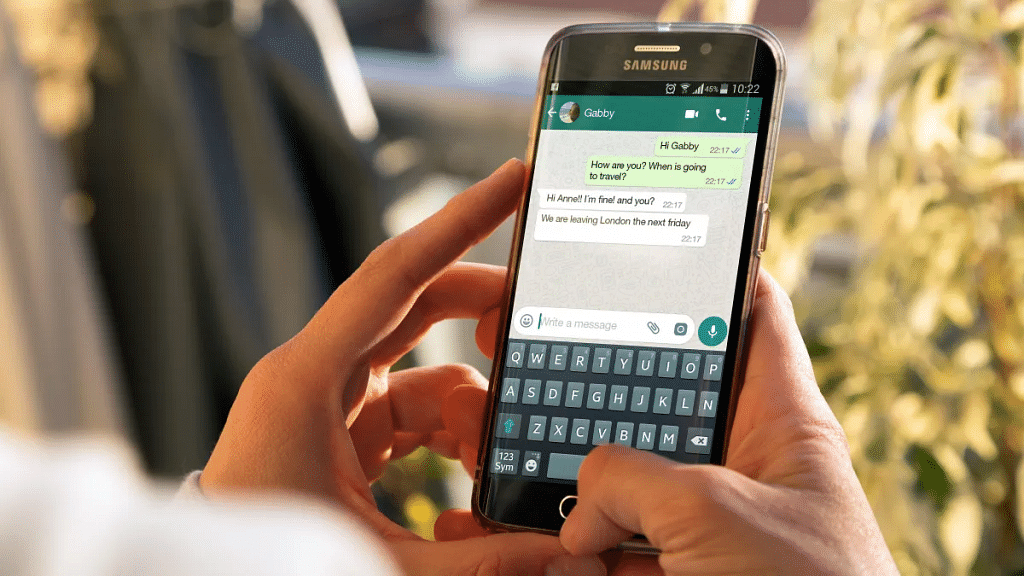
In the past few years, almost all new smartphones have had dual-SIM functionality. You can use two separate numbers on the same device thanks to the feature. Unfortunately, you cannot use two distinct accounts on a single smartphone using WhatsApp, one of the most widely used messaging apps worldwide. The majority of Android users choose “Dual WhatsApp” by using the app cloning feature or installing third-party apps to use two WhatsApp accounts.

With iOS, this might not be the case, though, as there aren’t any internal or third-party tools that let users clone their apps, making it challenging for users to have multiple accounts for the same app. Let’s find out how you can use two WhatsApp on a single iPhone. Also Read | WhatsApp Tips & Tricks: How To Unblock Yourself And Regain Access

Steps To Use Two WhatsApp Accounts On A Single iPhone

Using WhatsApp Business is the only way to use two WhatsApp accounts on a single iPhone. Similar to the standard version, WhatsApp Business has a few more features that make it appropriate for business owners.

You can currently use these two versions of the platform with two separate numbers on a single device with the Meta-owned app. Follow these steps to learn how to use two WhatsApp accounts on a single iPhone. This way you can lastly make use of your iPhone’s second SIM for WhatsApp.

Step 1: On your iPhone, open App Store and search for WhatsApp Business.

Step 2: Click on the Get icon and install the app on your iPhone.

Step 3: Open the application after downloading it and tap on Agree & Continue button.

Step 3: There will be two choices available to you in a new window. Click the second choice. You can use your current WhatsApp account as a business account if you choose the first option. You can create new WhatsApp Business accounts with a different number using the second option.

Step 4: Simply log on with your second number as you would on the standard WhatsApp app.

Also Read | WhatsApp Pay Tips And Tricks: How To Check Bank Account Balance On WhatsApp App

Following setup, you can use the regular WhatsApp for your primary contact number and WhatsApp Business for your secondary contact number. You will find it simple to sort through messages in this manner. Additionally, it is simple to maintain two WhatsApp accounts on a single iPhone if you run a business or wish to use one for personal usage and the other for work.

Categories
Apps Featured Info

What Are Netflix Secret Codes: How To Watch Hidden TV Shows And Movies On Netflix Using Secret Codes

Netflix is amongst those platforms that have redefined the experience of binge-watching TV shows and movies on desired screens. You just need a smartphone, tablet, or PC to tune into your favorite shows or movies. It wouldn’t be wrong to say Netflix has become the preferred platform for entertainment on the go. When you scroll through the Netflix homepage, you can see all the latest and trending movies and shows.

But with such a vast library, it must become confusing at times to select the perfect movie or show to watch. But not all TV shows or movies are in direct sight when you scroll through the Netflix app catalog. While you can easily scroll through the listed genres of movies and shows, a plethora of content is hidden on Netflix and you would need some secret codes to watch them.

What Are Netflix Secret Codes? How To Use Netflix Secret Codes?

The Netflix secret code is one of the handiest features offered by the OTT giant. This option lets you scroll through and watch from the list of movies that are hidden on the platform and not visible in direct sight; even when you search movies directly from the genre. Just for reference, you’ll be able to scroll through TV Shows, Movies, and Categories if you use the Netflix app. For the hidden movie and show library, you will have to use the secret codes manually.

But in order to use the Netflix Secret codes, you will need to have the subscription plans active. If you don’t have purchased any of the available subscription plans, you wouldn’t be able to watch movies using the secret codes. And to watch movies using the secret codes on Netflix, you can simply type http-//www.netflix.com/browse/genre/ followed by the secret code. Below is the entire list of Netflix secret codes with which you can browse through the hidden movies and shows library-

List Of Full Secret Codes For Movies And Shows On Netflix

  1. Anime- 7424
  2. Action Comedies- 43040
  3. Adventures- 7442
  4. Adult Animation- 11881
  5. Alien Sci-Fi- 3327
  6. Anime Action- 2653
  7. African Movies- 3761
  8. Action Thrillers- 43048
  9. Action Sci-Fi & Fantasy- 1568
  10. Anime Comedies- 9302
  11. Art House Movies- 29764
  12. Anime Dramas- 452
  13. Action & Adventure- 1365
  14. Asian Action Movies- 77232
  15. Anime Fantasy- 11146
  16. Basketball Movies- 12762
  17. Baseball Movies- 12339
  18. Biographical Dramas- 3179
  19. Boxing Movies- 12443
  20. British TV Shows- 52117
  21. Biographical Docs- 3652
  22. B-Horror Movies- 8195
  23. Chinese Movies- 3960
  24. Classic Comedies- 31694
  25. Classic Action & Adventure- 46576
  26. Classic Foreign Movies- 32473
  27. Classic Movies- 31574
  28. Classic Sci-Fi & Fantasy- 47147
  29. Classic TV Shows- 46553
  30. Classic Thrillers- 46588
  31. Classic War Movies- 48744
  32. Classic Musicals- 32392
  33. Children & Family Movies- 783
  34. Comedies- 6548
  35. Classic Westerns- 47465
  36. Classic Dramas- 29809
  37. Classic Romantic Movies- 31273
  38. Courtroom Dramas- 2748
  39. Crime Documentaries- 9875
  40. Cult Comedies- 9434
  41. Comic Book and Superhero- 10118
  42. Country & Western/Folk- 1105
  43. Cult Horror Movies- 10944
  44. Dark Comedies- 869
  45. Dramas based on real life- 3653
  46. Dutch Movies- 10606
  47. Deep Sea Horror Movies- 45028
  48. Experimental Movies- 11079
  49. Epics- 52858
  50. Eastern European Movies- 5254
  51. Fantasy Movies- 9744
  52. Family Features- 51056
  53. Football Movies- 12803
  54. Foreign Action & Adventure- 11828
  55. Faith & Spirituality Movies- 52804
  56. Foreign Comedies- 4426
  57. Foreign Sci-Fi & Fantasy- 6485
  58. Foreign Gay & Lesbian Movies- 8243
  59. Foreign Horror Movies- 8654
  60. French Movies- 58807
  61. Foreign Documentaries 5161
  62. Food & Travel TV- 72436
  63. Greek Movies- 61115
  64. Gay & Lesbian Dramas- 500
  65. Gangster Movies- 31851
  66. Gay & Lesbian Dramas- 500
  67. Horror Movies- 8711
  68. Historical Documentaries- 5349
  69. Independent Comedies- 4195
  70. Independent Action & Adventure- 11804
  71. Indian Movies- 10463
  72. Independent Thrillers- 3269
  73. Independent Dramas- 384
  74. Italian Movies- 8221
  75. Irish Movies- 58750
  76. Japanese Movies- 10398
  77. Kids’ TV- 27346
  78. Korean TV Shows- 67879
  79. Korean Movies- 5685
  80. Latin American Movies- 1613
  81. Monster Movies- 947
  82. Military Documentaries- 4006
  83. Military Action & Adventure- 2125
  84. Middle Eastern Movies- 5875
  85. Martial Arts, Boxing & Wrestling- 6695
  86. Miniseries- 4814
  87. Mysteries- 9994
  88. Music & Concert Documentaries- 90361
  89. Pol Psychological Thrillers- 5505
  90. Political Documentaries- 7018
  91. Political Dramas- 6616
  92. Period Pieces- 12123
  93. Romantic Foreign Movies- 7153
  94. Romantic Independent Movies- 9916
  95. Rock & Pop Concerts- 3278
  96. Romantic Comedies- 5475
  97. Russian- 11567
  98. Reality TV- 9833
  99. Sci-Fi Adventure- 6926
  100. Scandinavian Movies- 9292
  101. Sci-Fi Horror Movies- 1694
  102. Sci-Fi Dramas- 3916
  103. Science & Nature Documentaries- 2595
  104. Science & Nature TV- 52780
  105. Silent Movies- 53310
  106. Showbiz Dramas- 5012
  107. Slasher and Serial Killer Movies- 8646
  108. Southeast Asian Movies- 9196
  109. Spanish Movies- 58741
  110. Social & Cultural Documentaries- 3675
  111. Steamy Romantic Movies- 35800
  112. Spy Action & Adventure- 10702
  113. Spiritual Documentaries- 2760
  114. Supernatural Horror Movies- 42023
  115. Steamy Thrillers- 972
  116. Spy Thrillers- 9147
  117. Sports Movies- 4370
  118. Sports Documentaries- 18
  119. Stand-up Comedy- 11559
  120. Soccer Movies- 12549
  121. Supernatural Thrillers- 11140
  122. Teen TV Shows- 60951
  123. Teen Screams- 52147
  124. Teen Comedies- 3519
  125. Travel & Adventure Documentaries- 1159
  126. Vampire Horror Movies- 75804
  127. Zombie Horror Movies- 75405
Categories
Featured How To Mobile

How To Check Number Of Sim Cards Registered On Your Name And ID: How To Block Unauthorized SIM Cards Issued On Your Name?

Key Highlights

  • Check and block linked SIM cards.
  • 18 SIM cards per ID/Aadhar.
  • TRAI’s portal for SIM verification.

If you are a smartphone user, chances are you must be using one primary SIM card for your smartphone. If it’s a dual SIM phone, you might have two SIM cards from a single or different operator. But have you ever wondered if unauthorized SIM cards are issued in your name or ID cards? If yes, how many of them are there is one big query that every single user has.  

Safeguarding Against SIM Card Fraud With TRAI’s Dedicated Portal

This is one concern that is constantly rising amongst smartphone users with the increasing digital and cyber attacks. You might land in trouble if any fraudulent activity is being carried out using the SIM card issued under your ID and name that you are unaware of. And to check if any SIM card is issued on your ID or is linked to your Adhar Card, you don’t have to visit any operator store physically.

Also Read | Lost Reliance Jio SIM Card? Here’s How To Block And Resume Your Jio Number

You can easily check how many SIM cards are linked to your ID and block them using your smartphone or laptop/PC. This will not only save you time but also extra hassles and physical effort. Just for reference, the Telecom Regulatory Authority Of India (TRAI) has also certain guidelines set for SIM card registry in India. A user can have 18 SIM cards issued on the same ID or Adhar Card.

To minimize such fraudulent activities, TRAI has created a dedicated portal where you can not only check the exact number of SIM Cards registered with your ID and also block the ones you aren’t aware of.

Also Read | No SIM Card Error: How To Fix No SIM Card Detected/ SIM Toolkit Issue With Smartphones

How To Check The Number Of SIM Cards Issued On Your Name Or ID

Step 1: On your laptops/ PCs or smartphones, launch any web browser such as Google Chrome, Firefox, or Opera.

Step 2: Type www.tafcop.dgtelecom.gov.in and hit enter.

Step 3: Now, enter your primary mobile number on the home screen.

Also Read | Annoyed With Unwanted Calls On Your IPhone? Here’s How To Block Any Phone Number On iPhone

Step 4: Tap on the Request OTP option.

Also Read |Want To View Instagram Story Secretly Without Notifying Contacts Or Followers: Here’s How

Step 5: Now, enter the OTP that you have received on your primary mobile number.

Step 6: As soon as you complete step 5, you will see the list of the mobile numbers that have been issued on your Aadhar card or are linked to your name and ID.

Step 7: If you see any unknown mobile number, you can proceed to raise a complaint request to block it.

Also Read | How To Disable the ‘This Call Is Now Being Recorded’ Warning On OnePlus

How Can You Block Or Deactivate Extra/ Unauthorised SIM Cards Registered With Your Name Or Aadhar Card

Step 1: Identify the number that you haven’t purchased or got issued under your Aadhar Card or name.

Step 2: Select the number on the TRAI portal.

Step 3: Raise a complaint that it doesn’t belong to you or is fraudulent.

Step 4: TRAI will process the request to block or deactivate the SIM and will also provide a specific ticket ID for this request. You can easily keep a track of the request and see how long the deactivation process will take.

Also Read | Stop Call Recording Announcement On Realme Smartphones: Here’s How

Categories
Apps Featured

Draw Away! Here’s The List Of Best Drawing Apps For Your iPad

Sketching and drawing are one of the things that many iPad owners do. You can be a budding artist eager to use your Apple Pencil and enthusiasm, or you might be a newcomer to this field. In any case, we have compiled a useful list of the top iPad drawing applications that you may use to further your artistic endeavors.

Adobe Illustrator Draw

Adobe Illustrator Draw is a good option for users looking for iPad drawing apps. There are a variety of formats available in this practical drawing tool, including ones that are ready-made for the iPad in both portrait and landscape orientations. Although a little more straightforward, Illustrator Draw’s design serves its goal nicely and the app even gives a quick 30-second intro before you start using it.

Procreate

One of the top drawing apps for the iPad is Procreate. For artists that enjoy manipulating their paintings in a variety of ways and drawing, it demonstrates to be a comprehensive package. This cleanly designed app has a very simple goal and offers many canvas possibilities and pre-made creations to spark your imagination and demonstrate what Procreate is capable of.

Linea Sketch

Linea Sketch is a drawing app for the iPad that was created with simplicity and ease of use in mind. It offers both while still being appropriate to provide a pleasant sketching and drawing experience. Similar to Adobe Draw, Linea has a straightforward layout with the tools on the right and a color palette on the left. Users can draw on a pre-made set of five layers.

Adobe Fresco

The company’s other addition to its collection of drawing tools is Adobe Fresco, a drawing software designed just for the iPad and the Apple Pencil. Artists can quickly create raster and vector-based drawings using Fresco and even combine them. Fresco is compatible with Adobe’s Cloud system, so any drawings you make will be synced across all platforms, including desktops.

Concepts

Concepts is an iPad sketching software that emphasizes versatility and is designed not just for drawing but also for brainstorming and note-taking. Since Concepts is infinite in nature, you have an endless canvas on which to create infinite layers, and even if you make a mistake, you may undo it an infinite number of times.

Categories
Featured How To TV

Apple TV Features: How To Setup Apple TV Remote In Control Centre And Use iPhone, iPad As Remote

Apple is not just popular for iPhones or iPads. The Cupertino Giant is well-known for its Mac notebooks, laptops, and Apple TV lineup (smart TVs). Like iPhones and its other popular products, Apple makes sure it uses top-tier hardware for its smart TV lineup. Siri  Remote is one of the prime accessories that ships with Apple TVs. As the name suggests, the Siri Remote is a wireless remote accessory enabled with the digital voice assistant Siri.

But Apple has also made it possible for users to control Apple TVs using Apple iPhones and iPads, or even iPod touch. This option is also available for compatible AirPlay 2 devices. This is a useful feature that becomes a savior at times you aren’t able to find the TV remote.

In such scenarios, you don’t have to wait to buy a new Apple TV remote and rather can use the range of available Apple devices at your place to control the audio and video playback on your Apple TVs. You would first need to add the Apple TV remote to Control Centre only then you will be able to complete the setup. Below are all the steps to add and setup Apple TV Remote to the control center so that you can use your iPhone or iPad as a remote:

Steps To Add Apple TV Remote To Control Center

Step 1: Make sure the device to be connected (iPhone or iPad) is running on the latest firmware version (iOS and iPadOS). If the devices are already using the latest firmware build, they will be automatically added to the Control Center. Just for reference, the Apple TV Remote feature in the Control Center is compatible with Apple TV 4K, Apple TV HD, Apple TV (3rd Gen), and compatible AirPlay 2 models.

Step 2: If in case your device is running on the older iOS or iPadOS version, you will need to complete the procedure manually. In such scenarios, go to the device settings first.

Step 3: Click on the Control Center option.

Step 4: Select the Add “+” icon placed right next to the Apple TV Remote tab.

How To Complete Apple TV Remote Setup In Apple TV Control Center

Step 1: Launch the Control Center app on your respective Apple devices.

Step 2: Scroll to the Apple TV Remote option.

Step 3: Click on the Apple TV or smart TV from the list on the screen.

Step 4: You will see a bunch of on-screen instructions. Follow the steps and enter the four-digit passcode that you will receive on the connected iPhone or iPad. You will need to use the Siri Remote to enter the four-digit passcode into the Apple TV. This is for 3rd Gen Apple TVs. Once you complete these steps, you’ll be able to use your iPhones, iPads, and iPod Touch as your Apple TV Remote.

Categories
Featured How To TV

Samsung TV Tips And Tricks: How To Use Tap View And Multi View Screen Sharing Feature On Samsung TVs

Samsung is one of the largest players in the big screen markets. The South Korean tech giant has shown its expertise with smart TVs and monitors and is meeting the user requirements with feature-rich products in this segment. Samsung smart TVs v tech advanced features that you would expect on any premium range smart TV.

You can use the internet, connect wireless accessories, and much more with modern Samsung smart TVs. Screen sharing is another useful option that most of the new-generation Samsung smart TVs allow. Samsung is also known for adding customized features to its smart TV range. And since we are speaking of screen sharing, the Tap View and Multi-View features are two of these features that help with easy screen sharing.

The Tap View feature lets you transfer content including photos and videos from your smartphones and other mobile devices including tablets to your smart TV. On the other hand, the Multi View feature allows users to view a split screen for different content types simultaneously on the TV. The Multi View option on Samsung smart TVs also lets users sort content and allot screen size (small or large) respectively.

How To Use Tap View On Samsung Smart TV For Screen Sharing

In order to use the Tap View and Multi View feature on your Samsung smart TV, you would need to have the Samsung SmartThings app installed on your respective phones. If you don’t have this app, make sure you do that from Google Play Store or Apple App Store on your respective Android phones or iPhones.

Step 1: Launch the SmartThings mobile application on your respective smartphones.

Step 2: Click on the Settings menu from the app’s home screen.

Step 3: Scroll to the Tap View option and toggle it on.

Step 4: Now, move your smartphone closer to the TV and wait for the Allow phone presence option on the app. That’s all you need to activate the Tap View screen sharing feature on Samsung smart TVs.

Precautions You Need To Take While Using Tap View Feature

You must take certain precautions while using the Tap View feature on Samsung smart TVs. One is primarily to avoid damage on the screen or corner of the TV.  You can avoid accidental cracks by avoiding tapping on the screen or the corners. You can tap on the top or the side of the TV frame to avoid damage while using the Tap View feature.

How To Use Multi View Screen Option For Split Screen View On Samsung TVs?

The method varies for using the Multi View feature on Samsung smart TVs. It depends on the type of device that is connected to the smart TV. You will simply need to toggle on the screen mirroring option if it’s a smartphone or mobile device.

On the other hand, if it’s an external device such as a gaming console, you will need to select open the Content Menu and then select the required device from the list. You can drag and adjust the screen sizes and placement of the content with the Multi View option.