Categories
Apps Featured How To

YouTube Music: How To Enable Auto-Add Songs To Your Last Playlist

Key Highlights

  • YouTube Music now automatically adds songs to the most recent playlist used by the user
  • Users have the option to change the default playlist by tapping the ‘Change’ button on the screen
  • YouTube Music app now merges Albums and Singles into a unified “Top releases” section on artist pages

YouTube Music has introduced a convenient new feature that auto-adds songs to the most recent playlist used by the user. Regardless of whether the playlist is new or existing, it will be set as the default destination for subsequent song saves. A notification will appear to inform the user about the playlist to which the song has been added, offering them the option to change it by tapping the ‘Change’ button located at the bottom right of the screen. Also Read | How To Migrate YouTube Channel And Videos To A Different Account

This feature has long been available on the main YouTube app, where it remembers the last playlist to which a video was saved and sets it as the default option for future saves. Now, this feature has been incorporated into the YouTube Music apps for both Android and iOS devices.

How To On/Off Last Used Playlist Feature In YouTube Music

On The Web:

Step 1: Open your web browser and visit music.youtube.com. Sign in to your account.

Step 2: Click on your profile picture in the top right corner, then select Settings from the dropdown menu.

Step 3: On the left side of the settings page, click on General.

Note: On mobile, this setting is located in the Recommendations section, not General.

Step 4: Locate the toggle switch labeled “Remember last used playlist – Automatically save content to the last used playlist” and click on it to enable or disable the feature.

Also Read | Remove Copyright Claim On Your YouTube Video: Here’s How

On Mobile:
Step 1: Launch the YouTube Music app on your smartphone and log in to your account.

Step 2: Tap on your profile picture located at the top right corner of the screen, then select Settings from the menu.

Step 3: On the left side of the settings page, tap on Recommendations.

Step 4: Look for the option labeled “Remember last used playlist – Automatically save content to the last used playlist” and tap on it to enable or disable the feature.

Furthermore, YouTube has made changes to the presentation of artists’ works on its apps. Previously, the YouTube Music app displayed Albums and Singles separately on artist pages. However, these categories have now been merged into a single section called “Top releases.” This section appears after the five most popular songs by the artist.

Also Read | YouTube Tips And Tricks: How To Download YouTube Shorts Videos Offline
Categories
Featured How To Tablet

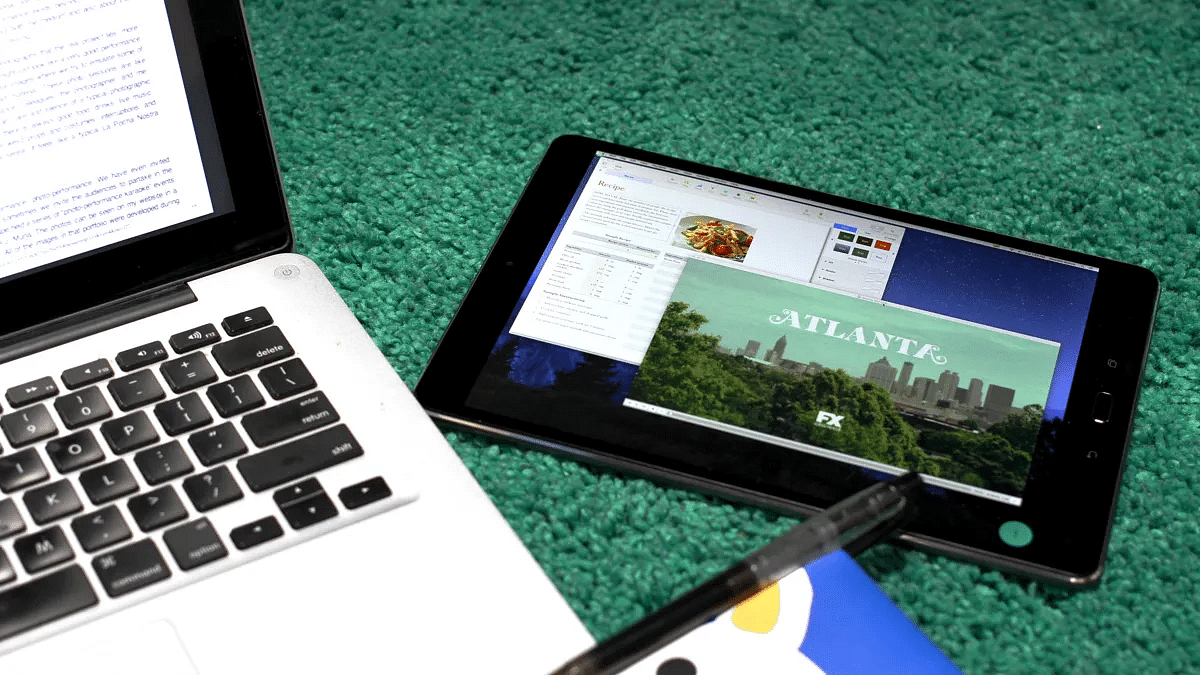
Step-by-Step Guide: How To Use Second Screen On Samsung Galaxy Tablets

Key Highlights

  • Expand your PC screen to your Samsung Galaxy device and work on two screens
  • Use your Galaxy device as a wireless extra display for your Windows PC
  • Control your PC remotely by copying your PC screen to your Galaxy device

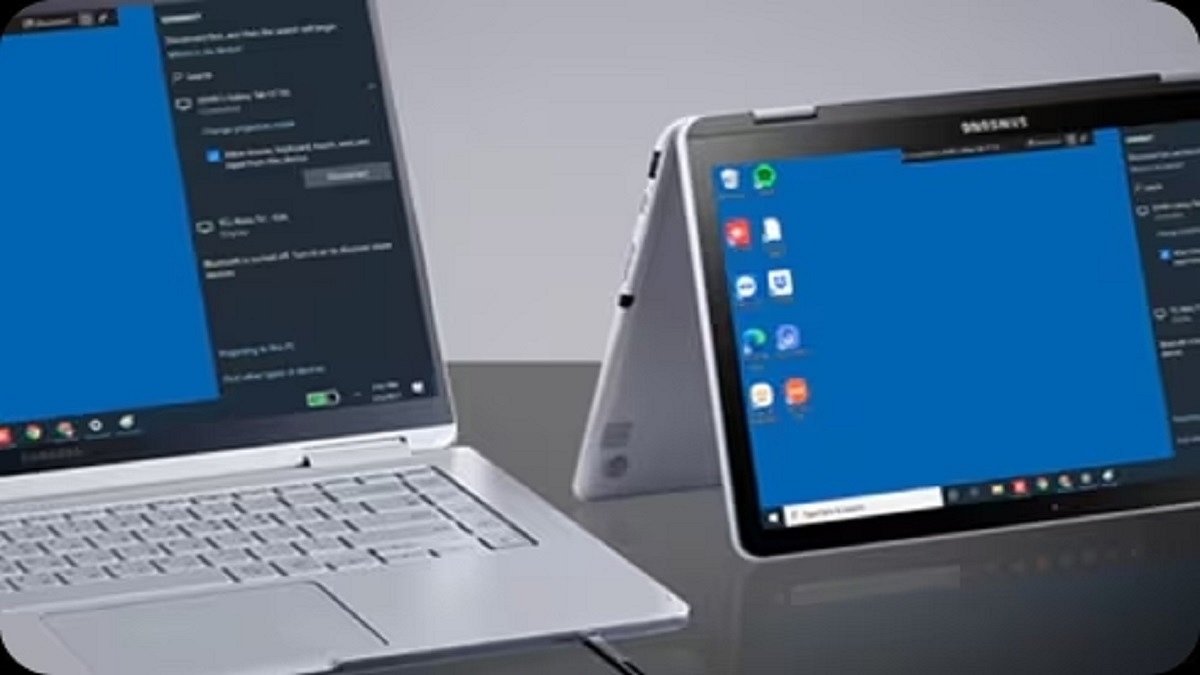
Samsung Galaxy users now have the option to expand their PC screen onto their Galaxy device, allowing them to work with dual screens. This feature, known as Second Screen, also enables users to remotely control their PC screen through their Galaxy device. In this article, we will provide a comprehensive guide on how to use Second Screen on Samsung Galaxy devices. Also Read | Samsung Galaxy Tab A8 Vs Lenovo M10 FHD Tablet: Affordable Tablets Specification Comparison

Requirements For Using Second Screen

Before using the Second Screen feature, ensure that you meet the following requirements:

  • A Galaxy tablet running One UI 3.1 or a later version.
  • A Windows PC with Wireless Display running Windows 10 version 2004 or higher.
  • Both devices must be connected to the same Wi-Fi network.

How To Enable Second Screen On Samsung Galaxy Tablets

To take advantage of the Second Screen feature on Samsung Galaxy tablets, follow these simple steps:

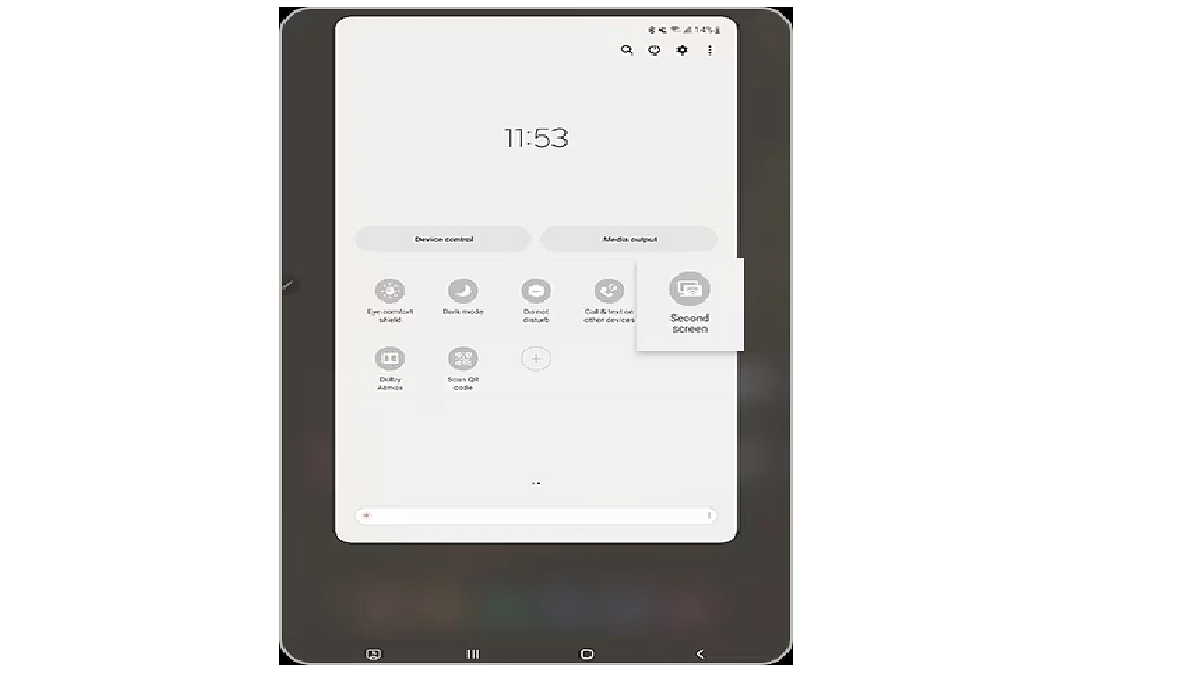
Step 1: Open the Quick Settings panel by swiping down from the top of the screen.

Step 2: Swipe left and tap on the Second Screen option.

Also Read | Samsung Galaxy Tab A8 Vs Nokia T10 Vs Moto Tab G62: Which Tablet Makes The Best Option For Budget Audience

Step 3: On your PC, press the Windows + K keys to open the Connect menu. From the list of available devices, select your Galaxy tablet. Make sure to check the box allowing mouse, keyboard, touch, and pen input from your tablet.

Step 4: Choose your preferred projection mode: Duplicate, Extend, or Second screen only.

With the Second Screen feature, Samsung Galaxy users can expand their PC screen onto their devices and work with dual screens. By following the step-by-step guide provided in this article, users can effortlessly use this convenient functionality. Enjoy the benefits of increased productivity and flexibility by incorporating Second Screen into your Samsung Galaxy tablet workflow.

Also Read | Lost Your Samsung Smartphone? Learn How To Track It Using Find My Mobile And Find My Device

Categories
Apps Featured How To

Delhi Metro Goes Digital: How To Use DMRC Travel App To Buy Tickets On Mobile

Key Highlights

  • DMRC Travel app launched for online metro ticket booking and smart card recharge
  • App generates mobile QR codes for entry and exit at metro stations, eliminating the need for physical tokens
  • Supports various payment methods, including UPI, Credit Cards, Debit Cards, and e-wallets

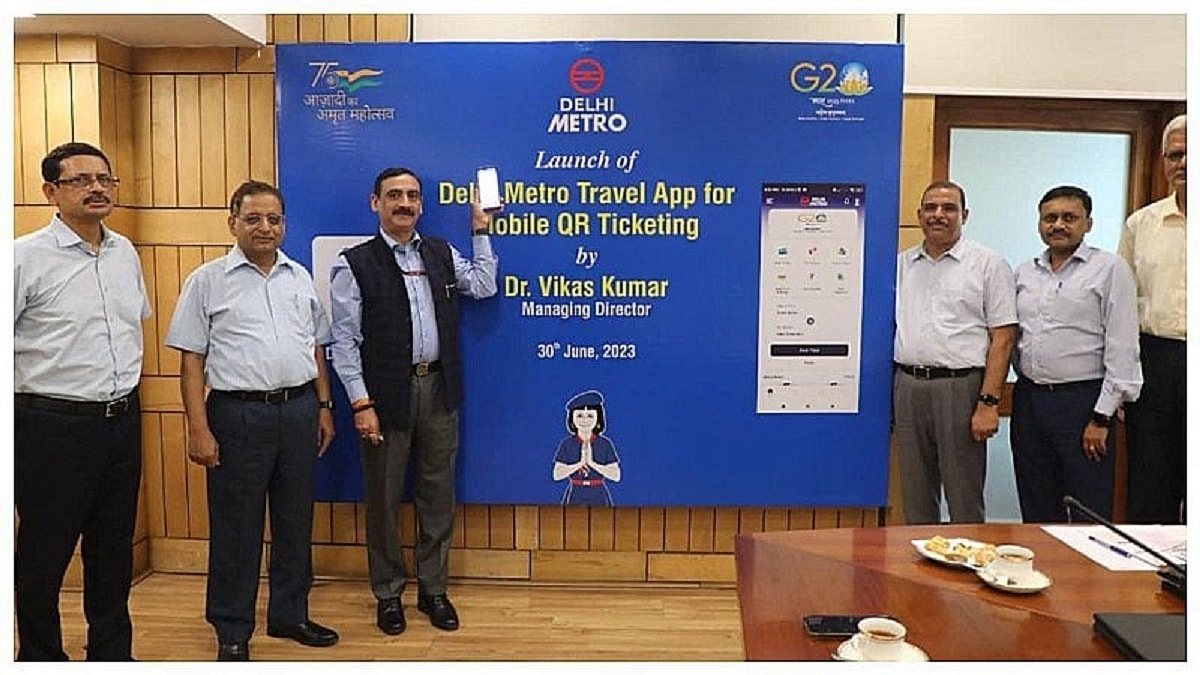
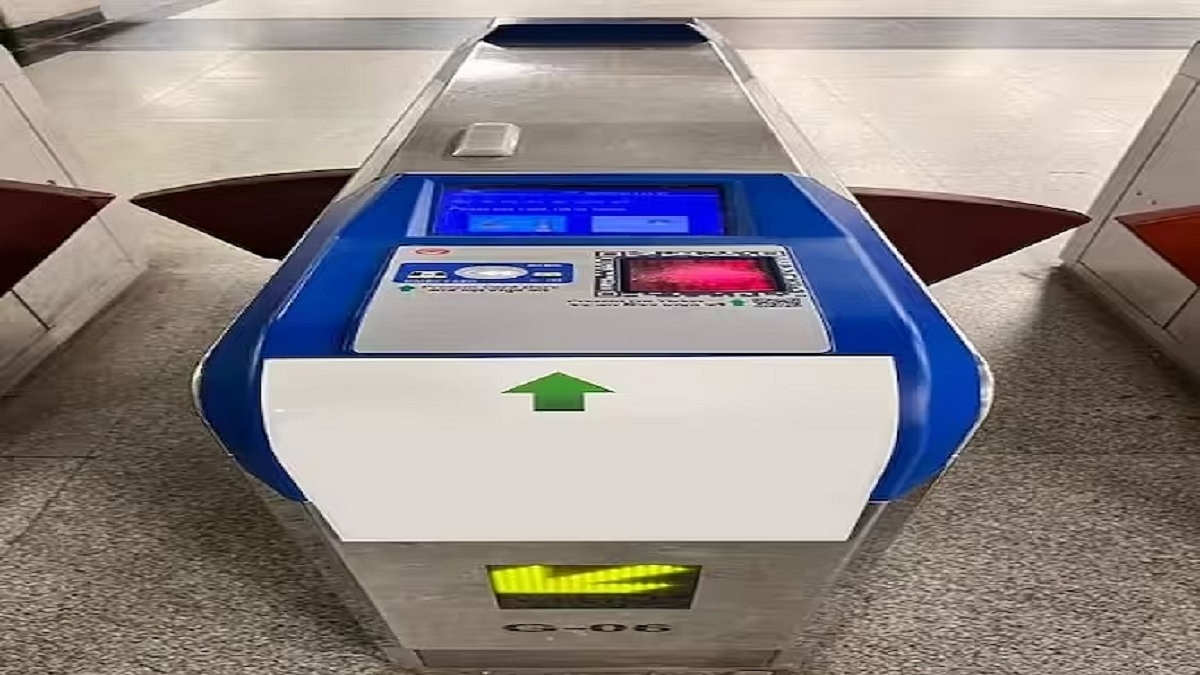
The Delhi Metro Rail Corporation (DMRC) has unveiled the DMRC Travel app, a dedicated platform for online metro ticket booking. By generating a QR code, this app allows users to bypass long queues for physical tokens and scan the code at the station entrance after undergoing security checks. Additionally, the app enables users to recharge their metro smart cards. Also Read | Recharge Your Delhi Metro Card Using Airtel Thanks App: Here’s How

Various Payment Methods And Passenger-centric Features

In an official release, DMRC announced that the new DMRC Travel app supports a range of payment methods, including UPI, Credit Cards, Debit Cards, and e-wallets. The app provides passenger-focused features like a route planner, fare calculator, station information, and smart card recharging in addition to ticket buying. It also provides route information from origin to destination, including interchange stations. Commuters can view transaction history, rebook tickets, and plan return journeys using the app.

How To Purchase Mobile QR Tickets

To assist users in purchasing Delhi Metro tickets via the DMRC Travel app, here is a step-by-step guide:

Step 1: Find and download the DMRC Travel app from Google Play and install it on your smartphone.

Step 2: Open the app and create an account using your Gmail or Facebook credentials.

Step 3: Log in to the app and select the “Book Ticket” option from the menu bar.

Step 4: Enter your source and destination stations and click on “Book Ticket.” The app will display the price, number of stops, and journey time for the selected stations.

Also Read | How To Recharge Metro Smart Card Online: A Step By Step Guide

Step 5: Choose the number of tickets and tap “Proceed to Booking.”

Step 6: Verify the specifics of your transaction, such as the source and destination stations, the number of tickets, and the total cost.

Step 7: Make the payment using your preferred method.

Upon successful payment, the app will generate a mobile QR ticket. Commuters can use this ticket to enter and exit the Automatic Fare Collection gate at any time while traveling.

DMRC Travel App: Advantages

Previously, booking and recharging metro tokens was possible only through third-party apps. However, DMRC’s new app simplifies the process by allowing users to book and pay for tickets directly. The future of the existing Delhi Metro Rail app remains uncertain, as it primarily served the purpose of checking Delhi Metro routes and commuting times between stations.

Also Read | Delhi Metro Smart Card Not Working? Follow These Steps To Get A New One Instantly

Categories
Apps Featured

From Chaos To Clarity: Five Proven Methods To Keep Your Gmail Inbox Organized

Key Highlights

  • Email management is crucial for Gmail users facing an overwhelming number of emails
  • Using the right email management tools can significantly improve the organization
  • Deleting unnecessary emails, prioritizing important ones, and sorting emails into folders are effective strategies for managing your Gmail inbox

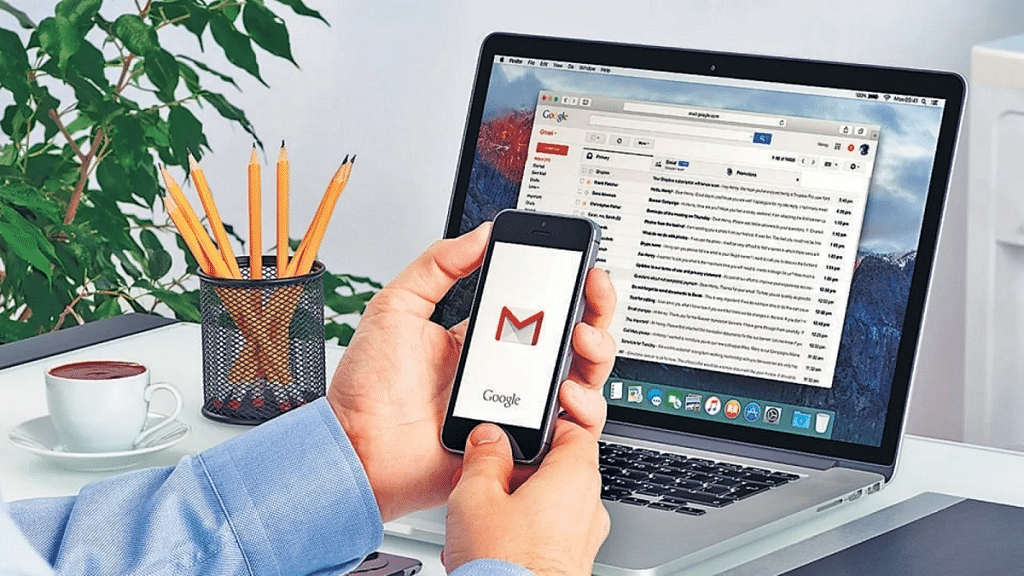
Gmail boasts a massive user base of over 1.3 billion people worldwide. While each user faces their unique situations and challenges, one common issue unites us all: an overwhelming number of emails. The key to overcoming this challenge lies in mastering the art of email management. Organizing your Gmail inbox is a vital survival skill that can alleviate email overload and promote mental peace. Also Read | Running Low On Google Storage? Five Best Techniques To Clear Your Gmail Space

Gmail Email Management: Benefits

Email management proves its worth by offering numerous advantages. Understanding the significance of organizing your Gmail inbox paves the way for implementing effective strategies. Here are five simple methods to manage your inbox efficiently.

Right Email Management Tools

A variety of Gmail email management software is now available, each targeting different aspects of email organization. Incorporating these tools into your workflow can significantly enhance your understanding of how to organize your Gmail inbox. Highly recommended options include Mailmanhq, EmailAnalytics, Gmelius, and more.

Delete Unnecessary Emails

When learning how to organize your Gmail inbox, it’s important to identify and delete emails that serve no purpose. Newsletters and spam emails often flood our inboxes, but unsubscribing from unnecessary subscriptions simplifies email management and reduces clutter.

Also Read | Struggling With Message Composition? Let Google Magic Compose’s AI Assist You! Here’s How

Prioritize Important Emails

The overwhelming influx of emails can result in important messages getting lost. To prevent this, you can use the “star” feature in Gmail, which allows you to mark and store essential emails in a separate folder for easy access. Other email clients like Outlook offer a similar feature called “Flag,” enabling you to differentiate and locate important emails quickly.

Organize Emails With Folders

Most email software provides the option to create folders and filters, enabling you to direct incoming emails to specific categories. By creating folders such as “Important,” “Unimportant,” and “Urgent,” you can sort and store emails accordingly. This approach ensures easy retrieval and promotes effective organization, making it one of the most valuable tips for managing your Gmail inbox.

Timely Responses To Incoming Emails

Efficient email management involves promptly responding to messages. However, this doesn’t necessarily mean replying immediately to every email received. Instead, the emphasis is on not leaving any email unattended, ensuring that all messages are acknowledged in due course.

Mastering the skill of organizing your Gmail inbox is essential for anyone seeking to overcome the challenges of email overload. By using the right tools, deleting unnecessary emails, prioritizing important messages, sorting emails into folders, and responding in a timely manner, you can achieve greater productivity, reduced stress, and a more streamlined email experience.

Also Read | Gmail Tips And Tricks: How To Secure Your Google Account With Two-Factor Authentication

Categories
Apps Featured How To

Need To Send SMS? Learn How To Do It Through Your Gmail Account

Key Highlights

  • Gmail offers a feature to send SMS to mobile phones through a gateway domain
  • Users can send SMS to contacts without regular phone numbers or in different countries
  • Email formatting and emojis cannot be used when sending SMS

Gmail offers a convenient feature that allows users to send SMS to mobile phones through a gateway domain. Here, we will help you learn how to send SMS from Gmail along with important information about SMS gateways and their limitations. Also Read | Running Low On Google Storage? Five Best Techniques To Clear Your Gmail Space

Sending SMS Via Gateway Domain In Gmail

Sending SMS through a gateway domain in Gmail enables users to send text messages to mobile phones associated with a specific email address. This feature proves beneficial for contacting individuals without regular phone numbers or those located in different countries.

SMS gateways serve as mediators between computers and telecommunications networks, allowing computers to send SMS messages. They convert messages from email clients, like Gmail, into a format that mobile networks can understand. The mobile network then forwards the message to the intended recipient.

How To Send SMS From Gmail

To use the SMS gateway feature in Gmail, users must be aware of the recipient’s email address, which typically consists of the phone number followed by the gateway domain of the mobile carrier. Information about gateway domains for various carriers can be found online or obtained by contacting the carriers directly. Here is a step-by-step guide on how to send SMS from Gmail:

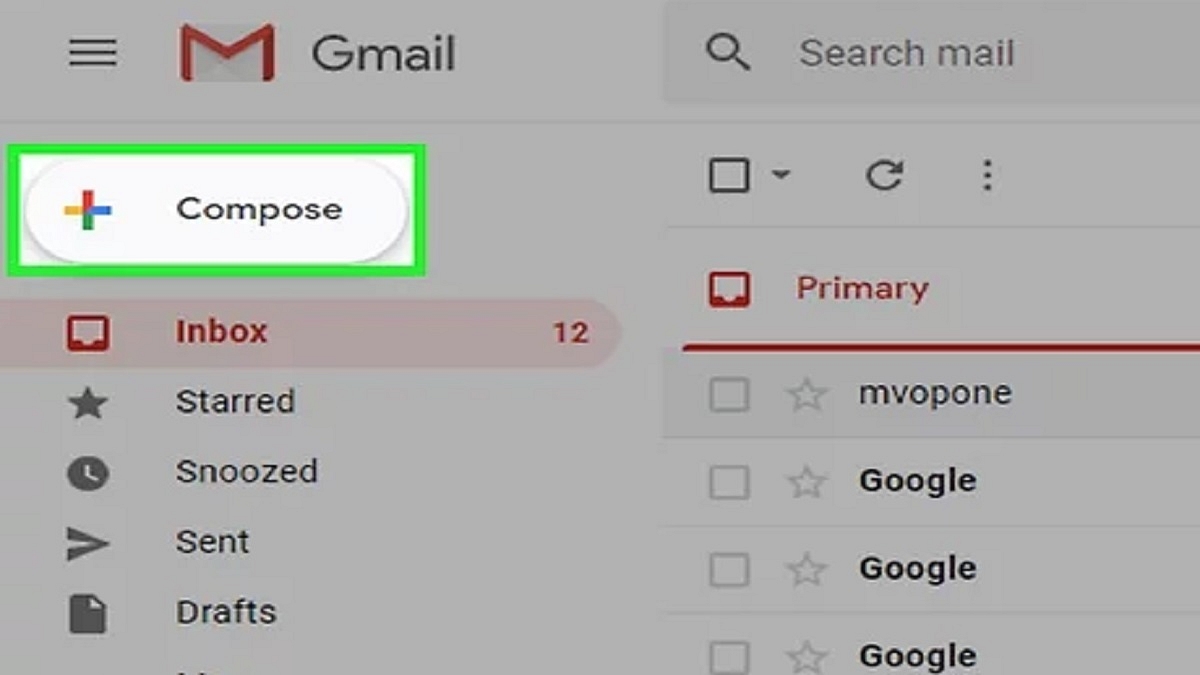
Step 1: Open your Gmail account and click on “Compose” to create a new message.

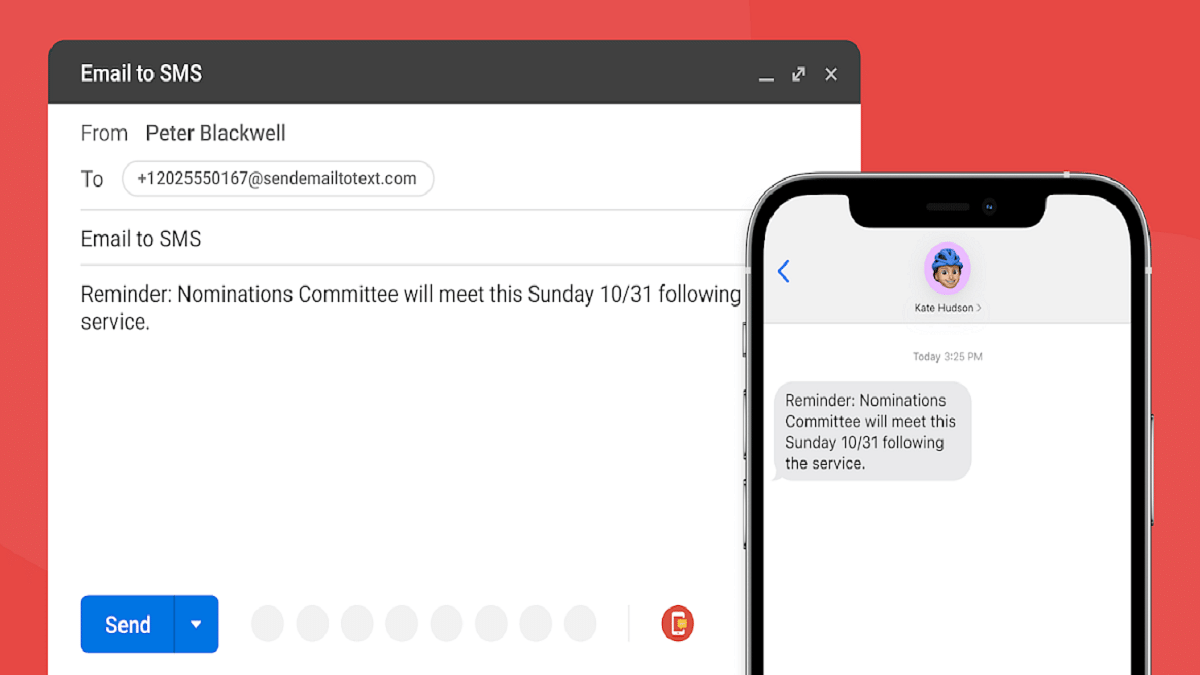
Step 2: Enter the recipient’s phone number, followed by the “@” sign and their SMS gateway address, in the “To” field.

Step 3: Compose your message within the body of the email. Messages longer than 160 characters may be sent as multiple texts.

Step 4: Click “Send” to transmit your message as an SMS to the recipient’s phone.

Also Read | Gmail Help Me Write Feature: What Is It? How To Use?

In addition to SMS messages, Gmail users can also send MMS messages, which include pictures, audio, and other non-text data. To send an MMS message, users need to use the MMS gateway address instead of the SMS gateway address.

Limitations Of SMS/MMS Gateway Usage

While sending texts from Gmail through SMS/MMS gateways is a convenient feature, it comes with certain limitations, including:

  • Prior knowledge of the recipient’s SMS/MMS gateway address is necessary, and some mobile networks may not provide one
  • Email formatting and emojis cannot be used when sending texts through an SMS gateway from Gmail
  • Only plain text can be sent via an SMS gateway, and not all mobile carriers support MMS gateways for sending multimedia content.

By following the step-by-step guide provided in this article, Gmail users can easily send SMS messages to mobile phones using the SMS gateway feature. Despite some limitations, this feature proves valuable for communicating with contacts who do not possess regular phone numbers or are located in different regions.

Also Read | Gmail Vacation Replies: How To Create And Set Replies For Vacations On Gmail?

Categories
Featured How To Mobile

What’s That Tune? Your iPhone Knows: How To Identify Songs With Just A Tap

Key Highlights

  • iPhone’s built-in song recognition feature powered by Shazam allows users to quickly identify songs playing around them
  • It maintains a history of recognized songs, which can be accessed on the device
  • Users can further enhance their music exploration by downloading the Shazam app

Discovering new music and identifying songs playing around you is made effortless with the built-in song recognition feature on iPhone. This article provides a step-by-step guide on how to identify any song on your iPhone, along with additional tips for enhanced music exploration. Also Read | Want To Share Your iPhone Screen On FaceTime? Here’s How You Can Do It

iPhone Song Recognition Feature

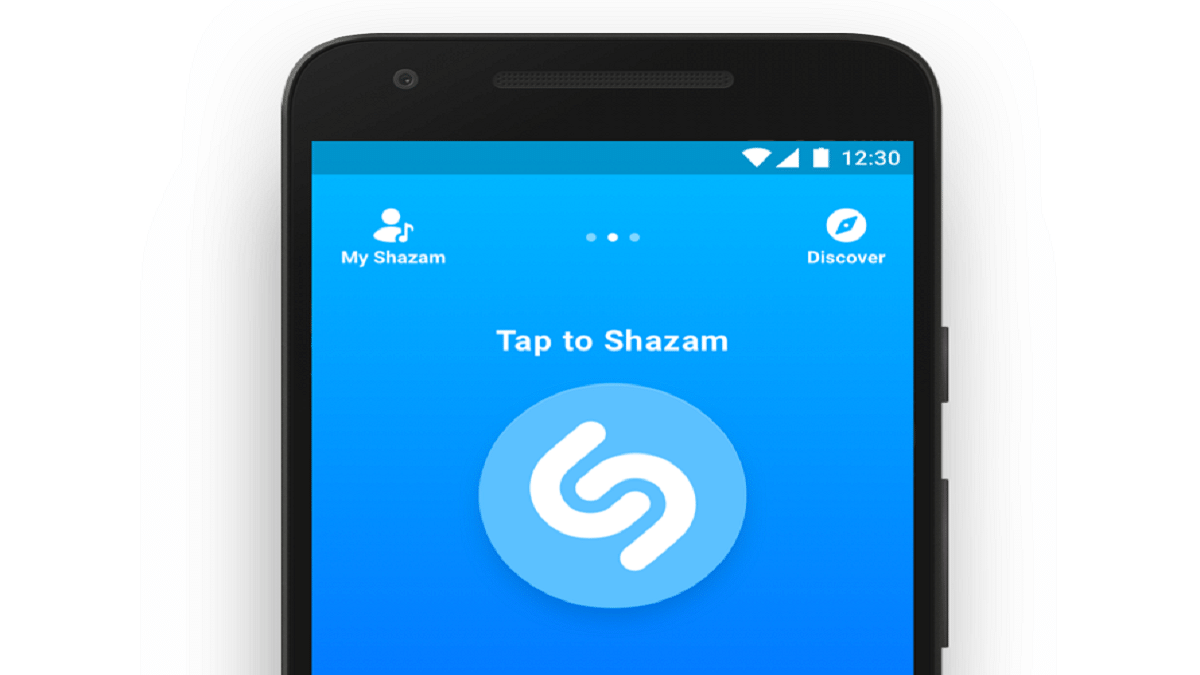
The iPhone’s song recognition feature leverages Shazam, a music recognition app acquired by Apple in 2018. This feature allows your iPhone to quickly identify songs playing in your vicinity or within your apps without the need to install any additional applications.

With this feature, your iPhone displays the title and artist of recognized songs on the screen and maintains a history of the identified songs. The song history is conveniently accessible on your device and can be synced with the Shazam app and across your Apple devices using your Apple ID, enabling easy retrieval and playback of previously identified songs.

Step-by-Step Guide: How To Identify Any Song On iPhone

Step 1: Ensure your iPhone is running iOS 14.2 or later. Proceed to Settings, then Control Center, and tap the green ‘+’ button next to Music Recognition.

Step 2: Access Control Center by swiping down from the top-right of the screen and tap the Shazam button.

Step 3: Your iPhone will listen to the song and display a notification with the song’s title and artist. To view your history of recognized songs, tap and hold the button.

Also Read | Magnify Anything, Anywhere: Learn How To Use Your iPhone As A Magnifying Tool

To synchronize your Music Recognition history with the Shazam app, navigate to Settings, then Shazam, and enable Sync Library. This integration provides a seamless experience and facilitates the discovery and playback of previously recognized songs.

Shazam App

For a more comprehensive music experience, consider downloading the Shazam app from the App Store. The app offers features such as song previews, adding songs to playlists, accessing lyrics, watching videos, and discovering similar songs. It complements the iPhone’s built-in song recognition feature, further expanding your music exploration capabilities.

Use Siri For Song Recognition

Siri, Apple’s virtual assistant, can also identify songs for you. Simply activate Siri and say commands like “What’s that song?” or “What’s playing?”. Siri will listen to the song and display the title and artist on the screen.

With the song recognition feature on iPhone, discovering new music and identifying songs playing around you has never been easier. By following the step-by-step guide provided and exploring additional features like the Shazam app and Siri integration, you can enhance your music exploration and enjoy a seamless music experience on your iPhone.

Also Read | iPhone Check-In Feature: Learn How To Use It To Notify Loved Ones Of Safe Arrival

Categories
Featured Info Smart Watch

Gizmore Launches PRIME Smartwatch With Stylish Design And Fitness Features

Key Highlights

  • Gizmore PRIME Smartwatch launched in India
  • It will be available on Gizmore.in and Flipkart
  • The smartwatch is available in Black and Brown colors with a premium textured leather strap.

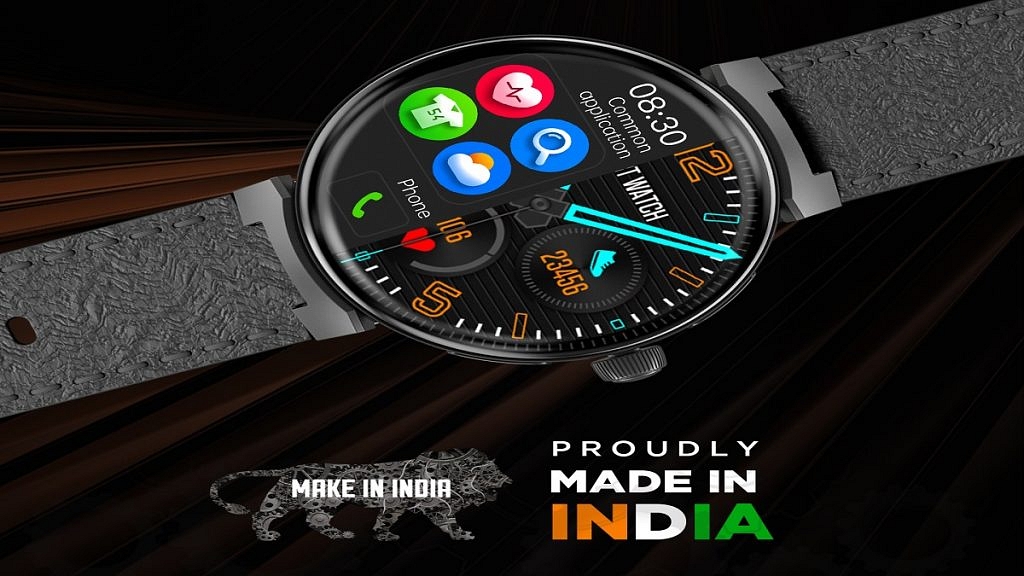
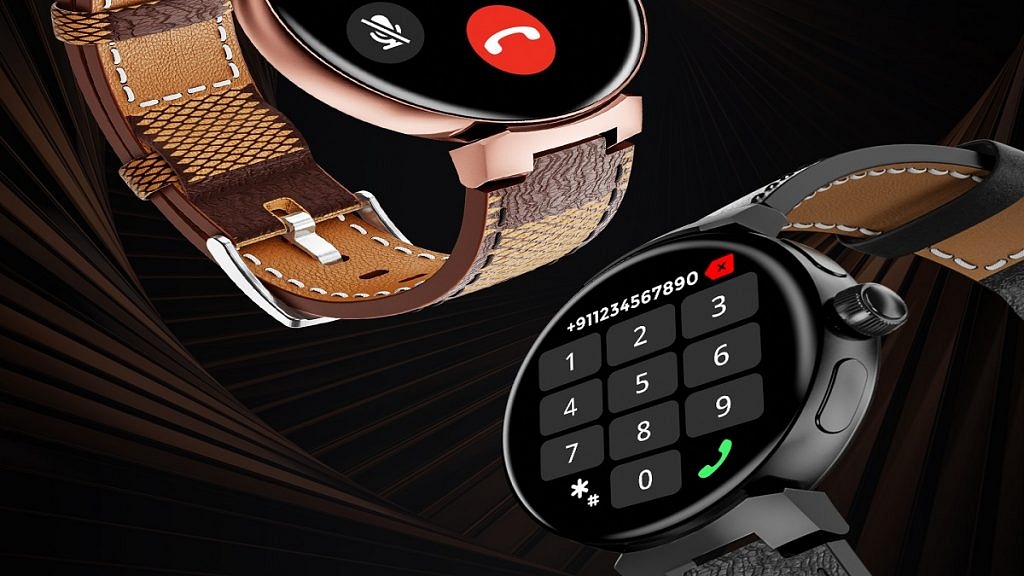
Gizmore has unveiled its latest smartwatch, called PRIME, which combines stylish aesthetics with fitness tracking capabilities. The smartwatch features a high-resolution Always On AMOLED screen, a zinc alloy metal body, and a textured leather strap. Also Read | Best Smartwatches With Bluetooth Calling, Fitness Features Under Rs. 5,000 In 2023

Price And Availability

The PRIME smartwatch will be available for purchase on Flipkart and Gizmore.in starting June 29 at a special launch price of Rs. 1,799, and its regular price will be Rs. 2,499.

Stylish Design And Premium Build

The Gizmore PRIME smartwatch boasts a metal body made from premium zinc alloy, complemented by a textured leather strap. The round dial includes an active crown control and strategically positioned side buttons, ensuring easy navigation. The smartwatch is available in black and brown color options.

Vibrant AMOLED Display And Enhanced Visibility

The PRIME smartwatch boasts an extremely sharp and vibrant AMOLED display with a peak brightness of 500 nits. The 2.5D curved screen provides clarity and contrast with its high pixel density of 412 x 412, offering a top-notch viewing experience. Users can enjoy multiple Cloud-based watch faces and utilize Split Screen functionality for quick access to frequently used apps and settings.

Comprehensive Health And Fitness Monitoring

The Gizmore PRIME smartwatch offers an extensive range of features. With over 100 sports modes, users can track various activities, while the SpO2 monitor, continuous heart rate monitor, calorie counter, hydration alert system, menstrual tracker, sleep monitor, stress monitor, and guided breathing mode provide comprehensive wellness insights.

Also Read | Best Fitness Oriented Smartwatches In India With Dedicated Health Features And Sensors

Productivity And Durability

The PRIME smartwatch enhances productivity with its built-in calculator, timer, stopwatch, and weather update capabilities. Its metallic body with an IP67-rated design ensures durability and resistance to water and dust.

Advanced Connectivity And Accessibility

The Gizmore PRIME smartwatch supports the Hindi language and offers a range of advanced accessibility features. With a built-in speaker and microphone, Advanced BT calling enables convenient communication. Users can also access AI voice assistance from popular virtual assistants like Alexa and Siri, receive social media notifications, and control their cameras and music.

Seamless Smartphone Integration

The PRIME smartwatch seamlessly connects with smartphones through the user-friendly Co-FIT App. During outdoor running and cycling sessions, the app utilizes the smartphone’s GPS functionality to provide real-time updates on maps, enabling accurate tracking of location, distance traveled, and other essential statistics.

Also Read | Fireboltt Artillery Vs Armour Dive Smartwatch: Best Budget Outdoor Smartwatch In India

Categories
Auto Tech Info

Data On Wheels: Why High-Capacity Storage Is The New Fuel For Modern Cars?

Key Highlights

  • Connected car market in India is poised for significant growth
  • Demand for storage solutions in connected cars is rising
  • Connected cars generate and process vast amounts of data

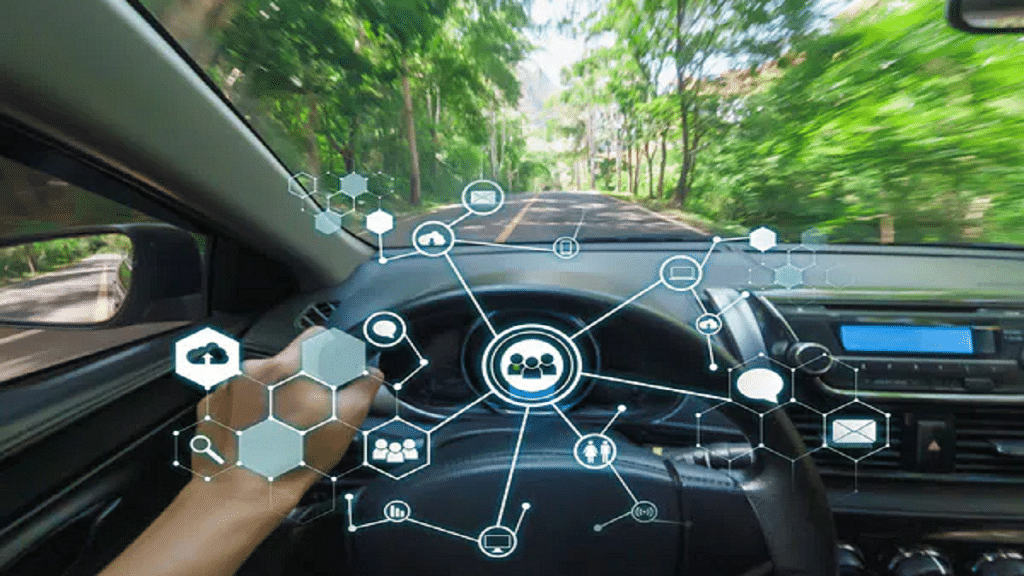
The connected car market in India is projected to reach USD 32.5 billion by 2026, according to a report by Market Data Forecast. As automotive companies focus on incorporating advanced features such as high-definition 3D maps, ADAS, autonomous computers, enhanced infotainment, over-the-air (OTA) updates, and vehicle-to-everything (V2X) technology, the demand for storage solutions is becoming increasingly significant. This article explores the expanding connected car market and emphasizes the importance of considering storage requirements right from the start. Also Read | Upgrading To Electric Cars? Top Upcoming Electric Cars Under Rs. 10 Lakh In India In 2023

The Rise Of Connected Features And Need For Storage

As the automotive industry introduces more connected features, the need for storage solutions continues to grow. Western Digital estimates that the lines of software code in cars have already surpassed those in fighter jets, laptops, and social media sites. This trend is expected to continue, transforming cars into data centers on wheels. Consequently, storage solutions cannot be an afterthought.

Storage Challenges In Connected Cars

Connected cars generate and process vast amounts of data, necessitating high-capacity storage solutions. These solutions are responsible for storing data related to vehicle performance, navigation, entertainment systems, driver behavior, and more. The rise of autonomous driving technology intensifies the demand for large storage capacities to handle the massive volumes of data generated by sensors and cameras used for real-time decision-making. To keep pace with this growing demand, suppliers and manufacturers are actively seeking innovative storage solutions.

High-End Features Requiring Significant Data Storage

Dashboard Recorders (Dashcams)

Dashcams play a vital role in providing accident information to the police and insurance companies, especially in areas with limited CCTV coverage. Continuous video recording while the vehicle is in operation results in a substantial amount of data over time.

Also Read | Google Maps Immersive View For Routes Shows Live Route Traffic, Weather, And More: How To Use?

Telematics And Over-the-Air Updates

Over-the-air updates enable software and firmware updates without physical access to the vehicle. This includes updates to infotainment systems, navigation systems, and other electronic components.

Vehicle-to-Vehicle (V2V) and Vehicle-to-Infrastructure (V2I) Communications

V2V and V2I communications are essential for autonomous driving, ensuring accident prevention and safe driving. The data generated by these communications can be substantial, particularly in high-traffic areas with numerous vehicles transmitting data simultaneously.

Navigation And Infotainment Features

Modern navigation and infotainment systems offer extensive control over mobile communications, vehicle setup, and 3D navigation. These advanced features require significant storage capacity to cache and buffer data.

Addressing Storage Challenges

As cars adapt to evolving infrastructures, they require more storage to support both in-car and external applications. The evolution of storage solutions is crucial in ensuring the proper functioning of a vehicle’s dashboard and safety systems, regardless of extreme weather, climate, or road surface conditions. Moreover, different types of data in connected cars have varying retention periods, ranging from brief periods to days, months, or even years. Therefore, it is essential to consider various storage interfaces, performance levels, and endurance levels, including removable SDTM cards and BGA packaged e.MMC, UFS, and NVMeTM drives. In conclusion, storage solutions must be given proper consideration rather than being an afterthought.

Also Read | Lost Your Car Keys? Here’s How To Make Your Smartphone A Digital Car Key And Lock, Unlock, Start Your Car

Categories
Apps Featured How To

Lost Your Email Address? Don’t Panic! Follow These Steps To Recover It

Key Highlights

  • Remembering multiple email addresses can be challenging
  • If you forget your email address, there are methods to recover it, even without logging into a device
  • Microsoft and Gmail offer email recovery services where you can provide the necessary information to retrieve your email address

In today’s digital era, it is common for individuals to have multiple email addresses. While this offers convenience in managing personal and work emails, remembering all these addresses can be challenging. If you find yourself in a situation where you have forgotten your email ID or address, there are several methods you can employ to retrieve it. This article provides an easy-to-follow guide on how to find your email ID or address across popular email services such as Gmail and Outlook, whether you are using a PC, laptop, or mobile phone. Also Read | How To Archive Emails In Microsoft Outlook: Here’s The Step-By-Step Guide

How To Find Your Email Address Without Logging In

If you haven’t logged in to any device and need to retrieve your email address, there are a couple of approaches you can take. The first method requires access to the device you last used to log in. If you have such access, follow these steps:

Access The History Section

On the device you last logged in from, navigate to the History section. By doing so, you might be able to locate your email address within the browsing history.

If you do not have access to the device you last logged in from, you can still find your email address by using the email recovery services provided by Microsoft and Gmail. Here’s how to proceed with each service:

How To Recover Your Email Address Via Microsoft

To recover your email address associated with a Microsoft account, follow these steps:

Step 1: Visit the Microsoft email recovery page using any web browser.

Step 2: Provide the phone number associated with your Microsoft account or an alternate email address. Click Next to proceed.

Step 3: Enter the OTP you receive and initiate the account recovery process.

Also Read | Running Low On Google Storage? Five Best Techniques To Clear Your Gmail Space

How To Recover Your Email Address Via Google

If you are using a Gmail account and need to retrieve your email address, follow these steps:

Step 1: Open the “Find Your Email” Page using a web browser.

Step 2: Enter the phone number linked to your Gmail account or your recovery email address. Click Next to continue.

Step 3: On the subsequent page, fill in your First and Last name as requested, then click Next.

Step 4: Click Next on the “Get a verification code” page.

Step 5: Enter the 6-digit code you receive, initiating the account recovery process.

Forgetting your email address can happen to anyone, but fortunately, there are effective ways to retrieve it. By following the step-by-step guide provided above, you can easily find your email ID or address on various leading email services such as Gmail and Outlook, regardless of whether you are using a PC, laptop, or mobile phone.

Also Read | Gmail Vacation Replies: How To Create And Set Replies For Vacations On Gmail?

Categories
Featured How To Info

How To Apply For Free Electricity In Karnataka’s Gruha Jyothi Scheme: Step-by-Step Guide

Key Highlights

  • Affordable electricity scheme for citizens of Karnataka
  • Offers 200 units of free electricity to every household
  • Over 8 lakh households have already registered for the scheme as of June 20

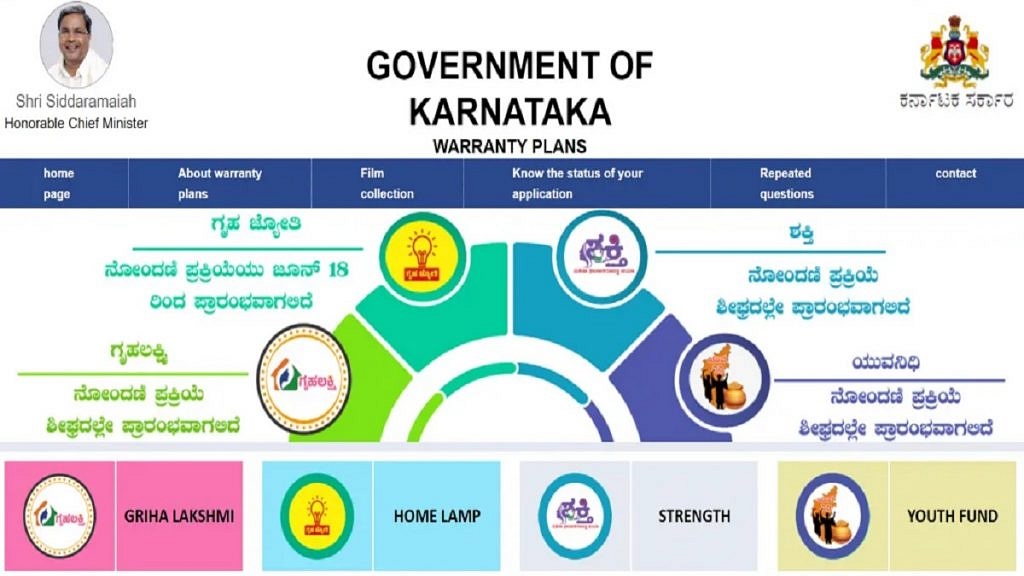
The Karnataka government has initiated the Karnataka Gruha Jyothi Scheme, following the extension of the Delhi government’s 200-unit free electricity scheme. This scheme, which was one of the promises made by the Congress party during the state assembly election, was approved on June 2, 2023. On June 18, 2023, the Gruha Jyothi Scheme registration period officially opened.

Also Read | Want To Reschedule Your Passport Appointment Online? Follow These Steps

What Is Karnataka Gruha Jyothi Scheme?

The Gruha Jyothi Scheme aims to provide affordable electricity to the citizens of Karnataka. It also seeks to raise awareness about energy conservation and encourage the use of renewable energy sources.

Benefits And Registration

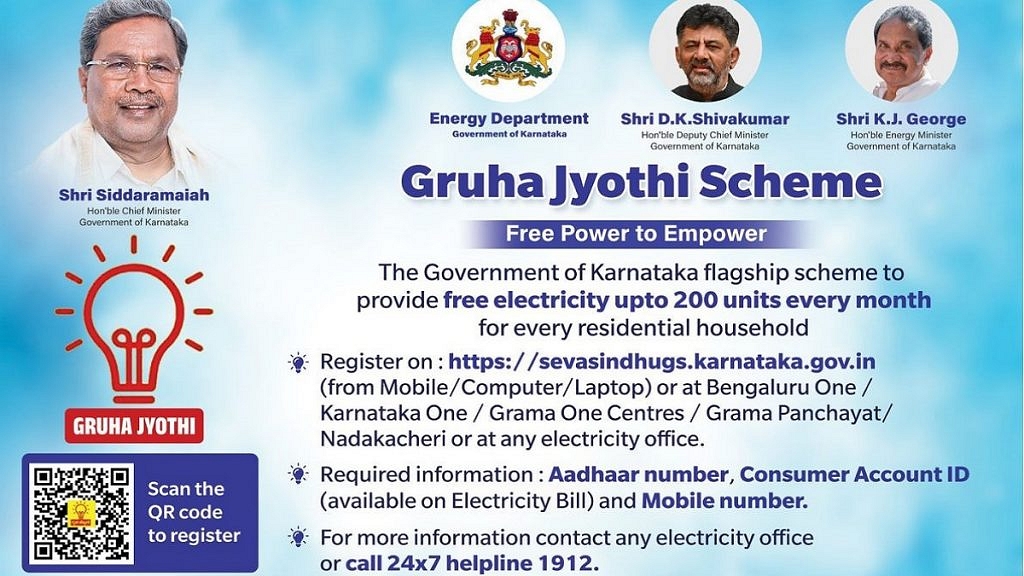
Under the scheme, every household in Karnataka is eligible to receive 200 units of free electricity. According to reports, beneficiaries must apply for the Gruha Jyothi Scheme before July 5 in order to begin receiving subsidies in August. The online application process for the scheme opened on June 18. The response has been overwhelming, with over 8 lakh households already registering for the scheme as of June 20. The Bangalore Electricity Supply Company Limited has recorded a total of 8.16 lakh registered consumers.

Required Documents

To apply for the scheme, applicants need to provide the following documents:

  1. Proof of identity: Aadhaar Card, Voter ID Card, PAN Card, or passport
  2. Proof of address: Aadhaar Card, Voter ID Card, Ration Card, or rent agreement
  3. Passport-sized photographs
  4. Details of the bank account
  5. Proof of property ownership: sale deed or property tax receipt
  6. Consent letter for tenants
  7. Self-declaration

Also Read | New GST Registration India: How To Register GST Online And GET GSTIN Number Quickly

Karnataka Gruha Jyothi Scheme 2023: How To Apply?

To apply for the scheme, follow these steps:

Step 1: Go to the official website of KPTCL at www.sevasindhugs.karnataka.gov.in.

Step 2: Look for the registration section dedicated to the Gruha Jyothi Scheme.

Step 3: Fill out the online registration form with all the required details.

Step 4: Attach the necessary documents, such as proof of identity and address.

Step 5: Review the application form carefully to ensure accuracy and completeness.

Step 6: Submit the registration form.

Step 7: Make a note of the reference number provided upon successful submission.

Step 8: The authorities will verify the information and grant approval.

Step 9: After approval, the applicant will receive further instructions regarding payment details and the installation process for the electricity connection.

Also Read | Lost PAN Card? Here’s How To Apply For A Duplicate PAN Card Online