Categories
Apps Featured Info

Flipkart Takes Shopping Experience To Metaverse: Here’s How To Shop In Flipverse

Key Highlights

  • Flipkart launches Flipverse in partnership with Web3 entertainment company eDAO
  • It is a metaverse space where customers can discover products in photorealistic virtual destinations and shop within the Flipkart app
  • Flipverse will be available on Flipkart’s newly launched FireDrops platform

For users to browse and purchase products in a photorealistic virtual environment, Flipkart has developed its own metaverse called “Flipverse.” The e-commerce shopping platform announced that this offering will significantly enhance its customers’ buying experience.

Flipverse will offer customers access to a variety of brands, Supercoins, and digital treasures while providing them with gamified, interactive, and immersive purchasing experiences in the digital world. The metaverse is a 3D, immersive digital world where people interact with one another on multiple platforms.

Also Read | PhonePe Bids Adieu To Flipkart: To Remain A Wallmart Venture Going Forward

Flipkart’s recently released platform, FireDrops, which can be accessible from the e-commerce site’s app, will have Flipverse available on it. Many brands including Noise and others will be participating in this edition. Flipverse’s Phase one is an Android-only experience and will be live for one week.

How To Shop In Flipverse?

On the Flipkart app for Android smartphone users, Flipverse is already live. The pilot experience will be available up to October 23. Here’s how to access Flipverse and shop there:

Step 1: Go to https://firedrops.flipkart.com/qr-page.html on your device.

Step 2: Here, select “Enter Flipverse,” and then use your Android phone to scan the code displayed on the laptop’s screen.

Step 3: You’ll now be redirected to the FireDrops application. Here, you have to choose a username of your choice.

Also Read | Best Phones With Fast Charging Under Rs. 15,000

Step 4: Now, click on the menu button and then choose ‘Flipverse.’

Step 5: You will upload your avatar to the Flipkart metaverse. Here, on the display, you will be able to see products from brands like Noise, Ajmal Perfumes, and Puma, among others.

Step 6: Swipe through Flipverse using the on-screen controls.

Step 7: To learn more about the products you like, tap on them. You can even check any discounts or deals that might be offered by the e-tailer on the platform. And that’s all!

Also Read | 5G Smartphones Under Rs. 15,000 On Amazon And Flipkart: Here’s How To Get It

Categories
Apps Info

How To Get Tata Play Binge App Access At Rs. 59; See All Steps Here

Tata Play Binge, which is an entertainment application is now available for all smartphone users, which means everyone can access it without DTH service. Notably, the Tata Play Binge application will provide content from all major OTT platforms in the country. So, now let’s have a look at the details of the new services.

Tata Play Binge App For All: Details

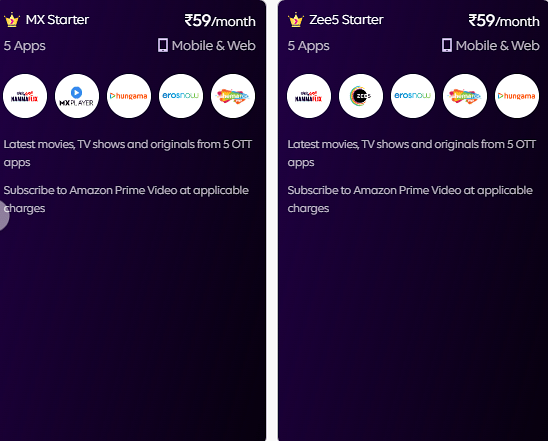
It is important to note that the Tata Play Binge application offers 17 streaming platforms, TV series, live sports, movies, and web originals. The first plan starts from Rs. 59 per month, where users will get content from Namma flix, Planet Marathi, Voot Kids, Sun NXT, Eros Now, ShemarooMe, Hungama Play, DocuBay, Epic ON, Curiosity Stream, ZEE5, Disney+Hotstar, Voot Select, MX Player, SonyLIV, Hoichoi, and Chaupal. The content is available in several languages.

In addition, Tata Binge Play will soon have services from Manorama Max, Reeldrama, Tarang Plus, Koode, Apple TV+, TravelXP, Lionsgate Play, Shorts TV, and a few more. However, Netflix will be available for only users who are using DTH access, whereas Amazon Prime Video will be available as an add-on package.

Tata Play Binge App Rs. 99 Per Month Mini 2 Plan: Details

There is a pack of Rs. 99 per month Mini 2 plan, which offers, DocuBay apps, Voot Select, MX Player, Eros Now, Hungama, Shemaroo, Mama Flix, and Epic On. In addition, there is a pack of Rs. 175 offers Eros Now, HoiChoi, Hungama, Disney+ Hotstar, ZEE5, Voot Select, MX Player, and more.

Moreover, there is a pack of Rs. 299, where users will get access to 17+ apps like Disney+ Hotstar, Sony Liv, and more. For the unaware, there is another plan of Rs. 175, and Rs. 299 are available for mobile, TV, and web. Plus, there is a pack of Rs. 999 available, where the user will get 11 applications.

Categories
Apps Featured How To

Want To Send Secret Messages On Telegram? Here’s A Step-By-Step Guide

Key Highlights

  • Users of the Telegram app can send secret messages
  • People who prefer more secrecy should use Telegram’s secret chats
  • Messages sent through secret chats cannot be forwarded by the recipient to anybody

Have you ever used Telegram? It is a WhatsApp alternative and offers a lot of incredible features. Sending messages, calls, pictures, files, and other things is possible with the app. A secret chat that adds security to the users’ private chats is one of Telegram’s other distinctive and amazing features.

Secret chats are only meant for individuals who want to have secret conversations and all messages will be end-to-end encrypted. The secret messages cannot be forwarded, and once the sender has erased the message, the recipient will receive a notification asking them to do the same. Also Read | How Can You Change Font Style In Telegram: Steps For Android, iOS, Desktop

Sounds intriguing, right? But the secret chats feature is much more than that. Media files on the app can also have self-destruct times set. After they have been viewed or opened by the recipient, you can instruct your messages, images, videos, and files to self-destruct after a specified period of time. The messages will then vanish from your device as well as your friend’s device.

The function is separate from Telegram Clouds. Users can access messages in a secret chat from their original device because it is just device-specific. All messages that feature in secret chat and all media that is included in private cloud chats both have a self-destruct timer.

Also Read | Telegram Now Allow Users To Sign Up Without A SIM Card

Steps To Send Secret Messages On Telegram

Step 1: Open the Telegram app on your mobile.

Step 2: Create your account.

Step 3: By clicking the three dots, you can access the individual chat and the user’s profile you want to contact.

Step 4: Now, select ‘Start Secret Chat’.

It should be noted that Telegram private chats depend on the device. On one of your devices, if you and a friend start a private conversation, only that device will have access to it. All of your secret chats will be lost once you log out. With the same contact, you can make as many different secret chats as you want.

Also Read | Telegram Tips And Tricks: How To Schedule Messages On Telegram Android, iOS App

Categories
Apps Info

Netflix Introduces ‘Basic with Ads’ Plan: Here’s How To Access It

Netflix has finally announced that it will bring cheaper ad-supported from November 2 at 12 pm. The new plan will be known as “Basic with Ads” and will be available in the US, Japan, Mexico, South Korea, the UK, Australia, Brazil, Canada, France, Germany, Italy, and Spain.

Netflix Subscription Plan With Ads- Details

It is important to note that the company is working on the same plan since the beginning of the year and this plan will cost you $6.99, which is priced at Rs. 575 per month. Apart from this plan, the company is providing ad-free: Basic, Standard, and Premium plans. However, the leading app said that the ad-free plans will remain unaffected.

As per the blog post, ” The switch from linear is happening at an ever-increasing speed, with streaming now surpassing broadcast and cable in the US. We’re confident that with Netflix starting at $6.99 a month, we now have a price and plan for every fan.”

“Basic with Ads” Plan: Details

According to the company, the users will get video quality up to 720p/ HD, similarly to the Basic Plan. The company said that plan will stream four to five minutes per hour. The blog post, “a limited number of movies and TV shows won’t be available due to licensing restrictions, which we’re working on; no ability to download titles.”

The company also announced that the ads will be streamed for 15 to 30 seconds during the film and shows. In addition, the ads will be based on the countries and genres of the users. Moreover, the company announced that it has joined hands with DoubleVerify and Integral Ad Science which will confirm the traffic validity and viewability from Q1 2023.

Categories
Apps Featured How To

Get Notified When Deals Go Live On Amazon: Here’s How

Key Highlights

  • Amazon allows you to create a personalized deal alert
  • This feature on Amazon is predicated on your searches
  • It allows you to get the product at a good price

One of the most popular shopping websites in the world, Amazon is the go-to destination for all things electronics in India. Even if the website occasionally has numerous bargains, you might find greater deals via the Amazon mobile app, especially if you set up an alert.

You can set a deal alert on Amazon that is personalized to you and is based on your app searches. Your platform searches are the basis for Amazon’s deal alert feature. If you repeatedly searched for an iPhone in the app when you were looking to buy one, Amazon will build a deal alert for you that you can turn on within the app.

This will enable you to purchase the item at a good price. Despite the feature’s usefulness, only a few people are aware of it. This article will show you how you can set up an Amazon deal alert. Let’s check it out:

How To Set A Deal Alert On Amazon?

Step 1: On your smartphone, open the Amazon app.

Step 2: In the bottom right corner, click on the Hamburger icon.

Step 3: From the list of options, tap on Accounts, it’s next to Buy Again and beside Lists.

Step 4: You will now see several options for your account.

Step 5: Look for the Message center section by scrolling below. Tap on Deal alerts in the Message center section.

Step 6: You will see four sections: Your deal alerts, Available deals, Available Offers, and Get deal alerts.

Step 7: After that, click on ‘Get deal alerts’ and you will see some modified deal options for which you can select and create a deal.

Step 8: You will receive alerts when the item is on sale or receives a discount once you create a deal alert by tapping on the “Create alert” button. The offers for today can also be found in the “Available deals” section; they are based on your interests and the items you search for or add to your cart on the Amazon app or website.

That is how you can quickly set up an Amazon deal alert for your preferred item and receive notifications when it is on sale.

Categories
Apps Featured How To

Google Maps Tips & Tricks: Here’s How To Check Air Quality Index In Your Area

Key Highlights

  • Google Maps can help you check the AQI around you
  • This can help you make informed decisions about going out
  • This feature is currently available across many countries including India and US

It is the time of the year again when the air quality around us gets worse than it has ever been. Weather changes, festive firecrackers, the harvest, and car pollution will all affect air quality. Everyone’s health is put at risk by the poor air quality with heart and respiratory conditions, especially those who have asthma.

It is advised that people limit their outside travel at this time. Additionally, before traveling, check the air quality index to prevent health issues. To help you with that, Google provides a feature that will tell you the current air quality index of locations you are planning to visit.

Users can check an area’s air quality index using a dedicated tool in Google Maps. You can monitor the air quality wherever you go or wherever you live with the help of this feature. You can then schedule your outside activities in accordance with your newfound understanding of your surroundings. You can just forgo going outside if the air quality is high or extreme, and stay inside instead.

How To Check Air Quality Index On Android And iOS Using Google Maps?

You can use Android and iOS devices to track the air quality using Google’s air quality tool. Consequently, assisting you in deciding whether it is safe for you to go outside. Let’s check out how Google’s air quality feature functions.

Step 1: On your Android or iOS devices, launch Google Maps.

Step 2: After that, search for the location or tap on the target button in order to pinpoint your current location.

Step 3: Once the location is set, click on the layers button available at the top right corner of your screen.

Step 4: You will see options for Map types and Map details. Under Map details, select “Air Quality” by tapping it.

Step 5: Now, you can view the National AQI’s air quality data on Google. That’s all.

Categories
Apps How To

iOS 16 Tips And Tricks: Here’s How To Make Stickers From Photos

Key Highlights

  • With iOS 16, you can now add widgets to your home screen. This allows you to customize your home screen to display the information that you want to see.
  • Do you want to make your own stickers from photos? With iOS 16, it’s easy to do. Here are some tips and tricks on how to make stickers from photos.

With iOS 16, Apple unveiled a unique new tool that you can use to extract the subject from any photograph or image. This tool functions nearly like a quick version of Photoshop. The image can then be used as a sticker in the messaging app or pasted onto another image.

This feature is known as ‘Lift subject from background’. It is a part of a group of tools called Visual Look Up. Simply long-press any image to use it; you can then drag the image into another app or copy it. It’s now easier than ever to make a cutout sticker from one of your images using iOS 16.

Also Read: Here’s How to Set Long Videos as WhatsApp Status

This feature eliminates the need for the laborious procedure of manually isolating your topic from the backdrop. The iPhone, iPad, Mac, Photos, Screenshot, Quick Look, Safari, and even movies are all compatible with it. Although it isn’t really useful, it is nonetheless beautiful and enjoyable to use. Here is a step-by-step guide for creating stickers from images in iOS 16:

Also Read: iOS 16 Tips And Tricks: How To Make Siri Announce Notifications On iPhone

Steps To Make Stickers From Photos In iOS 16

Step 1: Open any photo on your iPhone that supports iOS 16.

Step 2: Long press the picture’s topic to pull it out.

Step 3: Now, extract the cutout of the subject.

Step 4: Watch for the pop-up menu of choices.

Step 5: Select the copy option from the settings menu after that.

Step 6: Now paste it where ever you want to.

Also Read: No SIM Card Error: How To Fix No SIM Card Detected/ SIM Toolkit Issue With Smartphones

Steps To Make Sticker From Photos On Your iPhones

The creation of stickers from iPhone images is also possible using this technique.

Step 1: Open the image that you want to make your sticker.

Step 2: The Share button is located at the bottom left corner, tap on it.

Step 3: Choose ‘Save to Files’ from the drop-down option after that.

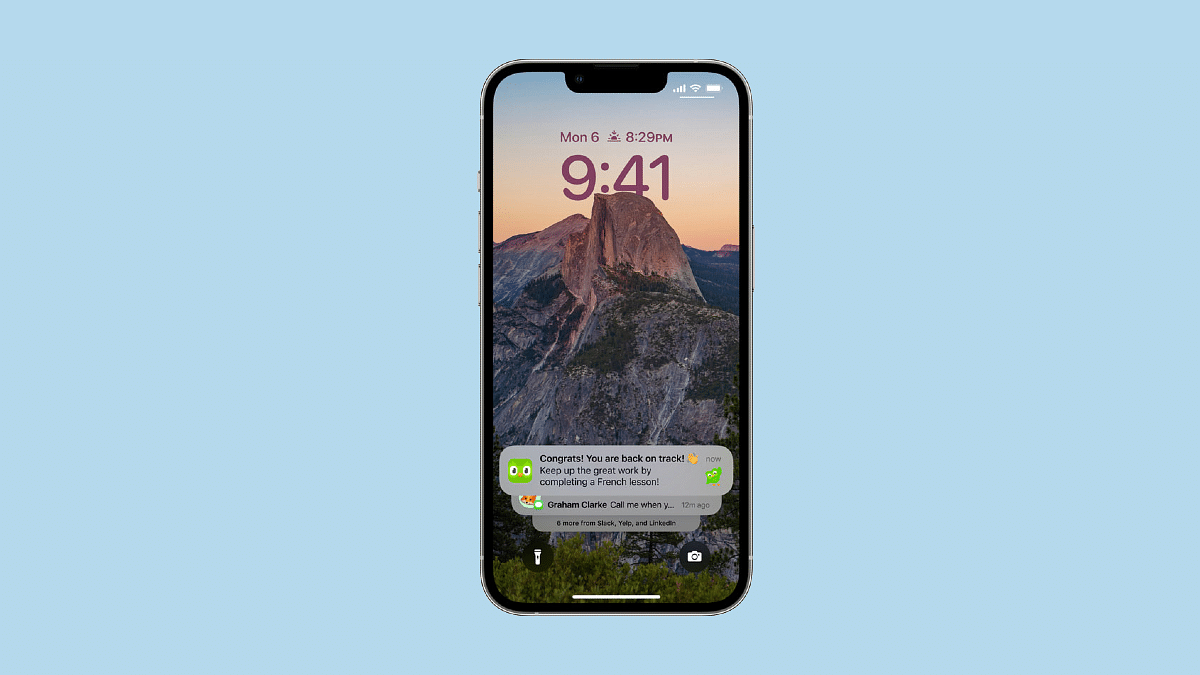
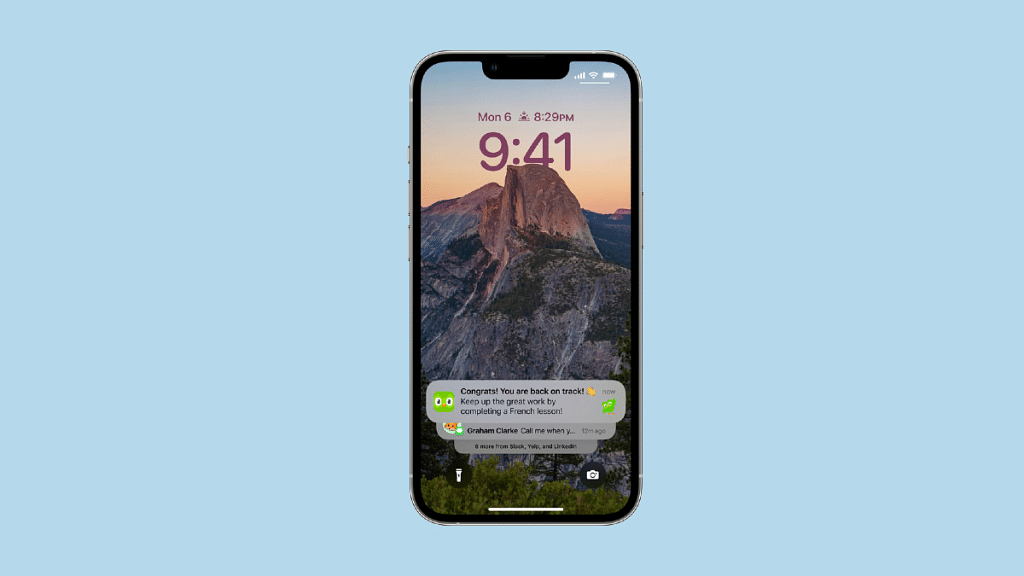
Also Read: iOS 16 Tips And Tricks: How To Customize iPhone Lock Screen With iOS 16

Step 4: Go to the Files app now and find the photo.

Step 5: Now tap and hold on to the photo.

Step 6: Next, choose Quick Actions from the menu.

Step 7: Choose Remove Background now.

Separately, a transparent image will be created. It can be shared as a sticker on iMessage and other messaging apps.

Also Read: OnePlus Call Being Recorded Notification: How To Stop ‘Call Is Now Recording’ Message On OnePlus 10T, 10 Pro, OnePlus 9, 8 Series

Categories
Apps Featured How To

Want To Write Your Instagram Name In A Stylish Font? Here’s How To Do

Key Highlights

  • Instagram doesn’t support stylish fonts directly from the keyboard
  • You can use apps or websites to copy and paste fancy fonts
  • Adding a third-party keyboard also lets you use stylish fonts easily

Have you noticed that an increasing number of Instagram users are using different fonts for their bios and posts? Do you want to know how to change the font on Instagram and how they do it?

Well, you can’t use such fashionable fonts directly from your smartphone’s keyboard as they aren’t officially supported by the app. You will either need to copy and paste the name from an app or website in order to write names in such fashionable fonts, or you can add a new keyboard to your phone that supports stylish fonts. We’ll show you how to keep a stylus name on your Instagram account in this post.

Also Read: Best Instagram Features That Are Worth Trying

How To Use Stylus Font On Instagram?

On your smartphone, you must first download the necessary app. The app we’ll be showing is compatible with both iOS and Android devices. You can modify your Instagram name using a sophisticated text writer you can get online if you don’t want to download a third-party app.

Step 1: On your mobile phone, open PlayStore or App Store.

Step 2: Search for “Stylish Text – Fonts, Keyboard“, an app by Wisdomlogix Solutions.

Step 3: After that, install the app and open it.

Step 4: When you first launch the app, you will see a variety of fonts. To begin, simply enter your name in the “Good Evening” section.

Step 5: You will see your name in every font after completing the previous step. Tap on it based on your preferred style.

Step 6: You can now copy your name using the stylish font you chose. Also, you can add a stylus bio on your Instagram with this app.

Step 7: Head back to Instagram after you copy the text.

Step 8: On the bottom right, click on your Profile.

Step 9: Tap on Edit Profile.

Step 10: Finally, replace the existing name of the regular font with the stylish name you copied. Then tap Done.

Also Read: Instagram Tricks: Here’s How You Can Change Instagram Language Settings On Android, iPhones

Now you will see your Instagram name in a stylish font. That’s all.

For the tech geeks, stay updated with the latest cutting-edge gadgets in the market, exclusive tech updates, gadget reviews, and more right on your phone’s screen. Join Giznext’s WhatsApp channel and receive the industry-first tech updates.

Categories
Apps Featured How To

iOS Tips And Tricks: How To Setup Medical ID And Make Emergency Calls From Lock Screen

Key Highlights

  • iOS offers health and emergency features like Medical ID for iPhone users
  • Medical ID shares critical info from the Lock screen without needing a password
  • Emergency contacts can view medical data like blood type and allergies easily

Apple iOS undeniably offers a premium user experience. Apple has been ensuring all iPhone and iPad buyers get the best-in-class user experience with the iOS firmware. The latest generation iOS versions specifically iOS 15 and 16 are packed with some of the best user-oriented features. Apple has also been adding health monitoring and wellness features so that iPhone and iPad users get emergency medical services without any delays.

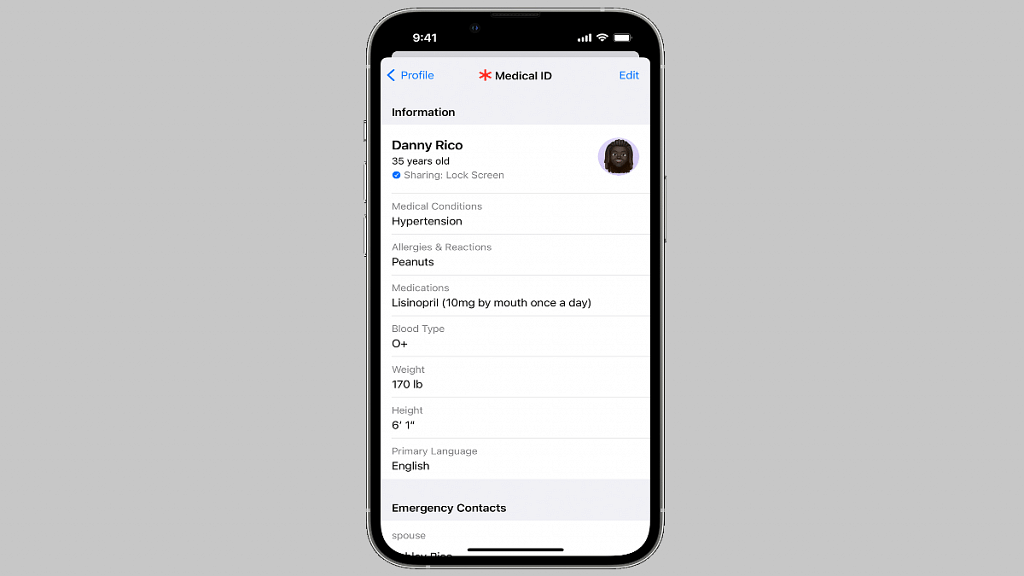
Setting up a medical ID and making emergency calls even when iPhone is locked is one such crucial health feature offered by iOS. The Medical ID in iOS shares critical medical information with the saved emergency contacts directly from the Lock screen. It doesn’t require the users to enter the lock screen password in such scenarios.

Also Read | iOS Tips And Tricks: How To Manage Automatic ETA Sharing Using iPhone, iPads In Apple Maps

Also, if someone else is making emergency calls to your saved contacts, they can see your important medical data such as date of birth, blood group, and also if you have certain types of allergies that you might have mentioned while setting up the Medical ID. Setting it up is a fairly simple process, we have mentioned the method below.

How To Setup Medical ID In iOS On iPhones and iPads

Step 1: On your respective iPhones and iPads, launch the Health App.

Step 2: Click on the Summary tab.

Step 3: Tap on the profile picture option which you can locate in the upper-right corner.

Step 4: You will see the Medical ID option. Tap on it.

Step 5: Select the Edit option from the top right.

Step 6: Enable the “Show when locked” option to use the Medical ID feature from the Lock screen.

Step 7: Toggle on Share During Emergency Call to share the emergency updates with the saved contacts.

Step 8: Edit and enter your health information such as blood group, anu known allergies, and date of birth.

Step 9: Select Done.

Step 10: When the Medical ID setup is complete and you make a call or text during emergencies, the details will be shared with the emergency services and the saved contacts.

Also Read | iOS Tips And Tricks: How To Setup And Use AutoFill For Contact Cards And Credit Cards In Safari On iPhones And iPads

Medical ID helps first responders access your critical medical information from the Lock screen, without needing your passcode. They can see information like allergies and medical conditions as well as who to contact in case of an emergency. 

For the tech geeks, stay updated with the latest cutting-edge gadgets in the market, exclusive tech updates, gadget reviews, and more right on your phone’s screen. Join Giznext’s WhatsApp channel and receive the industry-first tech updates.

Categories
Apps Featured How To

How Can You Make Or Join Video Calls Using Gmail On Laptop And PC

Amongst the multiple services provided by Google is Gmail. The email service by the search giant is one of the biggest and is commonly used by the audience in India and other global regions. Google has made several advancements to Gmail like its other user-oriented apps. Over the years, Google has expanded Gmail services to mobile users, making it easier for Android and iPhone users to send or access essential emails on the go.

Gmail doesn’t restrict a user by offering only text email services. With the latest version of the Gmail application, users also get the provision to make video calls. Gmail users on laptops and PC can use this option for video calling using Gmail. It is one nifty feature that lets users go ahead with online conferencing without downloading or installing any third-party PC or mobile application.

You can integrate Google Meet services with Gmail to start with video calling. The Google Meet services need to be activated from the Admin console in order to make video calls using Gmail. So, how can you start or join a video call using Gmail on any laptop, PC, or mobile application? The steps are listed below:

How To Start Video Call In Gmail

Step 1: Launch any web browser such as Google Chrome or Firefox.

Step 2: Now, go to Gmail and log in using your registered email ID.

Step 3: Go to the Meet section.

Step 4: Tap on New Meeting.

Step 5: You can send the video call meeting link or email by tapping on the Send invite. Copy the meeting invite details and share the invite link or email.

Step 6: Tap on the Join now option to join the meeting. Make sure you have given access to both camera and microphone before you initiate the video call.  

Step 7: Tap on the Leave call option once done.

How To Directly Join A Video Call Using Gmail App

Step 1: Launch the Gmail application on your smartphones or laptops/ PCs.

Step 2: You can locate the My Meetings option placed at the bottom left of the app’s homepage. This would be for the upcoming video calls scheduled on the calendar.

Step 3: Tap on Join. Notably, you can directly join any video call if it’s added in your Google Calendar. Otherwise, you would need to enter the meeting code and the nickname.

Step 4: Once you have given permission access to the microphone and camera, tap on join to continue with the video call on Gmail.