Categories
Apps Featured How To

Paytm Unveils Guaranteed Seat Assistance Feature: Here’s How To Use

Key Highlights

  • Paytm has added a new feature Guaranteed Seat Assistance
  • It lets customers reserve a confirmed seat on the train of their choice
  • It offers users with multiple train options

As the festive season approaches, many people plan their holidays and trips to celebrate Diwali and Chhath Pooja. However, with the peak of the festive season comes a surge in travel demand, leading to a rush for train tickets and long waiting lists. In response to this, Paytm has launched a new feature called ‘Guaranteed Seat Assistance’ to help travelers secure confirmed train tickets and make their journeys smoother. Also Read | Use Paytm To Book Your Bus Tickets: A Step-By-Step Guide

Confirmed Train Tickets

The ‘Guaranteed Seat Assistance’ feature offers users the opportunity to lock in a confirmed seat when booking train tickets. It offers users multiple train options to increase their chances of getting a confirmed booking on their preferred trains. This feature is particularly valuable during the festive season, as it eases concerns about ticket availability and long waiting lists.

Paytm’s ‘Guaranteed Seat Assistance’ feature goes the extra mile by recommending alternative train booking options from nearby boarding stations. This further enhances user convenience and increases the likelihood of securing a confirmed ticket.

Also Read | How Can You Delete Paytm Transaction History From Your Android And iOS Device

How To Use Paytm Guaranteed Seat Assistance

Here’s a step-by-step guide on how to use Paytm’s ‘Guaranteed Seat Assistance’ to book a confirmed train ticket:

Step 1: Open the Paytm App.

Step 2: Search for trains going to your travel destination.

Step 3: If the selected train ticket is on a waitlist, you will see the ‘Alternative Station’ option.

Step 4: Explore available ticket options from nearby alternative stations.

Step 5: Choose and book your tickets from your preferred boarding station to your travel destination.

Paytm also allows users to pay with UPI for train ticket bookings without incurring any payment gateway fees. Additionally, users can check the live train running status as well as the PNR status on the Paytm app.

Paytm Travel Carnival Sale

Paytm is also running a Travel Carnival Sale from October 27 to November 5. During this sale, travelers on a budget can enjoy multiple discounts on travel bookings. For domestic flights, customers can save 15 percent, and for international flights, they can save 10 percent. This offer applies to major airlines like IndiGo, Vistara, Air India, Air India Express, SpiceJet, Star Air, and Akasa. Keep in mind that these exclusive sale offers are valid only for bookings made during the sale period.

Also Read | Paytm Lite: What Is It? How To Setup And Use Paytm Lite On Smartphones?

Categories
How To

Want To Check PMAY Status Online? Here’s How To Do It

The Pradhan Mantri Awas Yojana (PMAY) is a government initiative designed to provide affordable housing for all. It extends interest subsidies on home loans to economically weaker and lower-middle-income groups in India. The application deadline for this scheme has been extended to December 31, 2024. In this article, we will guide you through the process of checking your PMAY status online. Also Read | What Is A Masked Aadhaar Card? Here’s How You Can Download It Online

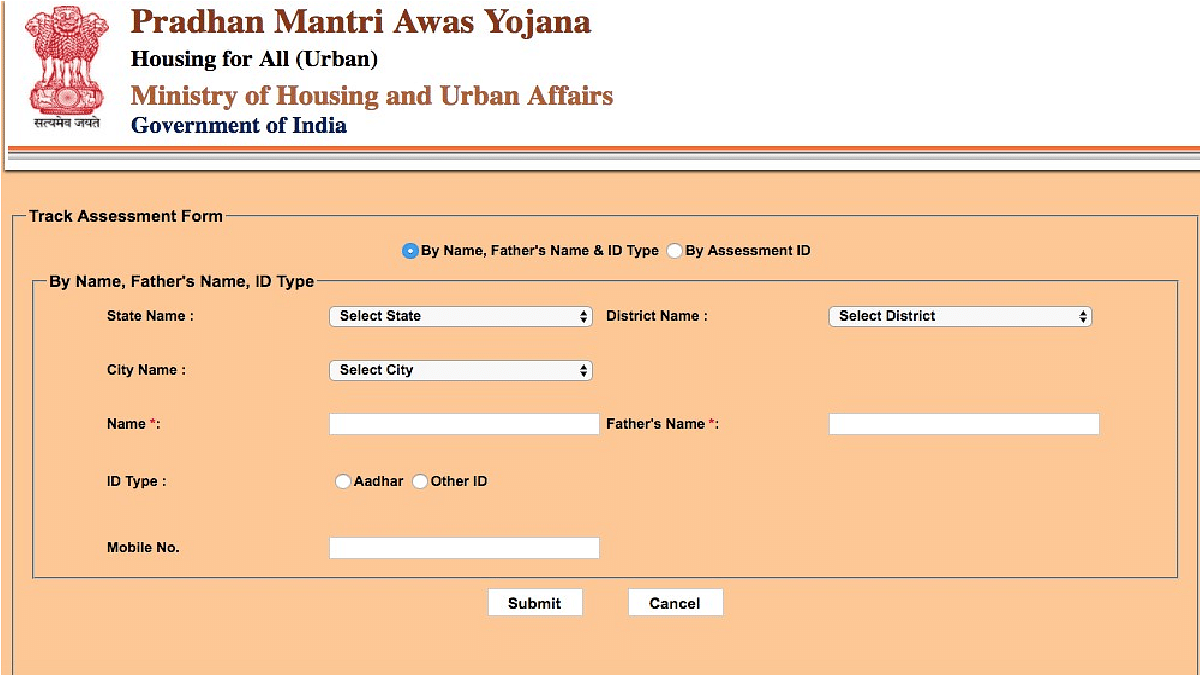
Steps To Check PMAY Application Status Via Name, Father’s Name & Mobile Number

Step 1: Visit the PMAY Website page.

Step 2: Choose the option ‘By Name, Father’s Name & Mobile Number’.

Step 3: Enter the required details.

Step 4: Submit to view your PMAY application status.

Steps To Check PMAY Application Status Via Assessment ID

Step 1: Visit the PMAY Website page.

Step 2: Select ‘By Assessment ID’.

Step 3: Enter and submit your Assessment ID to check the application status.

Also Read | Here’s How To Check Bank Balance Through Aadhaar Card Number

Steps To Check PMAY Application Status Via Aadhaar Card

Step 1: Visit the PMAY website page.

Step 2: Select ‘Aadhaar Card’.

Step 3: Enter the Aadhar number in the provided box, ensuring it matches the applicant’s details.

Step 4: Fill in the Name as per Aadhaar.

Step 5: Agree to share Aadhaar details for authentication by ticking the box.

Step 6: Click ‘Check’.

Steps To Check PMAY Application Status Via CLSS Tracker

Step 1: Visit the PMAY website page.

Step 2: Locate the section on the home page for entering the Application ID.

Step 3: Enter the Application ID and click ‘Get Status’.

Step 4: You will receive an OTP number on your registered mobile number, which you should enter on the screen.

Steps To Check PMAY Application Status Via Toll-Free Number

For a hassle-free way to inquire about your PMAY application status, simply dial the toll-free numbers listed below. These numbers will link you to the assistance desk of either the Housing and Urban Development Corporation (HUDCO) or the National Housing Bank (NHB).

  • National Housing Bank Helpline: 1800-11-3388, 1800-11-3377
  • Housing and Urban Development Corporation Helpline: 1800-11-6163

Four Verticals Of Pradhan Mantri Awas Yojana

The Pradhan Mantri Awas Yojana consists of four key verticals to address different housing needs:

In Situ Rehabilitation: PMAY for people living in slums.

Beneficiary Led Construction (BLC): PMAY for individuals who own land and wish to construct or enhance existing structures.

Credit Linked Subsidy Scheme (CLSS): This PMAY scheme provides subsidies on home loans for land/home purchase or property modification.

Affordable Housing in Partnership: PMAY for those without land or unable to afford a home loan.

Also Read | Need To Lock And Unlock Your Aadhaar Card Biometrics? Here’s How To Do It

Categories
Apps Featured How To

X Rolls Out Audio And Video Calling: Here’s How To Enable It

Key Highlights

  • Elon Musk announced a brand-new X feature
  • X will have the ability to make audio and video calls
  • X users will need to open the app and manually enable this feature

Elon Musk has made an announcement regarding a new feature on the platform X (formerly Twitter). Users can now enjoy audio and video calling functionalities, akin to those found on popular platforms like Instagram and WhatsApp. Also Read | Planning To Leave Twitter? Here Are The Best Twitter Alternatives To Download

Anticipated Rollout

Many X users have already received notifications upon opening the app, proclaiming, “Audio and video calls are here!” Elon Musk himself has taken to his official handle on the platform to share insightful details. Musk disclosed that the company has initiated the release of an early version of this feature, albeit for select users. In his post, Musk described it as the “Early version of video and audio calling on X.”

How To Use Audio And Video Calling Feature On X

While comprehensive details about the feature are still limited, early adopters have shared screenshots that shed light on the process. To enable audio and video calling, follow these steps:

Step 1: Navigate to the ‘Direct Messages’ section within the ‘Privacy & Safety’ option in the platform’s Settings.

Step 2: Once there, toggle on the ‘Enable Audio & Video Calling’ button. That’s all.

Also Read | Best Tips And Tricks To Increase Your Followers On Twitter

Customized Calling Options

Once enabled, users will have the ability to designate who can make audio and video calls to them. The options include individuals in a user’s address book, those being followed by the user, and verified users.

Global Accessibility

It remains uncertain whether X users will exclusively access audio and video calling through the company’s Android and iOS applications or if this feature will also be accessible on the web.

Elon Musk originally confirmed the imminent arrival of audio and video calling features on X in an announcement made in August of the same year. He stated that the feature would be available on iOS, Android, Mac, and PC, and notably, it would not require a phone number.

Worldwide Rollout

Finally, X has commenced the global rollout of the video and audio calling feature to all of its users.

Also Read | Instagram Threads: What Is It And How To Use Meta’s Twitter Alternative

Categories
Apps Featured How To

Dussehra 2024 Wishes: Here’s How To Download And Send WhatsApp Stickers

Key Highlights

  • WhatsApp is a popular choice to wish Dussehra
  • There are many Dussehra sticker apps available on the Play Store
  • Downloading and sending Dussehra stickers is an easy process

As Dussehra approaches on October 12, the tradition of sending festive greetings via social media apps continues to gain popularity. WhatsApp, a beloved messaging platform with millions of users in India, offers a convenient way to exchange festive wishes through stickers. So, in this guide, we will focus on downloading and sharing Dussehra stickers specifically on WhatsApp.

Also Read | Step-By-Step Guide: How To Create Live Stickers On Your iPhone

How To Download Dussehra WhatsApp Stickers

Step 1: Head over to the Google Play Store. Once there, use the search bar to look for “Dussehra stickers WhatsApp.” A list of apps will appear, providing you with a variety of options. Select one of these apps and proceed with the installation.

Step 2: Once you’ve successfully downloaded the chosen sticker app onto your device, open it and click on the “start” button to launch the application.

Also Read | WhatsApp Personalised Avatar Feature Update: How To Create Your Own Avatar And Share As Sticker Packs On WhatsApp

Step 3: Within the sticker app, you’ll find several sticker packs available for use. These packs encompass both Dussehra stickers. Simply select one of the packs to continue.

Step 4: It’s time to integrate your desired sticker pack with WhatsApp. Most of the apps provide these options. Click on the “Add to WhatsApp” button within the app. You will receive a prompt to tap on the “ADD” button, which will add the sticker pack to your WhatsApp.

Step 5: With the sticker pack successfully added, open your WhatsApp messenger. Navigate to the stickers section within the chat interface, and there you’ll find the new Dussehra stickers ready for use. Should you wish to remove any sticker pack from your collection, this can be done in the messaging app’s Stickers section.

This simple process enables you to enhance your Dussehra greetings and celebrations by sharing vibrant stickers with friends and family on WhatsApp. So, as the festive day approaches, take advantage of these digital tools to spread the joy and warmth of Dussehra with your loved ones.

For the tech geeks, stay updated with the latest cutting-edge gadgets in the market, exclusive tech updates, gadget reviews, and more right on your phone’s screen. Join Giznext’s WhatsApp channel and receive the industry-first tech updates.

Categories
Apps Featured How To

Use Your iPhone To Detect Depression And Anxiety: A Step-by-Step Guide

Key Highlights

  • Users of iPhones can check their mental health
  • It can aid in spotting depressive and anxious symptoms
  • iPhone also offers solutions for dealing with them

If you’re an iPhone user with iOS 17 or newer, you can use the Mental Health Questionnaire app to evaluate your emotional well-being. This application is designed to help you pinpoint signs of anxiety and depression, offering coping strategies and insights into your risk levels for these conditions. By answering a series of questions about your thoughts and emotions, the app delivers tailored feedback, aiding you in identifying potential mental health challenges and guiding you toward professional assistance if required. Also Read | iOS Tips & Tricks: Learn How To Set Up Your Contact Poster On iPhone

Additionally, it can generate a PDF report for sharing with medical professionals, ensuring a more precise diagnosis and treatment plan. Nonetheless, it’s essential to note that the app should complement, not replace, a consultation with a healthcare provider. For those intrigued by this feature, here’s a detailed guide on assessing anxiety and depression through your iPhone.

How To Diagnose Anxiety, Depression Using iPhone

Ensure your iPhone is operating on iOS 17 or a more recent version. Verify your software version by navigating to Settings > General > Software Update.

Step 1: Open the Health app and select “Browse” at the bottom right corner of the screen.

Step 2: Scroll down and locate “Mental Health Questionnaire” under the “Mindfulness” section.

Also Read | How To Maximize iPhone Battery Health: Tips & Tricks

Step 3: Choose your age group from the provided options, with the questionnaire tailored for individuals aged 13 and above.

Step 4: Respond to 16 multiple-choice questions concerning your thoughts and emotions. Offer candid responses that best represent your current situation.

Step 5: Upon completing the questionnaire, view your anxiety and depression risk levels determined based on your answers. You can also export a PDF summary of your results for sharing with a clinician or access a website with mental health resources relevant to your area.

Always remember that this tool is not a substitute for a professional diagnosis or treatment. If you’re grappling with mental health challenges, seek assistance from a qualified mental health provider promptly.

Also Read | Use Your iPhones To Find Recipes: Here’s How To Use Visual Look Up Feature

Categories
Apps Featured How To

WhatsApp Passkey Available For Android, iOS, And Web: How To Use?

Key Highlights

  • WhatsApp Passkey is released
  • Option available for all users
  • Private access allowed without using complex passsword

WhatsApp is an immensely popular instant messaging application that one can use on smartphones and web users. Privacy is the biggest highlight of this mobile messaging app. WhatsApp allows end-to-end encryption platform for personal conversations. The messaging app also offers standard password and biometric protection for added privacy. But now, Meta has released a new advanced protection called PassKey that will limit the usage of complex passwords. What is this new WhatsApp Passkey feature and how can you use it? Take a look:

WhatsApp Passkey Feature Rolling Out To All Devices: What Is It?

WhatsApp Passkey is security feature that will allow users access to WhatsApp chats securely without using complex passkeys. This is unlike the standard privacy protection where one needs to enter string passwords featuring a combination of letters, alphabets, and special characters.

This password protection service is being used for privacy by different applications since long. But we are now witnessing a transition towards Passkeys that safeguards all the personal and private data using biometrics instead of passwords. WhatsApp Passkeys functionality is also identical where you use biometrics to secure and lock the app instead of passwords.

WhatsApp Passkeys availability has been confirmed by Meta itself via a post on X. WhatsApp users on Android will be able to login and access their WhatsApp account with biometrics such as fingerprint and facial recognition. Users will also be able to use pin to login to WhatsApp account and access the chats.

It is worth mentioning that WhatsApp passkey wile unique for each account as well as device. This feature will use the same biometric authentication system as the device. For the devices that comes void of any biometric authentication system there will be pin passkey security option.

Currently, WhatsApp Passkey feature is made available to the users globally in a phased manner and is likely to complete its mass rollout gradually.

Also Read: WhatsApp Web Update: Chat Search By Date Feature Coming Soon To Both Windows And Mac?

How To Use WhatsApp Passkey?

Step 1: Open WhatsApp application

Step 2: Head to the settings menu

Step 3: Tap on the Privacy tab and locate WhatsApp Passkey option

Step 4: After clicking on the WhatsApp Passkey option select “Create a Passkey”

Step 5: Follow the on-screen instruction to register your WhatsApp Passkey

Also Read: Curious About AI Stickers On WhatsApp? Here’s How To Create Them

Categories
Apps Featured How To

WhatsApp Web Update: Chat Search By Date Feature Coming Soon To Both Windows And Mac?

Key Highlights

  • WhatsApp Web getting Chat search by date feature
  • Feature spotted with beta build
  • Option will allow searching chats with specific date

WhatsApp has been rapidly evolving its ecosystem with privacy-centric and user friendly features. The brand is consistent with bringing new features and tools to enhance the messaging experience for Android and iOS smartphone users. For the web users too, WhatsApp has been bringing in the best solutions for a better text and multimedia messaging. Meta is now bringing another popular feature to the WhatsApp Web version which will make it super easy to search older chats.

Also Read: Curious About AI Stickers On WhatsApp? Here’s How To Create Them

WhatsApp Web Chat Search By Date Feature: When Is The Update Coming?

WhatsApp Web is getting the Chat search by date feature in the coming months. A fresh report via WABetaInfo has confirmed this development across the upcoming messaging feature for WhatsApp Web version. The publication has also shared a screenshot that shows the Chat search by date feature being tested with the WhatsApp Web version.

The screenshot confirms the placement of the calendar icon next (on the left) to the chat search tab. Just for reference, Meta already has released the chat search by date feature for Android and iOS users and the functionality for the web version will be identical to the mobile app.

Speaking of the availability, it is unknown by when WhatsApp will rollout this update to all the WhatsApp Web users. Currently, this feature is in the development phase and will be made available to the Windows and Mac users in the coming months. Unfortunately, WhatsApp is yet to comment on the timeline for the same.

Also Read: Best Apps And Tools To Download High Quality Instagram Status On Any Phone

How To Search Chats By Date On WhatsApp Web Version?

The steps to same the chats by date on WhatsApp will be the same as the mobile version. Users would simply need to tap on the calendar icon which is located next to the chat search tab. Now, all one would need to do is select the date for which they wish to search the conversations. The user will be able to go through the received and sent messages of the dates searched.

This new feature will make it convenient for the WhatsApp Web users to find older conversations easily. Until now, it required WhatsApp Web users to enter a specific keyword to search a chat or conversation and scroll through the list using an upward and downward arrow icon.

Also Read: WhatsApp Channels Broadcast Tool Now Available In India: What Is It? How To Use?

Categories
Apps Featured How To TV

Learn How To Activate And Stream SonyLIV On Your Android Smart TV

Key Highlights

  • Sony LIV is available on major smart TV platforms
  • Users can seamlessly sync their smartphone login ID with Sony LIV on their smart TV
  • Activating Sony LIV on various smart TV platforms is an easy process

Sony LIV has expanded its reach to major smart TV platforms, allowing you to enjoy your beloved content on a larger screen. In this article, we will walk you through the activation process for Sony LIV on Android smart TV platforms. Additionally, we will provide insight into subscription plan details to enhance your viewing experience. Also Read | Want Free Subscription Of SonyLIV, Zee5, Hotstar, Alt Balaji, Eros Now, Netflix, And Prime Video? Here’s The Trick

How To Activate Sony LIV On Android TV

Follow this step-by-step guide to activate SonyLIV app on your Android smart TV:

Step 1: Power up your Android Smart TV.

Step 2: Access the Google Play Store in the All Apps section.

Step 3: Within the Play Store, search for “Sony LIV” using the search bar and proceed with the installation.

Step 4: Once the installation is complete, open the app and select any content from the home tab.

Also Read | How To Get Tata Play Binge App Access At Rs. 59; See All Steps Here

Step 5: An activation code will be displayed on your TV screen.

Step 6: Enter this code into the ‘Activate TV’ section via the Sony LIV mobile app or website. Alternatively, you can scan the QR code using the mobile app to activate your TV account.

Step 7: Open the SonyLIV app and log in if you haven’t already. Select the Menu option from the bottom and tap “Activate TV.” PC or laptop users can visit sonyliv.com/activate and input the code there.

Step 8: After successful verification of the code, you’ll gain access to your Sony LIV account on the TV.

Step 9: New subscribers can select a plan that suits their preferences and make the payment.

Step 10: Now, revel in shows, movies, and live sports from Sony LIV directly on your smart TV.

SonyLIV Subscription Plans

Mobile Only Plan (12 months)Benefit from movies, original shows, and live sports.
Single-device login for your convenience.
Enjoy content in 720p video quality.
Experience Stereo 2.1 sound output.
Priced at just Rs. 599 for a full year of entertainment.
LIV Premium Plan (Monthly)Unlock movies, original shows, and live sports.
Simultaneous login on up to 5 devices.
Delight in Full HD video quality.
Immerse yourself in Stereo 2.1 sound output.G
et started at Rs. 299 for a month’s subscription.
LIV Premium Plan (6 months)Available for Rs. 699 and covers you for 6 months.
LIV Premium Plan (Yearly)For year-long enjoyment, the annual subscription is available at Rs. 999.

Also Read | Netflix Begins Password Sharing Crackdown In India: Should You Be Worried?

Categories
Apps Featured How To

Curious About AI Stickers On WhatsApp? Here’s How To Create Them

Key Highlights

  • Meta has introduced AI stickers for WhatsApp
  • Currently, WhatsApp’s AI stickers only work with descriptions in English
  • Additionally, WhatsApp users have the option to report any AI sticker

In a recent update, Meta unveiled a range of innovative AI-driven features for WhatsApp, geared towards enriching user interactions online. These updates aim to empower users with tools that provide creativity, expression, and productivity. Notably, one of these new features enables users to create their own personalized AI stickers. Also Read | Top Methods And Apps For Downloading WhatsApp Status In High Quality

Meta has underscored the potential of AI stickers to elevate the overall WhatsApp experience. According to a post on Meta’s official blog, this AI sticker feature leverages technology from Llama 2 and Emu, the foundational image generation model. The AI tool works its magic by transforming text prompts into a collection of unique, high-quality stickers within mere seconds.

While this feature was previously in beta testing, Meta has officially announced the rollout of AI stickers for WhatsApp. These stickers are generated through AI technology, responding to user prompts with relevant sticker suggestions. These AI stickers seamlessly integrate into the sticker tray, ready to be shared with contacts at any moment.

Also Read | WhatsApp HD Photo Sharing On iPhone Finally Available: Steps To Share High Quality WhatsApp Photos

Creating AI Stickers On WhatsApp: A Step-by-Step Guide

If you’re eager to create AI stickers on WhatsApp, follow these simple steps:

Step 1: Open the WhatsApp app on your mobile device.

Step 2: Initiate a conversation within WhatsApp.

Step 3: Click on the “More” icon, typically represented by a “>” symbol.

Step 4: If prompted, click “Continue” to proceed.

Step 5: Type in a description for the sticker you wish to create.

Step 6: Up to four stickers will be automatically generated based on your description.

Step 7: If needed, you can adjust your description and try generating stickers again.

Step 8: Tap a sticker to send it to your contact.

How To Report Inappropriate Stickers

WhatsApp ensures user safety by allowing individuals to report any AI sticker they find inappropriate. If you encounter an AI sticker generated in response to a text prompt that you consider inaccurate or unsuitable, follow these steps to report it:

Step 1: Press and hold the sticker you wish to report.

Step 2: Tap the “>” icon.

Step 3: Select “Report” and confirm your decision by clicking “Report” once more.

Meta’s recent AI-driven additions to WhatsApp aim to enhance the platform’s potential for creative expression and seamless connectivity, providing users with a safer and more dynamic chatting experience.

Also Read | WhatsApp Channels Broadcast Tool Now Available In India: What Is It? How To Use?

Categories
Apps Featured How To

Threads Rolls Out A Free Edit Button: Here’s How To Use It

Key Highlights

  • Unlike X, the edit button on Threads is free
  • After a post is shared, you have five minutes to update it
  • There are also Voice Threads, which are essentially audio posts

In an update from Meta, the parent company of Threads, the platform has now introduced a long-awaited feature – an edit button. This edit button allows users to modify their posts on Threads, even after they’ve been shared. Akin to its counterpart, X (Twitter), Threads’ edit button functionality is entirely free and doesn’t require a paid subscription. Alongside this, Meta has also unveiled ‘Voice Threads’ to enrich the user experience. Also Read | Instagram Threads: What Is It And How To Use Meta’s Twitter Alternative

How To Modify Your Threads Using Edit Button

Meta’s CEO, Mark Zuckerberg, conveyed the news of these new features on Threads itself. The edit button has already begun its rollout, and it’s available for users on both Android and iOS apps, as well as on the web platform. Threads permit users up to five minutes from the time of posting to edit their content. So, for the initial five minutes following the post, you have the freedom to make any desired changes. If you’re a Threads user and want to confirm if you’ve received the edit button, follow these steps:

Step 1: Open the Threads app or access it on the web and share a post.

Step 2: After sharing, tap the three-dot button.

Step 3: You’ll find an ‘Edit’ option at the top of the list.

Step 4: Select ‘Edit’ to make adjustments to your post.

Threads provide a visible timer to indicate how much time remains for you to edit the post.

Also Read | Twitter Users Can Now ‘Unmention’ Themselves From Threads: Here’s How To Use

It’s worth noting that Threads offers a shorter window for post editing compared to X. X allows users to edit for up to 30 minutes after sharing a post, but Threads’ free feature provides an attractive alternative. To unlock similar capabilities on X, users need to opt for a paid subscription, costing Rs. 650 per month and offering additional perks.

Voice Threads: Share with Audio

In tandem with the edit button, Threads introduces ‘Voice Threads.’ These are essentially posts enhanced with audio clips. With the addition of this feature, users can now share voice recordings as part of their Threads content. When composing a new thread, you’ll notice a microphone icon adjacent to the gallery button. Tap on it to commence recording your audio clip. Threads also goes the extra mile by providing a transcription alongside the voice recording, allowing users to include text with their audio clips when sharing them.

Also Read | No More Threads: Here’s How To Delete Your Instagram Threads Account