Categories
Apps Featured Info

Google Buckles Up To Compete Microsoft With New AI Workspace Apps

Key Highlights

  • Google introduces generative AI features to Workspace apps
  • Features include new ways to generate, summarize, and brainstorm text using AI in Google Docs
  • The first set of AI-powered writing features will be released in Docs and Gmail for selected testers

A new heatwave in artificial intelligence has begun. Just as it was thought that Microsoft had the upper hand in integrating AI-powered chatbots in its services, Google has launched a suite of generative AI features for a variety of workspace apps, including Google Docs, Gmail, Sheets, and Slides. According to Google, their generative AI will enable Workspace users to create, connect, and collaborate like never before. Also Read | Google Bard CHatGPT Killer Goes Official? What Is It? How To Use?

In a blog post on Tuesday, the tech giant announced that it will allow users to create text in Gmail and Docs using their self-developed generative AI technology. Soon, these apps will generate drafts for various topics that you would like to write about instantly, which you can edit or adjust the tone to suit your preferences. The post explains that if you are a manager who is onboarding a new employee, you can save time and effort by using Workspace to write the first welcome email. Also Read | Microsoft Visual ChatGPT Is The New Hype: How To Use This Advanced AI Chatbot

AI-powered Google Workspace Apps’ Availability

Google has stated that the first set of AI-powered writing features will be released in Docs and Gmail for selected testers in the upcoming weeks. These AI capabilities will only be accessible in the US and English language initially.

The company plans to improve and enhance the experiences before introducing them to a wider audience, including consumers, small businesses, enterprises, and educational institutions in various countries and languages.

AI To Keep Users In Control
Google said that while AI can be a valuable tool, it cannot fully replace the creativity, ingenuity, and intelligence of humans. The company acknowledges that AI can make mistakes and often requires direction. Therefore, they are developing their products based on Google’s AI Principles, which prioritize user control. AI will make suggestions that users can either accept, modify, or reject. Additionally, Google plans to provide administrative controls so that IT departments can establish the appropriate policies for their organization.

Also Read | Google Sheets Tips And Tricks: How To Add ChatGPT Extension To Google Sheets

Categories
Apps Featured Info

Microsoft Introduces Bing AI To Edge Sidebar: How To Use?

Key Highlights

  • Microsoft has integrated Bing AI into Edge Sidebar for quick access to relevant information.
  • Users can select text and click the sidebar option to access definitions, images, and more.
  • The new feature is part of Microsoft’s efforts to enhance the browsing experience and compete with other search engines.
Also Read: List Of Best ChatGPT Extensions You Can Use For Google Chrome

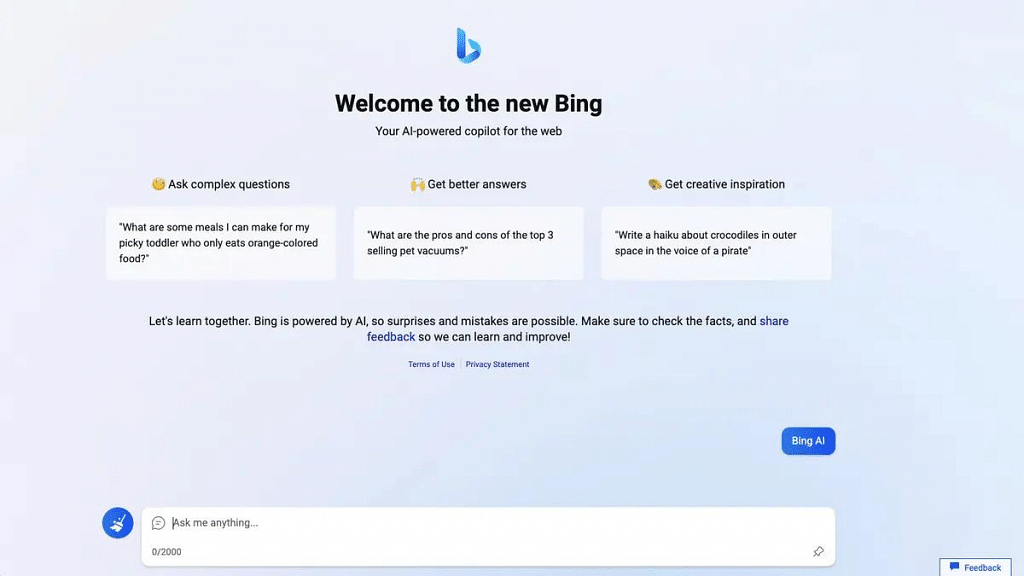
Microsoft’s latest AI-powered Bing search engine, launched just last month, has brought a wealth of exciting new features which is available on the latest version of Microsoft Edge, version 111.0.1661.41, which now offers features just like ChatGPT.

In addition, the company has integrated AI features like Chat and Compose directly into the browser sidebar of the popular Edge browser. While Bing’s AI technology is built upon the powerful foundations of OpenAI, Microsoft has claimed that their new next-generation OpenAI large language model actually surpasses ChatGPT in terms of raw computational power and performance.

Bing’s AI chatbot is integrated into its search engine, allowing users to ask questions directly within the search bar without the need to visit a specific website or search engine. To mitigate the risk of overload, there are limits to how many questions a user can ask in Bing’s AI chatbot.

Also Read: Use ChatGPT On Apple Watch? Here’s The Step-By-Step Guide

How To Use Bing AI ?

Here’s how to use Bing AI features in Edge sidebar:

  1. Open Microsoft Edge on your device.
  2. Click on the “Bing” icon located in the top right corner of the screen.
  3. A sidebar will appear on the right side of the screen, displaying a range of Bing AI features.
  4. Select the feature you want to use, such as chat, compose or insights.
  5. Then, choose the tone, format , length and etc.
  6. Enter your query or request in the provided field.
  7. Bing AI will provide you with relevant information, answers, or translations, depending on the feature you selected.

By integrating these features directly into the browser, Microsoft is aiming to make it easier for users to access the information they need without the need to visit separate websites or search engines.

Also Read: Microsoft Visual ChatGPT Is The New Hype: How To Use This Advanced AI Chatbot
Categories
Apps Featured Info

List Of Best Instagram Hashtags For Travellers

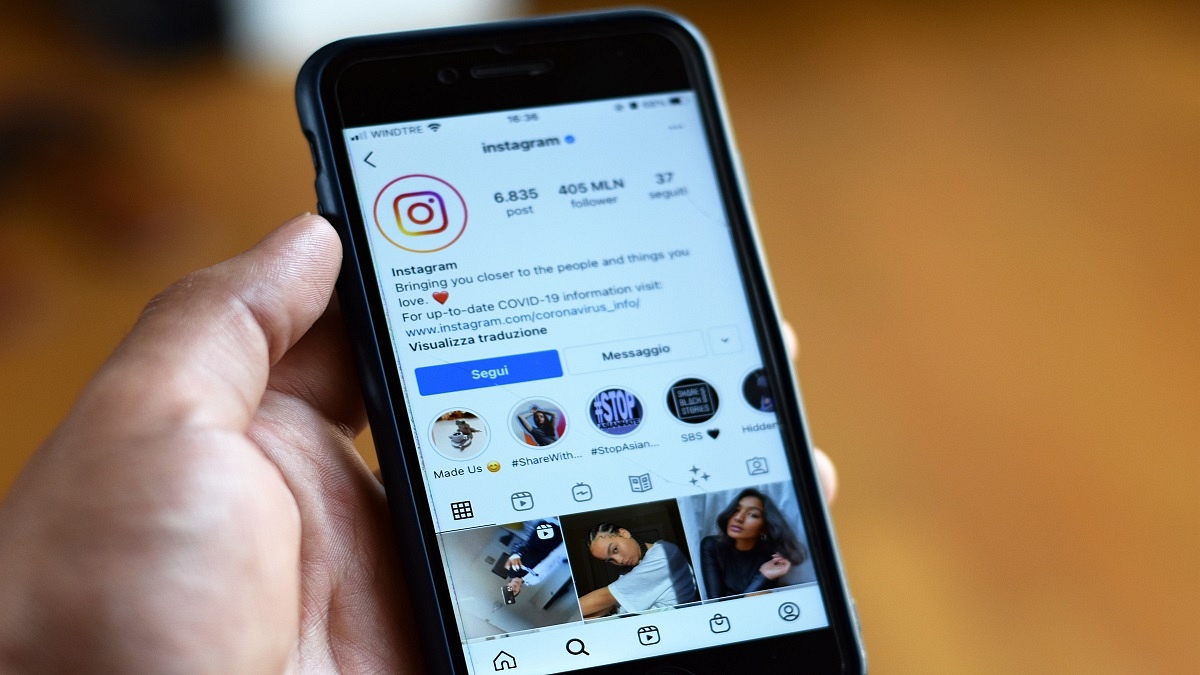
Instagram has earned its fame in social media space and is now tagged one of the best photo and video sharing app globally. This Meta-owned social app is offering services widely to smartphone, tablet, laptop, and PC users. Content creation and sharing is the new trend with Instagram.

This app’s privacy-oriented ecosystem and a big marketplace have created new opportunities for different business modules. But out of all, Instagram is definitely the one-stop destination for fashion and travel influencers. This is one of the reasons you must have seen your Insta feed flooded with fashionable content in the form of Reels and pics.

Also Read: Instagram Hashtags For Likes: Best Hashtags To Get More Likes And User Engagement For Instagram

Instagram has different metrics for audience reach and even offers in-house tools and features to help creators promote their content. Hashtags is one of such options that is widely used by content creators to gain a wider audience reach with each posts. We previously covered the best Instagram hashtags to get more likes on general posts. In this article, we are listing down the best Instagram hashtags for travel bloggers and photography enthusiasts.

Also Read: Best Instagram DP Ideas For Girls To Attract Followers

Best Instagram Hashtags To Use For Travel

#travelgram#instatravel#instatrip#serene
#travelphoto#wanderlust#naturetravel#adventure
#travelblogger#instatraveller#roadtrip#ontheroads
#instatraveller#landscape#vacation#summervacations
#naturephotography#lostwander#photoftheday#vacationdiaries
#travelphotography#woods#photooftheday#traveldiaries
#travelingsolo#bhfyp#happytripping#travelblogs

Also Read: Instagram Hashtags Guide: Best Hashtags Ideas For More Likes

Best Hashtags For Instagram Travel And Tourism Posts

#travellifestyle#travellingtheworld#traveltheworld#hills
#highhills#mountains#snowcappedmountains#landscape
#bluesky#blueskies#snowtravels#landscapephotography
#lifestyle#naturelovers#himalayas#bestlandscapes
#travelislife#me#hiking#scenicviews
#instalike#sea#trekking#beachtravels
#italia#beaches#traveltales#beachvibes

Also Read: Instagram Tips To Create The Best Bio For Boys

Some Additional Instagram Hashtags For Travellers

#travelpic#traveldiary#travellover#beachdiaries
#travelersnotebook#instapicoftheday#indiatravels#mountaintravel
#travelinspiration#travelisforfun#highwaytales#travelguide
#travelcouple#travelislife#highways#traveltales
#travelthewholeworld#travelandlife#travelwithme#naturetrails
#inspiretheworld#globaltravel#globaldiaries#globaltrails
#tripislife#roadtripfun#hittheroads#backtrails

Also Read: Best Instagram Bio Ideas For Girls In 2023

Categories
Apps Featured How To

Want To Download Songs On Spotify For Offline Playback? Here’s How

Key Highlights

  • Spotify is a popular music streaming platform with a vast library of songs
  • The platform offers both free and premium subscription options
  • Premium subscribers can enjoy additional features like ad-free listening and offline downloads

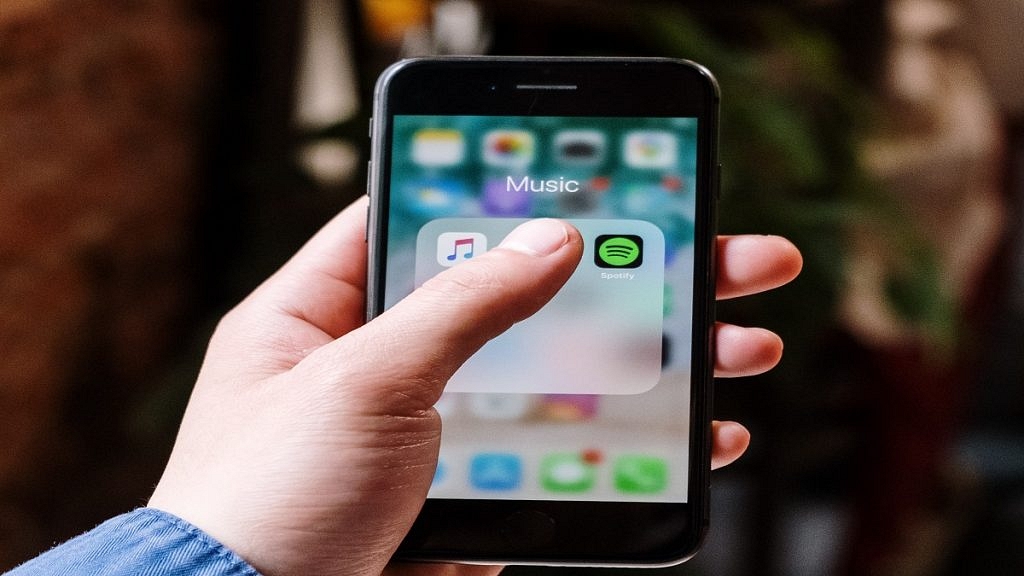
Spotify is one of the most popular music streaming platforms worldwide, offering users access to millions of songs across different genres. While the platform is primarily designed for streaming music online, users can also download songs from Spotify and listen to them offline.

To download songs from Spotify, you will need a premium subscription. Spotify premium offers ad-free listening, unlimited skips, high-quality audio streaming, and the ability to download songs for offline listening. Also Read | Want To Download Instagram Stories With Music? Here’s How

How To Download Songs On Spotify?

To download songs from Spotify, follow these simple steps:

Step 1: Open Spotify on your iPhone or Android device and sign in to your premium account.

Step 2: Find the song you want to download by using the search bar or by browsing through playlists and curated albums.

Step 3: Once you have found the song you want to download, click on the three dots next to the track’s title.

Step 4: In the dropdown menu that appears, click on the ‘Download’ option.

Also Read | Best Headphones For Music Lovers To Buy In India Under Rs. 5,000

Step 5: The song will now begin to download, and you can monitor the download progress in the Downloads section of your Spotify app.

Step 6: Once the song has finished downloading, it will be available for offline listening, and you can access it by navigating to your Downloads section in the Spotify app.

It’s worth noting that you can only download songs from Spotify on up to five different devices. Additionally, downloaded songs will only remain available for offline listening as long as you remain a premium subscriber. If you cancel your subscription or let it lapse, the downloaded songs will become unavailable until you renew your subscription.

Overall, downloading songs from Spotify is a simple and convenient process that can be done in just a few clicks. With offline access to your favorite tracks, you can enjoy your music even when you’re not connected to the internet.

Also Read | Are You A Music Lover? Here’s The Best Music Apps In India

Categories
Apps Featured Info

Microsoft Visual ChatGPT Is The New Hype: How To Use This Advanced AI Chatbot

Key Highlights

  • Microsoft has released Visual ChatGPT to combine the abilities of ChatGPT and visual foundation models
  • Visual ChatGPT combines ChatGPT with various basic visual models such as Transformers, ControlNet, and Stable Diffusion

A new era in the generative AI industry began with the debut of ChatGPT some time ago. With the popularity and success of the chatbot, other AI technologies were created. Microsoft has made significant improvements to its generative AI tools, particularly in recent years. Sadly, ChatGPT is a text-based language model and lacks Wombo Dream or DALL-E 2’s capabilities. But, after the introduction of Visual ChatGPT, things have changed. Also Read | List Of Best ChatGPT Extensions You Can Use For Google Chrome

What Is Visual ChatGPT?

Visual ChatGPT is a new AI model that Microsoft recently announced. In order to comprehend and analyze both language and images, this new AI tool integrates two different kinds of artificial intelligence (AI) models: visual AI models and ChatGPT.

ChatGPT is a model that can communicate with people and understand a variety of languages, offering numerous language-related services. In contrast, visual AI models are those that can both interpret and produce visuals. The combined capabilities of these two models allow Visual ChatGPT to comprehend and interpret both linguistic and visual data.

Also Read | Here’s How To Use The Viral AI Chatbot ChatGPT: A Step-By-Step Guide

What Does The Visual ChatGPT Do?

With Visual ChatGPT, users can now interact with the ChatGPT model visually rather than simply by texting. For instance, the model can respond if a user asks Visual ChatGPT a query about an image after showing it a picture. Additionally, it has the ability to carry out more difficult tasks like modifying photographs based on user inputs.

Microsoft researchers are currently working to address some of Visual ChatGPT’s shortcomings. One of the problems is that the model doesn’t always function well with photos, which can produce inaccurate findings. According to reports, the developers are attempting to find a solution to this problem so that going forward, Visual ChatGPT will consistently give accurate responses.

Microsoft believes that Visual ChatGPT’s speed is another area that needs improvement. In order for the AI model to respond to queries more rapidly, researchers are striving to speed up its processing.

Visual ChatGPT has a lot of potential despite these issues. With the use of this technology, users may use AI to comprehend both language and images, which has potential applications across a wide range of industries.

Also Read | Use ChatGPT On Apple Watch? Here’s The Step-By-Step Guide

Categories
Apps How To

Google Photos Magic Eraser: What Is This Feature? How To Use It?

Key Highlights

  • No need for Photoshop to remove objects
  • Magic Eraser works on Android & iOS
  • Erase anything with a few taps

Photobombers or unwanted objects might ruin your shots. The good news is that you can take them out of any picture. A few years ago, you needed to become proficient in specialized photo-editing software like Photoshop to do it. but no longer. With the Magic Eraser feature in Google Photos for Android and iOS, anyone with a smartphone can quickly and effortlessly remove any undesired things from their photographs. We’ll demonstrate how.

Also Read: WhatsApp Account Hijacking: What Is It? How To Stay Safe?

What Is Magic Eraser?

The Magic Eraser feature was introduced in 2021 and has since shot to the top of the list of mobile photography’s most talked-about features. Objects, people, and other items that might be out of place in a shot will be picked up by this function. When objects are found, it suggests eliminating them, and with a single tap, the feature removes the object from the image.

With the release of its Pixel 6 series, Google included Magic Eraser in Google Photos. Magic Eraser, once a Pixel-only feature, is a fantastic tool for erasing undesirable items and photobombers from any shot, whether you’re using an Android or iOS device. Although Google Photos is accessible on all mobile devices, if you don’t own a Pixel, Magic Eraser can only be used with a subscription plan.

Also Read: Forgot Your Amazon Alexa Password? Here’s How To Change And Reset It

How To Use Magic Eraser?

Step 1: Open the Google Photos App.

Step 2: Choose a photo that has a distracting element or person in it, then tap to view it.

Step 3: In the menu bar bottom, select Edit. Choose Tools from the available options.

Step 4: Click on Magic Eraser. Unwanted objects will be immediately sought out by Google Photos.

Step 5: If the App recognizes what you want to delete on its own, hit erase all to get rid of the objects that are highlighted. To save the image, select Save copy after tapping Done to complete the process.

Step 6: If Google Photos is unable to recognize the things you want to delete, you can manually do so by tracing your finger over the undesirable object. The object will be immediately removed from Google Photos.

Step 7: After you’re done, select Done > Save copy.

Also Read: Instagram Privacy: How To Hide Online/ Active Status, Last Seen On Instagram

For the tech geeks, stay updated with the latest cutting-edge gadgets in the market, exclusive tech updates, gadget reviews, and more right on your phone’s screen. Join Giznext’s WhatsApp channel and receive the industry-first tech updates.


Categories
Apps Featured How To Smart Watch

Use ChatGPT On Apple Watch? Here’s The Step-By-Step Guide

Key Highlights

  • ChatGPT is now available for Apple Watch users
  • This powerful language model is now available with the WatchGPT app
  • WatchGPT is a paid app that will cost you Rs. 349

ChatGPT quickly rose to fame and is one of the most talked about technologies these days. This is one of the fastest tools to reach 100 million users. It is a powerful language model developed by OpenAI that can be accessed through various platforms, including Apple Watch.

Also Read | Here’s How To Use The Viral AI Chatbot ChatGPT: A Step-By-Step Guide

How To Use ChatGPT On Apple Watch?

The WatchGPT, which includes all the features from OpenAI’s ChatGPT, is all you need to support an AI chatbot. You don’t actually need to do anything very technical. However, it costs around US $3.99, which is equivalent to about Rs. 328. You can get the WatchGPT app directly from the App store if you are ready to pay this sum. Now, you must be aware of the steps necessary to enable ChatGPT support on your Apple Watch. Here’s a brief guide on how to use ChatGPT on your Apple Watch:

Step 1: Install WatchGPT App On Your Apple Watch

The first step is to download the WatchGPT app on your Apple Watch. You can do this by opening the App Store on your Apple Watch, searching for “WatchGPT,” and then installing the app.

Step 2: Launch The OpenAI App

Once the app is installed, launch it on your Apple Watch. You’ll see a screen with a text box. Click on the ‘Ask me Anything’ button.

Step 3: Type Your Query

Use the small keyboard on your Apple Watch to type your query into the text box. ChatGPT uses natural language processing, so you can type your query as you would speak it.

Step 4: Wait For The Response

After typing your query, press the “Send” button, and wait for ChatGPT to generate a response. The response will appear on the screen of your Apple Watch.

Step 5: Continue The Conversation

If you’re not satisfied with the response or have further questions, you can continue the conversation by typing your follow-up query into the text box.

Step 6: End The Conversation

To end the conversation, simply exit the OpenAI app on your Apple Watch.

Some Tips For Using ChatGPT On Your Apple Watch

  • Keep your queries short and concise. The small screen on the Apple Watch makes it challenging to read long responses.
  • Speak clearly and use proper grammar. ChatGPT can better understand your queries if they are well-formed.
  • Take breaks between queries. ChatGPT can generate responses quickly, but taking breaks is essential to avoid mental fatigue.

Also Read | List Of Best ChatGPT Extensions You Can Use For Google Chrome

Using ChatGPT on your Apple Watch is easy and convenient. With a few simple steps, you can have a conversation with this powerful language model right from your wrist.

For the tech geeks, stay updated with the latest cutting-edge gadgets in the market, exclusive tech updates, gadget reviews, and more right on your phone’s screen. Join Giznext’s WhatsApp channel and receive the industry-first tech updates.

Categories
Apps Featured

Instagram Hashtags For Likes: Best Hashtags To Get More Likes And User Engagement For Instagram

Instagram as a social media platform has evolved exponentially in the last few years. The transformation has been rapid post Meta’s acquisition of the photo sharing application. Reels, Stories, and other features have set a new trend for Instagram users besides the standard image sharing option.

Instagram is now widely popular amongst social media influencers globally. This is due the wide audience reach that this platform offers to content creators. Instagram “hashtag” is one of the features that help the uploaded posts, reels, or stories get the maximum reach or user engagement.

You must use correct hashtags for a wider audience reach with your posts. However, finding the best hashtag that can assure maximum likes or user engagement can be a difficult task. If you are an emerging social media creator finding the best hashtags for likes then this article is what you need to read:

Also Read: Best Instagram Bio Ideas For Girls In 2023

Best General Instagram Hashtags To Get More Likes And Audience Reach

#like#instagrammers#shoutout#photography
#follow#insta#iphonegraphy#contests
#filters#instadaily#androidgraphy#igaddict
#pics#instagood#popularpic#art
#photoftheday#instafamous#instalike#comment
#likeforlike#likes#followme#hipster
#postlikes#random#randomposts#followinsta

Best Instagram Hashtags For Influencers

#trending#followers#photographer#followback
#motivation#naturephotography#inspiration#music
#girl#followforfollow#instapic#explorepage
#moda#funny#makeup#quotes
#z#m#qizlike#selfie
#happy#fridays#beautifulgirls#pokemon
#audience#tiktokfans#fansclub#instafans
#instatrendingreels#bestinstreels#instapicoftheday#instarandom

Best Hashtags For Trending Instagram Posts

#aztagram#bracelet#new#g
#luxury#style#model#reels
#trendingnow#bollywood#explore#india
#trends#trend#dailytrending#trendingdaily
#globaltrends#trendz#tiktoktrends#reelstrend
#instatrending#socialtrending#indiatrending#trendinglobal
##hollywood#instasocial#indiabest#top10
#instaposts#instaviral#viral#topten

The list compiled above has the best hashtags categorized for general posts, influencers, and trending posts. Using one of the hashtags that fits the best for your post will surely gain a wider audience range. We would suggest you select a few and gauge the response that you get in terms of user engagement.

It is worth adding that audience reach with the appropriate tags is maximum when a profile is public. This is because the posts are visible on the dedicated hashtag pages when they are available for public viewing. Private profiles and posts have limited accessibility hence the reach also gets limited despite the correct hashtags.

Also Read: Instagram Tips To Create The Best Bio For Boys

Categories
Apps Featured How To

Want To Cancel Your Disney+ Hotstar Subscription? Here’s How

Key Highlights

  • Hotstar offers a wide range of TV shows, movies, live sports, and other content to its subscribers
  • Canceling your Disney+ Hotstar membership gives you more control over your day
  • Canceling the Disney+ Hotstar subscription is fairly simple

Hotstar is a popular online streaming platform that offers a wide range of TV shows, movies, live sports, and other content to its subscribers. However, there may be times when you want to cancel your Hotstar subscription. If you are facing this situation, then you can follow the steps below to cancel your Hotstar subscription.

Also Read | Netflix For Fitness Enthusiast: Collaborates With Nike To Stream Workout Videos On Its OTT App

How To Cancel Your Disney+ Hotstar Subscription?

Canceling a Hotstar subscription is a simple process that can be completed in just a few steps. By following the steps outlined below, you can quickly and easily cancel your Hotstar subscription if you no longer wish to use the service.

Step 1: Visit The Disney+ Hotstar Website

The first step to cancel your Disney+ Hotstar subscription is to visit the Hotstar website. You can do this by typing “hotstar.com” in your web browser’s address bar and hitting enter.

Step 2: Login To Your Account

Once you are on the Hotstar website, you will need to log in to your account. You can do this by clicking on the “Login” button at the top right corner of the page and entering your email address and password.

Also Read | Free Disney+ Hotstar Access: Here’s How To Get It With Airtel Prepaid Plans

Step 3:  Go To The Subscription Page

After logging in, you need to go to the subscription page. You can do this by clicking on your profile picture at the top right corner of the page and selecting “My Account” from the drop-down menu. On the My Account page, click on the “Subscription” tab.

Step 4: Cancel Your Subscription

On the subscription page, you will see the details of your subscription. To cancel your subscription, click on the “Cancel Subscription” button. Follow the prompts to complete the cancellation process.

Step 5: Confirm The Cancellation

Also Read | Here’s How To Download Videos From Netflix, Amazon Prime, And Disney+ Hotstar

After you cancel your subscription, Hotstar will ask you to confirm the cancellation. Make sure to read the terms and conditions carefully before confirming the cancellation. Once you confirm the cancellation, your Hotstar subscription will be terminated, and you will not be charged any further.

For the tech geeks, stay updated with the latest cutting-edge gadgets in the market, exclusive tech updates, gadget reviews, and more right on your phone’s screen. Join Giznext’s WhatsApp channel and receive the industry-first tech updates.

Categories
Apps How To

Find Nearest Grocery Store: Here’s How To Locate Closest Grocery Store Using Google Maps

Key Highlights

  • Google Maps allows locating nearby grocery and food stores.
  • Filters can be added based on rating and distance.
  • Feature available for smartphones, laptops, and PCs.

The COVID-19 pandemic has helped online businesses to grow rapidly in India and overseas. Despite the lockdown, several emergency and general services were provided to the masses at doorsteps. Food and grocery delivery saw an all-time high. Users also started locating nearby stores for groceries and other essentials to cut down on travel time and save fuel expenditure.

Multiple new apps and websites have been developed in the last few years that help users to locate nearby grocery and food stores. Google Maps is also offering a feature with which one can easily find nearby grocery or food stores. Not just grocery stores, but one can easily locate nearby petrol pumps or more with Google Maps.

Also Read: Avoid Overspeeding Traffic Challans: How To Enable Speed Limit Warning In Google Maps

This option to find any nearby grocery store is quite useful for the masses who are frequently traveling. It becomes an easy task to search for a shop even if you don’t know the native language of the location you are visiting. But what can you do to find the nearest grocery store using Google Maps? Take a look below:

Also Read: Google Maps Privacy: How To Blur Or Delete House Or Any Other Image In Google Maps Street View

How To Find Nearest Grocery Store Using Google Maps App on Smartphones

Step 1: Launch the Google Maps mobile app on your Android or iOS smartphone or tablet.

Step 2: In the search box, type the location or the address where you will be visiting or where you wish to find the local grocery store.

Step 3: Hit the search button

Step 4: Once the location shows up on the screen, you will see a bunch of options including Directions, Start, and more. Skip that and scroll down to the categories tab.

Step 5: You will now see Restaurants, Petrol, Hotels, Groceries, and other options.

Step 6: Select the Groceries tab.

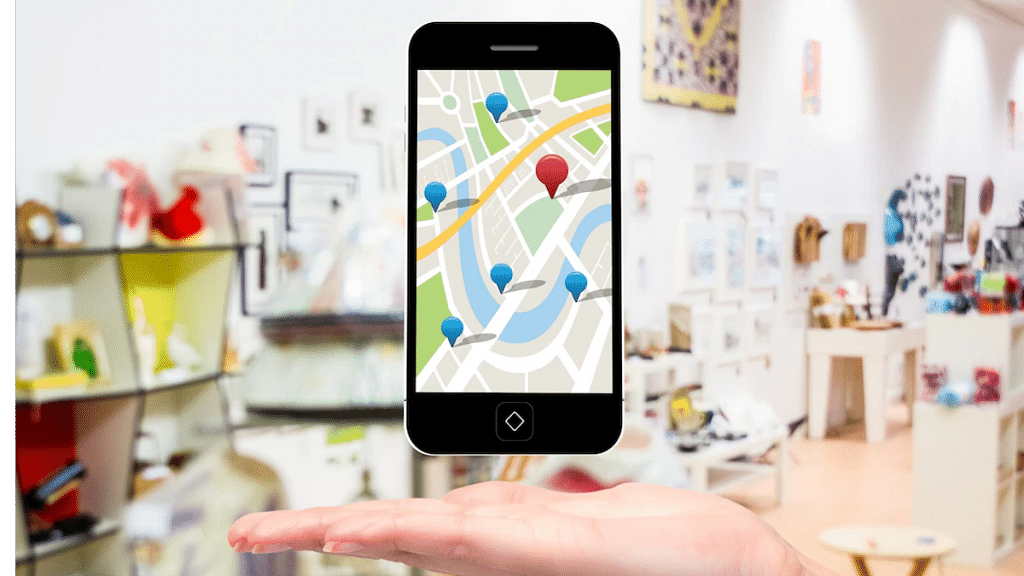
Step 7: The list of grocery stores nearby will show up on the screen. They will be marked as red pins or dots.

Also Read: Free Fire Maps: Top Five Free Fire Drop Locations On Map For Maximum Loot

Step 8: You can tap on the closest pin location.

Step 9: If you wish to add more filters such as store rating, distance, and more, you can do so using the drop down menu under the Search box.

For the tech geeks, stay updated with the latest cutting-edge gadgets in the market, exclusive tech updates, gadget reviews, and more right on your phone’s screen. Join Giznext’s WhatsApp channel and receive the industry-first tech updates.