Categories
Apps Featured How To

Ever Wondered Who’s Calling? Learn How To Check Truecaller For A Number During Calls On iPhone

Key Highlights

  • Truecaller provides quick caller identification and shields against spam calls
  • iPhone users face limitations due to iOS restrictions on certain Truecaller features
  • Despite restrictions, iPhone users can leverage iOS’s “Share Contact” feature to identify callers with Truecaller in real-time

Identifying incoming calls has never been easier, thanks to Truecaller. This app not only quickly reveals the caller’s identity but also acts as a shield against spam calls. However, iPhone users may find themselves navigating through a slightly different experience due to certain limitations within the iOS ecosystem. Here’s all you need to know.

Also Read | Wrong Name Appears On Caller ID? Here’s How To Change Your Name In Truecaller?

Understanding iPhone Restrictions

While Android users enjoy the full range of Truecaller’s capabilities, iPhone users encounter some constraints. The iOS environment restricts certain Truecaller features that require specific permissions, limiting its functionality. For instance, Truecaller cannot provide real-time caller identity prompts during incoming calls by default. But fear not, there’s still a workaround available.

How To Unlock iPhone Caller ID

With the latest iOS 17 update, iPhone users gain access to a handy feature for checking caller IDs. This differs from the Siri-enabled feature included in Truecaller’s paid subscription, offering a free alternative to identify unknown callers. Here’s how to make the most of it:

Step 1: When an unknown number calls, watch for the “i” symbol at the top right corner of your iPhone’s full-screen call alert.

Step 2: Tap the “i” symbol to reveal a brief information window displaying call details and options such as adding the number to your contacts or sharing it.

Step 3: Select the “Share Contact” option to proceed.

Also Read | Truecaller Tips & Tricks: Check Steps To Turn Off Last Seen Feature On Android

Step 4: Next, opt to share the number. Truecaller’s online directory will quickly identify the caller while the call remains active. Ensure your iPhone is connected to the internet for this feature to function seamlessly.

By using the above method, iPhone users can harness the power of Truecaller without the need for a subscription. This enhances their call experience and staying one step ahead of unidentified callers.

For the tech geeks, stay updated with the latest cutting-edge gadgets in the market, exclusive tech updates, gadget reviews, and more right on your phone’s screen. Join Giznext’s WhatsApp channel and receive the industry-first tech updates.

Categories
Apps Auto Tech Featured How To

Android Auto Waze Navigation: What Is It? How To Use?

Key Highlights

  • Android Auto Waze available for compatible vehicles
  • Is a navigational feature allowing easy transits
  • Comes as an alternate to Google Maps

Android Auto is one of those services which has transformed out entire experience while driving any modern car of SUV. This mobile application developed by the search giant Google is allowing masses to pair up their devices with the infotainment screen to access a host of smart features and tech. Navigational support is one of the key features that is offered by Android Auto and besides Maps, Waze Navigation offers a hassle free commuting. Here in this article we are listing down the use of Waze as a step-by-step guide:

Android Auto Waze: What Is It?

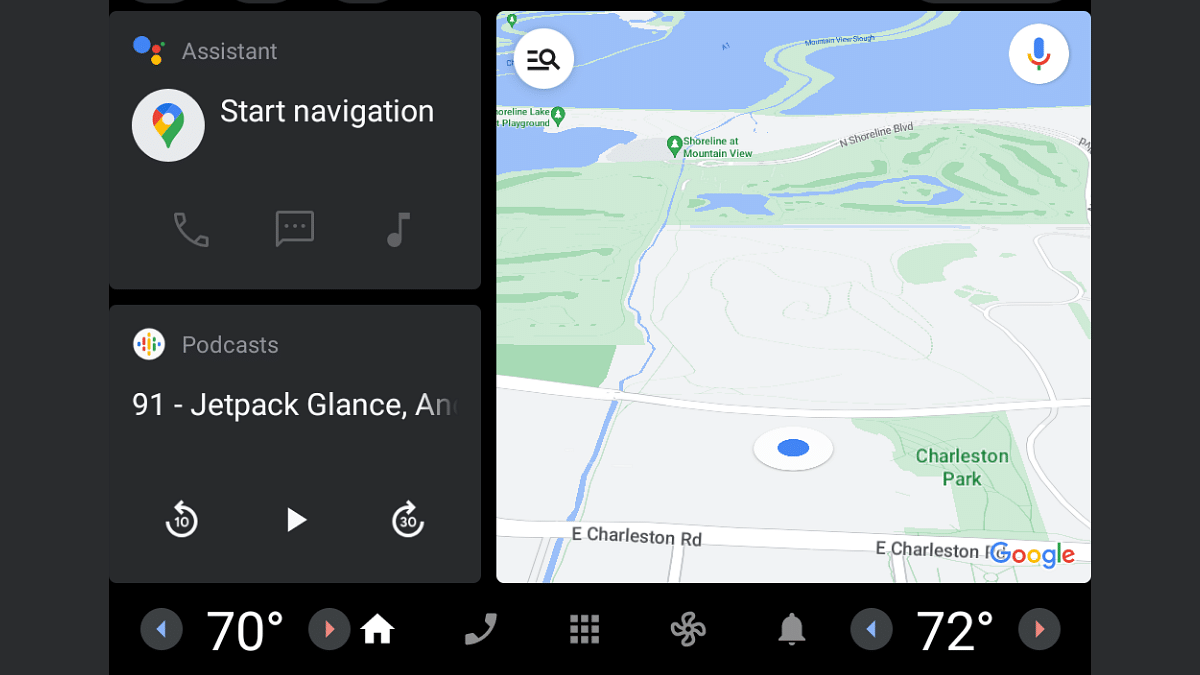
Just like Google Maps, Waze is also a navigational app that allows users with easy transit from point A to point B. Users will be able to access the Waze’s navigational services directly on the car’s display via Android Auto. Searching for routes using both voice and manual commands is possible with Waze. The steps for the same are mentioned below:

Also Read: Find And Locate Your Parked Car/Vehicle With This Google Maps Hack

Steps To Use Android Auto Waze Navigation Via Voice Commands

Step 1: Pair your Android smartphone with your car’s Android Auto unit via a USB cable

Step 2: Tap on the menu

Step 3: Click on the Waze icon

Step 4: Now, summon the digital assistant using “Ok Google: voice command

Step 5: Give the desired voice command for navigational directions. You need to use statements such as “Give directions for the nearest fuel station or restaurant”, “Show route for work”, etc.

Step 6: You can select from the multiple options if shown on the screen for the accurate direction delivery.

Also Read: Google Maps Bluetooth Beacon Feature For Tunnel Navigation Released: How To Use?

Steps To Use Android Auto Waze Manually

Step 1: To use the Android Auto manually, you will first need to switch the gear to Park (P) mode

Step 2: Now, pair your smartphone with the Android Auto unit using a USB cable

Step 3: Go to the Menu and launch the Waze app

Step 4: Click on the search option and type in the location you wish to navigate to using the keyboard

Step 5: Now, enter the destination and select from the multiple options if shown on the screen

Categories
Apps Featured Info

Google’s Big Shift: What’s Really Happening To Gmail In August 2024?

Key Highlights

  • Gmail isn’t ending in August 2024, as rumored
  • The basic HTML version of Gmail ended in September 2023
  • Google is improving Gmail, with a recent upgrade to its spam detection system

For countless individuals worldwide, Gmail serves as the starting point of their daily digital endeavors. From corporate communications to freelancer management, Google’s email platform plays a pivotal role in professional interactions. Recently, whispers about Google’s intention to terminate Gmail by August surfaced on X, triggering widespread concern. However, amidst the speculation, it’s crucial to separate the truth from the gossip. Also Read | How Gmail is Reducing Unwanted Emails in 2024: Here’s What’s Changing

Google Denies Gmail’s Demise

Addressing the swirling rumors, Google refutes any plans to dismantle Gmail, affirming its enduring presence in a post on X. While this declaration offers reassurance, it’s essential to acknowledge a relevant update regarding a specific Gmail feature.

Farewell to HTML View

In a move announced as early as September last year, Google has bid adieu to the basic HTML version of Gmail. Effective January 2024, users were transitioned from the HTML view to the Standard view, marking the end of an era. While the HTML view offered simplicity, it lacked several functionalities present in the Standard view, leaving users in low-connectivity scenarios at a disadvantage.

Also Read | From Chaos To Clarity: Five Proven Methods To Keep Your Gmail Inbox Organized

Google’s Ongoing Enhancements

Despite these changes, Google remains committed to enhancing Gmail’s functionality. Recently, the company unveiled a robust upgrade to its spam detection system, known as RETVec (Resilient and Efficient Text Vectorizer). This advancement signifies a significant leap in text classification technology, bolstering Gmail’s defenses against evolving spam tactics. By strengthening its ability to detect and block deceptive strategies such as special characters and emojis in emails, Google demonstrates its dedication to providing a secure email experience.

Conclusion

Amidst the ebb and flow of rumors, Google’s clarification provides much-needed clarity regarding Gmail’s future. While the retirement of the HTML view marks a notable change, Gmail users can rest assured that the platform remains steadfast, with ongoing efforts to enhance its capabilities.

Also Read | Gmail Tips And Tricks: How To Secure Your Google Account With Two-Factor Authentication

Categories
Apps Featured Info

End Of Stalking? WhatsApp Considers Blocking Display Pic Screenshots

Key Highlights

  • WhatsApp testing profile picture screenshot block
  • Aims to enhance user privacy
  • Expected rollout in coming weeks

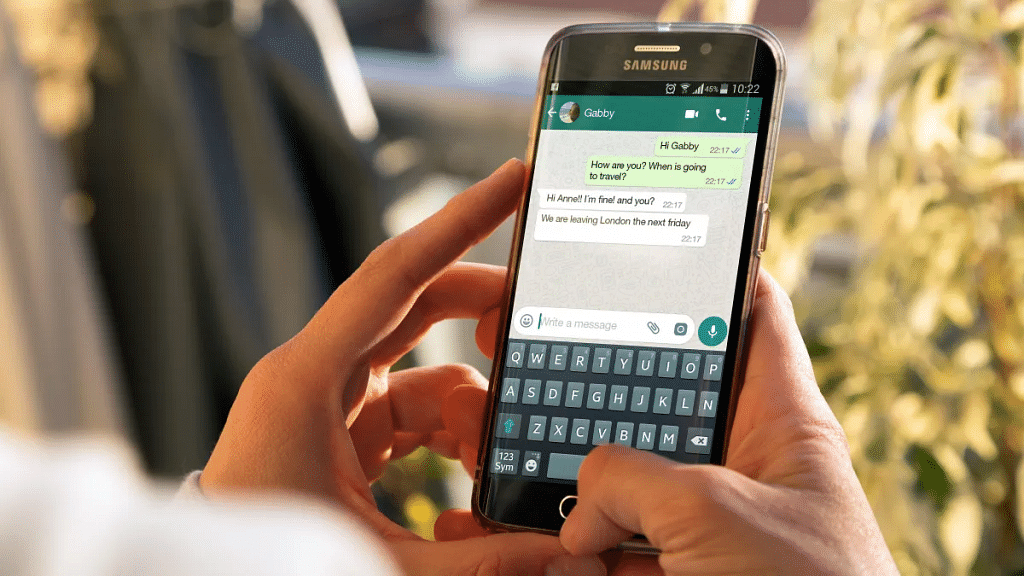
WhatsApp is currently testing a new feature designed to strengthen user privacy. This feature aims to curb the practice of taking screenshots of other users’ display pictures without their consent.

This experimental feature came to light thanks to WABetaInfo, which identified it in the latest version of WhatsApp beta for Android, accessible through the Google Play Store. Users running WhatsApp beta version 2.24.4.25 on Android may encounter a notification reading ‘Can’t take a screenshot due to app restrictions’ when attempting to capture another user’s display picture. Also Read | WhatsApp Tips And Tricks: How To View Someone’s Status Secretly

Influence From Other Platforms

Similar functionalities are already present in platforms like Snapchat and payment apps such as Paytm and Google Pay. These platforms restrict screenshotting in situations where sensitive information, personal or financial, is displayed.

Potential Workarounds

Despite this new feature, users can still circumvent it by resorting to alternative methods, such as using a secondary device like another phone or a camera to photograph another user’s profile picture.

Also Read | WhatsApp Tips And Tricks: Easy Ways To Record WhatsApp Video Calls

Reducing Harassment and Impersonation Risks

WhatsApp’s motivation behind this feature is to mitigate the risk of harassment and impersonation by limiting the ability to capture screenshots of users’ display pictures.

Rollout Expectations

The feature is currently undergoing beta testing and is anticipated to be available to all users in the coming weeks.

Additional Privacy Measures

Meanwhile, WhatsApp is also experimenting with another feature for its web version. This feature enables users to lock and conceal selected chats behind a secret code, akin to similar features already present in the Android and iOS versions of the app.

Chat Lock Feature on WhatsApp Web

The Chat Lock feature on WhatsApp Web empowers users to create a secret code to conceal desired chats from the primary chat list. This code can consist of a word, a phrase, or even an emoji, providing an added layer of privacy and security.

Also Read | WhatsApp Tips & Tricks: How To Unblock Yourself And Regain Access

Categories
Apps Featured Info

Google’s Gemini Outperforms ChatGPT in Multi-Discipline Benchmarks, Report Claims

Key Highlights

  • Google’s Gemini tops ChatGPT in multi-subject tests.
  • Gemini shines in text, images, and more, not just language.
  • Gemini expands, challenging ChatGPT’s dominance.

Google’s new AI chatbot, Gemini (formerly Bard), isn’t just turning heads with its capabilities – it’s reportedly surpassing rivals in key benchmarks. According to a recent Stocklytics report, Gemini outperformed OpenAI’s popular ChatGPT in a comprehensive multi-discipline test, edging out the competition by a significant margin.

Also Read: Google Gemini Advanced vs ChatGPT Plus: A Head-to-Head Comparison

Superior Performance Across Diverse Fields:

The report, based on Stocklytics’ data analysis, reveals that Gemini achieved a 3% higher overall score compared to ChatGPT. This impressive feat is attributed to several factors, including:

  • Google’s robust infrastructure: Supported by custom-built Tensor Processing Units (TPUs), Gemini benefits from efficient training and deployment, leading to real-time application advancements.
  • Multimodal prowess: Beyond language processing, Gemini shines in handling images, videos, and audio, showcasing its versatility across various media formats.

Also Read: Update: ChatGPT Introduces Memory Feature – What It Means for You

Breaking Down the Scores:

The research delves further, highlighting specific areas where Gemini excelled:

  • Technology & Engineering: Gemini Ultra topped GPT-4 with a score of 47.1%.
  • Human & Social Sciences: Gemini Ultra dominated with 78.3%, leaving GPT-4 far behind.
  • Health & Medicine: Gemini Ultra outscored GPT-4 by 67.3%.
  • Art & Design: Gemini Ultra achieved 47.1%, edging out GPT-4 once again.

While GPT-4 held the edge in Business and Science, Gemini’s overall dominance across various disciplines paints a compelling picture.

Also Read: Is Google’s Gemini A Better ChatGPT Alternative? Let’s Find Out!

Expanding Availability and Features:

Google isn’t resting on its laurels. Recent announcements indicate continued efforts to expand Gemini’s reach and capabilities:

  • Vertex AI Platform Expansion: Gemini 1.0 Pro is now open to all Vertex AI clients, allowing wider access to its AI capabilities.
  • Global Rollout: Gemini is gradually being introduced to users outside the US, initially for Android and iOS in English.
  • Feature Updates: New upgrades are planned for additional Gemini models, offering consumers diverse AI experiences.

Also Read: Chatgpt Vs Microsoft Copilot: Which One Is A Better AI Tool?

The Future of AI Chatbots:

With its multi-faceted performance and ongoing development, Gemini positions itself as a strong contender in the AI chatbot landscape. As the technology evolves, it will be fascinating to see how Google’s creation fares against competitors and shapes the future of AI-powered communication.

Categories
Apps Featured Info

WhatsApp Launches Helpline In India To Combat Deepfakes: AI Misinformation Alert!

Key Highlights

  • WhatsApp launches India helpline to fight AI-spun lies.
  • Flag suspicious content, get facts in English, Hindi, Tamil, Telugu.
  • Collaborative effort tackles misinformation, empowers users to be informed.

Deepfakes, those hyperrealistic AI-generated videos and images manipulating reality, pose a growing threat to accurate information and civil discourse. But users in India will soon have a powerful tool to combat them: a dedicated WhatsApp Helpline for reporting misinformation and deepfakes.

This initiative, announced by Meta and the Misinformation Combat Alliance (MCA), marks a significant step in tackling the spread of harmful AI content. Here’s how it works:

Also Read: WhatsApp’s Status Tab Set For Transformation: What Changes Are Coming?

Reporting Made Easy:

  • Any user can flag suspicious content within WhatsApp itself using the Helpline’s chatbot interface.
  • The chatbot, available in English, Hindi, Tamil, and Telugu, simplifies reporting, making it accessible to a wider audience.

Also Read: WhatsApp’s New Feature Lets You Call Your Favourites Instantly: What It Is? Availability

Deepfake Analysis Unit:

  • A central unit, set up by MCA, will analyze reported content in collaboration with fact-checking member organizations.
  • This ensures thorough verification and debunking of misinformation and deepfakes.

Also Read: Track Your WhatsApp Channels: Automatic Reports Coming Soon!

Four-Pillar Approach:

  • The initiative focuses on four key pillars:
    • Detection: Identifying and analyzing potentially harmful content.
    • Prevention: Educating users about deepfakes and misinformation tactics.
    • Reporting: Creating a user-friendly reporting mechanism.
    • Awareness: Raising public understanding of the risks and impact of deepfakes.

Also Read: WhatsApp Channels Get Updated With Voice Notes, Multiple Admins And More: How To Use

Additional Measures:

  • WhatsApp already allows flagging messages to IFCN fact-checkers and following dedicated fact-checking channels for verified information.
  • It limits message forwarding to curb the spread of misinformation.

Also Read: How To Hide Your IP Address On WhatsApp Calls

Launch and Impact:

  • The Helpline is expected to be available by March 2024, empowering users to become active participants in fighting misinformation.
  • Improved accessibility to reliable information and efficient debunking of deepfakes will foster a healthier online environment in India.

Also Read: Finally! Take Control of Your WhatsApp Groups: Transfer Ownership & Reports

Stay Informed, Stay Safe:

With the WhatsApp Helpline, India takes a proactive step against AI-generated misinformation. By reporting suspicious content and using verified information sources, users can play a crucial role in building a more informed and resilient online community. Remember, staying vigilant and sharing responsibly are key to navigating the ever-evolving digital landscape.

Categories
Apps Featured How To

Learn How To Convert YouTube Videos Into GIFs In Minutes: Three Simple Methods

Key Highlights

  • Convert YouTube to GIF with Giphy or Ezgif
  • Create GIFs using Adobe Photoshop or GIMP
  • Use “GIFit!” or “GIF Brewery” for quick YouTube to GIF conversion

In today’s digital age, GIFs have become a global form of expression, adding humor, emotion, and creativity to online conversations. With the popularity of platforms like YouTube, where millions of videos are uploaded daily, the demand for turning these videos into GIFs has surged. Whether you want to capture a hilarious moment from your favorite YouTuber or create a GIF for social media, converting YouTube videos into GIFs is easier than you might think. Let’s explore some simple methods to achieve this.

Also Read | YouTube Tips And Tricks: How Can You Watch Age Restricted Videos On YouTube Mobile App, Desktop Version

Method 1: Online GIF Converters

Online GIF converters offer a convenient way to transform YouTube videos into GIFs without the need for software downloads. Here’s how it works:

Step 1: Start by selecting a trustworthy online GIF converter such as Giphy, Imgur, or Ezgif.

Step 2: Go to the YouTube video you wish to convert and copy its URL from the address bar.

Step 3: Paste the YouTube video URL into the designated field on the GIF converter website.

Step 4: Some converters allow you to choose the duration of the GIF and adjust settings like size and quality.

Step 5: Click the “Convert” or “Create GIF” button to initiate the conversion process. Once complete, download the GIF to your device.

Also Read | YouTube Tips And Tricks: Best Features You Must Try On Your Phone

Method 2: Using GIF Creation Software

If you prefer more control over the GIF creation process or need advanced features, using dedicated GIF creation software is the way to go. Here’s a step-by-step guide:

Step 1: Choose a GIF creation software such as Adobe Photoshop, GIMP, or Filmora, and download/install it on your computer.

Step 2: Open the software and import the YouTube video file into the program.

Step 3: Trim the video to the desired duration for your GIF. You can also add text, effects, or overlays to enhance the GIF.

Step 4: Once satisfied with the edits, export the file as a GIF format. Adjust settings like resolution and frame rate if necessary.

Step 5: Choose a location on your computer to save the GIF file and give it a descriptive name.

Method 3: Browser Extensions

For those who prefer a quick and hassle-free method, browser extensions offer a convenient solution. Follow these steps:

Step 1: Search for and install a browser extension designed for converting YouTube videos to GIFs. Popular options include “GIFit!” for Chrome and “GIF Brewery” for Safari.

Step 2: Go to the YouTube video you want to convert.

Step 3: Click on the extension icon in your browser toolbar and follow the prompts to create the GIF.

Step 4: Some extensions may offer customization options like duration and quality. Once satisfied, save the GIF to your device.

Also Read | YouTube Tips And Tricks: How To Download YouTube Shorts Videos Offline

Conclusion

Transforming YouTube videos into GIFs opens up a world of creative possibilities for expressing yourself online. Whether you opt for online converters, dedicated software, or browser extensions, the process is simple and accessible to all. So go ahead, unleash your creativity, and start turning those memorable YouTube moments into shareable GIFs.

For the tech geeks, stay updated with the latest cutting-edge gadgets in the market, exclusive tech updates, gadget reviews, and more right on your phone’s screen. Join Giznext’s WhatsApp channel and receive the industry-first tech updates.
Categories
Apps Featured How To

How to Set Up Google Photos Shared Albums: Guide

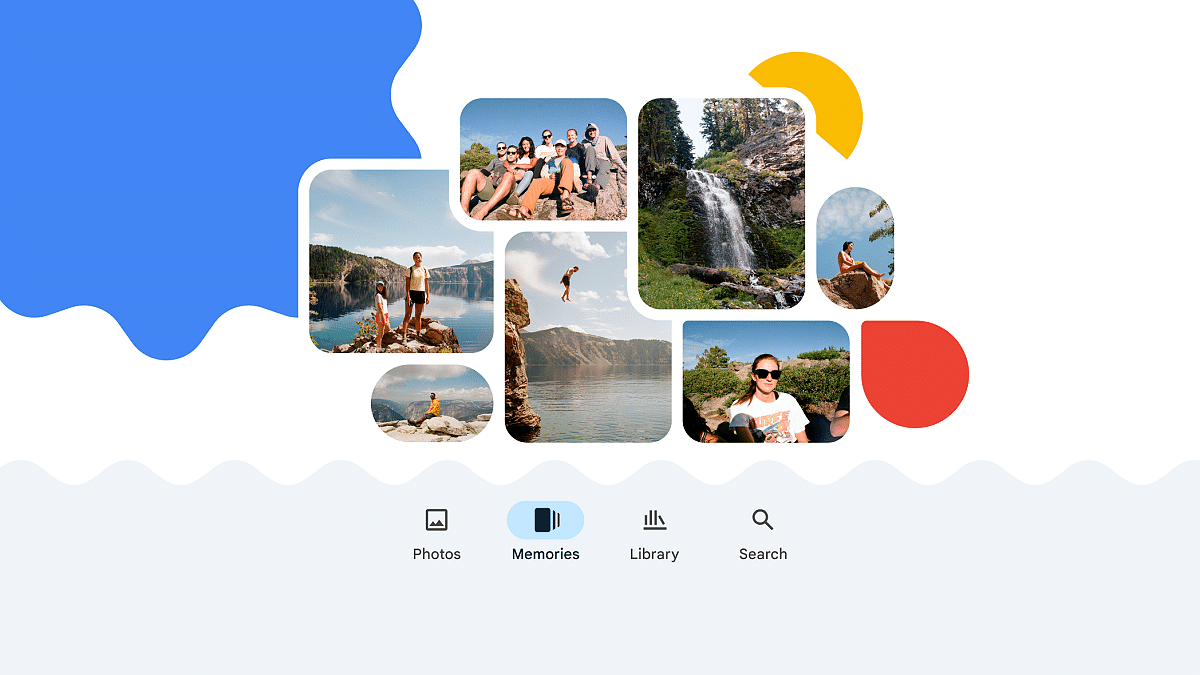
Google Photos offers a convenient way to share precious moments with loved ones through “shared albums.” This feature allows you to create an album where anyone you invite can view, and even contribute, their own photos and videos. This eliminates the hassle of sending individual photos and ensures everyone has access to the complete collection.

Also Read: Google’s AI Chatbot, Gemini, Goes Global: Now Available In 150+ Countries

How To Create Your Shared Album:

  1. Gather your photos: Open Google Photos on your smartphone (Android or iPhone) and select the photos you want to include. Use the checkboxes to choose multiple images.
  2. Create the album: Tap the “+” button at the top and choose “Shared Album” from the menu.
  3. Name and share: Give your album a descriptive title and tap “Share” in the top right corner.
  4. Choose your sharing method: You can either generate a link to the album or share it directly with specific contacts by adding their email addresses or choosing them from your list.

Important Note:

  • Anyone with the link can view the album’s contents.
  • Only those you grant access to can add their own photos and videos.

Also Read: How To Create Quick Replies In Google Messages On Android

Additional Features:

  • Control access: You can easily modify who can contribute to the album by adding or removing people from the sharing list.
  • Collaborate: Encourage others to add their photos from the same event or trip, creating a richer collection of memories.
  • Enjoy on any device: Shared albums are accessible on any device with internet access, making it easy for everyone to participate.

With Google Photos shared albums, you can effortlessly share and relive special moments with friends and family, creating a collaborative space for cherished memories.

Also Read: Google Gemini Advanced vs ChatGPT Plus: A Head-to-Head Comparison

Categories
Apps Featured How To

Streamlining Transactions: How To Generate And Share UPI QR Codes For Payments

Key Highlights

  • UPI QR codes simplify payments by eliminating manual entry
  • These codes are easily generated and shared across various platforms
  • UPI QR codes offer robust encryption, ensuring safe transactions

In the digital age, cashless transactions have become increasingly dominant, with the UPI emerging as a popular mode of payment in India. UPI offers convenience, security, and seamless transactions, making it a preferred choice for individuals and businesses. One of the key features of UPI is the QR code-based payment system, which enables quick and hassle-free transactions. In this article, we will explore how to generate and share UPI QR codes for payments, simplifying the process for both consumers and merchants.

Also Read | Paytm Lite: What Is It? How To Setup And Use Paytm Lite On Smartphones?

Understanding UPI QR Codes

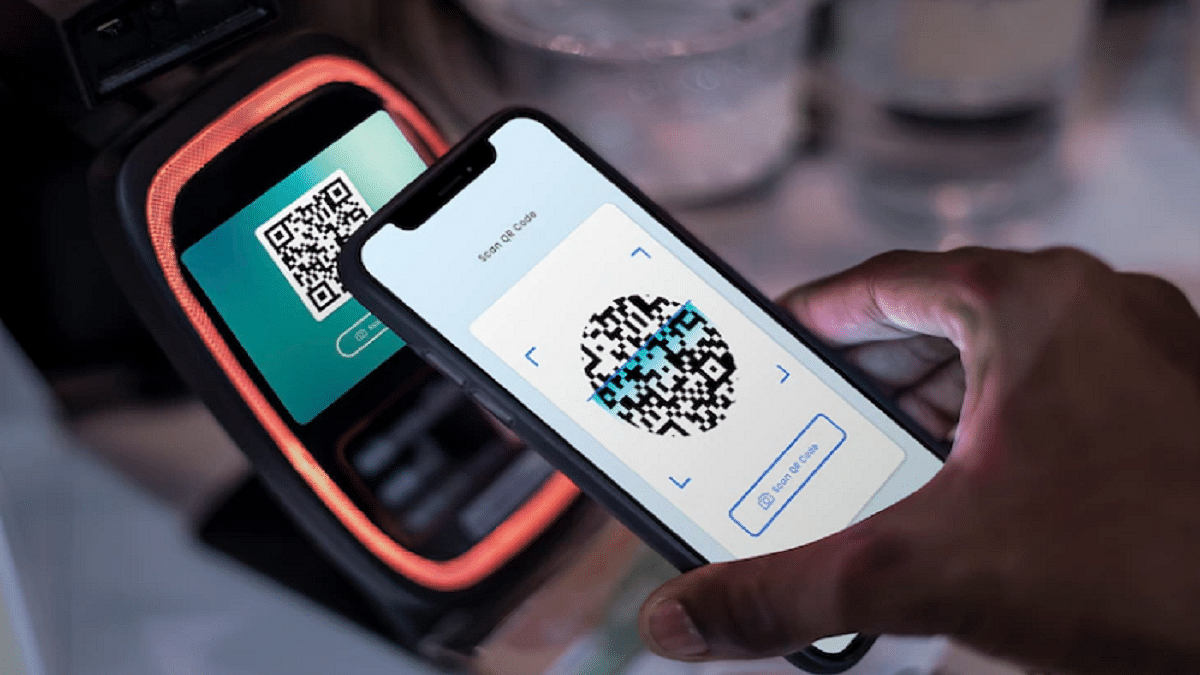
UPI QR codes are scannable codes that contain payment information, such as the receiver’s UPI ID or virtual payment address (VPA). This enables users to initiate transactions directly from their bank accounts. These QR codes eliminate the need for manual entry of payment details, making transactions faster and more efficient.

How To Generate UPI QR Codes

Generating a UPI QR code is a simple process that can be done through various payment apps and platforms. Here’s how:

Step 1: Open your preferred UPI-enabled payment app or platform.

Step 2: Navigate to the option to generate a QR code for receiving payments.

Step 3: Enter the relevant details, such as your UPI ID or VPA, and specify the amount (if required).

Step 4: Generate the QR code, which will be displayed on your screen.

Also Read | Use Paytm To Book Your Bus Tickets: A Step-By-Step Guide

How To Share UPI QR Codes

Once you have generated your UPI QR code, sharing it with others is simple and can be done in multiple ways:

Displaying the QR code: If you are a merchant, you can print out the QR code and display it at your place of business, allowing customers to scan it and make payments conveniently.

Sharing via messaging apps: You can share your UPI QR code with individuals or customers through messaging apps such as WhatsApp or email. Simply send them the image of the QR code, and they can scan it to initiate the transaction.

Embedding in invoices or websites: For online transactions, you can embed your UPI QR code in invoices or on your website, making it easy for customers to make payments with just a scan.

Benefits Of UPI QR Codes

The use of UPI QR codes offers several benefits for both consumers and merchants:

  • Convenience: UPI QR codes streamline the payment process, allowing users to make transactions quickly and easily without the need for cash or card details.
  • Security: UPI transactions are highly secure, with multiple layers of encryption and authentication, reducing the risk of fraud or unauthorized access.
  • Cost-effectiveness: UPI transactions typically incur lower fees compared to traditional payment methods, making them a cost-effective solution for businesses.

Also Read | Saying Goodbye To Paytm Payments Bank? Here’s How To Close It Safely

Conclusion

UPI QR codes have revolutionized the way payments are made, offering a fast, secure, and convenient method for conducting transactions. By understanding how to generate and share UPI QR codes, individuals and businesses can leverage this technology to simplify their payment processes and enhance the overall customer experience.

For the tech geeks, stay updated with the latest cutting-edge gadgets in the market, exclusive tech updates, gadget reviews, and more right on your phone’s screen. Join Giznext’s WhatsApp channel and receive the industry-first tech updates.
Categories
Apps Featured Info

WhatsApp’s Status Tab Set For Transformation: What Changes Are Coming?

Key Highlights

  • WhatsApp revamps status updates with a preview feature
  • Inspired by Facebook, the redesign aims for user convenience
  • Future update to allow messaging with usernames for privacy

Last year, WhatsApp introduced the Updates tab, encompassing status updates and Channels, aiming to consolidate users’ interactions in one location. However, the redesign received mixed feedback, particularly regarding the status updates section. Responding to user feedback, WhatsApp has decided to embark on another redesign journey. Also Read | WhatsApp Tips And Tricks: How To View Someone’s Status Secretly

A Glimpse of the New Look

WhatsApp is set to transform the appearance of status updates, drawing inspiration from Facebook’s stories section. The upcoming feature, as reported by WABetaInfo, is currently undergoing development on WhatsApp beta for Android.

Enhanced User Experience

The revamped status updates will introduce a preview functionality, akin to a teaser, enabling users to glimpse the content without needing to open them fully. This feature promises enhanced convenience by empowering users to select whose status to delve into with greater efficiency. Meanwhile, the Channels section will remain unchanged, maintaining continuity in user experience.

Testing and Deployment

Currently undergoing testing in WhatsApp beta for Android 2.24.2.23, the redesigned status updates tray is poised for integration into the stable version of the app soon. Initially, the update is expected to roll out on Android platforms, with an eventual deployment on iOS. However, a concrete timeline for this transition remains undisclosed.

Also Read | WhatsApp Tips And Tricks: Easy Ways To Record WhatsApp Video Calls

The Web Interface Dilemma

The fate of the web interface’s status updates tray redesign hangs in the balance. Given its structured organization, an overhaul might not be deemed necessary. Unlike the mobile application, WhatsApp Web boasts separate tabs for WhatsApp Status and Channels, providing a streamlined user experience.

Continued Innovation

WhatsApp’s commitment to innovation persists, with ongoing feature tests across various platforms, including Android, iOS, Web, and Windows. While the journey from beta to stable build may vary in duration, users can expect a slew of new features to make their way to the stable version.

A Sneak Peek into the Future

One eagerly anticipated feature is the capability to message individuals using their usernames, eliminating the necessity to disclose contact numbers. This upcoming feature, initially detected in the Android beta build, holds promise for enhancing user privacy and accessibility. Its arrival in the stable version is projected for later this year.

Conclusion

WhatsApp’s redesign efforts reflect a commitment to refining user experience and introducing innovative functionalities. This promises a more seamless and engaging platform for its global user base.

Also Read | WhatsApp Tips & Tricks: How To Unblock Yourself And Regain Access