Categories
How To Info mobile

How To Cut, Copy, and Paste Between iPhone And Other Devices: Step-By-Step Guide

Key Highlights

  • Enable Universal Clipboard for seamless sharing.
  • Master copy, cut, and paste gestures.

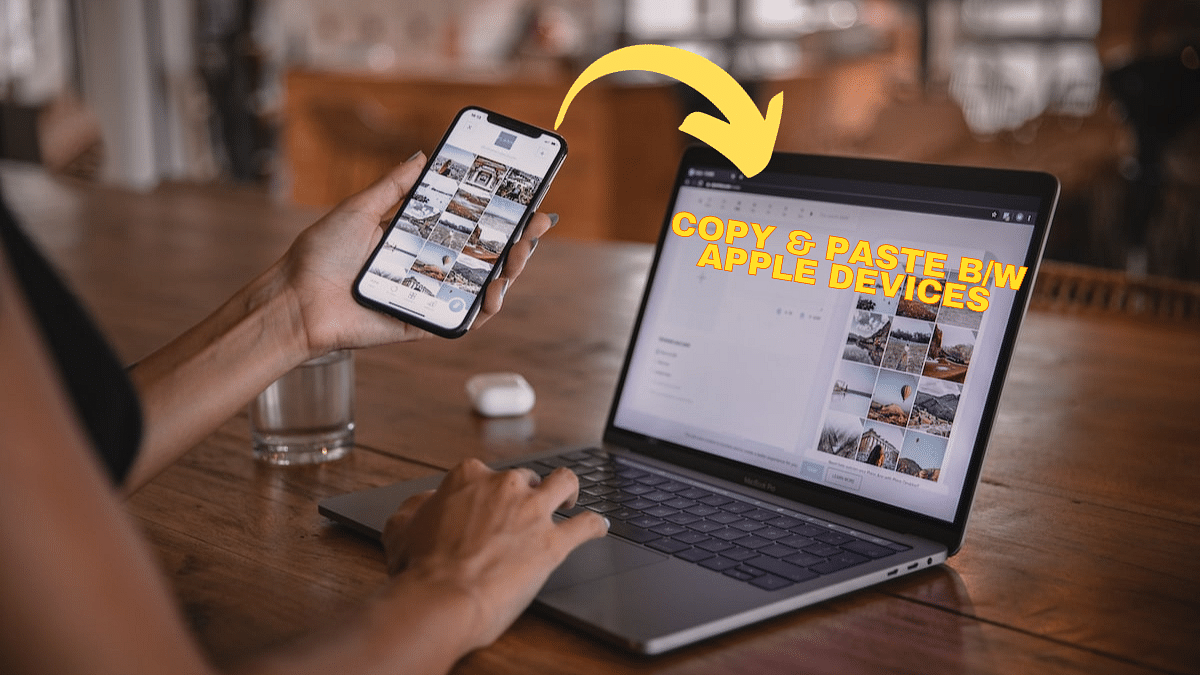
Apple’s Universal Clipboard feature simplifies the process by allowing you to cut or copy content on your iPhone and paste it on an iPad, another iOS device, or a Mac computer, and vice versa. In this guide, we’ll walk you through the steps to make this happen.

Also Read: Various Methods To Power Off iPhone 13 And iPhone 14 Models: Here’s How

Things To Check Before Starting

Before you start sending things back and forth, make sure of a few things:

  1. Same Apple ID: Use the same Apple ID on both the device you’re sending from (like your iPhone) and the one you’re sending to (like your iPad or Mac). This helps them talk to each other.
  2. Turn on Connections: On your Mac, make sure Wi-Fi, Bluetooth, and Handoff are on. On your iPhone and other Apple gadgets, also make sure Wi-Fi, Bluetooth, and Handoff are activated.
  3. Stay Close: Keep your devices within about 33 feet or 10 meters of each other. They need to be close for this to work.
  4. Software Updates: Make sure your devices are using a recent software version. Think iOS 10, iPadOS 13, macOS 10.12, or newer.

Also Read: Apple iPhone 15 USB-C Advantages: How It Benefits Users

How to Cut, Copy, and Paste Between Devices

To cut, copy, and paste between your iPhone and other devices seamlessly using Universal Clipboard, follow these steps:

1. Enable Universal Clipboard: Ensure that Universal Clipboard is enabled on all your Apple devices by signing in with the same Apple ID and ensuring they run macOS Sierra or later and iOS 10 or later.

2. Familiarise with Gestures: Learn these gestures for efficient use:

  •    Copy: Pinch closed with three fingers.
  •    Cut: Pinch closed with three fingers twice.
  •    Paste: Pinch open with three fingers.

3. Perform Copy, Cut, and Paste:

  •    For copying or cutting, select the text or content on your iPhone and perform the respective gesture.
  •    To paste, navigate to the target location on another device and use the paste gesture.

4. Alternatively, Use Menu Options:

  • Select text or content and tap “Cut,” “Copy,” or “Paste” from the menu that appears.

5. Timely Transfer: Remember that you must cut, copy, and paste your content within a short timeframe to ensure it’s available for transfer. Paste it on the target device promptly.

By following these steps, you’ll master the art of cutting, copying, and pasting content seamlessly between your iPhone and other Apple devices using Universal Clipboard.

Also Read: Step-By-Step Guide: How To Create Live Stickers On Your iPhone
Categories
Apps Featured How To

WhatsApp Channels Broadcast Tool Now Available In India: What Is It? How To Use?

Key Highlights

  • WhatsApp Channels broadcasting tool now available in India
  • Feature added in a new “Updates” app
  • Users can subscribe to multiple channels from different organizations

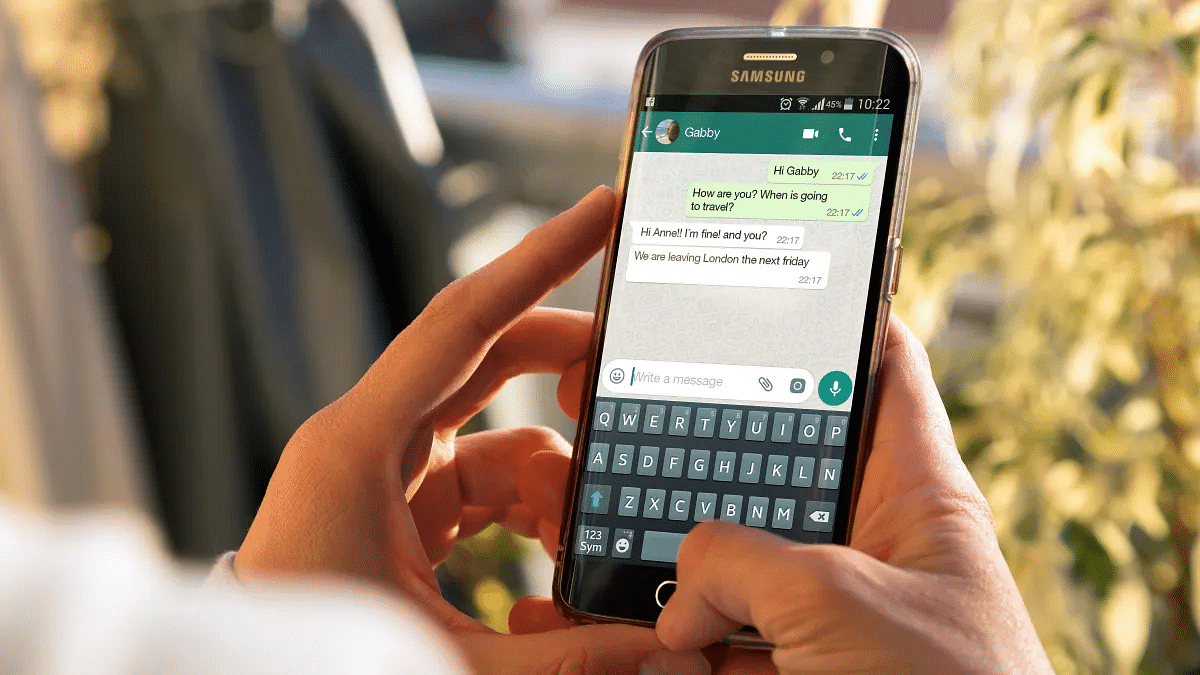
WhatsApp introduced a new broadcasting tool earlier this year called Channels. The new feature has been designed to keep the users updated on different developments from various organizations using the app itsled. WhatsApp Channels was earlier made available outside India in Columbia and Singapore and now the company is expanding its reach across the international markets including India.

WhatsApp Channels Broadcast Released In India: What Is It?

The WhatsApp Channels Broadcast tool is similar to that of Telegram where organizations can share important updates which users can access easily using the application. WhatsApp Channels is primarily a single-way broadcasting tool that will allow users to get important notification from a dedicated brand or organization.

Currently, WhatsApp Channels has several Indian sports organizations and artists whom users can subscribe to see relevant updates. Some of the notable artists whose updates one can check on WhatsApp Channels include Diljit Dosanjh, Deverakonda, Katrina kaif, and others. Whereas, WhatsApp has also joined hands with BCCI for cricket related updates.

Also Read: WhatsApp Finally Allows Sending HD Photos: How To Send High Quality Photos On WhatsApp

Additionally, WhatsApp has also included an Enhanced Directory which is a curated list of all the channels. The list of channels shown on the Enhanced Directory will include the filtered list of channels depending on a country’s location. This directory will also feature the list of the latest channels along with the ones that are most active or are trending amongst the consumers.

With WhatsApp Channels broadcasting tool admins will be able to make modifications to the shared updates within 30 days. After 30 days, the post history will be removed permanently from Meta’s server.

Also Read: New WhatsApp User Interface In Works: When Will Is It Coming?

WhatsApp Channels Tool: How To Use?

Using WhatsApp Channels broadcasting tool is fairly simple. A dedicated Upload tab has been added using which any organization or user can broadcast their important messages.

Also Read: Five Features Coming To WhatsApp

Categories
Featured How To Mobile

iPhone 15 Series Pre-Ordering Starts In India: Here’s How To Book Yours

Key Highlights

  • The iPhone 15 series will be available for pre-order beginning September 15
  • It will be available for sale starting September 22
  • The iPhone 15 Pro starts at Rs. 1,34,900 and the iPhone 15 Pro Max at Rs. 1,59,900 in India

Apple officially launched its highly awaited iPhone 15 series during the Wonderlust event. This new series comprises four models: iPhone 15, iPhone 15 Plus, iPhone 15 Pro, and iPhone 15 Pro Max. All of these iPhone 15 series models will soon be available for purchase in India. Here’s what you need to know about their release. Also Read | iPhone 14, iPhone 13 Get Major Price Drops In India After iPhone 15 Debut

Pre-Order And Availability

Interested customers in India can begin pre-ordering any of the four iPhone 15 series models starting September 15 at 5:30 PM IST. These pre-ordered devices will be available for sale on September 22.

iPhone 15 And iPhone 15 Plus: Design And Camera Features

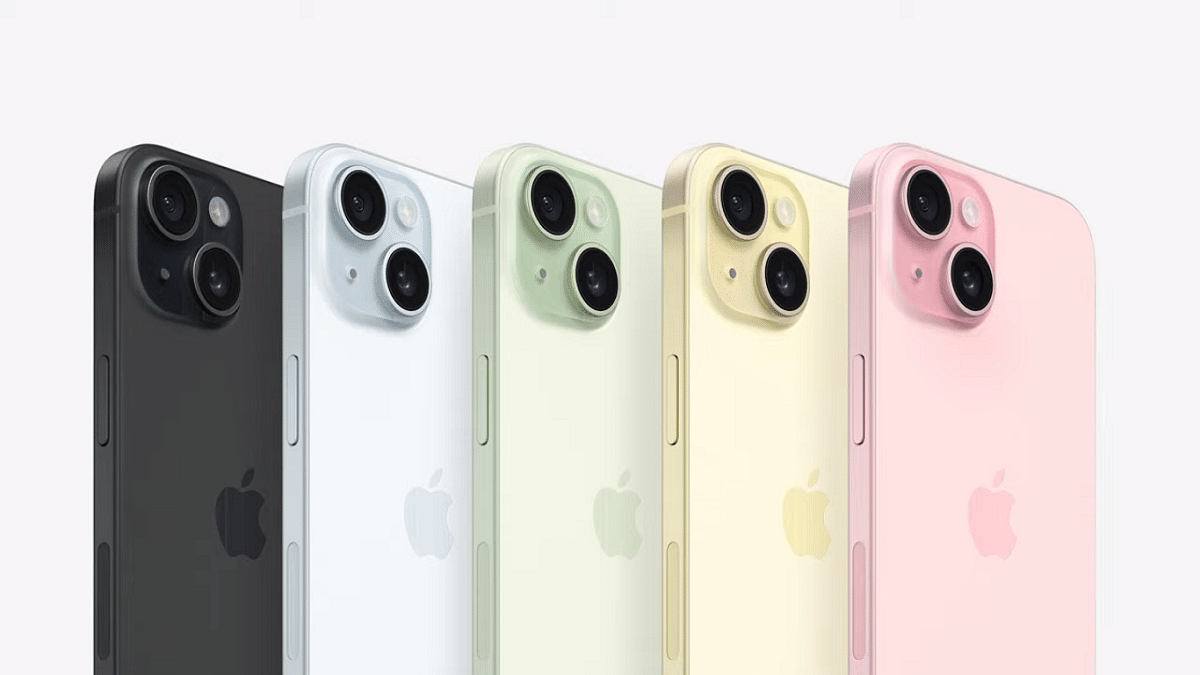
The recently launched iPhone 15 and iPhone 15 Plus boast a visually striking color-infused back glass with a matte texture and an aluminum frame. These models feature a Dynamic Island, a 48MP main camera, and a new 2x zoom camera. They excel at capturing remarkable portraits and low-light photos, all powered by the A16 Bionic chip. Additionally, they come with a USB-C connector, Precision Finding for Find My, and enhanced durability features.

iPhone 15 Pro And iPhone 15 Pro Max: Premium Features

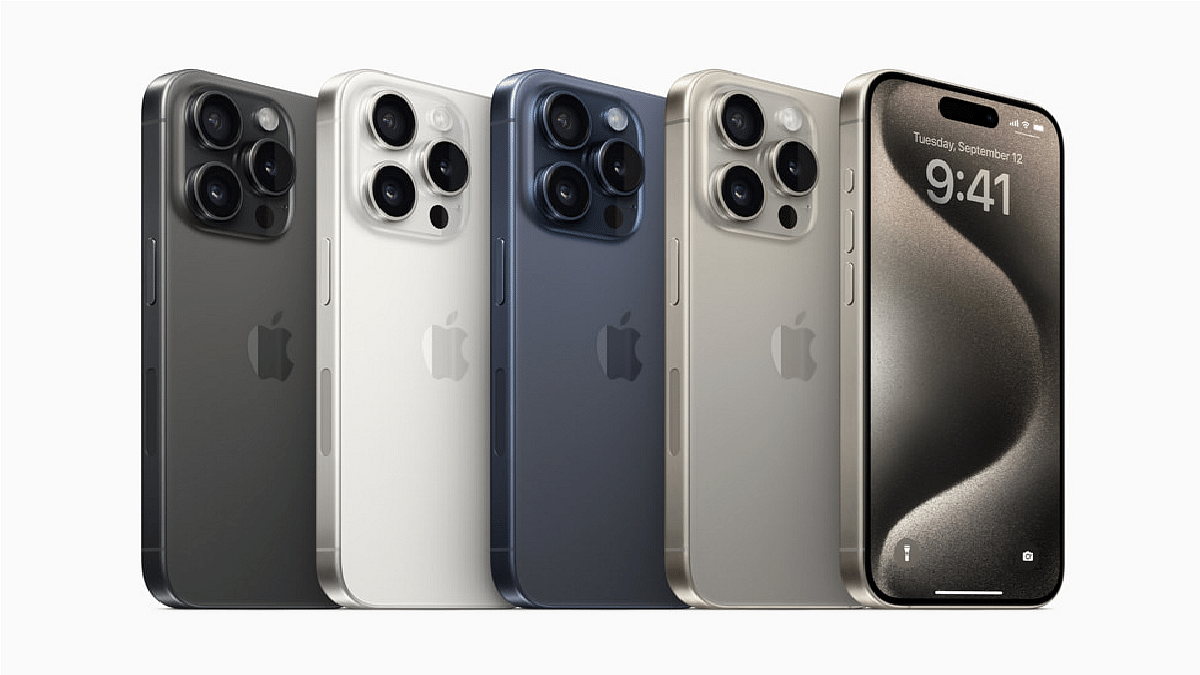
The iPhone 15 Pro and iPhone 15 Pro Max are designed with aerospace-grade titanium, combining lightweight construction with durability. These Pro models introduce a customizable Action button, a 48MP primary camera, and enhanced portrait and Night mode capabilities. The iPhone 15 Pro Max takes it a step further with a new 5x telephoto camera and the A17 Pro chip for enhanced gaming and overall performance.

iPhone 15 Series Price In India

In India, the iPhone 15 and iPhone 15 Plus will be available in pink, yellow, green, blue, and black color variants, offering three storage options: 128GB, 256GB, and 512GB. The iPhone 15 starts at Rs. 79,900, while the iPhone 15 Plus starts at Rs. 89,900.

Meanwhile, the iPhone 15 Pro and iPhone 15 Pro Max come in four color variants: black titanium, white titanium, blue titanium, and natural titanium finishes. The iPhone 15 Pro offers four storage options: 128GB, 256GB, 512GB, and 1TB, with a starting price of Rs. 1,34,900. The iPhone 15 Pro Max provides three storage options: 256GB, 512GB, and 1TB, starting at Rs. 1,59,900.

Also Read | Apple iPhone 15 Pro And Pro Max Arrive With A17 Pro Processor: Details Inside

iPhone 15 Series: How To Pre-Order In India

For those interested in pre-ordering any model from the iPhone 15 series, here’s a step-by-step guide:

Step 1: Visit Apple India’s official website.

Step 2: Hover over the iPhone in the top menu.

Step 3: From the drop-down menu, choose either iPhone 15 or iPhone 15 Pro.

Step 4: Scroll down and click on the option “View Pricing.”

Step 5: Choose your desired variant.

Step 6: Select the color and storage option you prefer.

Step 7: Opt for Apple Trade-In and answer a few questions if you want to exchange your old smartphone, or choose “No trade-in.”

Step 8: Decide on AppleCare+ coverage for protection against accidental damage, or select “No AppleCare+ Coverage.”

Step 9: Click “Continue” to proceed to the payment page.

Also Read | iPhone 15 Series Price Comparison In India, US, UK, Dubai, Vietnam: Where It’s The Cheapest?

Categories
Apps Featured How To

No Cash, No Fuss: Here’s How To Pay At Fuel Stations Using Your Car’s FASTag

Key Highlights

  • ‘Pay by Car’ is a new function that ToneTag has introduced
  • This helps you pay for petrol without directly using credit cards or mobile devices
  • Using the car’s infotainment system, users may make fuel purchases at petrol stations

Fueling up your car just got easier and more convenient thanks to a new payment mode introduced by ToneTag, a firm backed by Amazon and Mastercard. Known as ‘pay by car,’ this innovative feature allows you to pay for fuel using your car’s UPI-linked infotainment system, making the refueling process smoother than ever. Also Read | Damaged FASTag? Here’s How To Get Duplicate FASTag Via Paytm

Linking UPI To Your Car

To use the ‘pay by car’ feature, users need to follow a few simple steps. First, they must link their UPI ID to their car’s infotainment screen. Additionally, it’s essential to have a FASTag installed on the vehicle. Once these prerequisites are met, paying for fuel becomes a breeze, and there’s no need for physical cards or smartphones.

The Paying Process

Automatic Identification: When a vehicle arrives at a fuel station, the car’s infotainment system displays the fuel dispenser number, informing the driver of their location. Simultaneously, this information is relayed to the fuel station staff for seamless service.

Entering Transaction Amount: After refueling, users only need to enter the transaction amount announced through the infotainment system’s soundbox. This step completes the online transaction, ensuring a hassle-free payment process.

Also Read | Google Maps Location Sharing Alert Notification: How To Notify Your Contacts Of Your Arrival And Departure Using Maps

Additional Features

FASTag Recharge: Beyond fuel payments, the ‘pay by car’ feature also facilitates FASTag recharges. Drivers can check their FASTag balance directly on the car’s infotainment screen, enhancing their overall payment convenience.

Conversational Payments: ToneTag’s commitment to innovation extends to conversational payments on UPI, a feature recently unveiled at the Global Fintech Fest. This new development allows users to transfer funds using voice commands, further streamlining digital transactions.

Voice-Based Offline Payments: ToneTag’s versatility is showcased by its voice-based offline payments for feature phones. Users simply call the IVR number, select the ‘Pay to Merchant’ option, and complete the transaction by tapping their mobile phone on the merchant device (POD). This user-friendly method ensures offline payments are just as accessible as online ones.

In conclusion, ToneTag’s ‘pay by car’ feature is revolutionizing fuel payments by integrating UPI with your car’s infotainment system and FASTag. With added innovations like conversational payments and voice-based offline transactions, ToneTag is making digital payments more accessible and user-friendly than ever before. Say goodbye to the inconvenience of carrying cards or smartphones at the fuel station – your car has you covered.

Also Read | Recharge Your FASTag On WhatsApp: Here’s How To Do It

Categories
Apps Featured How To

No Card? No Problem: Here’s How To Withdraw Cash From ATMs Via UPI

Key Highlights

  • The first UPI-based ATM was launched by NPCI in India
  • Without a card, cash can be withdrawn using a UPI ATM
  • At the Global Fintech Fest 2023, UPI ATM was on show

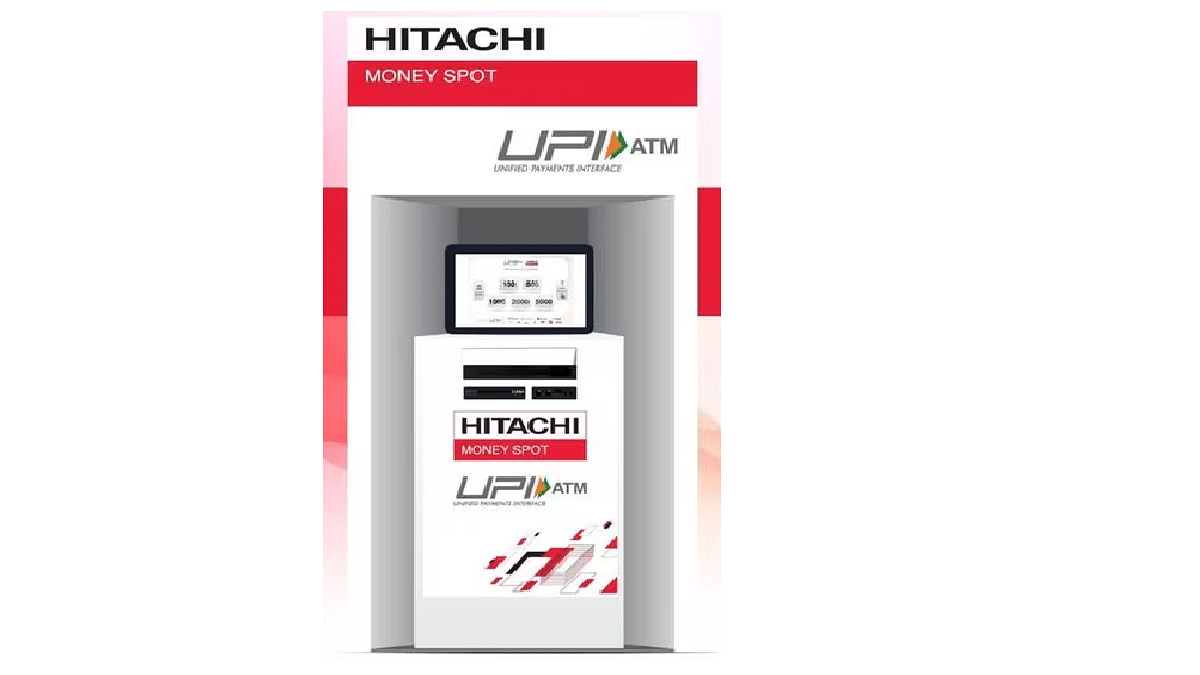
Hitachi Payment Services, a subsidiary of the renowned Japanese conglomerate Hitachi, has introduced a groundbreaking White Label ATM (WLA) in partnership with the National Payments Corporation of India (NPCI). This innovative creation, named the Hitachi Money Spot UPI ATM, redefines the way customers access cash, eliminating the need for traditional debit or credit cards. Also Read | Use UPI On Your Feature Phone With Ease: Here’s How

Unveiled at the Global Fintech Fest 2023 in Mumbai on September 5, 2023, the Hitachi Money Spot UPI ATM marks a pivotal moment in banking convenience. With the expansion of these UPI ATMs to various locations, the days of carrying physical cards to ATMs for cash withdrawals will soon become a thing of the past. This revolutionary concept allows individuals to withdraw cash directly from their bank accounts through UPI apps.

How To Use Hitachi Money Spot UPI ATM

Curious about how this UPI-ATM works? Sumil Vikamsey, Managing Director & CEO – Cash Business at Hitachi Payment Services, simplifies the process:

Step 1: Begin by choosing the desired withdrawal amount from the ATM.

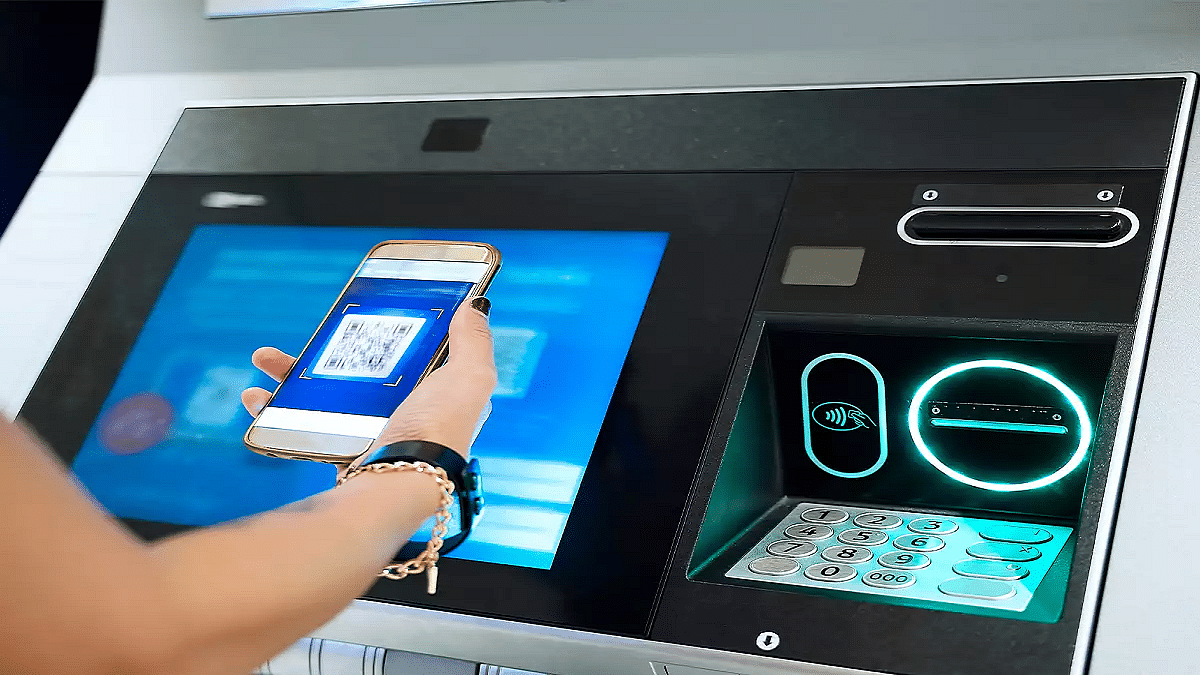
Step 2: A QR code corresponding to your selected amount will appear on the screen.

Step 3: Use any UPI app on your mobile phone to scan the displayed QR code. Then, enter your UPI PIN to authorize the transaction.

Step 4: Once authorized, the ATM will dispense the requested cash.

Also Read | UPI Money Transaction Limit In India: Here’s The Limit Of Transactions You Can Do Via GPay, PhonePe, Paytm Daily

Who Can Benefit From UPI-ATMs?

The accessibility of UPI-ATMs is not limited to a select few. As Vikamsey explains, “Anyone with a registered UPI application on their Android or iOS device can utilize UPI-ATMs.” Furthermore, these White Label ATMs can be harnessed by Payment Service Providers (PSPs) with the necessary certification for Interoperable Cardless Cash Withdrawal (ICCW) functionality, as well as issuer banks that have adopted this feature.

Vikamsey anticipates that more banks and UPI PSPs will join this transformative initiative in the future. While customers had the opportunity to experience it at the Global Fintech Fest 2023, full-scale deployment will commence in the coming months.

Enhancing Security And Promoting Financial Inclusion

Beyond its convenience, the UPI-ATM also addresses security concerns. It significantly reduces the risk of card skimming by fraudsters. Moreover, it is expected to bolster financial inclusion by providing easy access to banking services in areas where traditional banking infrastructure and card usage are limited—a vision championed by Hitachi Payment Services.

Also Read | UPI Tips And Tricks: Here’s How You Can Set UPI PIN Without Using Debit Card Details

Categories
Featured How To Mobile

Step-By-Step Guide: How To Create Live Stickers On Your iPhone

Key Highlights

  • The public beta of iOS 17 includes the Live Stickers feature
  • Users can create animated stickers from their live images using Live Stickers
  • Live Stickers can be produced using pre-existing live photos or new ones

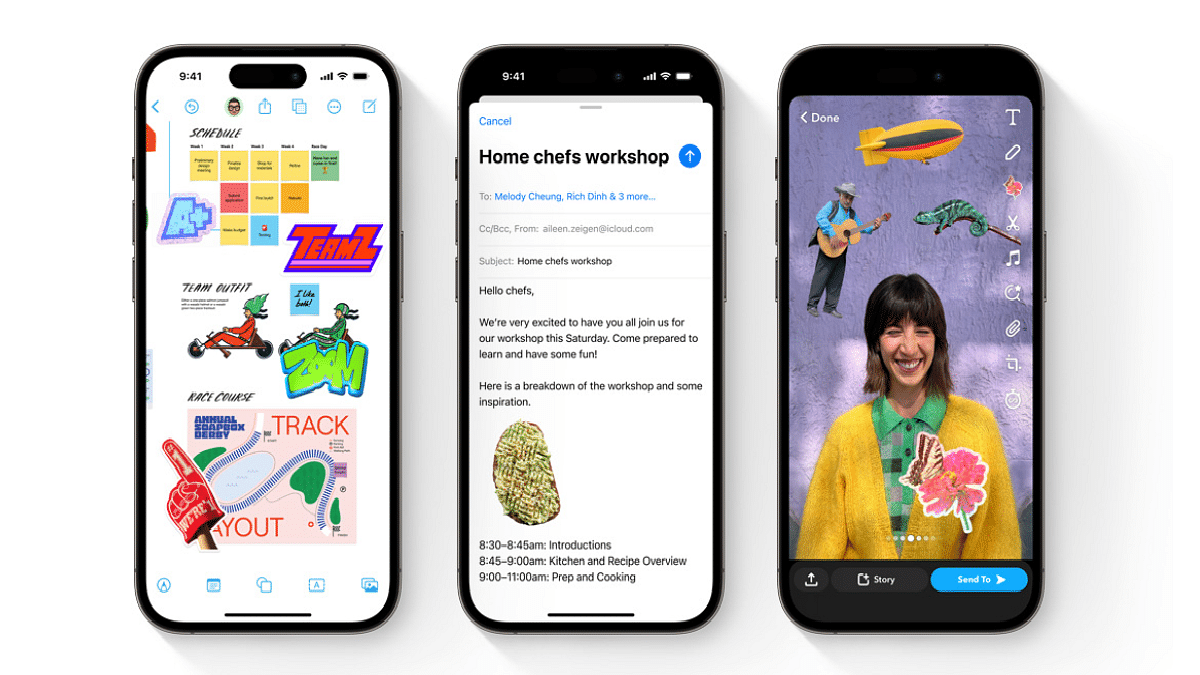
Apple has unveiled an exciting addition to its iPhone with the introduction of “Live Stickers.” This innovative feature, a part of the upcoming iOS 17 update, enables iPhone users to transform their live photos into animated stickers, breathing life into their messages and conversations. In this article, we’ll get into the details of Live Stickers and guide you through the process of creating them on your iPhone. Also Read | Various Methods To Power Off iPhone 13 And iPhone 14 Models: Here’s How

Unveiling Live Stickers At WWDC

Live Stickers made its debut at the WWDC earlier this year, where Apple showcased its latest advancements in both hardware and software. This dynamic feature is just one of the many enhancements that iOS 17 has in store for iPhone users.

Live Stickers offer a captivating way to convey emotions and expressions that words alone often struggle to capture. Beyond enhancing conversations, they allow users to share memorable moments and experiences in a lively and engaging manner.

How To Create Live Stickers On iPhone

Let’s explore how you can create your very own Live Stickers on your iPhone:

Step 1: Open the Messages app on your iPhone and select the conversation where you want to send a sticker. Tap the ‘+’ icon located at the top left corner of the keyboard.

Step 2: Choose “Stickers” and then tap the ‘+’ icon again.

Step 3: Among the options at the top of the screen, select the “Live” filter. Pick a live photo from your gallery or capture a new one.

Also Read | iOS 17 Arrives: Seven Exciting Features For iPhone Users

Step 4: Tap on the live photo you’ve selected and preview the Live Sticker that will be generated from it.

Step 5: To save the Live Sticker, tap “Add Sticker.” It will be stored in your sticker drawer for easy access at any time.

Step 6: To send a Live Sticker, simply tap on it from your sticker drawer and press the blue arrow button to share it with friends and family.

Anticipating The iOS 17 Update

The iOS 17 update, which includes Live Stickers and a host of other exciting features, is expected to be rolled out later this year for all compatible iPhone models. Those eager to explore these new capabilities before the official release can sign up for the public beta program on Apple’s website. Get ready to infuse your messages with creativity and fun with Live Stickers on your iPhone.

Also Read | What’s That Tune? Your iPhone Knows: How To Identify Songs With Just A Tap
Categories
Apps Featured How To

ICC Cricket World Cup 2023: How To Buy Tickets For India vs. Pakistan And Other Matches

Key Highlights

  • For the first time, India will serve as the sole host nation for an ODI World Cup.
  • The date of India vs. Pakistan is set for October 14.
  • Online and offline ticket purchases are simple to book.

In response to the tremendous demand and passion among cricket enthusiasts to witness the ICC World Cup 2023 matches live from the stadiums, the BCCI has unveiled a fresh batch of 400,000 tickets. These tickets will be available for purchase starting September 8 at 8:00 PM through BookMyShow, catering to the excitement surrounding matches, including the highly awaited India vs. Pakistan clash.

If you’re eager to be part of the World Cup’s electrifying atmosphere, here’s a comprehensive guide to securing your tickets, including online and offline booking procedures, ticket availability timelines, pricing details, venue information, and more. Also Read | Last-Minute Travel Plans? Here’s How To Book Tatkal Train Tickets Online

India vs. Pakistan Cricket World Cup 2023: Match Date, India Time, Venue

DateOctober 14, 2023
Time2:00 PM (IST)
VenueNarendra Modi Stadium, Ahmedabad

ICC Cricket World Cup 2023: Ticket Price

The ticket prices for ICC Cricket World Cup 2023 vary based on the venue and seating, spanning from Rs. 499 to Rs. 12,500. These tickets will be allocated on a first-come, first-served basis. To secure prime seating in the stadium, it’s advised to make your reservations early.

How To Book Ticket Online Via BookMyShow

BookMyShow stands as the official online ticket booking partner for the ICC Men’s Cricket World Cup 2023 in India. Once your booking is successful and payment is made, physical tickets will be dispatched to your address. Here’s a step-by-step guide to booking match tickets online:

Step 1: Visit the BookMyShow website or download the app from the Play Store or App Store.

Step 2: Navigate to the ICC World Cup 2023 section.

Step 3: Choose your preferred search method, either by team or venue.

Step 4: Browse through the list of matches along with their fixture dates.

Step 5: Select your desired match and click “Book.”

Also Read | Here’s How To Download Videos From Netflix, Amazon Prime, And Disney+ Hotstar

Step 7: Choose the number of seats (maximum of two per booking).

Step 8: Opt for your preferred stand based on seat availability, with ticket pricing details provided.

Step 9: Select your seats by zooming in on the stand.

Step 10: Confirm your selection by clicking “Book.”

Step 11: Enter your PIN-code and delivery address for the physical ticket shipment.

Step 12: Proceed with the payment, and your tickets will be dispatched to you 2 to 7 days before the match.

Cricket World Cup 2023: How To Book Ticket Offline

For those who prefer the traditional route, offline ticket bookings can be made by visiting the ticket counters at the respective stadium venues closer to the match days. Specifically for the India vs. Pakistan match, fans can purchase tickets at Narendra Modi Stadium, Ahmedabad, several days in advance of the matchday to secure their spots in the stadium’s stands.

Also Read | How To Book Your Uber Ride 90 Days In Advance: A Step-by-Step Guide

Categories
Apps Featured How To

Your Guide To Free YouTube Movies: How To Watch On Mobile And PC

Key Highlights

  • YouTube’s feature offers users the chance to enjoy a collection of free movies
  • It mainly comprises classic titles from Hollywood giants such as MGM, Lionsgate, Sony Pictures, and Warner Bros
  • YouTube Premium emerges as a solution, offering an ad-free experience

YouTube offers a great feature allowing users to access free movies accompanied by advertisements. This collection primarily features classic titles from prominent Hollywood studios, including MGM, Lionsgate, Sony Pictures, and Warner Bros.

Diving into the treasure trove of free movies, users can find iconic films like The Terminator, Rocky, Legally Blonde, The Hunger Games, and The Karate Kid. These films are supported by ads, akin to the experience of watching regular YouTube videos. Also Read | YouTube Channel Naming Ideas: 100+ Best Names For YouTube Educational Channels

Limitations And Solutions

Despite the allure of free movies, certain challenges may arise during the viewing experience. Some movies might not be accessible in specific regions due to licensing constraints. Moreover, age restrictions or the necessity to log in to a YouTube account for age verification could present hurdles. Additionally, there’s an inclination among some users to enjoy movies devoid of ads and in higher quality.

For those desiring enhanced choices and features, YouTube has the option of YouTube Premium. This subscription service provides an ad-free viewing experience and permits video downloads for offline enjoyment.

How To Watch Free YouTube Movies On Mobile

Step 1: Launch the YouTube app on your device. If not installed, download it from the Google Play Store or the App Store.

Step 2: Tap the Explore icon situated at the top alongside categories, then access Films.

Step 3: Scroll down to Free Primetime Movies and select View All. A collection of free movies with accompanying ads will be showcased.

Step 4: Choose the movie of your choice and tap to commence playback on your device. Adjust video quality, activate captions, and manipulate controls based on your preferences.

Also Read | YouTube Music: How To Enable Auto-Add Songs To Your Last Playlist

How To Watch Free YouTube Movies On PC

Step 1: Access youtube.com and log in if required.

Step 2: Click on the Hamburger icon located at the top, then proceed to Movies under the Explore sidebar.

Step 3: Navigate to Free Primetime movies and select View All. A compilation of movies available for free with ads will be displayed.

Step 4: Pick the desired movie and click to initiate playback on your PC. Customize video quality, enable captions, and use controls as preferred.

Also Read | How To Remix With Collab In YouTube Shorts

Categories
Apps Featured How To

WhastsApp Now Allows Sending High Quality HD Videos: Here’s How

Key Highlights

  • WhatsApp latest feature allows sharing HD videos
  • HD photo sharing option already added to both Android and iOS
  • WhatsApp app needs to be updated to the latest version to use this feature

Meta has been constantly evolving WhatsApp’s messaging platform and has added numerous user-centric features this year. In fact, the brand released multiple new features to improve the messaging experience on its Android and iOS app. Just recently, WhatsApp received the much awaited option to send high quality photos. However, the HD video sending option was pending to be released. Now, after all the wait and anticipation, WhastApp has made it possible for the suers to send videos in HD quality directly from the app. Interested in knowing the steps? Read on below:

Also Read: WhatsApp Short Video Message Reply Feature Introduced: What Is It? How To Use?

WhatsApp HD Video Sending Option: What Is It? How To Use?

As the name suggests, the new WhatsApp feature will allow the users to send high quality video directly from the mobile app. Until now, the videos sent using both Android and iOS WhatsApp app were compressed before sharing by default. This was done in order to prevent excess storage clogging and swift functioning of the application despite frequent media sharing.

Now, WhatsApp has added the option with which users will be able to send HD quality videos to any of the contacts using the app. It wouldn’t require users to go with the workaround to share high quality videos with their desired contacts. For reference, media sharing on WhatsApp has been standard all this while and users have been demanding the feature to send HD photos/videos since long.

While the HD photo sharing option was released earlier this month, the video sending option is finally making its way to Android and iOS ecosystem. Notably, the videos sent using the standard mode on WhatsApp until now maxed out at 480p. This has been the case with all videos including the ones that are shot with high-end camera phones.

With this new feature at place, WhatsApp uses will now be able to send 720p HD videos to any of the contacts. Nevertheless, there will be still some level of compressions with the sent videos. This is because the WhatsApp app still doesn’t allow sharing 1080p FHD or 4K UHD videos. We are not sure if WhatsApp will allow sharing videos in this high-resolution anytime soon but we can expect some developments around the same in the coming years.

Also Read: Top Methods And Apps For Downloading WhatsApp Status In High Quality

Steps To Share HD Videos Using WhatsApp

Step 1: Open WhatsApp mobile app on your respective smartphones

Step 2: Go to the chat window where you wish to send the HD video

Step 3: Tap on the paper clip (attachment) icon

Step 4: Select the video that you wish to send in HD format

Step 5: Toggle on the HD tab and tap on send to share the video in high quality

Also Read: WhatsApp HD Photo Sharing On iPhone Finally Available: Steps To Share High Quality WhatsApp Photos

Categories
Apps Featured How To

Need To Lock And Unlock Your Aadhaar Card Biometrics? Here’s How To Do It

Key Highlights

  • UIDAI has introduced a feature allowing users to lock and unlock their Aadhaar biometrics
  • Locking prevents third-party access
  • This feature enhances privacy and security

To enhance user privacy and security, UIDAI has launched a feature enabling the locking and temporary unlocking of Aadhaar biometrics. This ensures that fingerprint and iris scan authentication is possible only when biometrics are unlocked, restricting access to these details. This measure aims to prevent the potential misuse of Aadhaar numbers. Also Read | How To Update And Change Mobile Number On Aadhaar Card Online

How To Lock Your Aadhaar Card Online Using UIDAI Website

To lock your Aadhaar card using a PC/laptop, follow these steps:

Step 1: Visit the official UIDAI Aadhaar website on your desktop or laptop.

Step 2: Click the Login button and enter your 12-digit Aadhaar number and captcha.

Step 3: After entering, click Send OTP. Use the received OTP to log in.

Step 4: Access your Aadhaar dashboard and choose the Lock/Unlock Biometrics option.

Step 5: Proceed through the information and confirm your choice.

Step 6: Successfully block your Aadhaar card’s biometrics.

Step 7: Once locked, your Aadhaar card cannot be used for biometric authentication, preventing third-party access for purposes like KYC verification.

Also Read | Here’s How To Check Bank Balance Through Aadhaar Card Number

How To Lock Your Aadhaar Card Online Using mAadhaar App

To lock your Aadhaar card using the mAadhaar app, follow these steps:

Step 1: Download the mAadhaar app from the Play Store (Android) or App Store (iPhone).

Step 2: Open the app, grant necessary permissions, and select your preferred language.

Step 3: Log in with your mobile number and OTP received via SMS.

Step 4: From the dashboard, choose My Aadhaar menu.

Step 5: Create a PIN if it’s your first app access.

Step 7: Log in with your 12-digit Aadhaar number and receive OTP.

Step 8: Navigate to Biometrics Lock and tap Lock Biometric.

Step 9: Enter the captcha, request OTP, and enter the received OTP to block your Aadhaar card.

Step 10: Once locked, your Aadhaar card won’t be usable for authentication.

How To Unlock Your Aadhaar Card Using UIDAI Website

To unlock your Aadhaar card on a PC/laptop, follow these steps:

Step 1: Visit the official UIDAI Aadhaar website.

Step 2: Log in using your Aadhaar number and OTP received after captcha verification.

Step 3: Access the Lock/Unlock Biometrics section.

Step 4: Choose the desired option: temporary or permanent unlock.

Step 5: Confirm your choice.

Step 6: Unlock your Aadhaar card biometrics. If you choose temporary unlock, it remains open for 10 minutes before automatically locking again. The locking process is detailed for both PC/laptop and mobile phone users, as is the process for unlocking the biometrics. Temporary unlocking is also explained as an option for users. This measure ensures that Aadhaar remains a secure and reliable means of authentication.

Also Read | What Is A Masked Aadhaar Card? Here’s How You Can Download It Online