Categories
Featured Gaming How To

Best GTA SAN Andreas Cheat Codes For Laptops And PCs: List And How To Use

Gaming in todays modern era is all evolved with the availability of whole range of dedicated devices and consoles. We even have smartphones and notebooks that are designed specifically for the gaming enthusiasts globally. Popular gaming brands are now launching titles for mobile devices in addition to gaming consoles such as PlayStation and Xbox, Nintendo, and others. GTA San Andreas is one of the iconic games that is still a hit amongst gamers after almost decades of its debut.

Developed by Rockstar Games, the GTA San Andreas was officially released back in 2004 and remains the most played game till date. You need to complete missions packed with action and adventures to complete this game. Off late, usage of cheat codes have surged in GTA San Andreas. The reason is the enhanced game play experience and options to use better cars, ammunition, and what not.

Cheat codes in GTA can be used across PlayStation, Xbox, PCs, laptops, smartphones, and tablets. But how do you enter cheat codes in GTA and what all powers you get? This article has the best GTA San Andreas cheat codes for PCs and laptops and how you can use them to get infinity health, ammunition, and new cars. Take a look:

Also Read: Stylish Free Fire Nick Names 2023: 100+ Cool And Unique Free Fire Nicknames For Teams And Groups In 2023

Best GTA Cheat Codes For Enhanced Gameplay

Fullclip (for Infinite Ammo)JCNRUAD (for Smash N boom)ROCKETMAN (for Jetpack)PROFESSIONALKILLER (for Hitman Stat Level)
LXGIWYL (for weapons 1, Grunt)PROFESSIONALSKIT (for Weapons 2, Surgeon)UZUMYMW (activates Weapons 2, Berseker)BIFFBUZZ (Gangs Street Rule)
NINJATOWN (activates Ninja theme)SJMAHPE (9mm)ROCKETMAYHEM (For rockets)HESOYM (Armor or $250K)
BUFFMEUP (Muscle Maximum mode)BAGUVIX (adds Infinite Health)CVWKXAM (adds infinite oxygen health)CPKTNWT (cars explode cheat code)
WHEELSONLYPLEASE (invisible car cheat code)RIPAHZA (activates flying car mode)KANGAROO (massive jump leap)WORHSIPME (Maximum respect)
HELLOLADIES (activates ladies magnet mode)ONLYHOMIESALLOWED (for only gangmembers around)STATEOFEMERGENCY (activates chaos mode)BMTPWHR (trucker mode gameplay)
CIKGCGX (starts beach rave mode)IOJUFZN (starts riot mode)GOODBYECRUELWORLD (suicide in the game)CWJXJOC (brings Sandstorm)
MUNASEF (adrenaline)VKYPQCF (for nitrous taxi)CRAZYTOWN (theme carnival)CJPHONEHOME (giant BMX hop)

Also Read: GTA San Andreas Tanker Cheats: Know All Codes For PC And PlayStation

GTA San Andreas Cheat Codes For Laptops And Pcs: Steps To Use

Step 1: Launch GTA San Andreas Game on your respective laptops and PCs.

Step 2: If you are already in the middle of the gameplay, make sure you save the game first.

Step 3: After the game is saved, you simply need to resume the game play and type in the cheat codes or the combinations. See the list below.

Also Read: List Of GTA 5 Cheats Codes For PC, PS4, Xbox Consoles: Here’s How To Use

Categories
Apps Featured How To

How To Use Airtel Xstream To Watch Live TV And On-Demand Content

Key Highlights

  • Airtel Xstream allows you to watch live TV
  • It offers a variety of exclusive content
  • Available to both Airtel and non-Airtel subscribers

Airtel Xstream is an online streaming service that allows you to watch live TV and on-demand content. It offers a wide variety of content, including TV shows, movies, and live channels. The Xstream app’s content is accessible to both Airtel and non-Airtel subscribers. The telco is also extending app compatibility to other devices, including streaming devices and smart Televisions.

Also Read: How To Get 12 OTT App Access For Rs. 149 From Airtel Xstream

How To Watch Live TV And On-demand Content?

In this step-by-step guide, we will walk you through how to use Airtel Xstream to watch live TV and on-demand content.

Step 1: Download the Airtel Xstream app on your device. The app is available for both Android and iOS smartphones and can be downloaded from the respective app stores. Install the app on your mobile after downloading it.

Step 2: After installing the app, open it and log in using your Airtel mobile number. If you don’t have an Airtel mobile number, you can create an account by clicking on the “New to Airtel Xstream?” option and following the instructions.

Step 3: Once you have logged in, you can browse the library of content available on the app. You can search for specific shows or movies using the search bar, or browse through the various categories and genres available.

Also Read: Regional OTT Applications In India: Check Price, Benefits, And Other Details

Step 4: To watch live TV, click on the “Live TV” tab on the app. Here, you will find a list of all the channels that are available on Airtel Xstream. Select the channel that you want to watch and start streaming live TV.

Step 5: To watch on-demand content, click on the “Movies” or “TV Shows” tab on the app. Here, you will find a collection of movies and TV shows from various genres. Select the movie or TV show that you want to watch and start streaming it.

Step 6: Airtel Xstream also allows you to download content to your device so that you can watch it later offline. To download a movie or TV show, click on the download button next to the title. The content will be downloaded to your device; you can watch it later without an internet connection.

Also Read: Here’s How To Change Airtel Xstream Wi-Fi Password Via Thanks App And Website

Airtel Xstream is a great platform for watching live TV and on-demand content. With this step-by-step guide, you can easily use the app to access a wide variety of content. The app is easy to use and allows you to customize your viewing experience, making it a great choice for all your streaming needs.

Categories
Apps Featured How To

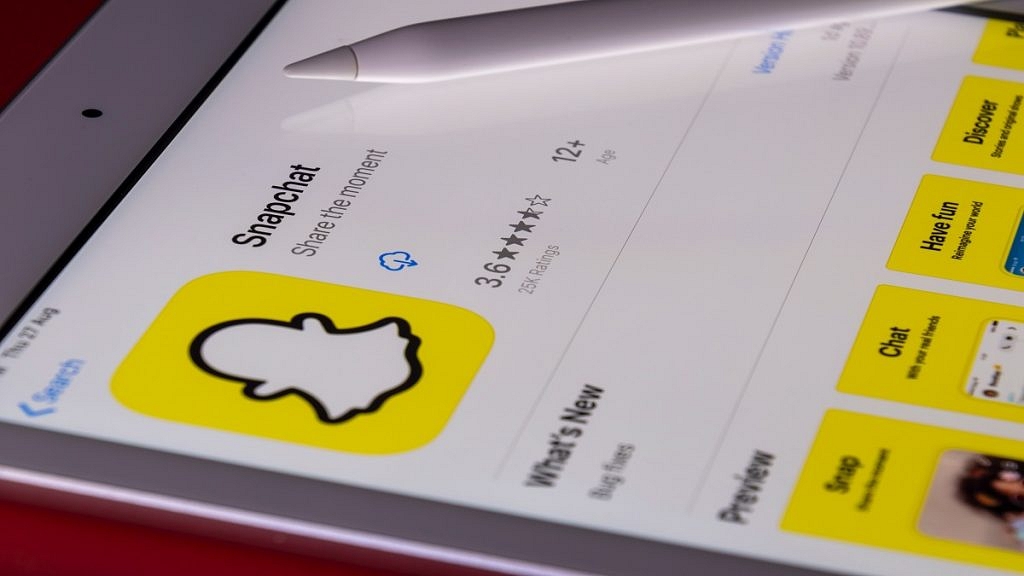
How To Use Snapchat’s Cartoon Lens For Fun And Creative Snaps: Step-By-Step Guide

Key Highlights

  • Snapchat cartoon lens is a popular filter on the Snapchat app
  • It allows users to transform their faces into cartoon characters
  • The filter uses augmented reality technology to add animated features to the user’s face

Sending a snap with the cartoon lens on Snapchat is a fun and creative way to add some personality to your photos and videos. The cartoon lens is one of the most popular lenses on Snapchat, allowing you to turn yourself into a cartoon character with oversized eyes and a cute nose. The filter is often used in selfies, group photos, or videos to add a playful touch to the content. Also Read | Lost Your Snapchat Streak? Here’s How To Restore It With These Steps

How To Create And Share Cartoon Lens On Snapchat?

Sending a snap with the cartoon lens on Snapchat is a fun and easy way to add some personality to your photos and videos. With just a few simple steps, you can transform yourself into a cute and colorful cartoon character and share your creations with your friends. Here is the step-by-step guide to sending a snap with the cartoon lens on Snapchat:

Step 1: Open the Snapchat app on your mobile phone. If you are not already logged into your account, log in.

Step 2: Then, open the camera by clicking the camera icon in the top left corner of the screen.

Step 3: Click on the smiling face icon on the right side of your camera button. Then swipe through the lenses until you find the cartoon lens.

Step 4: In the lower right corner of the screen, tap on Explore. Then you will see many options and lenses.

Step 5: In the search bar, type Cartoon Face and you will find a lot of such lenses.

Also Read | Change Snapchat Username On Android And iPhone: Here’s How

Step 6: Once you have the cartoon lens activated, you can take a snap by pressing the large circular button on the bottom center of the screen. You can take a photo or record a video.

Step 7: After taking your snap, you can customize it by adding text, stickers, filters, or other effects. To do this, simply swipe left or right on the screen until you find the option you want to use.

Step 8: Once you’re happy with your snap, you can send it to your friends by tapping the arrow icon in the bottom right corner of the screen. You can choose to send it to specific friends or add it to your story for all of your friends to see. That’s all.

Snapchat frequently updates its lenses, adding new options for users to try. However, the cartoon lens has remained a fan favorite, and it is likely to continue to be a popular choice for Snapchat users who want to add a bit of whimsy to their snaps.

Also Read | Snapchat Butterfly Lens Feature: What Is It? How To Use On Android, iOS?

Categories
Featured Home Appliances How To

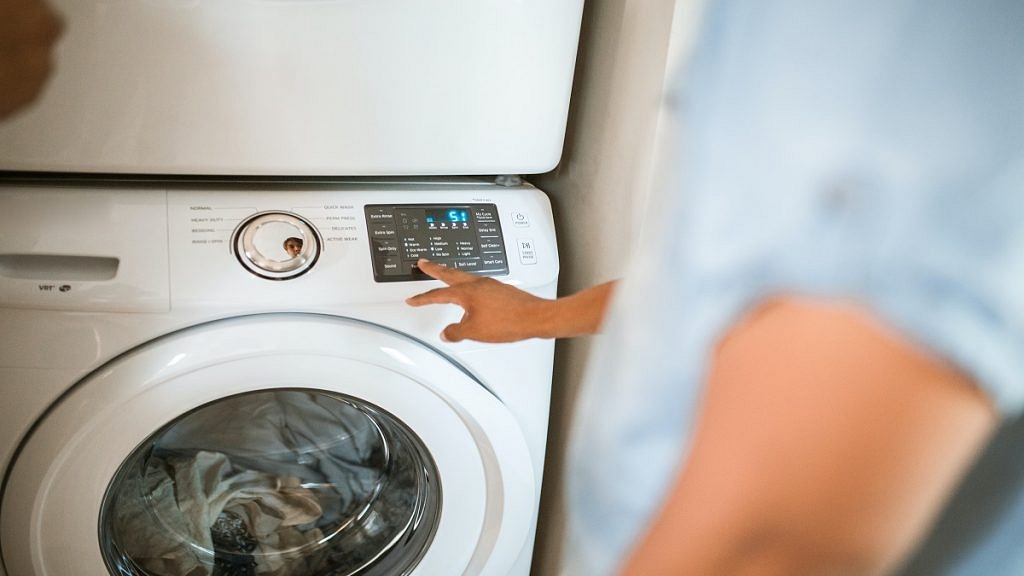
Washing Machine Cleaning Tips: Here’s How To Deep Clean Your Washer

Key Highlights

  • Cleaning a washing machine is a significant task
  • It’s a good idea to clean your machine at least once every six months
  • A clean washing machine will not only perform better, but it will also help to prolong its lifespan

Cleaning a washing machine is an important task that many people overlook. Over time, dirt, grime, and soap scum can accumulate inside the washing machine, causing it to smell bad and potentially even damage clothes. Cleaning your washing machine can help prolong its life, improve its performance, and ensure that your clothes come out clean and fresh.

Also Read | Best Top-Loading Washing Machines To Buy Under Rs. 10,000: Here’s Our List

How To Clean Your Washing Machine?

The following are steps you can take to clean your washing machine:

Step 1: Empty the washing machine

Start by emptying the washing machine of any clothes or laundry. If there are any loose items, such as coins or buttons, be sure to remove them as well.

Step 2: Clean the detergent dispenser

Remove the detergent dispenser from the washing machine and clean it thoroughly. Use warm water and a soft brush to remove any dirt or soap scum that may have accumulated.

Also Read | Semi-Automatic Washing Machines Under Rs. 15,000: See All Details Here

Step 3: Clean the drum

Use a clean cloth or sponge to wipe the drum of the washing machine. Pay special attention to any areas that may be particularly dirty, such as the area around the door or the rubber seal. If there is any stubborn dirt, use a mild detergent and warm water to help loosen it.

Step 4: Clean the filter

Locate the washing machine’s filter and remove it. Clean the filter with warm water and a soft brush to remove any dirt or debris that may have accumulated. If the filter is particularly dirty, soak it in warm water for a few minutes before cleaning it.

Step 5: Run a cleaning cycle

Most modern washing machines have a cleaning cycle that can be used to clean the machine. Follow the manufacturer’s instructions to run the cleaning cycle.

Also Read | Looking For Portable Washing Machines? Here Are The Best Five Choices

Step 6: Use vinegar or baking soda

If you don’t have a cleaning cycle, you can use vinegar or baking soda to clean your washing machine. Add 2 cups of white vinegar or 1/2 cup of baking soda to the washing machine and run a hot cycle. This will help remove any dirt or grime that may have accumulated inside the machine.

Step 7: Wipe down the exterior

Use a clean cloth to wipe down the exterior of the washing machine including the drum and the door seal. Pay particular attention to any areas where mold or mildew may be present, such as around the door seal. If your machine has a lint filter, remove it and clean it thoroughly.

Step 8: Fill again with hot water

Finally, run another hot water cycle with no detergent to rinse out any remaining cleaning solution. That’s it.

For the tech geeks, stay updated with the latest cutting-edge gadgets in the market, exclusive tech updates, gadget reviews, and more right on your phone’s screen. Join Giznext’s WhatsApp channel and receive the industry-first tech updates.

Categories
Apps Featured How To

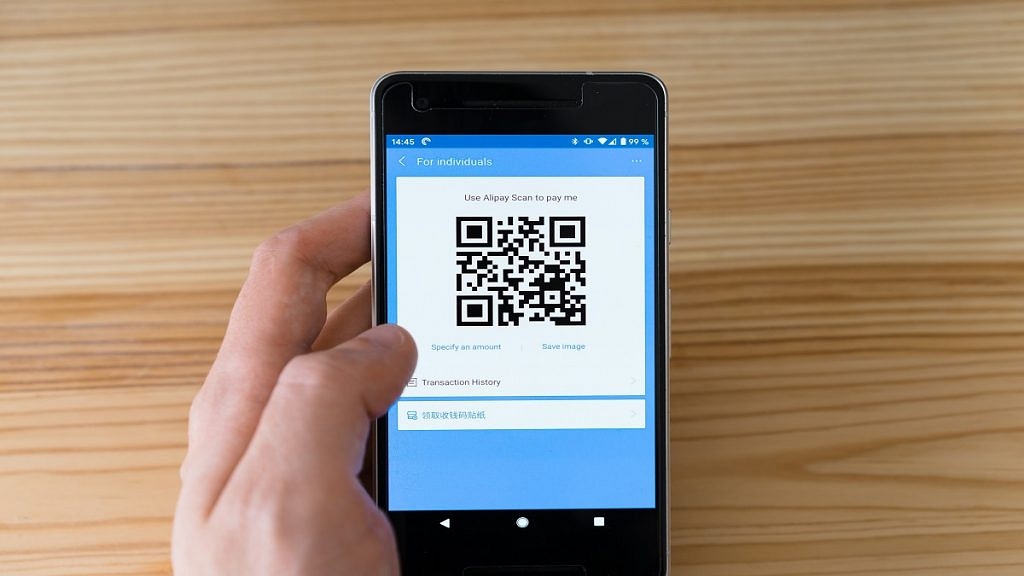
Need To Scan A QR Code On Android And iPhone? Here’s How You Can Do It

Key Highlights

  • Scanning QR codes on Android and iPhone is simple
  • It can be done using the built-in camera app
  • Just make sure the QR code is centered in the viewfinder, and the camera is close enough to capture the code clearly

QR codes have become increasingly popular over the years, and they are now an essential part of modern life. A QR code is a two-dimensional code that can store various types of information, such as URLs, text, and contact information. Scanning QR codes on Android and iPhone is easy and can be done using the built-in camera app. Also Read | Paytm Lite: What Is It? How To Setup And Use Paytm Lite On Smartphones?

How To Scan QR Codes On Android?

Step 1: Open the camera app on your Android device. Some Android devices have a dedicated QR code scanner, while others require the use of the camera app.

Step 2: Point your camera at the QR code. Make sure the QR code is centered in the viewfinder, and the camera is close enough to capture the code clearly.

Step 3: Wait for the camera to recognize the QR code. Once the code is recognized, you will see a notification on your screen.

Step 4: Tap on the notification to open the link or information stored in the QR code. If the code contains a link, it will open in your default browser.

Also Read | How To Edit Facebook Photos Via Mobile, Desktop App Directly

How To Scan QR Codes On iPhone?

Step 1: Open the camera app on your iPhone. QR code scanning is built into the camera app, so there is no need to download a separate app.

Step 2: Point your camera at the QR code. Make sure the QR code is centered in the viewfinder, and the camera is close enough to capture the code clearly.

Step 3: Wait for the camera to recognize the QR code. Once the code is recognized, you will see a notification at the top of your screen.

Step 4: Tap on the notification to open the link or information stored in the QR code. If the code contains a link, it will open in your default browser.

If your iPhone is running iOS 11 or later, you can also use the Control Center to scan QR codes. To do this, swipe up from the bottom of the screen to open the Control Center, and then tap on the QR code scanner icon. Point your camera at the QR code, and wait for it to be recognized.

Also Read | Check Internet Speeds: How To Test Mobile And Wi-Fi Internet Speeds Using Facebook Mobile App

Categories
Apps Featured How To

Check Internet Speeds: How To Test Mobile And Wi-Fi Internet Speeds Using Facebook Mobile App

Key Highlights

  • Facebook allows internet speed testing via mobile app
  • Speed test feature can be accessed from Settings and Privacy menu
  • Both mobile and Wi-Fi speeds can be tested using Facebook App

Facebook is one of the biggest social media platforms that is available for the Android and iOS smartphone users globally. It not just allows media sharing, but also helps the audience with staying connected with the world and distant relatives/friends. A stable internet connection is required to access Facebook services without any hiccups or lags.

While using Facebook, you might have experienced slower browsing speeds or media loading. This could be due to low internet speeds of you mobile network or Wi-Fi. Of course, there are numerous dedicated apps for internet speed testing. In fact, Google search engine can also be used for testing internet speeds.

Also Read: How To Upload WhatsApp Status In High Quality (Images, Videos) On Android, iOS?

But what if you don’t have any dedicated app for internet speed testing and you are in the middle of using Facebook. Well, the social media giant has a way out for the same. Facebook app has a built-in feature with which you can easily test the speeds of any network with which your device is connected. Want to know the steps how you can check Wi-Fi or mobile data speeds using Facebook app? Read on below:

Also Read: 100 Best Instagram Name Ideas For Graphic Designers

How To Check Mobile, Internet Wi-Fi Speeds Using Facebook Mobile App?

Step 1: Launch Facebook mobile application on your respective Android and iOS devices.

Step 2: Tap on your Profile menu.

Step 3: Scroll down to Settings & Privacy option. Click on it.

Step 4: A new window will pop up with multiple settings options. Locate “Wi-Fi and mobile performance” option.

Also Read: How To Download Or Transfer All Facebook Videos And Images Directly To Google Photos

Step 5: As soon as you tap on the Wi-Fi and mobile performance a new page will open up showing the Mobile, Wi-Fi, and Your Speed options.

Step 6: Select the appropriate network whose speeds you want to test.

Step 7: Tap on the Your Speed option.

Step 8: You will now see the Run a speed test option. Click on it to initiate the speed test run.

Step 9: The exact Download and Upload speeds will be shown when the speed test is complete.

Also Read: How To Edit Facebook Photos Via Mobile, Desktop App Directly

Categories
Apps Featured How To

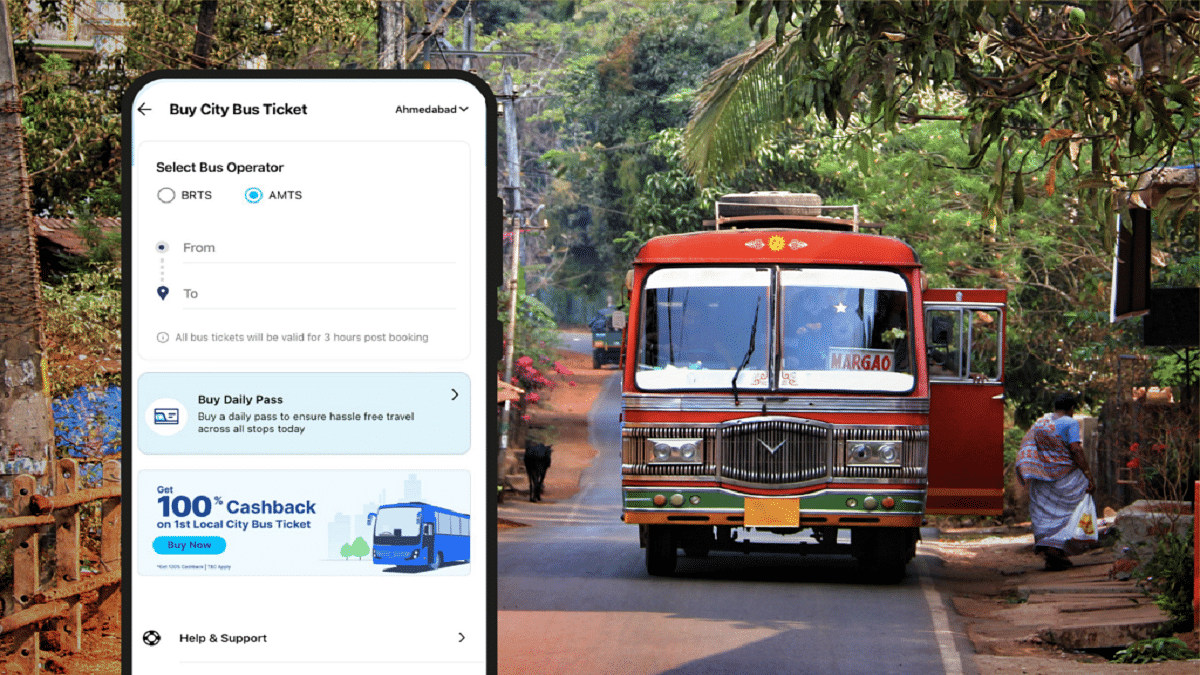
Use Paytm To Book Your Bus Tickets: A Step-By-Step Guide

Key Highlights

  • Paytm offers a convenient and hassle-free way to book your bus tickets online
  • Users can easily search for available buses, select their preferred seats, and pay securely through the app
  • Paytm offers various deals and cashback offers to make bus travel more affordable

Paytm is a leading digital payments and e-commerce platform in India that has now diversified into travel ticketing services. The platform offers an easy and convenient way to book bus tickets online. In this article, we will guide you on how to book your bus tickets on Paytm. Also Read | Last-Minute Travel Plans? Here’s How To Book Tatkal Train Tickets Online

Steps To Book Bus Tickets Via Paytm

By following the listed steps, you can easily book your bus tickets on Paytm and enjoy a comfortable journey.

Step 1: Download the Paytm app on your smartphone. You can download the app from the Google Play Store or Apple App Store. Once you have downloaded and installed the app, you need to sign up or log in to your Paytm account.

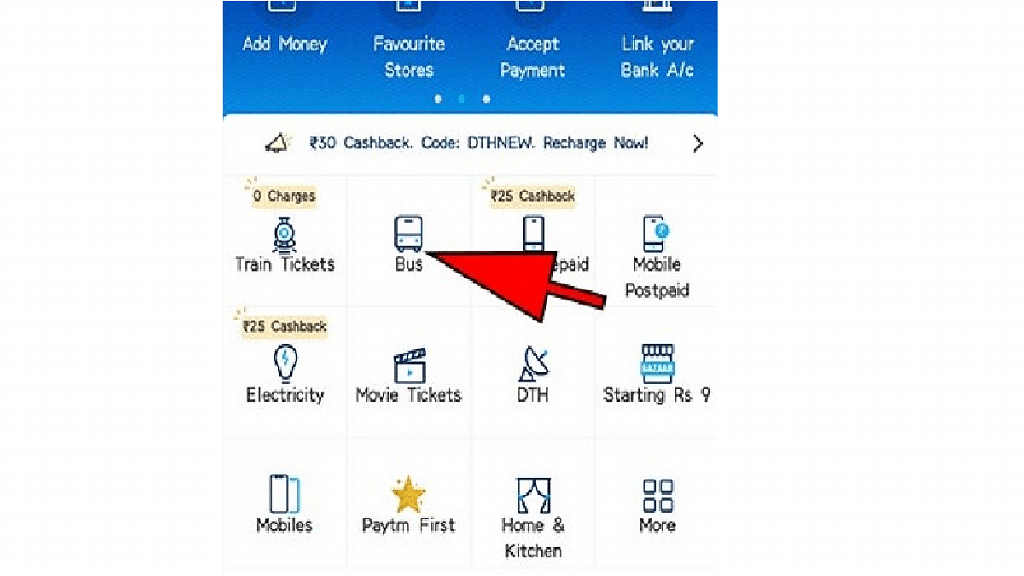
Step 2: After you have logged in to your Paytm account, you need to select the Bus Ticket Booking option from the home screen. This will take you to the bus ticket booking page where you can enter your travel details.

Step 3: On the bus ticket booking page, you need to enter your travel details, such as your destination, departure city, date of travel, and the number of seats required. Once you have entered all the details, click on the Search button.

Step 4: After you have clicked on the Search button, Paytm will display a list of available bus options that match your travel details. You can choose your preferred bus from the list based on the bus operator, bus type, fare, and timing.

Also Read | Best Mobile Apps To Easily Find Parking Spot For Your Car

Step 5: Once you have selected your bus, you need to choose your preferred seats and click on the Continue button.

Step 6: You will be redirected to the payment page where you can choose your preferred payment method, such as Paytm Wallet, Credit Card, Debit Card, or Net Banking. Follow the prompts to complete your payment and confirm your booking.

Step 7: After your payment is processed, you will receive a confirmation message and an e-ticket on your registered mobile number and email ID. You can save the e-ticket on your device or take a printout of it to carry with you while traveling.

Also Read | Best Websites For Perfect WhatsApp DP For Girls

Categories
Apps Featured How To

Last-Minute Travel Plans? Here’s How To Book Tatkal Train Tickets Online

Key Highlights

  • Tatkal scheme allows travelers to book tickets one day in advance
  • Booking Tatkal train tickets through the IRCTC website and app is a simple process
  • Users can book tatkal train tickets from the comfort of their home

Tatkal train tickets are a popular option for travelers who need to make last-minute bookings or want to secure a seat on a high-demand train. The Indian Railway Catering and Tourism Corporation (IRCTC) is the official website for booking train tickets in India, and it offers a simple and convenient way to book Tatkal tickets online. Here is a step-by-step guide on how to book Tatkal train tickets through the IRCTC website and app. Also Read | List Of Best Government Apps Offering AI Chatbot Support To Improve User Experience

How To Book Tatkal Train Tickets On The IRCTC Website?

Step 1: Log in to the IRCTC official website with your user ID and password. If you don’t have an account, you will need to create one.

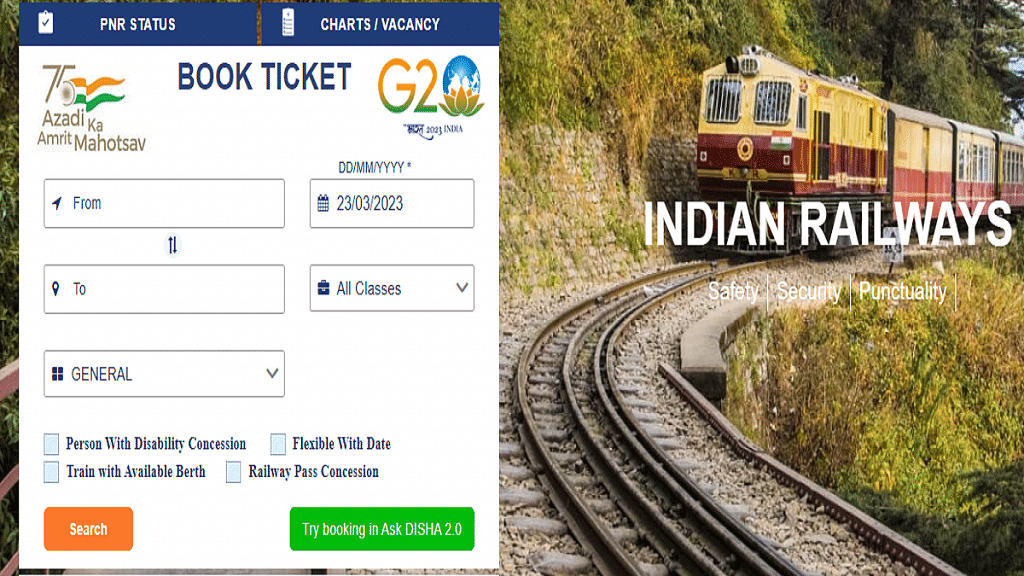
Step 2: Under Book Ticket, enter the From and To city/station, and select your travel date and preferred travel class. Then, select Tatkal from the dropdown menu along the quota field.

Step 3: Tap Search to open a list of suitable trains based on your selection. Find the train of your choice and click on the travel class below to check availability and price details for Tatkal tickets on the day of your travel.

Step 4: Select the desired class and click the ‘Book Now’ link.

Step 5: Enter the passenger details, such as name, age, gender, and ID proof number.

Step 6: Select your payment method and make the payment.

Step 7: Once the payment is successful, your Tatkal ticket will be booked.

Also Read | Best Apps To Detect Hidden Camera For Android And iOS

Steps To Book Tatkal Train Tickets Via IRCTC App

Step 1: Download and install the IRCTC app on your mobile phones. The app is available for download on both the Google Play store and App store for Android and iPhone users, respectively.

Step 2: Log in to the app with your user ID and password. If you don’t have an account, you will need to create one.

Step 3: Select Trains > Book Ticket. Then, enter the From and To station/city, choose travel class and date, set quota as Tatkal, and click on Search Trains.

Step 4: Enter your travel details, such as the source and destination stations, travel date, and class of travel.

Step 5: Enter the passenger details, such as name, age, gender, and ID proof number.

Step 6: Select your payment method and make the payment.

Step 7: Once the payment is successful, your Tatkal ticket will be booked.

It’s important to note that Tatkal tickets are subject to availability, and they tend to sell out quickly. To increase your chances of getting a Tatkal ticket, make sure you’re ready to book as soon as the booking window opens. For AC classes, the booking window opens at 10 AM, and for non-AC classes, it opens at 11 AM, one day before the date of travel. By following the steps outlined above, you can book your Tatkal ticket quickly and easily.

Also Read | Best Government Apps Offering AI Chatbot Support

Categories
Featured How To Info

What Is A Masked Aadhaar Card? Here’s How You Can Download It Online

Key Highlights

  • Downloading a masked Aadhaar Card is a simple process that can be completed online
  • It is a safer alternative to the regular Aadhaar Card
  • Masked Aadhar Card can be used for all purposes where an Aadhaar Card is required

The Aadhaar Card is a unique identification card that is issued by the Indian government to its citizens. The Aadhaar Card contains a 12-digit unique identification number and other important details of an individual such as their name, address, and biometric information. It is used as proof of identity and address for various purposes such as opening bank accounts, applying for loans, and availing of government schemes. However, considering personal privacy issues, UIDAI has developed another version of Aadhaar called Masked Aadhaar. Also Read | Wrong Name, Address On Your Aadhaar Card? Here’s How To Update It

What Is A Masked Aadhaar Card?

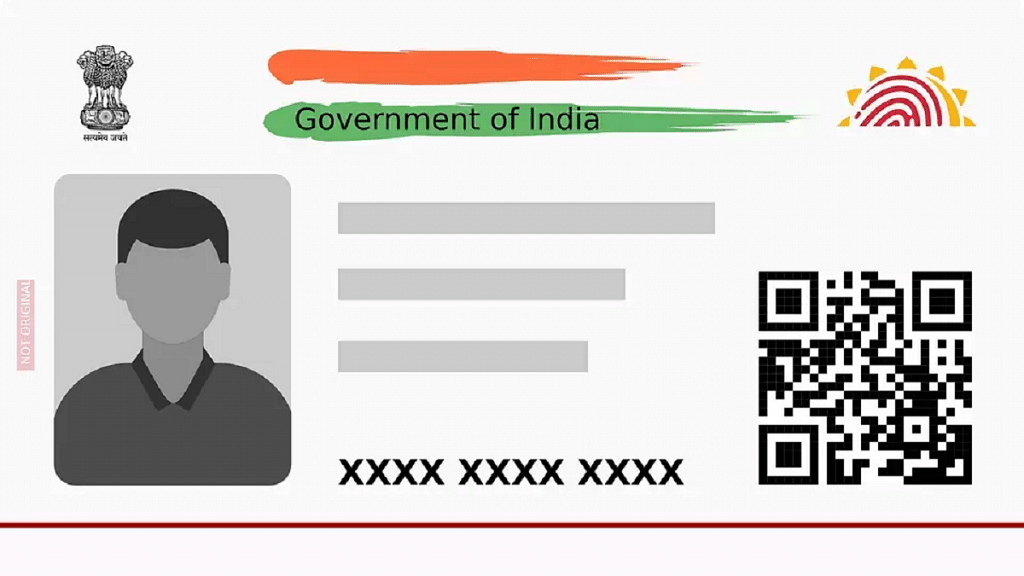
The masked Aadhaar card is a version of the Aadhaar card that displays only the last four digits of an individual’s Aadhaar number, while the rest of the number is replaced with asterisks. This version of the Aadhaar card is designed to protect an individual’s privacy, as it prevents the full Aadhaar number from being visible to anyone who may not require it.

The masked Aadhaar card can be used in the same way as a regular Aadhaar card for identification purposes. It is particularly useful when an individual needs to provide proof of identity for a specific purpose, such as opening a bank account or applying for a loan. By using a masked Aadhaar card, individuals can protect their personal information and prevent identity theft.

Also Read | Aadhaar Not Linked To Mobile Number? Here’s How To Do

How To Download Masked Aadhar Card?

Downloading a masked Aadhaar Card is a simple process that can be completed online. Here are the steps to download a masked Aadhaar Card:

Step 1: Visit the official UIDAI website.

Step 2: From the “My Aadhaar” tab, click the “Download Aadhaar” option.

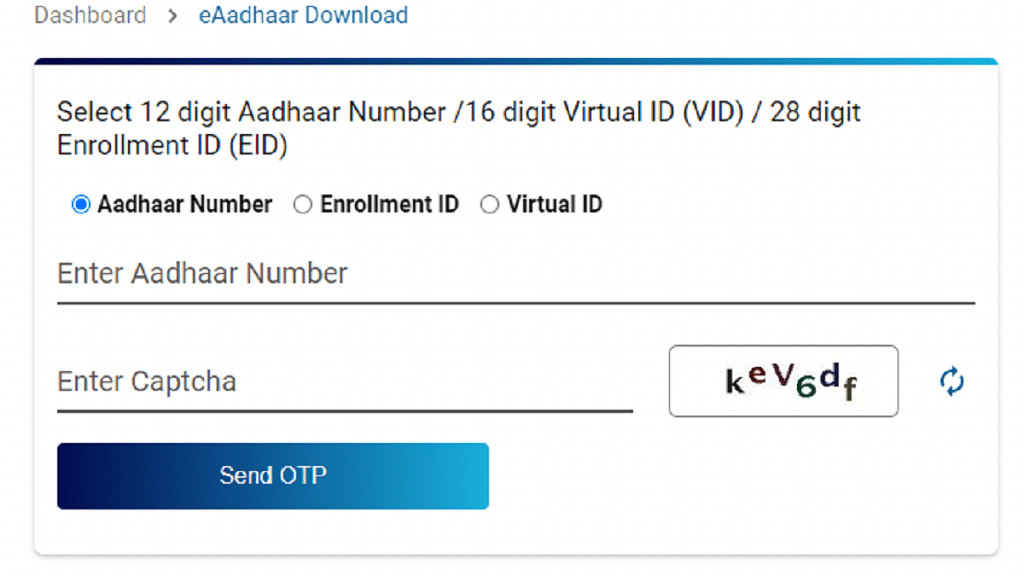
Step 3: If you already have an Aadhaar card, select “Aadhaar Number”, put in the 12-digit Aadhaar number, and enter Captcha on the portal. Or, use the 28-digit enrolment number. You can also use the Virtual ID option where you can enter the 16-digit Virtual ID on the portal to download the masked Aadhaar.

Step 4: Select the masked Aadhaar by checking the box that says “I want a masked Aadhaar”.

Step 5: Click on the “Send OTP” option.

Step 6: On your registered mobile number, you will receive an OTP.

Step 7: Enter the OTP on the portal to access your masked Aadhaar.

Step 8: Your masked Aadhaar Card will be downloaded in PDF format.

It is important to note that the masked Aadhaar Card can be used as a valid proof of identity and address, just like the regular Aadhaar Card. It is a safer option, as it prevents misuse of the Aadhaar number. Additionally, the masked Aadhaar Card can be used for availing government schemes, opening bank accounts, and applying for loans, just like the regular Aadhaar Card.

Also Read | How To Update And Change Mobile Number On Aadhaar Card Online

Categories
Apps Featured How To

Easy Ways To Recharge Your Excitel Broadband: Here’s How

Key Highlights

  • Excitel broadband is a popular internet service provider.
  • Recharging Excitel broadband is a simple and hassle-free process.
  • Users can choose to recharge through the Excitel website.

Excitel Broadband is a popular internet service provider in India, offering high-speed broadband services at affordable prices. With its focus on providing reliable and fast internet connectivity, Excitel has become a preferred choice for many users across the country. The company offers a range of broadband plans, including unlimited data plans, which come with speeds of up to 300 Mbps. To enjoy uninterrupted internet access, users need to recharge their Excitel broadband account regularly.

Also Read | Internet Speed Check: How To Test Accurate Wi-Fi, Mobile Internet Speed Using Google

Steps To Recharge Excitel Broadband Via Website

Recharging Excitel broadband is a simple process, and it can be done online through the Excitel website or mobile app “my Excitel”. Here is a step-by-step guide on how to recharge Excitel broadband:

Step 1: Visit the Excitel website or download the Excitel mobile app from Google Play Store or Apple App Store.

Step 2: Sign in to your Excitel account using your registered mobile number and password.

Step 3: Once you are logged in, click on the “Recharge” option from the homepage.

Step 4: Choose the plan that you want to recharge and click on the “Recharge” button.

Step 5: You will be redirected to the payment page where you can choose your preferred payment method such as debit/credit card, net banking, or UPI.

Step 6: Enter the required payment details and click on the “Pay” button.

Step 7: Once the payment is successful, you will receive a confirmation message on your registered mobile number and email.

Also Read | How To Check Airtel Balance Via MyAirtel App, Self-Care Service, And USSD Code

Steps To Recharge Excitel Broadband Via Paytm

Users can also recharge their Excitel broadband account through third-party recharge portals like Paytm, PhonePe, or Google Pay. Here are the steps to recharge Excitel broadband through Paytm:

Step 1: Open the Paytm app and click on the “Broadband” option.

Step 2: Select Excitel as your service provider and enter your registered mobile number.

Step 3: Choose the plan that you want to recharge and click on the “Proceed” button.

Step 4: Enter the required payment details and click on the “Pay” button.

Step 5: Once the payment is successful, you will receive a confirmation message on your registered mobile number and email.

By following the above-mentioned steps, users can recharge their Excitel broadband account and enjoy uninterrupted internet access.